

Last Updated on 19 Oct, 2025 by Montel Anthony
Losing important emails in Gmail can be frustrating, but recovery is often possible. Whether emails were accidentally deleted, marked as spam, or lost due to filters, this guide covers eight proven methods to retrieve them.
READ: 5 Email Apps alternative for Gmail or Outlook
Key Takeaways
- Check Spam, Trash, and All Mail folders first.
- Use Gmail’s search with keywords or sender details.
- Review filters and forwarding settings that may hide emails.
- Free up storage if Gmail is full.
- Restore emails within 30 days using the Gmail Recovery Tool.
- For older deletions, contact Google Support or check Google Vault (for Workspace users).
- Prevent future losses by archiving instead of deleting.
READ: How to Recall an Email in Outlook
1. Check the Spam Folder
Gmail’s spam filter sometimes mislabels legitimate emails. If an expected email is missing, follow these steps:
Read: How To Recover Deleted Files in Google Drive
- Open Gmail on a computer or mobile app.
- Click the hamburger menu (☰) and select Spam.

- Search for the missing email by sender or keywords.
- If found, select the email and click Report not spam to move it to your inbox.
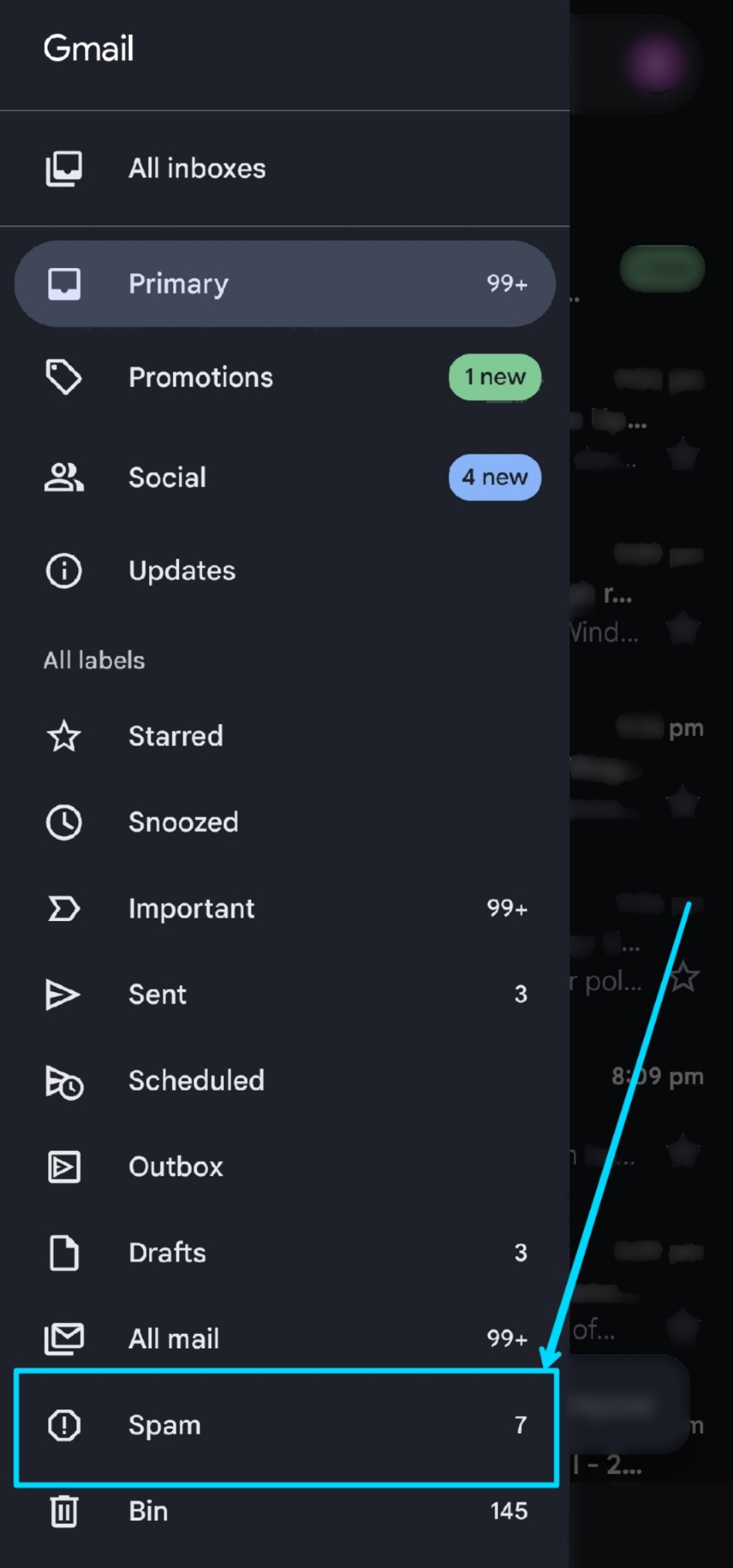
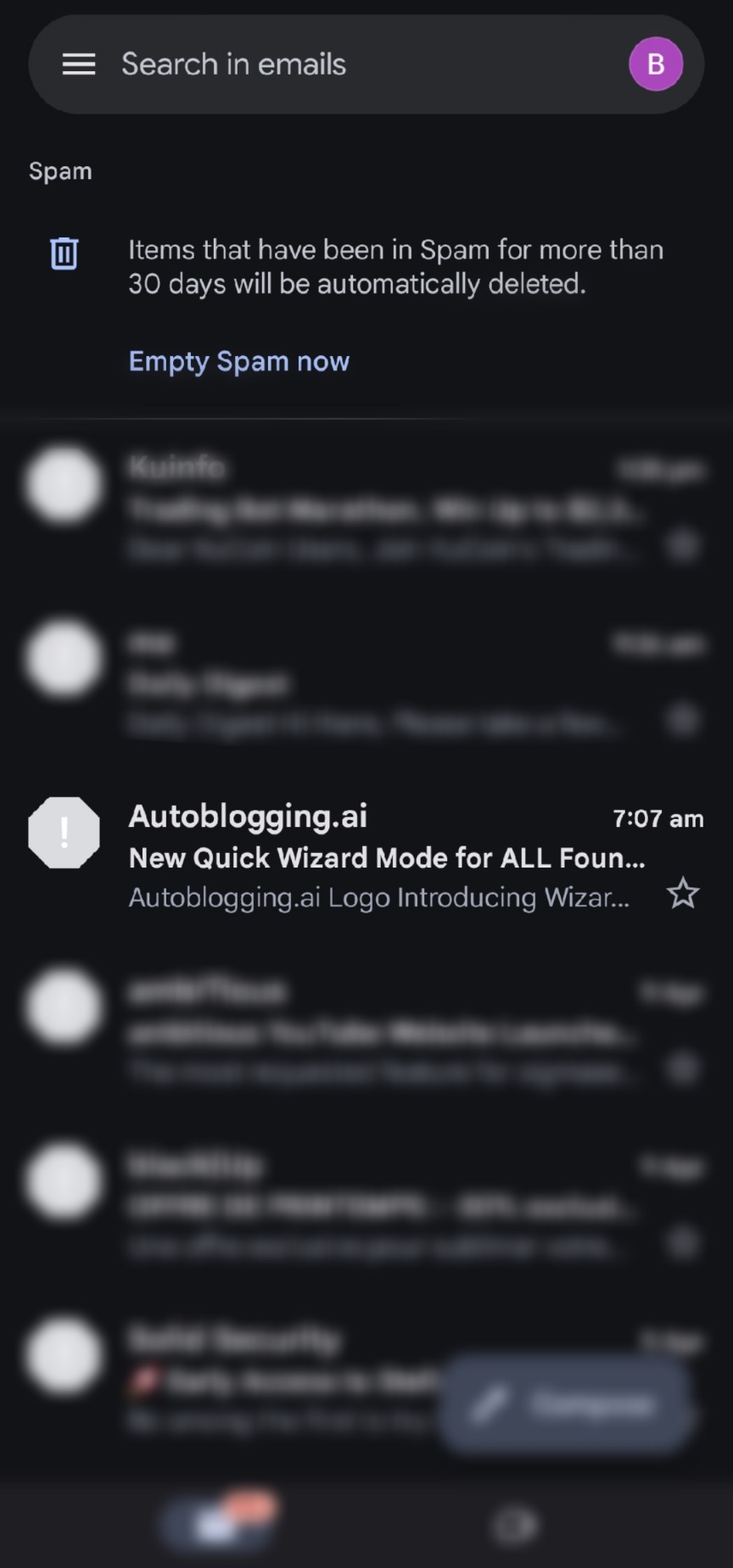
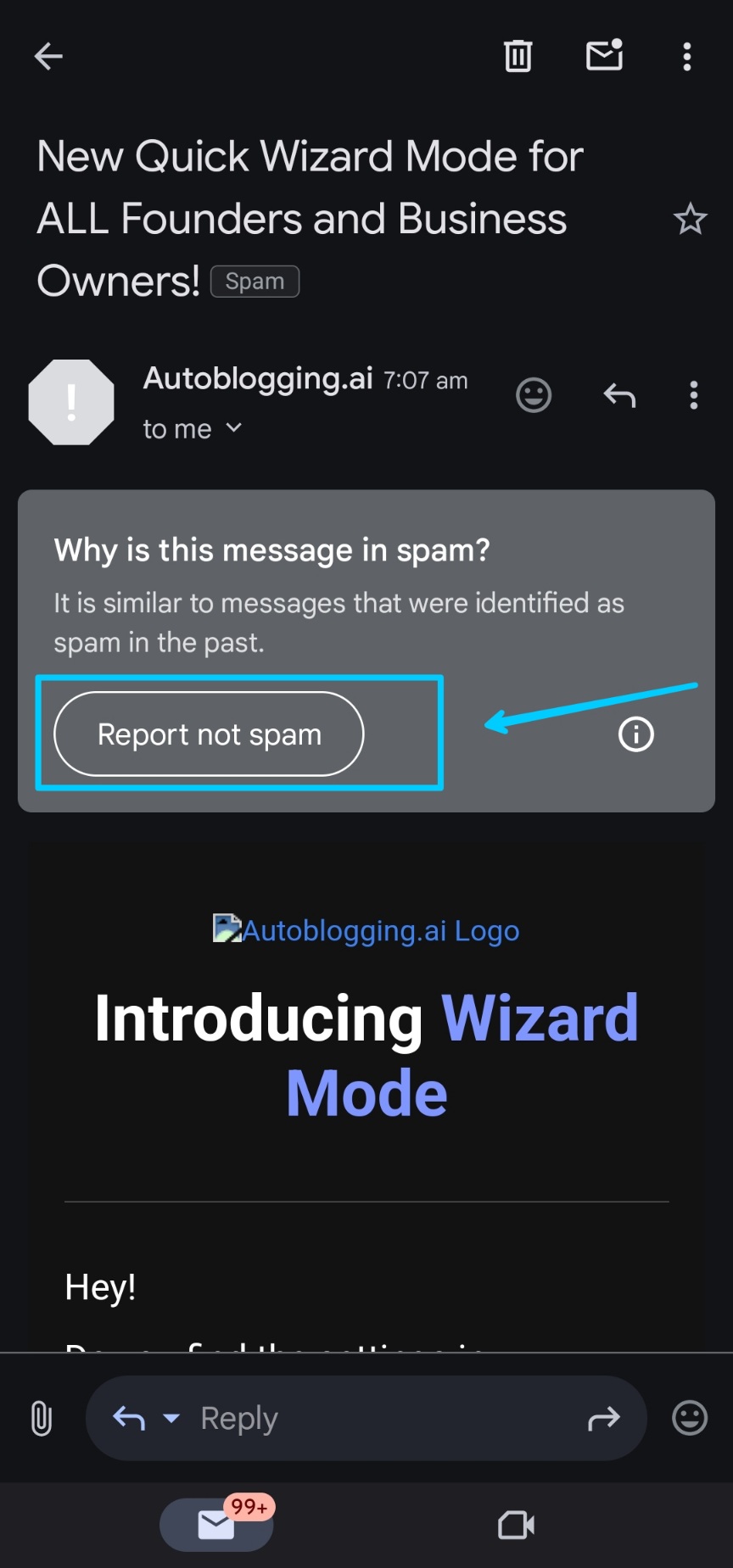
Emails in Spam are automatically deleted after 30 days, so check promptly .
2. Search the Trash (Bin) Folder
Deleted emails stay in Trash for 30 days before permanent removal. To recover them:
On Desktop:
- Open Gmail and click More > Trash (or type
in:trashin the search bar). - Select the email and click Move to > Inbox.
On Mobile:
- Open the Gmail app, tap ☰ > Trash (or Bin).

- Select the email, tap ⋮ > Move to > Inbox.
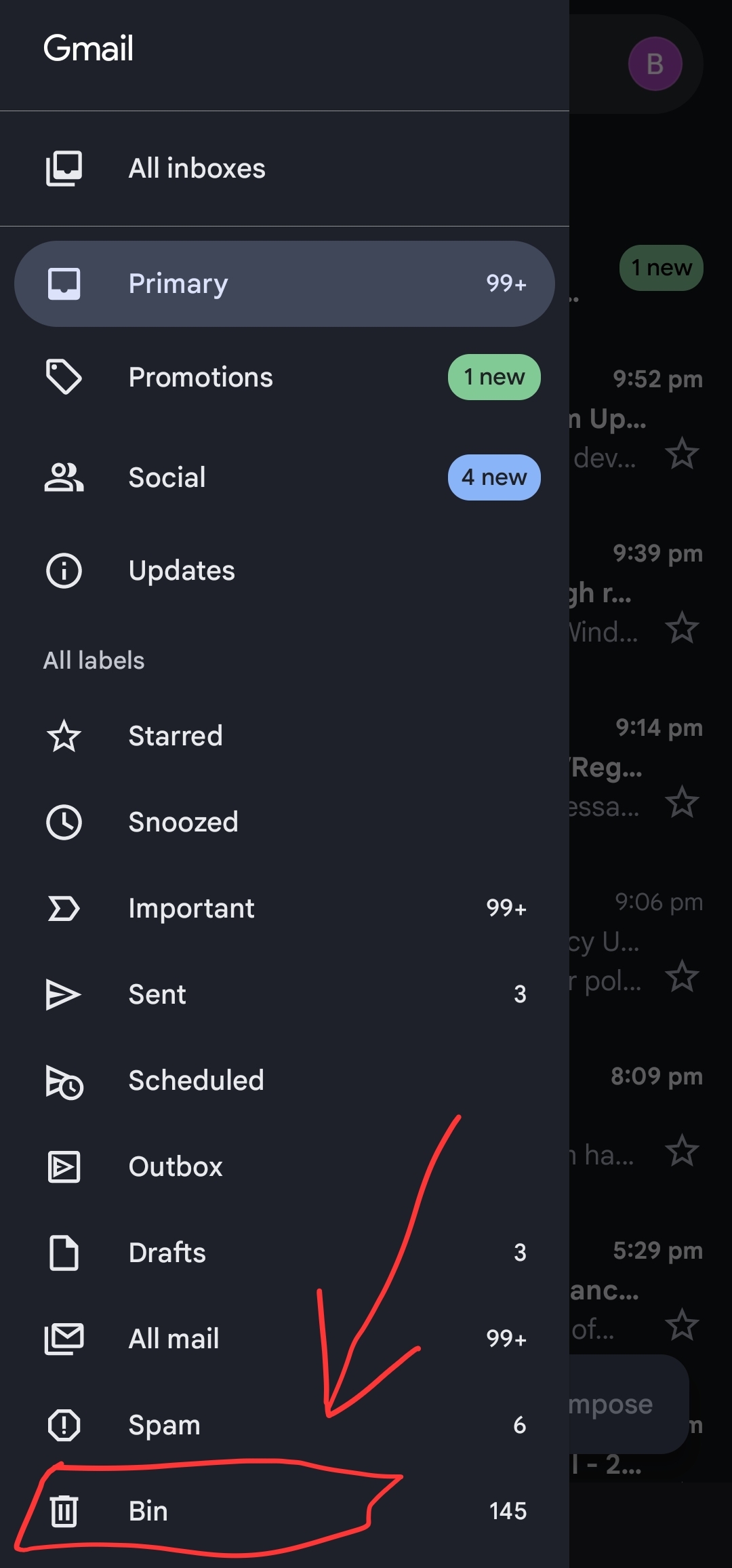
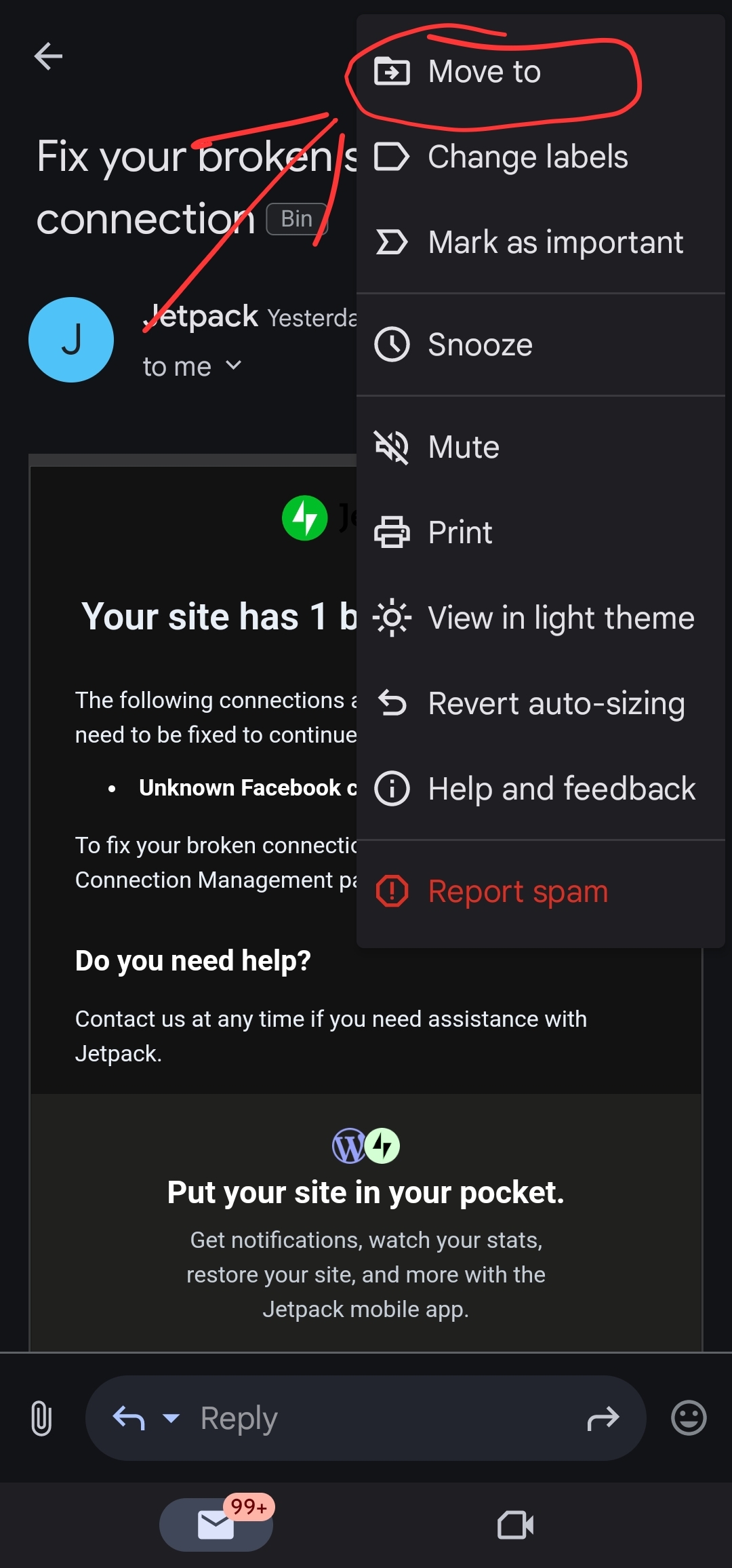
If Trash is hidden, go to Settings > Labels > Show Trash .
3. Use Gmail Search Effectively
Gmail’s search can locate emails across all folders. Try these filters:
- From a sender:
from:[email protected] - With keywords:
subject:"meeting notes" - Date range:
after:2025-03-01 before:2025-03-31 - Combined search:
from:[email protected] AND subject:"project"
For advanced options, click the down arrow in the search bar .
4. Check the All Mail Folder
The All Mail folder stores every email, including archived ones. To find missing messages:
- Click More > All Mail in the sidebar.
- Use the search bar to narrow results.
- If found, move the email back to your inbox.
This is useful if emails were archived accidentally .
5. Review Filters and Blocked Addresses
Filters can automatically delete or archive emails. To check:
- Go to Settings (⚙) > See all settings > Filters and Blocked Addresses.


- Look for filters with actions like Skip Inbox or Delete It.
- Edit or delete problematic filters.
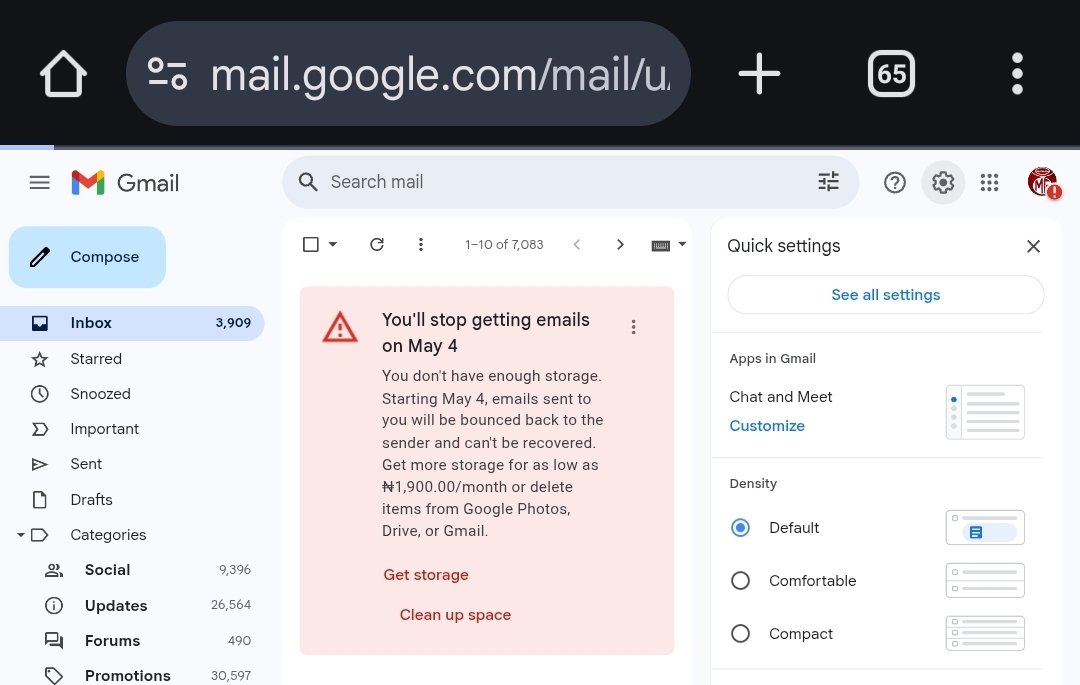
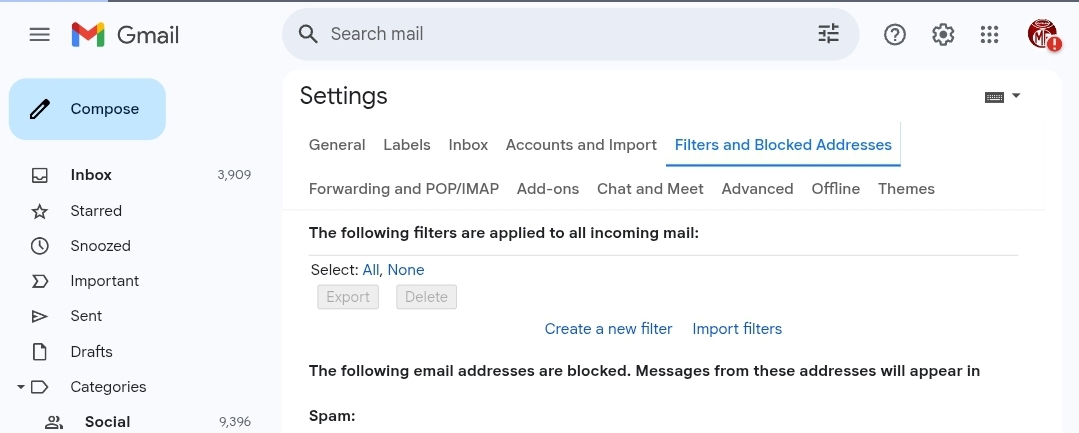
If a sender is blocked, their emails go to Spam. Check out Gmail tools to clear Unwanted emails.
6. Check Forwarding and POP/IMAP Settings
If emails are forwarded to another account:
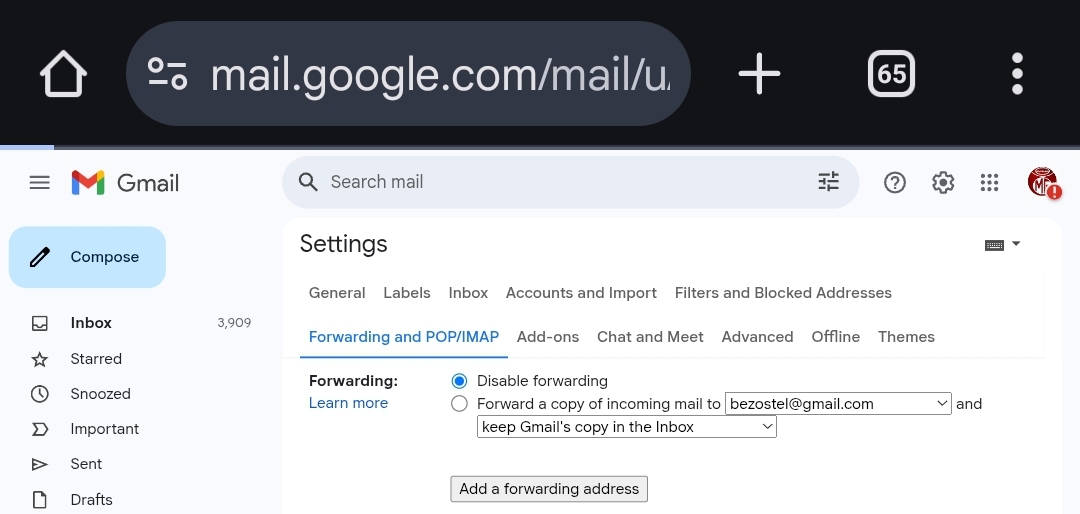
- Open Settings > Forwarding and POP/IMAP.
- Ensure “Keep Gmail’s copy in the Inbox” is selected.

- If an unknown address appears, disable forwarding—your account may be compromised .
7. Use the Gmail Recovery Tool
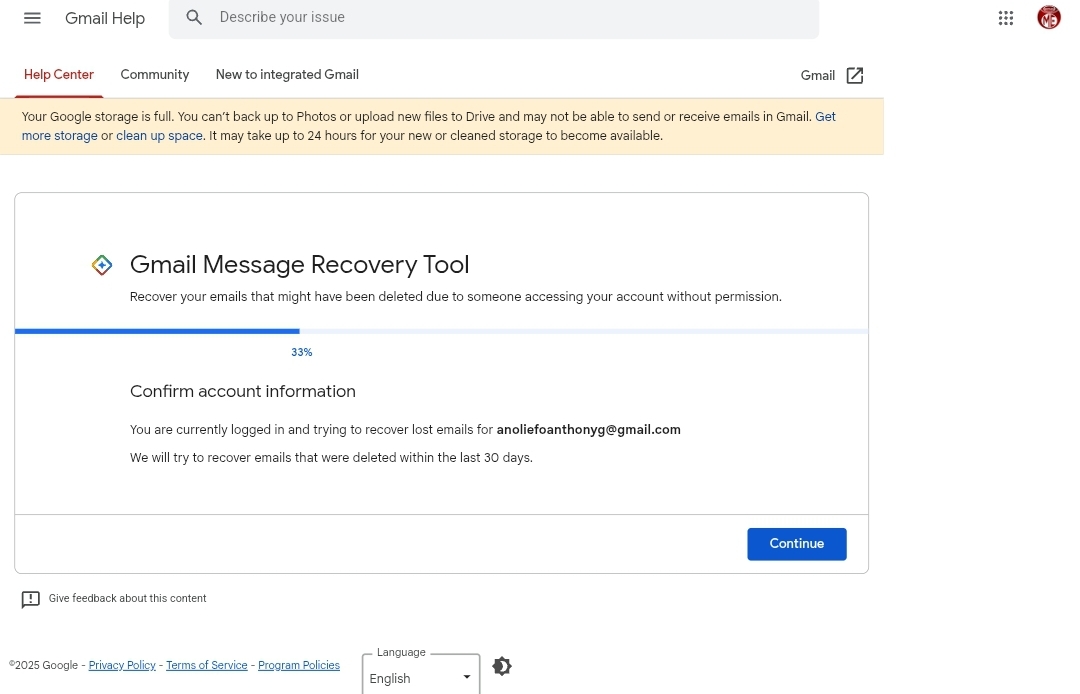
For emails permanently deleted within 30 days:
- Visit Gmail’s Message Recovery Tool.
- Sign in and follow prompts to scan for recoverable emails.
This works best for accidental deletions .
8. Contact Google Support or Use Google Vault
If emails are older than 30 days:
- Workspace users can try Google Vault (retains emails based on admin settings).
- Personal account users may contact Google Support, though recovery isn’t guaranteed .
Preventing Future Email Loss
- Archive instead of deleting to keep emails accessible.
- Regularly check Spam and Trash.
- Disable auto-delete filters.
- Monitor account security to prevent unauthorized changes.
By following these steps, you can recover missing emails and avoid future losses. If one method fails, try the next—persistence often pays off.
Need further help? Visit Gmail Help Center for official guidance.
Conclusion
This guide ensures you have every possible method to retrieve lost emails in Gmail, from quick checks to advanced recovery tools. Stay proactive, and your inbox will remain organized and secure.
Discover more from Cloudorian — Android, Samsung & Windows How-To Guides
Subscribe to get the latest posts sent to your email.



