

Windows 11 26H2 remains a preview, not a finished public release. You can download the Windows 11 26H2 ISO through Microsoft’s Insider portal or build one with UUP Dump. This guide covers the safer download path, architecture choices, Rufus USB creation, installation, verification, and recovery planning.
What the Windows 11 26H2 ISO Is and Why It Matters
A Windows 11 26H2 ISO contains the installation files for Microsoft’s upcoming Windows release. You can mount it for an in-place upgrade, write it to a USB drive, or install it inside a virtual machine.
Microsoft’s current 26H2 preview builds use the 26300 series. The release shares its servicing foundation with Windows 25H2, so Microsoft can deliver many changes through an enablement package.
That detail affects your installation choice. PCs running Windows 24H2 or 25H2 may receive a smaller version change. Older systems may need a fuller upgrade or clean installation.
Windows 11 26H2 can help advanced users test upcoming features, check application compatibility, and prepare deployment plans. It makes less sense for a primary work computer that cannot tolerate crashes or driver problems.
Windows 11 26H2 Preview Status
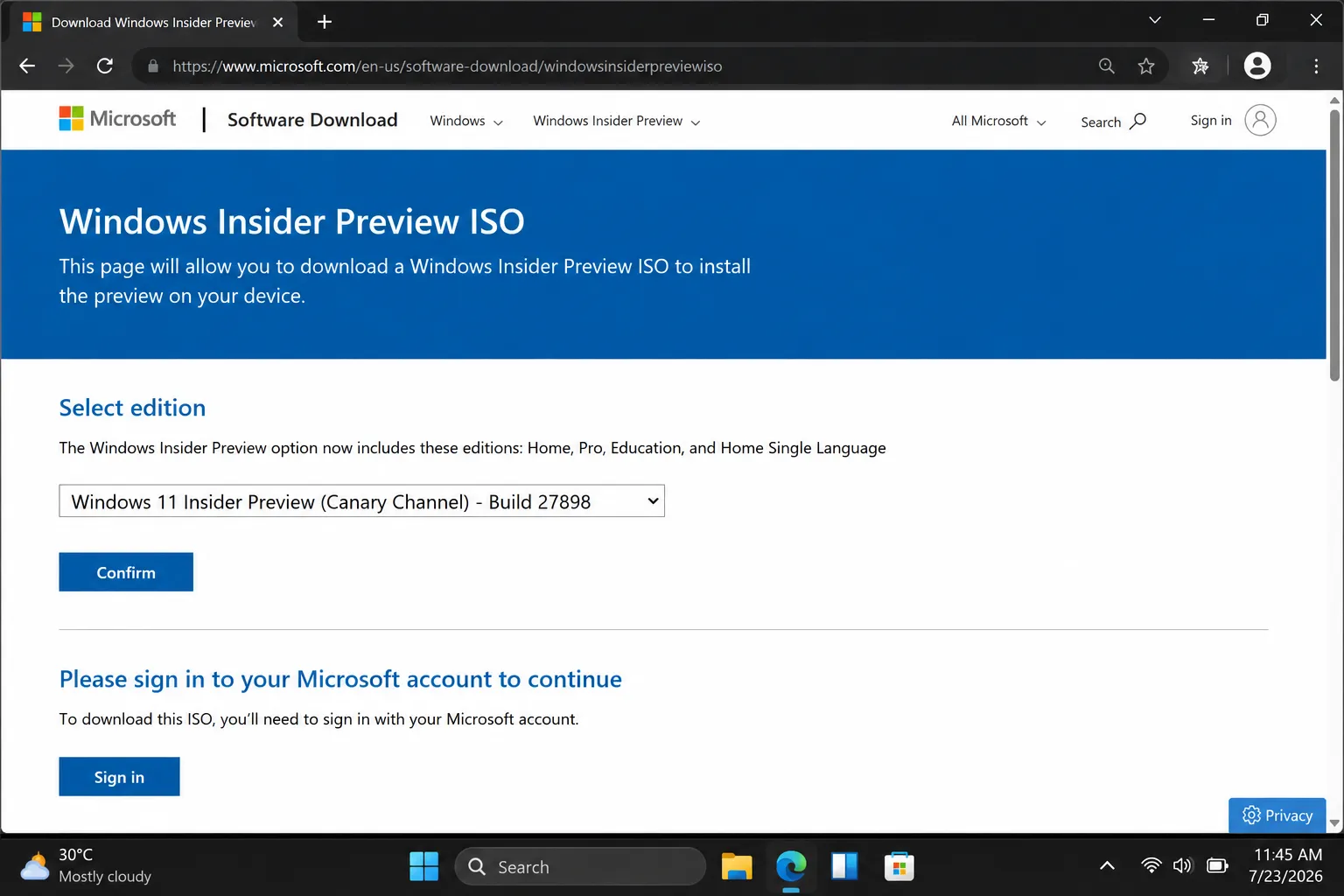
Microsoft’s regular Windows download page currently lists Windows 11 25H2 as the public release. Microsoft provides preview ISO downloads through the Windows Insider Preview ISO page.
You need Windows Insider access and a Microsoft account to open the available download choices. Microsoft may show different builds based on the current preview program status.
Preview software can contain unfinished features, driver failures, compatibility bugs, and update problems. Treat this release as test software, especially if you plan to install it on unsupported hardware.
Microsoft ISO Versus UUP Dump
Microsoft’s Insider portal should be your first choice. It provides the cleanest official route when the required Windows 11 26H2 build appears in the download list.
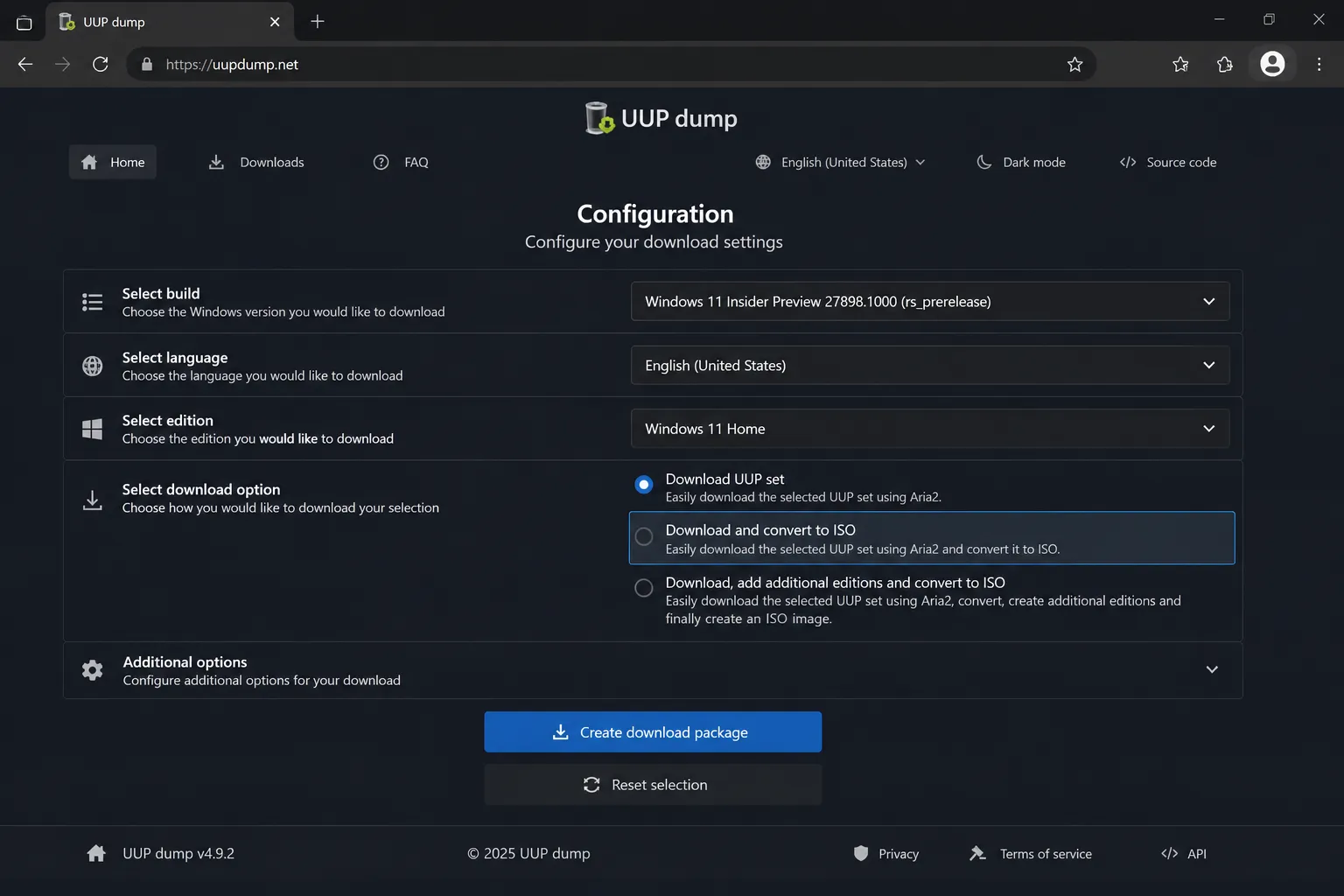
UUP Dump provides a practical fallback. The tool creates a download package that retrieves Windows components from Microsoft update servers. It then converts those files into an ISO on your computer.
The finished UUP Dump image remains unofficial. The files come from Microsoft, but UUP Dump does not provide a Microsoft-signed finished ISO.
| Method | Source status | Best for | Main limitation |
| Microsoft Insider ISO page | Official Microsoft download | Users who want the safest source | Requires Insider access and sign-in |
| UUP Dump | Local conversion from Microsoft files | Users needing a specific preview build | Requires scripts, storage, and patience |
| Random ISO website | Unverified | No legitimate reason | Malware, tampering, and missing files |
Avoid random ISO mirrors. A file can install correctly and remain unsafe.
For general ISO checks, review Cloudorian’s Windows 11 ISO download guide. It explains direct downloads, file hashes, upgrades, and clean installations.
Which Method Should You Choose?
Choose Microsoft’s Insider page if it lists Windows 11 26H2. This route reduces uncertainty around the download source.
Choose UUP Dump if you need a specific 26300-series build, language, edition, or architecture. Advanced users can also create an image before Microsoft adds that build to the official ISO page.
Do you need 26H2 for daily work, or are you testing software compatibility? Your answer should determine the installation method.
Requirements Before You Download Windows 11 26H2
Check your hardware, storage, backup, and recovery options first. A preview ISO creates more work when you start without a recovery plan.
Confirm Your Architecture
Most Intel and AMD computers require the x64 ISO. ARM-based devices require the ARM64 ISO.
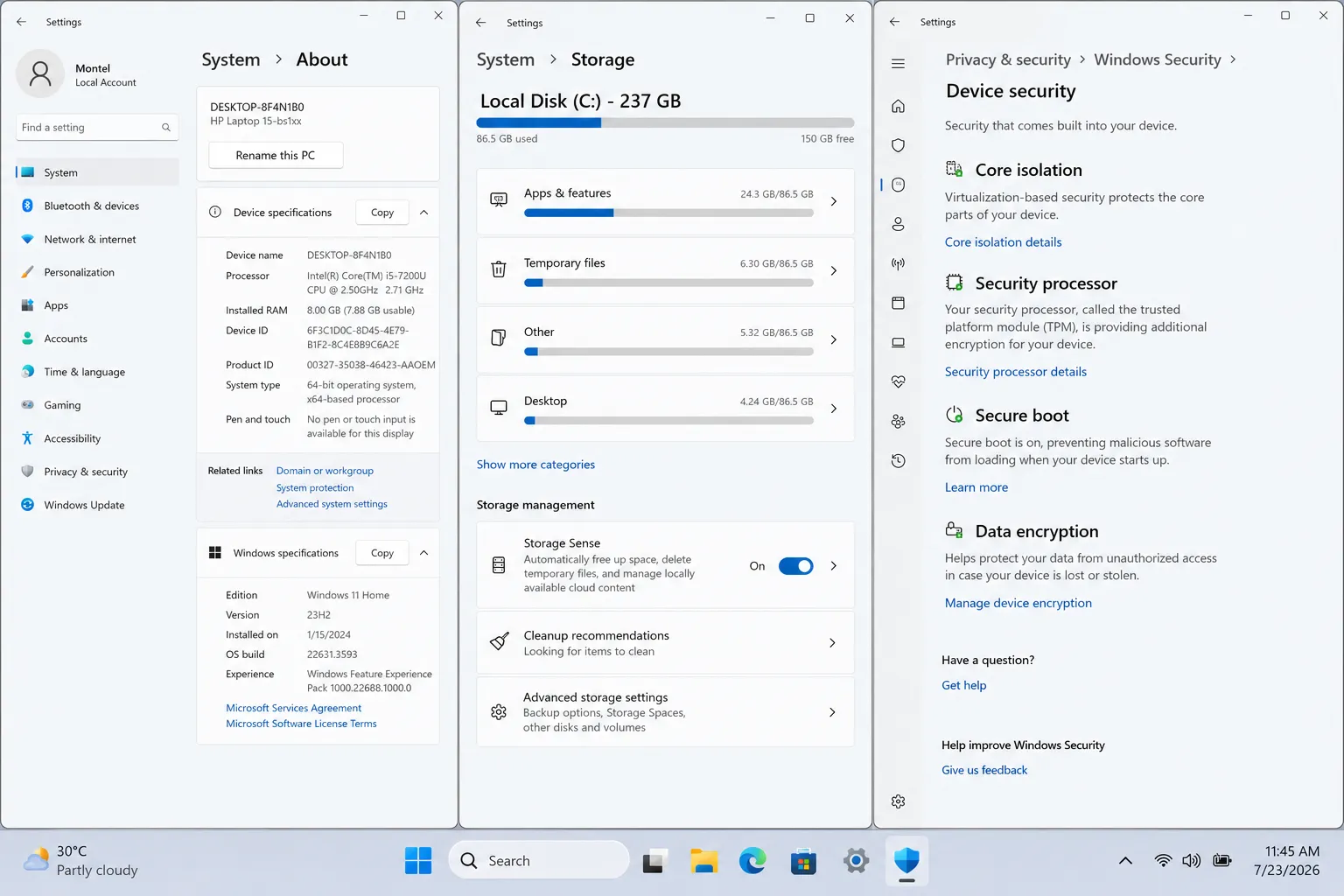
Check your processor under Settings > System > About. Look for the processor model and system type before choosing a download.
Choose x64 for common Intel Core, Intel Atom, and AMD Ryzen computers. Choose ARM64 for compatible Snapdragon and other ARM-based Windows devices.
An incorrect architecture can block installation. It can also remove the option to keep your apps and personal files.
Check the Windows 11 Hardware Baseline
Microsoft’s Windows 11 requirements include:
- A compatible 64-bit processor with at least 1 GHz and two cores.
- At least 4 GB of RAM.
- At least 64 GB of available storage capacity.
- TPM 2.0 support.
- UEFI firmware with Secure Boot capability.
- DirectX 12-compatible graphics with a WDDM 2.0 driver.
Open Windows Security > Device security to check the security processor. Open Settings > System > Storage to review free space.
Rufus may offer bypass options for TPM, Secure Boot, RAM, and Microsoft account checks. Those options do not make unsupported hardware officially supported.
Prepare Storage and Backups
UUP Dump may need about 70 GB of free space during conversion. The final ISO requires less space, but temporary files can fill your system drive.
Back up documents, browser profiles, project folders, application settings, and license information. Save your BitLocker recovery key before changing firmware or boot settings.
Create a Windows recovery drive before installing the preview. Download network, chipset, storage, and graphics drivers to a second USB drive.
WARNING: A clean installation deletes files, applications, and settings from the selected Windows partition.
How to Download the Official Windows 11 26H2 ISO
Microsoft’s Insider portal offers the cleanest download path. Follow these steps when the required build appears.
Step 1. Join the Windows Insider Program
Open Microsoft’s Windows Insider website and sign in with your Microsoft account.
Join the program if Microsoft requests enrollment. Review the terms before accepting them.
You may download an ISO without switching your main computer into a preview channel. The download page and the installed operating system follow separate choices.
Step 2. Open the Insider ISO Page
Open the official Windows Insider Preview ISO page.
Select Sign in in the upper-right corner. Sign in with the account connected to your Insider membership.
Refresh the page after signing in. Private browsing can help if the page shows stale account information.
Step 3. Select the 26H2 Preview Build
Choose Windows 11 26H2 when Microsoft lists it. Look for the 26300 build series.
Select the newest compatible build unless you need an older release for a specific test. Record the full build number before downloading.
Step 4. Choose the Language and Edition
Choose the language that matches your current Windows installation. A language mismatch can remove the option to keep apps and files.
Select the edition that matches your license, such as Home or Pro. An edition mismatch can block activation after installation.
Step 5. Download the ISO
Save the ISO to a local drive with enough free space. Avoid network shares and removable drives during the download.
Record the filename, architecture, language, edition, and build number. Those details help when you troubleshoot setup later.
Microsoft explains mounting, running setup.exe, and choosing clean installation options in its Windows Insider ISO instructions.
How to Create a Windows 11 26H2 ISO with UUP Dump
UUP Dump helps when Microsoft’s official portal does not show the build you need. This process requires more storage and technical attention.
Step 1. Select a 26300-Series Build
Open the Windows 11 26H2 section on UUP Dump. Choose the newest available 26300-series build.
Select x64 for Intel or AMD hardware. Select ARM64 for a compatible ARM computer.
Check the build number carefully. A nearby build from another channel may not match your testing goal.
Step 2. Select the Language and Editions
Choose your installation language.
Select the editions you want inside the image. Choosing fewer editions can reduce processing time and image size.
Select Next after each configuration screen.
Step 3. Choose the ISO Conversion Option
Select Download and convert to ISO.
Enable Include updates when the option appears. This setting adds available updates during the local conversion process.
Select Create download package and save the ZIP archive.
Step 4. Extract the Download Package
Open the ZIP file in File Explorer.
Select Extract all and choose a short local folder. A path such as C:\UUP26H2 reduces script errors.
Do not run the script directly inside the compressed archive. Extract every file first.
Step 5. Run the Conversion Script
Right-click uup_download_windows.cmd.
Select Run as administrator and approve the permission prompt.
Windows Defender SmartScreen may display a warning for the script. Continue only after confirming the download source and reviewing the files.
Follow the prompts until the script finishes. The process may take up to an hour.
The completed ISO appears inside the extracted folder. Rename it with the build number and architecture before moving it.
PRO TIP: Keep the UUP folder on an internal SSD. External drives and long folder paths cause many avoidable conversion failures.
How to Verify the Windows 11 26H2 ISO
Verification helps detect incomplete downloads and documents the exact image you tested.
Check the ISO Properties
Right-click the ISO and select Properties.
Review the file size and filename. Confirm that the name identifies the expected architecture, language, edition, and build.
An unusually small image may indicate an interrupted download or failed conversion.
Calculate the SHA-256 Hash
Open PowerShell and run this command:
Get-FileHash "C:\Path\Windows11-26H2.iso" -Algorithm SHA256
Compare the result with a trusted hash from Microsoft or the official release source.
UUP Dump-generated images may not have a Microsoft-published hash for the exact finished file. Record the source, build number, and conversion date when no trusted hash exists.
Confirm the Installed Build
After installation, press Windows + R.
Type winver, then press Enter.
Confirm that the displayed version and OS build match your downloaded image. Check Settings > Windows Update for available updates.
How to Create a Windows 11 26H2 Bootable USB with Rufus
Rufus offers the simplest path for creating installation media. Cloudorian’s Rufus 4.15 download guide covers its broader features and setup options.
Step 1. Prepare the USB Drive
Use a USB drive with at least 8 GB of capacity.
Copy anything important from the drive. Rufus erases the selected device during the process.
Download Rufus from its official website and open the executable.
Step 2. Select the ISO
Choose the USB drive under Device.
Select Select, then open the Windows 11 26H2 ISO.
Choose Standard Windows 11 Installation under Image option.
Step 3. Configure the Partition Settings
Choose GPT under Partition scheme.
Choose UEFI (non-CSM) under Target system.
Keep the default file system and cluster size unless your target computer requires different settings.
Step 4. Choose Hardware Options
Select Start.
Clear bypass options when your hardware meets Microsoft’s requirements.
Rufus may offer options to remove checks for TPM 2.0, Secure Boot, RAM, and an online Microsoft account. Use those options only for test systems.
Step 5. Complete the USB Creation
Confirm the warning that Rufus will erase the USB drive.
Wait until Rufus reports completion. Safely eject the drive before connecting it to another computer.
How to Install Windows 11 26H2 from the ISO
You can perform an in-place upgrade or a clean installation. Pick the path that matches your goal.
In-Place Upgrade
Use an in-place upgrade when you want to keep compatible files, applications, and settings.
- Right-click the ISO in File Explorer.
- Select Mount.
- Open the new virtual DVD drive.
- Double-click
setup.exe. - Allow Setup to check for updates.
- Accept the license terms.
- Choose Keep personal files and apps.
- Select Install.
- Keep the computer connected to power.
Microsoft’s setup process may remove the keep-files option when the language, edition, architecture, or build does not match.
Clean Installation
Use a clean installation on a spare computer, test drive, or virtual machine.
- Connect the Rufus USB drive.
- Restart the computer.
- Open the boot menu during startup.
- Select the USB installation drive.
- Choose your language, time, and keyboard settings.
- Select Install now.
- Choose the correct Windows edition.
- Select Custom: Install Windows only.
- Choose the target partition.
- Delete partitions only after checking your backup.
- Continue through Windows Setup.
- Finish the out-of-box experience.
Test Windows 11 26H2 in a Virtual Machine
A virtual machine gives you a safer place to inspect the preview. Hyper-V, VMware Workstation, and VirtualBox can all run Windows test installations.
Assign at least 4 GB of RAM, two virtual processors, and 64 GB of virtual storage. Increase those values when your computer has enough resources.
Create a snapshot before installing updates or testing software. Restore the snapshot after a failed experiment.
Virtual machines do not reproduce every real hardware condition. Wi-Fi, graphics acceleration, Bluetooth, sleep, and laptop battery behavior may differ.
Common Windows 11 26H2 ISO Problems and How to Fix Them
Problem: Microsoft says access requires Insider membership
Cause: Your account has not joined the program or has not completed sign-in.
Fix:
- Sign in with the Microsoft account linked to Insider access.
- Join the Windows Insider Program if Microsoft requests enrollment.
- Refresh the ISO page.
- Open the page in a private browser window.
- Sign out and sign in again if the build list remains empty.
Problem: UUP Dump stops with a mount error
Cause: Windows cannot mount or process temporary image files.
Fix:
- Move the extracted folder to a short local path.
- Confirm at least 70 GB of free space.
- Run the cleanup script included in the UUP folder.
- Restart the conversion script as administrator.
- Check security software logs for quarantined files.
Problem: Rufus fails during USB creation
Cause: The USB drive may contain errors, write protection, or locked files.
Fix:
- Reconnect the USB drive.
- Try another USB port.
- Remove write protection.
- Run Rufus as administrator.
- Test another USB drive.
- Recreate the ISO if Rufus reports a corrupted image.
Problem: Setup does not offer “Keep personal files and apps”
Cause: The ISO does not match the current language, edition, architecture, or build.
Fix:
- Run
winverto check the current Windows version. - Confirm the ISO architecture.
- Match the installation language.
- Confirm the Windows edition.
- Choose a clean installation if the mismatch remains.
Problem: The computer fails to boot after installation
Cause: Firmware settings, boot order, storage drivers, or unsupported hardware may block startup.
Fix:
- Open UEFI settings.
- Confirm UEFI boot mode.
- Check the boot order.
- Disconnect other bootable drives.
- Open Windows Recovery Environment.
- Restore your backup if the preview remains unstable.
Tips and Pro Moves for Advanced Users
Keep each ISO with its build number, architecture, hash, release date, and testing notes. That record makes future troubleshooting much easier.
Install the preview on a spare SSD when possible. Disconnect your primary drive during a clean installation to prevent accidental partition changes.
Save network, chipset, graphics, storage, and touchpad drivers before replacing Windows. Keep them on a second USB drive.
Avoid unsupported hardware for workstations and business computers. Bypasses can create update, driver, security, and stability problems.
Check Settings > Windows Update > Windows Insider Program after installation. Confirm that the device uses the channel you intended.
Are you testing 26H2 on a spare PC, or do you need it for daily work? That answer should decide whether you install the preview at all.
Frequently Asked Questions About Windows 11 26H2 ISO Download
Q: Is Windows 11 26H2 ISO officially available?
A: Microsoft provides preview ISO access through the Windows Insider portal when the matching build appears there. The regular Windows download page may continue showing Windows 11 25H2 until Microsoft publishes the final release.
Q: Can I download Windows 11 26H2 without joining Windows Insider?
A: UUP Dump may let you create an ISO from publicly available Microsoft preview files. Microsoft’s official Insider ISO page requires account access and program membership.
Q: Is UUP Dump safe for downloading Windows 11 26H2?
A: UUP Dump creates a local image from files retrieved from Microsoft update servers. The finished ISO remains unofficial, so verify the source and test it on non-critical hardware.
Q: What build number identifies Windows 11 26H2?
A: Windows 11 26H2 preview builds use the 26300 series. Microsoft may publish newer revisions, so choose the latest compatible build.
Q: Should I choose x64 or ARM64?
A: Choose x64 for most Intel and AMD computers. Choose ARM64 for supported ARM-based devices, including some Copilot+ PCs.
Q: Can I install Windows 11 26H2 without TPM 2.0?
A: Rufus may offer a TPM and Secure Boot bypass during USB creation. Microsoft may limit support and updates on unsupported hardware, so reserve this method for testing.
Q: Can I upgrade from Windows 10 with the 26H2 ISO?
A: The upgrade path depends on your Windows version, architecture, edition, and compatibility status. Back up your files and expect a clean installation if Setup removes the keep-files option.
Q: Does the preview ISO erase my files?
A: An in-place upgrade can preserve files and applications when Setup offers Keep personal files and apps. A clean installation erases the selected Windows partition.
Verify the Installation Before Daily Use
Check the build with winver after setup finishes. Then open Windows Update and install available updates.
Test Device Manager for missing drivers. Check networking, audio, graphics, Bluetooth, sleep, storage, activation, and external displays.
Open Settings > Windows Update > Windows Insider Program. Confirm that the device uses the intended Insider settings.
Give the preview several days on test hardware before moving it into daily use. A clean first boot does not prove that every driver or application works correctly.
Install Windows 11 26H2 Only with a Recovery Plan
Start with Microsoft’s official Insider ISO page whenever it lists the required build. Use UUP Dump when you need a specific preview image or Microsoft does not list the build.
Create backups, record your BitLocker key, verify the architecture, and test the image on a spare computer or virtual machine. The Windows 11 26H2 ISO download process becomes much safer when recovery takes priority over speed.
For broader Windows installation help, review Cloudorian’s Windows 11 ISO download and installation guide.
Are you testing the Windows 11 26H2 preview on real hardware or inside a virtual machine? Share your build number and installation issue in the comments.
Discover more from Cloudorian — Android, Samsung & Windows How-To Guides
Subscribe to get the latest posts sent to your email.



