

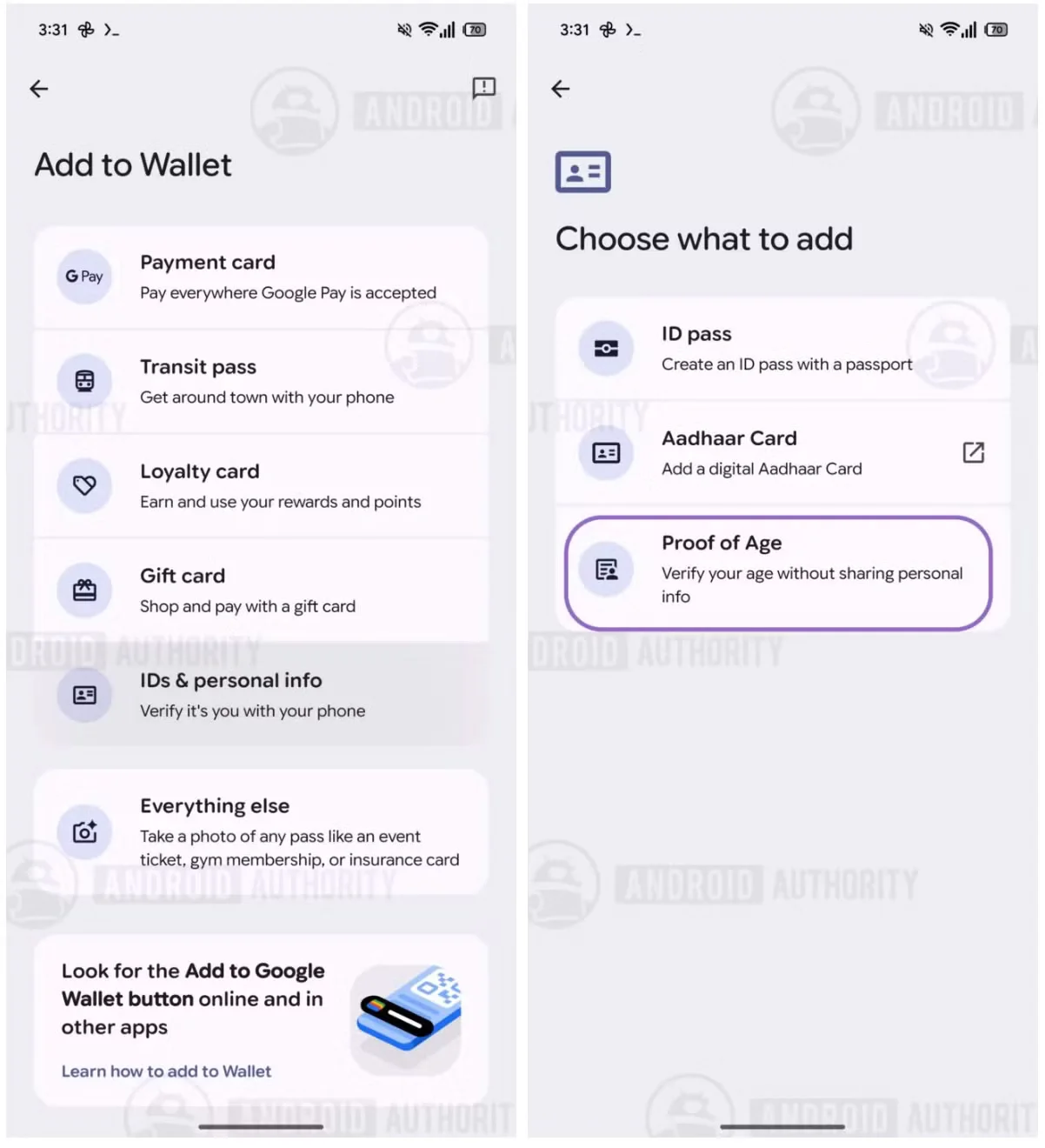
Google Wallet age verification is not available as a normal setting yet. Google appears to be preparing a privacy-focused “Proof of Age” feature that can confirm your age without exposing your birth date. This guide explains what works now, what Samsung users can prepare, and how the planned system should operate.
Key Takeaways
- Google Wallet’s “Proof of Age” feature remains under development.
- Android Police found the feature in Google Wallet version 26.27.941270914.
- Google plans to use zero-knowledge proofs for private age checks.
- You cannot activate the feature manually from Google Wallet today.
- You can prepare your Galaxy phone by updating Wallet, Google Play services, and Android.
- Google Account age verification remains separate from Google Wallet age verification.
What Google Wallet Age Verification Is and Why It Matters
Google Wallet age verification should let you prove that you meet an age requirement without sharing your full identity. A website could confirm that you qualify as an adult without receiving your exact birthday or government ID number.
Android Police found a new “Proof of Age” section inside development code for Google Wallet version 26.27.941270914. The discovery does not confirm a public launch date or final user interface.
Google’s official identity documentation explains the technical direction. Its Digital Credentials API can request verified age information from Google Wallet or another compatible wallet.
The planned system uses zero-knowledge proof technology. This cryptographic method can prove a statement such as “I am over 18” without revealing your date of birth.
This approach matters because online age checks often demand too much information. A website may ask for a passport photo, payment card, facial scan, or full birth date.
Google’s model aims to send only the information required for a transaction. A retailer might receive an adult status confirmation rather than your full identity record.
Google also says users must approve each request. Apps cannot silently query Wallet for your age or identity details.
The feature could help with age-restricted shopping, adult content, gambling services, alcohol purchases, and other regulated activities. Each website must support Google’s credential technology before the process can work.
Google Wallet age verification is different from Google Account verification
Google already offers age verification through your Google Account. That process may request a government ID, selfie, credit card, or other regional method.
You can learn about the existing process through Google’s official age verification support page. This system controls access to Google services and age-restricted content.
Google Wallet age verification should work as a portable credential. A compatible website or app could request proof through the Digital Credentials API.
The difference matters when troubleshooting. Updating Google Wallet will not automatically complete a Google Account age check.
Requirements Before You Start
You cannot enable Google Wallet age verification manually today. You can prepare your Samsung phone for the feature and use existing age verification options.
Your Galaxy phone should meet these conditions:
- It should run a supported Android version with current Google Play services.
- Google Wallet should come from the Google Play Store.
- Your Google Account should use accurate personal information.
- Your screen lock should use a PIN, password, pattern, or biometric method.
- Google Wallet should support your country and device configuration.
- Any digital ID must come from an eligible issuer or supported region.
Google’s developer documentation says digital credentials depend on participating issuers, relying parties, and compatible wallets. A website cannot request a credential that your phone or region does not support.
Update Google Wallet on a Samsung Galaxy
- Open the Google Play Store on your Galaxy phone.
- Tap your profile picture in the top-right corner.
- Select Manage apps & device.
- Tap Updates available.
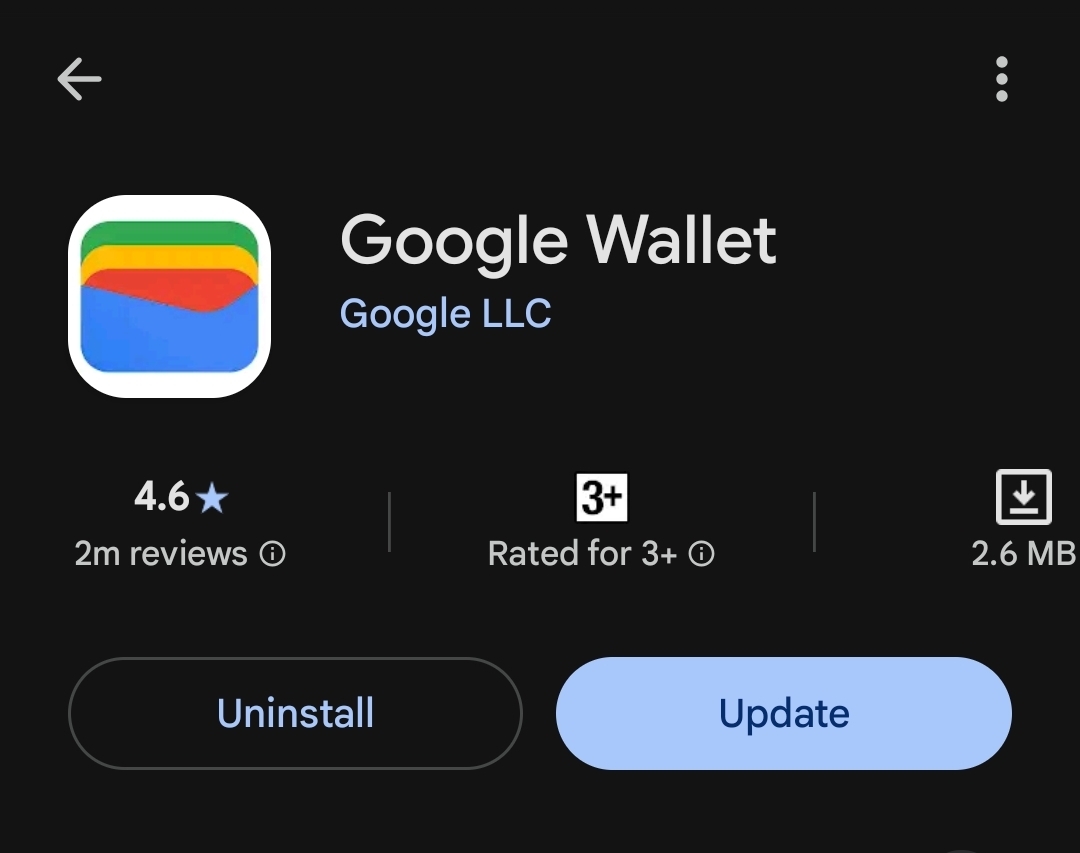
- Find Google Wallet, then tap Update.
- Install every available update for Google Play services.
Google Wallet updates do not guarantee access to unfinished features. Google frequently tests functions through server-side controls and limited releases.
Check your Google Play system update
- Open Settings.
- Tap About phone.
- Select Android version.
- Check the Google Play system update date.
- Install an update if Samsung offers one.
Samsung may use different menu labels across One UI versions. Use the Settings search field if you cannot find Android version.
A current Play system update helps your phone receive Wallet dependencies. It does not force the Proof of Age feature to appear.
Secure your Google Account before adding identity credentials
- Open Settings.
- Tap Google.
- Select Manage your Google Account.
- Open the Security tab.
- Turn on 2-Step Verification.
- Review signed-in devices and remove anything unfamiliar.
Digital credentials can prove sensitive facts about you. Protect your Google Account before adding an ID or approving age requests.
Would you trust a digital credential on a phone without a secure screen lock? That setup creates unnecessary risk, especially if someone can unlock your Galaxy.
How to Use Google Wallet Age Verification
The exact Wallet feature does not have a public activation path. These steps show what you can do now and how the future flow should work.
Step 1. Update Google Wallet from the Play Store
Install the latest public version of Google Wallet through the Play Store. Avoid APK files that claim to unlock Proof of Age.
Unofficial APKs can contain modified code, malware, or account-stealing overlays. Google Wallet handles payment cards and identity credentials, so unofficial builds create a bad trade.
Step 2. Open Google Wallet and check for identity options
- Open Google Wallet.
- Tap your profile picture.
- Look for Wallet settings, Identity, IDs, or Proof of Age.
- Follow the on-screen instructions if an identity option appears.
- Stop if Wallet shows no supported option.
Do not treat the absence of Proof of Age as an installation problem. The feature may remain hidden because Google has not enabled it for your account, country, or device.
Step 3. Add an eligible digital ID if Google offers the option
Google supports different digital ID programs across different regions. Availability depends on government issuers, local laws, device support, and Google’s rollout.
If Wallet shows an option to add an ID, read the issuer details carefully. Confirm that the issuer matches your government document.
- Select Add to Google Wallet.
- Choose the available ID type.
- Review the issuer’s privacy information.
- Follow the identity capture instructions.
- Authenticate with your screen lock.
- Wait for the issuer to approve the credential.
Do not upload an ID to a third-party website claiming to activate Google Wallet age verification. Use Wallet’s official interface or a trusted government application.
A website must integrate the Digital Credentials API before it can request a Wallet credential. Search for a button such as Verify with digital ID or Verify age with Google Wallet.
- Open the supported website or app.
- Start its age verification process.
- Select the digital ID option.
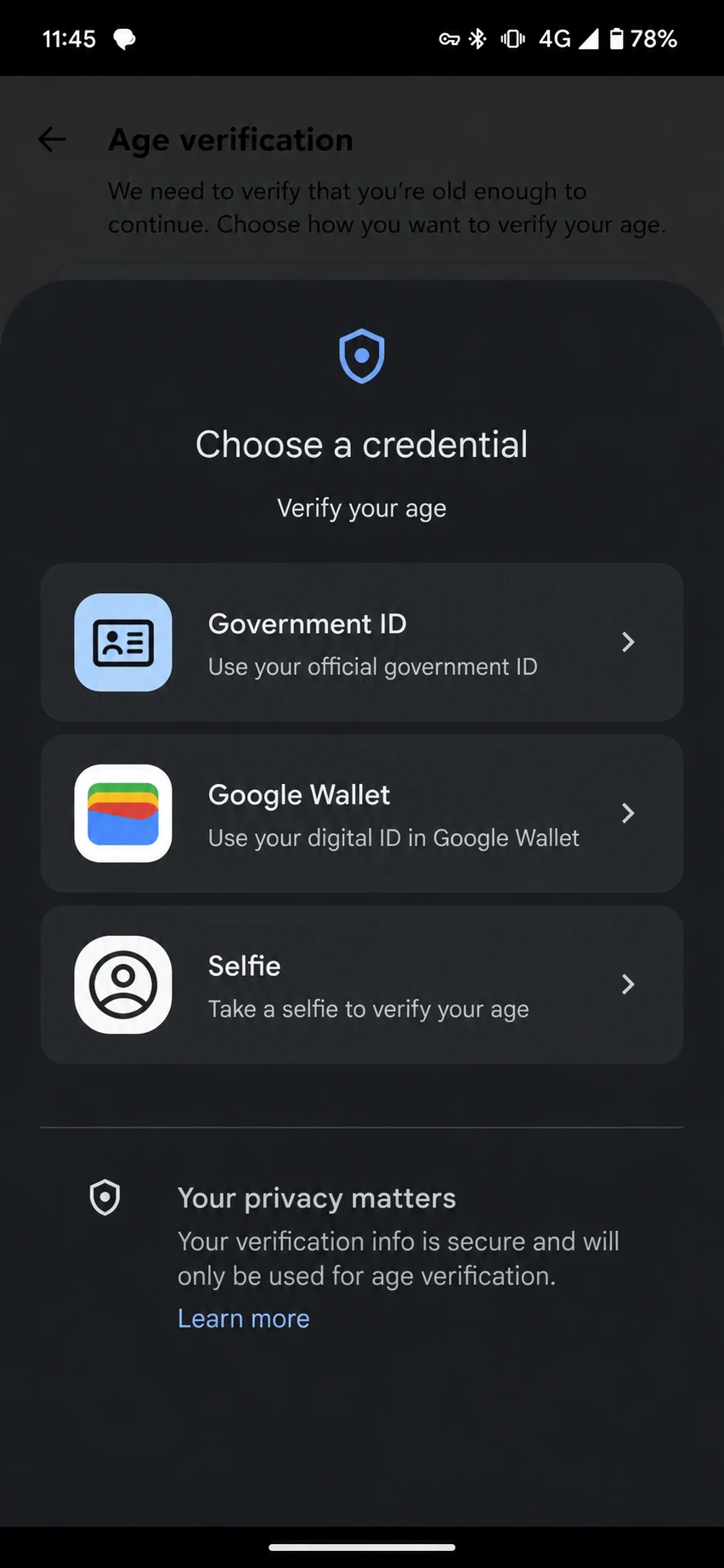
- Choose Google Wallet when Android displays compatible wallets.
- Review the requested information.
- Approve the request with your PIN or biometric method.
- Return to the website and finish the transaction.
Google’s developer flow shows Android matching the website’s request with an eligible credential. Google Wallet then displays the requested data, the developer’s privacy policy, and the confirmation screen.
Step 5. Use cross-device verification from a desktop
Google’s design also supports a cross-device flow. A desktop website can display a QR code that lets your phone complete the credential presentation.
- Open the supported website on your computer.
- Start age verification.
- Select Verify with digital ID.
- Scan the QR code with your Galaxy phone.
- Review the request in Google Wallet.
- Approve the credential transfer.
- Return to the desktop browser.
Cross-device verification requires extra support from the relying party. A normal QR code cannot turn an unsupported website into a Wallet-compatible service.
Current options compared with the planned Wallet flow
| Method | What you share | Where it works | Current status |
|---|---|---|---|
| Google Account age check | ID, selfie, payment method, or regional proof | Google services | Available in supported regions |
| Website document upload | Information requested by that website | Individual websites | Widely available |
| Government digital ID | Verified identity attributes | Supported services and regions | Limited availability |
| Google Wallet Proof of Age | Intended age status without full birth date | Compatible apps and websites | Under development |
| In-person Wallet ID | Selected identity attributes | Participating businesses | Available in select markets |
Google’s official Wallet identity announcement describes zero-knowledge age checks and broader digital ID support. The company has not published a universal Android activation switch for the feature.
Common Google Wallet Age Verification Problems and How to Fix Them
Problem: “Proof of Age” does not appear in Google Wallet
Cause: Google has not enabled the feature for your account, region, or device.
Fix:
- Update Google Wallet through the Play Store.
- Install the latest Google Play system update.
- Restart your Galaxy phone.
- Open Wallet and check its settings again.
- Do not install an unofficial APK.
A missing menu does not prove that your phone has a fault. The Android Police discovery came from development code, not a confirmed public rollout.
Problem: The website does not show a Google Wallet verification option
Cause: The website has not integrated the Digital Credentials API or does not support your credential type.
Fix:
- Update Chrome or your preferred supported browser.
- Sign in to the website.
- Start its age verification process again.
- Look for Verify with digital ID.
- Use the website’s official document or account method if Wallet remains unavailable.
Google’s API requires the website to register as a relying party. Users cannot activate that integration from their phones.
Problem: Android says no eligible digital credential exists
Cause: Your Wallet lacks a supported ID, or the website requested data that your credential does not contain.
Fix:
- Open Google Wallet.
- Review available identity credentials.
- Confirm your issuer supports digital presentation.
- Check that your document remains valid.
- Ask the website whether it accepts your credential type.
Google’s developer documentation says Android matches the relying party’s request with eligible credentials. A credential may exist without meeting a specific request.
Problem: Verification stops after authentication
Cause: The website, browser, or relying party may have lost the verification session.
Fix:
- Return to the original browser tab.
- Disable private browsing for that session.
- Allow pop-ups for the trusted website.
- Update Chrome from the Play Store.
- Restart the verification process.
- Contact the website if the error repeats.
Do not repeatedly upload your ID when the Wallet flow fails. Multiple submissions can create duplicate verification records with the service.
Problem: Your Samsung phone shows an unsupported region
Cause: Digital ID programs depend on local laws and issuer partnerships.
Fix:
- Confirm your Google Account country.
- Check your Samsung account region.
- Confirm the supported country on Google’s identity page.
- Avoid VPNs during identity setup.
- Use an official local verification method.
A VPN cannot create an eligible government credential. It can also trigger account security checks.
Tips and Pro Moves for Samsung Users
Keep your physical ID available. Google says digital IDs do not replace physical identification in every situation.
Use a current screen lock instead of relying only on face recognition. Samsung’s biometric behavior can vary by lighting, camera angle, and security state.
Check the requested data before approving every verification. A site that only needs age status should not request your address or full name.
Use the website’s privacy policy link on the Wallet confirmation screen. Google’s developer flow gives relying parties space to show their name, logo, and privacy policy.
Take a screenshot of error messages before restarting the process. The exact wording helps the website’s support team identify whether Wallet, Android, or its own server caused the failure.
Do not confuse a Wallet card with a verified identity credential. A loyalty card, payment card, or boarding pass cannot prove your age.
Check the Google Play system date after major Samsung updates. Cloudorian’s guide to the April 2026 Google System Update explains where Samsung users can find Play services and Play system information.
You should also review per-pass privacy settings if your Galaxy has the newer Wallet controls. Those settings govern pass data and do not activate Proof of Age.
Frequently Asked Questions About Google Wallet Age Verification
Q: Can I enable Google Wallet age verification right now?
A: No universal activation switch exists. Google Wallet’s Proof of Age feature remains under development based on the code discovery reported by Android Police. You can update Wallet and Android, then wait for a supported rollout.
Q: What is Google Wallet Proof of Age?
A: Proof of Age is a planned Wallet credential that can confirm whether you meet an age requirement. Google intends to use zero-knowledge proofs so services can verify age without receiving your exact birth date.
A: The planned system aims to share only the required age result. A compatible service could receive confirmation that you meet an age threshold. The exact data depends on the credential request and the final Google implementation.
Q: Does Google Wallet age verification work on Samsung phones?
A: Samsung phones should support the Android credential flow when they meet Google’s software, browser, and regional requirements. A Galaxy phone cannot use the feature if Google or the website has not enabled it.
Q: Can I use Google Wallet age verification on a computer?
A: Google’s planned cross-device flow can support desktop websites through a QR code. The website must implement signed requests and support the Digital Credentials API.
Q: Why does Google Wallet show no ID option?
A: Your region may lack a supported issuer, your device may not qualify, or Google may not have enabled the feature. An ordinary payment card or loyalty pass does not count as a digital identity credential.
Q: Is Google Account age verification the same as Google Wallet age verification?
A: No. Google Account age verification controls access to Google services and may request an ID, selfie, or payment method. Google Wallet age verification should provide a reusable credential to compatible apps and websites.
Q: Is Google Wallet age verification private?
A: Google’s stated design uses selective disclosure, user approval, and zero-knowledge proofs. Privacy also depends on the website requesting verification and the data it asks to receive.
Q: Can a website force Google Wallet to reveal my full identity?
A: The website requests specific attributes through the credential system. Google Wallet should show the requested data before you approve sharing. Cancel the request if the website asks for more information than necessary.
What to Do Before Google Rolls Out Proof of Age
Update Google Wallet, Chrome, Google Play services, and your Galaxy phone today. Secure your Google Account, review identity options, and avoid unofficial APKs claiming to unlock hidden Wallet features.
Google Wallet age verification could reduce unnecessary data sharing across age-restricted services. The feature needs compatible issuers, websites, browsers, and regional support before it becomes useful at scale.
For more Samsung-specific setup advice, follow Cloudorian’s guide to checking Google Play system updates on Galaxy phones. Have you found a website that already supports digital ID age checks on your Samsung phone? Share the service and your Galaxy model in the comments.
Discover more from Cloudorian — Android, Samsung & Windows How-To Guides
Subscribe to get the latest posts sent to your email.



