

Your Samsung Galaxy slows down for a reason you can fix in under a minute.
The Samsung Galaxy Auto Restart setting reboots your phone on a schedule you choose.
This guide shows you where it lives, how to turn it on, and how to fix problems.
What Samsung Galaxy Auto Restart Actually Does
Auto Restart powers your Galaxy off and back on by itself. It runs on a fixed schedule or when your phone detects a performance issue.
Your phone juggles hundreds of processes at once. Apps, browser tabs, and social feeds leave cached files and locked RAM behind. A reboot clears that clutter and frees the processor.
The payoff shows up fast. You get smoother scrolling, fewer freezes, and better battery life after each restart.
Security gives you a second reason. In 2024 the National Security Agency urged people to reboot phones weekly, since malware can hide in memory. The agency spells it out in its mobile device best practices guide, and Forbes examined why that advice still holds.
When did you last power your phone all the way down?
What You Need Before Scheduling an Auto Restart
You need three things before this works.
- You need a Galaxy phone running One UI with the Device care menu. That covers most models from the last several years.
- You want Android 15 with One UI 6 or later. Samsung added a restart-when-needed option on that release.
- You need your screen lock ready, because your phone asks for your PIN, pattern, or password after every reboot.
Version names shift across models. Some phones label the menu Battery and device care instead of Device care.
WARNING: An overnight reboot will not erase your data, change settings, or cancel alarms. You still must unlock the phone before apps and notifications fully resume.
Samsung documents this behavior in its official Device Care support guide.
How to Schedule Auto Restart on Your Galaxy Phone
Here is the exact path, mapped to a recent One UI build.
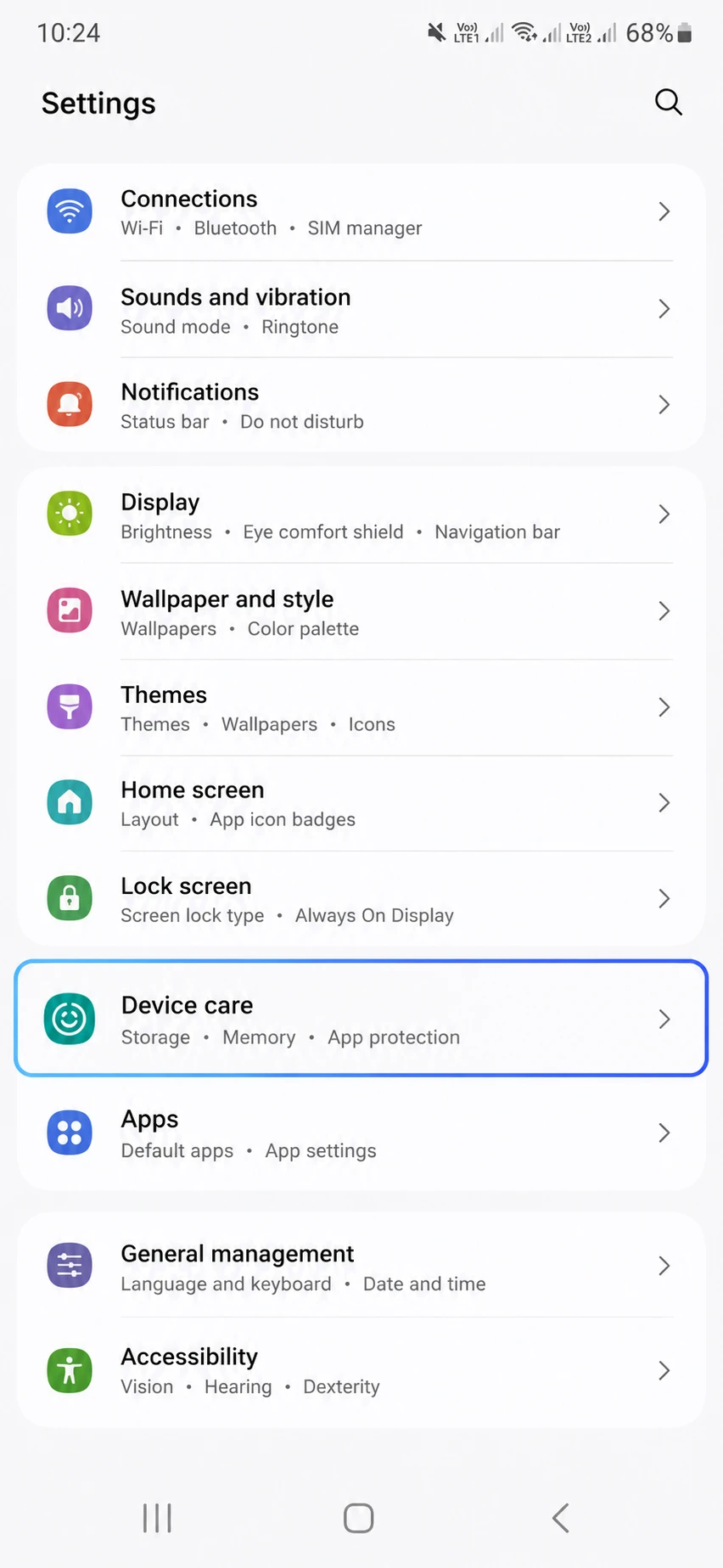
Step 1. Open Settings and scroll to Device care.
Tap it to open the performance dashboard with battery, storage, and memory graphs.
Step 2. Tap Auto optimization under the performance section.
Scroll past the graphs until you reach the restart controls.
Step 3. Tap Auto restart at the bottom of that screen.
This opens the two restart modes your model supports.
Step 4. Turn on Restart on schedule or Restart when needed.
Newer phones show both, and you can run them together.
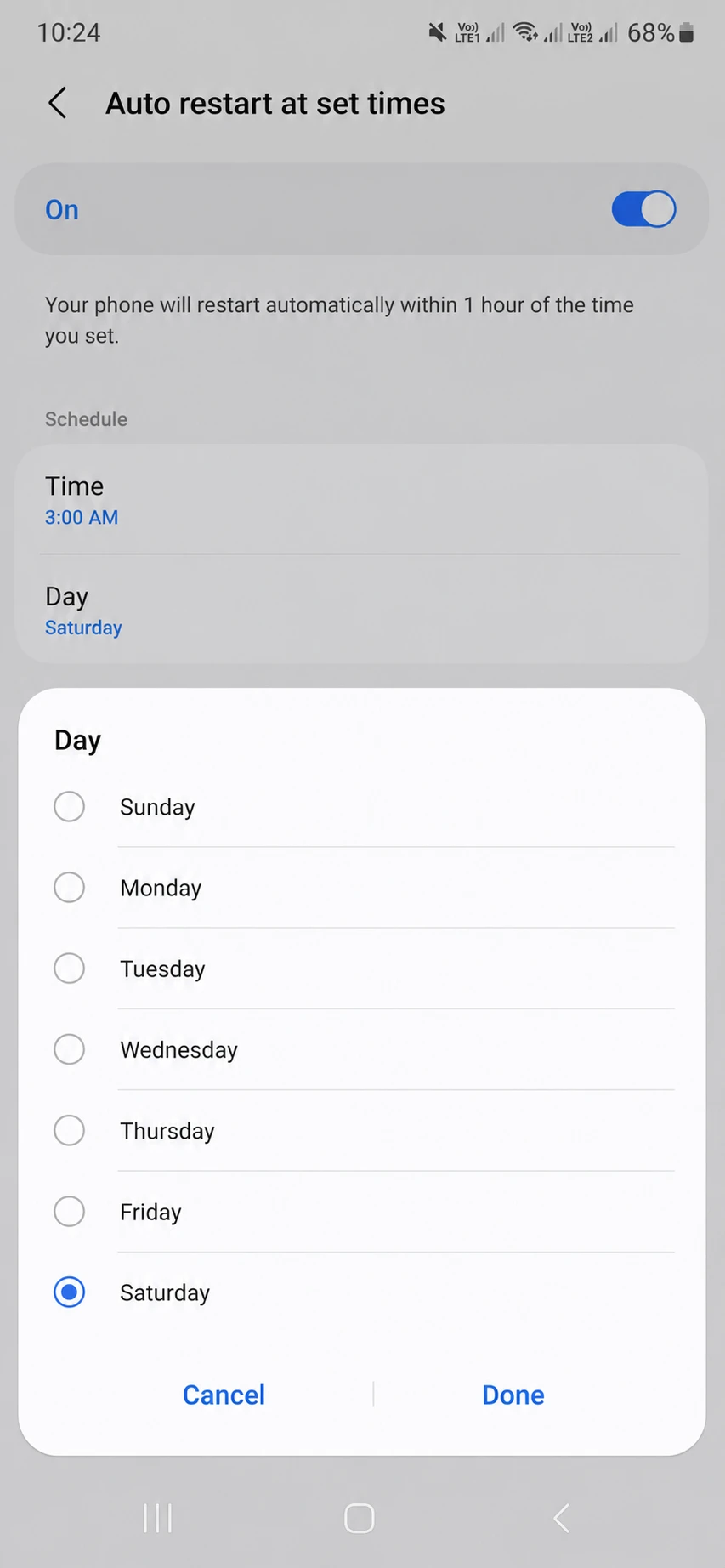
Step 5. Pick the day and time using the clock-style picker.
Choose a window when you sleep, so the reboot never interrupts you.
Samsung reuses the same time picker from the Clock app here. Set it for every Monday, every other day, or daily if you want.
Which night would you least miss your phone for two minutes?
Restart When Needed vs Restart on Schedule: Which to Pick
Both modes reboot your phone, and they trigger in different ways.
| Mode | What triggers it | Best for | Trade-off |
|---|---|---|---|
| Restart when needed | Galaxy detects a performance or memory issue | Hands-off users who forget to reboot | You cannot predict the exact time |
| Restart on schedule | A day and time you set yourself | People who want a fixed weekly routine | It runs even when the phone feels fine |
| Both together | Either trigger fires first | Heavy users chasing maximum stability | Slightly more frequent reboots |
Pick schedule mode for predictability. Add restart-when-needed if your phone stutters between weekly reboots.
Pro Moves That Squeeze More Speed From Each Reboot
A reboot does more when you pair it with a few habits.
- Clear your app and system cache the same day your phone reboots. You start the week with less leftover data, as shown in our guide to clearing cache on your Android phone.
- Schedule the restart for the middle of the night. Your Galaxy only reboots when you are not actively using the screen.
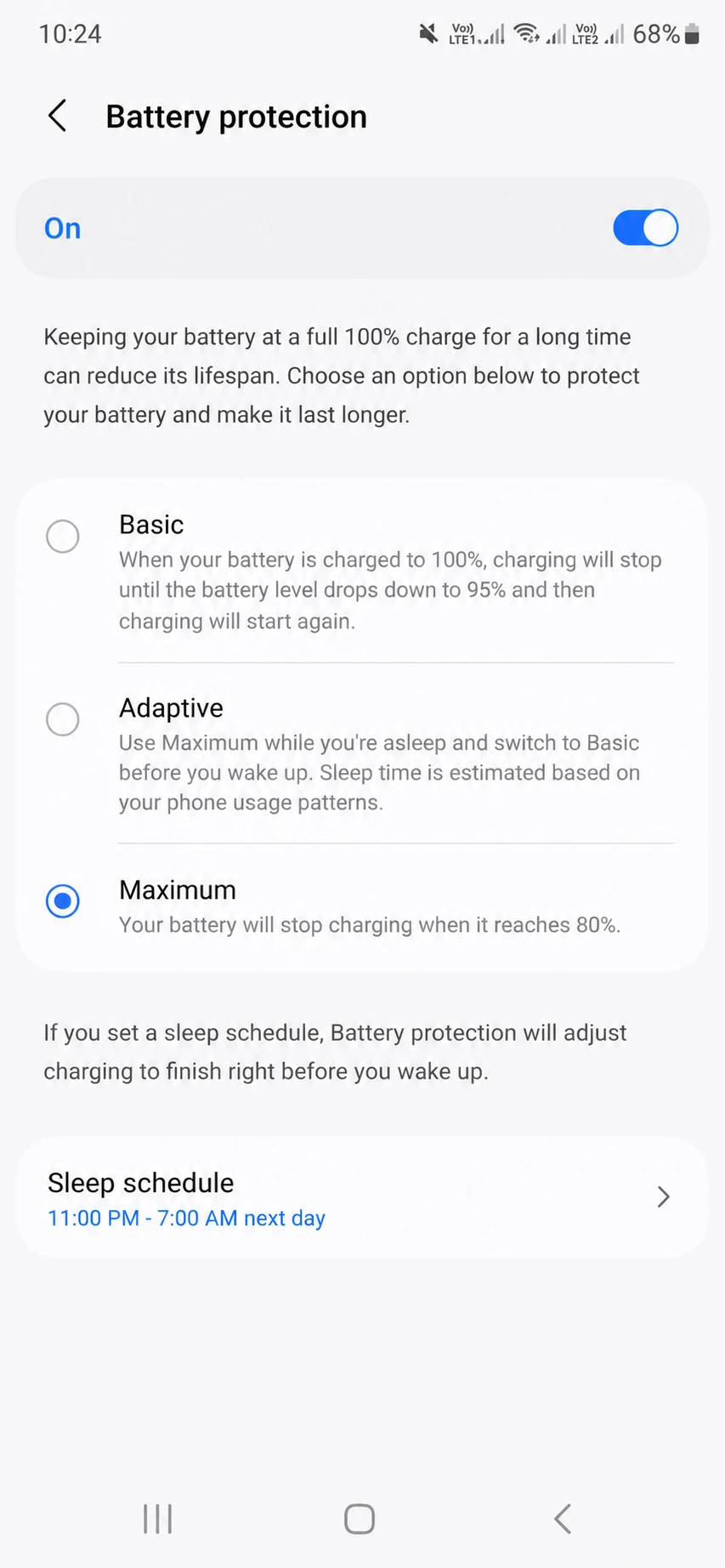
- Turn on battery protection and trim background data services, which stretches the gains from each fresh start.
- Flush your browser data too, and our walkthrough on clearing Chrome cache on Android covers the exact steps.
PRO TIP: Match your restart day to your update habits. Samsung phones check for software updates soon after a reboot, so a Monday restart keeps you current.
Common Samsung Auto Restart Problems and How to Fix Them
Problem: Your Galaxy restarts at random times you did not set.
Cause: Restart when needed is on, and the system triggers reboots on its own.
Fix:
- Open Settings and tap Device care.
- Tap Auto optimization, then Auto restart.
- Turn off Restart when needed and keep only Restart on schedule.
Problem: A “Your phone needs to be optimized” notification keeps returning.
Cause: One UI 7 nudges you to enable automatic restarts after it detects performance drops.
Fix:
- Open the notification and choose the restart option to clear the prompt.
- Or open Device care and run Optimize now by hand.
- Set a schedule so the reminder stops appearing.
Problem: Your scheduled restart never happened overnight.
Cause: The phone skips the reboot when you use it, or when the battery sits too low.
Fix:
- Charge above the minimum level before your scheduled time.
- Leave the screen locked and idle at the set time.
- Confirm the day and time picker saved your choice.
Problem: You cannot find the Auto restart option at all.
Cause: Older One UI versions hide it under a different menu or drop it entirely.
Fix:
- Update to the latest One UI through Settings and Software update.
- Search the Settings search bar for “Auto restart”.
- Reboot by hand each week if your model lacks the feature.
Frequently Asked Questions About Samsung Galaxy Auto Restart
Q: How often should I schedule my Samsung Galaxy to restart?
A: Once a week suits most people. A weekly Samsung Galaxy Auto Restart clears memory and cache without breaking your routine. Heavy users who install many apps can move to every other day for extra stability.
Q: Does Auto Restart delete my photos, apps, or messages?
A: No. Auto Restart only powers the phone off and on. Your photos, apps, messages, and settings stay exactly where they were.
Q: Why does my Galaxy ask for my PIN after an automatic restart?
A: Android requires your lock credentials after any reboot for security. Your PIN, pattern, or password unlocks encrypted storage. Face and fingerprint unlock returns only after that first manual entry.
Q: Will a scheduled restart turn off my alarms?
A: No. An overnight reboot leaves your alarms, settings, and software untouched. Samsung confirms alarms still ring after an automatic restart.
Q: What is the difference between Auto Restart and Auto Optimization?
A: Auto Optimization is the broader Device Care feature that closes background apps and cleans memory. Auto Restart is one option inside it that reboots the phone on a schedule or when needed.
Q: Can I stop the “phone needs to be optimized” notification without a restart?
A: You can run Optimize now inside Device Care to clear it for now. Setting a restart schedule is the reliable way to stop the reminder from returning.
Set It Once and Start Your Week Faster
Open Device care right now and set a restart for tonight. Two minutes of setup keeps your Galaxy quick for months.
Want to go further this weekend? Walk through our guide to clearing cache on your Samsung tablet. Give your other Galaxy devices the same fresh start.
Which day did you pick for your weekly reboot, and did your battery life change? Tell me in the comments.
Discover more from Cloudorian — Android, Samsung & Windows How-To Guides
Subscribe to get the latest posts sent to your email.



