

Your laptop fan roars while only a few tabs and a document sit on screen. The cause is rarely your hardware, it is your browser background processes doing work you never asked for. This guide shows how to disable browser background processes and reclaim the CPU that Chrome quietly burns.
Key Takeaways
- Chrome keeps a process alive after you close every window, and this setting sits turned on by default on Windows.
- Idle extensions load at startup and run background pages that eat CPU even when you never click them.
- Preload Pages renders sites you may never open, so dialing it back returns real CPU and memory to your system.
- A monitoring tool like Chrome’s own Task Manager or the open-source Glances shows you exactly which process is spinning your fan.
What Browser Background Processes Do to Your CPU
Browser background processes are tasks your browser runs outside the tabs you actually see. They handle extension sync, push notifications, update checks, and page preloading. Each one claims a slice of CPU and memory while you work in other apps.
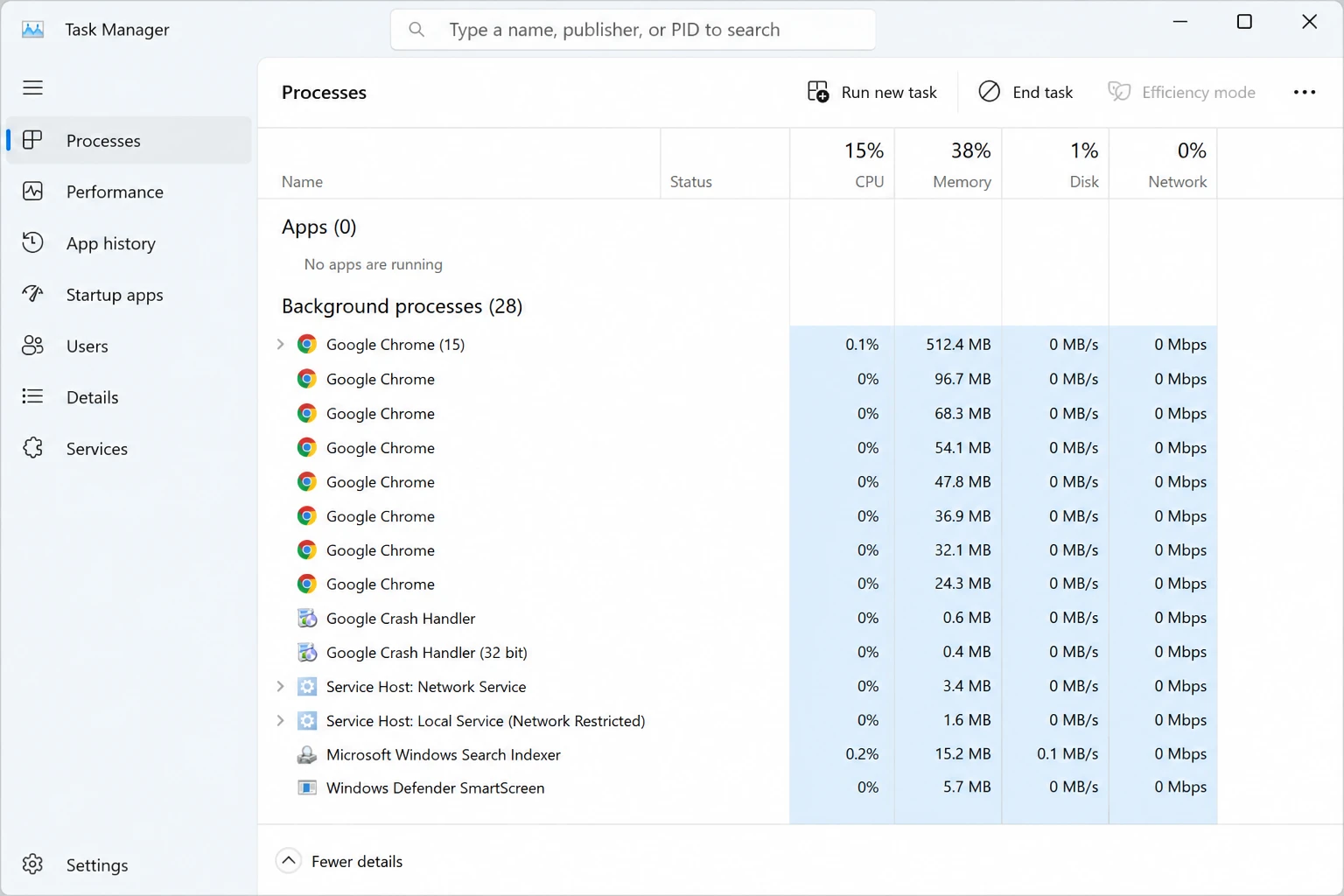
Chrome runs as a multi-process browser, so every tab, extension, and helper task spawns its own operating system process. That design keeps a crashed tab from taking down the whole browser. It also means dozens of processes can stack up without you noticing.
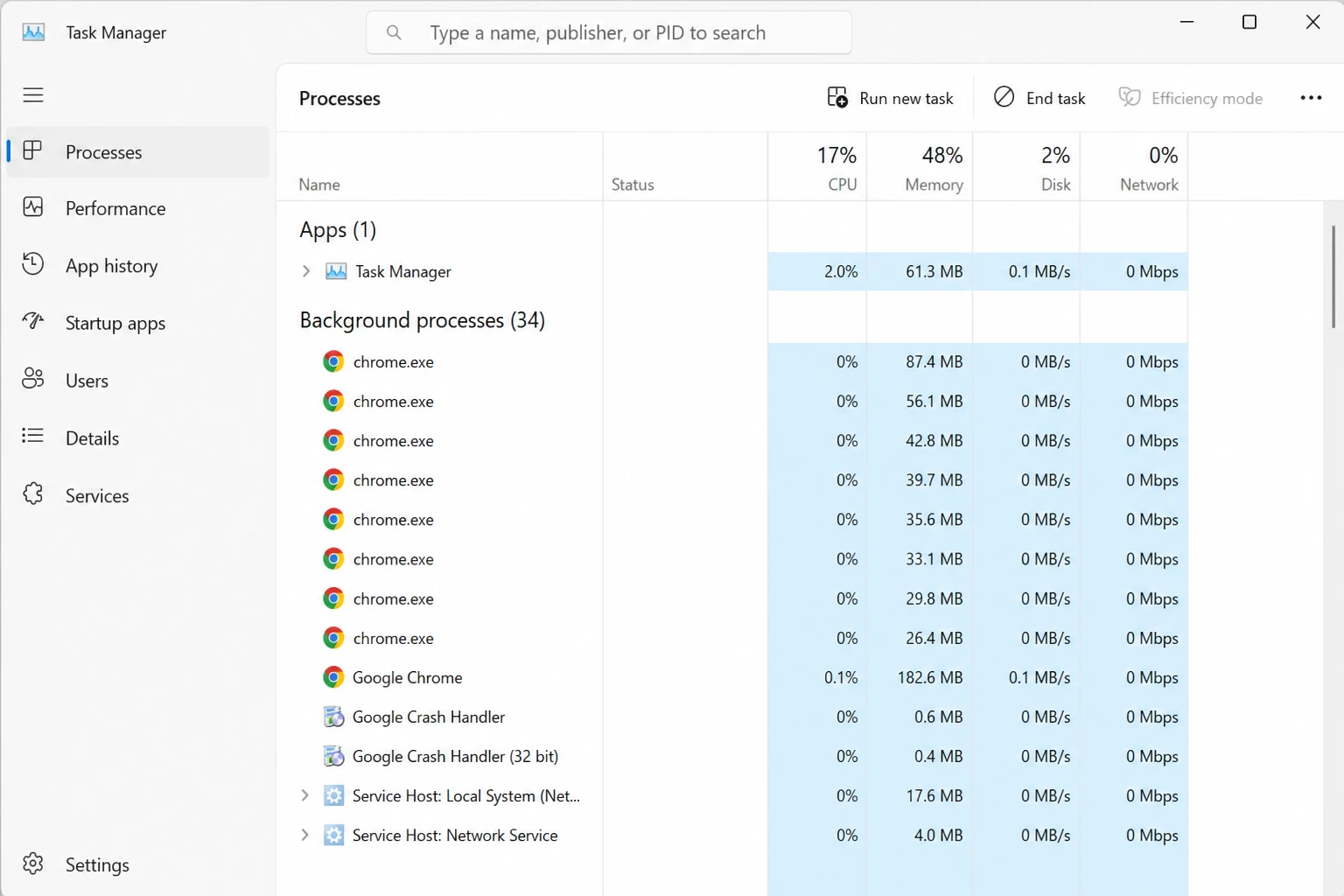
The catch is that many of these keep running after you close the last window. Google’s own documentation confirms a Chrome process starts at sign-in and stays alive after every window closes. That single behavior is why your machine stays warm long after you stopped browsing.
What You Need Before You Start
You need a recent build of Google Chrome on Windows 10 or Windows 11. The settings pages below match Chrome 120 and newer. Older builds hide some toggles under different menu names.
You also need two keyboard shortcuts ready. Press Shift+Esc to open Chrome’s built-in Task Manager. Press Ctrl+Shift+Esc to open the Windows Task Manager for a system-wide view.
Sign in to your Chrome profile before you begin. Some background behaviors, like extension sync, only appear when you are signed in. Knowing your starting point helps you measure the drop later.
PRO TIP: Open Windows Task Manager first, note Chrome’s idle CPU percentage, then repeat the reading after each change so you can see which tweak actually moved the needle.
Step-by-Step: How to Disable Browser Background Processes
Stop Chrome from running after you close it
Chrome ships with a toggle that keeps extensions and web apps alive after you close every window. Turning it off makes the browser fully quit when you click the X.
Step 1. Type chrome://settings/system into the address bar and press Enter.
This opens the System menu directly. You can also reach it through the three-dot menu, then Settings, then System in the left pane.
Step 2. Turn off “Continue running background apps when Google Chrome is closed.”
Push the toggle to the off position. Chrome now shuts every process when you close the last window, and lingering entries drop out of your system tray.
Have you ever checked what Chrome is doing after you close the window? Open Task Manager right now and you may find several processes still active.
WARNING: With this setting off, extensions stop syncing and push notifications stop arriving once every Chrome window is closed. Keep it on only if a background extension, such as a password manager alert, matters to your workflow.
Remove extensions that idle in the background
Every extension loads at startup, whether you use it that day or not. Many keep a background page running that draws CPU the entire session.
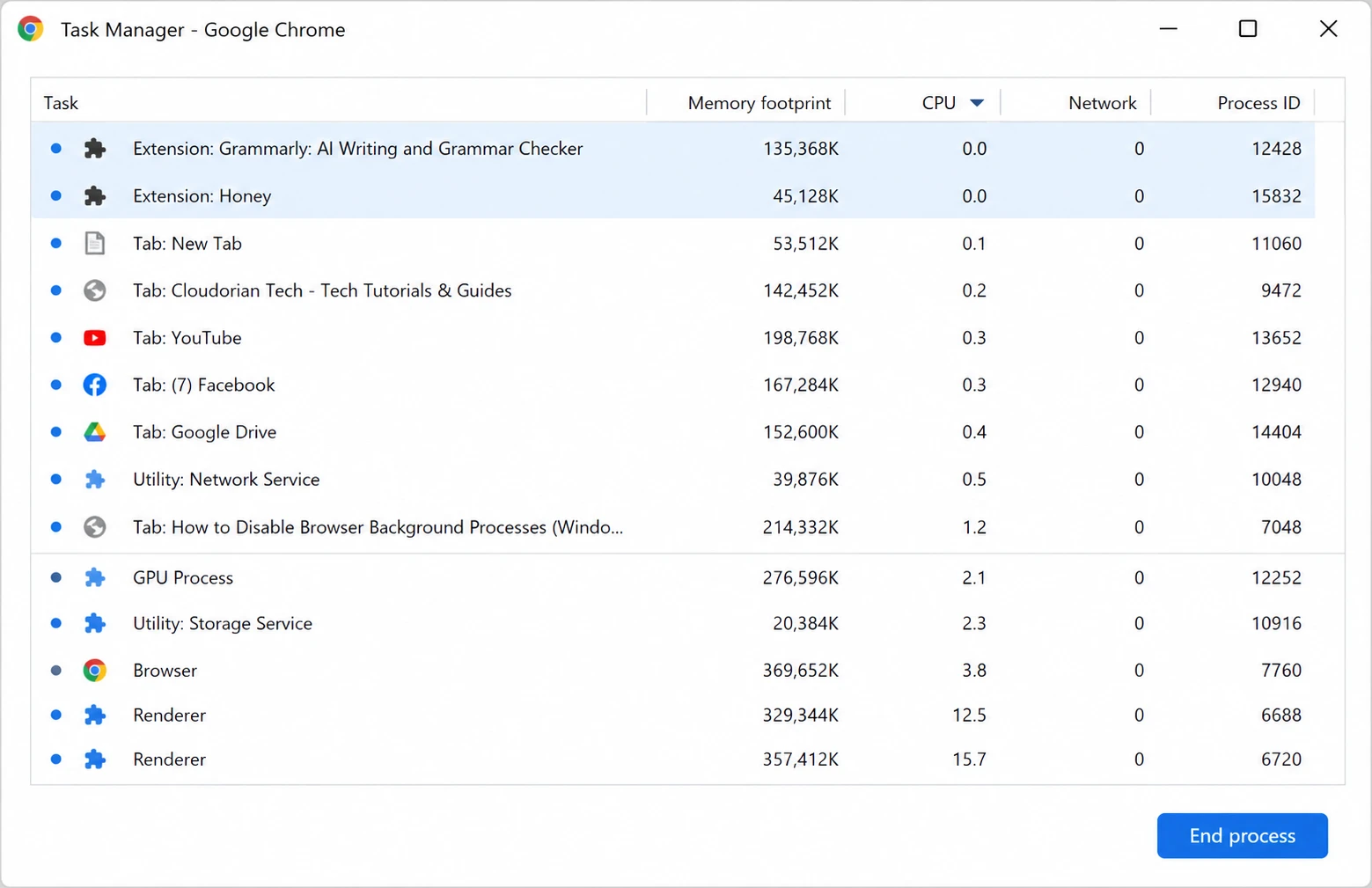
Step 1. Press Shift+Esc to open Chrome’s Task Manager and sort by CPU.
This view lists each tab, extension, and helper process with live CPU and memory numbers. Watch for extension names sitting high on the list while doing nothing for you.
Step 2. Go to chrome://extensions and remove the ones you no longer use.
Toggling an extension off stops it for the session. Clicking Remove deletes it entirely, which is the cleaner fix for tools you forgot you installed.
How many extensions are you running right now that you have not clicked in a month? Two silent ones can outweigh a busy tab in CPU cost.
PRO TIP: Chrome’s Task Manager is not the same as Windows Task Manager. Chrome’s version breaks down usage per tab and per extension, which Windows cannot show you.
Dial back Preload Pages from Extended to Standard
Preload Pages predicts your next click and loads that page early. The feel is instant navigation. The cost is CPU and memory spent rendering pages you may never open.
Step 1. Open chrome://settings/performance in the address bar.
Scroll to the Preload pages option. You will see two modes, Standard preloading and Extended preloading.
Step 2. Switch from Extended to Standard preloading.
Extended mode speculatively renders far more pages than Standard. Google describes Standard as loading only the most likely pages, so moving down calms idle CPU right away.
The three tweaks rarely feel dramatic alone. Stacked together, they cut the wasted CPU that keeps your fan spinning. For the full menu of built-in speed settings, Google’s own Chrome performance guide documents Memory Saver and related controls.
| Preload mode | What it loads | CPU and memory cost | Best for |
|---|---|---|---|
| Off | Nothing preloaded | Lowest | Old or low-RAM laptops |
| Standard | Only high-probability next pages | Moderate | Most Windows users |
| Extended | Aggressive speculative rendering | Highest | Fast machines with spare RAM |
How to Monitor What Your Browser Is Really Doing
Guessing wastes time, so measure instead. Chrome’s Task Manager gives you the fastest per-tab and per-extension read on CPU and memory. Keep it open in a corner while you test changes.
For a deeper view, the open-source tool Glances surfaces renderer and utility processes the browser hides from you. It shows every process touching your CPU in one live dashboard. That transparency helped confirm which helper tasks were the real drain.
Edge users on Windows face the same background persistence, and Microsoft’s guide to high CPU usage in Edge walks through parallel fixes. If your browser still chokes after these steps, a memory error may be the next signal, and our walkthrough on how to fix Chrome’s “not enough memory” error covers that case in order.
Common Browser Background Process Problems and How to Fix Them
Problem: Chrome.exe processes still show in Windows Task Manager after you close every window.
Cause: The background apps toggle is still on, or a pinned web app or extension is holding a process open.
Fix:
- Return to
chrome://settings/systemand confirm the background apps toggle reads off. - Right-click the Chrome icon in the system tray and choose Exit rather than only closing windows.
- Open
chrome://appsand remove any pinned web app you no longer run.
Problem: Notifications and extension sync stopped working after your changes.
Cause: Disabling background apps stops extensions from running once all windows close, which is the intended tradeoff.
Fix:
- Decide which extension truly needs to run in the background, such as a password or calendar alert.
- Turn the background apps setting back on if that single extension matters more than the CPU savings.
- Keep the setting off and accept that alerts arrive only while Chrome is open.
Problem: CPU stays high even after all three tweaks.
Cause: A single heavy extension, a stuck tab, or the GPU process is doing the work, not the background service.
Fix:
- Open Chrome’s Task Manager with Shift+Esc and sort by CPU to name the top process.
- Remove or replace the offending extension from
chrome://extensions. - Restart Chrome and recheck the idle number in Windows Task Manager.
Frequently Asked Questions About Browser Background Processes
Q: Does disabling background apps in Chrome speed up my computer?
A: Yes, in most cases. When you disable browser background processes, Chrome stops holding CPU and memory after you close the window. Your fan runs less and other apps get more headroom. The gain is larger on laptops with limited RAM.
Q: What is the difference between Chrome’s Task Manager and Windows Task Manager?
A: Chrome’s Task Manager, opened with Shift+Esc, breaks usage down per tab, extension, and helper process. Windows Task Manager groups everything under generic Chrome.exe entries. Chrome’s view is the faster way to name a specific culprit.
Q: Will turning off Preload Pages break any websites?
A: No. Preload only affects how early pages load, not whether they load. Sites open normally on Standard or Off. You may notice a slightly longer wait on links Chrome would have guessed and preloaded.
Q: Do browser background processes drain laptop battery?
A: Yes. Processes running after you close the window keep the CPU awake and stop it from idling. That sustained activity heats the chassis and shortens runtime. Disabling them is one of the cheaper battery wins on Windows.
Q: Is it safe to disable browser background processes?
A: Yes, the changes are fully reversible from Chrome settings. The only tradeoff is that background notifications and extension sync pause once every window closes. Flip the toggle back on any time you want them restored.
Your Next Move for a Cooler, Faster Laptop
Open Windows Task Manager, close every Chrome window, and read the CPU number one more time. That figure is your proof the tweaks landed. Re-run the check weekly, because a fresh extension can quietly undo your work.
If Chrome still feels heavy after all this, the browser itself may be the limit, and a handful of lightweight browsers that outshine Chrome sip far fewer resources on the same machine.
What is your idle Chrome CPU sitting at right now? Drop your number in the comments and tell me which of these three tweaks moved it the most.
Discover more from Cloudorian — Android, Samsung & Windows How-To Guides
Subscribe to get the latest posts sent to your email.



