

Are you tired of hitting session limits or needing an internet connection to use advanced AI coding tools like Claude Code? Imagine a world where you can use Claude Code completely free, offline, and without any limits whatsoever. This guide will show you exactly how to achieve that by leveraging the power of Ollama and open-source models. I’ve helped over 2,000 business owners apply AI to their businesses, and now I’m sharing how you can take control of your AI coding environment.
The secret lies in running a Large Language Model (LLM) locally on your own device. This means your AI coding assistant will be available whenever and wherever you need it, independent of internet connectivity or subscription fees. Let’s dive into the step-by-step process. See How to Run Llama 3.1 Locally on Your Mac or PC.
Step 1: Installing Ollama for Local LLM Management
The foundational tool for this setup is Ollama. Ollama is a platform that allows you to run open-source models directly on your device, ensuring your data remains safe and giving you complete control. Here’s how to get started:
Downloading Ollama
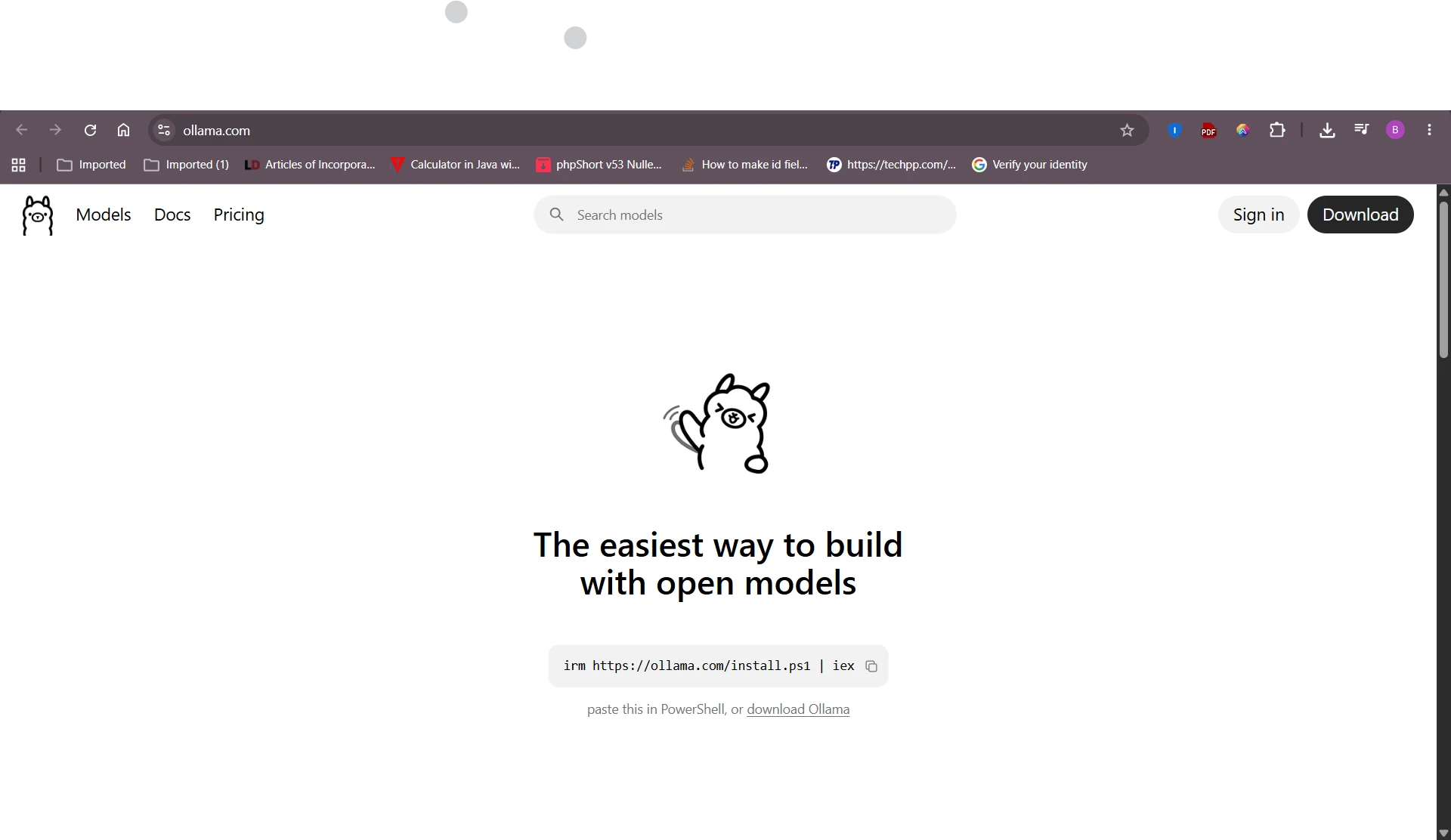
First, navigate to ollama.com. On the homepage, you’ll find a prominent “Download” button. Click this button, and Ollama will automatically download the correct version for your operating system (macOS, Windows, Linux). Follow the standard software installation procedure, just as you would with any other application.
First Look at Ollama
Once installed, opening Ollama will present you with a simple chat interface, similar to ChatGPT, Gemini, or Claude. While this interface allows you to interact with AI, we won’t be using it directly for our Claude Code integration. You can close this window after confirming the installation.
Step 2: Selecting and Downloading an Open-Source Model for Claude Code
The next crucial step is to choose and download a suitable open-source model that Claude Code can utilize offline.
Finding Recommended Models
Return to the Ollama website. On the homepage, scroll down to find the section “Ollama works with your favorite tools.” Under the “Coding” category, you’ll see “Claude Code.” Click on this. This page provides documentation and a guide on how to use Claude Code with Ollama.
Scroll further down to the “Recommended Models” section. Here, you’ll find several options. While models like gpt-oss-20b and gpt-oss-120b exist, they are generally less performant and not widely used. The recommended models for this purpose are either qwen3-coder or glm-4.7.
Choosing the Right Model Size
For this tutorial, we’ll use qwen3-coder. Go to the “Models” section on the Ollama website and search for “qwen3-coder.” Click on the model to see its details. You’ll notice different versions, primarily distinguished by their parameter count and size:
qwen3-coder:30b(approximately 19GB)qwen3-coder:480b(approximately 290GB)
While larger models generally offer more intelligence, they also demand significant computational resources, especially VRAM. A 480 billion parameter model, for example, is extremely large and typically requires a supercomputer to run efficiently. Even a high-spec MacBook Pro struggles with such large models. For most standard PCs, anything above 40 billion parameters will be challenging to run. Therefore, the qwen3-coder:30b version is the most practical choice for local, offline use on typical hardware. Check 22 Hidden Windows 11 Features to Boost Productivity.
Downloading the Model via Terminal
Once you’ve selected your model (e.g., qwen3-coder:30b), you’ll need to download it. On the model’s page, under the CLI tab, you’ll find a command like ollama run qwen3-coder. We need to adapt this for pulling the model.
Open your computer’s terminal (or command prompt). Type the following command and press Enter:
ollama pull qwen3-coder:30b
This process will download the LLM model to your local machine. The download time will vary depending on your internet speed, but it typically takes a few minutes for a 19GB file. Once downloaded, you’ll have the model stored locally, ready for offline use.
Verifying Model Installation
To confirm the model is installed, reopen the Ollama application. Click on the model selection dropdown (usually showing the current model name). You should see qwen3-coder:30b listed without a download icon next to it, indicating it’s already on your system. You can even type “Hello” to test it out.
Step 3: Installing Claude Code
Even though we’re using an open-source model with Ollama, we still need to install the Claude Code software itself to utilize its infrastructure and interface.
Downloading Claude Code
You have two primary ways to download Claude Code:
- Direct Download: Search “Download Claude” on Google. The first result should lead you to the official Claude website, where you can download the desktop application for macOS, Windows, or Linux.
- Terminal Command: On the Claude Code documentation page (the same one where you found recommended models on Ollama’s site), locate the installation instructions. Copy the
curlcommand provided for your operating system (e.g.,curl -fsSL https://claude.ai/install.sh | bashfor Mac/Linux). Paste this command into your terminal and press Enter to initiate the download and installation.
It’s crucial to install Claude Code because it provides the necessary framework, even if we’re not using Anthropic’s proprietary models.
Step 4: Launching Claude Code with Your Local Ollama Model
With both Ollama and Claude Code installed, it’s time to bring them together and start coding offline.
Configuring and Launching
Open your terminal again. We’ll use a specific command to tell Claude Code to launch using an Ollama-managed model:
ollama launch claude --config
Press Enter. The terminal will then present you with a list of installed Ollama models. In our case, it will likely show qwen3-coder:30b (and possibly qwen3-coder:latest, which refers to the same model). Select the desired model by typing its name or number (if numbered).
You’ll then be asked, “Launch Claude Code now? (y/n)” Type y and press Enter. Claude Code might display a security warning about reading, writing, or executing files in the directory; confirm to proceed.
Verifying Local Model Usage
Once Claude Code launches, you’ll see a welcome screen. Crucially, look for text indicating “qwen3-coder:30b” (or whichever model you chose) alongside “API Usage Billing: No recent activity.” This confirms that Claude Code is now running using your locally installed Ollama model, completely bypassing any API billing or cloud-based limitations.
You are now free to use Claude Code for any task you normally would—building software, connecting to APIs, querying databases, or managing email lists—all powered by your local, open-source LLM.
Performance Considerations
While running an LLM locally offers incredible freedom, it’s important to manage expectations regarding performance. Even with a powerful machine, running a large model can be resource-intensive. For example, asking “What is 3 + 3?” might take several minutes to receive a response, especially if your computer is also handling other demanding tasks like video recording.
This performance trade-off is often the compromise for having a free, unlimited, and offline AI. Smaller models will respond faster but might be less intelligent. It’s a balance between intelligence, speed, and your computer’s hardware capabilities.
Conclusion: Your Free, Offline AI Coding Assistant Awaits
By following these steps, you’ve successfully set up Claude Code to run indefinitely, offline, and without cost, powered by an open-source model managed by Ollama. This empowers you to innovate and develop without worrying about internet access, subscription fees, or usage limits. While there’s no single “perfect” solution that offers top-tier intelligence with lightning-fast local performance for free, this method provides an excellent balance for many users. Explore the possibilities and enjoy your new, unrestricted AI coding environment!
Key Takeaways
- Claude Code can be used free, offline, and without limits by integrating it with Ollama.
- Ollama allows you to download and run open-source Large Language Models (LLMs) locally on your device.
- The
qwen3-coder:30bmodel is recommended for local use due to its balance of intelligence and hardware requirements. - Install both Ollama and Claude Code, then launch Claude Code via the terminal, specifying your local Ollama model.
- Local LLM performance depends on your computer’s VRAM and CPU, with larger models requiring more powerful hardware.
Frequently Asked Questions
Can I use Claude Code for free indefinitely?
Yes, by integrating Claude Code with Ollama and using locally installed open-source models, you can use it indefinitely without any subscription fees or usage limits.
Does this method allow me to use Claude Code offline?
Absolutely. Once the open-source model is downloaded to your local machine via Ollama, Claude Code will run completely offline, requiring no internet connection.
What is Ollama and why do I need it?
Ollama is a platform that enables you to run open-source LLMs directly on your computer. You need it to download, manage, and execute the AI models that Claude Code will use locally.
Which open-source model is recommended for Claude Code?
The qwen3-coder:30b model is recommended. While larger models exist, the 30 billion parameter version offers a good balance of intelligence and performance for most standard computers.
Will running Claude Code with a local LLM be as fast as cloud-based versions?
Not necessarily. Local LLMs, especially larger ones, can be resource-intensive and may respond slower than cloud-based services, depending on your computer’s specifications (VRAM, CPU).
Do I still need to install Claude Code if I’m using Ollama?
Yes, you still need to install the Claude Code software. It provides the necessary infrastructure and interface, even though you’ll be using an open-source model instead of Anthropic’s proprietary models.
Can I use other open-source models with Claude Code through Ollama?
Yes, Ollama supports various open-source models. You can explore other options on the Ollama website’s models page and download them using the ollama pull command.
Discover more from Cloudorian — Android, Samsung & Windows How-To Guides
Subscribe to get the latest posts sent to your email.



