

Windows Update keeps your operating system current, but it does not manage every desktop app you install. Microsoft Store also misses programs downloaded from developer websites, GitHub, Chocolatey, Scoop, and other sources. UniGetUI gives you one graphical dashboard to find, update, install, and remove many of those apps without typing package-manager commands.
This guide shows how to update all Windows apps with UniGetUI, review updates safely, automate future checks, and fix the problems that can interrupt an update.
What UniGetUI Does and Why It Matters
UniGetUI provides a graphical interface for Windows package managers. It connects with tools such as WinGet, Chocolatey, Scoop, pip, npm, .NET Tool, PowerShell Gallery, and Cargo.
The app does not replace every installer on your computer. It searches package sources and asks the matching package manager to perform each operation. That distinction matters because UniGetUI cannot update software that no supported source can identify.
A Microsoft Store update only covers apps distributed through Microsoft’s catalog. A package-manager interface reaches much further. Browsers, archive tools, VPN clients, developer tools, media utilities, and open-source programs often appear through WinGet or another supported source.
The original UniGetUI project came from developer Martí Climent. Devolutions now maintains the project. The official Microsoft Store listing identifies Devolutions as the publisher and lists support for Windows 10 and Windows 11.
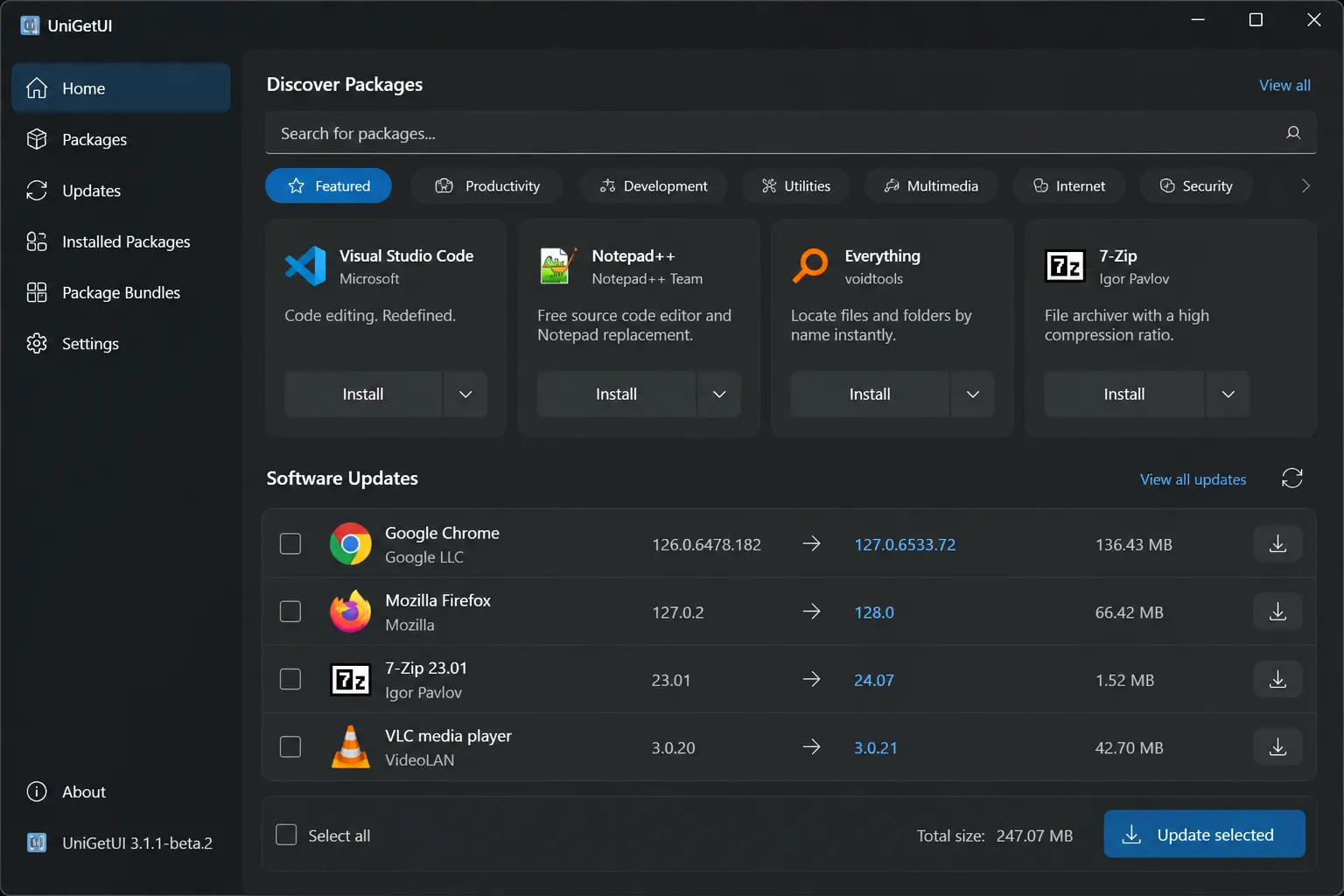
The practical benefit appears after your first scan. A Windows PC may contain apps that update themselves, apps that show update notices only at launch, and apps that never alert you. UniGetUI puts many of those pending updates in one place.
MakeUseOf reported that a UniGetUI scan found 36 outdated apps on a test computer. The Microsoft Store had not identified those programs because many came from outside its catalog.
Do you know which apps on your PC still depend on manual update checks? Most people do not, and that gap creates unnecessary security and maintenance work.
Requirements Before You Start
UniGetUI runs on Windows 10 and Windows 11. The Microsoft Store listing shows a Windows 10 minimum and a latest update date of July 17, 2026.
You do not need to install every supported package manager. WinGet comes with current Windows installations through the App Installer package. Other sources require their own software.
| Package manager | Extra software required | Typical use |
|---|---|---|
| WinGet | None on supported Windows installations | General desktop apps |
| Chocolatey | Chocolatey CLI | Windows utilities and administrator-managed software |
| Scoop | Scoop | Portable developer and command-line tools |
| pip | Python 3 | Python packages |
| npm | Node.js | JavaScript packages and tools |
| .NET Tool | .NET SDK 5 or newer | .NET command-line tools |
| Cargo | Rust | Rust packages |
| PowerShell 5.x | Included with Windows | PowerShell modules and scripts |
| PowerShell 7.x | PowerShell Core | Modern PowerShell modules |
Install UniGetUI from the official Microsoft Store listing, or use the project’s official GitHub repository. Avoid websites that imitate the project name. The project repository warns about fake UniGetUI download domains.
Before scanning, close apps that you plan to update. Some installers stop running programs automatically, but others fail when files remain open.
Create a restore point if you manage a work computer or a system with complicated development tools. Package managers usually preserve your personal files, but an app update can still change settings or break an older workflow.
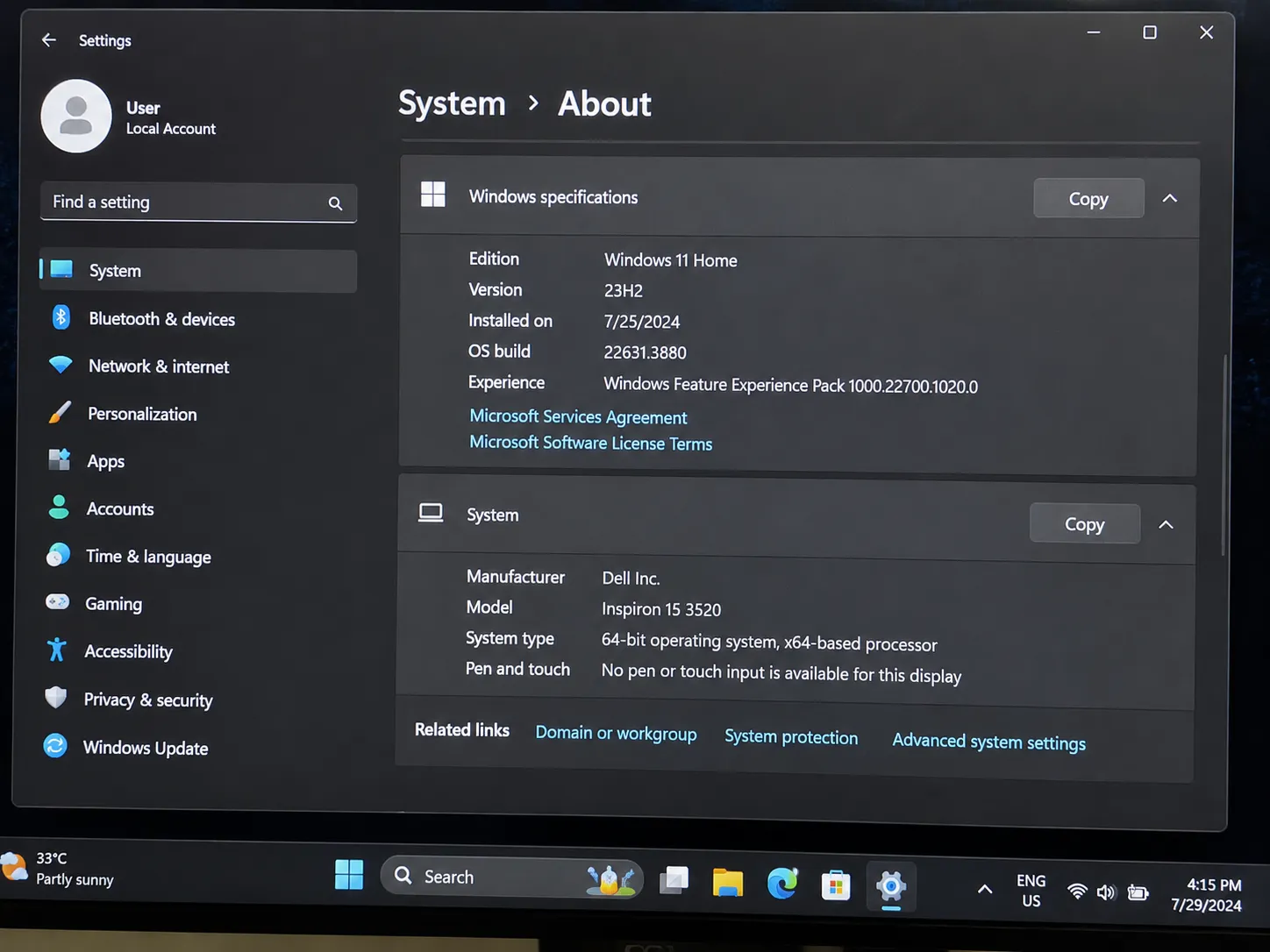
Check these items before opening UniGetUI:
- You run Windows 10 or Windows 11.
- You have administrator access for apps that require elevated installation rights.
- Your internet connection can reach package sources.
- You have enough storage for downloaded installers.
- You saved work in apps that may restart during updating.
- You know which apps should remain on an older version.
Do you use a professional tool that depends on a specific version? Mark it for review before choosing Update All.
How to Update All Windows Apps With UniGetUI
The update process takes only a few minutes after the first setup. UniGetUI scans supported package sources, displays available versions, and lets you update one app or many apps together.
Step 1. Install UniGetUI from an official source
Open the Microsoft Store listing for UniGetUI and select Get or Install. Windows downloads the current Store package and adds UniGetUI to your Start menu.
You can also download the project from GitHub. Check that the repository belongs to Devolutions and that the release page matches the current project. Do not use a download site that offers a modified installer.
Step 2. Open UniGetUI and complete its setup
Launch UniGetUI from the Start menu. The first run may check available package managers and sources.
Give the app time to finish its initial setup. The first scan can take longer because UniGetUI must load package metadata and inspect installed software.
If UniGetUI reports a missing package manager, read the message before installing anything. You may only need WinGet for normal Windows apps. Install Chocolatey, Scoop, Python, Node.js, Rust, or the .NET SDK only when you actually need packages from those sources.

Step 3. Open the Software Updates page
Select Software Updates in the navigation pane. UniGetUI checks installed packages against versions available from its enabled sources.
Wait until the scan completes. A package can appear more than once if multiple sources identify the same software. Review the source and package identifier before updating duplicates.
UniGetUI may show the installed version and the available version. Use that information to spot large jumps or unusual package matches.
Step 4. Review each pending update
Read the list before selecting every item. Look for apps that you use daily, apps with open projects, and programs that may change file formats.
Select an app to inspect its package details. UniGetUI can show metadata such as the publisher, package source, download information, homepage, license, and version.
Do not treat every update as equally safe. A browser security update deserves quick attention. A database tool or development framework may need a compatibility check first.
Step 5. Update one app as a test
Choose one low-risk app and select Update. Let the process finish before starting a large batch.
This test confirms that WinGet or the selected package manager works correctly on your computer. It also reveals whether the package needs administrator approval, a reboot, or a manual installer prompt.
A successful test gives you more confidence in the remaining updates. If the test fails, fix the source or permission problem before selecting Update All.
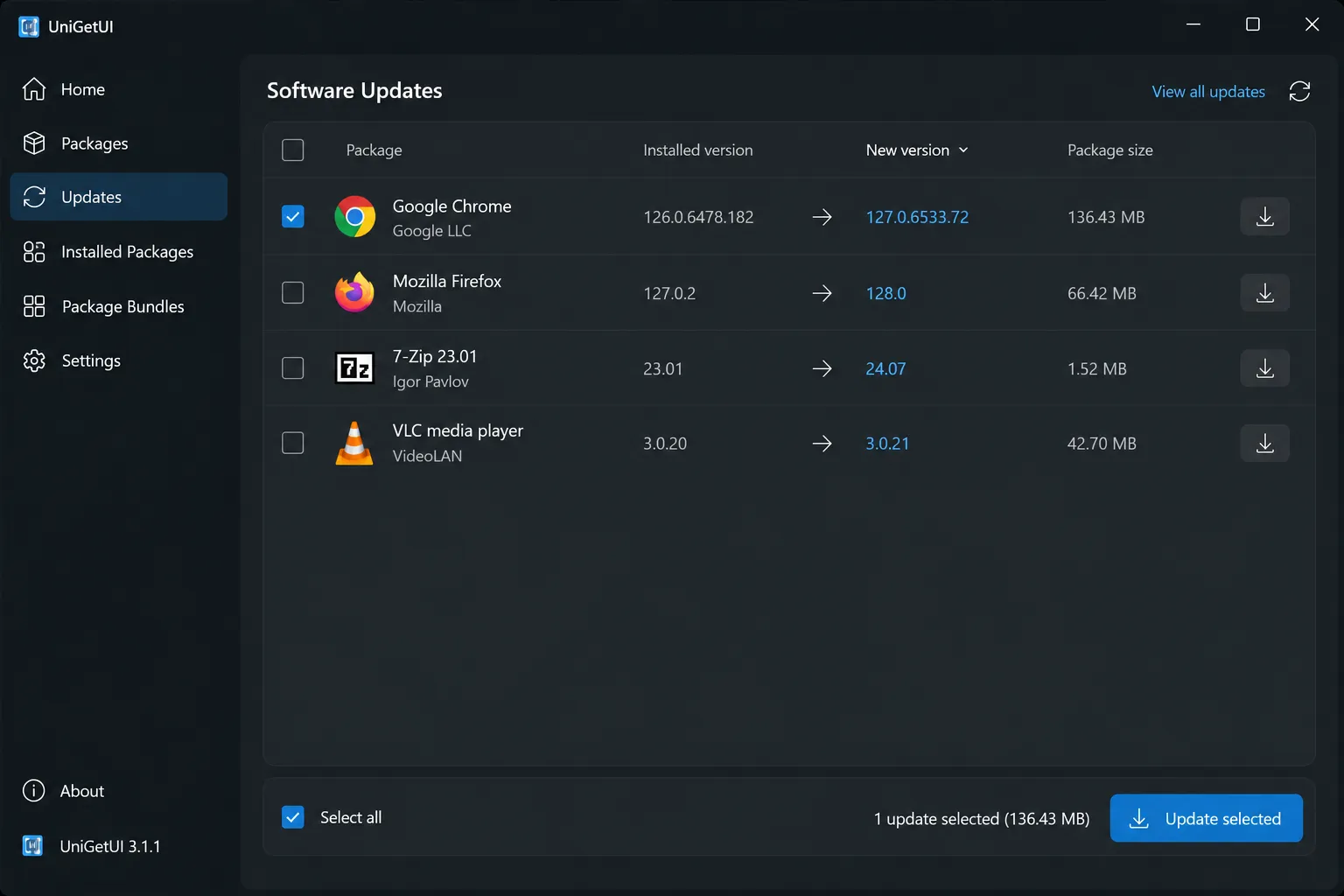
Step 6. Select the remaining apps
Return to Software Updates and select the apps you want to update. You can select several packages for a batch operation.
Skip apps that need testing, apps with active projects, or apps that you intentionally keep on an older version. UniGetUI supports per-package ignore and skip controls, so you do not need to reject every future scan.
Choose Update Selected or the matching bulk-update control. UniGetUI queues the operations and sends them through the package managers that own each package.
The process may open permission dialogs for some installers. Approve only prompts that match the app and publisher you expect.
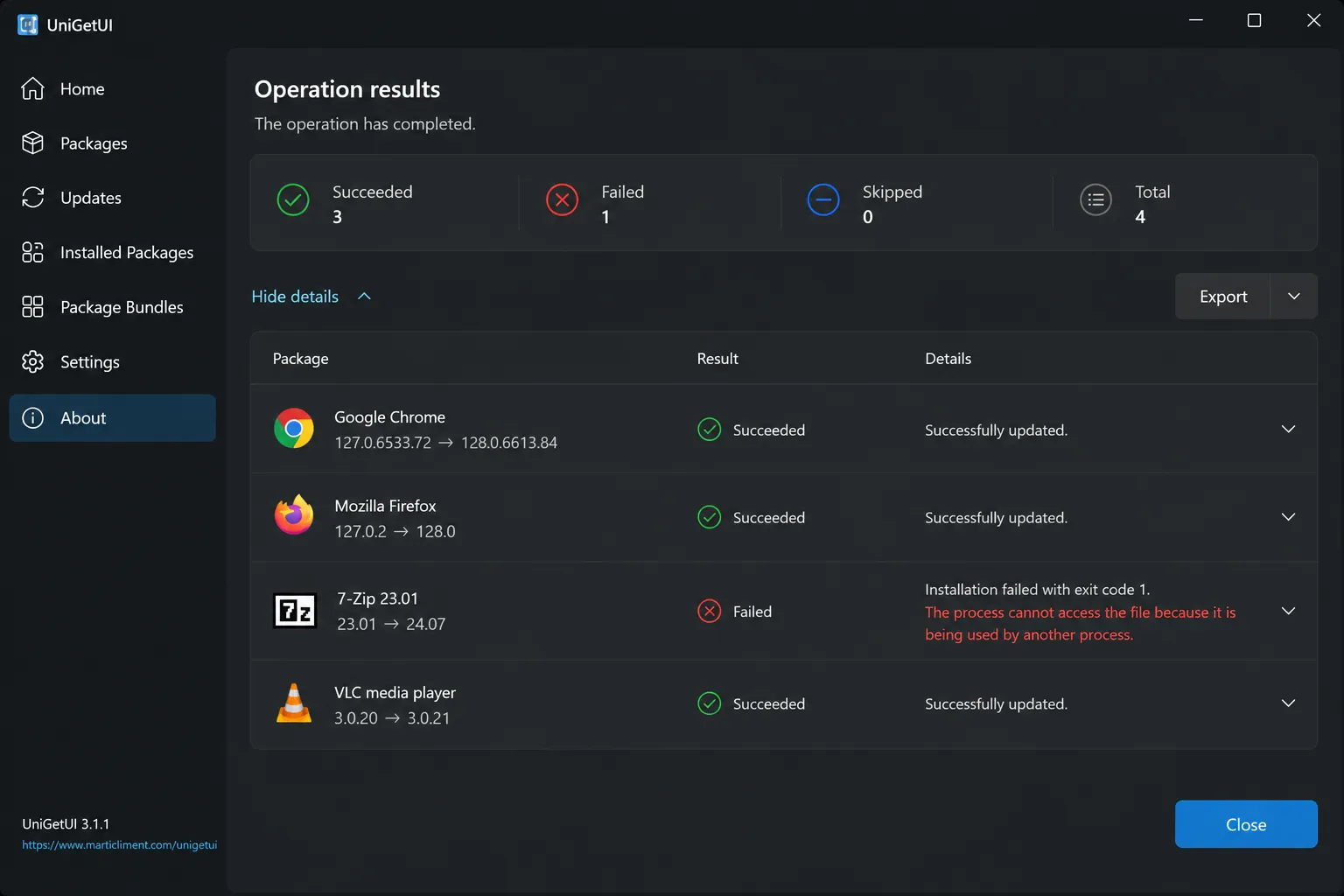
Step 7. Watch the operation results
Keep the operation panel open during the batch. UniGetUI reports successful updates, failed updates, skipped packages, and packages that need manual action.
Do not shut down Windows during an active installer operation. Some packages also require a restart before their new version works correctly.
Open a failed item and read its log. The message often identifies the cause, such as a running process, a missing source, an unavailable version, or an administrator restriction.
Step 8. Confirm the installed versions
Run another scan after the batch completes. The updated apps should disappear from the pending list.
Open one or two apps and check their About pages. This step confirms that the program itself reports the expected version.
A package can report success even when an app needs a restart. Confirm the version after restarting the program, especially for browsers, developer tools, and background utilities.
Choosing Between Manual Updates, WinGet, and UniGetUI
UniGetUI fits people who want package-manager coverage without a terminal. WinGet remains useful for scripts, remote administration, and repeatable setup commands.
| Method | Best for | Main advantage | Main limitation |
|---|---|---|---|
| Microsoft Store | Store-installed apps | Simple built-in updates | Misses many desktop programs |
| WinGet commands | Technical users and scripts | Automation and repeatability | Requires command-line knowledge |
| UniGetUI | Most Windows users | Visual review and bulk actions | Depends on package-source matches |
| Individual app updaters | Apps with private update systems | Vendor-specific support | Many separate update workflows |
Microsoft documents the WinGet upgrade command. You can use it in Windows Terminal with commands such as winget upgrade and winget upgrade --all.
UniGetUI offers the same package-manager reach through a visual workflow. It also adds controls that command-line users may need to script themselves, including ignored packages, saved installation options, export lists, and backup files.
The best setup uses both tools for different jobs. Use UniGetUI for inspection and routine updates. Use WinGet when you need a repeatable command for a script or a new PC.
Tips and Pro Moves for Safer Updates
Keep risky apps out of automatic updates
Automatic updates suit browsers, media players, archive utilities, and other apps with simple configuration. They can cause trouble for programs tied to plugins, extensions, drivers, or project files.
Use UniGetUI’s ignore or skip controls for software that needs a review. Revisit that list after a planned testing window.
Review package sources
A package name can appear in several sources. A source may offer a different publisher, version, installer type, or update schedule.
Check the publisher and homepage before installing an unfamiliar package. The package title alone does not provide enough information.
Use saved installation options carefully
UniGetUI can preserve installation parameters for future updates. That helps maintain choices such as installation scope, architecture, or custom switches.
Review those parameters after a major version change. An option that worked for an older installer may not work for the latest release.
Export your setup before replacing a PC
Use UniGetUI’s export or backup feature before moving to a new computer. The exported file can preserve package names, sources, versions, and selected installation parameters.
Test the export file on a spare machine if it contains development tools or several package sources. A backup proves useful only when the restore process works.
Do not use automatic updates for every package
UniGetUI can install available updates automatically. That setting saves time, but it removes your chance to review version changes first.
Enable automatic updates only for low-risk software. Keep manual approval for development environments, business tools, drivers, and programs with fragile plugins.
Use Windows Update separately
UniGetUI does not replace Windows Update. Keep checking Settings > Windows Update for operating-system patches, firmware updates, and Microsoft components.
You can also use Cloudorian’s guide to clear the Windows Update cache when Windows Update repeatedly fails. That fix targets Windows Update files, not UniGetUI package data.
Common Windows App Update Problems and How to Fix Them
Problem: UniGetUI shows no available updates
Cause: The package source cannot match the installed program, or the app uses a private updater.
Fix:
- Open Software Updates and refresh the package list.
- Check whether the relevant package manager appears as enabled.
- Open Settings and review source or package-manager status.
- Search for the app under Discover Packages.
- Compare the installed app name with the package identifier.
- Use the developer’s updater if no supported package matches.
UniGetUI cannot update every Windows program. Apps with custom licensing, private servers, or unusual installers may remain outside its reach.
Problem: “No applicable upgrade found”
Cause: The package manager sees the installed version as current, even if the developer website lists a newer release.
Fix:
- Check the package source and publisher.
- Run a fresh update scan.
- Search the package manually in UniGetUI.
- Compare the available version with the vendor’s official release page.
- Install the newer version manually if the package source has not caught up.
Package repositories can lag behind vendor releases. This gap matters most for security tools and fast-moving developer software.
Problem: The update fails because the app is running
Cause: The installer cannot replace files that an active process still uses.
Fix:
- Save your work in the affected app.
- Close every visible window for that app.
- Open Task Manager with
Ctrl + Shift + Esc. - End leftover processes that match the app name.
- Retry the update from Software Updates.
- Restart Windows if a background service keeps the files open.
Some apps run tray processes after you close their main window. Check the notification area and Task Manager before retrying.
Problem: UniGetUI requests administrator approval
Cause: The package uses a machine-wide installation or changes protected folders.
Fix:
- Confirm that the package name and publisher look correct.
- Select Yes only when Windows shows a matching app or installer.
- If you lack administrator access, ask the device owner to run the update.
- Check whether the package offers a per-user installation.
- Retry with the correct installation scope.
Do not disable User Account Control to force an update. That change weakens protection across Windows.
Cause: The required tool is missing, damaged, or blocked by system policy.
Fix:
- Open UniGetUI’s package-manager settings.
- Identify the missing manager.
- Install the manager from its official project page.
- Restart UniGetUI.
- Refresh the package sources.
- Retry the package operation.
WinGet normally arrives through Microsoft’s App Installer component. Chocolatey, Scoop, Python, Node.js, Rust, and the .NET SDK need separate installations.
Problem: The update succeeds but the app still shows its old version
Cause: The app may still run an older process, or the package manager may have updated a different installation.
Fix:
- Close the app completely.
- Restart Windows if it runs background services.
- Open the app’s About page again.
- Check the installation path in UniGetUI and the app settings.
- Search Windows for duplicate installations.
- Remove the outdated copy only after confirming your settings and files.
Duplicate installations create confusing version reports. This happens often with browsers, Java runtimes, developer tools, and portable utilities.
Frequently Asked Questions About Updating Windows Apps
Q: Can UniGetUI update every app on Windows?
A: No. UniGetUI updates software that supported package managers can identify. Apps with private update systems, unusual installers, or missing repository entries may require manual updates.
Q: Is UniGetUI safe to use?
A: UniGetUI is open-source software maintained by Devolutions and distributed through the Microsoft Store and its official GitHub project. Review the publisher and package source before installing unfamiliar software.
Q: Does UniGetUI replace the Microsoft Store?
A: UniGetUI can install and update many programs outside the Microsoft Store. Keep the Microsoft Store because some apps and Microsoft components still depend on it.
Q: Does UniGetUI use WinGet?
A: Yes. UniGetUI provides a graphical interface for WinGet and other package managers. WinGet comes with supported Windows installations through App Installer.
Q: Can UniGetUI update apps automatically?
A: Yes. UniGetUI offers automatic update controls and notifications. Use automatic updates for low-risk apps, and review sensitive software manually.
Q: Does UniGetUI require administrator rights?
A: Some operations need administrator approval, especially machine-wide installations. Per-user packages may work without elevation.
Q: Can I stop one app from updating?
A: Yes. UniGetUI lets you ignore or skip updates for individual packages. Use that control for tools that depend on older versions or plugins.
Q: Can UniGetUI install apps on a new Windows PC?
A: Yes. Export or back up your package list, then import it on the new computer. You may need to install missing package managers before restoring the list.
Q: Why does UniGetUI show duplicate apps?
A: Multiple package managers may identify the same software. Compare the source, publisher, package ID, and installation path before choosing an update.
Make UniGetUI Part of Your Windows Maintenance Routine
Run UniGetUI once a week and review the Software Updates page before installing a large batch. Update low-risk apps quickly, test tools linked to your work, and keep packages with known compatibility limits on manual review.
Do not stop using Windows Update or the Microsoft Store. UniGetUI fills the gap between those services and the many desktop programs you install elsewhere.
If your PC also suffers from failed system updates, use Cloudorian’s guide to clear the Windows Update cache safely. You can also keep a software inventory through UniGetUI’s export and backup tools.
Start with one update today, confirm the version, and then process the rest in a controlled batch. Which Windows app keeps missing updates on your PC?
Discover more from Cloudorian — Android, Samsung & Windows How-To Guides
Subscribe to get the latest posts sent to your email.



