

Last Updated on 17 Sep, 2026 by Montel Anthony
T-Mobile turns its privacy toggles on by default, and most customers never touch them. Learning how to opt out of T-Mobile targeted ads takes about four minutes inside the T-Life app. This guide walks the exact taps, the toggles that matter most, and the real limits of what opting out actually stops.
Key Takeaways
- T-Mobile plans to build richer account profiles inside the T-Life app, which can feed ad targeting later.
- The opt-out toggles live under Manage, then the gear icon, then Privacy dashboard in the T-Life app.
- Turning toggles off stops future sharing, but it does not erase data T-Mobile already holds about you.
- App updates and new policy changes can flip toggles back on, so recheck them every few months.
What T-Mobile Personalization Collects and Why It Matters
T-Mobile wants to populate the T-Life app with “richer account profiles and interest-based preferences.” The carrier calls this personalization that surfaces benefits for each customer. Ad targeting sits one short step away from that same profile data.
T-Mobile announced the plan in a July 2026 company blog post about the future of T-Life. The post never named T-Mobile Advertising Solutions, and it set no rollout date. Reporters at TechRepublic flagged that these profile details could still support advertising down the line.
Your account already carries more than a name and a bill. T-Mobile’s own privacy notice lists device details, network usage, location signals, and interest data. When did you last open your T-Mobile privacy settings to see what stays switched on?
Requirements Before You Change Your Privacy Settings
You need four things ready before you start. Gather them first so the process runs without a stall.
- Install the latest T-Life app from Google Play or the App Store, since older builds hide the newest privacy toggles.
- Keep your T-Mobile account username and password on hand, because the Privacy dashboard forces a fresh sign-in.
- Know which brand you pay, whether that is T-Mobile, Metro by T-Mobile, or a prepaid line, since each brand has its own dashboard.
- Set aside about five uninterrupted minutes on a stable connection to load every toggle screen.
PRO TIP: Update the T-Life app before you begin. New privacy toggles often ship inside app updates, and an outdated version can leave settings missing from your menu.
How to Opt Out of T-Mobile Targeted Ads in the T-Life App
The opt-out controls live inside the T-Life Privacy dashboard. Follow these steps in order, and set every relevant toggle to off.
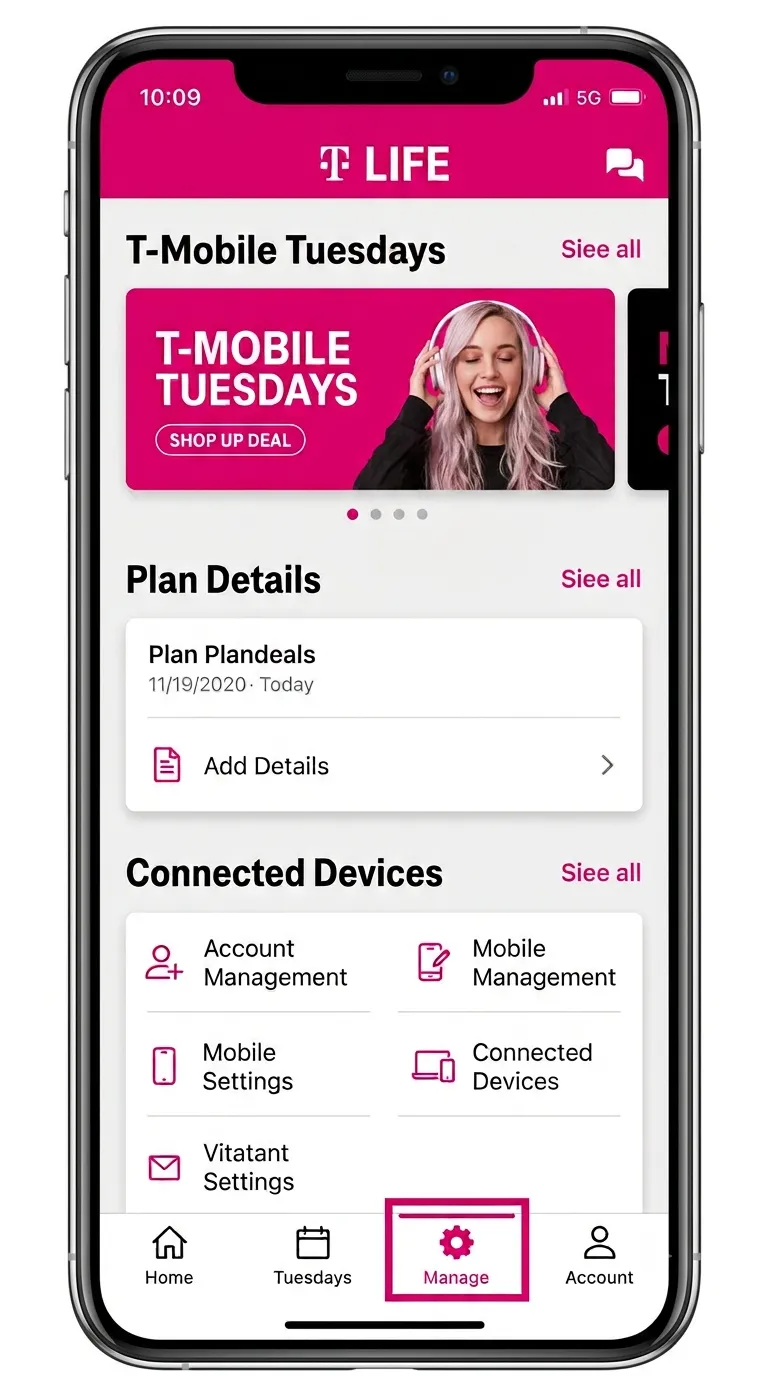
Step 1. Open the T-Life app and tap the Manage tab.
The Manage tab sits along the bottom navigation bar on both Android and iPhone.
Step 2. Tap the gear icon at the top of the screen.
The gear opens your account and app settings, not your phone’s system settings.
Step 3. Scroll to Privacy and policies, then tap Privacy dashboard.
This section groups every advertising and data-sharing control in one place.
Step 4. Tap Get started for your brand, then sign in.
Choose the exact brand you pay, since a wrong pick loads the wrong toggle set.
Step 5. Turn off each sharing and advertising toggle.
Set the targeted-ads, sell-or-share, joint-marketing, and any profiling toggles to the off position.
Step 6. Confirm and back out of the menu.
T-Life saves each choice as you flip it, so watch for the confirmation state on every toggle.
You can run the same opt-out from a browser if the app misbehaves. Sign in to T-Mobile’s Do Not Sell or Share My Personal Information page and set the controls there.
WARNING: Opting out does not stop every data flow. T-Mobile still shares some personal data with service providers to deliver your plan, billing, and support.
Which T-Mobile Privacy Toggles to Turn Off First
Not every toggle carries the same weight for ad targeting. This table ranks the main controls by how directly they feed advertising and outside sharing.
| Toggle or Program | What It Controls | Default State | Turn Off? |
|---|---|---|---|
| Sell or Share Personal Information | Sharing data with outside firms for targeted advertising | On | Yes, first |
| Interest-Based Ads / Personalization | Profile-driven ads inside T-Mobile properties | On | Yes |
| Affiliates for Marketing | Sharing across T-Mobile-owned brands for marketing | On | Yes |
| Financial Companies Joint Marketing | Sharing financial data with partner companies | On | Yes |
| AI Profiling | Automated profiling from your account data | On | Yes |
| Service Provider Sharing | Data needed to run your actual service | On | No, keep |
Turn off the top five and leave service-provider sharing alone. That last one keeps your billing, network, and support working normally.
Common T-Mobile Privacy Opt-Out Problems and How to Fix Them
Real users hit the same three snags on the Privacy dashboard. Here is what breaks and how to clear each one.
Problem: Your toggles show as off, then flip back on after an app update.
Cause: T-Mobile ships policy and app changes that reset or add new toggles without warning.
Fix:
- Reopen the T-Life app after any update notification.
- Return to Manage, the gear icon, then Privacy dashboard.
- Recheck every toggle and switch any new or reset ones off again.
Problem: The Privacy dashboard spins or the Get started button does nothing.
Cause: A stale app session or a weak connection blocks the dashboard from loading your brand data.
Fix:
- Force close the T-Life app and reopen it on Wi-Fi.
- Sign out of your account, then sign back in.
- Use the browser-based Privacy Center if the app still stalls.
Problem: You cannot find Privacy dashboard anywhere in the menu.
Cause: An outdated T-Life version hides the newer privacy section from your settings.
Fix:
- Open Google Play or the App Store and update T-Life.
- Restart your phone to clear the old app version from memory.
- Reopen Manage, tap the gear icon, and scroll to Privacy and policies.
Pro Moves to Block Tracking Beyond the T-Life App
Toggles inside T-Life only cover what T-Mobile shares. Your phone leaks tracking data through other channels, and you can shut several of them at the operating-system level.
- Set a private resolver so tracking requests never leave your device unencrypted, which you can do with our walkthrough on how to turn on Private DNS on Android.
- Block ad and tracker domains across every app at once by following our guide on why NextDNS beats AdGuard for ad blocking on Android.
- Galaxy owners should also shut the background profiler covered in our steps to disable Samsung Customization Service.
Which of these leaks surprised you the most? Stacking a private resolver on top of your T-Mobile opt-out closes both the carrier channel and the app channel at the same time.
PRO TIP: Screenshot your finished Privacy dashboard. If a future update resets a toggle, you have a clear record of exactly which controls you turned off.
Frequently Asked Questions About T-Mobile Targeted Ads
Q: Does opting out delete the data T-Mobile already collected about me?
A: No. Turning off the toggles stops future sharing for targeted advertising, but it leaves existing data in place. You need a separate deletion request through the T-Mobile Privacy Center to remove data the carrier already holds.
Q: Will opting out stop all T-Mobile data sharing?
A: No, and T-Mobile states this plainly. The carrier still shares some personal data with service providers so your plan, billing, and support keep working. The opt-out only limits sharing for targeted ads and outside marketing.
Q: Do I have to use the T-Life app to opt out of T-Mobile targeted ads?
A: No. You can use the browser-based Privacy Center and the Do Not Sell or Share page instead. Both routes reach the same controls, which helps when the T-Life app fails to load the dashboard.
Q: Does opting out affect my plan benefits or T-Mobile Tuesdays rewards?
A: No. Your rate plan, perks, and rewards stay intact after you change these T-Life app privacy settings. The toggles govern data sharing and advertising, not the benefits attached to your account.
Q: How often should I recheck these privacy toggles?
A: Check every two to three months and after any major T-Life update. T-Mobile has added new toggles set to on by default in past policy changes. A quick recheck catches any control that flipped back on.
Q: Can I opt out for family lines on my account?
A: The primary account holder can manage sharing controls for the account. Each brand loads its own dashboard, so confirm you signed in under the correct brand for every line you manage.
Your Next Move After Opting Out
Set a calendar reminder for 90 days from today to reopen the T-Life Privacy dashboard and recheck every toggle. That single habit catches the resets that quietly undo your work. Pair it with a device-level block by reading our guide on how to clear browser cookies on Android so tracking data stops piling up between opt-outs.
What toggle did you find already switched on when you opened your dashboard? Drop it in the comments so other T-Mobile customers know what to watch for.
Discover more from Cloudorian — Android, Samsung & Windows How-To Guides
Subscribe to get the latest posts sent to your email.



