

Last Updated on 26 Oct, 2026 by Montel Anthony
Users browses social media or checks their bank accounts through Wi-Fi at coffee shops without knowing their internet activity remains exposed to potential snoops. Scary, right? Almost all online traffic including your website destinations becomes visible through DNS (Domain Name System) requests on the internet.
The Android system contains a tool called Private DNS which delivers encryption to protect your internet data from unwanted viewers. And the best part? It requires only one minute to establish and represents a totally free service.
In this guide, I’ll walk you through how to turn on Private DNS on Android in a few simple steps. Early completion of this guide will give you enhanced web protection that works across home networks and office connections and public Wi-Fi networks. Let’s begin the process that will increase your Android device privacy.
Key Takeaways
- Enhanced Privacy: Enabling Private DNS encrypts your internet queries, protecting your data from potential eavesdroppers.
- Improved Security: It safeguards against malicious attacks like DNS spoofing.
- Free and Easy Setup: Activating Private DNS on Android is straightforward and doesn’t require any additional costs.
Understanding Private DNS
Before diving into the setup process, it’s essential to understand what Private DNS is and how it benefits you.
before you proceed, Read How to change your ip address
What is DNS?
DNS, or Domain Name System, acts as the internet’s phonebook. It translates human-readable domain names (like www.example.com) into IP addresses that computers use to identify each other on the network.
The Need for Private DNS
Traditional DNS queries are typically unencrypted, making them vulnerable to interception and manipulation. Private DNS addresses this concern by encrypting these queries, thereby enhancing your online security and privacy.
Prerequisites for Enabling Private DNS
Before you proceed, ensure the following:
- Android Version: Your device should be running Android 9.0 (Pie) or later, as Private DNS is a feature introduced in this version.
- DNS Provider Hostname: You’ll need the hostname of a DNS provider that supports DNS-over-TLS. Some reputable options include:
- Google DNS:
dns.google - Cloudflare DNS:
1dot1dot1dot1.cloudflare-dns.com - Quad9 DNS:
dns.quad9.net - Cleanbrowsing DNS:
security-filter-dns.cleanbrowsing.org - Open DNS:
208.67.222.222 - NextDNS:
45.90.28.0 - Comodo Secure:
8.26.56.26 - OpenNIC:
192.95.54.3
- Google DNS:
Step-by-Step Guide to Enable Private DNS on Android
Follow these steps to activate Private DNS on your Android device:
- Accessing the Settings Menu
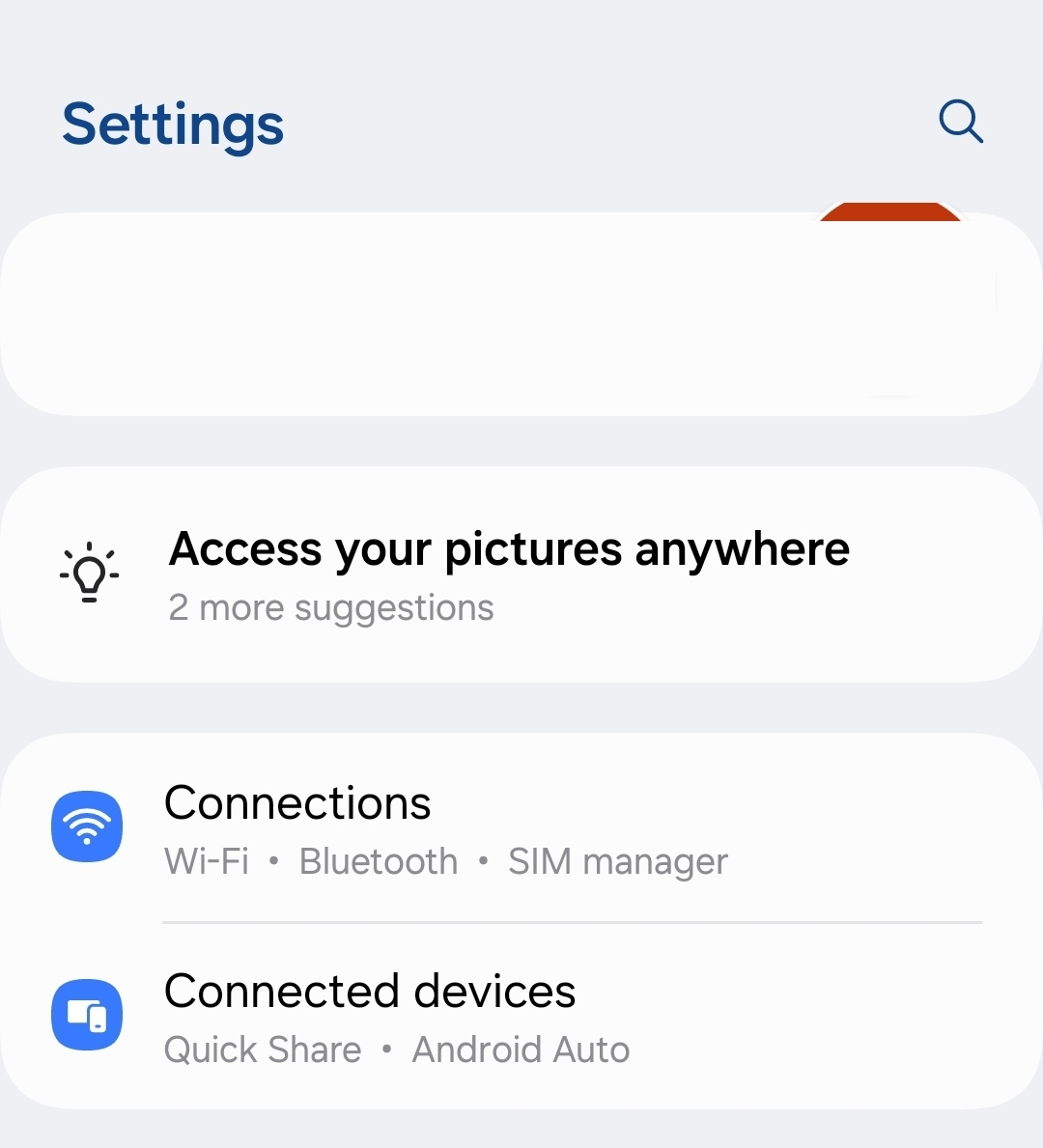
- Open the Settings app on your Android phone.
- Navigating to Network Settings
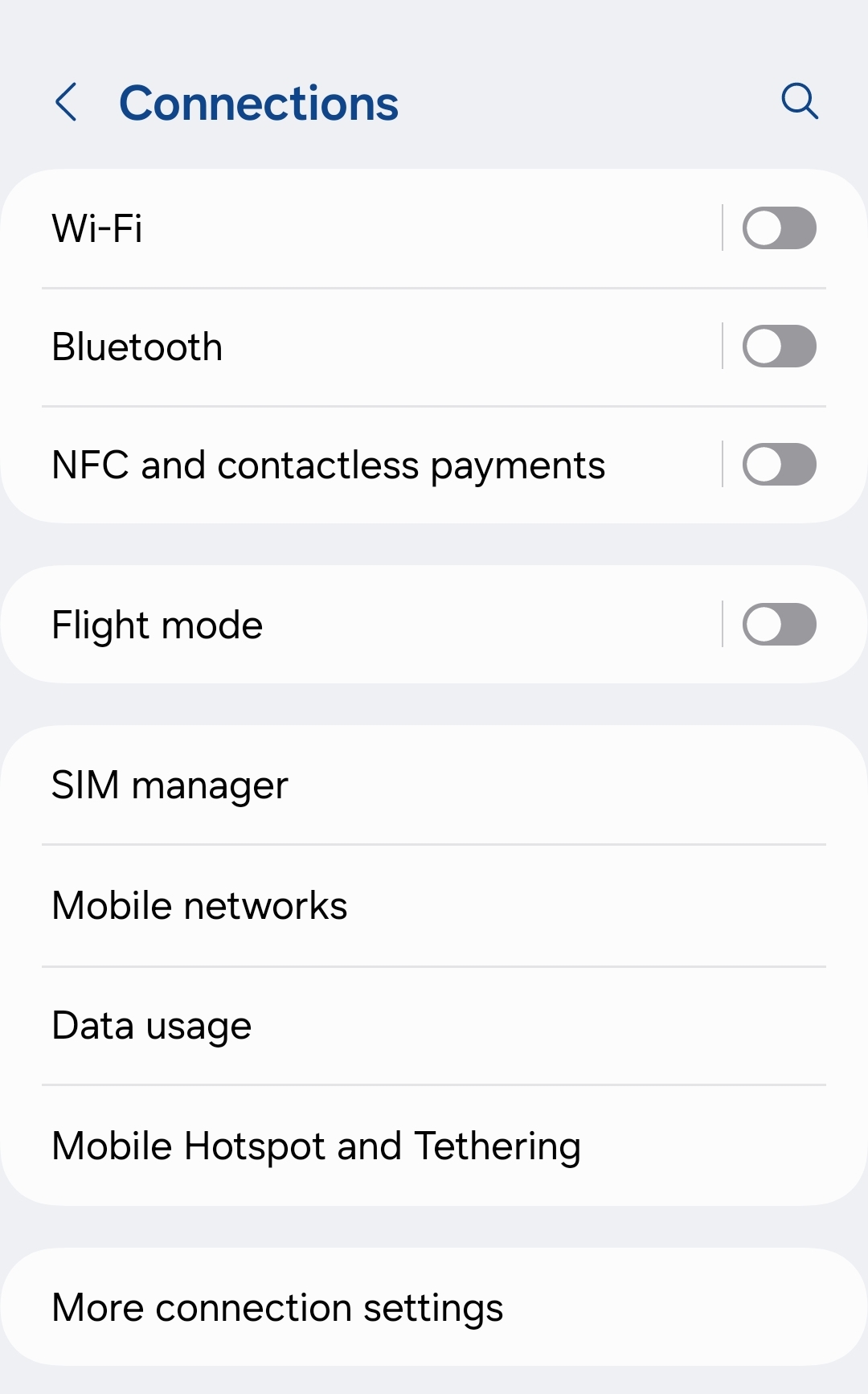
- Tap on Network & Internet. Depending on your device, this might also be labeled as Connections.

- Tap on Network & Internet. Depending on your device, this might also be labeled as Connections.
- Accessing Advanced Options
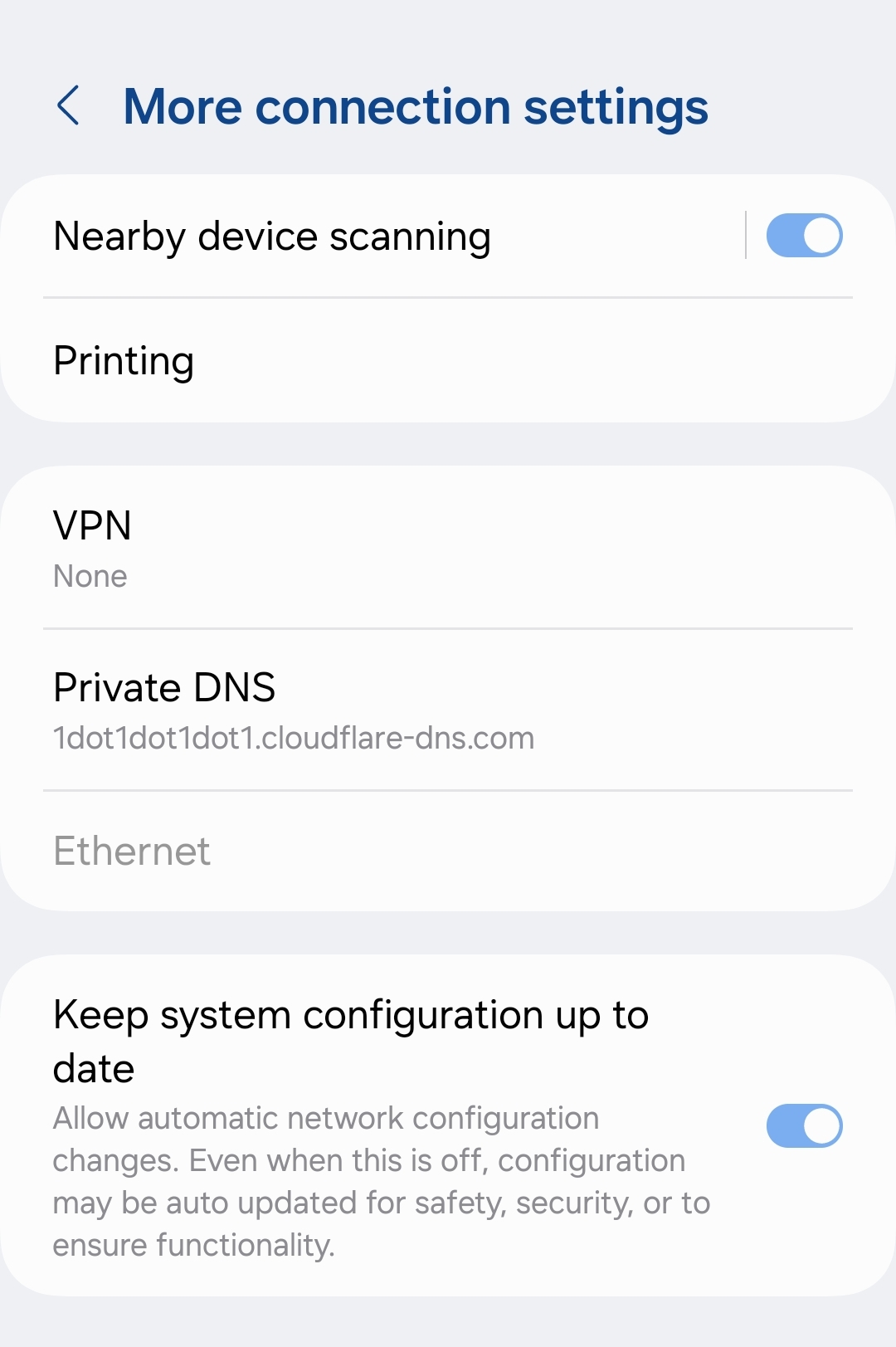
- Scroll down and select Advanced. On some devices, you might need to tap on More connection settings.

- Scroll down and select Advanced. On some devices, you might need to tap on More connection settings.
- Configuring Private DNS
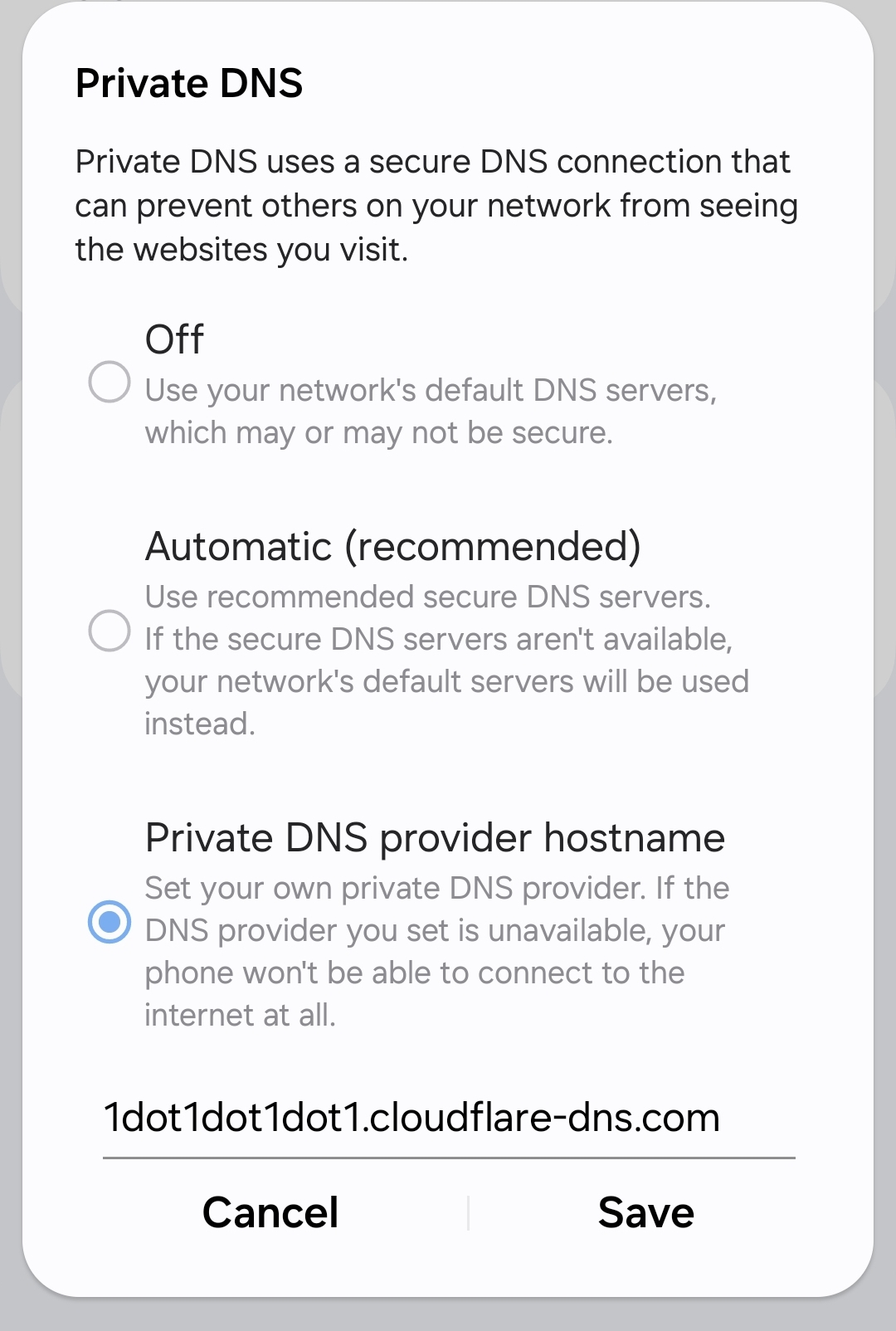
- Tap on Private DNS.

- Select Private DNS provider hostname.
- Enter the hostname of your chosen DNS provider (e.g.,
dns.googlefor Google DNS).
- Tap on Private DNS.
- Saving the Configuration
- Tap Save to apply the changes.
Verifying Your Private DNS Configuration
After setting up, it’s prudent to confirm that your Private DNS is functioning correctly:
- Using Online Tools: Visit websites like DNS Leak Test to ensure your DNS queries are encrypted and routed through your chosen provider.
- Observing Browsing Experience: A properly configured Private DNS should not hinder your browsing speed. If you notice any issues, double-check the hostname entered or consider switching to another provider.
Troubleshooting Common Issues
While enabling Private DNS is generally straightforward, you might encounter some challenges:
- Incorrect Hostname Entry: Ensure you’ve entered the DNS provider’s hostname correctly. Even minor typos can prevent proper configuration.
- Incompatible Android Version: If you don’t see the Private DNS option, verify that your device is running Android 9.0 or later.
- Connectivity Problems: Some networks, especially public or enterprise ones, might block encrypted DNS traffic. If you experience connectivity issues, try switching to a different network or DNS provider.
Benefits of Using Private DNS
Enabling Private DNS on your Android device offers several advantages:
- Enhanced Security: Encrypting DNS queries protects against potential threats like DNS spoofing and man-in-the-middle attacks.
- Improved Privacy: It prevents ISPs and other entities from monitoring your browsing habits.
- Access to Restricted Content: Some DNS providers offer features that allow you to bypass regional restrictions, granting access to a broader range of content.
Conclusion
Activating Private DNS on your Android phone is a simple yet effective way to bolster your online privacy and security. By following the steps outlined above, you can ensure that your internet activities remain confidential and protected from potential threats. Remember, maintaining your digital privacy doesn’t have to be complicated or costly; sometimes, it’s just a matter of tweaking your device’s settings.
Discover more from Cloudorian — Android, Samsung & Windows How-To Guides
Subscribe to get the latest posts sent to your email.



