

Folders force every file into one location, even when that file belongs to several projects. Learning how to tag files in Windows 11 creates searchable relationships without changing your folder structure. This guide covers setup, supported formats, exact search commands, common failures, and a tagging system that stays manageable.
What File Tags Are and Why They Matter
File tags are searchable words stored inside a file’s metadata. Windows Search reads that metadata and connects files carrying the same label.
A contract can carry tags for its client, year, document type, and status. The file remains inside its original folder.
This approach resembles a relational database more than a traditional folder tree. ZDNET’s file-tagging guide uses the same relationship model across files.
Do you usually remember a file’s exact name, or its project and purpose? Tags help when you remember the context but forgot the filename.
File tags work especially well for these collections:
- Project documents can carry client, department, status, and deadline labels. One search can reveal related files across several folders.
- Photos can carry location, event, subject, and licensing labels. These labels provide more detail than filenames can hold.
- Research files can carry topic, source, priority, and review-status labels. A single paper can belong to several research themes.
- Financial documents can carry account, year, quarter, and payment-status labels. This structure makes audits and monthly reviews faster.
Tags do not replace descriptive filenames or folders. They add another retrieval layer when location and filename cannot answer the search.
Requirements Before You Start
Windows 11 includes native metadata editing inside File Explorer. You need no extra software for supported file formats.
Install current Windows updates before testing the steps. Menu wording can differ across Windows 11 releases and organizational policies.
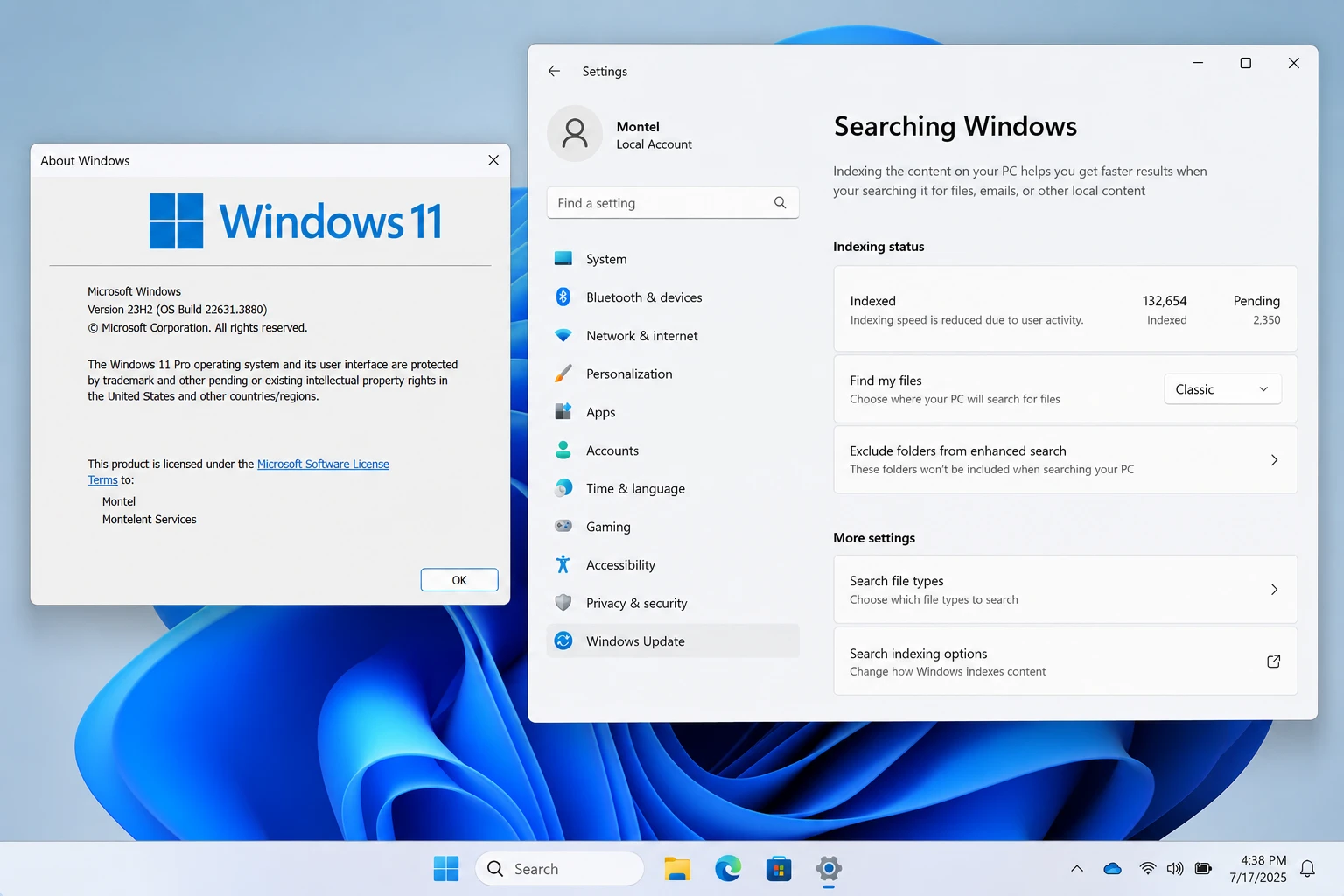
Press Windows key + R, enter winver, and select OK. The dialog displays your Windows version and OS build.
Microsoft explains that Windows Search creates an index containing files and their properties. Its Windows indexing guide also compares Classic and Enhanced modes.
Open Settings > Privacy & security > Searching Windows. Choose Enhanced when your tagged files live outside standard user folders.
Enhanced indexing scans more locations and can consume extra power during its first scan. Laptop users should connect a charger before indexing a large drive.
Native tag support depends on each file format’s property handler. Windows does not provide one universal tag field for every extension.
| File format | Native tag support | Best tagging route |
|---|---|---|
| JPEG and TIFF images | Commonly available | File Explorer Properties > Details |
| DOCX, XLSX, and PPTX files | Commonly available | File Explorer or Microsoft 365 file properties |
| Older Office formats | Varies by installed software | Test the Details tab first |
| PNG images | Often unavailable | Use a photo manager or sidecar-based catalog |
| PDF documents | Often unavailable | Use a PDF editor with keyword metadata |
| TXT, ZIP, and executable files | Usually unavailable | Use descriptive folders, filenames, or a tagging app |
Microsoft calls Metadata “document properties” in its Office file properties documentation. These properties include titles, subjects, authors, and keywords.
WARNING: Test tagging on a copied file before changing an irreplaceable collection. Some conversion tools and websites remove metadata during export.
How to Tag Files in Windows 11 Step by Step
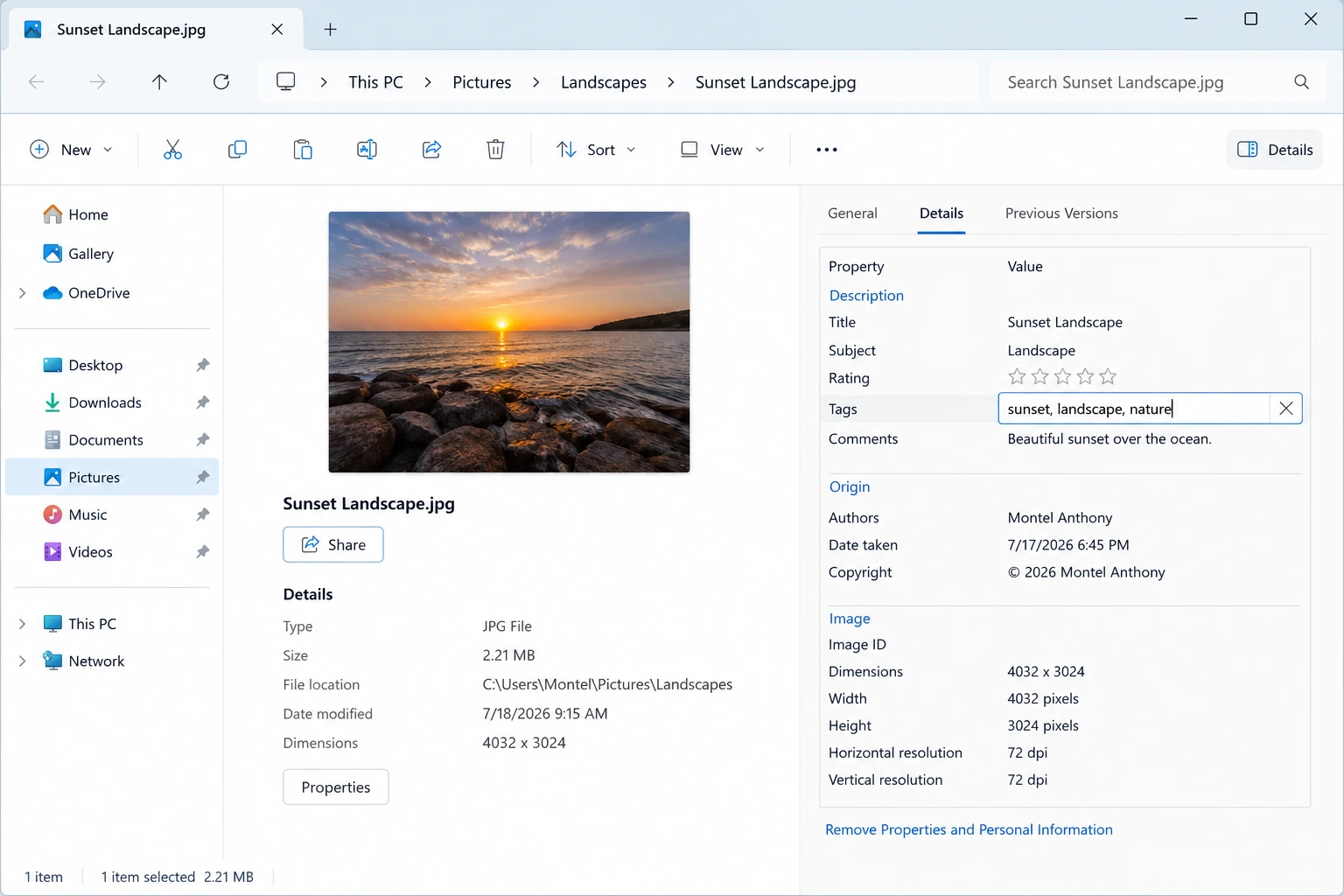
File Explorer writes tags through the Details tab inside a file’s Properties dialog. The Tags row only appears when Windows supports that format.
The Cloudorian File Explorer guide covers navigation, views, metadata panes, and advanced searches. Those controls provide the foundation for the steps below.
Step 1. Open File Explorer
Press Windows key + E. Navigate to the folder containing the target file.
Step 2. Open the file properties
Right-click the file and select Properties. Press Alt + Enter for a faster keyboard route.
Step 3. Select the Details tab
Choose Details at the top of the dialog. Find Tags inside the Description group.
Step 4. Activate the Tags field
Click the value beside Tags. Windows displays an editable Add a tag box.
Step 5. Enter the first tag
Type a short, memorable label. Use client-acme, for example, instead of an unclear label like work.
Step 6. Separate multiple tags
Press the semicolon key after each label. Windows converts each entry into a separate metadata value.
Step 7. Save the metadata
Select Apply, then choose OK. Reopen the properties dialog to confirm Windows saved your entries.
Choose tags that describe how you search. Which label would you remember six months after creating the file?
Tag several files together
Windows can write matching metadata to several compatible files in one operation. Every selected file receives the same tag set.
Step 1. Select files with matching formats
Hold Ctrl and select each file. Use Ctrl + A when every file needs identical labels.
Step 2. Open the combined properties dialog
Right-click one selected file and choose Properties. Windows shows properties shared across the selection.
Step 3. Add the shared labels
Open Details and enter the tags. Select Apply to write them across the selected files.
Mixed formats can hide the Tags row. Group files by extension before batch editing their metadata.
PRO TIP: Batch-tag broad categories first. Add narrow labels to individual files after completing the shared pass.
Word, Excel, and PowerPoint can save keyword metadata without opening File Explorer. This route works well during document creation.
Open File > Info and inspect the Properties area. Select Show All Properties when the keyword field remains hidden.
Some Microsoft 365 versions show Tags inside the full Save As dialog. Add the labels before saving your document.
How to Search Files by Tags in File Explorer
Windows 11 uses Advanced Query Syntax for property searches. The tags: operator tells File Explorer to search metadata instead of relying on filenames.
Step 1. Open the broadest useful location
Open the project folder, Documents, Pictures, or This PC. A narrower location usually returns results faster.
Step 2. Select the search box
Click File Explorer’s upper search box. Press Ctrl + F when you prefer the keyboard.
Step 3. Enter a tag query
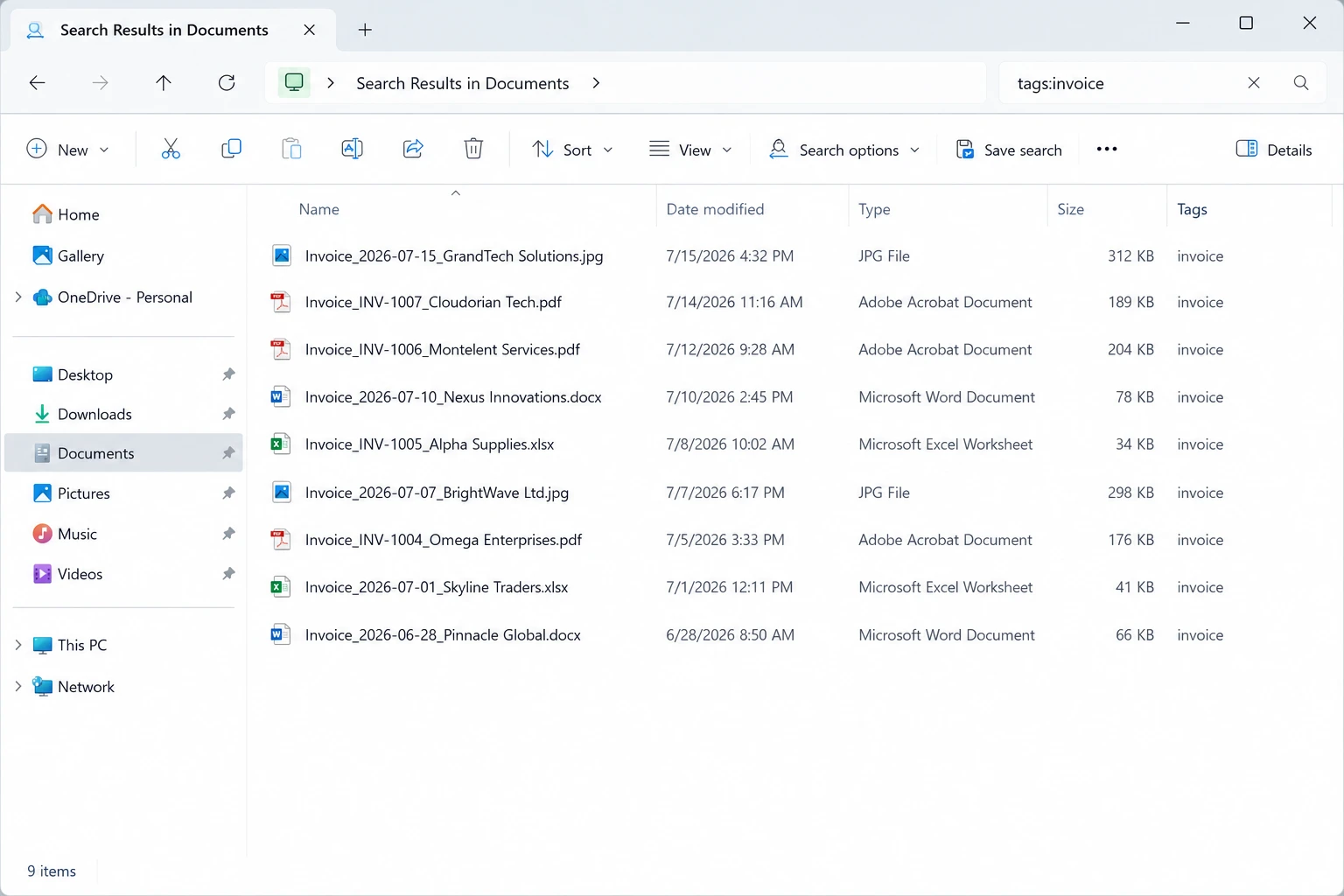
Type tags:invoice and press Enter. File Explorer returns indexed files carrying that label.
Step 4. Search for a phrase
Enter tags:"project atlas" when the tag contains spaces. Quotation marks keep the phrase together.
Step 5. Combine tag conditions
Enter tags:invoice AND tags:paid to require both labels. Enter tags:invoice OR tags:receipt to accept either label.
Step 6. Add another property filter
Enter tags:invoice datemodified:this month to narrow results by modification date. File Explorer supports several date, kind, and size filters.
Microsoft’s Windows file search guide confirms that File Explorer can search local and OneDrive locations.
A plain keyword search may match filenames, file contents, and metadata. The tags: operator removes much of that noise.
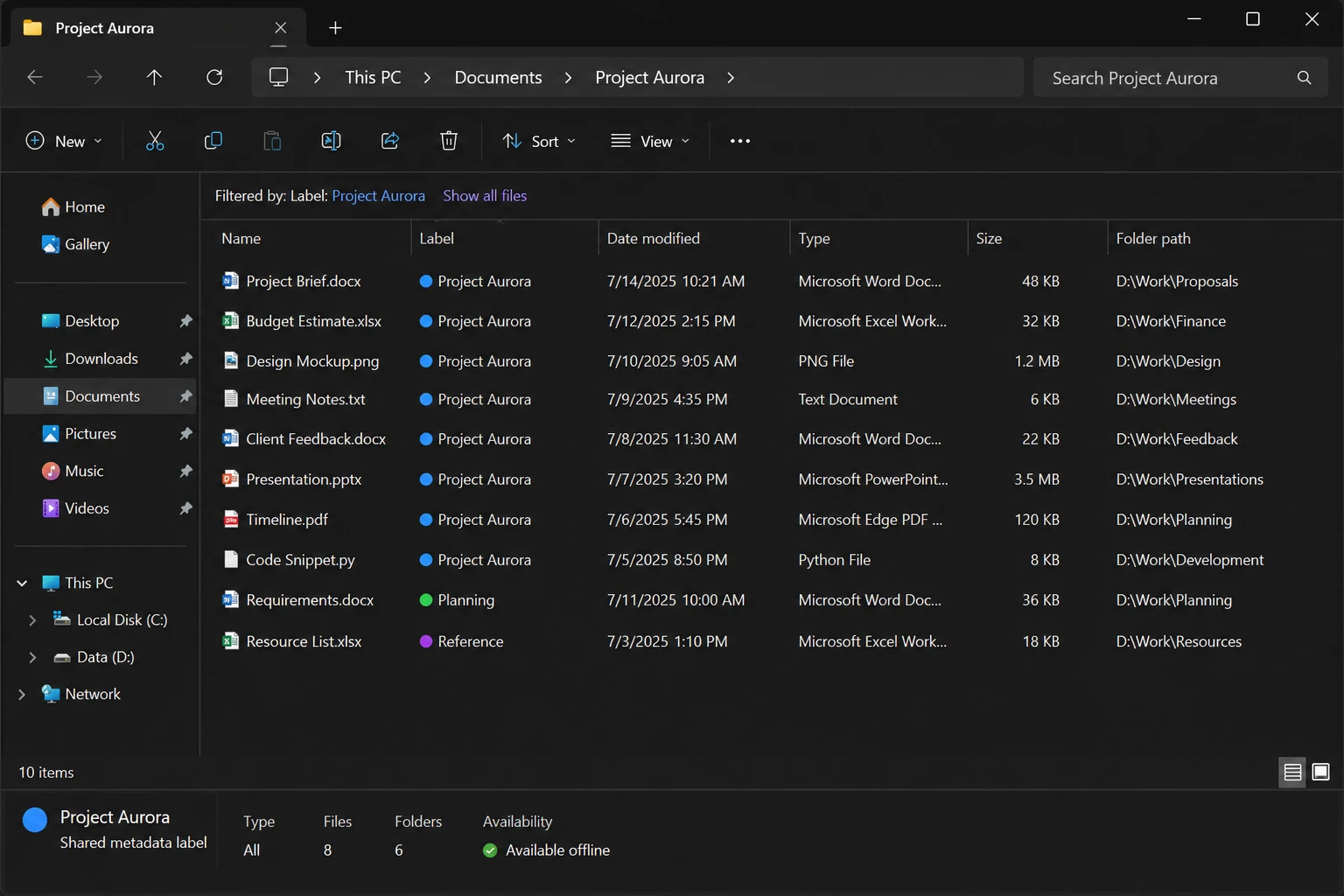
You can add the Tags column to a folder’s Details view. Right-click a column heading, select More, choose Tags, and select OK.
Sort the column to group tagged files visually. Empty entries also reveal files that need attention.
Common File Tagging Problems and How to Fix Them
Native tagging has several sharp edges. Most failures involve unsupported formats, indexing scope, permissions, or metadata removal.
Problem: The Details tab has no Tags field
Cause: Windows lacks a writable property handler for that file type. PNG, PDF, TXT, and ZIP files commonly trigger this problem.
Fix:
- Copy the file before testing another method.
- Open Properties > Details and check for related fields.
- Use the source application’s metadata editor when available.
- Choose a catalog app for formats lacking native support.
- Keep filenames descriptive when another tool cannot preserve portable metadata.
Do not install an abandoned shell extension solely to force tag support. File Explorer extensions can cause crashes after Windows updates.
Problem: File Explorer cannot find a tagged file
Cause: Windows has not indexed the file’s folder or refreshed its metadata entry. Network locations and external drives may receive limited indexing.
Fix:
- Confirm the tag under Properties > Details.
- Open Settings > Privacy & security > Searching Windows.
- Check whether an excluded folder contains the file.
- Select Advanced indexing options.
- Open Advanced and choose Rebuild.
- Wait for indexing to finish before repeating the search.
Index rebuilding can take hours on a large drive. You can keep using the computer during the process.
Cause: The file may have read-only status, restricted permissions, or another application lock. Cloud sync software can also hold files briefly.
Fix:
- Close every application using the file.
- Right-click it and open Properties.
- Clear Read-only when Windows displays that option.
- Confirm your account has write permission.
- Copy the file into your local Documents folder.
- Add the tag to the local copy.
- Move the updated file back after testing.
A file on read-only optical media cannot accept new metadata. Extract or copy it onto writable storage first.
Problem: Tags disappear after editing or uploading
Cause: The application rewrote the file without preserving its metadata. Messaging sites and image compressors often strip descriptive properties.
Fix:
- Keep the tagged original in a controlled local folder.
- Export a copy instead of overwriting the original.
- Inspect the exported copy under Properties > Details.
- Restore missing tags before archiving the file.
- Record key classifications in the filename when portability matters.
WARNING: Metadata can reveal project names, clients, authors, or locations. Remove sensitive properties before publishing a file.
Open Properties > Details > Remove Properties and Personal Information. Create a sanitized copy for external sharing.
File Tagging Tips and Pro Moves
A small controlled vocabulary beats hundreds of improvised labels. Decide your categories before tagging a large archive.
I recommend four practical groups: subject, owner, status, and time. A document might carry tax, personal, reviewed, and 2026.
Avoid synonyms that split one category across several searches. Choose either photo or image, then keep that choice everywhere.
Use lowercase tags because they scan more cleanly in lists. Windows searches usually ignore capitalization, so consistency serves humans.
Choose hyphenated labels for multiword concepts. project-atlas reduces ambiguity and remains easy to type.
Do not repeat information that File Explorer already records. Extension, size, creation date, and modification date already support direct searches.
Combine filenames, folders, and tags instead:
- Folders should describe stable ownership or long-term areas. Examples include Finance, Clients, Research, and Personal.
- Filenames should identify the specific item. Include a clear subject and useful date when dates matter.
- Tags should capture relationships across folders. Good choices include status, topic, audience, and workflow stage.
Cloudorian’s batch file-renaming guide can repair unclear filenames before you add metadata. Clear names provide a fallback outside Windows Search.
Power users should keep a simple tag dictionary in a text file. Record each approved label and its intended meaning.
Review the dictionary every few months. Merge duplicates before they spread through hundreds of files.
Windows does not present a dependable native dashboard for every tag across every folder. This missing tag-management layer creates the biggest gap in most competing guides.
A saved search can reduce that weakness. Run a tag search, drag its search icon into Quick Access, or create shortcuts for frequent queries.
Pair tagging with other productivity tools from Cloudorian’s hidden Windows 11 features guide. Clipboard History and PowerToys can shorten repetitive file-management work.
Frequently Asked Questions About File Tags in Windows 11
Q: Can I tag every file type in Windows 11?
A: No. Native support depends on the metadata handler registered for each file format. JPEG and modern Office documents commonly support tags, unlike many PDF, PNG, TXT, and ZIP files.
Q: How do I tag PDF files in Windows 11?
A: File Explorer often lacks a writable Tags field for PDF files. Use a PDF editor that can change document keywords and preserve them during saving.
A: File Explorer does not provide the same native Tags field for folders. Use descriptive folder names, Quick Access pins, Libraries, or a catalog application.
A: Windows usually writes tags into supported metadata fields inside the file. The exact property depends on the file format and its registered handler.
A: Embedded tags usually travel when you copy the original file. Export tools, websites, and conversion software may remove them.
Q: How do I remove a tag from a file?
A: Open Properties > Details and select the Tags value. Delete the unwanted label, then select Apply and OK.
A: File Explorer can search indexed OneDrive files available through your PC. Browser-based OneDrive search may interpret metadata differently.
A: A plain keyword can match names, contents, and metadata. Search with tags: before the label to target the Tags property.
A: File Explorer does not create a dependable automatic tagging system. You must enter native tags manually or adopt separate catalog software.
A: Tags can remain inside the file and travel with shared copies. Remove confidential metadata before uploading or sending documents outside your organization.
Build a Tag System You Will Keep Using
Start with one active folder and five approved labels. Tagging an entire drive before testing your vocabulary creates cleanup work.
Once your searches return useful groups, apply the same rules to other folders. This measured approach makes learning how to tag files in Windows 11 practical, not burdensome.
Use Cloudorian’s complete File Explorer guide for more search operators and folder controls. Which file format or tag search gives you trouble? Drop the exact symptom in the comments.
Discover more from Cloudorian — Android, Samsung & Windows How-To Guides
Subscribe to get the latest posts sent to your email.



