

WizTree maps a packed 1TB drive in under two seconds, from a 4.9MB download. Free lightweight Windows utilities number in the hundreds, and sorting the useful ones from the bloat costs hours. Here is what earned each spot, with real file sizes, idle memory use, pricing, and honest limits.
How We Picked These Lightweight Windows Utilities
Six filters decided the list, applied in this order:
- Install footprint under 100MB. Anything larger competes with the software you actually opened Windows to run.
- Idle memory under 50MB, read from Task Manager after 30 minutes of normal desktop use rather than from a marketing page.
- Fixes a gap Windows leaves open. A tool that duplicates a built-in feature has to beat it clearly on speed, search, or control.
- Free for personal use, with license terms stated plainly for anyone installing on a work machine.
- Active development inside the last 12 months, confirmed by a dated release or commit.
- A portable or no-admin path where the architecture allows one, because plenty of readers cannot run an installer at all.
Footprint matters more than the raw megabyte count suggests. Six resident tray apps at 40MB each cost you a quarter gigabyte before your browser opens a single tab. Startup impact compounds the same way, which is why every pick below either sleeps in the tray cheaply or runs on demand and exits.
Quick Comparison Table: Size, Price, and Footprint
| Utility | Best For | Install Size | Idle Memory | Price | Portable or No-Admin Option |
|---|---|---|---|---|---|
| WizTree | Finding what ate your storage | 4.9MB | Not resident, runs on demand | Free personal, $25 to $500 commercial | Yes, official portable build |
| QuickLook | Previewing files without opening them | Small portable zip | About 30MB | Free | Yes, portable release on GitHub |
| Flow Launcher | Replacing Start menu, Run, and calculator | 97MB | 60MB to 120MB with plugins | Free, open source | Yes, portable build available |
| Twinkle Tray | External monitor brightness | Largest here, Electron build | Under 30MB | Free, MIT license | No, installer or Store only |
| Ditto | Clipboard history that persists | Under 10MB | Around 15MB | Free, open source | Yes, portable build |
| File Converter | Right-click file conversion | 57MB | Not resident | Free | No, needs shell integration |
1. WizTree: Disk Space Answers Before Windows Finishes Counting
Best For: anyone blocked from installing a Windows feature update by a full drive.
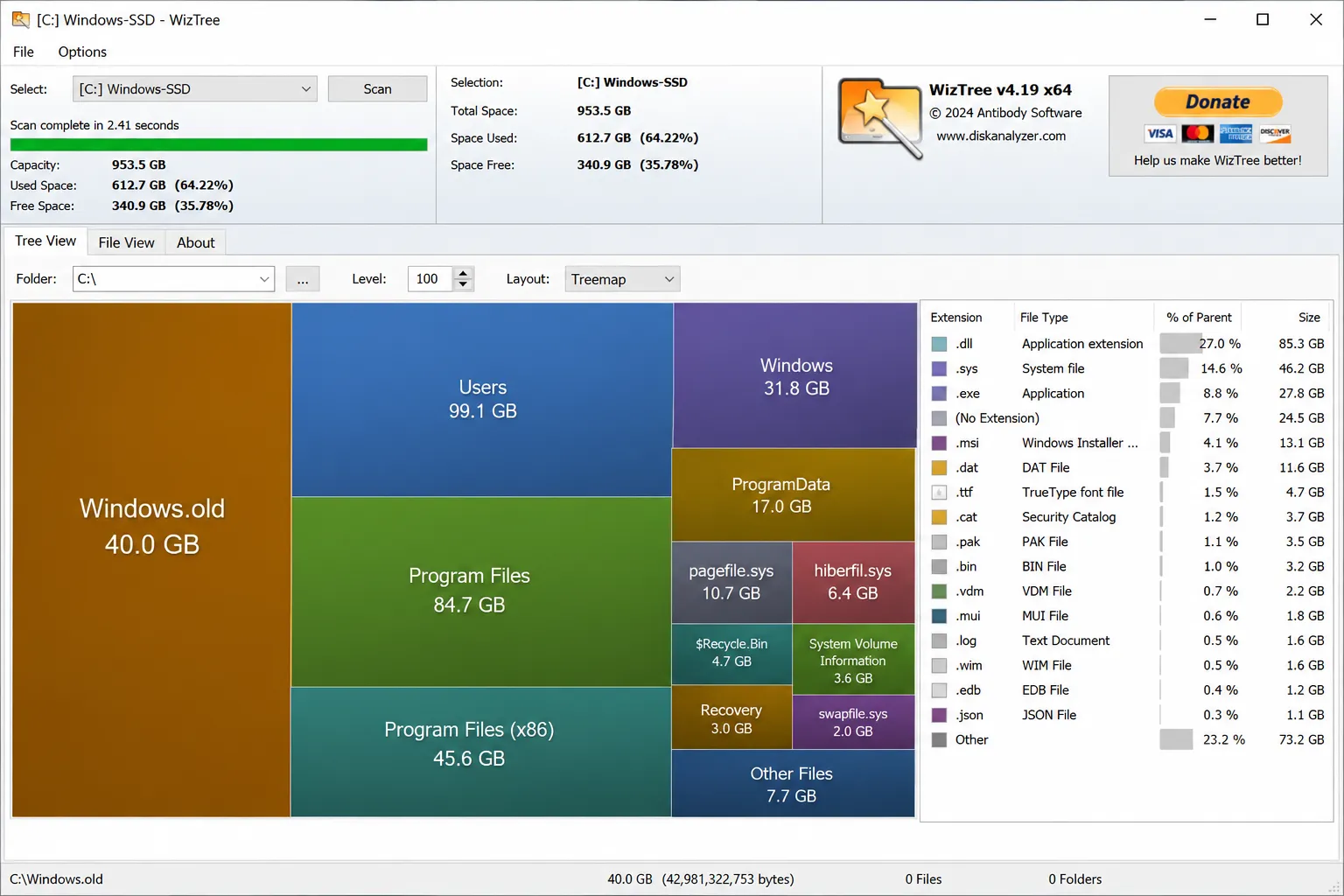
WizTree reads the NTFS Master File Table directly instead of walking folders one by one. That single design decision is why a 1TB drive maps in roughly two seconds. Antibody Software ships it as a 4.9MB download, and the treemap view surfaces the 40GB Windows.old folder you forgot existed.
Run it before you start deleting anything by hand. Guessing at what filled a drive usually means deleting photos while a stale installer cache sits untouched.
Key Features:
- The visual treemap sizes every folder against every other folder on the same screen, so the real space hog becomes obvious without any drilling down.
- File search sorts by size across an entire volume, which makes stray ISO files, virtual machine disks, and forgotten video exports trivial to locate.
- CSV export lets you snapshot drive contents now and compare against a later scan, useful for tracking what a specific application writes over time.
Not a good fit for: FAT32 and exFAT drives, where the MFT shortcut does not exist and scans drop to conventional speed. External media formatted for cross-platform use will feel ordinary.
Pricing: free for personal use. Commercial supporter licenses run $25 to $500 based on staff count, and a distribution license costs $1,200 per year.
PRO TIP: Grab the portable build and keep it on a USB stick. It runs on machines where you have no install rights at all.
2. QuickLook: Spacebar Previews for Files You Refuse to Open
Best For: sorting through camera dumps, invoice PDFs, and near-identical file names.
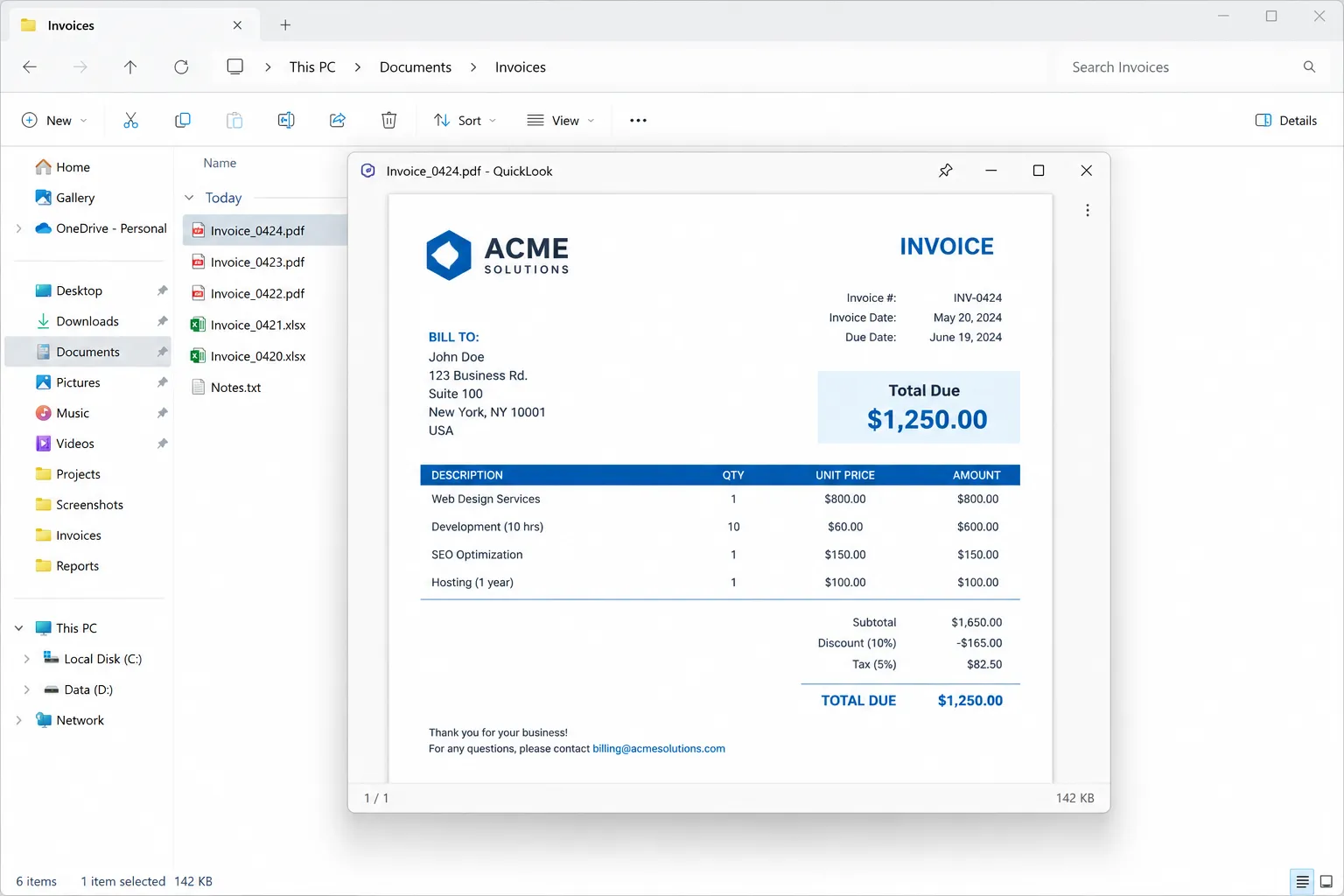
QuickLook brings macOS-style previews to File Explorer. You select a file, tap the spacebar, and a full-size preview appears without launching Acrobat, Photos, or anything else. Idle memory sits around 30MB, and the plugin system adds code files, 3D models, and archive formats that the default build skips.
How many times this week did you open a PDF just to confirm it was the right one, then close it immediately? That habit costs about four seconds each time, and it repeats dozens of times a day for anyone handling documents.
Key Features:
- Preview rendering covers images, video, audio, Office documents, PDFs, and plain text out of the box, with no file association changes required.
- Plugin support extends coverage to source code with syntax highlighting, STL and OBJ models, EPUB books, and compressed archives you can inspect before extracting.
- The Microsoft Store listing handles updates automatically, and a portable release on GitHub works for restricted machines.
Not a good fit for: people who live inside third-party file managers such as Directory Opus or Total Commander. QuickLook hooks Explorer selection behavior, and support elsewhere ranges from partial to nonexistent.
Pricing: free and open source.
3. Flow Launcher: One Search Box Replaces Four Windows Habits
Best For: keyboard-first users juggling the Start menu, Win+R, Calculator, and a browser search bar.
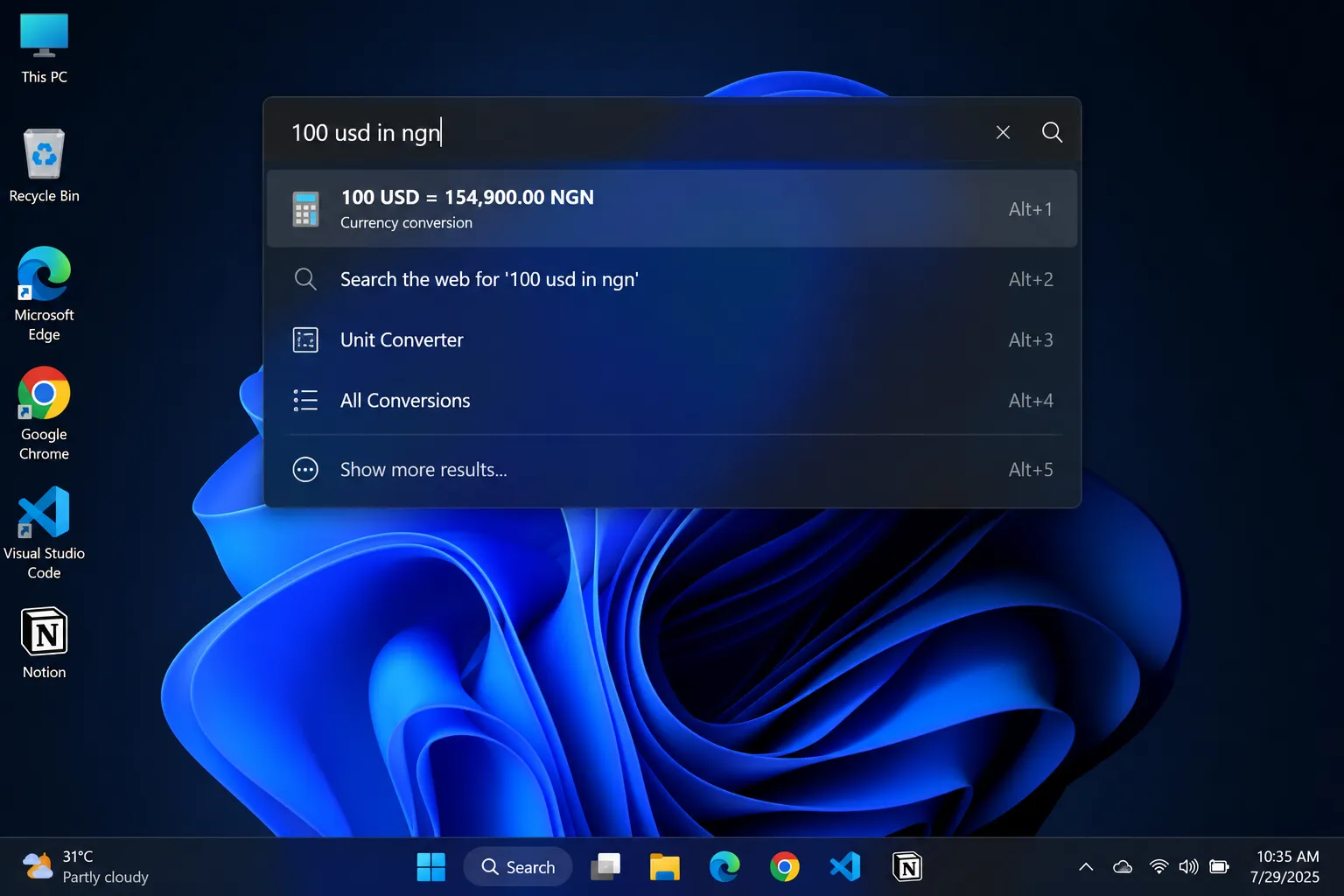
Alt+Space opens a single box that handles all four jobs. Flow Launcher resolves app launches faster than Start menu search, runs arithmetic and unit conversions inline, and fires web queries without a browser window in the way. The download reaches 97MB, the heaviest install on this list, and the plugin catalog earns that space back.
Two plugins carry most of the value: a clipboard history bridge and a video downloader that pulls from YouTube, Instagram, Facebook, and X. File search accuracy improves further when you pair it with Everything as the indexing backend.
Key Features:
- Fuzzy matching finds apps and settings pages from partial or misspelled input, so “chrme” still launches Chrome without a correction step.
- The plugin API supports C#, Python, and JavaScript, and community plugins cover translation, Spotify control, window management, and process killing.
- Custom keyword prefixes route queries to specific plugins, letting you separate a file search from a web search with one leading character.
Not a good fit for: anyone chasing the smallest possible footprint. At 97MB installed and 60MB to 120MB resident with plugins loaded, this is a productivity trade rather than a lean one.
Pricing: free, open source, MIT licensed.
4. Twinkle Tray: External Monitor Brightness From the System Tray
Best For: desktop users with two or more external displays and no usable brightness control.
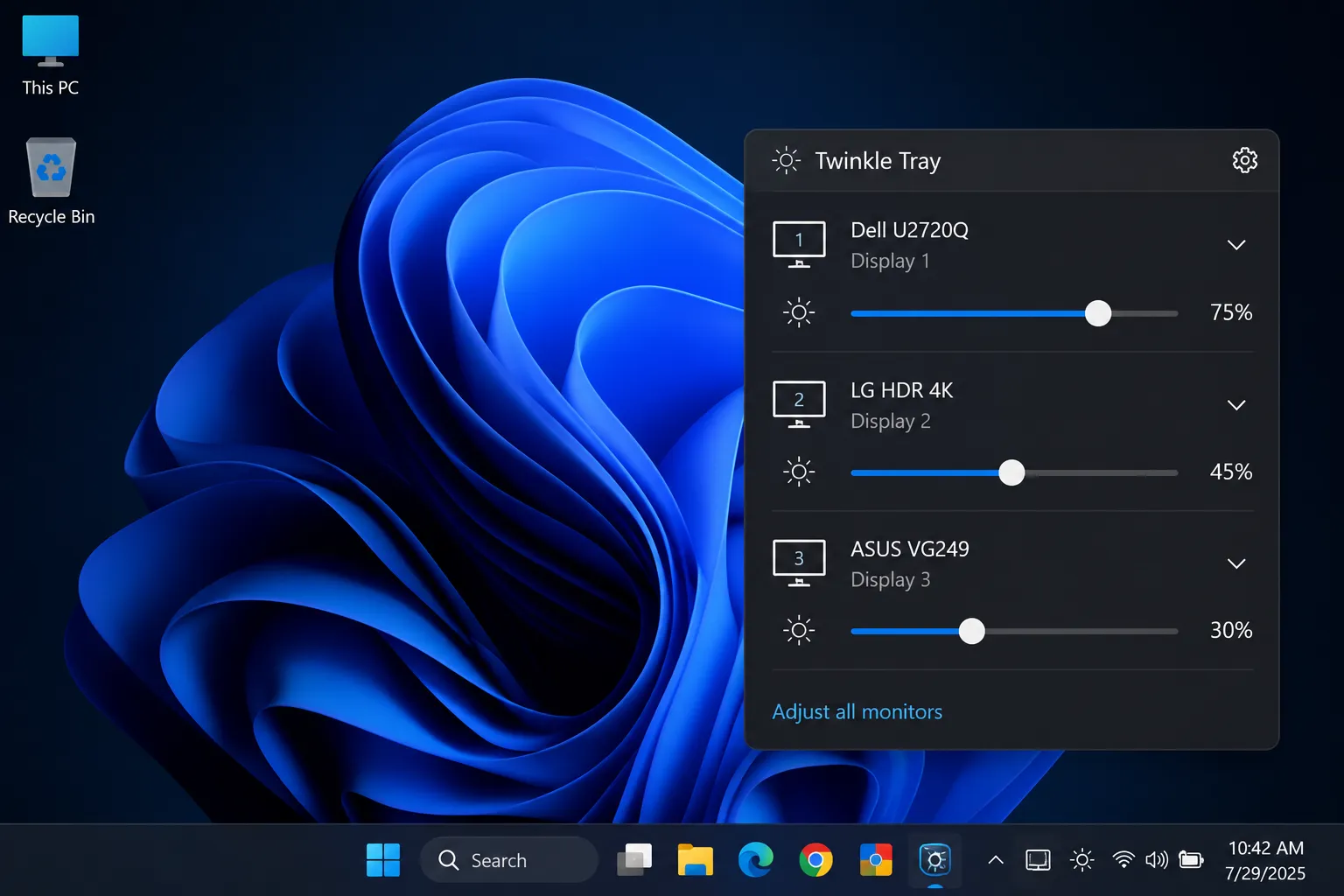
Windows still refuses to adjust the backlight on most external monitors. Twinkle Tray fixes that through DDC/CI, the protocol that sends brightness and contrast commands down the existing video cable. A tray slider appears for every connected display, individually or grouped, and idle memory stays under 30MB.
Version 1.17.2 is the current stable release, with hotkey bindings, per-monitor VCP code control, and brightness normalization across mismatched panels. The 1.18.0 beta adds ambient light sensor support, including Yocto sensors and built-in device sensors.
Key Features:
- Hotkeys adjust brightness on a specific monitor or every monitor at once, which removes the mouse from the loop entirely during focused work.
- Brightness normalization corrects for panels whose 50% setting looks nothing alike, so a three-monitor wall finally matches across all three.
- DDC/CI feature detection exposes contrast, volume, and input source on monitors that report those VCP codes, turning the tray into a partial replacement for the OSD menu.
Not a good fit for: monitors without DDC/CI support, and many daisy-chained or dock-connected setups where the command never reaches the panel. Some USB-C hubs and KVM switches silently drop DDC traffic.
Pricing: free, MIT licensed, roughly 8,800 GitHub stars.
WARNING: Twinkle Tray runs on Electron, so it carries a heavier baseline than a native tray app. Skip it if you own one laptop and zero external displays, since Windows already controls internal panels.
5. Ditto: Clipboard History That Survives a Reboot
Best For: writers, developers, and support staff who paste the same snippets all day.
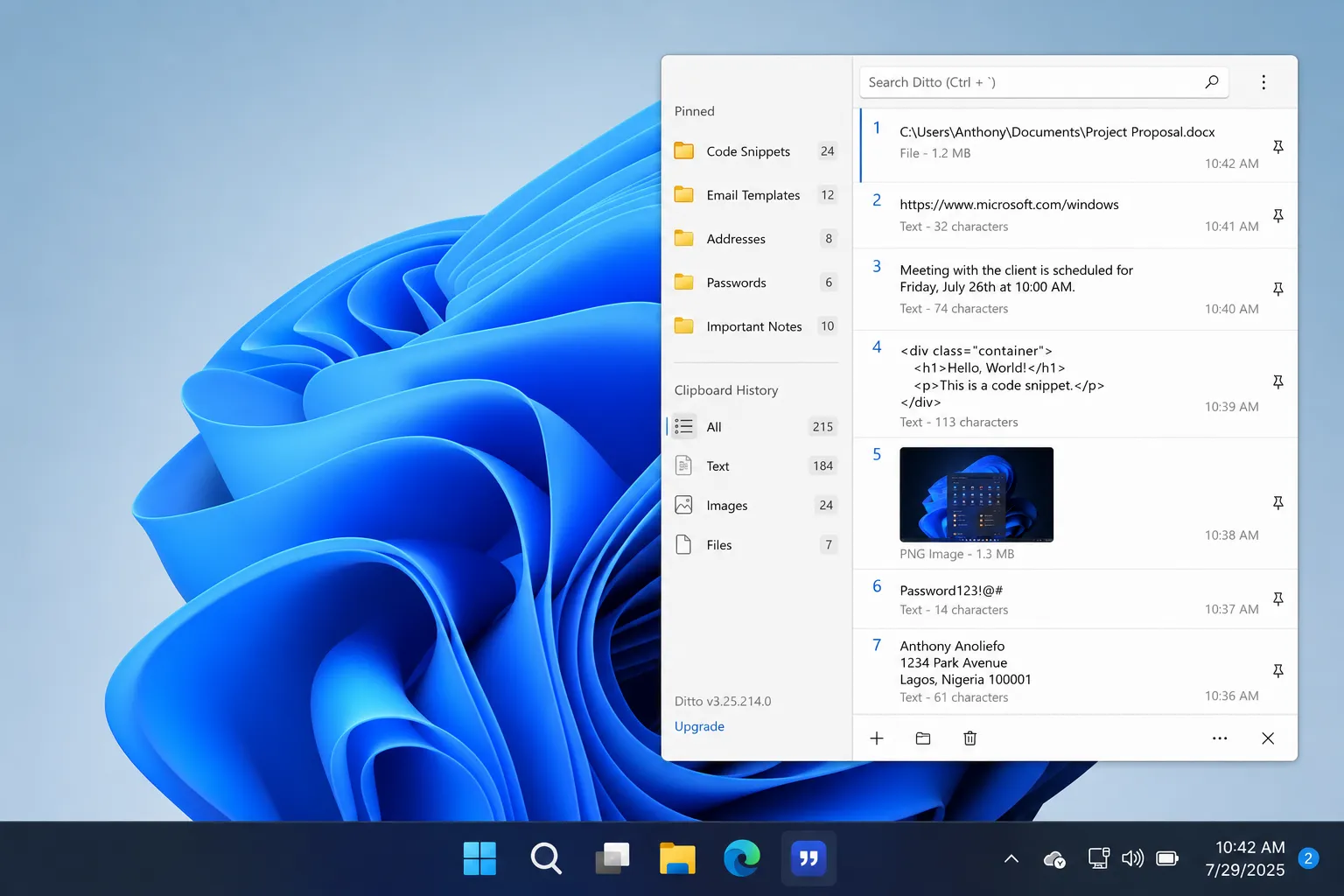
Windows clipboard history exists, and it forgets everything on restart by default. Ditto, maintained by Scott Brogden, writes every copy to a local database and keeps it indefinitely. Search works across the full history, and pinned folders hold email signatures, file paths, and boilerplate replies.
Sync across machines runs through Ditto’s own mechanism, which matters for anyone alternating between a desktop and a laptop. The app-exclusion list keeps password manager copies out of the database.
| Windows Clipboard History | Ditto | |
|---|---|---|
| Searchable history | Limited | Full text search |
| Organization | Basic pinning | Folders plus pinning |
| Persistence | Clears on restart | Kept indefinitely |
| Multi-PC sync | Limited | Built-in sync |
Key Features:
- Full text search across months of clipboard entries retrieves a snippet you copied in March without any manual archiving on your part.
- Folder organization and pinning separate permanent snippets from disposable ones, so signatures and commands never scroll out of reach.
- Per-application exclusion rules stop Ditto from recording copies made inside a password manager, banking site, or terminal session you flag.
Not a good fit for: shared or multi-user machines, and anyone who copies credentials without configuring exclusions first. The database sits on disk, and treating it casually is a real risk.
Pricing: free and open source.
WARNING: Configure exclusions and the database password on day one. A clipboard manager with no exclusions is a plaintext log of everything sensitive you touched.
6. File Converter: Right-Click Conversion That Skips the Browser
Best For: quick offline conversions of images, audio, video, and documents.
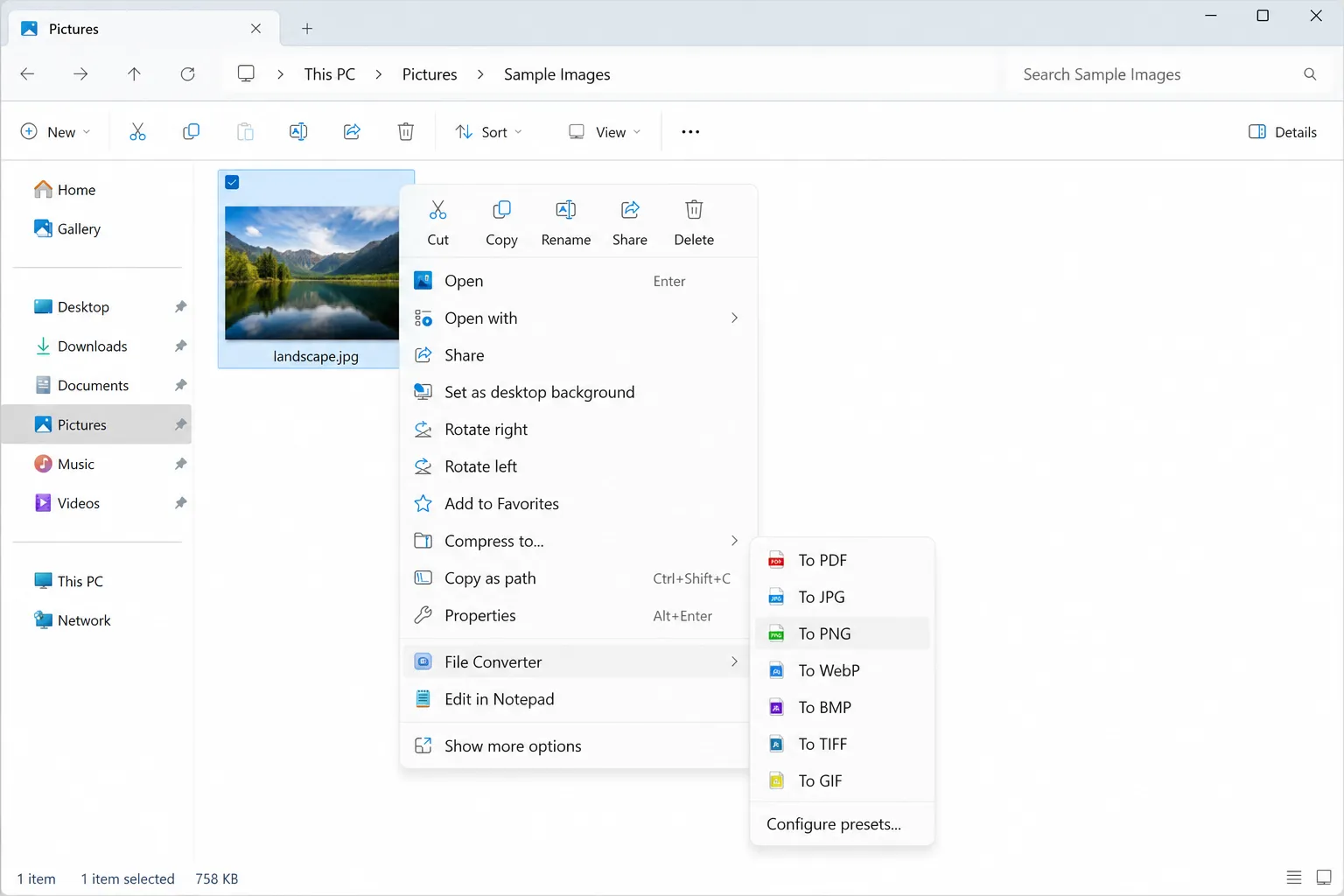
Online converters want your email address and surround the download button with ads. File Converter moves the whole job into the Windows context menu. You right-click a file, pick an output format, and the conversion runs locally on FFmpeg for audio and video.
The download comes to 57MB, and the preset system is where the real value hides. You define your own presets, so a 1080p MP4 at a fixed bitrate becomes a single right-click instead of a command line.
Key Features:
- Custom presets store resolution, bitrate, codec, and quality settings under a named menu entry you can reuse on any file in Explorer.
- Batch conversion accepts a multi-file selection and processes the whole set in one pass, which suits photo dumps and podcast audio equally well.
- Offline processing keeps private documents off third-party servers, a requirement for contracts, medical records, and anything under NDA.
Not a good fit for: professional video pipelines needing frame-accurate control, or RAW photo workflows with color management. Handbrake and dedicated RAW editors stay ahead there.
Pricing: free and open source.
What These Utilities Need on a Locked-Down Work PC
Every roundup on this topic assumes you own administrator rights. Plenty of readers do not, and the picks split cleanly along that line.
WizTree, QuickLook, Flow Launcher, and Ditto all ship portable builds that run from a folder or USB drive with no installer and no registry writes. Twinkle Tray and File Converter cannot work that way. Twinkle Tray needs installed hardware access for DDC/CI, and File Converter registers a shell extension, which requires elevation.
Check your company software policy before installing anything, even free and open source tools. IT teams block unapproved executables for reasons that have nothing to do with the quality of the app.
Common Mistakes to Avoid When Choosing Lightweight Windows Utilities
Mistake: Judging a tool by download size alone.
Why It Happens: Megabytes are the one number every download page shows, so it becomes the default proxy for weight.
Fix: Install the tool, open Task Manager, sort by memory, and read the actual resident figure after 30 minutes. A 4.9MB app that never sleeps can cost more than a 97MB one that runs on demand.
Mistake: Stacking tools that solve the same problem.
Why It Happens: Roundups get read one at a time, and each recommendation sounds reasonable in isolation.
Fix: Pick one launcher, one clipboard manager, one disk analyzer. Then audit startup entries in Task Manager and disable the losers instead of leaving them resident.
Mistake: Installing a clipboard manager without exclusions.
Why It Happens: The default configuration records everything, and nothing warns you that this includes passwords and 2FA codes.
Fix: Open settings, add your password manager and browser to the exclusion list, then enable database encryption before you copy anything sensitive.
Mistake: Skipping the license terms on a work machine.
Why It Happens: “Free download” reads as free for all uses, and most people never open the licensing page.
Fix: Read the terms for commercial use. WizTree explicitly requires a paid supporter license for business use, priced by headcount.
Mistake: Abandoning a tool after one failure.
Why It Happens: DDC/CI and shell extensions fail quietly on specific hardware, so the app looks broken.
Fix: Try the documented workaround first. Twinkle Tray ships a legacy DDC/CI detection toggle in troubleshooting settings that recovers a large share of undetected monitors.
Honorable Mentions That Almost Made the List
Everything by voidtools indexes filenames instantly and pairs well with Flow Launcher, and it overlaps enough with WizTree on search to stay off the main list.
PowerToys deserves its reputation, and Microsoft’s suite runs far past the footprint limits used here. Our guide to hidden Windows 11 features covers what it adds.
ShareX captures and annotates screenshots better than anything built in, and its feature range makes it a full application rather than a small helper. The Windows 11 screenshot features guide explains when the native tools already suffice.
7-Zip stays the correct answer for archives, and almost everyone reading this installed it years ago.
Frequently Asked Questions About Lightweight Windows Utilities
Q: Are lightweight Windows utilities safe to install?
A: Download only from the official project site, the developer’s GitHub releases page, or the Microsoft Store. Every tool listed here is either open source or published by a named developer with a verifiable release history. Avoid software portals that wrap installers in their own download manager, since that is where bundled adware enters.
Q: Do these small Windows tools slow down my PC?
A: Resident tray apps cost 15MB to 120MB of memory each and a fraction of a percent of CPU at idle. Three or four of them will not register on a modern machine with 16GB of RAM. Startup time is the real cost, so check the Startup apps tab in Task Manager monthly.
Q: What is the fastest disk space analyzer for Windows?
A: WizTree, by a wide margin on NTFS drives. Reading the Master File Table directly returns results in seconds where folder-walking scanners take minutes. That advantage disappears on FAT32 and exFAT volumes, where it scans conventionally.
Q: Can I run these free Windows utilities without administrator rights?
A: Four of the six offer portable builds that need no installer: WizTree, QuickLook, Flow Launcher, and Ditto. Twinkle Tray and File Converter both require installation because they touch hardware controls and the Explorer shell.
Q: Does Windows 11 already include a clipboard history?
A: Yes, and you enable it with Win+V. It clears on restart by default, offers weak search, and caps organization at basic pinning. Ditto keeps entries indefinitely with full text search and folders.
Q: Will these tools work on Windows 10 after end of support?
A: All six run on Windows 10 and Windows 11 today. Windows 10 stopped receiving mainstream security updates in October 2025, which makes the operating system the risk rather than the utilities. Moving to Windows 11 remains the safer path, and our Windows 11 speed guide covers tuning a fresh install.
Q: How many of these should I install at once?
A: Start with two that match your loudest daily annoyance. Add a third only after a week, so you can attribute any slowdown to a specific tool.
Start With the One That Fixes Your Loudest Annoyance
WizTree is the pick if you install only one. It costs 4.9MB, runs on demand, needs no admin rights in portable form, and answers the storage question that wastes more of your time than any other Windows chore. Download it, scan your system drive, and see what the treemap reveals in the next two minutes.
Multi-monitor desktop users should take Twinkle Tray second, and heavy document handlers should take QuickLook. Anyone rebuilding a machine from scratch will get more from a full tune-up first, and the 70+ Windows keyboard shortcuts roundup pairs well with a keyboard-driven launcher.
Which one are you installing first, and what did WizTree find hiding on your drive? Drop the number in the comments, because the 40GB surprises are always the good ones.
Discover more from Cloudorian — Android, Samsung & Windows How-To Guides
Subscribe to get the latest posts sent to your email.



