

Last Updated on 24 Oct, 2026 by Montel Anthony
Gboard feels familiar until you need synced clipboard history, five active languages, or serious layout control. Microsoft SwiftKey fixes those pain points with better tools for Android users who type across phones, tablets, and Windows PCs. This guide shows where SwiftKey shines, how to configure it, and which limitations still matter.
What Microsoft SwiftKey Fixes for Android Users
Microsoft SwiftKey targets three common keyboard frustrations: weak personalization, limited clipboard tools, and slow language switching.
The app learns your slang, names, emoji habits, and typing patterns. Its Google Play listing also includes swipe typing, predictive text, GIF search, stickers, themes, Copilot, and AI writing tools.
Microsoft lists support for more than 700 languages. You can run up to five language packs at the same time, which helps multilingual users avoid constant layout changes.
The biggest productivity gain comes from the clipboard. SwiftKey stores copied text, lets you pin important snippets, and supports shortcuts for repeated phrases.
Android Police recently highlighted SwiftKey after years of using Gboard. The writer praised cross-device clipboard syncing, multilingual typing, Incognito mode, and deeper customization.
That experience matches a problem I see often with advanced Android users. A keyboard can type accurately and still waste time through small workflow gaps.
Do you frequently copy addresses, passwords, links, or work phrases between devices? SwiftKey makes those actions easier when you configure the right features first.
Cloudorian also covers how to find clipboard items on Android. That guide explains where clipboard tools appear across Gboard, Samsung Keyboard, and SwiftKey.
Requirements Before You Install Microsoft SwiftKey
You need an Android phone with Google Play access and enough storage for the app and language packs. Microsoft SwiftKey remains free, includes ads, and requires extra permissions for selected features.
The Google Play listing shows version updates through July 8, 2026. It also reports more than one billion downloads and a 4.3 rating from millions of reviews.
You should prepare these items before switching:
- Install the latest Microsoft SwiftKey release from Google Play.
- Keep your current keyboard installed until SwiftKey works correctly.
- Create or use a Microsoft account for backup and cloud clipboard features.
- Update Windows if you want clipboard syncing with a PC.
- Download only the language packs you actually use.
SwiftKey can request microphone, camera, contacts, and photo permissions. You can deny those requests, though voice input, contact suggestions, or media tools may lose access.
Microsoft says Backup & Sync protects learned words and phrases across devices. A newer Microsoft support page also describes OneDrive storage for personalized typing data.
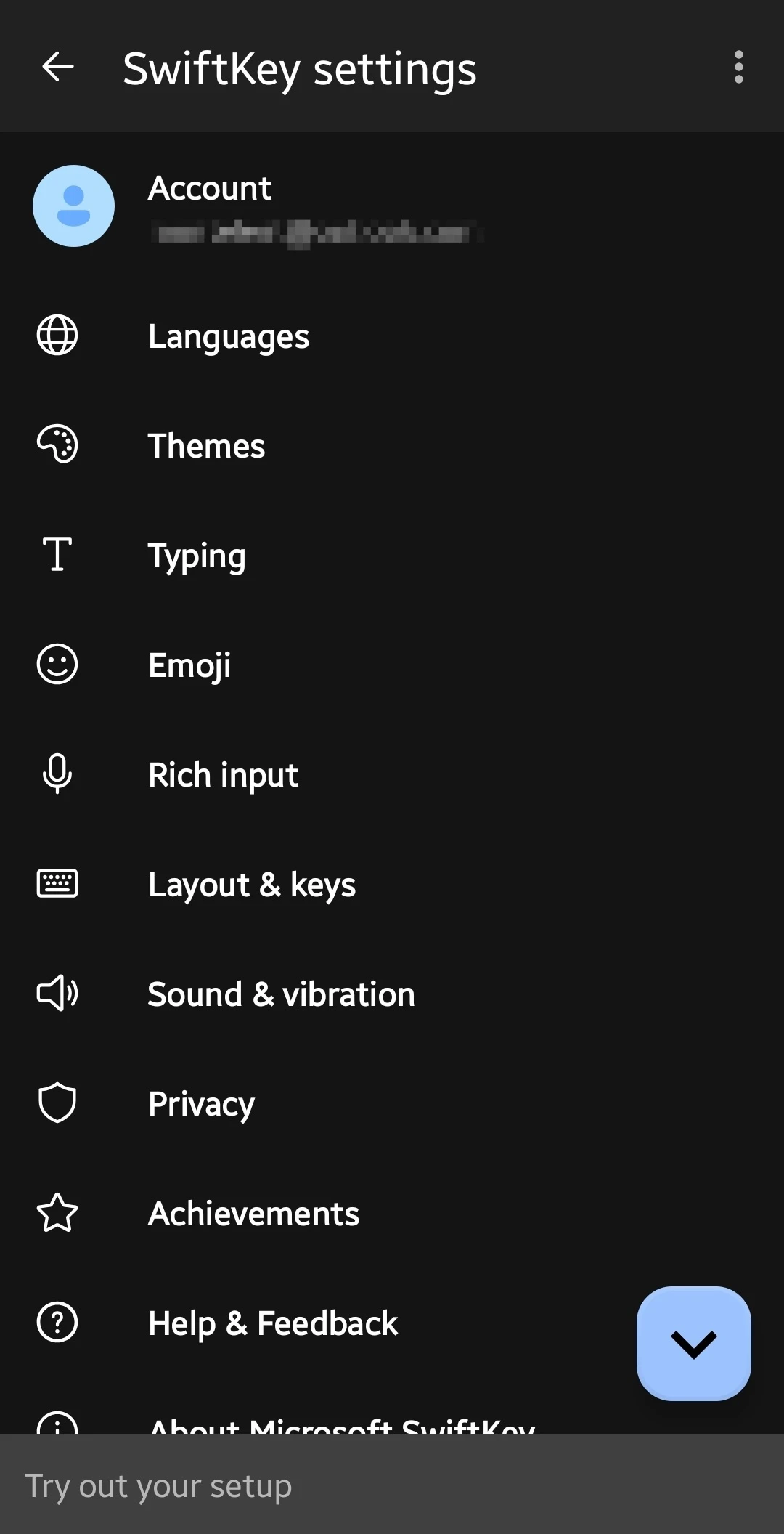
Read the official SwiftKey setup guide before moving from another keyboard. The guide explains the Toolbar, languages, personalization, and layout controls.
Step-by-Step Setup for Microsoft SwiftKey
SwiftKey setup takes a few minutes, though the useful part starts after installation. Follow these steps in order.
Step 1. Install Microsoft SwiftKey from Google Play
Search for Microsoft SwiftKey AI Keyboard and confirm Microsoft Corporation appears as the developer. Install the app, then open it.
Step 2. Enable SwiftKey in Android settings
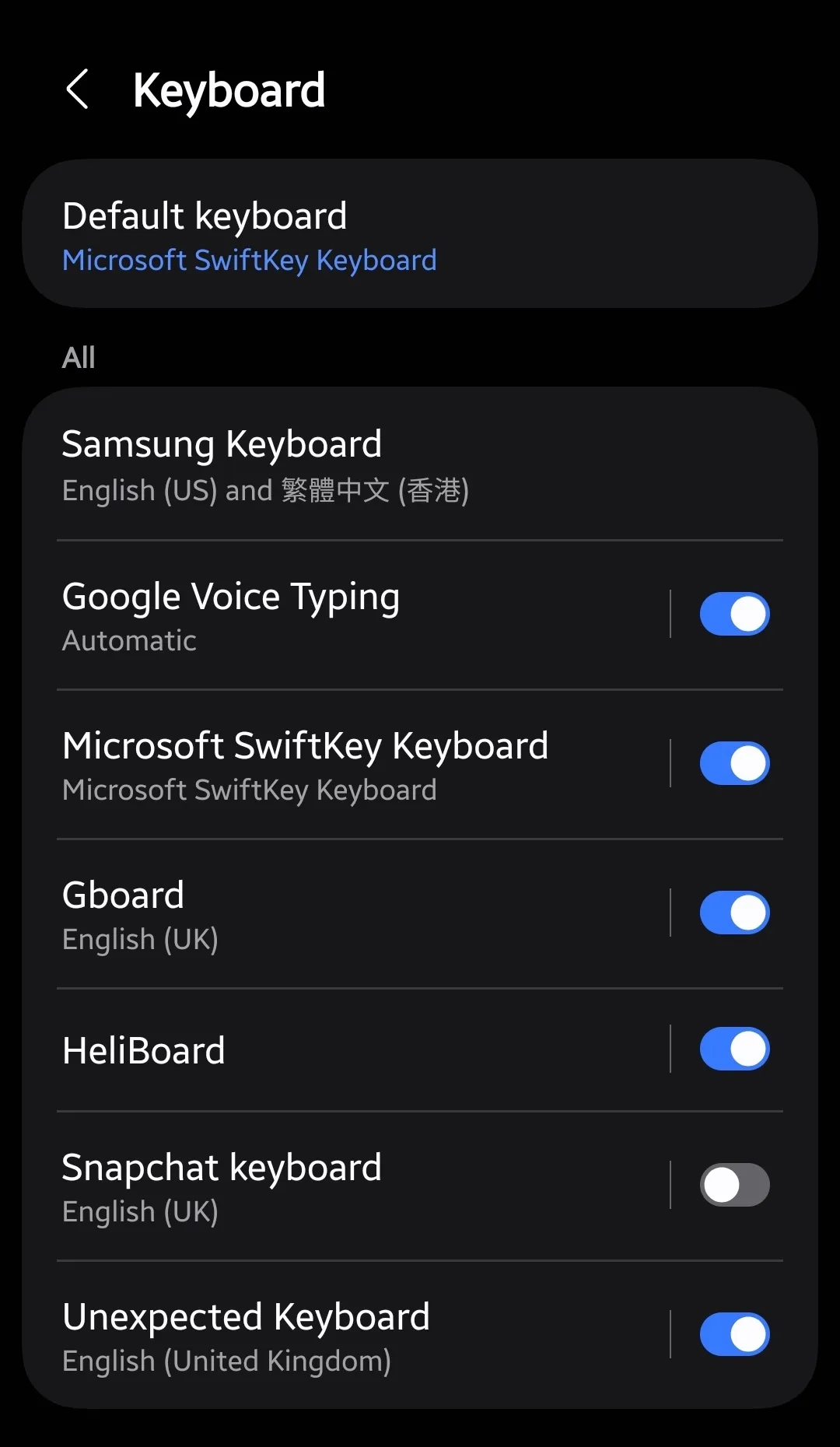
Follow the setup prompts and open Android’s keyboard management screen. Enable Microsoft SwiftKey under Virtual keyboard or Manage keyboards.
Android menu names vary by manufacturer. Samsung phones may place these controls under General management, Keyboard list and default, or On-screen keyboard.
Step 3. Set SwiftKey as the default keyboard
Choose Default keyboard and select Microsoft SwiftKey. Keep Gboard or Samsung Keyboard available until you finish testing.
Microsoft explains that most Android phones show a small keyboard icon near the bottom-right corner. Tap that icon whenever you need to switch keyboards.
Step 4. Add your language packs
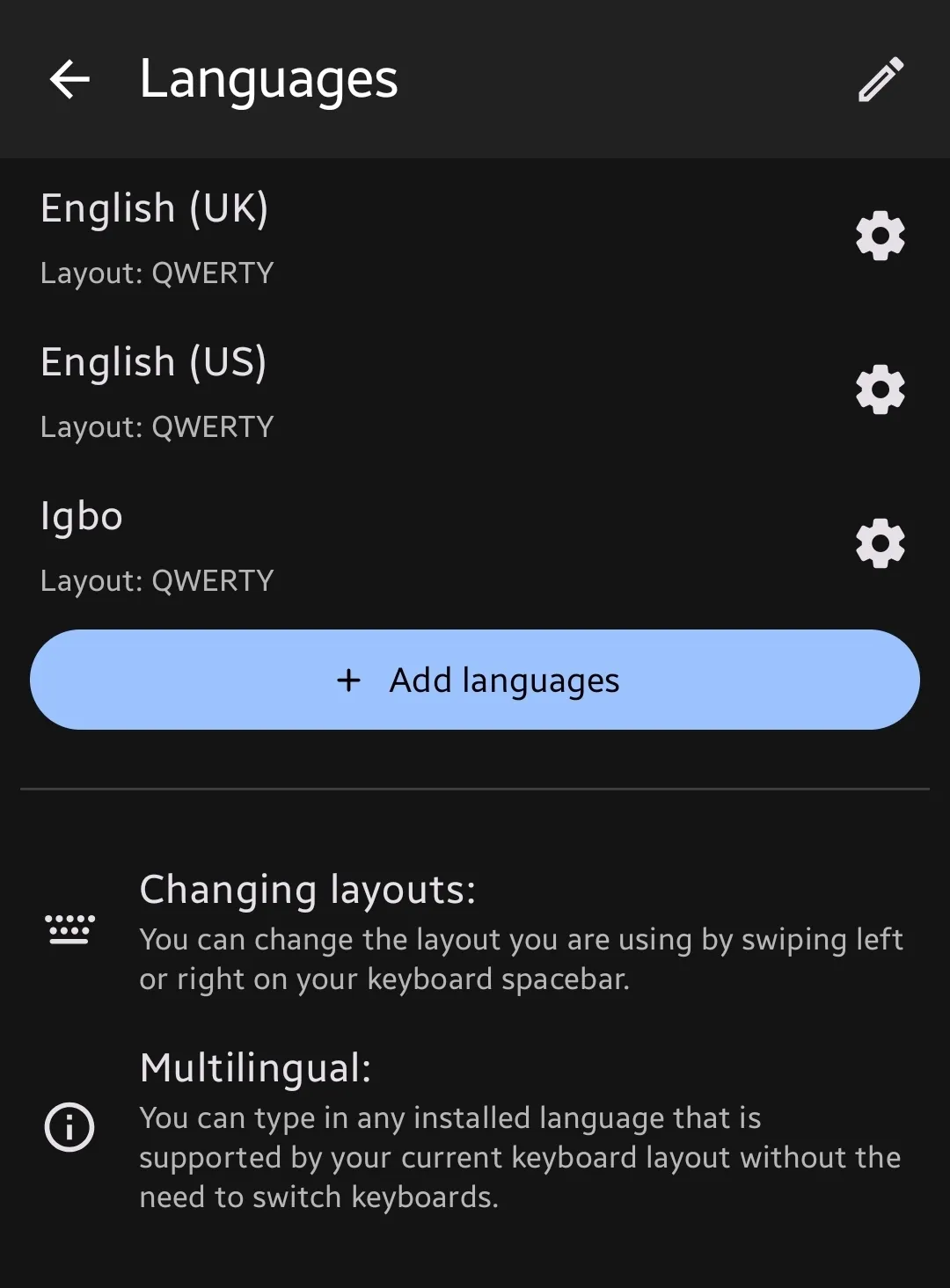
Open the SwiftKey app and tap Languages. Search for each language, then tap the download button beside the layout you need.
SwiftKey supports up to five active languages. You can type across those languages without manually changing layouts every few words.
Step 5. Configure the keyboard layout
Open the SwiftKey app and tap Layout & keys. Turn on the number row, adjust the keyboard height, and choose your preferred layout.
The number row matters more than most theme options. It removes repeated trips to the symbols screen during passwords, dates, and technical writing.
Step 6. Turn on personalization
Open Account, sign in with your Microsoft account, and enable Backup & Sync. This preserves learned words and phrases when you change devices.
Do not enable this feature automatically on a shared phone. Your learned dictionary can reveal names, work terms, and private phrases.
Step 7. Open the Toolbar
Tap the icon on the left side of the prediction bar. The Toolbar contains Clipboard, Themes, Copilot, Translator, GIFs, Incognito, resizing, and voice input.
Microsoft’s Toolbar documentation lists the available tools and their locations.
The SwiftKey Features Worth Configuring First
The clipboard deserves your first serious look. Tap the Toolbar icon, choose Clipboard, then save text that you reuse often.
You can create a shortcut for a longer phrase. For example, store your email address under a short code such as “mymail.” SwiftKey inserts the full text when you tap the suggestion.
Microsoft’s clipboard guide explains saved clips, shortcuts, deletion, and local clipboard behavior.
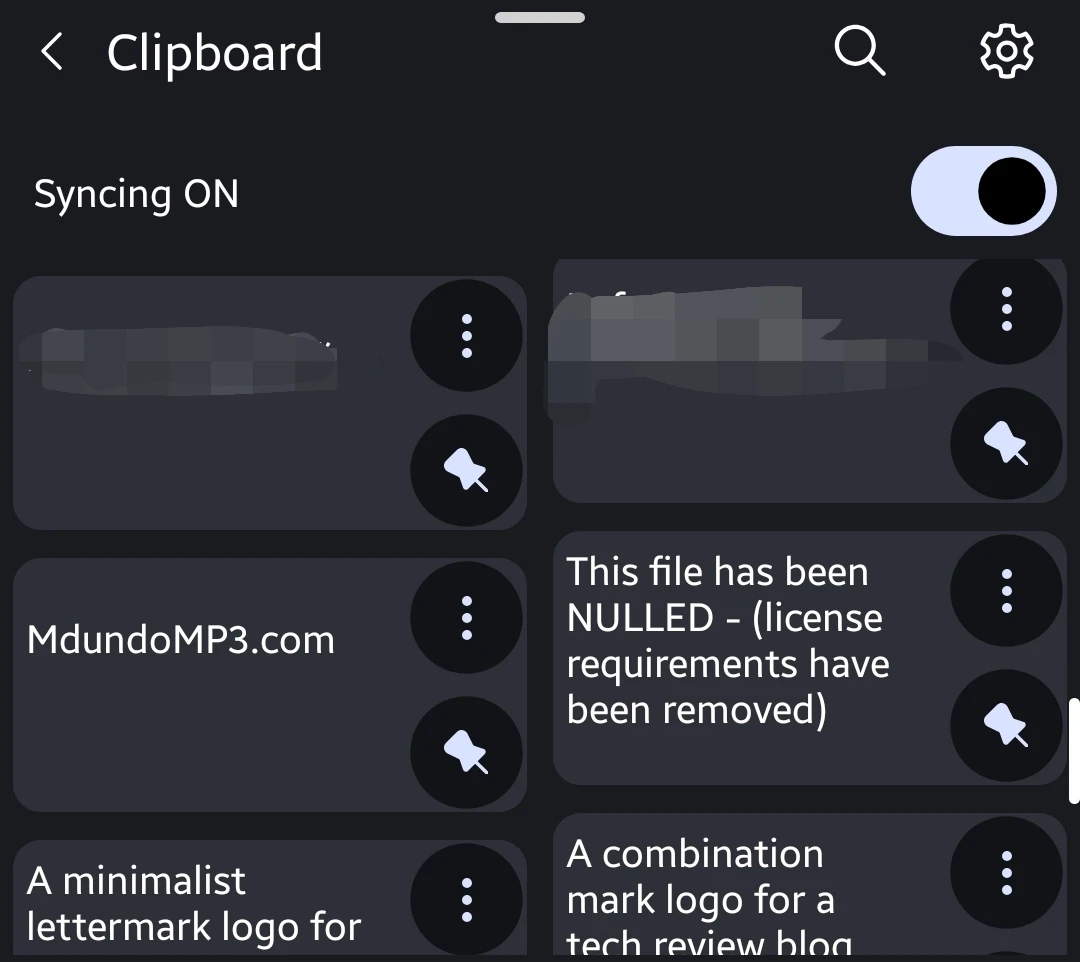
Cloud Clipboard connects SwiftKey on Android with Windows. Open SwiftKey Settings, choose Rich input, then select Clipboard and enable syncing.
On Windows, open Settings > System > Clipboard and enable Clipboard history. Then open Settings > Bluetooth & devices > Mobile devices and enable Access PC’s clipboard.
Cloud Clipboard focuses on text and URLs. It does not replace a photo transfer service because images do not sync across devices through this feature.
Incognito mode helps when you type temporary or sensitive material. Open the Toolbar, tap the three dots, and select Incognito.
SwiftKey stops learning new words during that session. Turn Incognito off when you want normal personalization to resume.
The keyboard also offers resize, one-handed, floating, and thumb modes. These controls help on large phones such as the Galaxy Z Fold series.
Try a taller layout if autocorrect misses short words. Try a smaller layout if the keyboard blocks too much content.
Microsoft SwiftKey Compared With Gboard and Samsung Keyboard
SwiftKey makes the strongest case for users who type across ecosystems. Gboard remains a strong choice for Google services, voice typing, and simple setup.
Samsung Keyboard fits Galaxy phones well and supports Samsung-specific features. Its cross-device tools remain more limited outside Samsung hardware.
| Feature | Microsoft SwiftKey | Gboard | Samsung Keyboard |
| Active languages | Up to five | Usually two at once | Depends on device and settings |
| Cloud clipboard | Android and Windows text sync | Limited ecosystem options | Strongest within Galaxy devices |
| Clipboard shortcuts | Yes | Basic saved clips | Available on supported devices |
| Incognito mode | Yes | Limited privacy controls | Device-dependent |
| Layout controls | Resize, float, one-handed, thumb | Good, with fewer layout options | Strong on Galaxy phones |
| Voice typing | Available | Usually smoother on Pixel phones | Strong Samsung support |
| AI tools | Copilot, rewrite, compose | Google features vary by device | Galaxy AI features vary by model |
| Themes | More than 100 themes and custom backgrounds | Several themes | Samsung-focused themes |
A Gboard user who only types short messages may not notice a major difference. A writer, translator, support agent, or multilingual user will notice the clipboard and language tools quickly.
The main tradeoff involves voice typing. Android Police found Google’s voice dictation smoother for daily use.
SwiftKey also adds Microsoft services to your keyboard. That may feel useful during research, though privacy-focused users should review account and data settings.
Cloudorian’s guide on disabling keyboard vibration on Android can help reduce distraction after switching keyboards.
Common Microsoft SwiftKey Problems and How to Fix Them
Problem: SwiftKey does not appear as an available keyboard
Cause: Android has not enabled the keyboard, or the phone’s manufacturer hides the setting elsewhere.
Fix:
- Open Android Settings.
- Search for Keyboard or Virtual keyboard.
- Open Manage keyboards or Keyboard list and default.
- Enable Microsoft SwiftKey.
- Select it under Default keyboard.
Restart the phone if SwiftKey still fails to appear. Keep another keyboard enabled for emergency access.
Problem: Clipboard text does not sync from Windows
Cause: SwiftKey and Windows use different Microsoft accounts, or Windows clipboard permissions remain disabled.
Fix:
- Open SwiftKey Settings > Rich input > Clipboard.
- Enable Sync clipboard history to the cloud.
- Sign in with the same Microsoft account on every device.
- Open Windows Settings > System > Clipboard.
- Enable Clipboard history and cross-device syncing.
- Open Settings > Bluetooth & devices > Mobile devices.
- Enable Access PC’s clipboard.
Wait briefly after copying new text. Cloud Clipboard transfers text and URLs, not screenshots.
Problem: Autocorrect keeps changing correct words
Cause: SwiftKey learned an incorrect spelling, lacks your language pack, or applies aggressive correction.
Fix:
- Open SwiftKey Settings > Typing.
- Review Autocorrect and prediction options.
- Add the missing language under Languages.
- Tap an incorrect suggestion’s word and remove it from predictions.
- Use Incognito mode for temporary jargon.
- Clear personalized data only as a last step.
Clearing learned data removes useful names and phrases. Export or record important shortcuts before resetting.
Problem: Voice typing censors or mishears words
Cause: Android voice services handle dictation separately from SwiftKey. Microphone permissions and language settings can affect results.
Fix:
- Open Android Settings > Apps > SwiftKey > Permissions.
- Allow microphone access if you want SwiftKey voice input.
- Check the active dictation language.
- Open SwiftKey Settings > Rich input.
- Review Multi-modal voice typing.
- Test voice input in a simple notes app.
Google voice typing may suit you better if dictation matters more than clipboard tools.
Tips and Pro Moves for Advanced Android Users
Use Clipboard shortcuts for phrases you type daily. Support agents can store troubleshooting steps, writers can store attribution lines, and developers can store command fragments.
Keep the number row enabled on phones with screens above six inches. The extra row often saves more time than any AI feature.
Use separate language layouts for work and personal typing. Five active languages help, though too many packs may clutter predictions.
Turn on Incognito mode before entering temporary product names, private case details, or sensitive search terms. This prevents those words from entering your learned suggestions.
Test SwiftKey for one full week before judging its predictions. The keyboard needs time to learn your corrections, slang, and typing rhythm.
Do you type on both Windows and Android every day? Cloud Clipboard can replace the habit of messaging yourself small text snippets.
Do you switch between English and another language inside the same sentence? SwiftKey’s five-language limit may save more time than its AI tools.
Avoid turning on every Toolbar feature. Keep Clipboard, Settings, Incognito, and your preferred AI tool visible. Hide everything else.
SwiftKey can request access to personal data for certain tools. Review permissions from Android settings instead of accepting every prompt by habit.
Frequently Asked Questions About Microsoft SwiftKey
Q: Is Microsoft SwiftKey free on Android?
A: Yes, Microsoft SwiftKey is free to install and use on Android. The app contains ads and optional features that rely on Microsoft account services.
Q: Is Microsoft SwiftKey better than Gboard?
A: Microsoft SwiftKey suits users who need clipboard syncing, five active languages, shortcuts, and deep layout controls. Gboard may suit users who prefer Google voice typing and a simpler setup.
Q: Does Microsoft SwiftKey work with Windows?
A: Yes, SwiftKey can sync copied text and URLs with Windows through Cloud Clipboard. You need matching Microsoft accounts and enabled clipboard settings on both devices.
Q: How many languages can Microsoft SwiftKey use at once?
A: Microsoft SwiftKey supports up to five active languages at once. Microsoft also lists support for more than 700 languages on Android.
Q: Does Microsoft SwiftKey save everything I type?
A: SwiftKey uses personalization data to improve predictions when those features remain enabled. Incognito mode pauses learning for temporary sessions, and Android permissions control access to other features.
Q: Can Microsoft SwiftKey copy images between Android and Windows?
A: No, Cloud Clipboard focuses on copied text and URLs. Use Phone Link, Google Photos, OneDrive, or another file transfer method for images.
Q: How do I switch back to Gboard?
A: Open Android Settings, choose Virtual keyboard or Keyboard list and default, then select Gboard. You can keep SwiftKey installed for later testing.
Make Microsoft SwiftKey Earn Its Place on Your Phone
Microsoft SwiftKey makes the strongest case through small workflow wins. Clipboard shortcuts, cross-device text syncing, five-language typing, and layout controls matter more than flashy themes.
Install it from Google Play, enable the number row, add your main languages, and test Clipboard before changing anything else. Keep Gboard available until SwiftKey handles your daily typing without extra corrections.
You can also compare its privacy tradeoffs with Cloudorian’s guide to open-source Android keyboards. Which SwiftKey feature matters most for you, clipboard syncing, multilingual typing, or layout control? Share your setup or problem in the comments.
Discover more from Cloudorian — Android, Samsung & Windows How-To Guides
Subscribe to get the latest posts sent to your email.



