

Clipboard is an Android device functionality that can be used to check and manage all items copied or cut (like text, images, and links) during a recent time. This feature proves useful while working with documents that need to copy and paste text a lot. The steps of finding clipboard may vary according to the device and keyboard app that are being used. The smart option is to learn how to find clipboard on Android, which will let you browse your copied clips more easily. Checkout How to Access the Hidden Symbols on Your Android Phone’s Keyboard
How to Find Clipboard on Android Phone
Before you kick off, you need to ensure that you have:
- Android Device: A smartphone or tablet running Android.
- Keyboard App: The default keyboard app installed on your device (e.g., Gboard, Samsung Keyboard, SwiftKey).
- Internet Connection: Required for downloading or updating apps if necessary.
Read on How to use your Android phone as a Bluetooth mouse or keyboard.
Step-by-Step Instructions
Accessing Clipboard via Gboard
Gboard is the official keyboard by Google. It comes with a clipboard support feature that allows you to carry out clipboard management operations easily. To use it, just:
- Open an App with Text Input: Go to the app where you want to send the message or to note the text that allows you to insert text.
- Bring Up the Keyboard: Tap on a text field to display the keyboard.
- Open Clipboard: Tap the clipboard icon located on the main toolbar, the Gboard. If it’s not there, tap on hamburger menu icon to expand options.

GBoard Hamburger Menu 
GBoard Clipboard icon - View Clipboard Items: A list of your recently copied items will appear. Tap on any item to paste it into the text field.

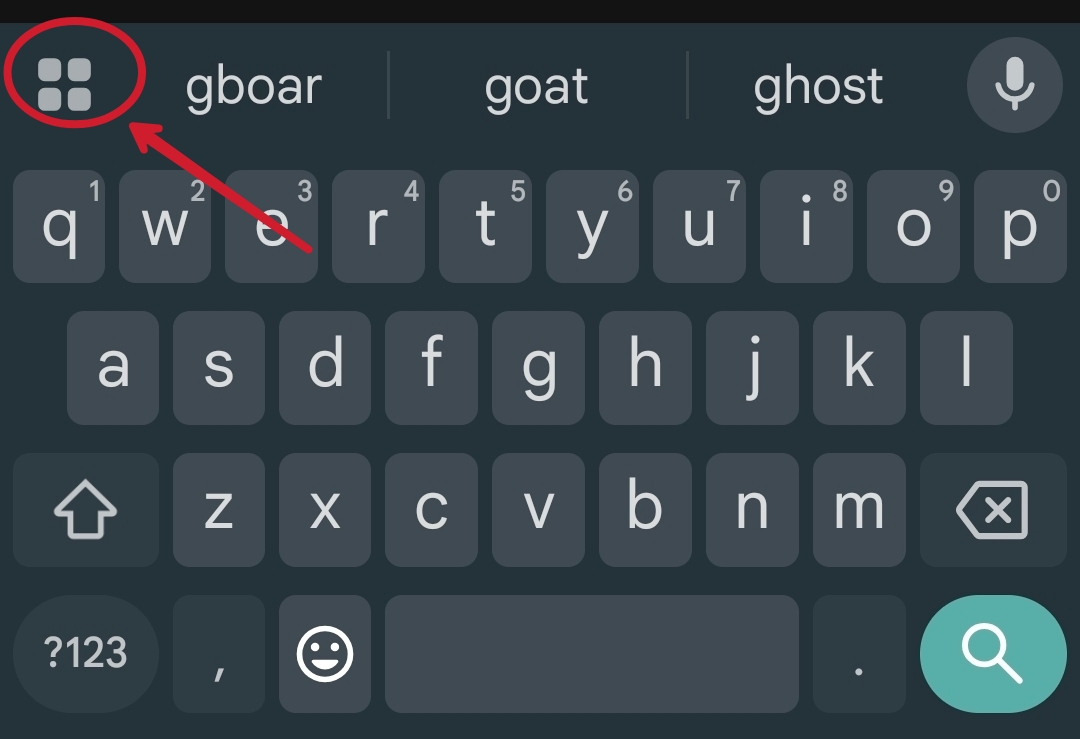
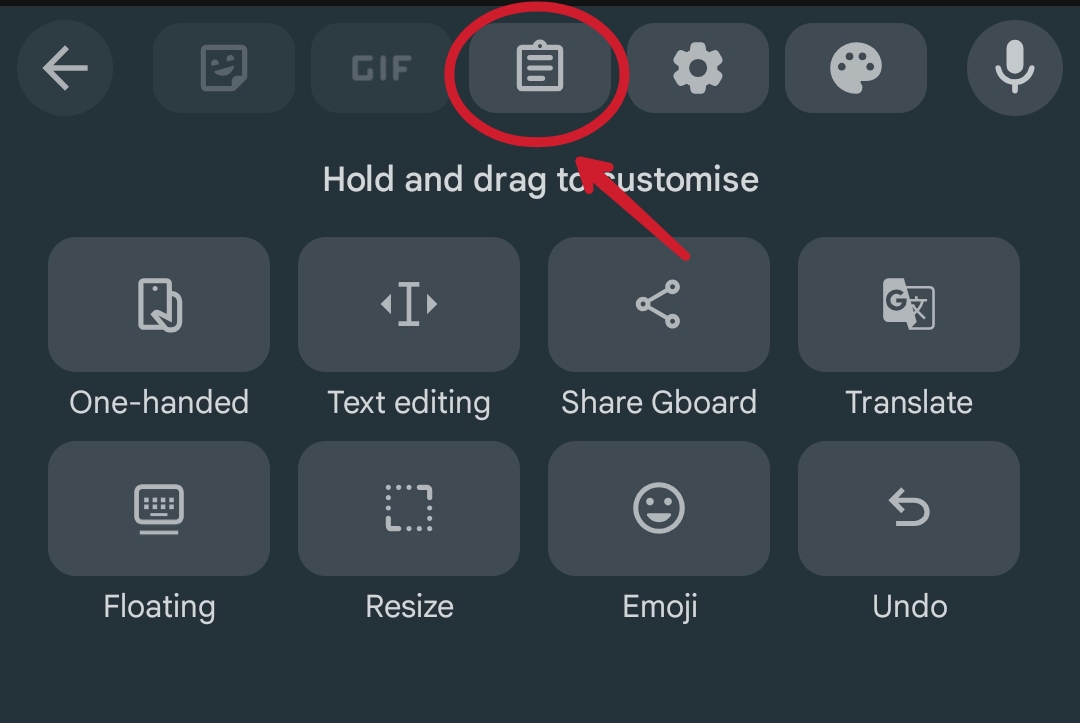
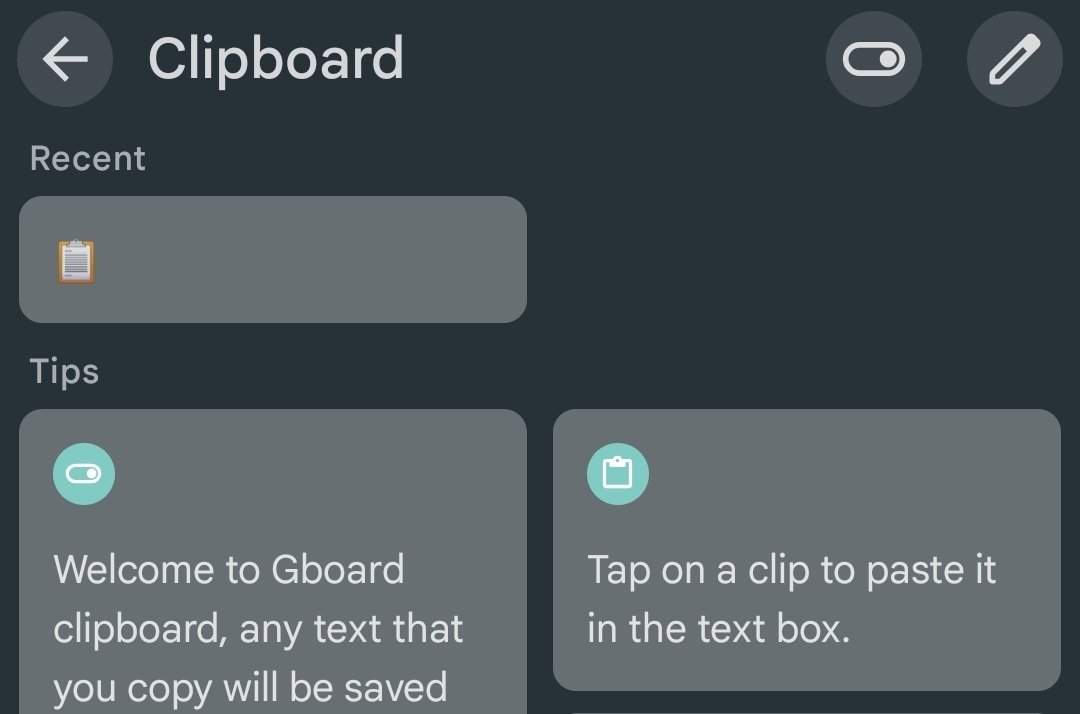
Note: Clipboard items in Gboard are temporary and may expire after an hour unless pinned. To pin an item, tap and hold it, then select “Pin.”
Accessing Clipboard via Samsung Keyboard
For people using Samsung devices with Samsung Keyboard, follow these easy steps:
- Open a Text Field: Tap on a text input area in any app.
- Display the Keyboard: The Samsung Keyboard should appear.
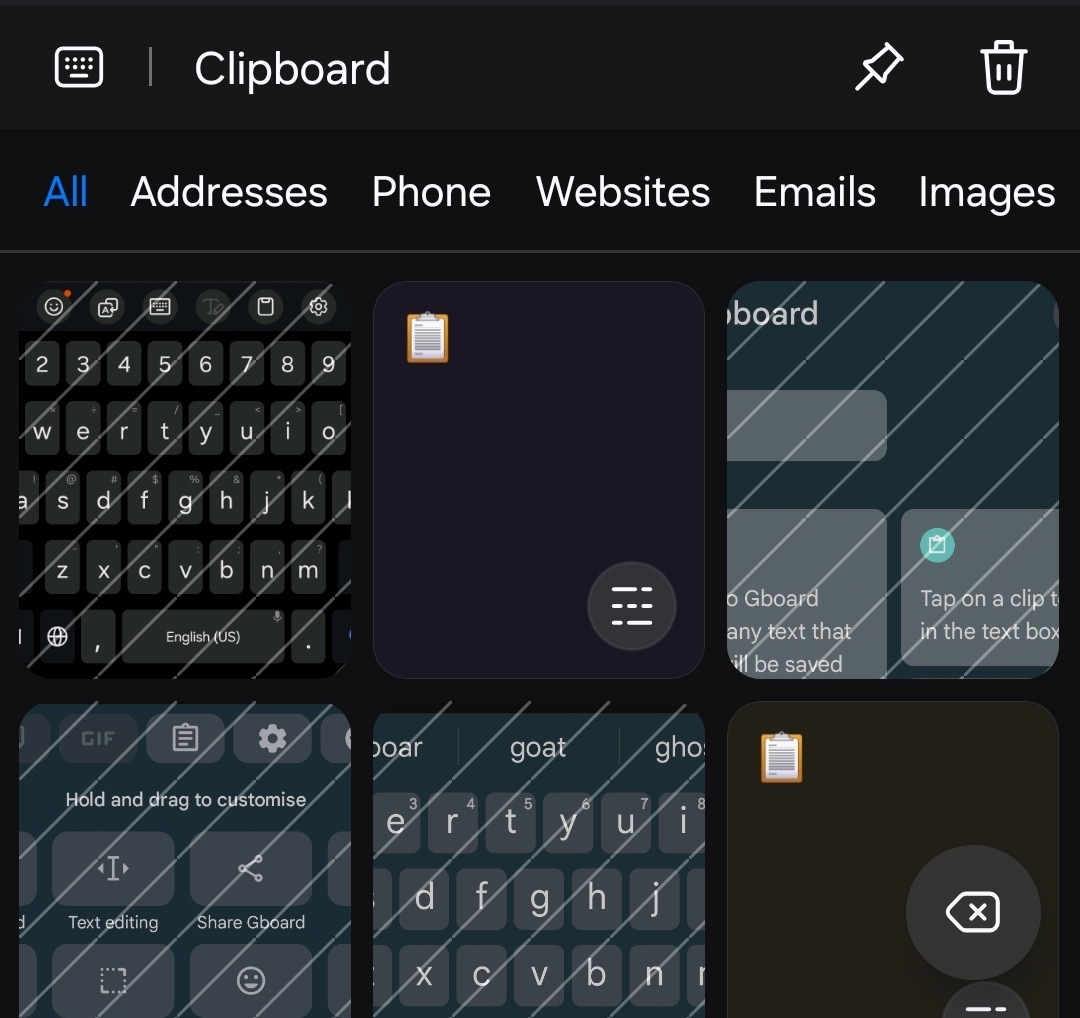
- Open Clipboard: Tap the clipboard icon in the toolbar.

Samsung Keyboard Clipboard icon - Manage Clipboard Items: Browse through your copied items and tap to paste. You can also pin items to keep them from disappearing.

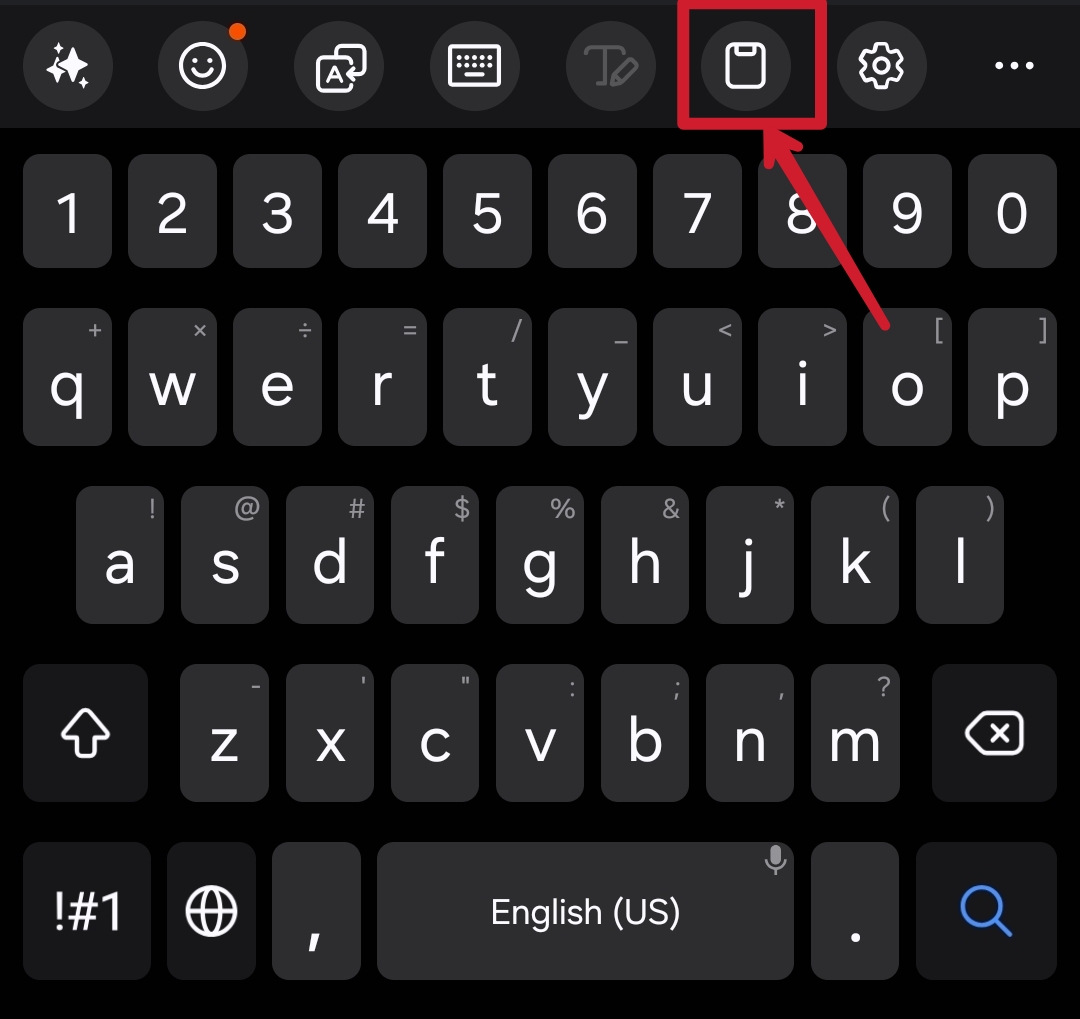
Accessing Clipboard via SwiftKey
If your phone has Microsoft’s SwiftKey installed, proceed with the following:
- Open a Text Field: Tap on a text input area in any app.
- Bring Up SwiftKey: The SwiftKey keyboard will appear.
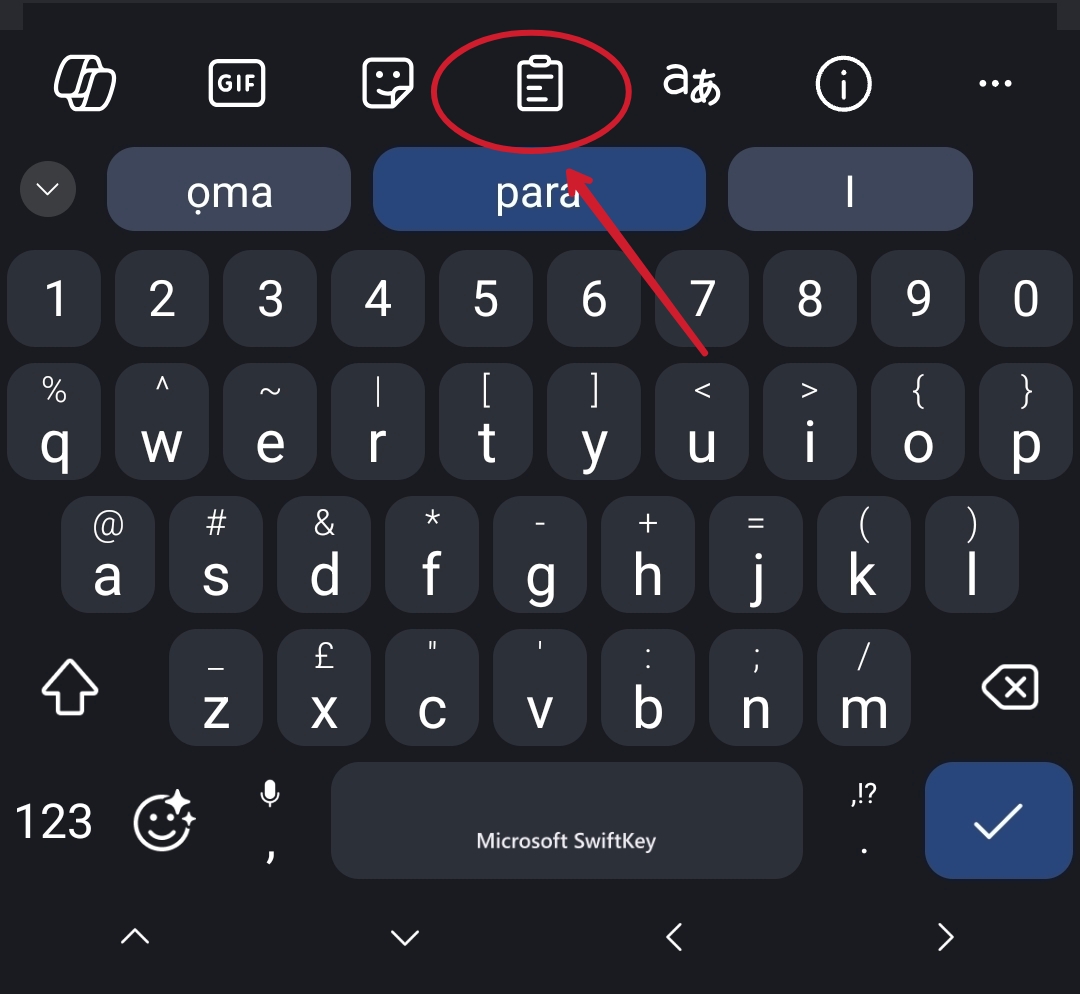
- Open Clipboard: Tap the Clipboard icon on the top side of the toolbar, then select the clipboard icon.

SwiftKey Clipboard Icon - View Clipboard History: Your copied items will be displayed. Tap on any item to paste it.

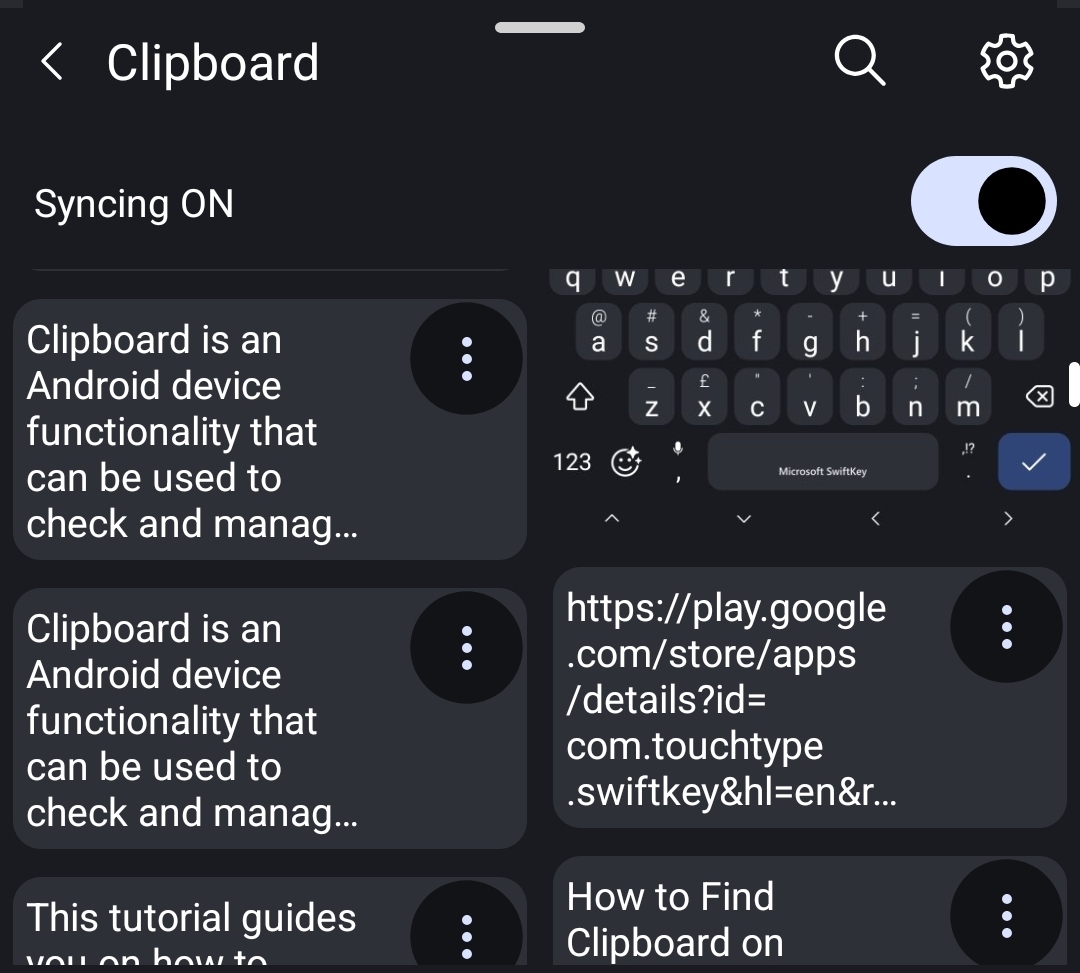
Note: Clipboard items in SwiftKey are temporary and may expire after an hour unless pinned. To pin an item, tap and hold it, then select “Pin.”
Troubleshooting Clipboard Access
Clipboard Icon Missing:
- Enable Clipboard: Go to your keyboard settings and ensure the clipboard feature is enabled.
- Restart the App: Close and reopen the app to refresh the keyboard interface.
Copied Text Not Showing Up:
- Clear Keyboard Cache: Navigate to Settings > Apps > [Your Keyboard App] > Storage > Clear Cache.
- Restart the Device: A simple restart can resolve temporary glitches.
Clipboard Not Saving Multiple Items:
- Check Clipboard History Settings: Ensure that clipboard history is turned on in your keyboard settings.
Conclusion & Next Steps
By employing the steps here, you can effortlessly get to your clipboard on Android devices, and this automatically adds to your productivity. Make sure you pin the options that you need so that they do not expire on you. You might as well try clipboard manager apps that can be found on the Google Play Store for such advanced clipboard handling.
Learning the skill how to find clipboard on Android phone is basically one of the endeavors a person can make to increase personal efficiency in his work, and it is also a stepping stone into multi-tasking.
Discover more from Cloudorian — Android, Samsung & Windows How-To Guides
Subscribe to get the latest posts sent to your email.



