

WhatsApp username keys add another gate before strangers can message you. This guide explains how to add a WhatsApp username key on Samsung phones, share it safely, change it, and remove it. The feature still rolls out gradually, so your account may not show the required menu yet. Start by checking what the key protects and which contacts can bypass it.
What a WhatsApp Username Key Does
A WhatsApp username key controls first-time contact requests made through your username. Someone needs both your exact username and your key before starting a new conversation.
The key does not replace your phone number. WhatsApp still requires a phone number when you create an account. Your username simply gives new contacts another way to reach you without seeing that number.
WhatsApp usernames do not work like a public directory. People cannot browse nearby usernames or receive random suggestions. They need your exact username before they can find you.
The key also does not block everyone who lacks it. Existing connections follow different rules.
| Contact type | Needs your username key? | Why |
|---|---|---|
| Someone who already messaged you | No | WhatsApp recognizes the existing conversation |
| Someone with your phone number saved | No | They already have a direct account connection |
| Someone in a shared group | No | The group provides an existing contact path |
| Someone who scanned your QR code | No | The QR interaction creates a contact route |
| Someone you messaged first | No | You already initiated contact |
| A complete stranger using your username | Yes | The key confirms that you approved contact |
Think of the key as a filter for strangers, not a replacement for WhatsApp’s blocking tools. Use blocking and reporting when someone already contacted you or behaves suspiciously.
Requirements Before You Add a Username Key
You need WhatsApp installed on your primary mobile device. WhatsApp Web and the desktop app cannot create or manage the key right now.
Update WhatsApp through the Google Play Store before checking the setting. Open the Play Store, search for WhatsApp Messenger, and tap Update if that button appears.
Your account also needs access to the username feature. WhatsApp controls the rollout by account, region, and app availability. A current app version does not guarantee immediate access.
Samsung users should check the primary device carefully. Linked Android phones may display chats, but they may not expose the full username controls.
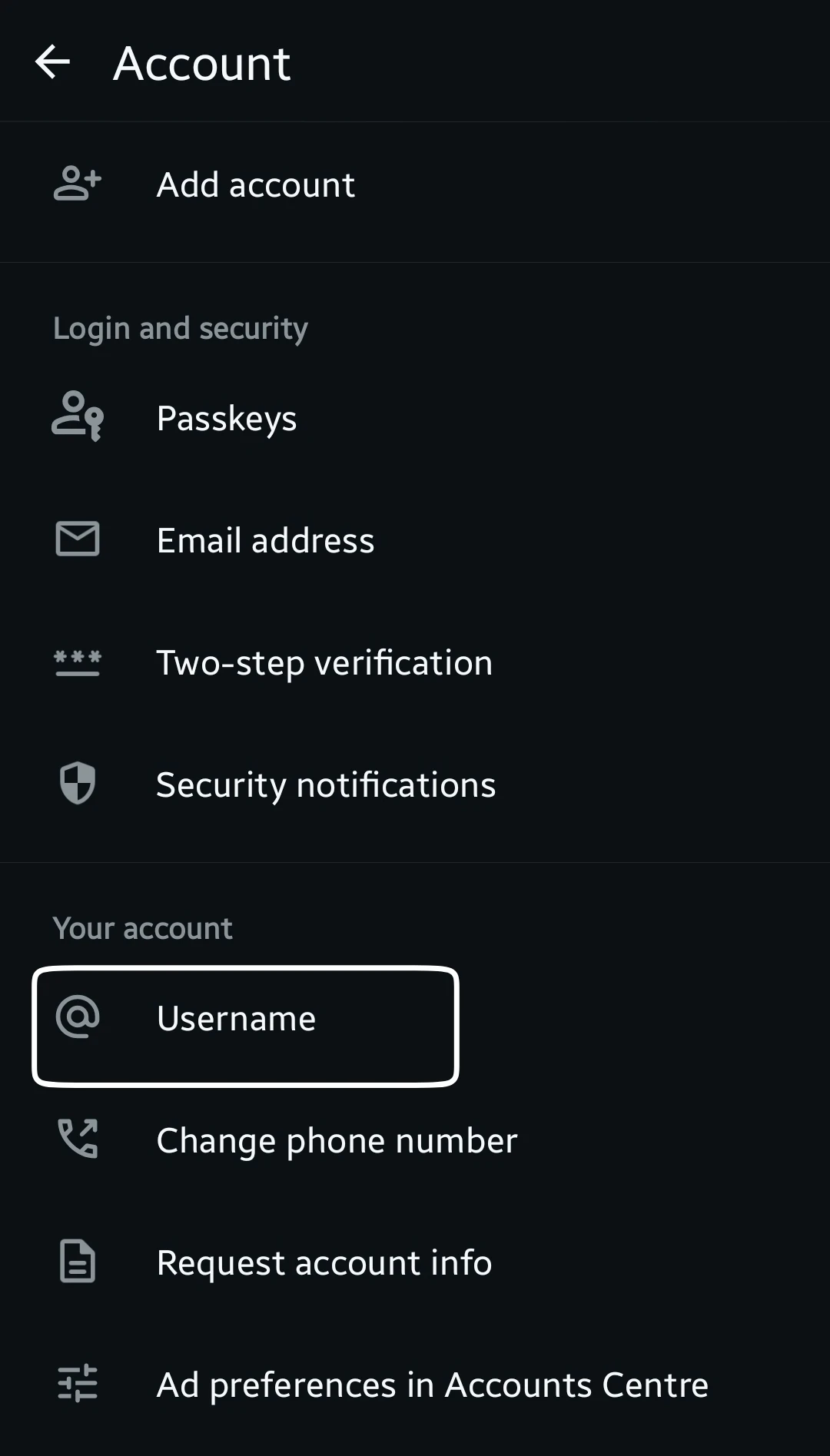
You also need a reserved or active WhatsApp username. The setup path usually appears under WhatsApp > Settings > Account > Username.
Use the official WhatsApp username help page to confirm the current rollout status and username rules.
WARNING: Do not trust third-party apps that promise early access to WhatsApp usernames. They may request account codes, contacts, or device permissions that WhatsApp never requires.
How to Add a WhatsApp Username Key on Samsung
Follow these steps on your primary Samsung phone. Menu names can change slightly across WhatsApp releases, but the account path remains the same.
Open the username controls
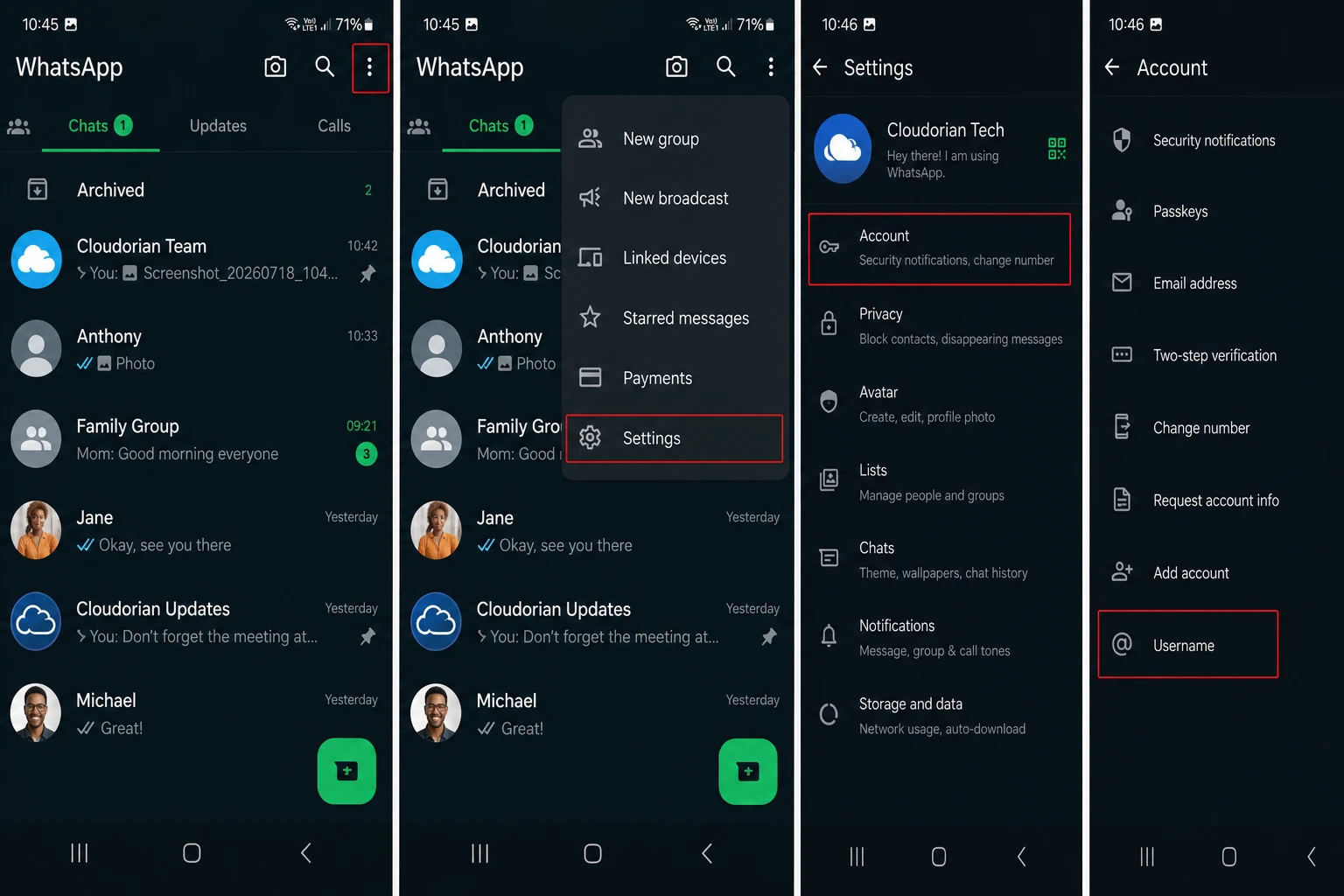
Step 1. Open WhatsApp on your primary Samsung phone.
Launch WhatsApp from your app drawer or home screen. Avoid using WhatsApp Web for this setup because the feature does not support desktop management.
Step 2. Tap the three-dot menu in the upper-right corner.
The menu opens above your chat list. Choose Settings to view your account controls.
Step 3. Tap Account, then tap Username.
The Username page shows your reserved or active username. It also displays the username key option when WhatsApp enables it for your account.
Turn on the key
Step 4. Tap the option to turn on your username key.
WhatsApp generates the key automatically. You cannot type a custom code, choose a memorable phrase, or set a personal PIN.
Step 5. Review the generated key before sharing it.
The key may contain letters, numbers, or another format shown by WhatsApp. Copy it carefully because one incorrect character prevents a new person from contacting you.
Step 6. Tap Save, Confirm, or the matching button shown by WhatsApp.
WhatsApp stores the key with your account. Your existing chats continue working without any change.
The exact confirmation label may vary by Android release. Look for a button that confirms the generated key or enables the setting.
Test the setup
Ask someone who has never messaged you to search for your exact username. Give that person the username and key through a private channel.
Can the person start the chat after entering both details? If yes, your key works as intended.
Do not test with a current contact. Existing contacts may bypass the key, which can make a working setting look broken.
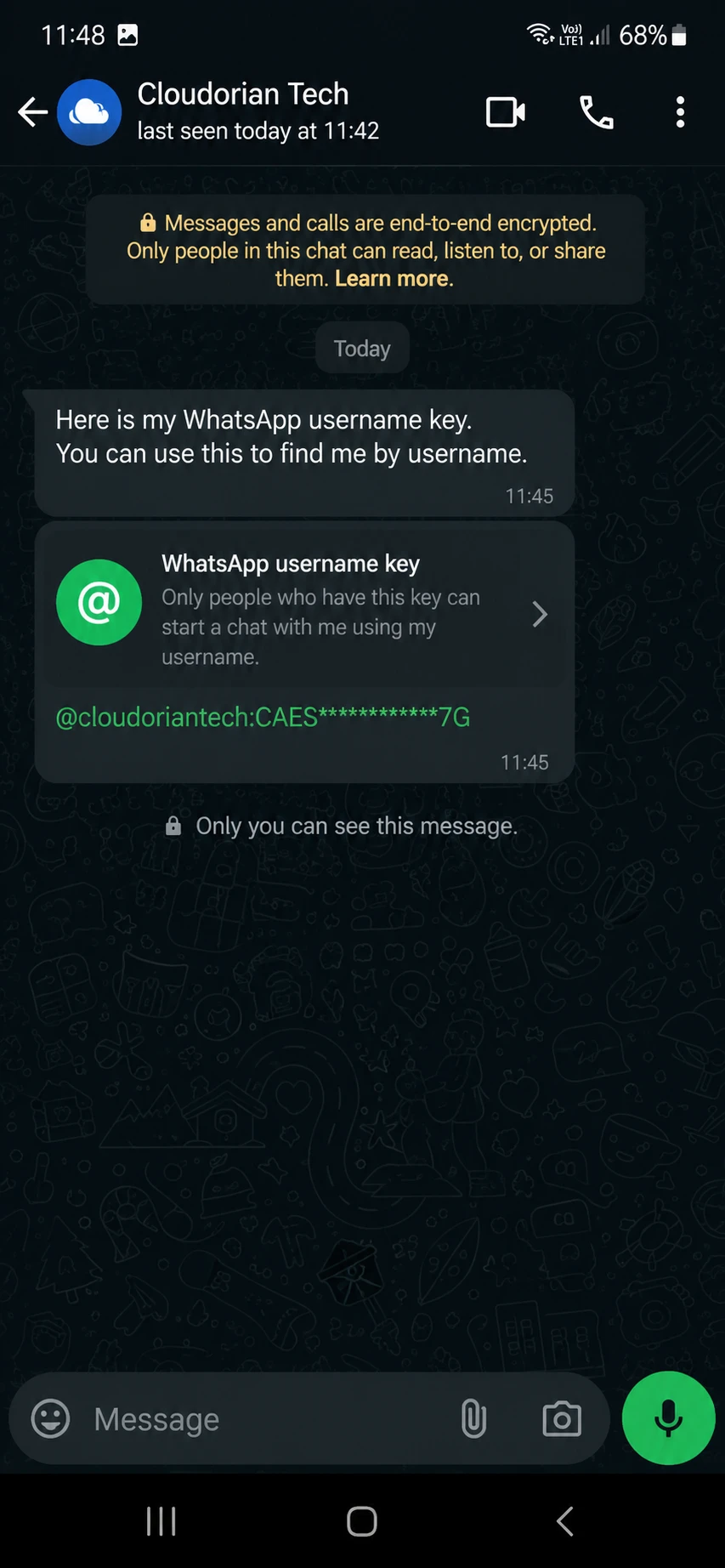
Share the key only when you want a specific person to contact you. Send the username and key together through a trusted private conversation.
A simple message could look like this:
Username: @yourname123
Username key: 7H4K9P
Avoid posting the key publicly on a website, social profile, product listing, or open group. Anyone who sees both values may start a WhatsApp conversation with you.
WhatsApp will not tell you when someone fails because they lack your key. That makes accurate sharing important. Send the complete username, preserve every character, and avoid screenshots with cropped text.
You can also send the details through a password manager or another private channel. This method helps when the key contains characters that look similar.
Check these details before sending:
- Use the full username, including every letter and number.
- Copy the key directly from WhatsApp instead of typing it manually.
- Confirm that the recipient has not already contacted you.
- Avoid sharing the key in a group with people you do not trust.
- Change the key if you accidentally publish it.
WhatsApp’s official username key instructions confirm that people who already chatted with you do not need the key.
How to Change or Remove the Username Key
You can replace or delete the key from the same Username screen. Changing the key does not erase your existing chats or prevent previous conversations from continuing.
Generate a different key
Step 1. Open WhatsApp Settings on your primary Samsung phone.
Tap the three-dot menu, choose Settings, and select Account.
Step 2. Tap Username, then open the username key controls.
The page should show your active key or a control for managing it.
Step 3. Tap Get a different key.
WhatsApp generates a new key immediately. You cannot enter your own replacement.
Step 4. Share the new key with people you still want to reach you.
The old key stops working for new username contacts. Existing conversations remain available.
Remove the key
Step 1. Open Account > Username.
Use the same path you followed during setup.
Step 2. Tap the username key control.
Choose the option to remove, turn off, or delete the key.
Step 3. Confirm the change.
New contacts may reach you through your username without entering a key. Your username still controls whether people can contact you without your phone number.
Use removal only when you want easier access for new contacts. A changed key offers better control when you suspect someone copied the old one.
The official WhatsApp username announcement explains how usernames help people connect without immediately sharing phone numbers.
WhatsApp Username Key Problems and How to Fix Them
Problem: The Username option does not appear
Cause: WhatsApp has not enabled usernames or username keys for your account yet.
Fix:
- Update WhatsApp through the Google Play Store.
- Restart your Samsung phone after the update.
- Open WhatsApp > Settings > Account again.
- Check whether the Username option appears.
- Wait for the account rollout if the menu remains missing.
Do not reinstall WhatsApp unless you have a verified backup. Reinstallation may create unnecessary recovery problems.
Problem: A new contact cannot reach you
Cause: The person entered an incomplete username or an incorrect key.
Fix:
- Copy your username directly from WhatsApp.
- Copy the current key from the Username settings page.
- Send both values through a private message.
- Ask the person to enter the complete username.
- Generate a new key if you shared the previous one publicly.
WhatsApp requires the exact username. Partial searches do not reliably find the account.
Problem: An existing contact never asks for the key
Cause: WhatsApp recognizes the person through a previous chat, shared group, saved number, QR scan, or message you sent first.
Fix:
- Test with someone who has never interacted with your account.
- Ask that person to search for your complete username.
- Confirm that the key prompt appears.
- Keep the key enabled if the new contact flow works.
This behavior does not indicate a failed setup. It reflects how WhatsApp limits the key to first-time username contacts.
Cause: You tapped Get a different key, which invalidated the previous key for new contacts.
Fix:
- Return to Settings > Account > Username.
- Copy the current key.
- Send the new key to every person who still needs contact access.
- Avoid using screenshots that show an older key.
Existing chats do not require the new key. Only new username-based conversations need the current value.
Tips and Pro Moves for Better Privacy
Use a username that does not reveal your full name, workplace, address, or birth year. A unique handle protects more personal information than a predictable one.
Keep your username key separate from your public username. Posting both values together defeats the extra privacy layer.
Use a fresh key for short-term projects. Create a new key after a marketplace sale, event, client project, or public campaign ends.
Review who receives the key. A person can still save your details, forward your messages, or report your account after contacting you.
Combine the key with WhatsApp’s broader privacy controls. Open Settings > Privacy and review:
- Last seen and online
- Profile photo
- About
- Status
- Groups
- Calls
- Live location
For extra call protection, Cloudorian’s guide explains how to silence calls from unknown WhatsApp numbers. You can also review how to turn off WhatsApp Last Seen for another privacy layer.
Do you want strangers to find you through a public username? If not, keep the username private and share it only with selected people.
Does your contact method expose more information than you intended? A username key helps reduce that exposure, but it cannot control everything after someone starts chatting.
Frequently Asked Questions About WhatsApp Username Keys
Q: What is a WhatsApp username key?
A WhatsApp username key is an optional code for first-time contacts who use your username. The person needs your exact username and key before starting a new chat. Existing contacts usually do not need the key.
Q: Can I create a custom WhatsApp username key?
No. WhatsApp generates the key for you. You can tap Get a different key when you want WhatsApp to create a replacement.
Q: Do WhatsApp username keys hide my phone number?
The key does not hide your phone number by itself. WhatsApp usernames provide the privacy layer that lets new contacts connect without receiving your number. The key controls who can start that username-based conversation.
Q: Can I add a WhatsApp username key from WhatsApp Web?
No. WhatsApp currently requires your primary mobile device for username key management. Use the WhatsApp app on your Samsung phone or another primary Android device.
Q: Why can someone in my WhatsApp group contact me without the key?
WhatsApp treats shared group members as existing contact connections. The username key mainly filters people who have never interacted with your account.
Q: What happens if I forget my username key?
Open Settings > Account > Username on your primary phone. WhatsApp displays the active key there, or lets you generate another one.
Q: Will changing the key delete my chats?
No. Changing or removing the key does not delete existing conversations. People who already chatted with you can continue messaging you.
Q: Does WhatsApp notify me when someone enters the wrong key?
No. WhatsApp does not notify you when someone fails to contact you because they lack the correct key. Share the current key carefully if you want that person to reach you.
Start With a Private Username Setup
Open WhatsApp on your primary Samsung phone and check Settings > Account > Username. Add a generated key, copy it into a private message, and test the process with someone outside your existing contact network.
A WhatsApp username key works best when you treat it like a private access code. Keep it away from public posts, change it after accidental exposure, and review your other WhatsApp privacy settings.
For a related account task, follow Cloudorian’s guide to find or change your WhatsApp phone number.
What happened when you tested your username key? Share the exact Samsung model and WhatsApp menu you see in the comments.
Discover more from Cloudorian — Android, Samsung & Windows How-To Guides
Subscribe to get the latest posts sent to your email.



