

Your Galaxy phone is hoarding gigabytes of files you never asked it to keep. The Samsung dial code to free up space, *#9900#, wipes old system logs that quietly pile up for years. Type it into your Phone app and a hidden maintenance tool called SysDump clears them in a single tap.
What the *#9900# Dial Code Does on a Galaxy Phone
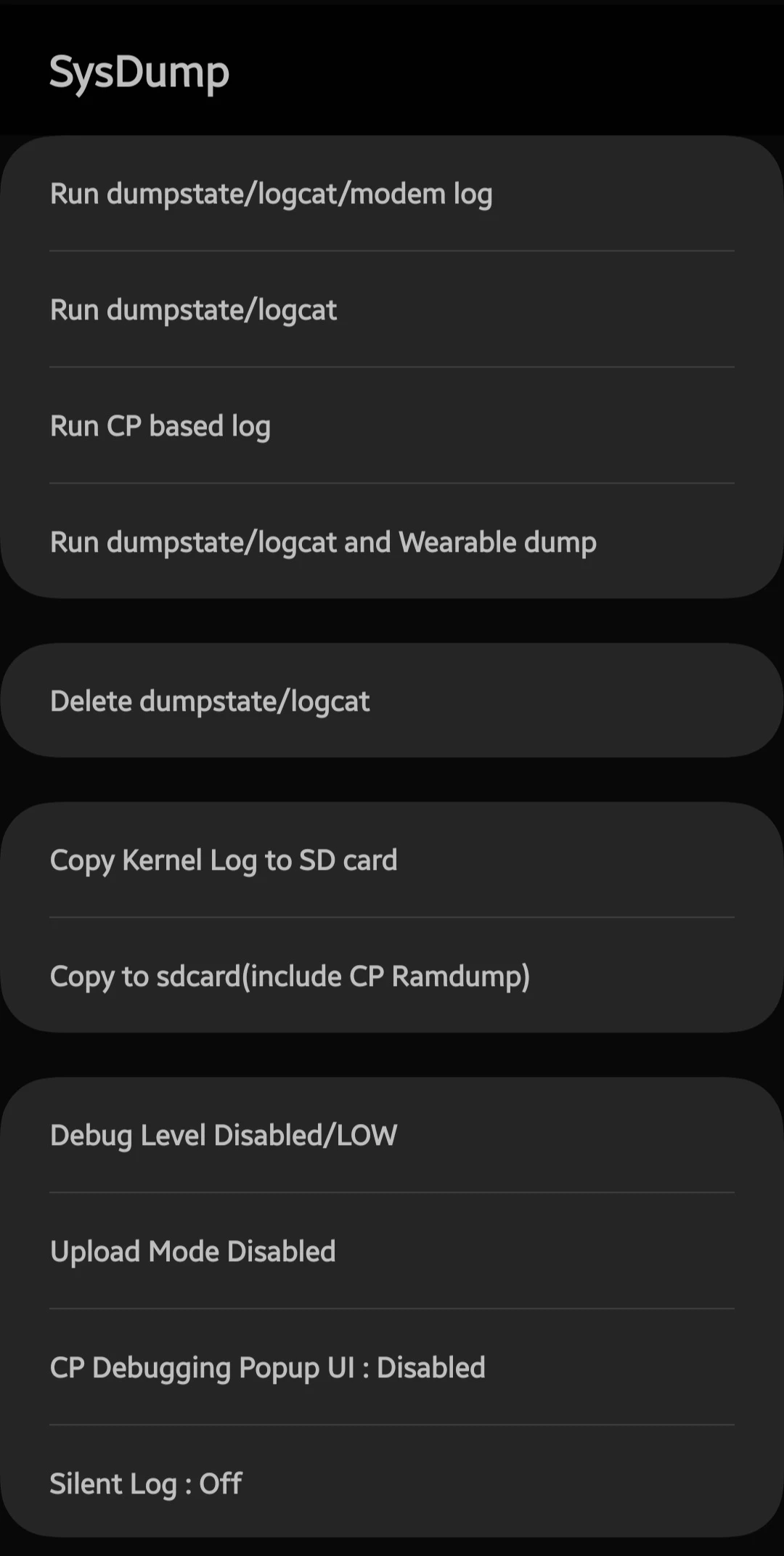
The *#9900# code opens One UI’s built-in diagnostic tool named SysDump, short for System Dump. It sits hidden because most people never need it. Samsung built it for technicians who pull bug reports and troubleshooting data.
SysDump stores a running record of what your phone does in the background. These files track app behavior and system events. Engineers call them dumpstate and logcat files.
Those logs grow month after month without any prompt from you. On a phone that is a few years old, they can swell to several gigabytes. Deleting them is safe when your phone runs normally, since nothing depends on old diagnostic data.
Most Galaxy owners never learn this menu exists. It lives in the same family as other Android secret codes that reveal engineering tools. Android Authority keeps a running breakdown of these hidden Samsung dial codes if you want the full set.
What You Need Before You Run the Samsung Dial Code
Check three things before you dial anything. Skipping them is the reason the code fails for most people. Each one takes under a minute.
- You need a Samsung Galaxy phone running One UI, which covers nearly every model from the Galaxy A series to the S26 Ultra.
- Your phone must not be carrier locked or managed by a company profile, because both block diagnostic codes at the system level.
- Auto Blocker should be off before you dial, since One UI treats hidden codes as a security risk and silently ignores them.
The code works the same on new and old hardware. A four-month-old Galaxy S26 runs it identically to a five-year-old Galaxy S20. The amount of space you reclaim depends on log buildup, not phone age.
Have you checked whether your phone is carrier locked? Dial *#06# first to view your IMEI and status if you are unsure.
How to Free Up Space With the Samsung Dial Code
The full process takes about 30 seconds once Auto Blocker is off. Follow the steps in order.
Step 1. Open the Phone app and type *#9900# on the keypad.
The SysDump menu opens on its own after the final hash. No call button press is needed.
Step 2. Tap the “Delete dumpstate/logcat” option near the top.
This clears every stored log file in one action. Your apps, photos, and messages stay untouched.
Step 3. Close the menu and check your reclaimed storage.
Go to Settings, then Device care, then Storage, then Internal storage.
To measure the gain, note the number next to “Other files” before you clear the logs. Return to the same screen afterward and watch it drop. On a Galaxy S26 that was only four months old, this freed 2GB of space.
WARNING: Do not tap unfamiliar options in SysDump at random. Some entries trigger diagnostic routines meant for repair centers.
PRO TIP: Run this cleanup every few months rather than once. Logs rebuild slowly, so a quarterly pass keeps the “Other files” number from ballooning again.
What Else the SysDump Menu Can Do
Clearing logs is one reason to open SysDump. Scroll through the menu and two more options earn a look. Both solve problems that Settings alone cannot.
Reset Battery Stats for Accurate Readings
Batterystats Reset fixes a battery percentage that jumps around. If your charge drops 5% in two minutes, the calibration is likely off. Resetting the stats corrects those false readings.
Charge your phone to 100% first for the cleanest result. Then tap Batterystats Reset inside SysDump. Your phone rebuilds an accurate charge curve over the next few cycles.
Check Real Battery Health
Battery health takes a few more taps. Choose “Run dumpstate/logcat,” then select “Copy to SD card.” Phones without an SD card save the file to internal storage instead.
Look for a file named Logstats_ followed by your model number. Open it in an app called LogLog, a log viewer from the Play Store. Search inside for the mSavedBatteryAsoc entry to read your battery health figure.
This method is not a one-tap answer. It is one of the most reliable ways to tell if your battery needs replacing. Clear the dump file afterward, because these logs get large fast.
How Much Storage This Actually Frees Compared to Other Methods
The dial code targets one specific culprit: hidden system logs. Other cleanup methods hit different files. Stacking them together clears far more than any single trick.
| Method | What it clears | Typical space freed | Reversible |
|---|---|---|---|
*#9900# log deletion | Dumpstate and logcat files | 1GB to 3GB | Logs rebuild over time |
| Clear app cache | Temporary app data | 500MB to 2GB | Rebuilds on app use |
| Empty Trash and archives | Deleted media, unused apps | Varies widely | Media is gone for good |
| Offload to Samsung Cloud | Photos and videos | Several gigabytes | Files stay in the cloud |
The log trick shines because it costs you nothing. You lose no photos, no app data, and no settings. For a wider sweep, pair it with the steps in this guide on how to free up storage on Android without deleting photos.
Curious what else is eating your space? A single Android storage trick before deleting apps often clears more than the dial code alone.
Common *#9900# Problems and How to Fix Them
This feature breaks in a few predictable ways. Each has a clear cause and a fix you can run yourself.
Problem: Nothing happens after you type the code.
Cause: One UI’s Auto Blocker is intercepting the dial code as a security threat.
Fix:
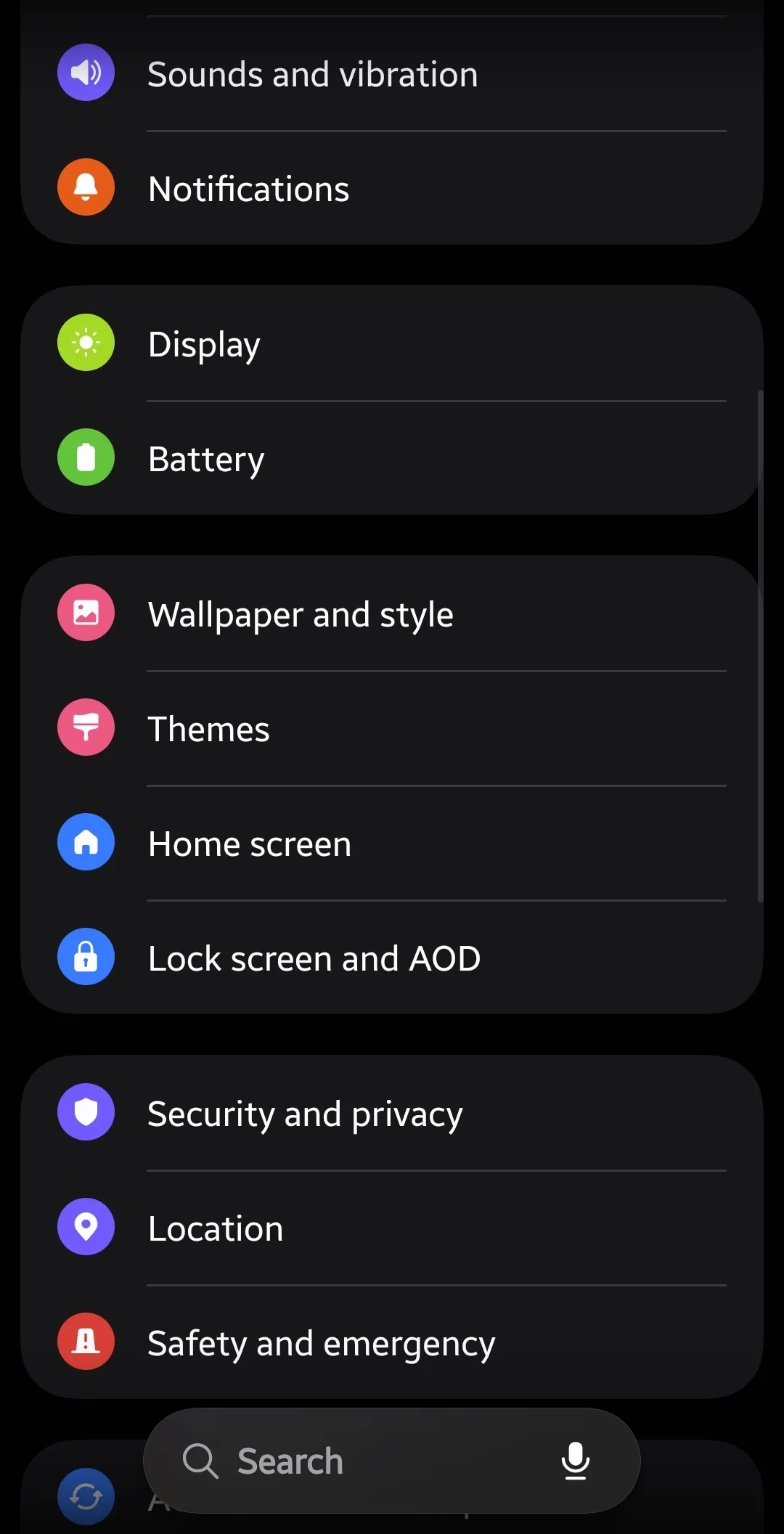
- Open Settings and tap Security and privacy.
- Turn off the Auto Blocker toggle.
- Return to the Phone app and dial
*#9900#again. - Re-enable Auto Blocker once the cleanup finishes.
Problem: You see an error or “not allowed” message.
Cause: The phone is carrier locked or tied to an organization’s management profile.
Fix:
- Check Settings, then About phone, then Status information for a carrier lock.
- Look under Settings for any work profile or device admin entry.
- Contact your carrier or IT admin, since a managed phone blocks this at the system level.
- Accept that no user-side workaround exists on a locked device.
Problem: The menu opens but “Other files” barely drops.
Cause: Your logs were already small, common on a phone under a year old.
Fix:
- Confirm the “Other files” figure in Settings, Device care, Storage.
- Clear app cache to target a different set of temporary files.
- Empty the Trash in Gallery and My Files.
- Offload large videos to Samsung Cloud or Google Photos.
Frequently Asked Questions About the Samsung Dial Code
Q: Is the *#9900# Samsung dial code safe to use?
A: Yes, clearing dumpstate and logcat files is safe on a phone running normally. These logs only help technicians debug problems. Deleting them removes no apps, photos, or personal data.
Q: Why does the Samsung dial code to free up space do nothing when I dial it?
A: Auto Blocker is the usual reason. Turn it off under Settings, Security and privacy, then dial the code again. Re-enable Auto Blocker once you finish.
Q: How much space will *#9900# actually free on my Galaxy?
A: Most phones recover between 1GB and 3GB. A four-month-old Galaxy S26 freed 2GB in one test. Older phones with more log buildup often reclaim more.
Q: Will this dial code work on any Samsung Galaxy model?
A: It works across One UI phones, from budget A series to the S26 Ultra. Carrier-locked and company-managed devices are the exception, since they block diagnostic codes.
Q: Do the deleted log files come back after cleanup?
A: Yes, your phone rebuilds logs slowly during normal use. Running the cleanup every few months keeps the “Other files” total in check.
Q: Can SysDump tell me my battery health?
A: Yes, run “Copy to SD card,” open the Logstats file in LogLog, and find the mSavedBatteryAsoc entry. It reads your battery health directly from system data.
Where to Take Your Galaxy Storage Cleanup Next
Run *#9900# today, note your “Other files” number, and set a reminder to repeat it each quarter. That single habit stops years of silent log buildup from ever crowding your storage again.
For a bigger dent, pair the dial code with a proper cache sweep. This walkthrough on how to delete cache on Android and speed up your phone clears a different pile of junk the dial code leaves behind.
How much did the dial code free up on your Galaxy? Drop your before-and-after “Other files” number in the comments and tell us which model you ran it on.
Discover more from Cloudorian — Android, Samsung & Windows How-To Guides
Subscribe to get the latest posts sent to your email.



