

The dreaded storage full warning always appears at the worst possible moment. You try to take a photo and your camera app refuses to open. You need to free up storage android devices waste on hidden files.
This guide delivers exact steps to reclaim gigabytes of space immediately. You will learn the exact menus to tap. You will discover how to stop apps from hoarding your memory.
What Android Storage Bloat Is and Why It Matters
Your phone accumulates hidden data every single day. Apps download background updates constantly. Browsers save images to load pages faster.
Messaging apps store every video your friends send. This hidden data consumes your available space rapidly. You lose gigabytes of storage without installing anything new.
A full storage drive cripples your phone performance. The operating system needs empty space to move files around. A full drive causes apps to crash unexpectedly.
Your battery drains faster as the processor works harder. The entire device feels sluggish and unresponsive.
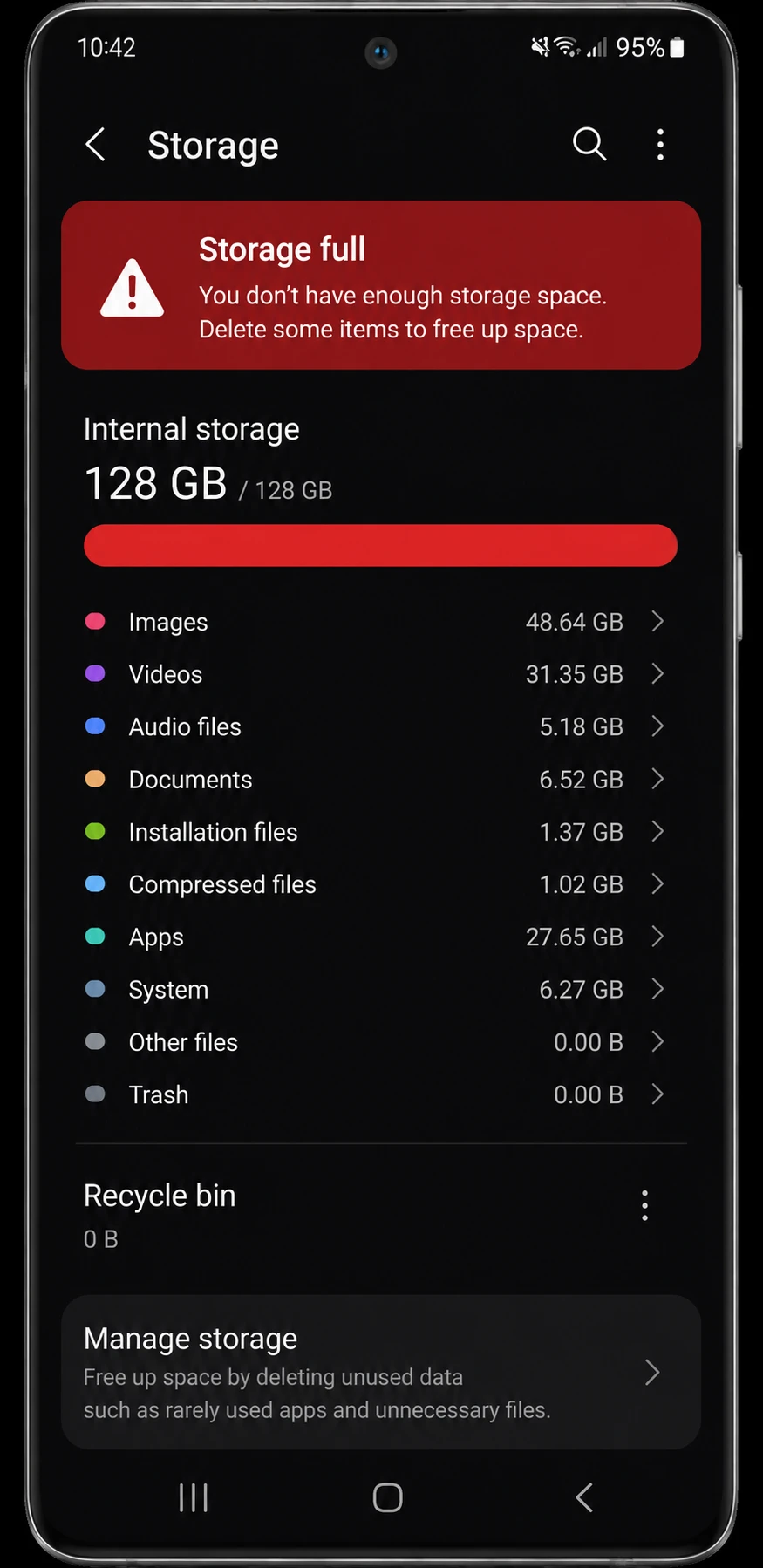
You cannot solve this by simply deleting a few photos. You must target the hidden caches and forgotten downloads. We see users struggle with this daily.
They delete precious memories but ignore massive app data folders. This approach fails to solve the root problem.
Do you know which app consumes the most space on your device? Most people guess their camera app. The real culprit usually hides in your social media apps.
Video streaming platforms also hoard massive amounts of offline data. Audio apps save high-resolution podcasts you already finished listening to.
You need a systematic approach to clear this digital clutter. Randomly deleting files often leads to lost data. You must understand where Android hides temporary files.
This knowledge gives you permanent control over your device storage. You will never see another storage warning again.
Requirements Before You Start Cleaning
You need a few things ready before you begin this process. Charge your phone battery to at least fifty percent. Storage cleanup processes require sustained processor power.
A dying battery might interrupt a large file deletion. This interruption can corrupt your file system.
Connect your phone to a stable Wi-Fi network. You will need internet access to back up photos. Cloud backups consume massive amounts of data.
A cellular connection might incur unexpected billing charges. You want a fast connection to speed up the backup process.
Update your phone to the latest available software version. Google introduced Smart Storage features in recent updates. You need Android 14 or newer to access the best automated tools.
Check your version in the system settings menu. Older versions require more manual cleanup steps.
PRO TIP: Back up your most important files to a computer first. Accidental deletions happen during deep storage cleans. A physical backup guarantees your data remains safe.
You also need your account passwords handy. Some cleaning steps might log you out of certain apps. Keep your password manager accessible during this process.
You want to restore access to your apps quickly. Do not start cleaning if you forgot your primary email password.
Step-by-Step Instructions to Free Up Space
You have multiple ways to reclaim your device storage. We will start with the fastest methods. Then we will move to deep cleaning techniques.
Follow these steps in exact order for the best results. You will see immediate improvements in device speed.
Method 1: Use the Built-In Free Up Space Tool
Modern Android phones include a dedicated storage management tool. This tool scans your device for junk files automatically. It identifies duplicate photos and old screenshots.
Step 1. Open your device Settings app.
Tap the gear icon on your home screen.
Step 2. Tap the Storage menu option.
Samsung users must tap Device care first. Then tap Storage.
Step 3. Tap the Free up space button.
This button usually sits at the top of the screen.
Step 4. Select the files you want to delete.
Review the suggested categories carefully. Tap the selection boxes next to old files.
Step 5. Tap the Move files to Trash button.
Confirm your choice to remove the items.
Method 2: Clear App Cache and Data Safely
Apps store temporary files to load faster. This is called cache data. Clearing this cache reclaims space without deleting your accounts.
You can delete cache android files safely anytime. This action resolves many performance glitches.
Step 1. Open the Settings app.
Navigate to the main settings menu.
Step 2. Tap the Apps menu option.
Scroll down until you find the Apps section.
Step 3. Select a specific app from the list.
Choose an app you use frequently. Social media apps hold massive caches.
Step 4. Tap the Storage option.
This opens the data management screen for that specific app.
Step 5. Tap Clear cache.
Do not tap Clear data unless you want to erase your logins.
WARNING: Tapping Clear data permanently deletes all app information. You will lose downloaded media and saved preferences. Always try clearing the cache first.
Method 3: Offload Media with Google Photos
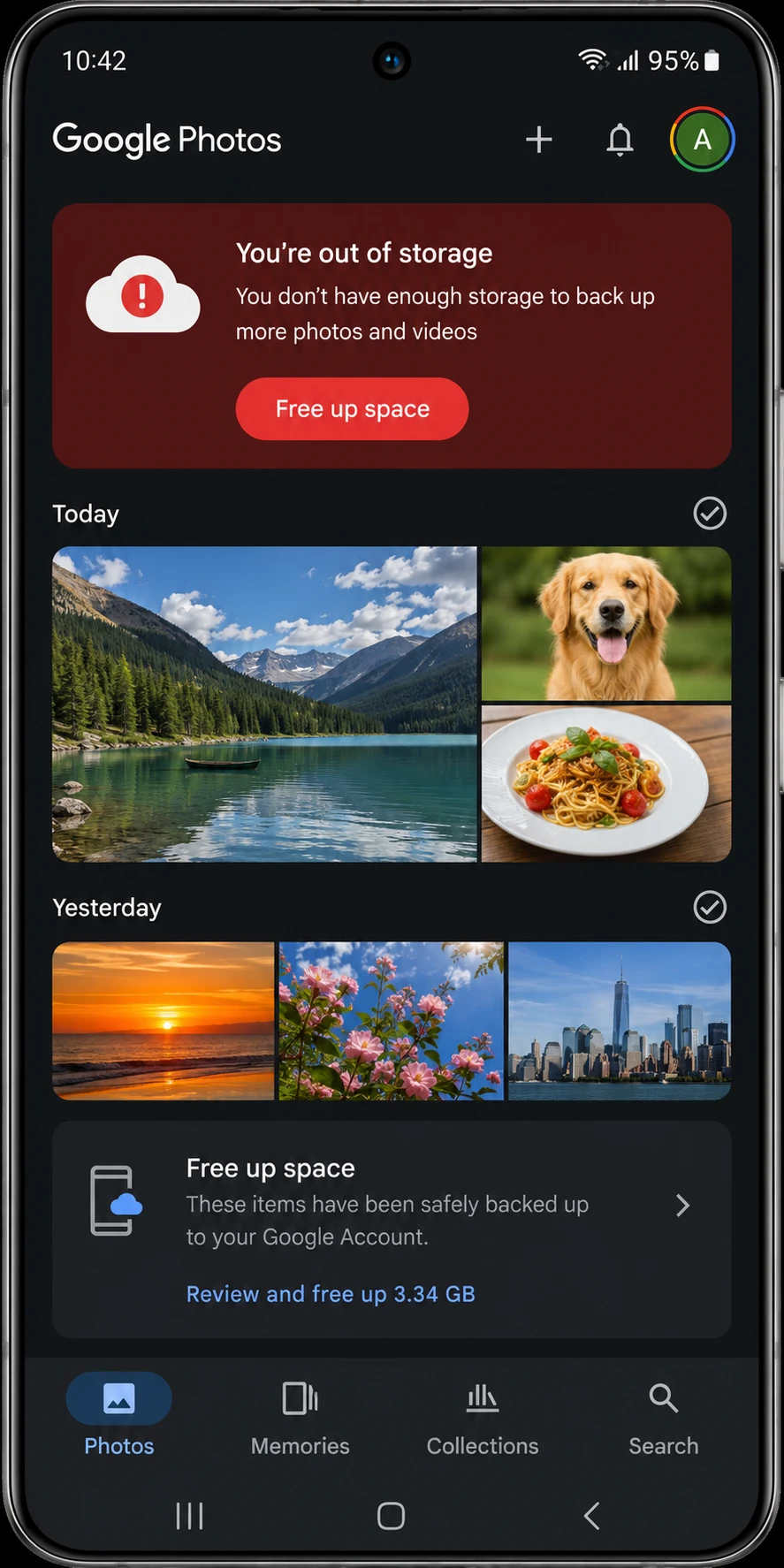
Photos and videos consume massive amounts of local storage. You can move these files to the cloud. Google Photos offers a dedicated tool for this exact purpose.
Step 1. Open the Google Photos app.
Ensure you sign in to your primary Google account.
Step 2. Tap your profile photo.
Look in the top right corner of the screen.
Step 3. Tap Free up space on this device.
The app calculates exactly how much space you will save.
Step 4. Tap the Free up button.
The app deletes local copies of safely backed-up photos.
You can still view your photos in the app. They stream directly from your cloud storage. You need an internet connection to view them in high resolution.
Method 4: Manage Samsung Cloud Storage
Samsung device owners have access to specific cloud tools. You can manage your backups directly through the system settings. This prevents old backups from hoarding space.
Step 1. Open the Settings app.
Tap your Samsung account name at the top.
Step 2. Tap Samsung Cloud.
This opens your cloud storage dashboard.
Step 3. Select Manage storage.
You will see a breakdown of your synced data.
Step 4. Delete old device backups.
Select backups from old phones and tap delete.
Step 5. Empty the cloud trash.
Navigate to the gallery trash and empty it completely.
Method 5: Remove Unused Applications
We all download apps and forget about them. These unused apps consume valuable storage space. You must audit your app drawer regularly.
Step 1. Open the Google Play Store.
Tap your profile icon in the top right corner.
Step 2. Tap Manage apps and device.
This opens your application dashboard.
Step 3. Tap the Manage tab.
You will see a list of all installed apps.
Step 4. Sort the list by least used.
Tap the sort icon and select the least used option.
Step 5. Select and uninstall forgotten apps.
Check the boxes next to unused apps and tap the trash icon.
Understanding Cache Versus Data
Users often confuse clearing cache with clearing data. You must understand the difference to avoid losing personal information. We created this comparison to clarify the exact functions.
| Feature | What It Deletes | When To Use It | Risk Level |
|---|---|---|---|
| Clear Cache | Temporary files, loaded images, ad scripts | App runs slowly or storage is full | Low |
| Clear Data | Account logins, saved games, custom settings | App crashes constantly or fails to open | High |
Always start by clearing the cache. You only clear data as a last resort for broken apps.
Common Android Storage Problems and How to Fix Them
Storage cleanup does not always go smoothly. Users encounter specific roadblocks during the process. Here are the most frequent issues and their exact solutions.
Problem: Storage remains full after deleting photos.
Cause: Android moves deleted photos to a Trash folder for thirty days. The files still consume physical storage space during this waiting period.
Fix:
Step 1. Open your gallery or photos app.
Step 2. Navigate to the Albums or Library tab.
Step 3. Tap the Trash or Recently Deleted folder.
Step 4. Select the option to empty the trash completely.
Problem: The Free up space button is missing.
Cause: Older Android versions lack this specific unified button. Some manufacturers hide it inside proprietary device care menus.
Fix:
Step 1. Open the Google Play Store.
Step 2. Download the official Files by Google app.
Step 3. Open the app and tap the Clean tab.
Step 4. Follow the on-screen prompts to remove junk files.
Problem: System storage consumes too much space.
Cause: Downloaded system updates wait in the background. Corrupted OS files can also bloat the system partition abnormally.
Fix:
Step 1. Open Settings and tap System.
Step 2. Tap System update and install any pending updates.
Step 3. Restart your phone to clear temporary system files.
Step 4. Check your storage menu again.
Problem: WhatsApp media fills up the phone memory.
Cause: WhatsApp downloads every received photo and video automatically by default. These files bypass your normal gallery cleanup routines.
Fix:
Step 1. Open WhatsApp and tap the three dots.
Step 2. Tap Settings and select Storage and data.
Step 3. Tap Manage storage to review large files.
Step 4. Delete forwarded videos and large documents.
Tips and Pro Moves for Long-Term Storage
You want to prevent storage issues from returning. Smart users automate their storage management. You can configure your phone to clean itself regularly.
Enable the Smart Storage feature immediately. This tool automatically removes backed-up media when your storage drops below a certain threshold. You never have to think about deleting old photos again.
Review your messaging app auto-download settings. WhatsApp and Google Messages download every received video automatically. This behavior destroys your available storage capacity rapidly.
Turn off media auto-downloads in the settings menu of each messaging app. This single change saves gigabytes of space every month.
Consider adding physical storage if your phone supports it. Many devices accept microSD cards. You can move large video files to the SD card.
This keeps your internal memory free for apps and system functions. You can swap cards when one gets full.
Do you use streaming apps frequently? Netflix and Spotify download media for offline use. These hidden downloads consume gigabytes of space.
Open each streaming app and delete old offline content regularly. You can adjust the download quality settings to save even more space.
Use the web versions of popular apps. You do not need a dedicated app for every service. You can access Twitter and Facebook through your mobile browser.
This saves hundreds of megabytes per app. Web apps also consume less battery power in the background.
Frequently Asked Questions About Android Storage
Q: Does clearing cache delete my photos or messages?
A: No. Clearing cache only removes temporary files that apps use to load faster. Your personal photos and messages remain completely safe.
Q: Why does my system storage take up so much space?
A: The Android operating system requires dedicated space to function. This section also holds system updates and core device features. You cannot delete or modify system storage files directly.
Q: How do I free up storage android devices use for hidden files?
A: You must use a dedicated file manager app. The Files by Google app scans your entire device for hidden junk. It identifies large files you might have forgotten about.
Q: Will deleting app data remove my account?
A: Yes. Deleting app data wipes all local information for that specific app. You will need to log in again and reconfigure your preferences.
Q: Can I move my apps to an SD card?
A: Some Android phones allow you to move specific apps to external storage. You must check the storage settings for each individual app. Many modern apps block this feature to ensure fast performance.
Q: Does emptying the trash permanently delete my files?
A: Yes. Once you empty the trash folder in your gallery or file manager, the files disappear forever. You cannot recover them without specialized forensic software.
Keep Your Android Phone Running Smoothly
You now possess the exact steps to reclaim your device storage. Take action right now. Open your settings menu and clear the cache of your top three apps.
Regular maintenance prevents future storage emergencies. Set a calendar reminder to review your storage usage every month. A clean phone runs faster and lasts longer.
If you want to optimize your device further, read our guide on running low on storage tricks. You will discover advanced methods to keep your phone fast.
What app was consuming the most space on your phone? Drop a comment below and let us know your biggest storage hog.
Discover more from Cloudorian — Android, Samsung & Windows How-To Guides
Subscribe to get the latest posts sent to your email.



