Most WhatsApp users guess they’ve been blocked based on a missing profile photo or a stuck grey tick. Those signals are unreliable. A new method using WhatsApp’s built-in encryption verification gives you a far clearer answer — without sending a single message or alerting the other person. Here’s exactly how to check if blocked on WhatsApp on Android and iPhone right now.
Key Takeaways
- WhatsApp’s automatic encryption verification fails consistently when you’re blocked — this is the most reliable detection method available in 2026.
- The check works on both Android and iOS running the latest WhatsApp version.
- The other person never knows you performed the verification.
- Traditional block signals (single tick, missing profile photo) are still useful as supporting evidence, but each one has at least one innocent explanation.
- WhatsApp has not officially confirmed this method, so treat a failed verification as strong evidence, not a guaranteed confirmation.
Why Traditional Block Detection Methods Fall Short
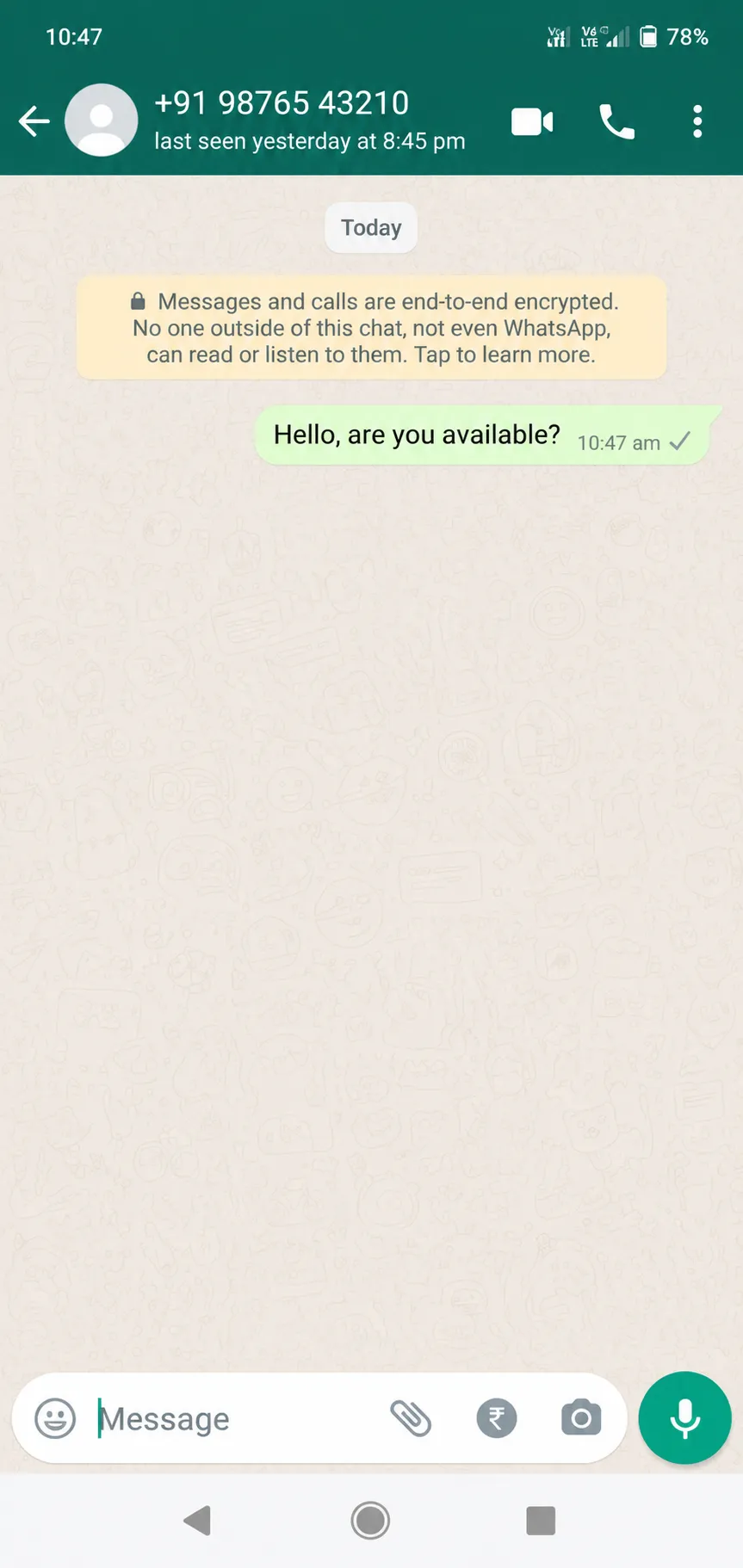
Every article on this topic tells you to look for the same five things. No “last seen.” No profile photo. Single grey tick. Failed call. Can’t add them to a group. These signals have been recycled across the web for years, and they all share the same fundamental problem: every one of them has a perfectly innocent explanation.
A contact can hide their “last seen” through Privacy Settings without blocking anyone. Their profile photo may have been removed by choice. Your message may show one tick because their phone is offline or they deleted WhatsApp. A failed call attempt could be a network issue. WhatsApp also lets users restrict group invitations to My Contacts or My Contacts Except, which prevents anyone outside that list from adding them — regardless of block status.
Individually, these signs mean almost nothing. Together, they create a picture, but that picture still blurs the line between “blocked” and “changed their settings.”
Have you ever stared at a chat for ten minutes, trying to figure out which explanation fits? You’re not alone. That’s the gap this encryption method fills.
What WhatsApp End-to-End Encryption Verification Actually Does
WhatsApp uses end-to-end encryption on every chat, meaning only you and the other person can read your messages. No one in between can access them — not WhatsApp, not Meta, not your carrier. This protection relies on unique cryptographic keys assigned to each conversation.
Those keys change in specific situations. If you reinstall WhatsApp, switch to a new phone, or link your account to another device, WhatsApp generates fresh encryption keys for your chats. The platform needs a way to verify that the keys in each conversation are still valid and haven’t been tampered with.
That’s where encryption verification comes in. WhatsApp offers two modes: manual verification, which requires you to compare a 60-digit security code or scan a QR code with the other person, and automatic verification, which runs a silent background check without requiring anything from the other party.
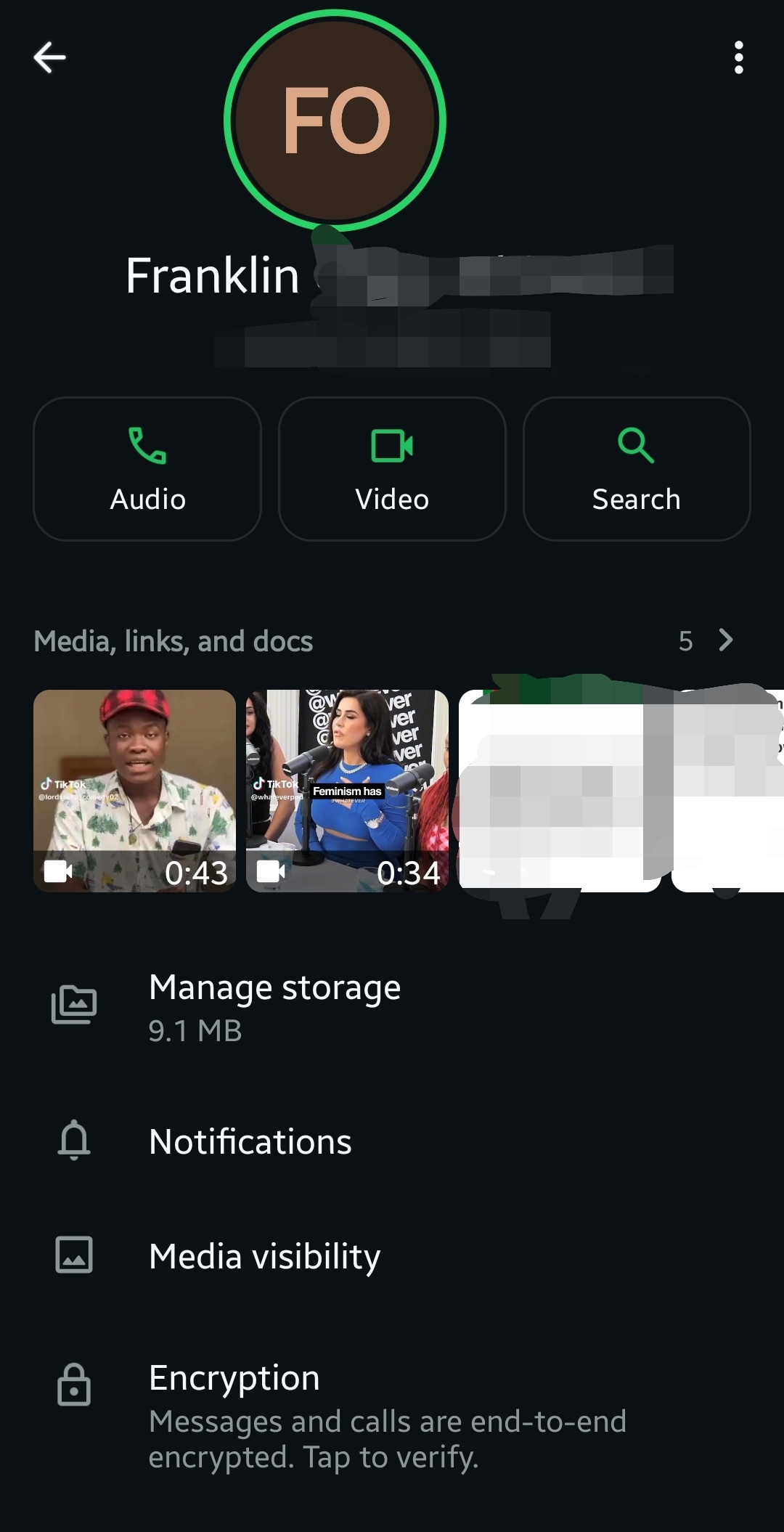
Automatic verification was introduced in 2023, as reported by WABetaInfo. You tap into the encryption screen, and WhatsApp runs the check itself. If your keys are valid and communication between both accounts is active, the verification completes without error. If something blocks that communication pathway, the verification fails.
The key word there is “blocks.” When someone blocks you, WhatsApp cuts off the communication channel between your account and theirs. That channel is the same one used to complete automatic encryption verification. No channel, no verification. The check fails every time.
Requirements Before You Start
You need to meet all of these conditions before the method works as described.
WhatsApp version:
Both you and the contact need to run a current version of WhatsApp. On Android, go to Google Play Store, search WhatsApp, and confirm the app is up to date. On iPhone, open the App Store and check under your profile for pending updates. WhatsApp frequently pushes silent updates, so check even if you updated recently.
An existing chat thread:
You need an open conversation with the contact. The encryption screen is only accessible from inside an active chat. If you deleted the chat, search for the contact name in WhatsApp and open a new conversation window.
Internet connection:
The automatic verification requires an active connection. Wi-Fi or mobile data both work. If your connection is unstable, the check may fail for unrelated reasons. Run it on a stable network for accurate results.
The contact saved on your phone:
The contact must be saved in your phone’s address book and synced to WhatsApp. If they’re not a saved contact, WhatsApp may handle the encryption screen differently.
How to Check If You’re Blocked on WhatsApp Using Encryption
The steps are the same on Android and iPhone with minor UI differences in exact layout. Follow them exactly as listed.
Step 1. Open WhatsApp and find the chat.
Launch WhatsApp on your device. Locate the conversation with the person you want to check. If the chat isn’t visible, use the search bar at the top of the Chats tab and type their name.
Step 2. Tap their name at the top of the chat screen.
In an open conversation, tap the contact’s name or profile photo at the very top of the screen. This opens the Contact Info page, which shows their profile, shared media, and a series of options.
Step 3. Scroll down and tap “Encryption.”
On the Contact Info screen, scroll past the mute, media, and report options. You’ll find an option labelled Encryption. Tap it to open the encryption details screen.
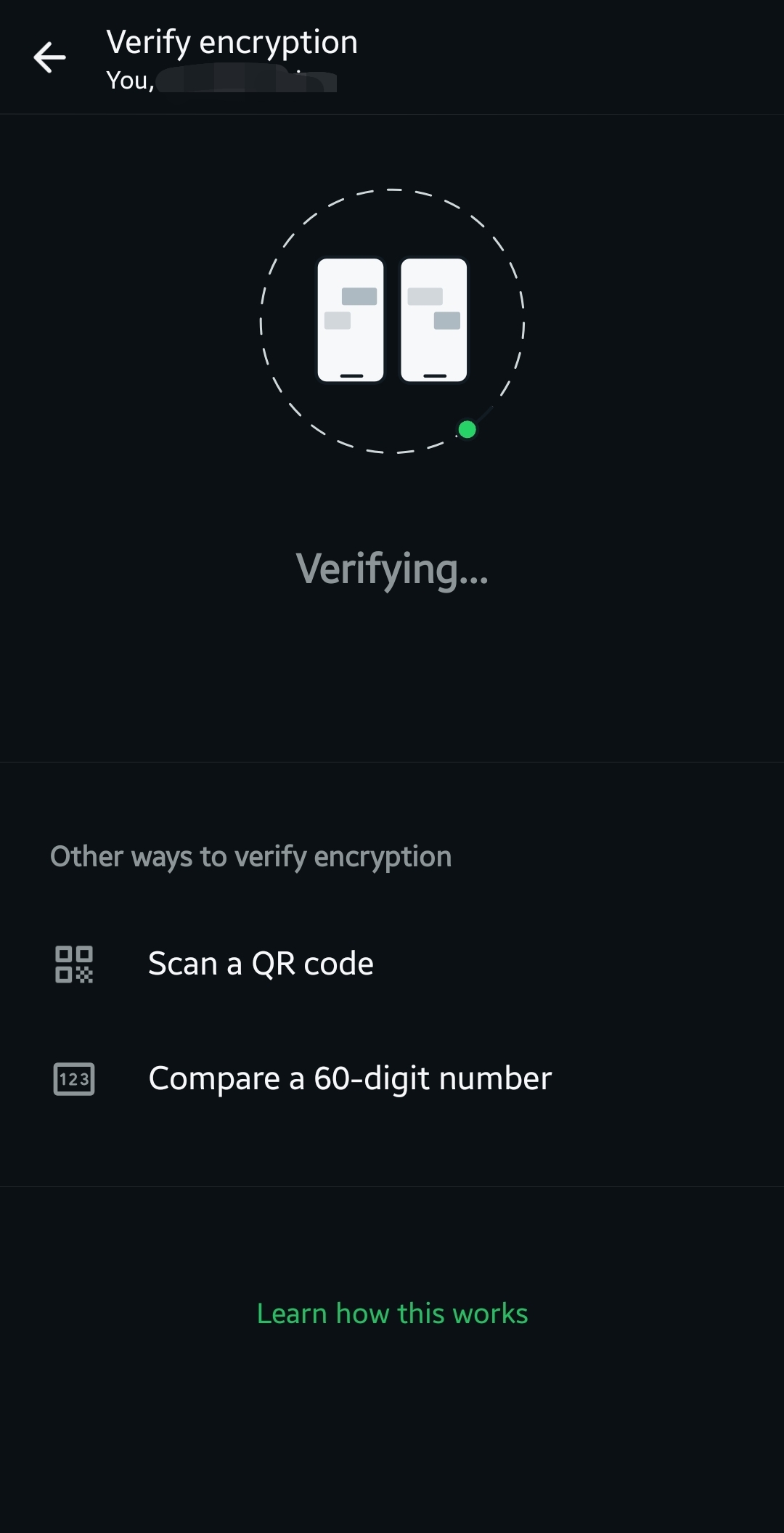
Step 4. Wait for the automatic verification to complete.
WhatsApp starts the automatic verification check as soon as you open this screen. Give it five to fifteen seconds. On a stable connection, it runs quickly.
Step 5. Read the result.
There are two possible outcomes. The verification either completes successfully or fails with a message asking you to verify encryption another way.
What the Verification Result Actually Means
[IMAGE: WhatsApp encryption verification showing a failure prompt asking to verify another way — Alt text: “WhatsApp encryption verification failure indicating blocked contact”]The interpretation depends on which result you see.
Verification completes without error:
The automatic check finished. Your encryption keys are valid and communication between both accounts is active. This person has not blocked you.
Verification fails with a prompt to “verify encryption another way”:
WhatsApp cannot complete the automatic check. This failure happens consistently when the contact has blocked you, because the communication pathway between your accounts is cut. It does not mean your messages lack encryption — your chat is still protected. The failure specifically means the automated verification handshake could not complete.
Use the table below to understand what different scenarios produce.
| Scenario | Automatic Verification Result |
|---|---|
| Contact is active and has not blocked you | Completes successfully |
| You blocked the contact | Fails |
| Contact blocked you | Fails |
| Contact deleted their WhatsApp account | Fails |
| Contact has a very unstable internet connection | May fail temporarily |
| Contact recently reinstalled WhatsApp | Brief failure, then succeeds |
PRO TIP: Run the check twice, at least an hour apart. A temporary network disruption on their end can cause a one-time failure. If it fails on both attempts, and you combine this with other traditional signals, you have a strong case for a block.
How This Compares to Other Block Detection Methods
Not all methods are equally reliable. Here’s how the encryption approach stacks up against everything else people try.
| Method | Reliability | Requires Sending a Message? | Contact Notified? |
|---|---|---|---|
| Encryption verification | High | No | No |
| Single grey tick check | Low | Yes | No (but message is sent) |
| Missing profile photo | Low | No | No |
| Missing “last seen” | Low | No | No |
| Failed WhatsApp call | Medium | No | Yes (call attempt shows) |
| Can’t add to group | Medium | No | No |
| Check via second account | High | No | No |
The encryption method ranks at the top for a clear reason. It doesn’t require you to send anything, the other person receives no notification of any kind, and it produces a binary pass/fail result rather than an ambiguous signal.
The second-account method also scores high, but it requires access to another phone number and a second WhatsApp account. Not everyone has that option.
Common WhatsApp Block Check Problems and How to Fix Them
Problem: The Encryption option doesn’t appear on the Contact Info screen
Cause: Your WhatsApp is outdated, or you’re checking a group chat rather than a direct conversation.
Fix:
- Open the Google Play Store or App Store and update WhatsApp to the latest version.
- Confirm you’re in a one-on-one chat with the contact, not a group thread.
- Close and reopen WhatsApp, then try the Contact Info screen again.
Problem: Verification fails for someone you’re sure hasn’t blocked you
Cause: The contact recently reinstalled WhatsApp, switched phones, or linked a new device. This temporarily disrupts the automatic verification until the keys sync.
Fix:
- Wait 24 hours before drawing any conclusions.
- Check if the contact appears online or recently active in mutual group chats.
- Run the verification again. If it passes the second time, the earlier failure was caused by a key refresh event, not a block.
Problem: Verification passes, but you still see only one grey tick
Cause: The contact’s phone is off, they have no internet connection, or they deleted WhatsApp. The encryption verification checks account status, not device availability.
Fix:
- A successful verification rules out a block. The single tick has another cause.
- Wait a few hours and check whether the tick advances to two checks when they come back online.
- If the single tick persists for days alongside a missing profile photo and failed calls, consider whether they may have deleted their account. You can ask a mutual contact to check their profile.
Problem: The verification fails consistently, but you still receive their messages in other apps
Cause: This is not possible if the WhatsApp block is the issue. Block status applies only within WhatsApp. Other platforms are unaffected.
Fix:
- If you’re communicating fine outside of WhatsApp, confirm you have the right contact open inside the app.
- Make sure you’re checking the correct number — not a saved duplicate or an old contact entry.
Tips and Pro Moves for More Accurate Results
Cross-reference with a mutual group chat.
If you and the contact share a WhatsApp group, check whether you can still see their messages and profile photo inside that group. When someone blocks you, they don’t disappear from shared groups — you can still see their messages, but their profile photo often appears as the default grey avatar to you specifically. This cross-reference can confirm whether the privacy change is account-wide or directed only at you.
Check their status updates.
Blocked contacts cannot see the WhatsApp Status updates posted by the person who blocked them. Open the Updates tab in WhatsApp and look for their name. If they regularly post status content and you can no longer see their updates — and other mutual contacts confirm they’re still posting — that supports the encryption failure result.
Respect what the check tells you.
Have you considered what you’ll do once you have a confirmed answer? If the block is confirmed, sending messages from a second number or pressing the issue through other channels crosses into harassment territory. The block feature exists as a deliberate privacy boundary. The right response is to respect it.
Don’t over-rely on a single data point.
The encryption method is the most reliable individual signal available right now, but even it carries a caveat. Account deletion produces the same verification failure as a block. If you have no other evidence pointing toward a block — no pattern of communication breakdown, no recent conflict — consider that the person may have simply deactivated their account.
Frequently Asked Questions About Checking WhatsApp Block Status
Q: Can WhatsApp tell me directly if I’ve been blocked?
A: No. WhatsApp does not send any notification to blocked users and has not introduced a direct confirmation feature. The platform keeps block status private to protect users who block others from potential confrontation or retaliation. The encryption verification method is an indirect approach, not an official feature designed for block detection.
Q: Does the encryption check work on both Android and iPhone?
A: Yes. The encryption verification screen is available on WhatsApp for Android and WhatsApp for iOS. The steps are nearly identical on both platforms. Navigate to a direct chat, tap the contact’s name, scroll to Encryption, and tap to open the screen. The automatic check runs on both operating systems as long as you’re running a current WhatsApp version.
Q: Will the contact know I ran the encryption check?
A: No. The automatic verification is entirely invisible to the other person. WhatsApp generates no notification, no read receipt, and no in-app alert when someone opens the encryption screen in a shared chat. This makes the method more discreet than sending a test message or attempting a call.
Q: What if the verification passes but I still see all the other block signs?
A: Trust the verification result over the other signals. A passing verification means active communication exists between your account and theirs. The missing profile photo and last seen are almost certainly explained by privacy settings changes, not a block. Give it a day or two to see if the other signals resolve themselves.
Q: Can someone block me and still appear in a mutual group chat?
A: Yes. Blocking someone on WhatsApp does not remove either person from shared group chats. You will still see their messages in the group, and they will see yours. The block only applies to direct one-on-one communication. Their profile photo may appear as a default grey avatar to you inside the group, which can serve as additional confirmation.
Q: Will WhatsApp eventually patch this encryption method so it no longer reveals blocks?
A: Possibly. WABetaInfo, which first reported this technique, noted that WhatsApp may refine the automatic verification experience in a future update to prevent it from serving as a block indicator. As of June 2026, the method still works. Check back if you notice the verification behavior changing after a WhatsApp update.
Q: Is there a way to check if I’ve been blocked without a smartphone?
A: The encryption verification screen is only accessible through the WhatsApp mobile app on Android or iPhone. WhatsApp Web and WhatsApp Desktop display the same contact info but the Encryption option in the linked-device interface does not show the automatic verification in the same way. Use the mobile app for this check.
What to Do After You Confirm the Result
If the encryption check passes, your communication channel is intact. The single ticks or missing profile photo you noticed likely come down to privacy setting changes on their end — not a block.
If the check fails consistently across multiple attempts and you see supporting signals like missing status updates and a static profile photo, you can treat the result as a reasonable confirmation of a block.
At that point, your best next move is straightforward: stop testing and move on. Continuing to look for workarounds — creating a second WhatsApp account, sending messages through mutual contacts — crosses from curiosity into pressure. No one is obligated to remain reachable to anyone who contacts them.
For everything else you do inside WhatsApp, it pays to know the platform’s features well. If you’ve had a long conversation history with this contact that you want to preserve, learn how to back up your WhatsApp messages without Google Drive before you make any changes to the chat. And if you plan to stay reachable to your own contacts going forward, setting up a WhatsApp call link makes it easier for people to reach you directly without needing your number saved.
If you’ve tested this encryption method yourself — or ran into a result that didn’t quite match either scenario — drop your experience in the comments below. Have you seen the verification fail for a contact you know hasn’t blocked you? Share the details, and let’s work through what might explain it.
Discover more from Cloudorian — Android, Samsung & Windows How-To Guides
Subscribe to get the latest posts sent to your email.
