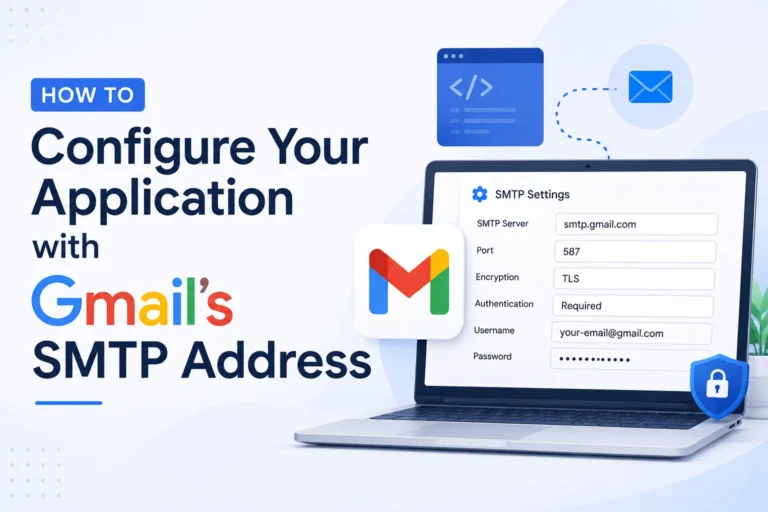
Most developers and website owners connect their apps to Gmail’s SMTP server wrong — and the errors only show up the first time a real user tries to send an email. Gmail’s outgoing mail server (smtp.gmail.com) is free, has excellent deliverability, and works with almost any software. Getting the credentials, port, and authentication method right the first time saves hours of debugging later.
This guide covers every configuration path: email clients like Outlook and Thunderbird, WordPress sites, PHP scripts, Python apps, and Google Workspace relay setups. Follow the steps in order and your application will be sending through Gmail reliably before the end of this page.
What Gmail SMTP Is and Why It Powers Third-Party Email
SMTP stands for Simple Mail Transfer Protocol. It is the standard communication layer that moves outgoing email from your application to the recipient’s inbox. When your app sends a password reset or your website fires a contact form notification, SMTP is the transport engine behind that action.
Gmail’s SMTP server (smtp.gmail.com) acts as the outgoing mail relay for your Gmail account. Your app connects to Google’s servers, authenticates using your credentials, and Google routes the message on your behalf. Because the mail originates from Google’s infrastructure, it carries strong sender reputation by default.
Two things make Gmail SMTP worth using for small-to-medium applications. First, it is free within daily sending limits. Second, Google’s IP addresses maintain consistent inbox placement with major providers like Yahoo, Outlook.com, and iCloud Mail. A dedicated transactional service will perform better at scale, but for apps sending under 500 emails per day, Gmail SMTP is a practical and reliable starting point.
Gmail SMTP Settings at a Glance
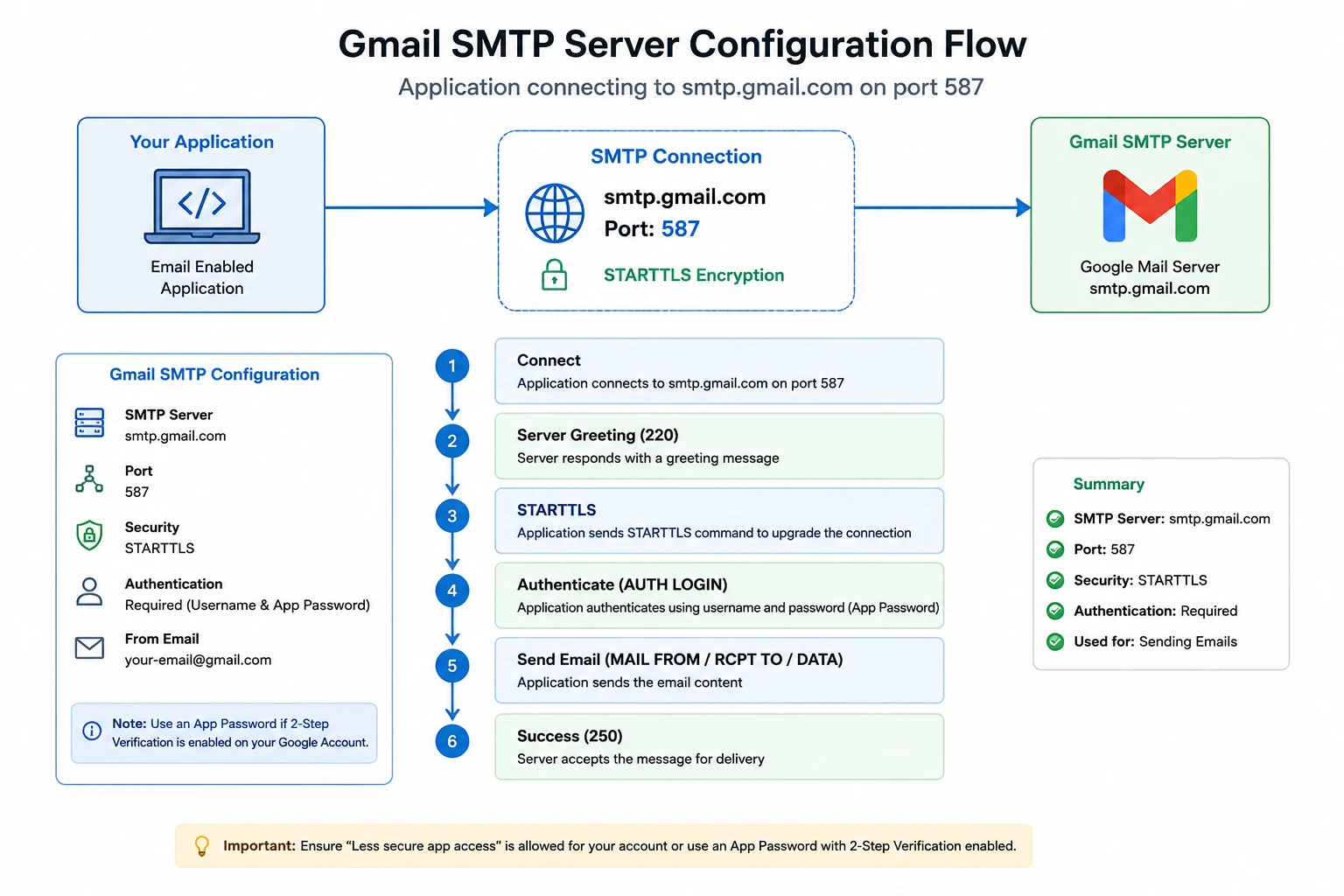
Before you start configuring anything, note these core values. Every client and application you configure will ask for these exact fields.
| Setting | Value |
|---|---|
| SMTP Server Address | smtp.gmail.com |
| Port (TLS — Recommended) | 587 |
| Port (SSL — Legacy) | 465 |
| Encryption | TLS/STARTTLS (port 587) or SSL (port 465) |
| Authentication Required | Yes |
| Username | Your full Gmail address (e.g., [email protected]) |
| Password | App Password (if 2FA enabled) or Gmail password |
| SMTP Relay Host (Workspace only) | smtp-relay.gmail.com |
Port 587 with STARTTLS is the modern standard. The connection starts unencrypted and upgrades to TLS after the initial handshake, as defined in RFC 6409. Port 465 uses implicit SSL from the first byte — it still works but predates the current standard. Use 587 unless your software explicitly requires 465.
Do you use Google Workspace for a business domain? You have a third option: smtp-relay.gmail.com on port 587 or 25. That relay route supports higher sending volumes and IP-based authentication, which the standard SMTP server does not.
Requirements Before You Configure Gmail SMTP
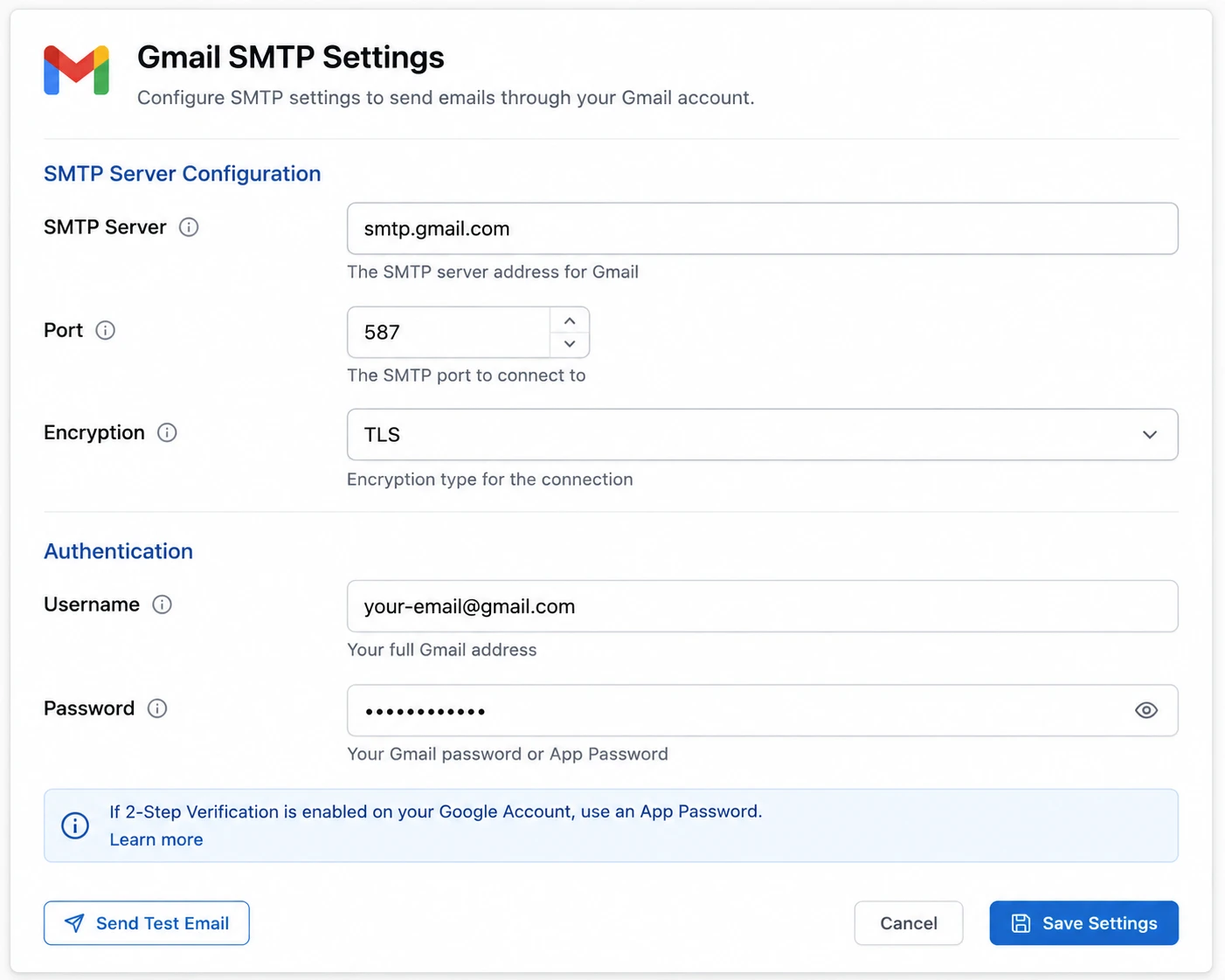
Check every item on this list before touching any settings in your app or email client.
A Gmail or Google Workspace account. Free personal Gmail accounts work. Google Workspace accounts (formerly G Suite) work too, with higher daily limits.
2-Step Verification enabled on your Google account. Since Google permanently removed the “Less Secure Apps” option, you can no longer authenticate SMTP with your regular Gmail password alone in most setups. Enable 2-Step Verification first. Without it, the App Password option will not appear in your account settings.
An App Password generated specifically for your application. This is a 16-character code that substitutes for your main Gmail password in SMTP clients. Each application should have its own App Password so you can revoke one without disrupting others.
Firewall rules that allow outbound connections on port 587 or 465. Corporate networks and shared hosting environments sometimes block these ports. Check with your hosting provider or network admin if the connection times out.
A “From” email address that exactly matches your Gmail address. Mismatched sender addresses are one of the most common silent failure points in WordPress and PHP configurations. If your SMTP username is [email protected], the From field in your app must also be [email protected].
Step 1: Enable 2-Step Verification on Your Google Account
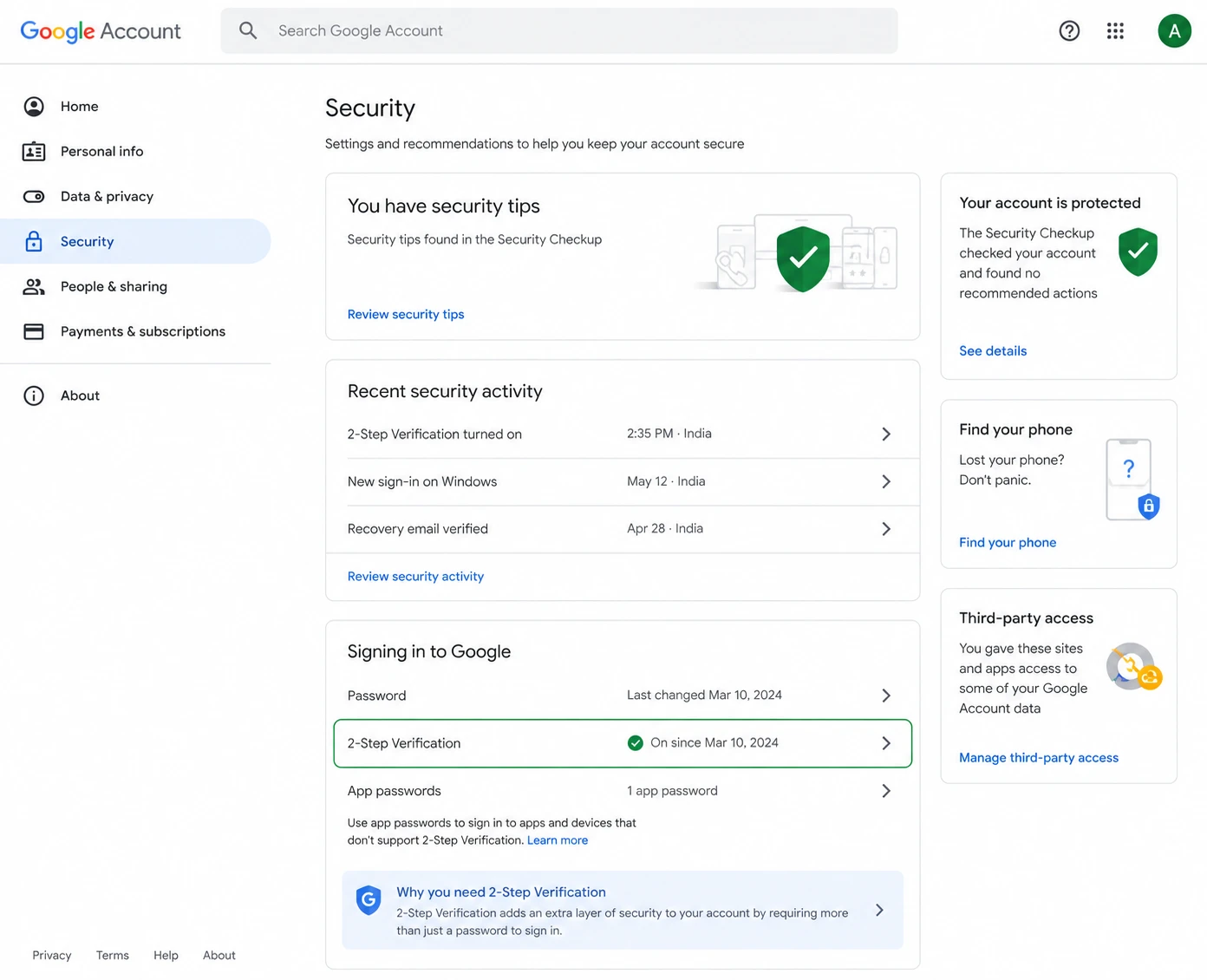
Step 1. Open myaccount.google.com in your browser and sign in.
Step 2. Click Security or Security and Sign-in (on mobile) in the left navigation panel.
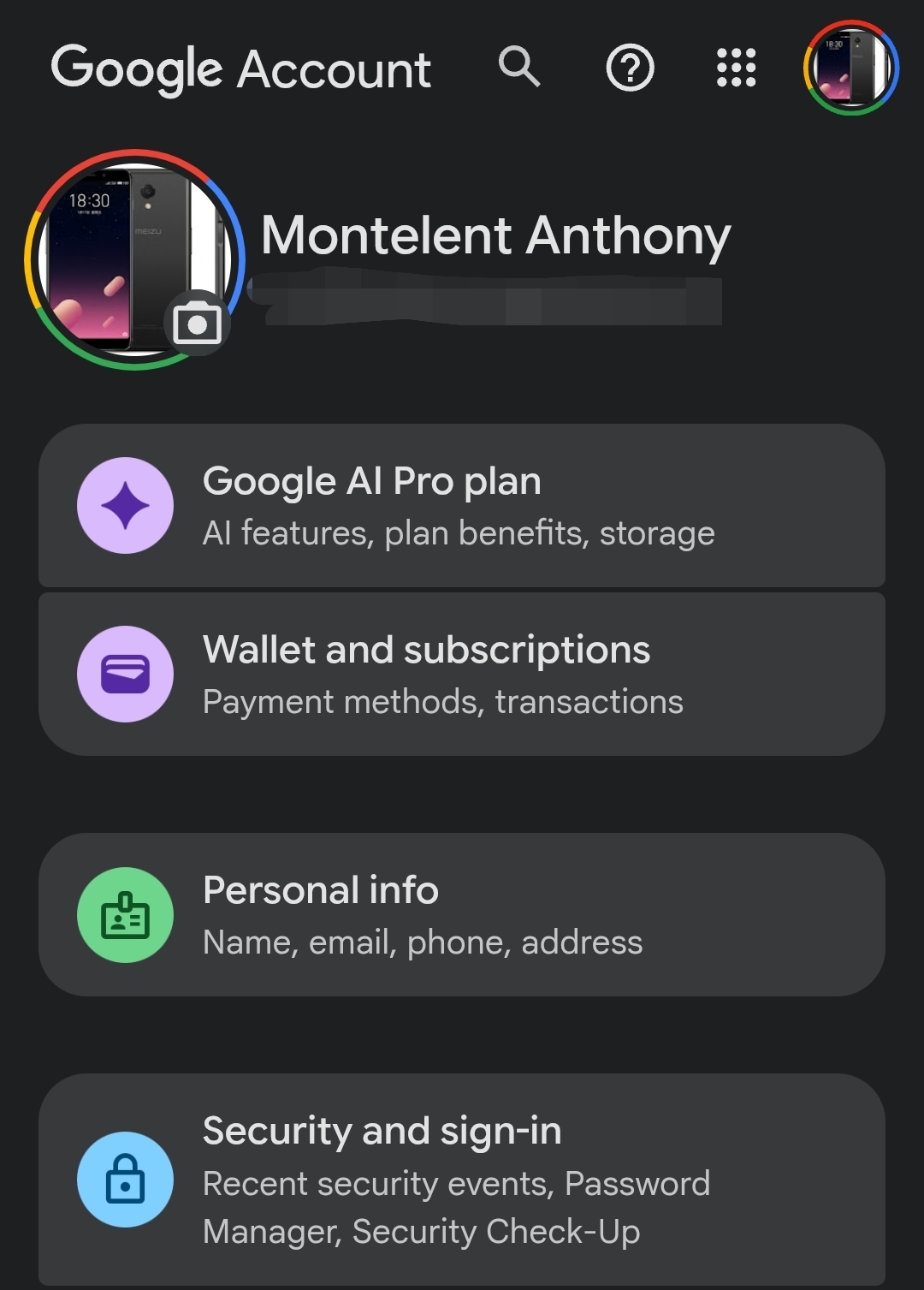
Step 3. Under the “How you sign in to Google” section, click 2-Step Verification.
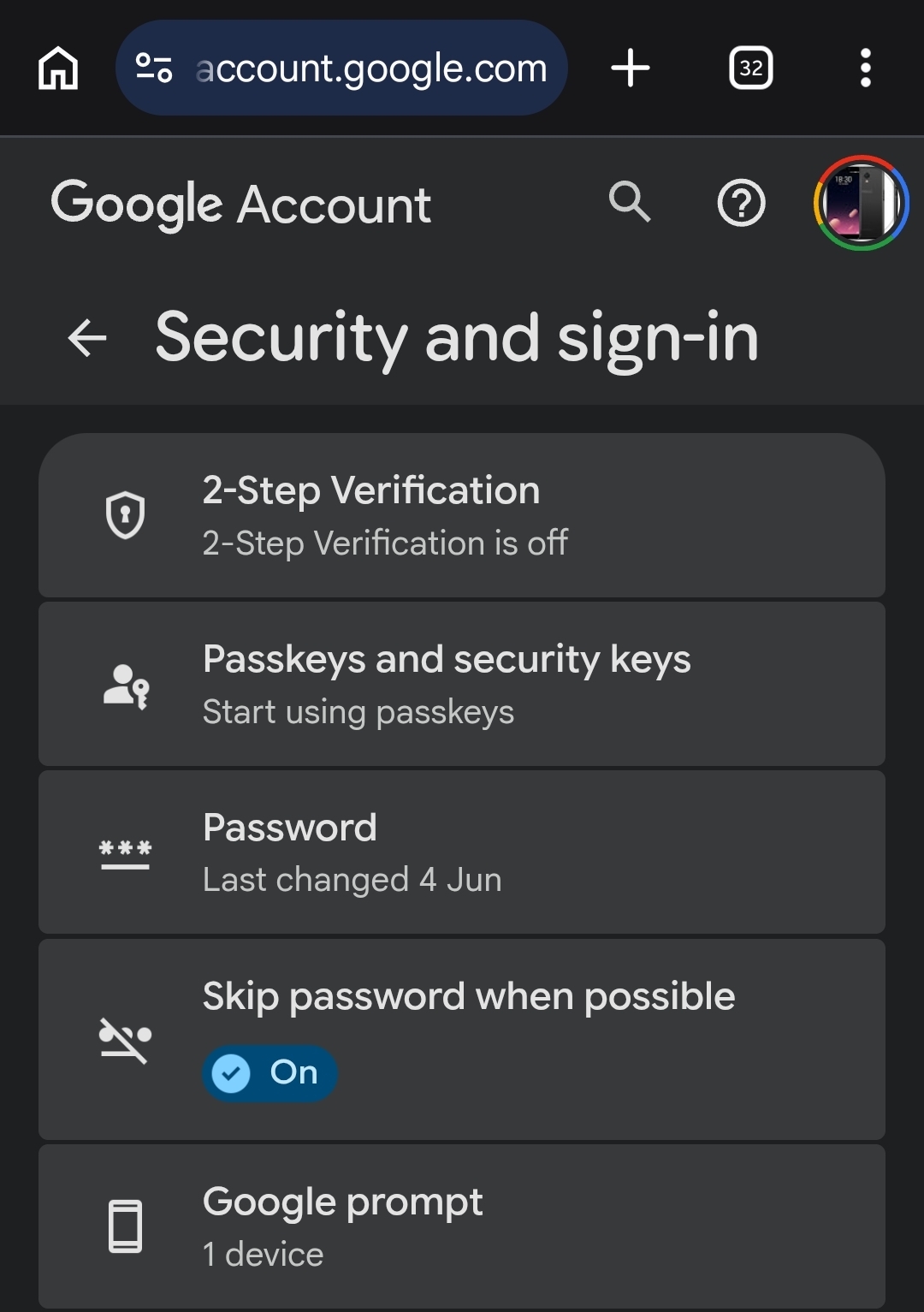
Step 4. Click Get started and follow the prompts. Google supports phone number SMS codes, authenticator apps like Google Authenticator, hardware security keys, and passkeys.
Step 5. Complete the verification flow and confirm that 2-Step Verification now shows as On.
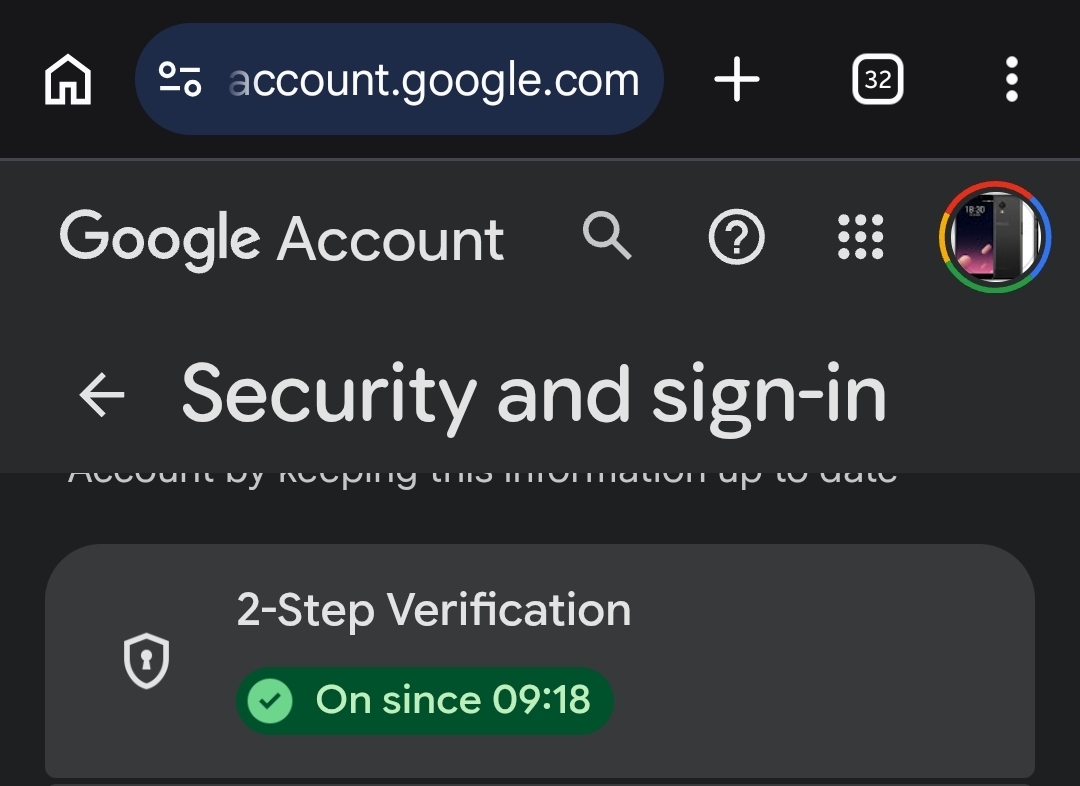
This step only needs to be done once per Google account. The App Password option will not appear until 2-Step Verification is active, so do not skip this step.
Step 2: Generate an App Password for Your Application
Step 1. Return to myaccount.google.com and click Security or Security and Sign-in (on mobile).
Step 2. Scroll to the “How you sign in to Google” section and click 2-Step Verification. Scroll to the bottom of that page and find App Passwords. Or Search “App Password” using the search bar.
Step 3. Alternatively, navigate directly to myaccount.google.com/apppasswords.
Step 4. In the dropdown or text field, enter a descriptive name for the app you are configuring. Use something recognizable like WordPress SMTP, Thunderbird Desktop, or Python Notification Script.
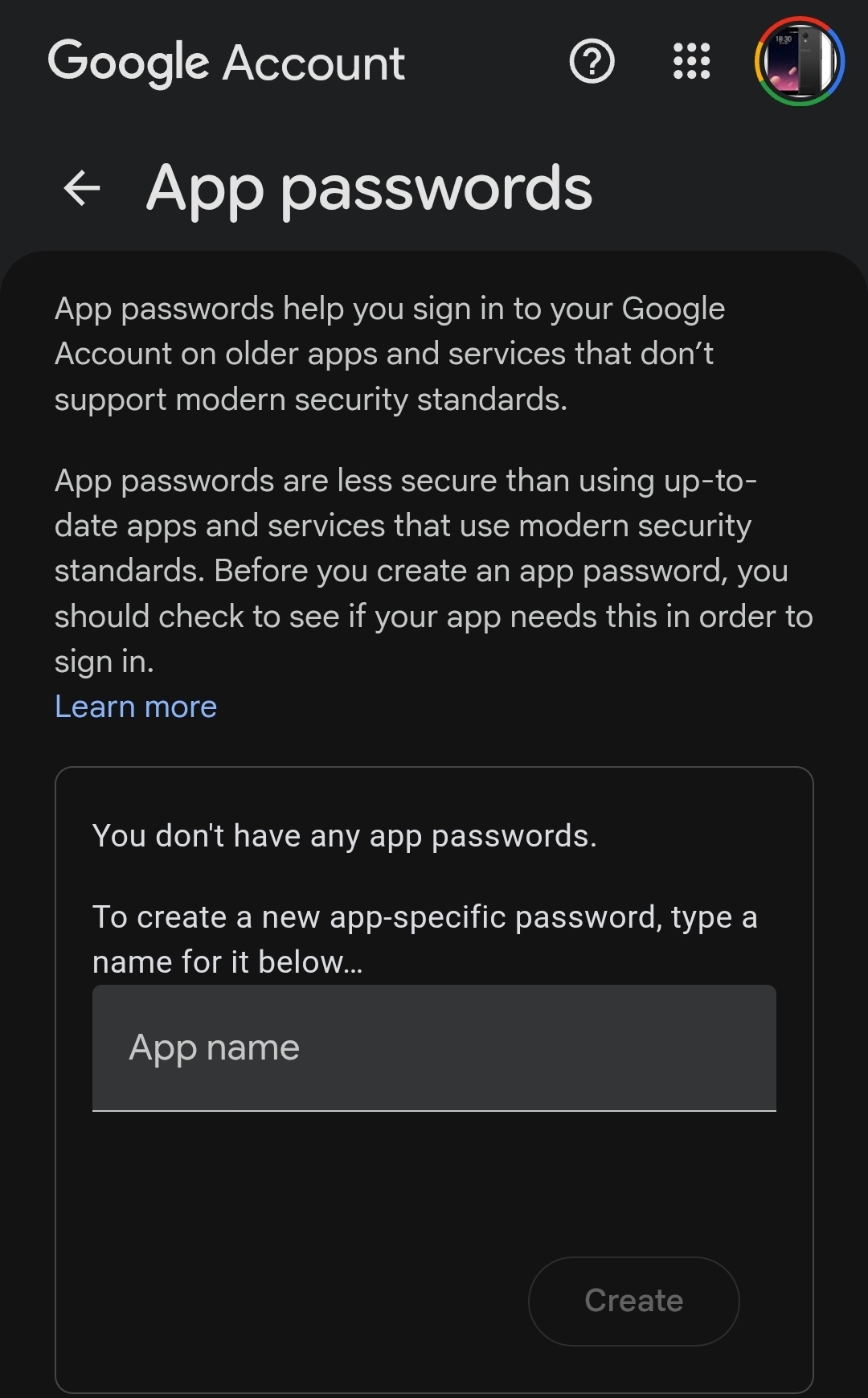
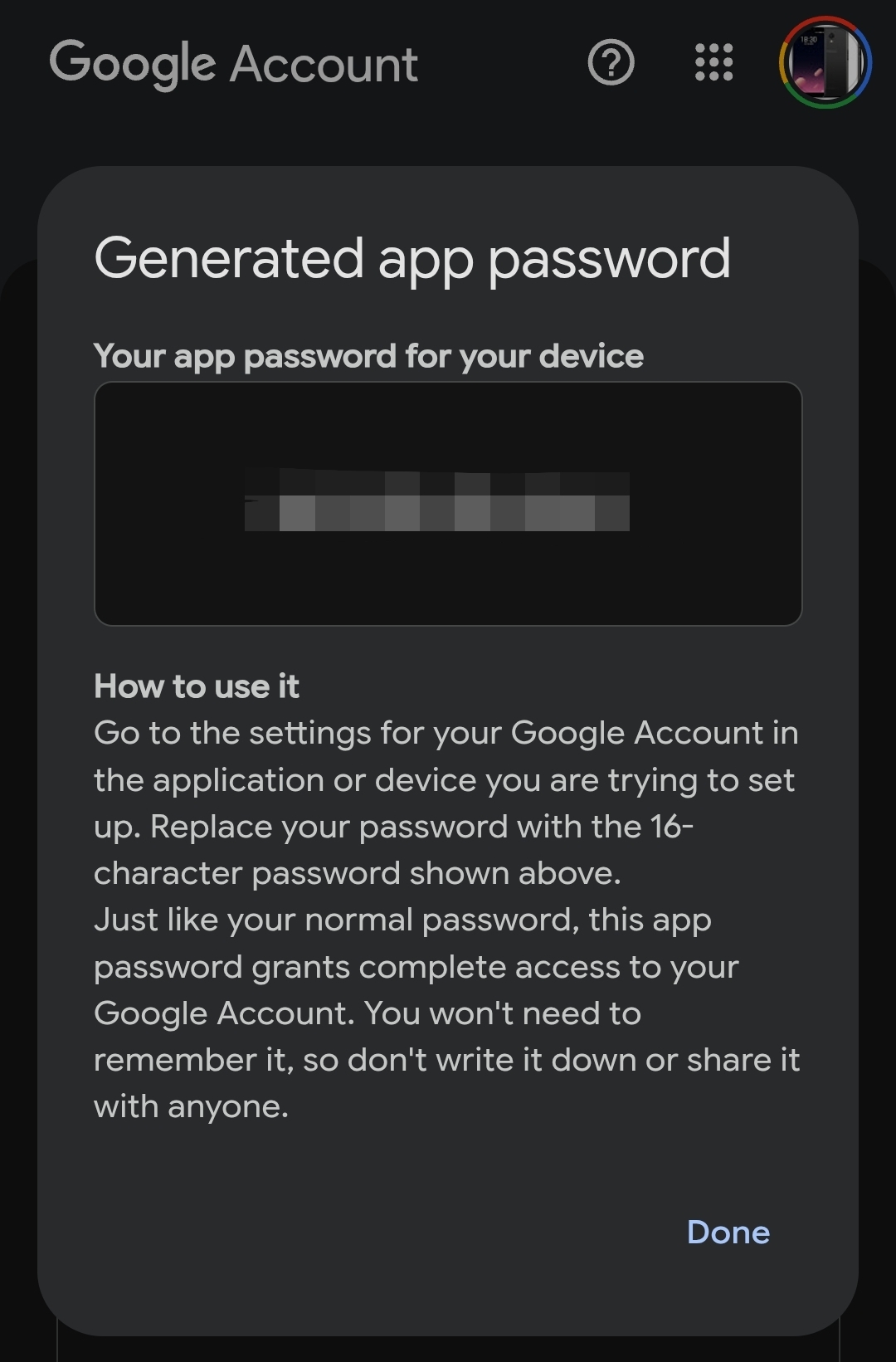
Step 5. Click Create. Google will display a 16-character password in a yellow box.
Step 6. Copy the password immediately. Google will never show it again. Paste it directly into your application’s SMTP password field. You can enter it with or without the spaces Google displays — both work.
WARNING: Do not screenshot your App Password and store it in a shared folder. Treat it like a primary password. Anyone with this code can send email as your Gmail account until you revoke it.
Step 3: Configure Gmail SMTP in Your Email Client
The steps below cover the three most common desktop email clients. The SMTP values are identical across all three. Only the menu paths differ.
Configuring Gmail SMTP in Microsoft Outlook
Step 1. Open Outlook and go to File > Account Settings > Manage Profiles.
Step 2. Click Email Accounts and select New to add a new account, or click Change to edit an existing one.
Step 3. Choose Manual Setup or Additional Server Types and click Next.
Step 4. Select POP or IMAP and click Next.
Step 5. Under Server Information, set the Account Type to IMAP and enter imap.gmail.com as the incoming mail server and smtp.gmail.com as the outgoing mail server.
Step 6. Enter your full Gmail address as the username and your App Password as the password.
Step 7. Click More Settings, go to the Outgoing Server tab, and check My outgoing server (SMTP) requires authentication. Select Use same settings as my incoming mail server.
Step 8. In the Advanced tab, set the Outgoing server (SMTP) port to 587 and the encryption to STARTTLS. Set the Incoming server (IMAP) port to 993 with SSL/TLS encryption.
Step 9. Click OK then Next. Outlook will test the connection. A successful test confirms your configuration is correct.
Configuring Gmail SMTP in Mozilla Thunderbird
Step 1. Open Thunderbird and click the menu icon (three lines) in the top right. Select Account Settings.
Step 2. At the bottom of the left sidebar, click Account Actions > Add Mail Account.
Step 3. Enter your name, Gmail address, and App Password. Click Configure Manually rather than letting Thunderbird auto-detect settings.
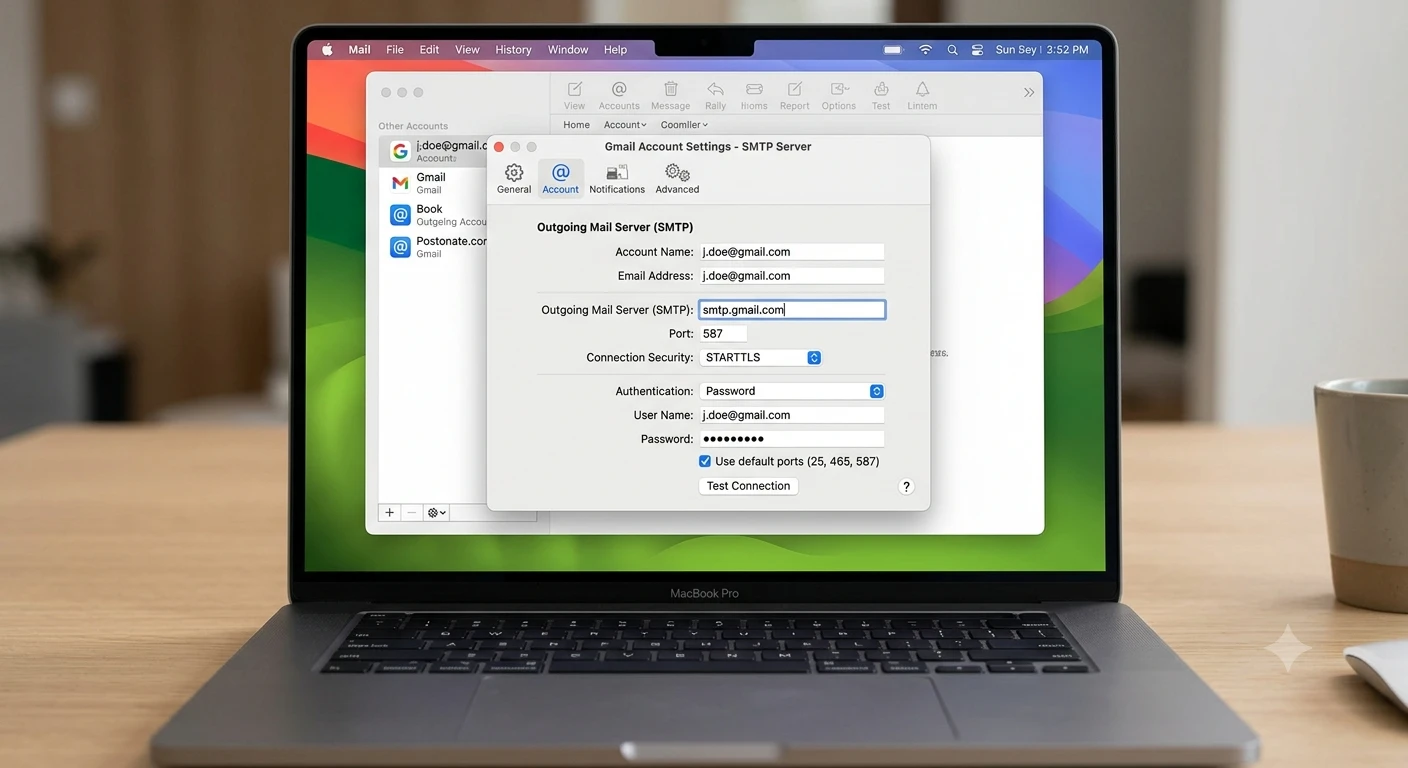
Step 4. Set the Outgoing (SMTP) server to smtp.gmail.com, port 587, connection security to STARTTLS, and authentication method to Normal password.
Step 5. Set the Incoming (IMAP) server to imap.gmail.com, port 993, connection security to SSL/TLS, and authentication method to Normal password.
Step 6. Click Done. Thunderbird will authenticate and confirm the account is active.
PRO TIP: Thunderbird supports OAuth 2.0 natively for Gmail. If you see an “Authenticate with Google” option during setup, use it. OAuth 2.0 is more secure than App Passwords because it never stores your credentials inside the application.
Configuring Gmail SMTP in Apple Mail
Step 1. Open Apple Mail and go to Mail > Preferences (macOS) or Mail > Settings.
Step 2. Click the Accounts tab, then click the + button to add a new account.
Step 3. Enter your name, Gmail address, and App Password. Click Sign In.
Step 4. If Apple Mail’s automatic setup fails, go to Account Information and set the Outgoing Mail Server (SMTP) to smtp.gmail.com.
Step 5. Click Server Settings for the outgoing server, confirm port 587 and STARTTLS, and enter your full Gmail address and App Password.
Step 6. Save the settings and send a test email to confirm the configuration works.
Step 4: Configure Gmail SMTP in WordPress
WordPress uses PHP’s mail() function by default. That function has no SMTP authentication. Emails sent through it frequently fail to deliver or land in spam. Replacing it with authenticated Gmail SMTP solves both problems.
Step 1. In your WordPress dashboard, go to Plugins > Add New Plugin.
Step 2. Search for WP Mail SMTP and install the free version by WPForms. Activate it.
Step 3. Navigate to WP Mail SMTP > Settings.
Step 4. Under From Email, enter your full Gmail address. This field must exactly match your Gmail SMTP username.
Step 5. Under Mailer, select Other SMTP.
Step 6. In the SMTP settings that appear, enter the following:
- SMTP Host:
smtp.gmail.com - Encryption:
TLS - SMTP Port:
587 - Auto TLS: On
- Authentication: On
- SMTP Username: your full Gmail address
- SMTP Password: your 16-character App Password
Step 7. Click Save Settings.
Step 8. Go to WP Mail SMTP > Email Test, enter a test recipient, and click Send Email. Confirm the email arrives in the recipient’s inbox, not in spam.
WARNING: The most common WordPress SMTP failure is a mismatched “From Email.” If your SMTP username is [email protected] but your “From Email” field says [email protected], authentication will fail silently. Every outgoing WordPress email’s From address must match your Gmail address exactly when routing through Gmail’s SMTP server.
Step 5: Configure Gmail SMTP in PHP and Python Applications
PHP Configuration with PHPMailer
PHP applications should use the PHPMailer library rather than the native mail() function. PHPMailer handles SMTP authentication, TLS negotiation, and error reporting in a way that raw PHP cannot.
Install PHPMailer via Composer:
composer require phpmailer/phpmailerThen configure your mailer:
use PHPMailer\PHPMailer\PHPMailer;
use PHPMailer\PHPMailer\SMTP;
use PHPMailer\PHPMailer\Exception;

require 'vendor/autoload.php';

$mail = new PHPMailer(true);

$mail->isSMTP();
$mail->Host       = 'smtp.gmail.com';
$mail->SMTPAuth   = true;
$mail->Username   = '[email protected]';
$mail->Password   = 'your-16-char-app-password';
$mail->SMTPSecure = PHPMailer::ENCRYPTION_STARTTLS;
$mail->Port       = 587;

$mail->setFrom('[email protected]', 'Your Name');
$mail->addAddress('[email protected]');
$mail->Subject = 'Test Message';
$mail->Body    = 'This message sent via Gmail SMTP.';

$mail->send();
Replace [email protected] and your-16-char-app-password with your actual credentials. The $mail->Username and $mail->setFrom() address must be identical.
Python Configuration with smtplib
Python’s built-in smtplib module handles SMTP connections directly. Use SMTP_SSL for port 465 or SMTP with starttls() for port 587.
import smtplib
from email.mime.text import MIMEText

smtp_host = 'smtp.gmail.com'
smtp_port = 587
gmail_user = '[email protected]'
gmail_app_password = 'your16charapppassword'

msg = MIMEText('This message sent via Gmail SMTP.')
msg['Subject'] = 'Test Message'
msg['From'] = gmail_user
msg['To'] = '[email protected]'

with smtplib.SMTP(smtp_host, smtp_port) as server:
    server.starttls()
    server.login(gmail_user, gmail_app_password)
    server.sendmail(gmail_user, ['[email protected]'], msg.as_string())
The starttls() call upgrades the connection to TLS before server.login(). Skipping it will cause an authentication error on port 587.
Gmail SMTP Sending Limits You Need to Plan Around
Gmail caps outgoing volume regardless of how correctly you configure the connection. Plan your application architecture around these limits before you hit them.
| Account Type | Daily Sending Limit | Recipient Limit per Message |
|---|---|---|
| Free Gmail (personal) | 500 emails/day | 100 recipients per email |
| Google Workspace (paid) | 2,000 emails/day | 100 recipients per email |
| Workspace SMTP Relay | 10,000 emails/day | 100 recipients per email |
When your application exceeds the daily limit, Google temporarily blocks outbound sending for up to 24 hours. The application receives an SMTP error, but no notification goes to you unless you build error handling to log or alert on it.
If your application approaches the 500-emails-per-day threshold, start planning a migration to a dedicated transactional service. Providers like SendGrid, Mailgun, and Amazon SES handle volume without per-day caps and give you per-message delivery analytics that Gmail SMTP does not.
For applications that send well under this threshold — internal tools, admin dashboards, early-stage SaaS products — Gmail SMTP is a sound choice and does not require an expensive relay provider.
Is your application growing fast? If you are already sending 300 to 400 emails per day, build the transactional service migration into your next sprint. Waiting until you hit the cap means users miss emails the day you breach the limit.
Google Workspace SMTP Relay: The Option Most Guides Skip
Standard Gmail SMTP (smtp.gmail.com) requires your credentials for every connection. Google Workspace offers a second outgoing mail path: the SMTP relay service at smtp-relay.gmail.com. Most configuration guides cover only the first option.
The relay service matters for three specific cases:
You run a server, printer, or scanner that sends email. These devices cannot complete OAuth 2.0 flows. IP-based authentication through the relay service lets them send without credentials.
You want to send from addresses across your Workspace domain. The relay authenticates your domain rather than a specific account, so multiple addresses like [email protected] and [email protected] can route through the same relay.
You need a higher daily limit. The relay cap is 10,000 emails per day, five times what a standard Workspace account allows.
To enable the relay, sign in to the Google Workspace Admin Console at admin.google.com. Go to Apps > Google Workspace > Gmail > Advanced Settings. Find the SMTP Relay Service section and click Configure. Set allowed senders, choose TLS encryption, and configure IP whitelisting if needed.
The relay host, smtp-relay.gmail.com, uses port 587 with STARTTLS or port 25. Note that port 25 is only available on the relay host — the standard smtp.gmail.com server does not support it.
For context on how Gmail’s authentication and encryption features work across the broader Google ecosystem, the Cloudorian breakdown of Gmail end-to-end encryption on mobile covers the security architecture Google uses across its mail infrastructure.
Common Gmail SMTP Problems and How to Fix Them
Problem 1: “535-5.7.8 Username and Password Not Accepted”
Problem: Authentication fails immediately after entering credentials. The error code 535-5.7.8 appears in the SMTP response log.
Cause: You are using your regular Gmail password instead of an App Password. Since Google removed the “Less Secure Apps” option, regular passwords no longer work for direct SMTP authentication. For Google Workspace accounts, a policy change in May 2025 requires OAuth 2.0 for Workspace accounts — plain password login no longer works even with 2FA disabled.
Fix:
- Go to myaccount.google.com/apppasswords and confirm 2-Step Verification is active.
- Generate a new App Password specifically for this application.
- Replace the password field in your SMTP configuration with the 16-character App Password.
- If you see “This setting is not available for your account,” your Workspace admin has blocked App Passwords. Contact your admin or switch to OAuth 2.0.
Problem 2: “Connection Timed Out” or “Could Not Connect to Server”
Problem: The application cannot establish a connection to smtp.gmail.com at all. The error appears before any authentication attempt.
Cause: Port 587 or 465 is blocked by a firewall, hosting provider, or corporate network. This is common on shared hosting plans and office networks with strict outbound filtering.
Fix:
- Test which ports are open by running
telnet smtp.gmail.com 587from your server. If it hangs, the port is blocked. - Contact your hosting provider and request that outbound access to
smtp.gmail.comon port587be opened. - If you manage the firewall yourself, add an outbound allow rule for port
587destined forsmtp.gmail.com. - Try port
465as a fallback if587remains blocked. Some environments that block587still allow465.
Problem 3: WordPress Emails Send Successfully But Recipients Never Receive Them
Problem: WP Mail SMTP shows a successful send in the email test log. No error appears. Recipients report the email never arrived — not even in spam.
Cause: The From Email field in WP Mail SMTP settings does not match the authenticated Gmail address. Gmail’s servers silently rewrite or drop outbound messages when the From address differs from the authenticated sender. The SMTP transaction technically completes, but delivery fails downstream.
Fix:
- In WP Mail SMTP > Settings, set the From Email field to exactly
[email protected]— the same address you use as your SMTP username. - Scroll down to confirm Force From Email is checked. This overrides any From address your WordPress plugins or themes try to set.
- Click Save Settings and run a new Email Test. Verify the test email arrives in the recipient inbox.
- Check your Google Account’s Gmail Sent folder. If the email appears there, delivery happened successfully and the issue moved downstream. If it does not appear in Sent, the authentication or routing failed.
Problem 4: “App Passwords Option Not Visible in Google Account”
Problem: You navigate to the Security section of your Google Account and cannot find the App Passwords option at all.
Cause: Either 2-Step Verification is not active, or a Google Workspace administrator has disabled App Password creation for your organization.
Fix:
- Confirm that 2-Step Verification shows as On under Security > How you sign in to Google. If it shows as Off, enable it and return to look for App Passwords.
- If you are on a Google Workspace account and the option is still missing after enabling 2-Step Verification, your Workspace admin has restricted the feature. Contact your admin and request that App Password creation be enabled for your account.
- As an alternative, configure OAuth 2.0 authentication. Modern email clients like Thunderbird support Gmail OAuth natively without App Passwords.
Problem 5: Emails Deliver Correctly for Days, Then Authentication Suddenly Fails
Problem: SMTP configuration worked perfectly for weeks. Then authentication starts failing with credential errors, even though you did not change anything.
Cause: One of three things: (1) you changed your Gmail password and the SMTP configuration was not updated, (2) Google detected unusual activity and locked SMTP access, or (3) the App Password was revoked.
Fix:
- Sign in to Gmail directly and check the inbox for any Google security alerts. Address any flagged activity.
- Go to myaccount.google.com/apppasswords and verify the App Password for your application still exists.
- If the App Password was revoked or no longer appears, generate a new one and update your SMTP configuration.
- If you recently changed your Gmail password, go back to the App Passwords page. A Gmail password change sometimes invalidates existing App Passwords. Generate a new one and update your configuration.
Tips for Getting More Out of Gmail SMTP
Give each application its own App Password. If you have Gmail SMTP configured in Outlook, a WordPress site, and a Python script, each should have a separate App Password. When you need to cut access for one application, you revoke that specific password without breaking the others.
Log SMTP errors in your application code. Gmail can temporarily block your account if it detects sending patterns that look like spam — sudden volume spikes, many recipients flagging messages, or rapid-fire sends from a new IP. If your app swallows SMTP errors silently, you will not know delivery has stopped. Log every SMTP error with a timestamp, recipient, and error code.
Test your configuration from the exact server that runs the application. SMTP works fine from your laptop. The firewall rules on your production server may be different. Always run the initial configuration test from the environment that will actually send the emails.
Use a dedicated Gmail address for application mail. Mixing personal emails with application-generated mail inside one Gmail inbox creates noise and makes it harder to spot delivery problems. Create a new Gmail account ([email protected] style) for application sending. This also protects your primary Gmail account from sending-limit interference.
Plan your daily volume against the 500-email limit from day one. A user registration system that sends one welcome email per new user will stay well under the limit for months. A notification system that emails every registered user on each activity will hit the ceiling within days. Map your expected send volume in advance.
Want to go further with Gmail’s automation capabilities on the sending side? The Gmail automations most business people have never tried guide on Cloudorian covers Apps Script, Zapier integrations, and filter-based routing that work alongside SMTP configuration.
Frequently Asked Questions About Gmail SMTP Configuration
Q: What is the Gmail SMTP server address and port I should use in 2026?
A: The Gmail SMTP server address is smtp.gmail.com. Use port 587 with STARTTLS encryption for all modern setups. Port 465 with SSL works for legacy clients that do not support STARTTLS. Port 25 is only available for the SMTP relay service (smtp-relay.gmail.com) used by Google Workspace customers, not the standard SMTP server.
Q: Why does Gmail say my username and password are wrong even though they are correct?
A: Google stopped accepting regular Gmail passwords for SMTP authentication when it removed the “Less Secure Apps” option. You need to use an App Password — a 16-character code generated from your Google Account’s Security settings. To see the App Passwords option, you must first enable 2-Step Verification on your account. Your regular Gmail password will always fail on direct SMTP connections.
Q: How many emails can I send per day through Gmail SMTP?
A: Free personal Gmail accounts can send up to 500 emails per day. Google Workspace accounts can send up to 2,000 per day. The Workspace SMTP relay service (smtp-relay.gmail.com) supports up to 10,000 per day. Exceeding these limits triggers a temporary block that resets after 24 hours. Applications expecting higher volume should use a dedicated transactional email service rather than Gmail SMTP.
Q: Can I use Gmail SMTP to send from a custom domain email address like [email protected]?
A: Yes, but with conditions. For free Gmail accounts, you can send from a custom domain only if you set it up as a Gmail alias. The recipient will see your custom domain address, but authentication still goes through your Gmail account. For Google Workspace users, if [email protected] is your Workspace email, you can use Gmail SMTP directly with that address as your credentials. The SMTP relay service supports sending from any address in your Workspace domain.
Q: What is the difference between App Passwords and OAuth 2.0 for Gmail SMTP?
A: App Passwords are 16-character static codes stored inside your application. They bypass 2-Step Verification for that specific app. OAuth 2.0 authenticates through a browser-based flow and issues time-limited tokens instead of storing credentials inside your application. OAuth 2.0 is more secure because tokens expire — typically after one hour — and never store your password anywhere. Google Workspace accounts on newer configurations are required to use OAuth 2.0 rather than App Passwords. For personal Gmail, both options work, but OAuth 2.0 is the better long-term choice for production applications.
Q: My Gmail SMTP worked last week. Now it says authentication failed and nothing changed. What happened?
A: Three things commonly cause this. First, a Gmail password change sometimes invalidates existing App Passwords — generate a new App Password and update your configuration. Second, Google may have detected unusual activity on your account and restricted SMTP access. Check your Gmail inbox for security alerts and review any flagged sign-in activity. Third, for Google Workspace accounts, check whether an admin policy change has restricted App Password usage or SMTP access since your last successful send.
Q: Should I configure Gmail SMTP or switch to a transactional email service?
A: Gmail SMTP is the right tool for applications sending under 300 to 400 emails per day, early-stage products, internal tools, and personal projects. It requires no paid subscription and delivers well with established inbox providers. Transactional services like SendGrid, Mailgun, and Amazon SES are a better fit when your app sends high volume, needs per-message delivery analytics, requires custom domains at scale, or needs uptime guarantees that Gmail’s shared infrastructure cannot provide. If you are considering a complete move away from Gmail, the Cloudorian comparison of Gmail and ProtonMail covers what changes on both the sending and receiving sides.
Get Your First Test Email Delivered Today
The configuration path is straightforward once you have the App Password in hand. Enable 2-Step Verification, generate an App Password, plug in smtp.gmail.com, port 587, and your credentials — then run a test send before your application goes anywhere near real users.
The most common mistake is not catching the “From Email mismatch” problem until actual users report missing emails. Run the WP Mail SMTP test or the PHPMailer/Python test from your live server, not from your local machine, and confirm the email lands in an inbox, not in spam.
If you hit authentication errors after setup, go back to the App Passwords page first. That page is where 90% of Gmail SMTP problems originate and where they get fixed fastest.
Have a configuration scenario this guide did not cover? Drop your setup details in the comments below and describe exactly what error message appears — the SMTP error code, not just the symptom. That context makes it much faster to point you toward the exact fix.
Discover more from Cloudorian — Android, Samsung & Windows How-To Guides
Subscribe to get the latest posts sent to your email.
