

Signing back into Google Messages does not bring your old texts with it. The setting that saves your conversations lives inside Android, and most people never switch it on. This guide shows you how to back up Google Messages before you reset, sell, or upgrade your phone.
Why Google Messages Does Not Save Your Texts on Its Own
Google Messages reads the messages already stored on your phone. It does not keep a cloud copy that reappears the moment you sign in.
Setting it as your default SMS app lets it show old threads and handle new SMS, MMS, and RCS traffic. That access does not upload your history anywhere. Your recovery depends on Android’s device backup instead.
Turning on RCS adds typing indicators, read receipts, and better group chats over Wi-Fi or data. It does not turn on backup. Many readers assume the two are linked, and they are not.
Reporting from MakeUseOf confirms the control sits outside the messaging app. For now, you have to find it yourself in Android settings.
What You Need Before You Back Up Google Messages
Check a few basics before you touch any switch. Skipping these is the most common reason a backup fails quietly.
- You need a Google account that already has enough Drive storage to hold a device backup, since a full account blocks the upload without any obvious warning.
- Google Messages must be set as your default SMS app, because that is what lets Android include supported RCS history inside the device backup.
- You want a stable Wi-Fi connection and a charged battery, as a fresh device backup can run for several hours before it finishes.
- The phone you restore to should run the same Android version or a newer one, because a newer backup cannot restore fully onto an older release.
When did you last confirm which Google account your phone actually backs up to? That single detail trips up more people than any technical fault.
How to Back Up Google Messages Step by Step
The path differs slightly between Pixel and Samsung phones. Both rely on the same underlying Google backup system.
On a Google Pixel
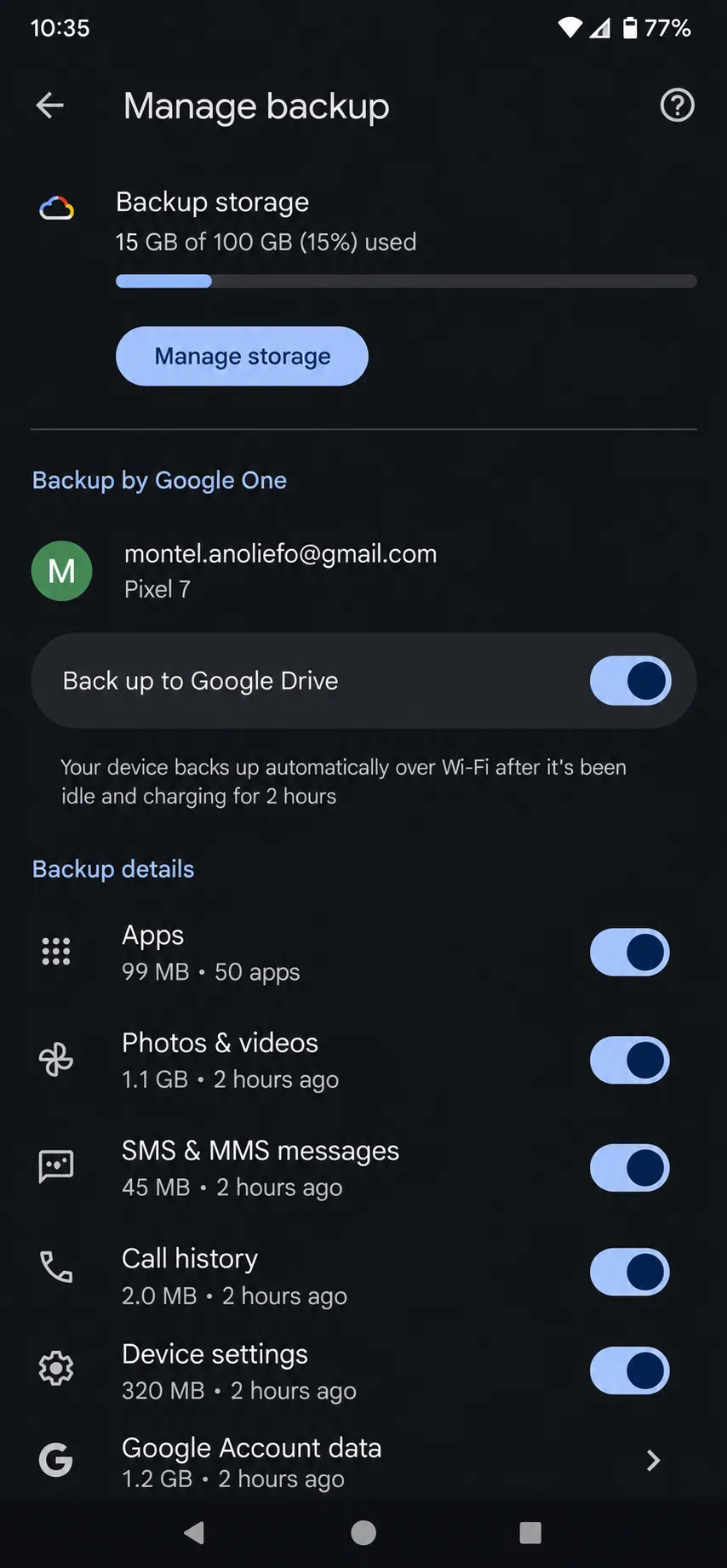
Step 1. Open Settings, tap Google services, then tap Manage backup.
The Backup page shows whether backup is active and when your data last saved.
Step 2. Open Other device data and enable Back up other device data.
This toggle controls the category that carries your messages.
Step 3. Confirm the Google account listed on this page.
Make sure it matches the account you plan to use on your next phone.
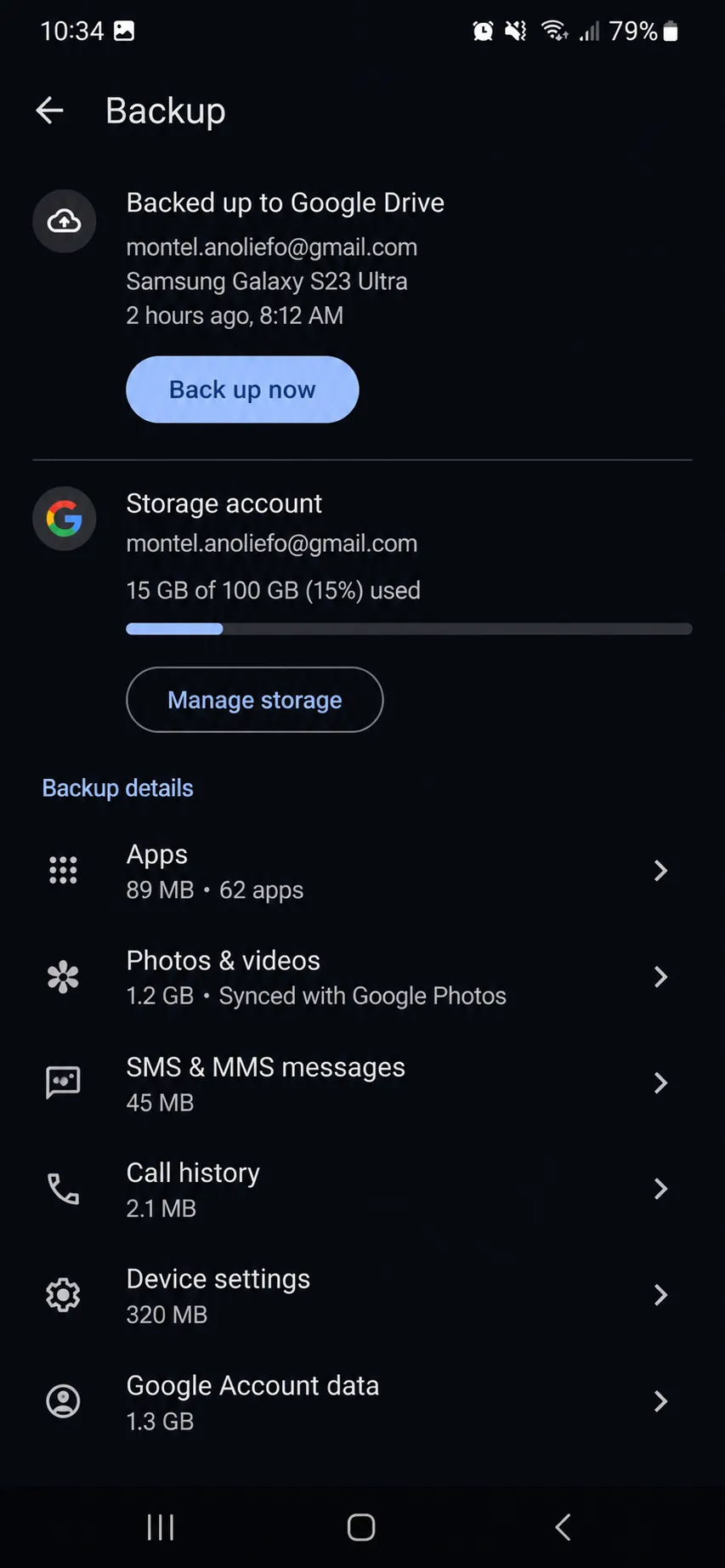
Step 4. Under Device data, check that SMS & MMS messages is toggled on.
You will not see a separate RCS switch, because supported RCS history rides along with this entry.
Step 5. Return to the main Backup page and tap Back up now.
Wait until Other device data shows a recent time or completed status before you erase anything.
PRO TIP: Pixel backs up automatically while the phone sits idle and charging, but a manual Back up now gives you a fresher recovery point right before a device change.
On a Samsung Galaxy
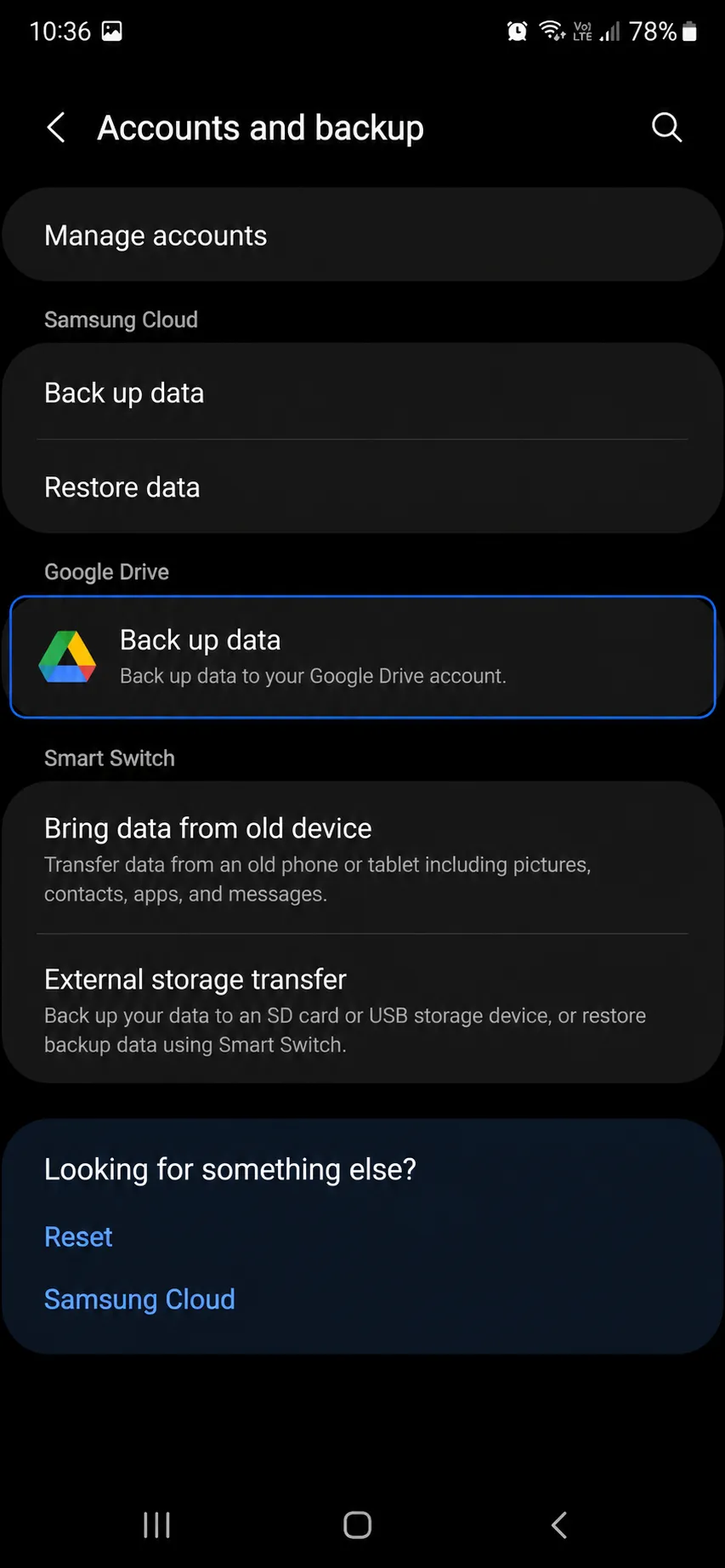
Step 1. Open Settings, tap Accounts and backup, then find the Google Drive section.
Tap Back up data underneath it.
Step 2. Avoid the similarly named option under Samsung Cloud.
Choose Samsung Cloud only if you deliberately want Samsung’s separate service.
Step 3. Open Other device data and confirm the Google account shown.
Enable the main device-data control and check that SMS & MMS messages is included.
Step 4. Return to the previous page and tap Back up now.
Keep the phone charged and connected until the status updates.
WARNING: Scroll down and you may see Google Messages listed under App data with “No data backed up.” That label refers to the app’s own settings, not your texts. The SMS & MMS messages entry above is the one that confirms your conversation history is protected.
How to Restore Your Texts on a New Phone
The safest place to restore is during the initial setup of your new or freshly reset phone. Sign in with the same Google account, pick the backup from your old device, and select the data categories you want.
Match the Android versions before you rely on this. A backup made on a newer version cannot restore cleanly onto an older one.
Pixel 9 and later can also pull cloud data after setup through Settings, Accounts & backup, Android Switch, then Start. This route restores from only one previous device, so choosing the right backup during setup still matters most.
Restoration can run for up to 24 hours. Messages and apps keep appearing after the home screen loads, so a short conversation list right after setup does not mean the restore failed.
Would your most important thread survive a factory reset today? If you are not sure, the comparison below shows which method actually protects it.
How Each Backup Method Compares
| Method | Survives a factory reset | Includes RCS history | Searchable later | Effort |
|---|---|---|---|---|
| Android device backup | Yes, when SMS & MMS is on | Yes, with Google Messages as default | No, built for restore only | Low |
| Google Messages for web | No, it mirrors the phone | Shows recent threads only | Limited | Low |
| Manual screenshots or export | Yes, you keep the files | Depends on the export tool | Yes, you own the copy | High |
Anyone who understands moving between Android devices knows the device backup is a migration tool, not a searchable archive. Treat it that way and you avoid nasty surprises.
Common Google Messages Backup Problems and How to Fix Them
These are the failures I run into most when helping people migrate phones. Each one has a clear cause and a fix you can follow in minutes.
Problem: Samsung shows “No data backed up” next to Google Messages.
Cause: That App data label reflects the app’s own settings, not your SMS and MMS database.
Fix:
- Ignore the Google Messages App data entry entirely.
- Scroll up to Device data and confirm SMS & MMS messages is on.
- Tap Back up now and wait for the timestamp to refresh.
Problem: Back up now runs, but the backup never seems to finish.
Cause: A weak connection, a low battery, or a nearly full Drive account stalls the upload.
Fix:
- Connect to stable Wi-Fi and plug the phone in.
- Check your Google account storage and clear space if it is near the limit.
- Leave the phone idle and locked, since a full device backup can take up to 24 hours.
Problem: Texts are missing after you restore to a new phone.
Cause: The restore chose the wrong backup, the versions did not match, or the restore is still running.
Fix:
- Give the phone up to 24 hours, because messages keep populating after setup.
- Confirm you picked the correct device backup and the matching Google account.
- Verify the new phone runs the same Android version or newer than the old one.
Pro Moves Most Guides Skip
Verify the restore before you wipe the source phone. Keep the old device until your important conversations and attachments appear correctly on the new one.
Watch the 57-day rule. Google deletes non-photo backup data after a device stays unused for 57 days, so an old backup will not wait forever. Turning off device backup also erases the stored copy, apart from anything already saved in Google Photos.
For high-value exchanges, keep a second copy. Screenshots, forwarding, or a reputable export method protect legal or financial threads that you cannot afford to lose. The same logic applies to call logs, which rank among the most important data to save.
If storage is your blocker, learn how to free up Android storage so your backup account has room to breathe. A full account is the silent killer of overnight backups.
Frequently Asked Questions About Google Messages Backup
Q: Does Google Messages back up my texts automatically?
A: No, the app itself does not upload a copy. To back up Google Messages, you rely on Android’s device backup with SMS & MMS messages turned on. Confirm that switch under Settings before you trust it.
Q: Where are my Google Messages actually stored?
A: They live in your phone’s local messaging database. Google Messages reads that database and displays your threads. Nothing syncs to the cloud until Android’s device backup uploads it.
Q: Will enabling RCS back up my messages?
A: No, RCS only turns on features like read receipts and better media. Backup is a separate Android setting. You can learn more about how RCS encryption changes your texts in our related guide.
Q: How long does an Android text message backup take?
A: A fresh device backup can run for up to 24 hours. Keep the phone charged and connected to Wi-Fi. Wait for the backup time or status to update before you reset the phone.
Q: Can I open my backed-up texts in Google Drive?
A: No, you can see the device and its last backup date under Storage, then Backups. You cannot open individual conversations there. Android backup is built for restoring to a phone, not for browsing.
Q: Does Google Messages for web save my conversations?
A: No, the web pairing mirrors your phone and caches recent threads. It disappears when the phone is reset or lost. Treat it as a convenience, not a backup.
Do This Before You Wipe Your Phone
Open your backup screen right now, confirm the correct Google account, and check that SMS & MMS messages is on. Tap Back up now and wait for the status to refresh before you factory reset or hand the device over.
Verifying that restore is one of the most important steps before selling or handing off an old Android phone, so keep the old handset until the chats reappear.
Which part of your backup are you least sure about right now, the account, the SMS toggle, or the restore step? Drop your setup in the comments and I will help you pin down the gap.
Discover more from Cloudorian — Android, Samsung & Windows How-To Guides
Subscribe to get the latest posts sent to your email.



