

Your Galaxy phone can send nearby speech and environmental sounds directly through connected headphones. The Amplify ambient sound on Samsung Galaxy phones setting helps during conversations, lectures, television viewing, and other listening situations. This guide explains the exact setup, compatibility limits, shortcut controls, and fixes for common failures.
What Samsung Amplify Ambient Sound Is and Why It Matters
Amplify ambient sound turns your Galaxy phone into a basic assisted listening device. The phone microphone captures nearby audio and sends an amplified feed through your headphones.
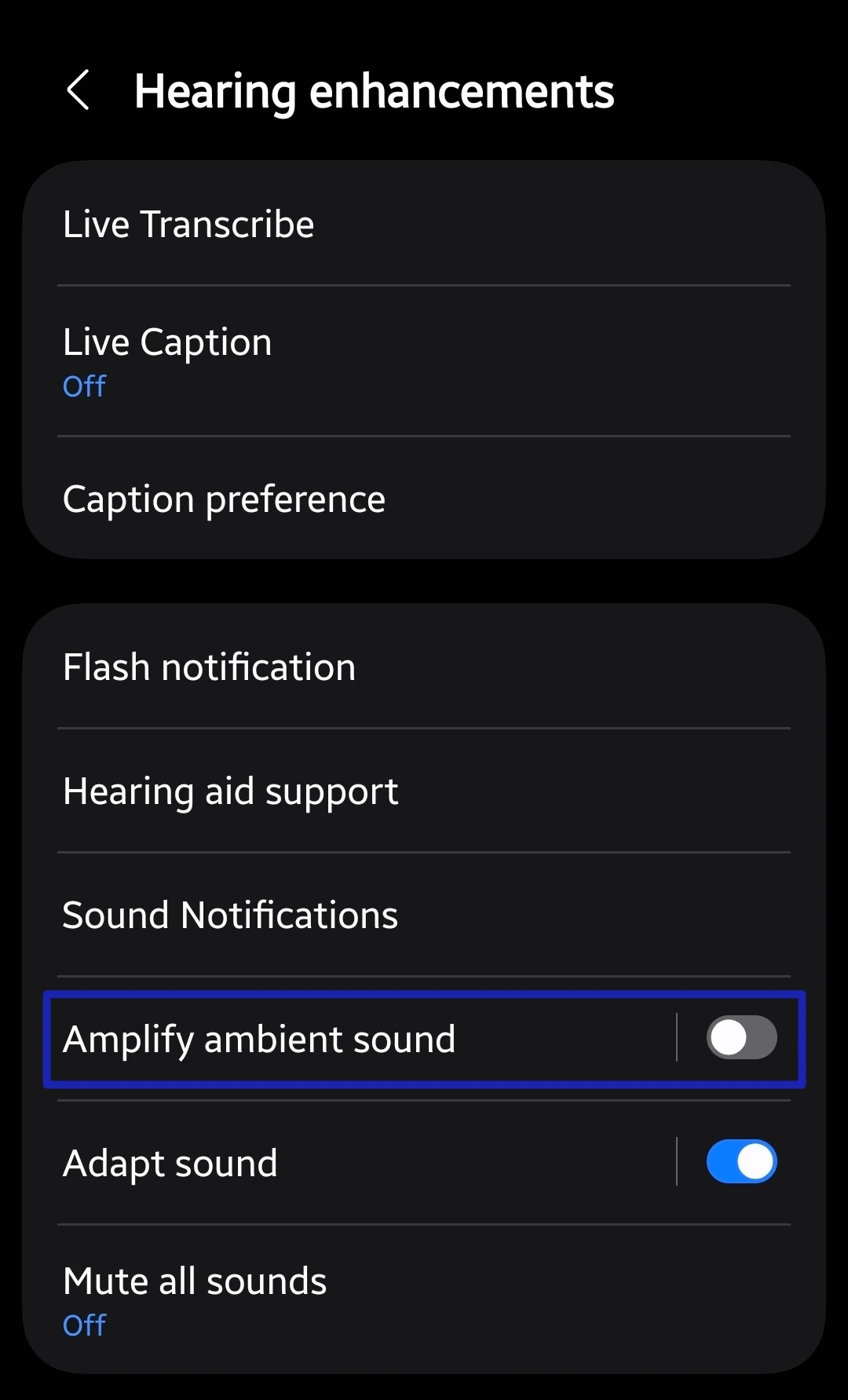
Samsung places the feature under Hearing enhancements instead of the standard sound menu. This location causes many Galaxy owners to miss it.
The feature can make nearby speech easier to hear during meetings, classes, or quiet conversations. Your phone microphone must remain close to the sound source for the clearest result.
Samsung lists the setting alongside Live Transcribe, Live Caption, Adapt sound, Mono audio, and hearing aid support. You can review the complete feature list in Samsung’s hearing enhancement guide.
This tool does not turn headphones into certified hearing aids. It cannot diagnose hearing loss or replace professional hearing care.
WARNING: Never depend on amplified audio for alarms, traffic, emergency warnings, or other safety signals.
Do voices sound clear nearby but disappear across a busy room? Microphone distance and background noise usually matter more than the selected volume level.
Requirements Before You Start
You need a compatible Samsung Galaxy phone or tablet with the Amplify ambient sound option. Availability depends on the model, region, carrier, and installed One UI version.
Samsung documents this menu on modern Galaxy devices running recent One UI releases. Older models, including the Galaxy Note9, also received versions of the feature.
You also need connected headphones. Samsung’s phone-based amplifier uses headphones for audio output and the phone microphone for input.
Both wired and Bluetooth audio devices may work on supported models. Wired headphones usually produce less delay because Bluetooth introduces transmission latency.
Check these requirements before starting:
- Your Galaxy device must show Hearing enhancements under Settings > Accessibility. A missing menu can indicate older software or regional limits.
- Your headphones must connect successfully before you start listening. Test normal media playback first to confirm the connection.
- Your phone microphone must remain uncovered. Thick cases, debris, or your hand can weaken captured speech.
- Your device should run its latest available system update. Updates may restore missing accessibility components or correct audio routing faults.
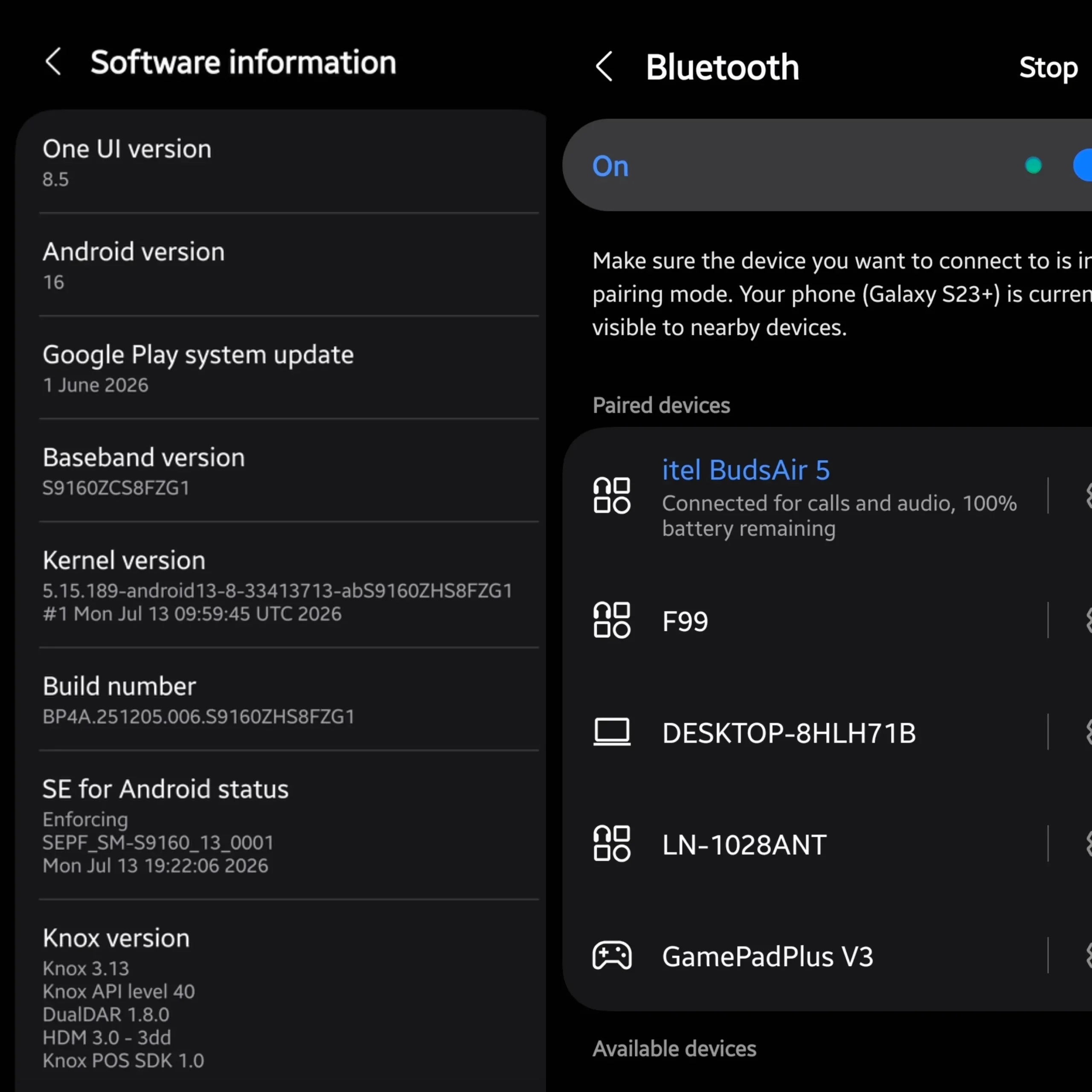
Open Settings > About phone > Software information to check your One UI and Android versions. Then visit Settings > Software update > Download and install.
Cloudorian’s Samsung Google Play system update guide explains the separate component update process. Accessibility services can receive fixes outside major One UI releases.
PRO TIP: Test the feature in a quiet room before using it in public. This gives you a clean baseline for volume and microphone placement.
How to Amplify Ambient Sound on Samsung Galaxy Phones
Samsung uses an accessibility shortcut because the amplifier runs during other activities. You configure the shortcut once, then activate listening without reopening Settings.
Step-by-Step Setup
Step 1. Connect your headphones.
Pair Bluetooth headphones through Settings > Connections > Bluetooth. Connect wired headphones through the available USB-C or headphone port.
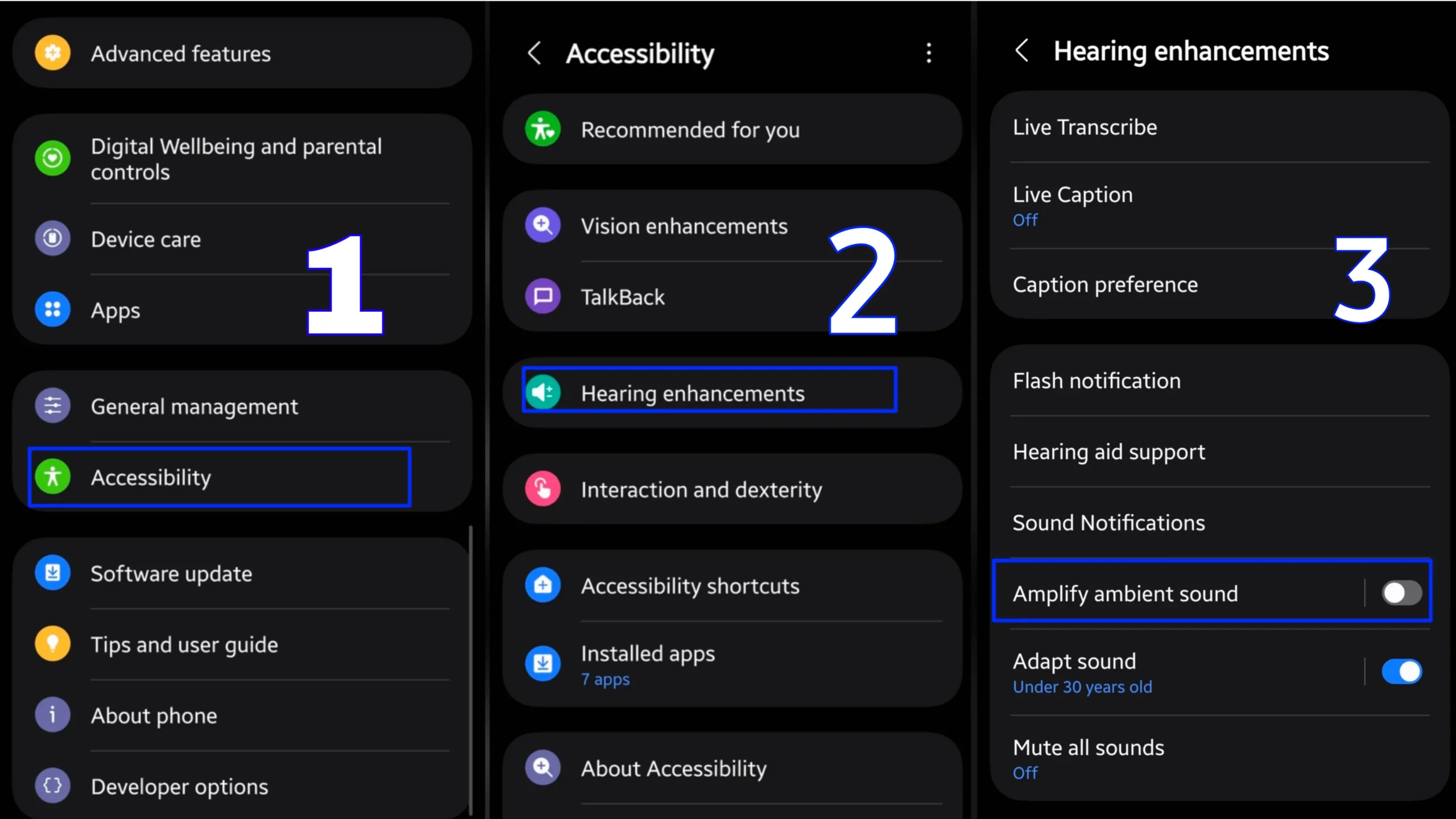
Step 2. Open the Accessibility menu.
Open Settings, scroll down, and tap Accessibility. Select Hearing enhancements from the available categories.
Step 3. Select Amplify ambient sound.
Tap Amplify ambient sound. The wording can differ slightly across models and One UI releases.
Step 4. Enable the shortcut.
Turn on Amplify ambient sound shortcut. Samsung may ask you to choose one or more shortcut actions.
Step 5. Choose a shortcut method.
Select the Accessibility button, a hardware key combination, or both. Some models offer the Side and Volume up keys combination.
Step 6. Put on your headphones.
Place both earbuds correctly before activating the feature. Keep their microphones away from clothing or fingers to prevent noise.
Step 7. Activate the amplifier.
Perform your selected shortcut action. An accessibility control may appear in the navigation bar or floating accessibility menu.
Step 8. Position the phone near the speaker.
Place the phone with its lower microphone facing the conversation. A stable table position often produces cleaner sound than holding it.
Step 9. Adjust headphone volume gradually.
Begin at a low level and raise the volume slowly. Sudden loud sounds can become uncomfortable after amplification.
Step 10. Stop the feature after listening.
Use the same shortcut to stop amplification. Disconnecting your headphones may also end the listening session.
Samsung’s current Galaxy hearing enhancements documentation confirms the shortcut and headphone requirements. Samsung also warns that menus vary by model, carrier, and software version.
How to Change the Shortcut
Return to Settings > Accessibility > Hearing enhancements > Amplify ambient sound. Tap the shortcut setting and select your preferred activation action.
The accessibility button gives you the clearest visual control. Hardware keys work better when you cannot look at the screen.
Do you trigger the shortcut accidentally when changing volume? Remove the hardware combination and keep only the accessibility button.
Samsung Phone Amplifier, Galaxy Buds Ambient Sound, and Google Sound Amplifier
Samsung uses similar names for three different listening tools. Choosing the correct one prevents confusing controls and unexpected audio behavior.
| Feature | Captures sound through | Sends sound to | Best use | Main limitation |
|---|---|---|---|---|
| Samsung Amplify ambient sound | Galaxy phone microphone | Connected headphones | Placing the phone near a speaker, television, or lecturer | Results depend on phone placement and model support |
| Galaxy Buds Ambient sound | External microphones on Galaxy Buds | The same Galaxy Buds | Hearing nearby surroundings during music playback | Controls and levels differ across Buds models |
| Google Sound Amplifier | Android phone microphone or device audio | Wired or Bluetooth headphones | Noise reduction, frequency tuning, and supported conversation controls | Some controls remain limited to specific Pixel devices |
Samsung’s phone amplifier works from the Accessibility menu. Galaxy Buds Ambient sound works through the Galaxy Wearable app.
The Samsung Galaxy Buds Ambient sound guide documents controls for Buds, Buds+, Buds Live, Buds Pro, Buds2, and Buds2 Pro. Feature names and single-earbud support vary between these models.
Google offers another option through its Sound Amplifier accessibility app. Google’s version supports wired or Bluetooth headphones and includes sound filtering controls.
Galaxy Buds2 Pro users can access enhanced Ambient sound through compatible Android phones. Samsung states that the enhanced Buds feature requires Android 8 or newer.
Bluetooth playback may carry a noticeable delay. Google also warns that Bluetooth headphones can delay transmitted sound.
Common Amplify Ambient Sound Problems and How to Fix Them
Phone placement, audio routing, and shortcut configuration cause most failures. Test one change at a time so you can identify the real cause.
Problem: Amplify ambient sound does not appear in Settings
Cause: Your model, region, carrier build, or installed software may not include Samsung’s feature.
Fix:
- Open Settings > Accessibility > Hearing enhancements and search the full menu.
- Enter “Amplify ambient sound” in the Settings search field.
- Install updates through Settings > Software update > Download and install.
- Restart the phone after the update finishes.
- Install Google Sound Amplifier when Samsung’s option remains unavailable.
Problem: The shortcut appears, but no sound reaches the headphones
Cause: The phone may route audio through another Bluetooth device. An incomplete headphone connection can produce the same symptom.
Fix:
- Play a music track and confirm that your headphones receive normal media audio.
- Open Settings > Connections > Bluetooth and disconnect unused audio devices.
- Reconnect your intended headphones.
- Turn Amplify ambient sound off, then activate it again.
- Restart the phone if audio continues through its speakers.
Problem: Speech sounds delayed through Bluetooth earbuds
Cause: Bluetooth processing adds latency between microphone capture and headphone playback.
Fix:
- Move the phone closer to the person speaking.
- Disconnect nearby Bluetooth devices that could cause interference.
- Close active recording, calling, or voice assistant apps.
- Test wired USB-C headphones when your phone supports them.
- Use the lowest stable Bluetooth audio mode available on your earbuds.
Cloudorian’s Android Developer Options guide covers Bluetooth audio settings. Avoid random codec changes because unsupported selections can break playback.
Problem: The headphones whistle or produce feedback
Cause: Sound from the headphone speaker may reach an active microphone. Touching an earbud microphone can also create feedback.
Fix:
- Lower the headphone volume immediately.
- Reseat each earbud and keep its microphone away from your fingers.
- Move the phone farther from the headphones.
- Remove hats, fabric, or hair covering the earbud microphones.
- Restart amplification at a lower volume.
Samsung specifically warns that Galaxy Buds can produce feedback when users touch their microphones. An incorrect ear tip fit can also cause whistling.
Problem: Background noise overwhelms nearby speech
Cause: The phone microphone captures the entire room instead of isolating one voice.
Fix:
- Place the phone closer to the speaker than the main noise source.
- Point the lower phone microphone toward the speaker.
- Move away from fans, televisions, and open windows.
- Reduce the listening volume if noise becomes harsh.
- Try Google Sound Amplifier when you need stronger noise controls.
Tips and Pro Moves for Clearer Conversations
Microphone placement changes the result more than most settings. Put the phone near the sound source instead of increasing volume from across the room.
A soft stand can angle the lower microphone toward a television or lecturer. Avoid placing the phone flat on fabric because the material can cover its microphones.
Use one consistent headphone pair during setup. Switching between earbuds with different sound profiles makes level comparisons unreliable.
PRO TIP: Record a short Voice Recorder sample from your planned phone position. Poor recorded speech predicts poor amplified speech.
Clean the phone microphone openings with a dry, soft brush. Never insert pins, liquids, or compressed air directly into the openings.
Use Adapt sound for media and call tuning. Find it under Settings > Accessibility > Hearing enhancements > Adapt sound.
Adapt sound and ambient amplification address different problems. Adapt sound changes output based on a hearing profile, age range, or listening test.
Turn on Mono audio when you use one earbud or hear better through one ear. Adjust Left/right sound balance for uneven hearing between ears.
Samsung states that the balance control does not affect phone calls. Test media and ambient listening separately before keeping your chosen level.
Keep the phone screen locked after activation if your model allows background operation. This reduces accidental touches during lectures or meetings.
Clear the relevant app cache when the Galaxy Wearable app loses Buds controls. Cloudorian’s guide to clearing Android cache shows the Samsung menu path.
WARNING: Amplification can increase sudden claps, dropped objects, and nearby alarms. Start low and protect your hearing.
[IMAGE: Phone placement examples for conversations, television, and lectures. Alt text: “Best phone placement for Samsung ambient sound amplification”]Frequently Asked Questions About Samsung Amplify Ambient Sound
Q: What does Amplify ambient sound do on a Samsung phone?
A: It captures nearby sound through the Galaxy phone microphone. The phone sends an amplified audio feed to connected headphones.
Q: Can I amplify ambient sound without headphones?
A: Samsung requires connected headphones for this feature. The phone speaker cannot provide the intended private listening output.
Q: Does Amplify ambient sound work with Bluetooth earbuds?
A: Supported Galaxy devices may work with Bluetooth headphones or earbuds. Bluetooth can introduce a delay that wired headphones avoid.
Q: Why can’t I find Amplify ambient sound on my Galaxy phone?
A: Your model, carrier software, region, or One UI release may exclude the option. Update your phone and search under Settings > Accessibility > Hearing enhancements.
Q: Is Samsung Amplify ambient sound the same as Galaxy Buds Ambient sound?
A: No. Samsung’s accessibility feature captures audio through the phone microphone. Galaxy Buds Ambient sound uses microphones built into the earbuds.
Q: Can Amplify ambient sound replace a hearing aid?
A: No. It provides general listening assistance through consumer headphones. It does not replace testing, fitting, or treatment from a hearing professional.
Q: Can I use one earbud with Amplify ambient sound?
A: The result depends on your phone and connected earbud model. Enable Mono audio to combine both audio channels into one output.
Q: Does the feature record conversations?
A: Samsung describes the feature as live amplification, not a recording tool. Check active recording apps and local consent laws before recording anyone.
Q: Why does the amplified sound contain static or echo?
A: High volume, Bluetooth latency, microphone blockage, or nearby speakers can cause these effects. Lower the level and reposition the phone first.
Q: Which shortcut works best for Amplify ambient sound?
A: The accessibility button gives you clear visual confirmation. A hardware key shortcut works faster when the screen remains locked or out of reach.
Put Your Galaxy Phone in the Right Listening Position
The fastest improvement comes from placing your Galaxy near the person or device you want to hear. Enable the shortcut, start with low volume, and test wired headphones if Bluetooth delay becomes distracting.
Use Amplify ambient sound on Samsung Galaxy phones as a listening aid, not a medical device. Check Cloudorian’s Samsung update installation guide if the menu remains missing after a restart.
Which Galaxy model and headphone pair are you using? Post the details in the comments if the shortcut or audio routing refuses to work.
Discover more from Cloudorian — Android, Samsung & Windows How-To Guides
Subscribe to get the latest posts sent to your email.



