

Why would you be curious about disabling your browser’s pop-up blocker? In the end, they are just nasty interruptions to browsing the web: from aggravating ads, false security messages, and other annoying elements that distract from what you’re doing to having the capability to do harm in the event that you’re duped.
Why would you unblock these annoying pests that are now stopped from popping up unless you deliberately wanted to? Pop-ups can sometimes be useful, especially on an online store’s website.
To verify your account, you may have to click a link or button, read and agree to the site’s terms and conditions, or engage in a live chat with customer service. However, you will not be able to access the critical options if your browser is set to block all pop-ups.
Although the pop-up blocker in your browser is difficult to disable, it’s not nearly as dangerous as it may seem. It is not wise to turn off pop-ups altogether, but you can choose to allow pop-ups only for the site you are on, and for as long as you want.
Follow our guide to learn how to disable the pop-up blockers in Chrome, Firefox, and Edge on your Windows PC.
How to disable the pop-up blocker in Chrome
You’ll know a pop-up blocker is turned off because you’ll be given instructions about the pop-up blocker, or an important setting will be missing. The issue is really easy to correct, which is fortunate.
1. Click the padlock icon at the start of Chrome’s address bar to open the browser’s information panel for the current site.
2. If you see a “Pop-ups & redirects” option, click the menu next to it and select Allow from the drop-down menu. Go ahead and refresh the page, and your pop-up blocker will be disabled on the site you’re looking at.
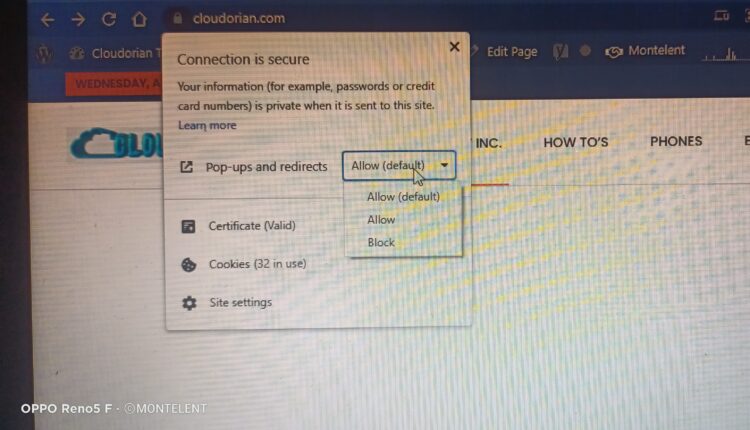
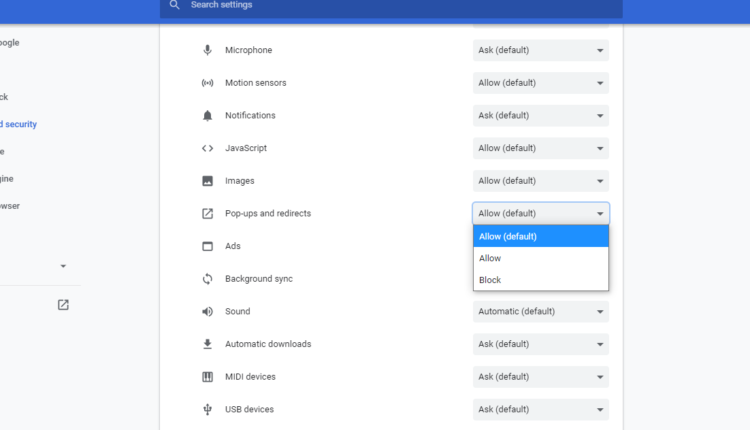
3. If you don’t see that option, click “Site settings” instead to open that page in Chrome’s Settings.
Scroll down to “Pop-ups and redirects” in the Permissions section, click the drop-down menu next to it and choose Allow. This will disable your pop-up blocker on that site.
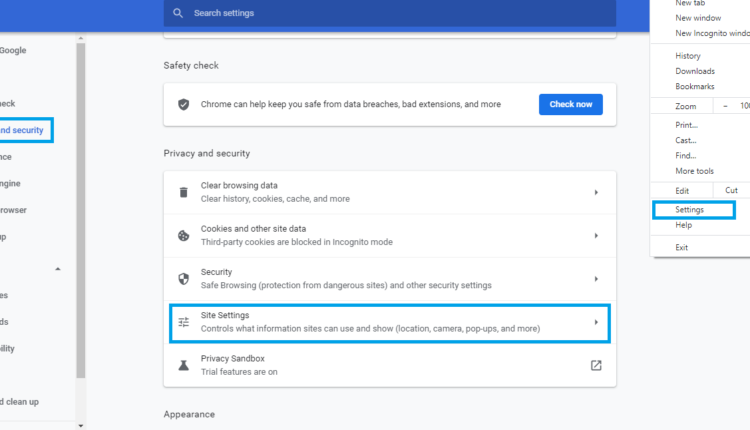
4. If you want to allow pop-ups on more than one website, click the three-dot menu button in the top-right corner of the Chrome window and choose Settings.
When the Settings page opens, either click “Privacy and security” in the left-hand menu or scroll down to that section in the centre of the page. Select “Site settings.”
5. In the Content section, click the “Pop-ups & redirects” option. If you want to allow pop-ups on all websites, select “Sites can send pop-ups and use redirects.” However, just so you know, we would never advise you to do this!
Or, if you want to skip ahead, go to the “Customized behaviors” section directly and select “Don’t allow sites to send pop-ups or use redirects.”
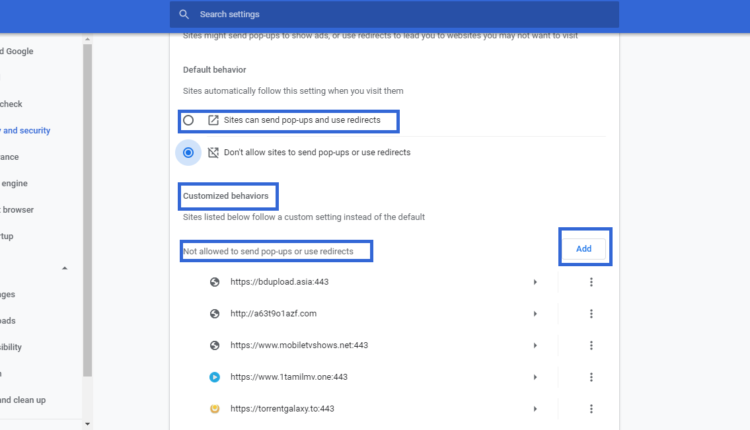
6. Type or copy and paste the URL of a site you want to allow to display pop-ups, then click Add.
Repeat this for each site on which you want to disable your pop-up blocker. You can revoke the permission later by following steps 1-3 above.
How to disable the pop-up blocker in Firefox
Firefox makes it possible to disable your pop-up blocker in various ways: to only allow pop-ups on a certain site, to only allow pop-ups on sites you deem worthy, or to get rid of pop-ups completely. Let’s start with the three main ways to employ the tools.
1. To disable your pop-up blocker on the website you’re currently viewing in Firefox, click the padlock icon in the address bar and select “Connection secure” (or “Connection not secure” if you’re visiting an HTTP site.)
Click “More Information” in the information panel that opens.
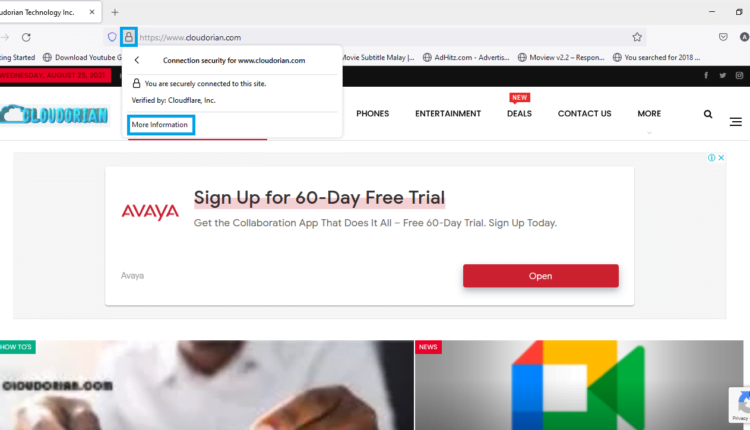
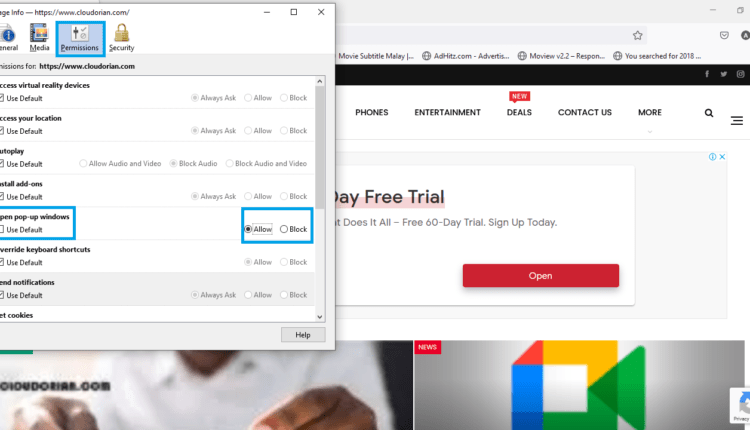
2. When the Page Info box opens, click the Permissions tab. Uncheck the “Use default” box for “Open pop-up windows,” and select Allow.
Firefox will disable its pop-up blocker on the current website, as this is now the default behaviour.
3. To disable Firefox’s pop-up blocker on more than one site, click the three-line menu button in the top-right corner of the browser and choose Settings.
When the Settings page opens, click “Privacy and security” in the left-hand menu.

4. Scroll down to the Permissions section. Here you can disable your pop-up blocker completely by unchecking the “Block pop-up windows” option.
More sensibly, you can turn it off when viewing specific websites, by clicking the Exceptions button.
5. Type or copy and paste the URL of a website on which you want to disable your pop-up blocker and click Allow. Repeat this for all the sites that you want to make exceptions, then click “Save Changes.”
You can re-enable pop-up blocking on a site by clicking the “Remove Website” button, or for every site by clicking “Remove All Websites.”
How to disable the pop-up blocker in Edge
Additionally, Microsoft Edge gives you the ability to disable its pop-up blocker on a site-by-site basis, or you can disable it for all websites or just specific sites. These are the areas where you’ll discover the important choices.
1. To allow pop-ups on the site you’re viewing in Edge, click the padlock icon in the address bar and choose “Permissions for this site.”
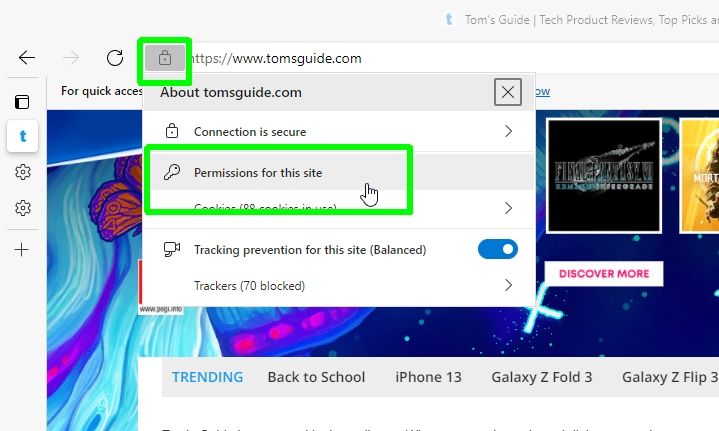
2. Click the drop-down menu next to “Pop-ups and redirects,” and choose Allow.
Pop-up blocker disables will only be deactivated for the current site (shown at the top of the page).
3. To disable Edge’s pop-up blocker for additional or all sites, click the three-dot menu button in the top-right corner of the browser and choose Settings.
Click “Cookies and site permissions” in the left-hand menu.
4. Scroll down and click “Pop-ups and redirects.” As with Chrome and Firefox, you can now disable your pop-up blocker completely (not recommended) by switching off the Block option.
Otherwise, click the Add button next to Allow, and type or copy and paste the URLs of websites on which you want to permit pop-ups.
Discover more from Cloudorian — Android, Samsung & Windows How-To Guides
Subscribe to get the latest posts sent to your email.



