

WhatsApp, with over two billion monthly active users worldwide, is one of the world’s most popular messaging platforms. Offering end-to-end encryption of both calls and texts sent between you and another individual using WhatsApp, no outside parties may read or listen in on what was discussed during either conversation. Unfortunately, however, you could encounter unwanted or intrusive calls over WhatsApp that may include spam calls, scam messages, or individuals whom you simply do not wish to interact with – potentially leaving an unpleasant or unwanted encounter behind in its wake. Check out on How to Use ChatGPT on WhatsApp.
Fortunately, WhatsApp has recently introduced a new privacy feature that will allow you to silence incoming calls from unknown contacts. This feature was announced by Meta CEO Mark Zuckerberg on Tuesday as part of the company’s efforts to protect the privacy of its users. With this feature, you can automatically mute incoming calls from unknown contacts on WhatsApp, giving you more privacy and control over your incoming calls.
In this blog post, we will show you how to enable the ‘Silence Unknown Caller’ feature on WhatsApp and explain how it works. We will also answer some common questions related to this topic.
How to enable the ‘Silence Unknown Caller’ feature on WhatsApp
Enabling the ‘Silence Unknown Caller’ feature on WhatsApp is very easy and takes only a few steps. Here’s what you need to do:
- Open WhatsApp on your device and tap on “Settings”.
- Then, go to “Privacy” and open the “Calls” section.

- In the “Calls” section, turn on the “Silence unknown callers” option.

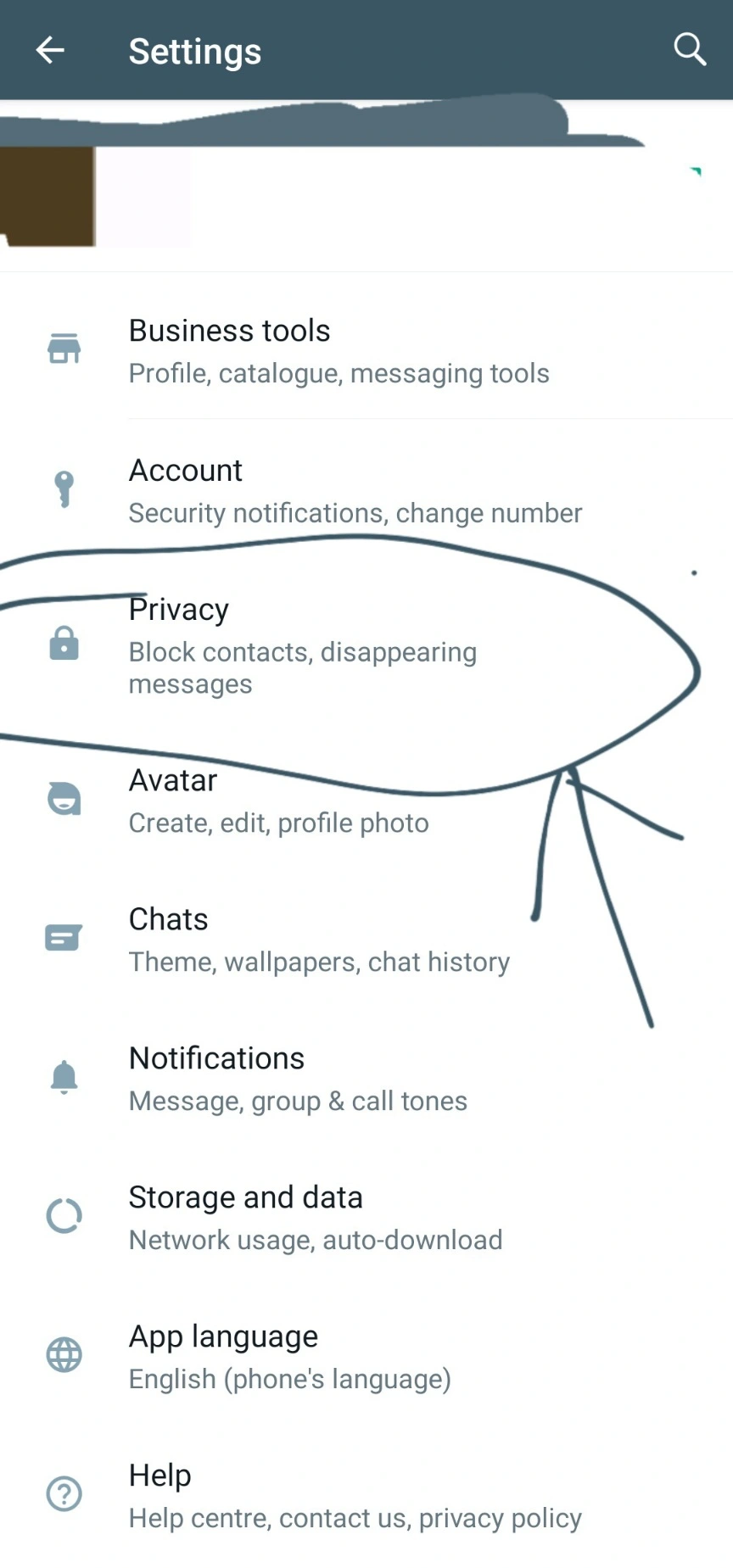
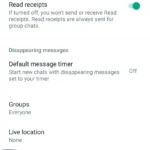
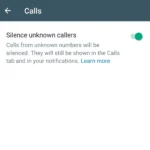
That’s it! You have successfully enabled the ‘Silence Unknown Caller’ feature on WhatsApp. Now, whenever you receive a call from an unknown contact on WhatsApp, it will not ring on your device. However, you will still see the call in your call list and receive notifications if you want to call back.
How does the ‘Silence Unknown Caller’ feature on WhatsApp work?
The ‘Silence Unknown Caller’ feature on WhatsApp works by using your phone’s contacts list to identify who is calling you. If the caller’s number is not saved in your contacts list, WhatsApp will automatically mute the call and show it as a missed call in your call list and notifications. You can then decide whether to call back or ignore the call.
However, if the caller’s number is saved in your contacts list, WhatsApp will ring normally and allow you to answer or decline the call. You can also choose to block or report a contact if you don’t want to receive calls from them again.
Why should you enable the ‘Silence Unknown Caller’ feature on WhatsApp?
There are many benefits to enabling the ‘Silence Unknown Caller’ feature on WhatsApp. Some of them are:
- It helps you avoid unwanted or annoying calls from unknown contacts on WhatsApp.
- It protects you from spam, scams, and calls from unknown people who may try to trick you or harm you.
- It gives you more privacy and control over your incoming calls on WhatsApp.
- It reduces distractions and interruptions from unwanted calls when you’re busy or need some peace and quiet.
FAQs about the ‘Silence Unknown Caller’ feature on WhatsApp
Here are some frequently asked questions and answers about the ‘Silence Unknown Caller’ feature on WhatsApp.
Does enabling the ‘Silence Unknown Caller’ feature on WhatsApp affect my regular phone calls?
No, enabling the ‘Silence Unknown Caller’ feature on WhatsApp does not affect your regular phone calls. This feature only applies to calls made through WhatsApp. Your regular phone calls will still ring normally regardless of whether the caller is saved in your contacts list or not.
Does enabling the ‘Silence Unknown Caller’ feature on WhatsApp affect my group calls?
No, enabling the ‘Silence Unknown Caller’ feature on WhatsApp does not affect your group calls. This feature only applies to individual calls made through WhatsApp. Your group calls will still ring normally regardless of whether the participants are saved in your contacts list or not.
How can I disable the ‘Silence Unknown Caller’ feature on WhatsApp?
If you want to disable the ‘Silence Unknown Caller’ feature on WhatsApp, you can follow the same steps as above but turn off the “Silence Unknown Callers” option in the “Calls” section of your “Privacy” settings.
How can I know if someone has enabled the ‘Silence Unknown Caller’ feature on WhatsApp?
There is no way to know for sure if someone has enabled the ‘Silence Unknown Caller’ feature on WhatsApp. However, if you call someone who has enabled this feature and their number is not saved in your contacts list, you will hear a busy tone and the call will end. You will also see a missed call notification on your device.
How can I contact someone who has enabled the ‘Silence Unknown Caller’ feature on WhatsApp?
If you want to contact someone who has enabled the ‘Silence Unknown Caller’ feature on WhatsApp and their number is not saved in your contacts list, you have a few options. You can:
- Save their number in your contacts list, and then call them again.
- Send them a message on WhatsApp and ask them to call you back or add you to their contact list.
- Use another app or platform to contact them, such as email, social media, or regular phone calls.
Conclusion
WhatsApp’s “Silence Unknown Caller” feature provides you with an effective means of protecting your privacy and controlling incoming calls on WhatsApp, by automatically muzzling calls from unknown contacts while still showing them in your call list or notifications. Furthermore, this feature helps avoid scam calls as well as unwanted communications from unknown sources that would otherwise invade your privacy and control over how many calls come through on a given day.
To enable the ‘Silence Unknown Caller’ feature on WhatsApp, you just need to go to your “Settings”, then “Privacy”, then “Calls”, and turn on the “Silence Unknown Callers” option. You can also disable this feature at any time by following the same steps but turning off the option.
We hope this blog post has helped you understand how to enable the ‘Silence Unknown Caller’ feature on WhatsApp and how it works. If you have any questions or feedback, please let us know in the comments below. Thank you for reading! 😊
Discover more from Cloudorian — Android, Samsung & Windows How-To Guides
Subscribe to get the latest posts sent to your email.



