

Last Updated on 22 Oct, 2026 by Montel Anthony
ChatGPT is an amazing chatbot that can talk with people just like a human. It’s super smart and can understand natural language, which means you can talk to it like you would talk to a friend. It can give you personalized recommendations, answer your questions, and even help you with tasks.
If you’re like most people, you probably use WhatsApp to chat with your friends and family. The good news is that you can now use ChatGPT on WhatsApp too! This means you can chat with ChatGPT directly from your phone, which is really handy.
In this guide, we’ll show you how to use ChatGPT on WhatsApp and give you some examples of how it can be useful. Whether you need to find a good restaurant or want help with your homework, ChatGPT can help you get the information you need quickly and easily. So, let’s get started!
Use ChatGPT on WhatsApp (2023)
Before we dive into how to use ChatGPT on WhatsApp, there are a few things you should know about. We’ll go over them briefly so you’re fully informed before we get started. Take a look below to make sure you’re up to speed on all the important details.
- To use ChatGPT on WhatsApp, we’ll be using a cool online service we found called Shmooz AI. They’ve created an AI bot for WhatsApp that’s super smart and has ChatGPT built right in. It works like a middleman, connecting you to ChatGPT so you can get all the benefits of its AI-powered intelligence. Just keep in mind that Shmooz is a paid service, although they do let you send the first 20 messages for free.
If you decide you want to keep using Shmooz AI and ChatGPT on WhatsApp after the free 20 messages, you can sign up for the paid version. It starts at just $9.99 per month and gives you unlimited access to all the features.
It’s important to know that you can’t use your own OpenAI API with Shmooz AI. However, there are ways to use ChatGPT on WhatsApp by integrating APIs and commands. We use Shmooz AI because it’s simpler and less difficult. If you’re curious, you can still read our guide on how to create your own chatbot for a different kind of experience.
How to Set up and Use ChatGPT on WhatsApp
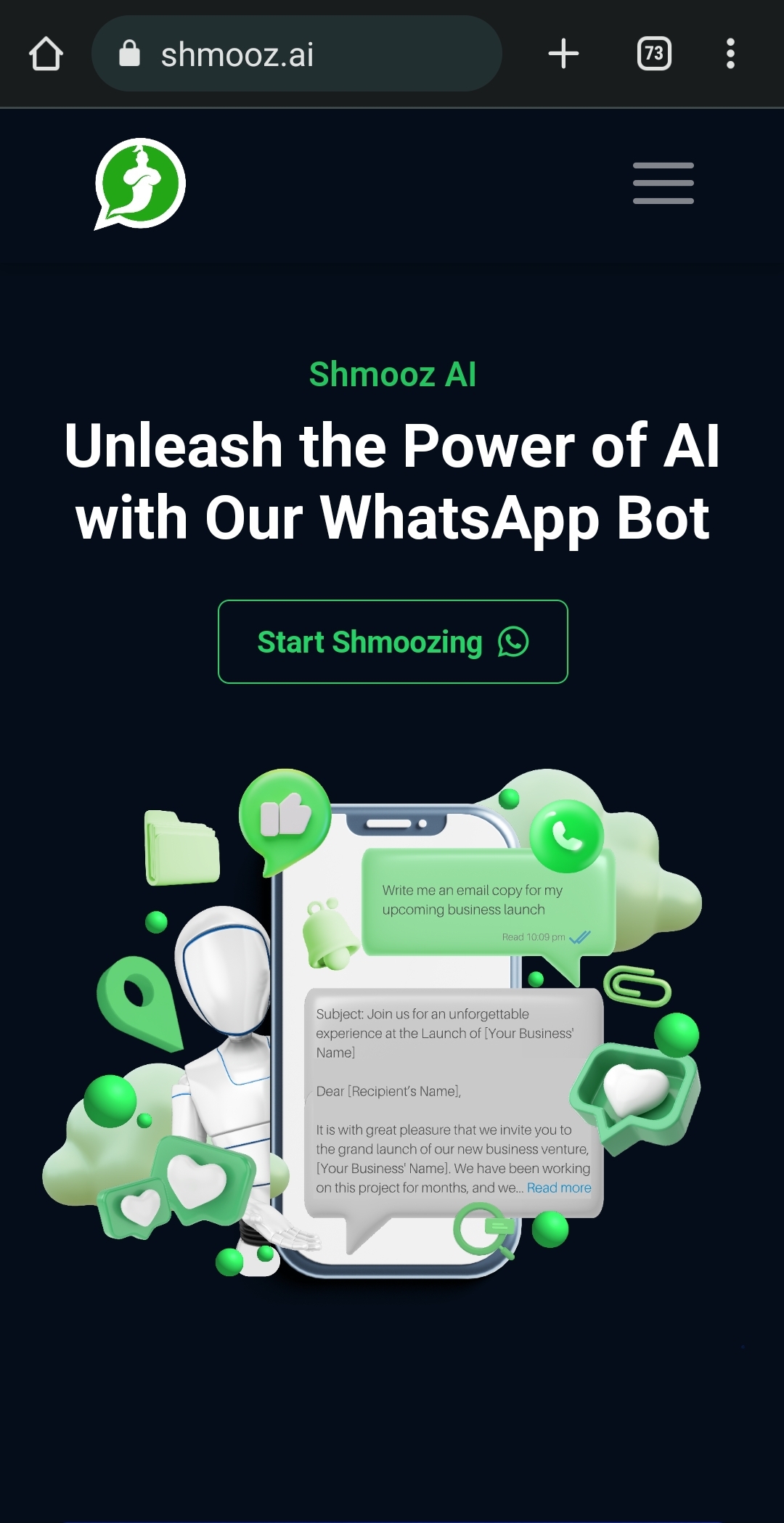
- To use Shmooz AI on your phone, simply click on the link to the official website provided here. Once on the site, click on the “Start Shmoozing” button and your WhatsApp will open up automatically.
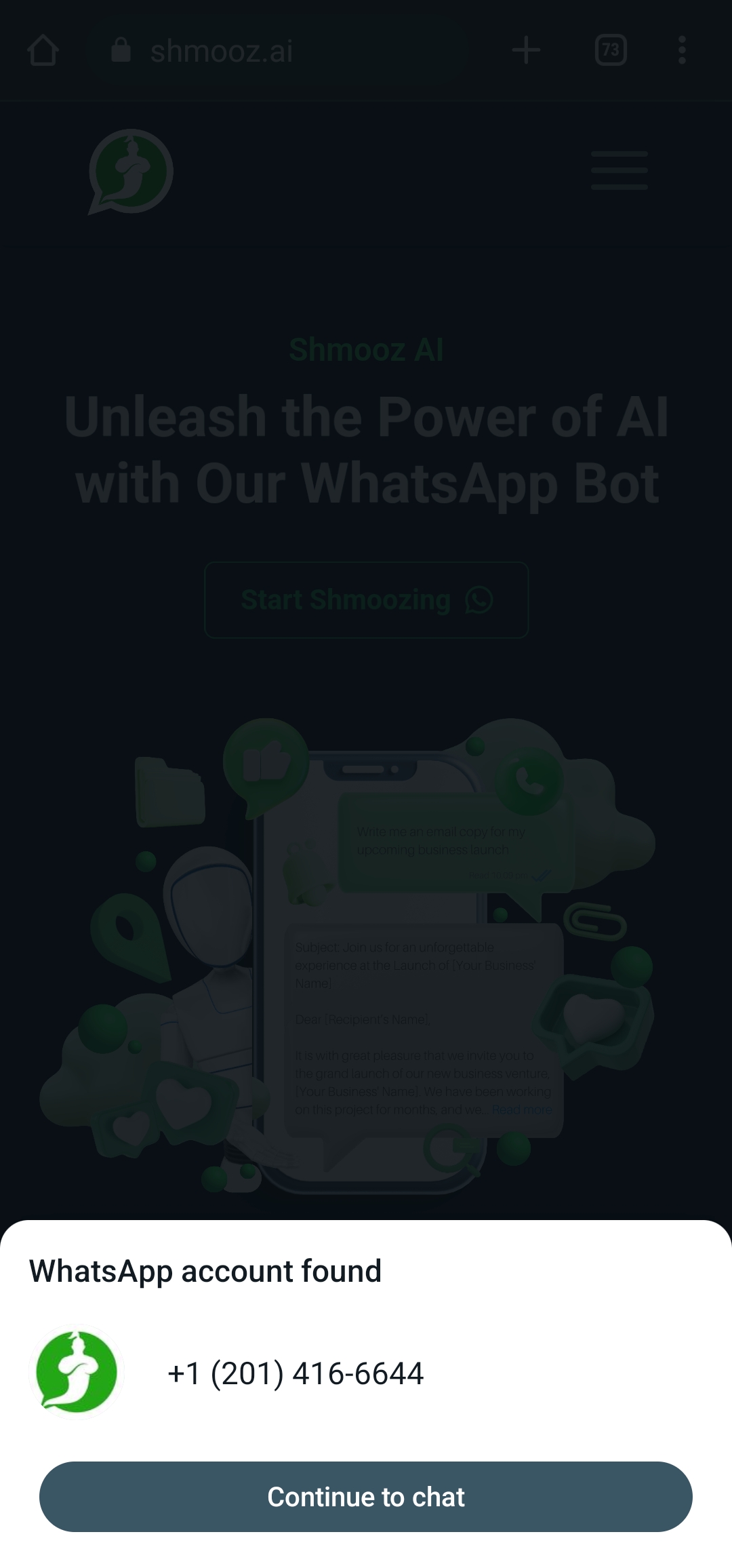
- To start chatting, simply press the “Continue to chat” button and you’ll be taken directly to the chat screen.
- The message box will have a pre-written message for you. All you need to do is send it, and the bot will reply.
That’s all, you are now Chatting with Shmooz AI for ChatGPT.
Conclusion
In conclusion, using ChatGPT on WhatsApp is a simple and convenient way to engage with a powerful language model. By following the steps outlined in this guide, you can easily access ChatGPT’s services and get the information or assistance you need through a user-friendly chat interface. Whether you’re looking to learn something new, generate creative ideas, or just have a friendly chat, ChatGPT is a valuable tool that can enhance your messaging experience on WhatsApp.
Discover more from Cloudorian — Android, Samsung & Windows How-To Guides
Subscribe to get the latest posts sent to your email.



