Most Windows 11 users know one screenshot method, usually Print Screen pasted into Paint. Windows 11 screenshot features now include on-device text extraction, automatic redaction, and screen recording that most people never open. This guide covers all seven capture methods, plus the tools hiding behind them.
Key Takeaways
- Windows 11 offers seven built-in screenshot and recording methods, not just Print Screen.
- The Snipping Tool now handles OCR text extraction, QR code scanning, and sensitive data redaction.
- Screen recording and Text Actions require Windows 11 version 22H2 or later.
- The color picker tool only works on Copilot+ PCs.
- Duplicate screenshots usually trace back to OneDrive sync running alongside local auto-save.
What Windows 11 Screenshot Features Actually Do Now
A screenshot used to mean one thing. Press a key, paste into an app, done.
Windows 11 screenshot features turned that single action into a small workflow. A capture can now become searchable text, a redacted file safe to share, or a trimmed video clip in seconds. How many of these do you already have on your PC without ever opening them?
The shift matters because screenshots do real work now. Support teams paste error screens instead of typing them out. Students pull quotes from PDFs that block copy-paste. None of that required a third-party app two years ago.
What You Need Before You Start
Not every screenshot feature works on every setup. Confirm these four things first.
- Windows 11 version 22H2 or later is required for screen recording and Text Actions inside Snipping Tool. Check your build under Settings > System > About.
- An updated Snipping Tool app from the Microsoft Store ensures OCR, QR scanning, and redaction actually appear in your toolbar.
- A Microsoft account with OneDrive is needed only if you want automatic cloud backup of every screenshot.
- A Copilot+ PC (Windows 11 AI+ PC) is required for the built-in color picker tool. It will not appear on standard hardware.
If you are unsure whether your machine even qualifies for a current Windows 11 build, our guide on checking CPU compatibility for Windows 11 walks through the exact requirements.
7 Ways to Take a Screenshot on Windows 11
Each method below serves a different purpose. Pick based on speed, precision, or what happens to the file afterward.
1. Print Screen (Clipboard Method)
This is the original method, and it still works exactly as before on most builds.
Step 1. Press the Print Screen (PrtScn) key.
The full screen copies to your clipboard as an image.
Step 2. Open Paint, Photoshop, or any image editor.
Paste with Ctrl + V or right-click and choose Paste.
Nothing saves automatically here. Close the app without pasting and the capture is gone.
2. Windows + Print Screen (Auto-Save Method)
This variation skips the paste step entirely.
Step 1. Press Windows key + Print Screen together.
The screen dims briefly to confirm the capture worked.
Step 2. Open File Explorer and go to Pictures > Screenshots.
A new PNG file appears with a timestamped name.
3. Alt + Print Screen (Active Window Method)
Use this when you only need one window, not your entire desktop.
Step 1. Click the window you want to capture to make it active.
Step 2. Press Alt + Print Screen.
Only that window copies to your clipboard, with background clutter excluded.
4. Windows + Shift + S (Snipping Tool Bar)
This is the fastest way to grab a specific region.
Step 1. Press Windows key + Shift + S.
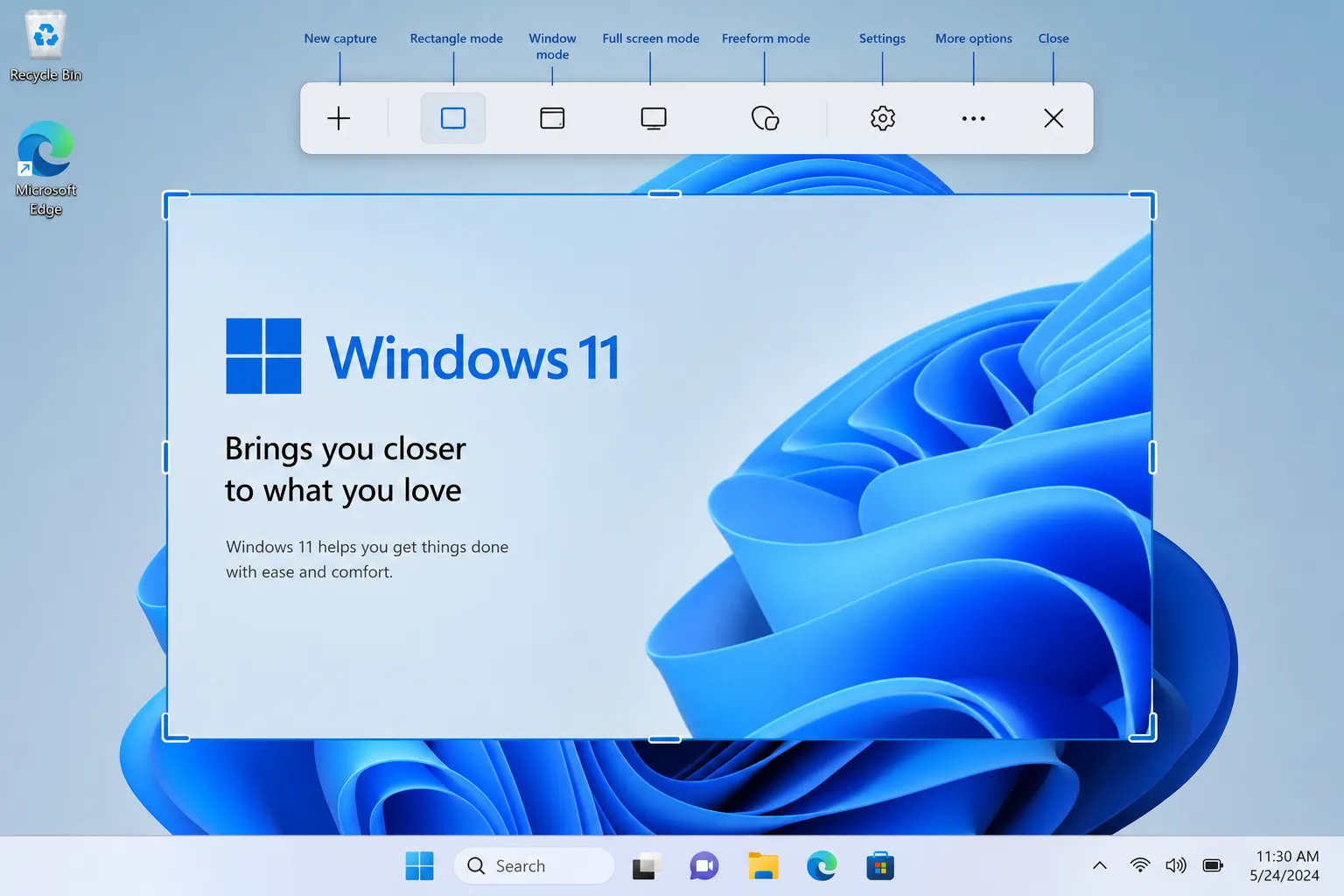
A capture bar appears at the top of your screen with rectangular, freeform, window, and full-screen options.
Step 2. Select your capture mode and drag over the area you want.
The image copies to your clipboard, and a notification lets you open it for editing.
PRO TIP: If this shortcut stops responding, open the Snipping Tool app manually from the Start menu once. That re-registers it as the default handler for the shortcut.
5. Snipping Tool App With Delay Timer
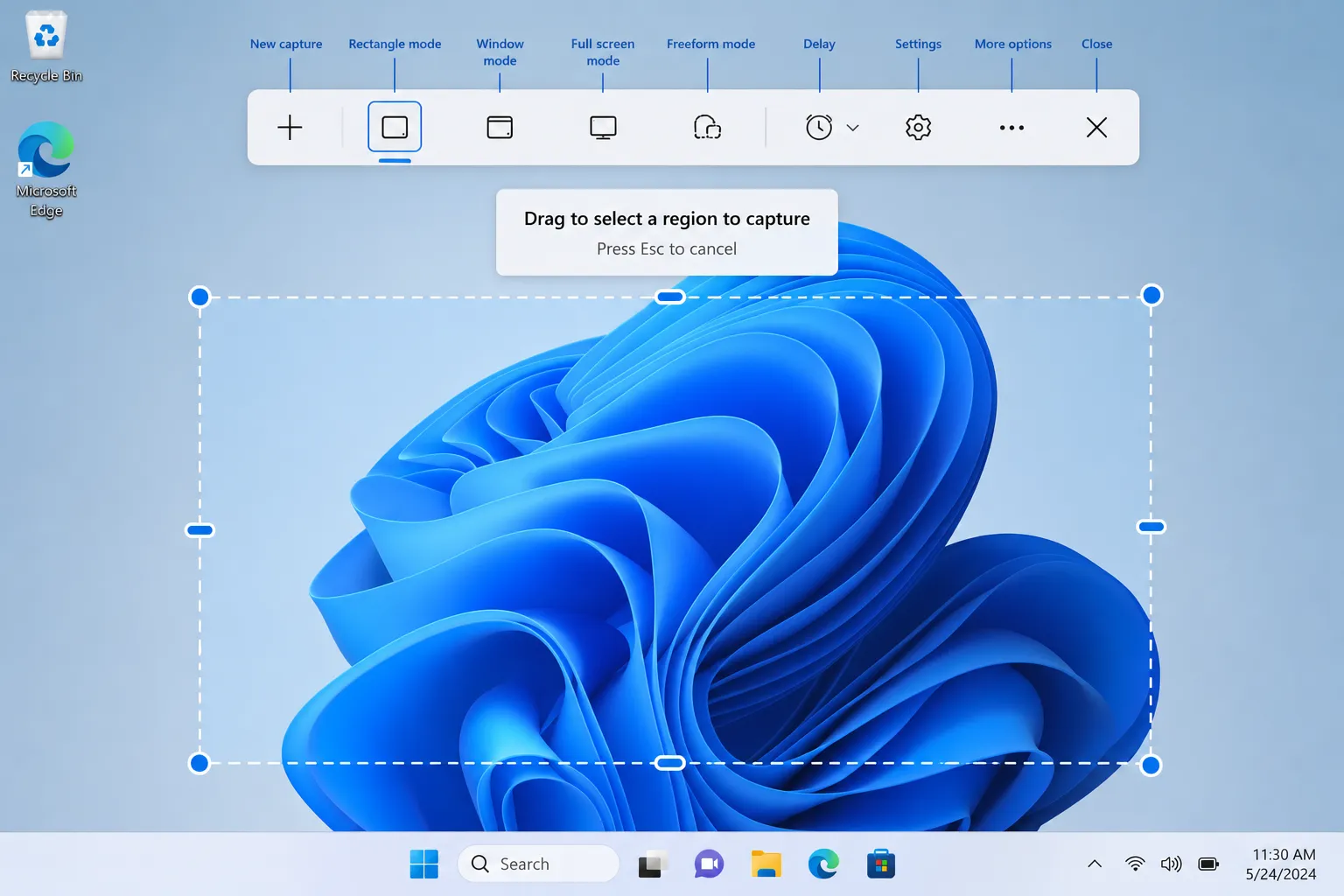
Launch the full app when you need extra control, like capturing a hover menu before it disappears.
Step 1. Type “Snipping Tool” in the Start menu search and open the app.
Step 2. Select the clock icon in the toolbar and choose a delay of 3, 5, or 10 seconds.
Step 3. Trigger the menu or tooltip you want, then let the timer fire the capture.
One limitation worth knowing: the built-in crop tool does not offer fixed aspect ratio options like 16:9. For that, you still need Paint, Photos, or a dedicated image editor.
6. OneDrive Auto-Upload for Print Screen
Combine Print Screen with OneDrive to skip manual saving entirely.
Step 1. Click the OneDrive cloud icon in your taskbar.
Step 2. Choose Settings, then open the Backup tab.
Step 3. Check “Save screenshots I capture to OneDrive.”
From this point, every Print Screen capture lands as a PNG in your OneDrive Pictures/Screenshots folder automatically.
7. Windows + Shift + R (Screen Recording)
Snipping Tool now records video, not just still images.
Step 1. Press Windows key + Shift + R, or open Snipping Tool and select Record.
Step 2. Choose the screen area to capture and select Start.
Step 3. Select Stop when finished, then trim the clip using the handles on the timeline before saving.
Recordings save as MP4 files under Videos > Screen Recordings. You can also send the clip straight into Clipchamp for further editing. For a deeper look at screen capture options across both operating systems, our guide to screen recording in Windows 10 or Windows 11 covers Xbox Game Bar as a second option.
Which Screenshot Method Should You Actually Use
Speed and destination matter more than most people think when picking a method. Do you need a file saved automatically, or is a quick clipboard copy enough for what you are doing?
| Method | Destination | Speed | Best For |
|---|---|---|---|
| Print Screen | Clipboard only | Instant | Quick paste into an open app |
| Windows + PrtScn | Auto-saved PNG file | Instant | Screenshots you need to keep long-term |
| Alt + PrtScn | Clipboard only | Instant | Capturing one window, not the full desktop |
| Windows + Shift + S | Clipboard, editable | Fast | Precise regions, freeform shapes |
| Snipping Tool app | Clipboard or saved file | Moderate | Delayed captures, menus, tooltips |
| OneDrive auto-upload | Cloud-saved PNG | Instant | Automatic backup across devices |
| Windows + Shift + R | Saved MP4 file | Moderate | Tutorials, bug reports, walkthroughs |
Extracting Text, Scanning QR Codes, and Redacting Sensitive Data
This is where Windows 11 screenshot features go past simple image capture. A screenshot can now become usable data instead of a static picture.
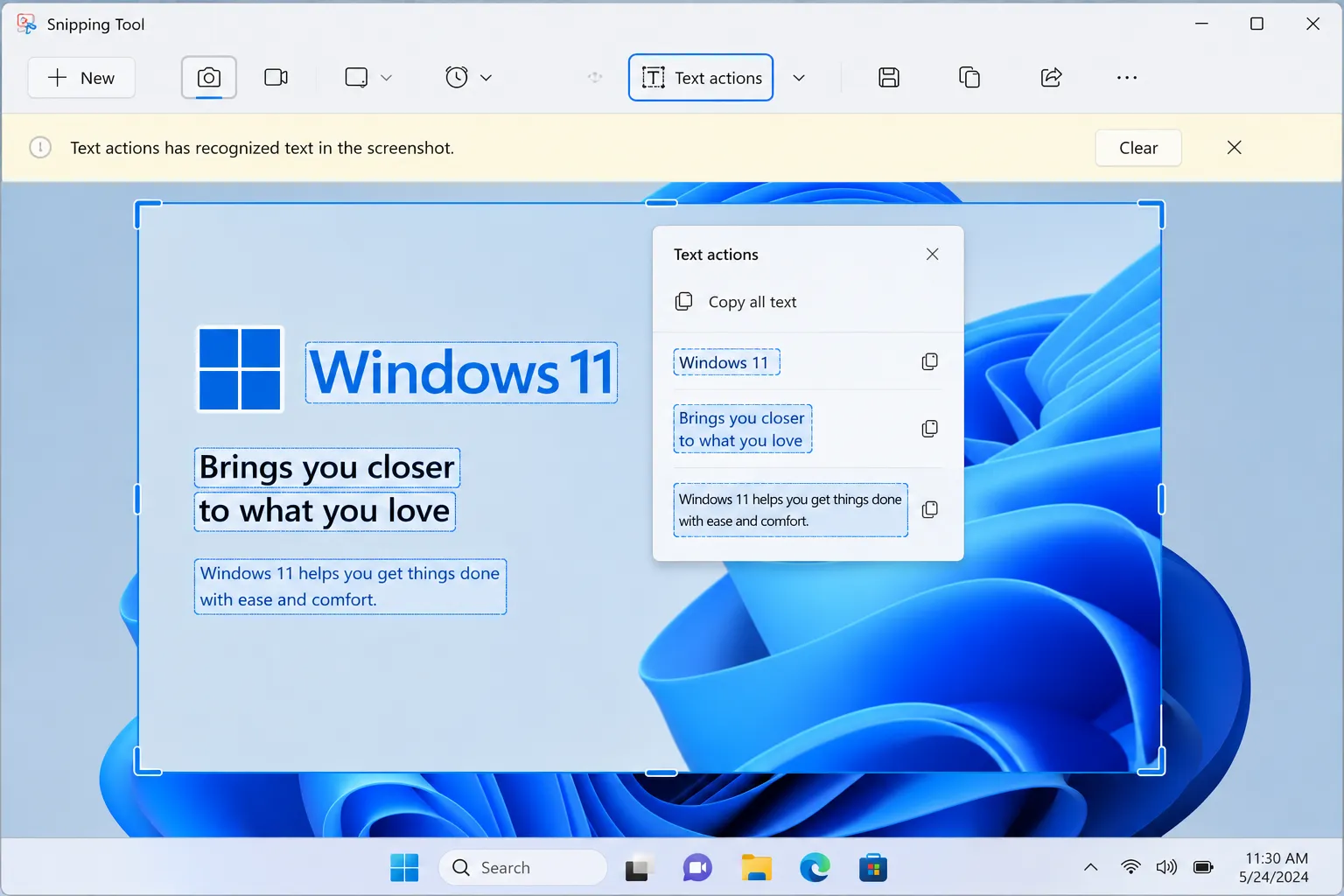
After taking a snip, select the Text Actions button in the Snipping Tool toolbar. This activates on-device OCR, letting you copy all text or select specific lines. According to Microsoft’s official Snipping Tool documentation, all text recognition happens locally on your device, with nothing sent to the cloud.
That local processing matters for privacy. A separate feature called Visual Search does send image data to Bing for object identification or translation, so choose Text Actions instead when working with sensitive documents.
The Snipping Tool also recognizes QR codes automatically inside a capture and offers to open the linked destination. Quick Redact goes further, scanning for emails and phone numbers and blacking them out in one click before you share the file.
WARNING: Redaction covers only text patterns the tool recognizes, like emails and phone numbers. It will not catch names, addresses, or account numbers automatically, so review sensitive screenshots manually before sending them.
Some 2026 builds also include an “Enhance image” AI upscaler under Snipping Tool Settings > AI Features. Running it before OCR can noticeably improve accuracy on blurry or small text. The Windows Learning Center’s guide to Snipping Tool confirms this feature rolled out alongside the broader OCR expansion.
Common Windows 11 Screenshot Problems and How to Fix Them
Even reliable tools break in predictable ways. Here are the issues that come up most often.
Problem: Windows + Shift + S does nothing when pressed.
Cause: Snipping Tool has lost its registration as the default handler for the shortcut, often after a Windows update.
Fix:
- Open Snipping Tool manually from the Start menu at least once.
- Restart your PC if the shortcut still does not respond.
- Check Settings > Accessibility > Keyboard for any Print Screen override that might conflict.
Problem: Duplicate screenshots appear in your Pictures folder.
Cause: OneDrive’s automatic screenshot sync and Windows 11’s native Screenshots folder are both saving copies.
Fix:
- Open OneDrive Settings and go to the Backup tab.
- Uncheck “Automatically save screenshots to OneDrive” if you prefer local-only storage.
- Use the OneDrive web interface to sort and remove existing duplicates by date.
Problem: Screen recordings have no audio even with a microphone connected.
Cause: The microphone toggle in Snipping Tool resets to muted at the start of every new recording session.
Fix:
- Open Snipping Tool and select Record before starting.
- Manually enable the microphone icon each time, since this setting does not persist.
- Confirm your Windows 11 build is 22H2 or later, since older versions lack recording entirely.
Problem: Text Actions extracts garbled or missing text.
Cause: OCR accuracy drops sharply on blurry, tiny, or stylized fonts and busy backgrounds.
Fix:
- Zoom in on the source content before capturing, if possible.
- Run the AI “Enhance image” option under Settings > AI Features first.
- Update Snipping Tool through the Microsoft Store, since OCR accuracy improves with each release.
Tips and Pro Moves Most Guides Skip
A few habits separate casual screenshot use from a real workflow.
- Pin Snipping Tool to your taskbar by right-clicking its icon after opening it once, cutting out the Start menu search entirely for future captures.
- Turn off “Use the Print screen key to open screen capture” under Settings > Accessibility > Keyboard if you want classic clipboard-only behavior back, since Print Screen now opens Snipping Tool by default on many builds.
- Native Snipping Tool still cannot handle scrolling captures of long web pages. For that, pair it with a dedicated extension, and our roundup of the best Chrome extensions for capturing websites covers several free options.
- Enable Clipboard History with Windows key + V so you can retrieve older screenshots even after copying something else.
- Use the delay timer for anything involving hover states, right-click menus, or tooltips that vanish the instant your mouse moves.
Frequently Asked Questions About Windows 11 Screenshot Features
Q: What is the fastest way to take a screenshot on Windows 11?
A: Windows + Shift + S is the fastest method for most tasks. It opens a capture bar instantly and lets you select a precise region without opening a separate app first.
Q: How do I record my screen on Windows 11 without installing extra software?
A: Press Windows + Shift + R to start a recording directly through Snipping Tool. This requires Windows 11 version 22H2 or later, and clips save as MP4 files automatically.
Q: Can I extract text directly from a screenshot on Windows 11?
A: Yes. After capturing an image in Snipping Tool, select Text Actions to run on-device OCR and copy the recognized text straight to your clipboard.
Q: Does Windows 11 automatically save every screenshot?
A: Only if you press Windows + Print Screen or enable OneDrive’s screenshot backup setting. Plain Print Screen and Windows + Shift + S copy to the clipboard only.
Q: Why does Print Screen open Snipping Tool instead of copying the screen instantly?
A: Recent Windows 11 builds changed the default so Print Screen launches Snipping Tool. You can revert this under Settings > Accessibility > Keyboard.
Q: Is Windows 11’s built-in OCR safe to use on sensitive documents?
A: Text Actions processes everything on-device with no cloud upload. Avoid the separate Visual Search option for sensitive content, since that feature does send images to Bing.
Start With the Method That Matches Your Job Today
Pick one method from this list and actually try it this week, rather than defaulting to Print Screen out of habit. If your goal is documentation or bug reports, screen recording will save more time than a dozen still images ever could.
Once your capture workflow feels solid, the next logical fix is a PC that keeps up with it. Our guide to speeding up Windows 11 covers the settings that make the biggest difference.
Which of these seven methods did you not know existed until now? Drop your answer in the comments.
Discover more from Cloudorian — Android, Samsung & Windows How-To Guides
Subscribe to get the latest posts sent to your email.
