Microsoft keeps reinstalling Copilot on Windows 11 PCs that never asked for it. One Group Policy setting can remove Copilot from Windows 11 permanently, if your device qualifies. This guide covers the Group Policy path, a Windows 11 Home registry fix, and the conditions that decide removal.
What Removing Copilot From Windows 11 Actually Means
The Copilot app returns after a Windows update on many PCs. Uninstalling it from Settings works for a day, then it reappears without warning. Microsoft finally shipped a policy built to stop that cycle.
That policy is called RemoveMicrosoftCopilotApp. It lives inside the WindowsAI section of the Windows Policy CSP. It also shows up as a normal Group Policy entry.
I tested it on a Windows 11 Pro laptop where Copilot kept reappearing after every cumulative update.
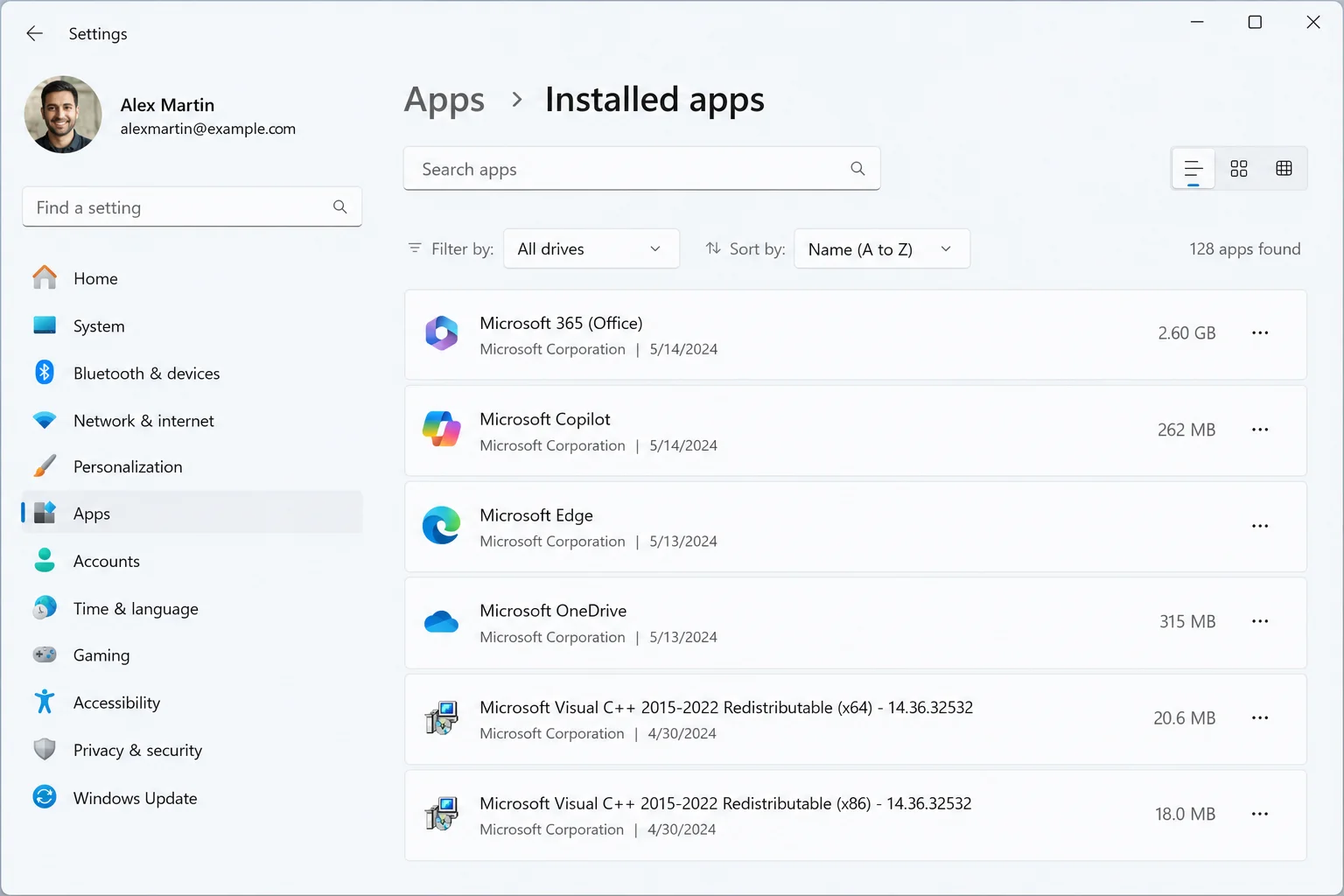
Copilot was never popular with everyone. Microsoft pushed the assistant into taskbars, right-click menus, and even a dedicated keyboard key. Many PCs got that key without the AI hardware to run Copilot well.
Have you ever right-clicked a file just to find three new AI options you never asked for?
By early 2026, Microsoft started walking that strategy back. The company paused automatic installs of the Microsoft 365 Copilot app. It also shelved plans to bake Copilot into File Explorer and system notifications.
The RemoveMicrosoftCopilotApp policy is part of that reversal, according to Microsoft’s own Policy CSP documentation.
What You Need Before You Start
Not every Windows 11 PC can use this policy the same way. Your edition, your build number, and how you installed Copilot all decide which method applies to you.
Check Your Windows 11 Edition and Build
Group Policy Editor only ships with Windows 11 Pro, Enterprise, and Education. Windows 11 Home does not include gpedit.msc at all. Press Win + R, type winver, and press Enter to see your edition and build number.
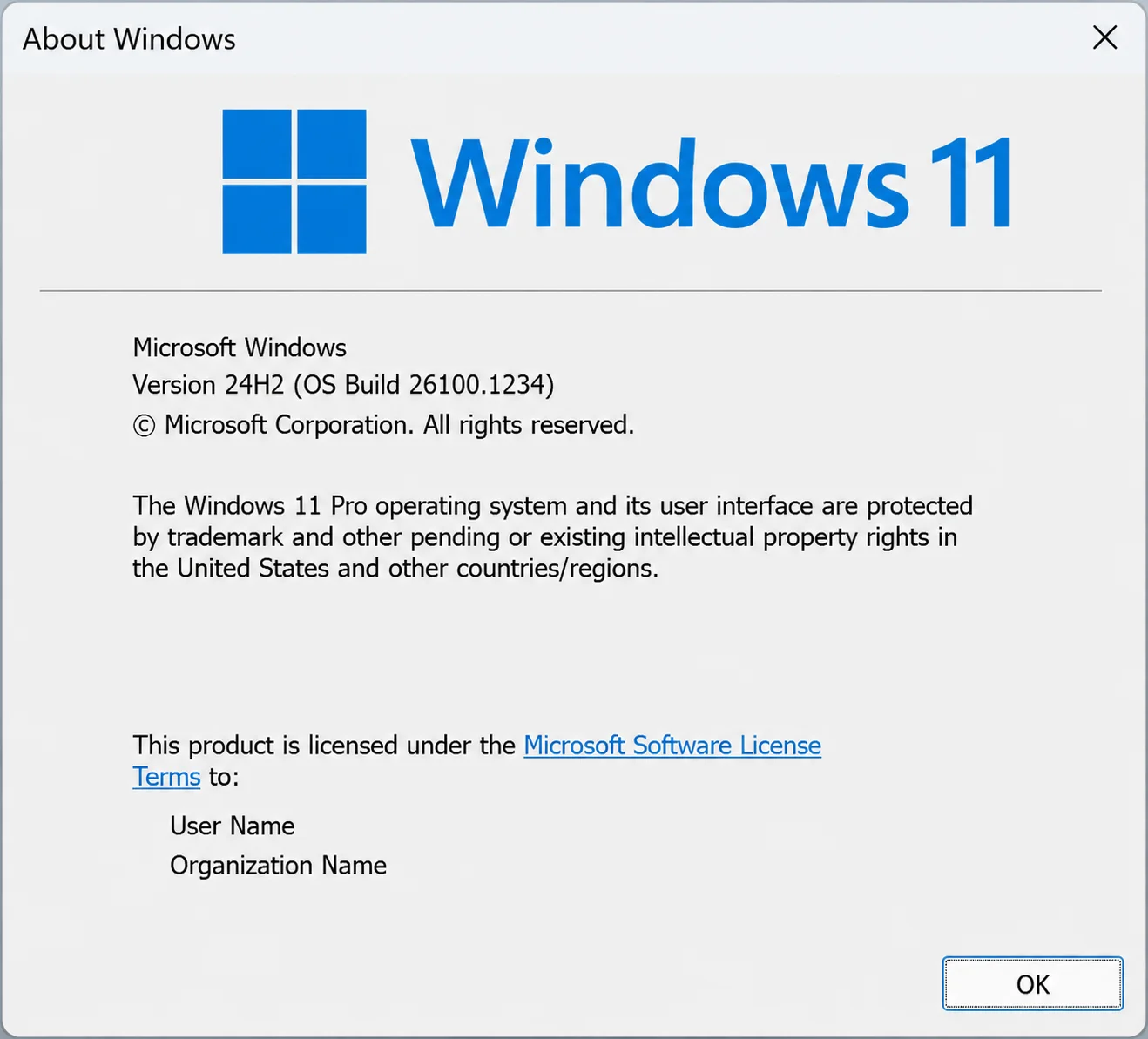
Microsoft’s documentation lists this policy for Windows 11 version 24H2, build 10.0.26100, and later. That range covers both 24H2 and 25H2 once you install the latest cumulative update.
WARNING: Microsoft’s own documentation is inconsistent about editions. The summary table lists Enterprise, Education, and IoT Enterprise only. The written policy description also names Professional, and Windows 11 Pro devices can enable and use the setting in practice.
Confirm Copilot Qualifies for Removal
The policy only acts when three conditions are all true at once. Do you know if your copy of Copilot meets them?
- Both the Microsoft Copilot app and the Microsoft 365 Copilot app are installed on the same device.
- Nobody signed into that device installed the Microsoft Copilot app themselves through the Microsoft Store or another method.
- No user has opened or launched the Microsoft Copilot app in the past 28 days.
If your device installed Copilot itself, this policy will skip it every time, no matter how it’s configured.
IT teams managing many devices can push this setting through Intune, using the Policy CSP framework Microsoft documents for MDM.
Unsure if your PC meets Windows 11’s requirements at all? Check your CPU compatibility for Windows 11 first.
Which Removal Method Fits Your Setup
Your edition and management setup point toward one method over the others.
| Method | Works On | Persistence | Effort | Best For |
|---|---|---|---|---|
| Group Policy (RemoveMicrosoftCopilotApp) | Windows 11 Pro, Enterprise, Education, 24H2+ | Reapplies as long as the policy stays enabled | Low | Managed or business PCs |
| Registry key (WindowsAI) | Windows 11 Home, any edition | Same behavior as Group Policy | Medium | Home PCs without gpedit.msc |
| Manual uninstall (Settings or PowerShell) | All editions | One-time, Copilot can return | Low | Quick, temporary cleanup |
| AppLocker or WDAC block | Windows 11 Pro, Enterprise, Education | Blocks reinstall regardless of source | High | IT admins wanting a hard block |
How to Remove Copilot From Windows 11 With Group Policy
This method works on Windows 11 Pro, Enterprise, and Education. It edits the same setting Microsoft documents under the WindowsAI Policy CSP.
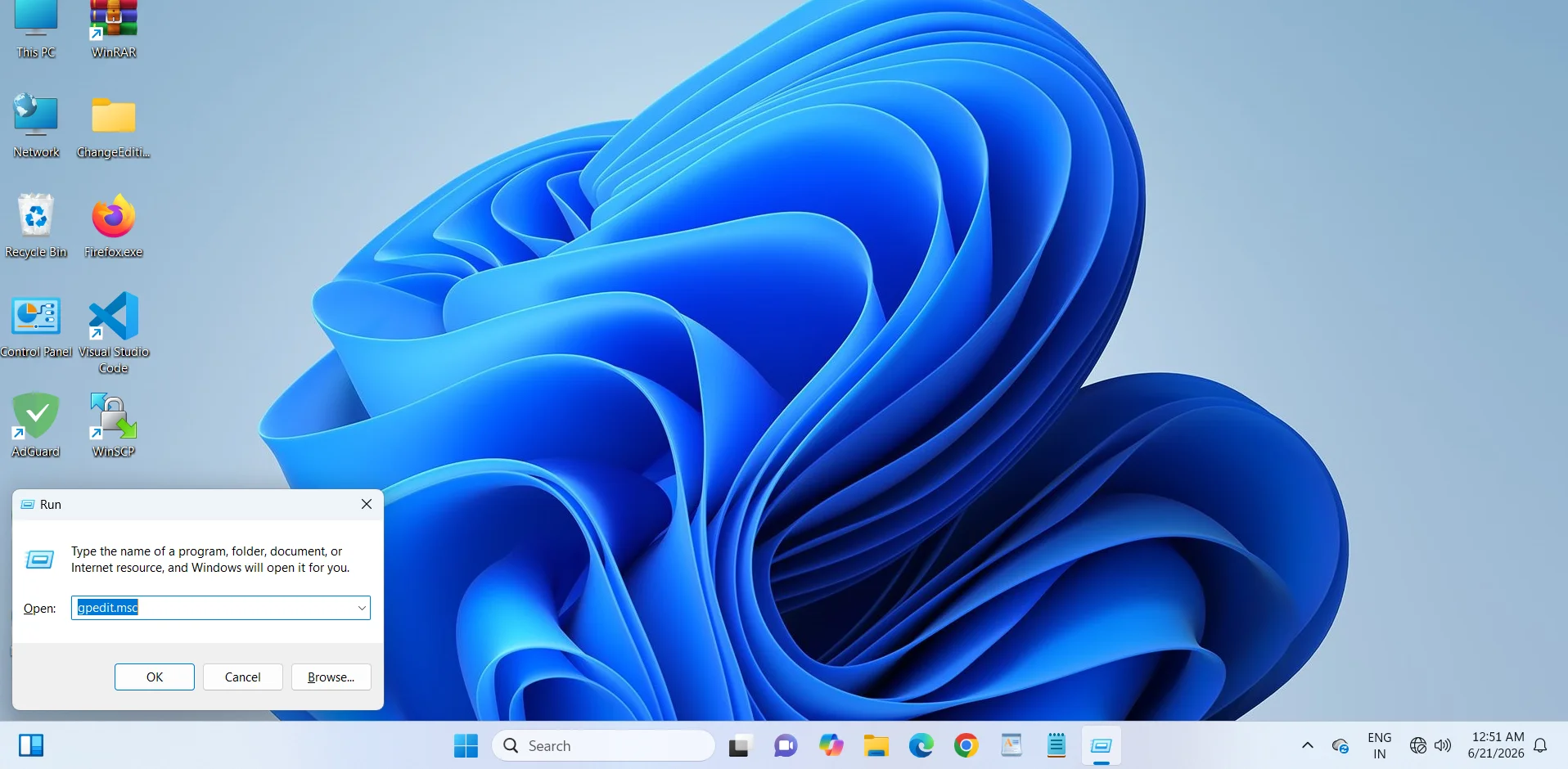
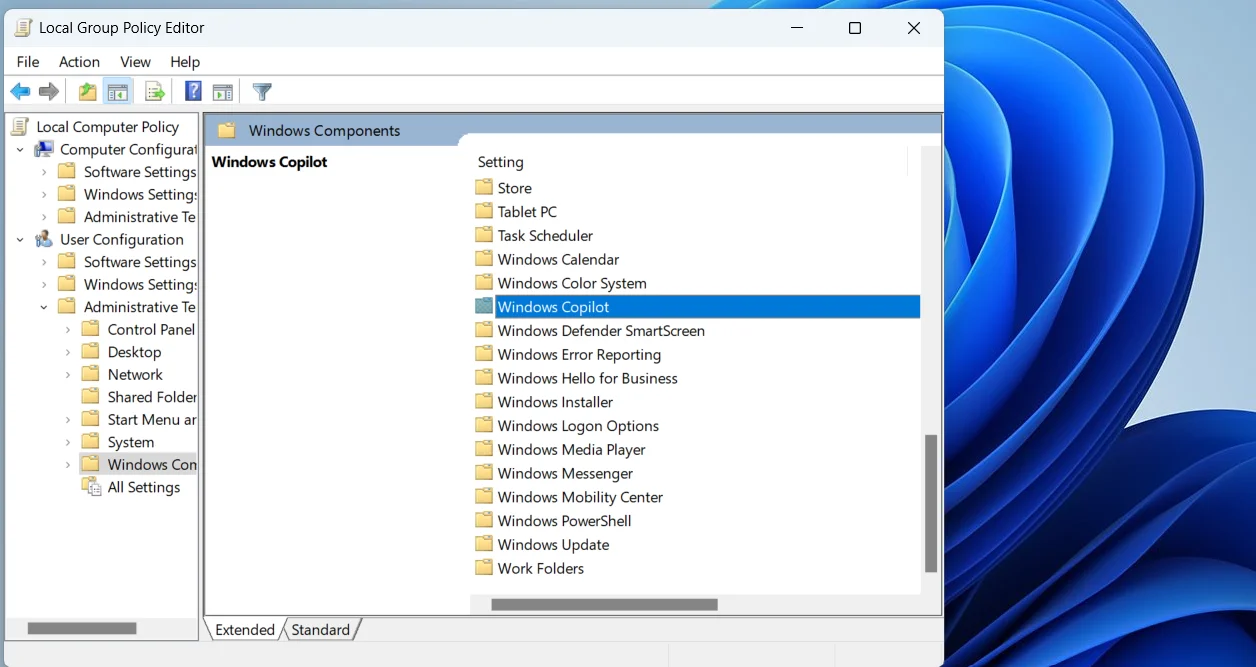
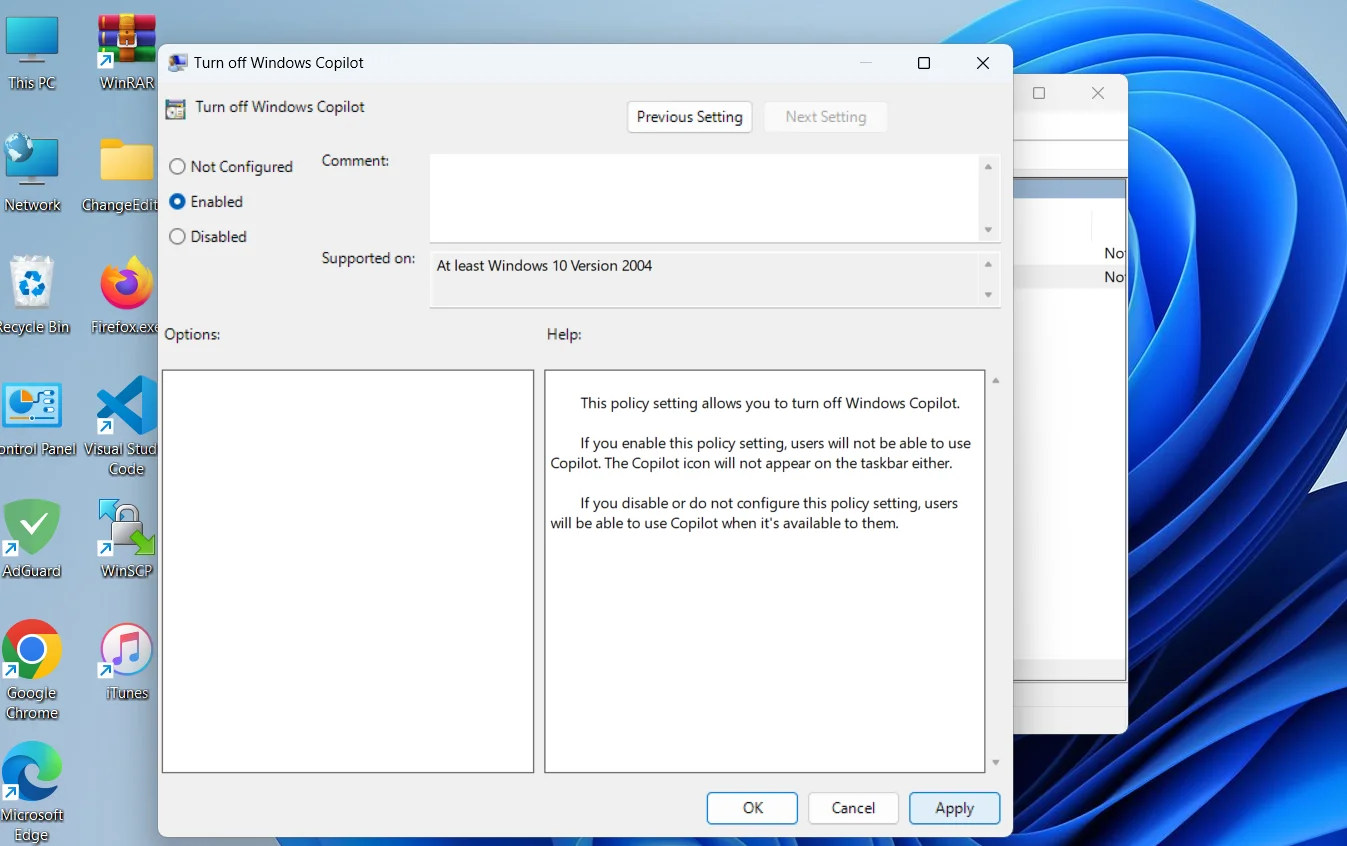
Step 1. Open the Group Policy Editor
Press Win + R, type gpedit.msc, and press Enter. Windows 11 Home users will see an error here and should skip to the registry method below.
Step 2. Go to the Windows AI policy folder
Expand User Configuration, then Administrative Templates, then Windows Components, then Windows AI.
Step 3. Open the removal setting
Double-click the policy named Remove Microsoft Copilot App in the right-hand pane.
Step 4. Set the policy to Enabled
Select Enabled, then click Apply, then click OK to save the change.
Step 5. Restart your PC
This setting only takes effect after a full restart, not a simple sign-out.
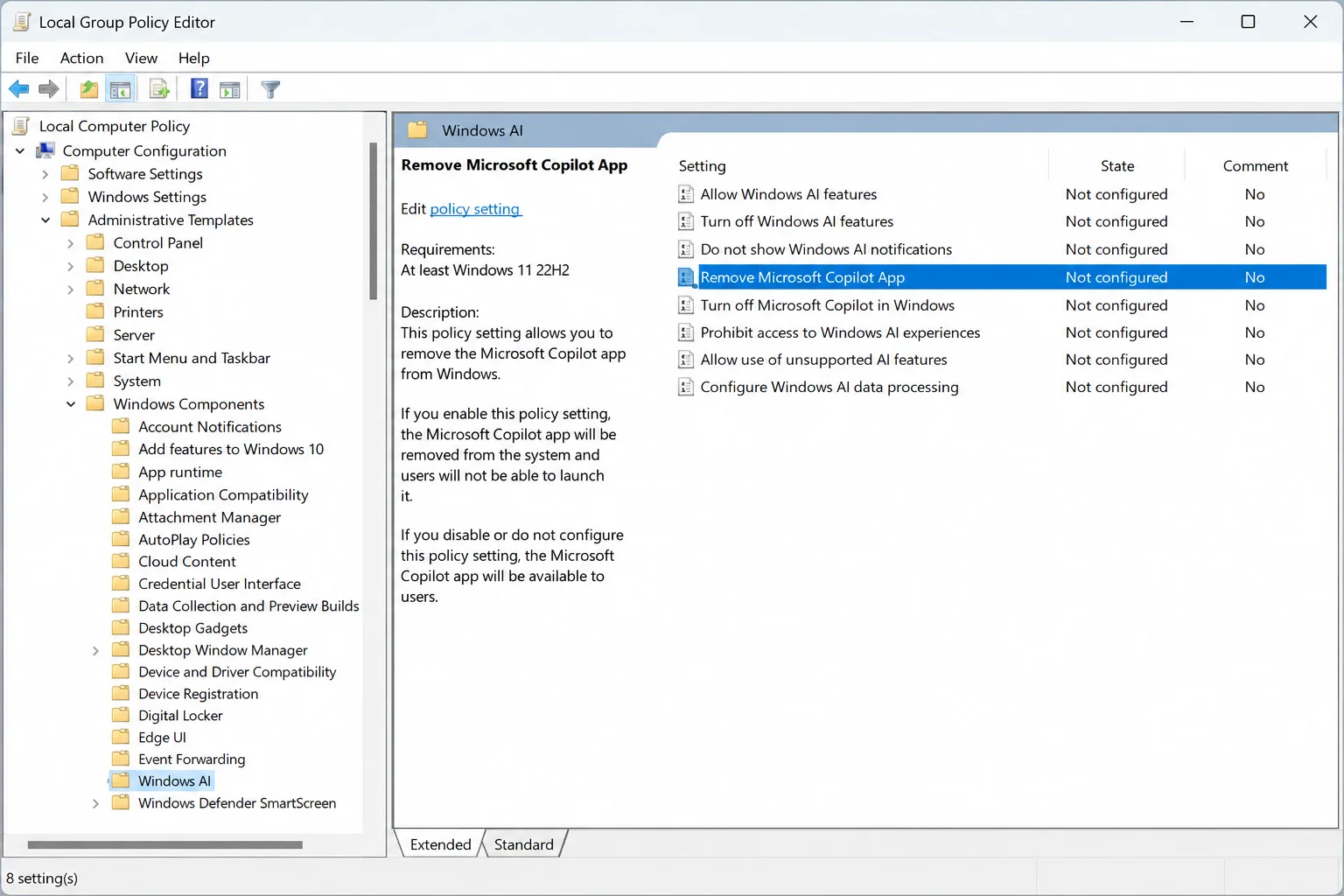
Copilot won’t disappear the moment you click Enabled. Windows checks the three conditions from earlier and only removes the app once they’re all true. If Copilot was still open recently, or you installed it yourself, the app stays put.
PRO TIP: Run gpresult /r in Command Prompt after restarting to confirm the policy actually applied to your account.
How to Remove Copilot From Windows 11 Home With the Registry
Windows 11 Home has no Group Policy Editor, but the same setting exists in the registry. Every policy in Windows eventually writes to a registry key, and this one is no different.
WARNING: Back up the registry before editing it. A wrong keystroke here can cause boot problems. Microsoft’s own guide on how to back up and restore the Windows registry takes about two minutes to follow.
Step 1. Open Registry Editor
Press Win + R, type regedit, and press Enter.
Step 2. Navigate to the policies folder
Paste this path into the address bar: HKEY_CURRENT_USER\Software\Policies\Microsoft\Windows\
Step 3. Create the WindowsAI subkey if it’s missing
Right-click Windows, choose New > Key, and name it WindowsAI.
Step 4. Add the removal value
Right-click inside WindowsAI, choose New > DWORD (32-bit) Value, and name it RemoveMicrosoftCopilotApp.
Step 5. Set the value to 1
Double-click the new value, enter 1, and click OK.
Step 6. Restart your PC
Close Registry Editor and restart to apply the change.
PowerShell users can skip the manual clicking entirely.
reg add "HKCU\Software\Policies\Microsoft\Windows\WindowsAI" /v RemoveMicrosoftCopilotApp /t REG_DWORD /d 1 /fThis single command creates the key, the value, and sets it to 1 in one step.
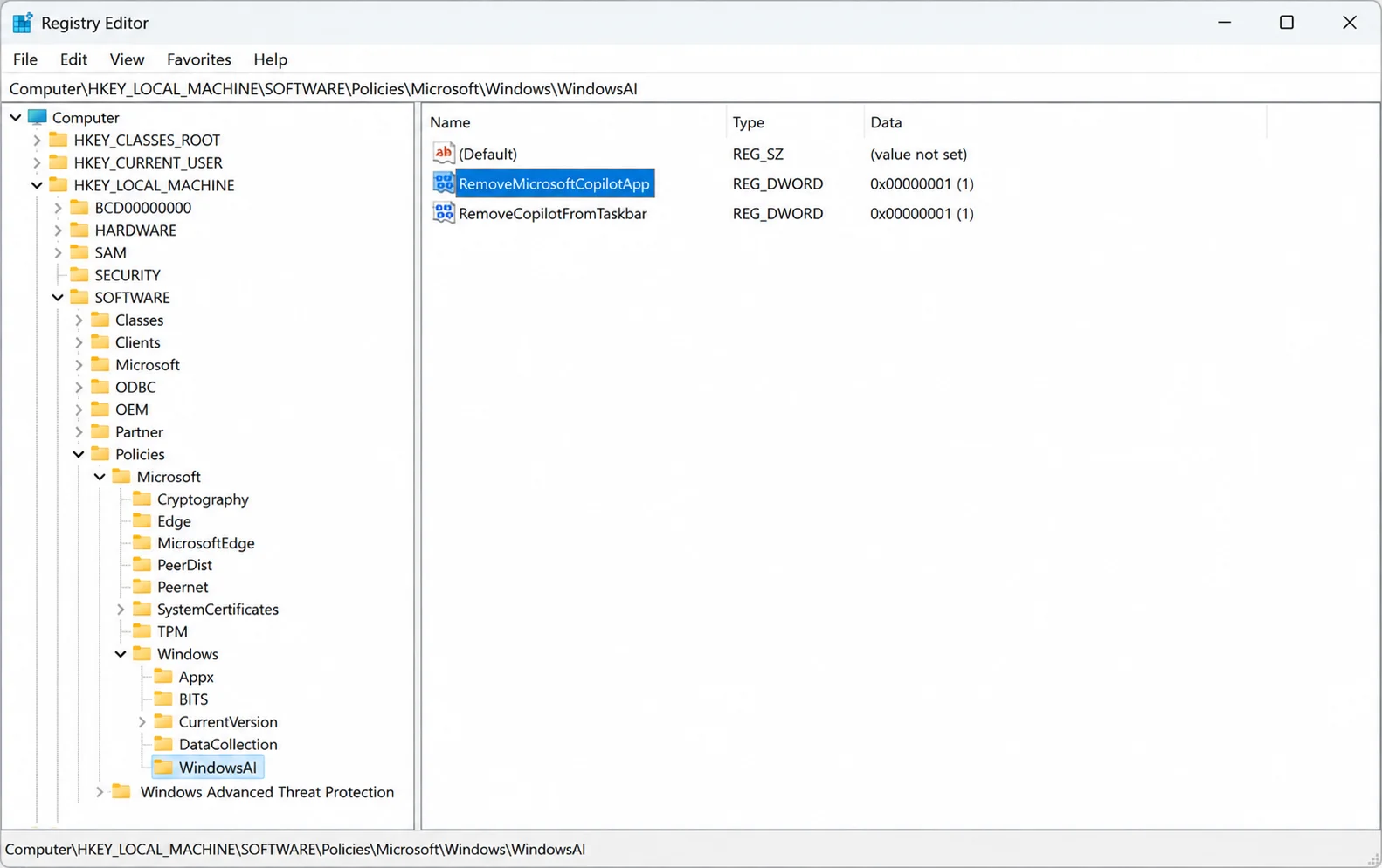
This registry path targets your current user account only. IT admins managing shared devices can apply the same value under HKEY_LOCAL_MACHINE for every account on the PC.
Common Copilot Removal Problems and How to Fix Them
Problem: Copilot is still installed after enabling the policy and restarting.
Cause: You or a previous user installed the Copilot app yourselves through the Microsoft Store.
Fix:
- Uninstall Copilot manually first, either from Settings or with
Remove-AppxPackage. - Leave the policy enabled so Windows Update can’t reinstall it later.
- Combine this with AppLocker if you manage a shared or public PC.
Problem: The Remove Microsoft Copilot App setting doesn’t appear in Group Policy Editor.
Cause: Your build is older than Windows 11 version 24H2, or you’re on Windows 11 Home.
Fix:
- Check your build with winver.
- Install pending updates through Windows Update if you’re below 24H2.
- Switch to the registry method above if you’re on Windows 11 Home.
Problem: Copilot came back after a major Windows 11 feature update.
Cause: Feature updates sometimes reinstall bundled apps as part of the new OS image.
Fix:
- Reapply the Group Policy setting after any feature update finishes installing.
- Run gpupdate /force, then restart to confirm it took effect.
- Deploy the policy through Intune or a domain GPO so it reapplies on its own.
Problem: You enabled the setting, but nothing happened even after a week.
Cause: You opened Copilot recently, which resets the 28-day inactivity clock the policy checks.
Fix:
- Stop opening Copilot and wait out the 28-day window.
- Uninstall it manually instead if you need it gone sooner.
- Confirm both the Copilot app and Microsoft 365 Copilot app are installed, since the policy skips devices with only one.
Tips and Pro Moves for Keeping Copilot Gone
Removing the app solves half the annoyance. The other half is the dedicated Copilot key on your keyboard.
PRO TIP: Remap the Copilot key with the SetCopilotHardwareKey policy. Point it at an app you actually use, like File Explorer or Notepad.
Group Policy alone won’t stop a determined reinstall from the Microsoft Store. AppLocker or Windows Defender Application Control can block the app outright, regardless of how it gets there.
Deciding if Copilot is worth keeping? Read the differences between Copilot and Copilot Pro first.
Microsoft has been quietly reducing Copilot’s footprint since early 2026. Expect more granular controls like this one, not fewer, as the company keeps adjusting its AI strategy.
Frequently Asked Questions About Removing Copilot on Windows 11
Q: Does removing Copilot with Group Policy work on Windows 11 Home?
A: No, Windows 11 Home doesn’t include Group Policy Editor. Use the registry method covered earlier instead, since it applies the identical WindowsAI setting through regedit rather than gpedit.msc.
Q: Will Microsoft reinstall Copilot after I remove it this way?
A: The policy keeps blocking reinstalls as long as it stays enabled and the three gating conditions remain true. If you personally reinstall Copilot and use it, the policy will leave it alone going forward.
Q: What’s the difference between Microsoft Copilot and Microsoft 365 Copilot for this policy?
A: The consumer Microsoft Copilot app uses a personal account, and this policy removes it. Microsoft 365 Copilot serves work and school accounts and stays untouched, since the policy targets the consumer app only.
Q: Can I remove Copilot without touching Group Policy or the registry?
A: Yes, you can uninstall it from Settings or run Remove-AppxPackage in PowerShell. Neither method blocks reinstallation the way the policy does, so Copilot can return after an update.
Q: Does removing Copilot break Windows Search or other AI features?
A: No, Windows Search, Click to Do, and Recall run as separate components. Removing the Copilot app only affects the standalone assistant, not the rest of Windows 11’s AI features.
Q: Is it safe to edit the registry to remove Copilot on Windows 11 Home?
A: Yes, as long as you back up the registry first and follow the exact path. A single wrong value elsewhere in the registry can cause bigger problems.
What to Do After Copilot Is Gone
Copilot’s removal frees up a small amount of background activity on your PC. That won’t transform a slow laptop into a fast one by itself.
For a bigger speed boost, pair this with our guide to speed up a sluggish Windows 11 PC.
Check back on your Copilot removal after your next big Windows update. Policies occasionally need a second look once Microsoft ships a new feature release.
Which method worked on your PC, Group Policy or the registry? Tell us in the comments below.
Discover more from Cloudorian — Android, Samsung & Windows How-To Guides
Subscribe to get the latest posts sent to your email.
