Samsung Gallery can delete duplicate photos in under ten seconds, something Google Photos still cannot do natively. Duplicates from WhatsApp, Snapchat, and cloud syncs pile up faster than most Galaxy owners ever notice. This guide shows exactly how to delete duplicate photos on Samsung Gallery, plus how to stop them returning.
Key Takeaways
- Samsung Gallery’s Delete Duplicates tool sits inside the Clean Out menu, though older One UI versions still label it Suggestions.
- Most duplicate photos come from WhatsApp, Snapchat, and Facebook Messenger saving images separately from how the camera stores them.
- Google Photos has no native tool for exact duplicates, only a Free Up Space feature that groups visually similar shots.
- Samsung Gallery moves deleted duplicates to Trash for 30 days, so emptying Trash manually frees up storage right away.
What Samsung Gallery’s Delete Duplicates Feature Actually Does
Delete Duplicates is a built-in Samsung Gallery tool that scans your device for identical photo and video files. It compares files byte for byte, not just by how they look. When it finds a true match, it lets you remove the extra copies in one pass.
This matters because Samsung Gallery does the work locally on your phone. You do not need an internet connection or a Google account to use it. That makes it faster and more private than cloud-based alternatives.
Samsung’s official support guide confirms the feature lives inside the Gallery app’s Clean Out menu on current One UI versions. Storage fills up quietly on the 64GB and 128GB Galaxy models common across Nigeria. A handful of duplicate videos can eat several gigabytes without you noticing.
Requirements Before You Start
Delete Duplicates only works on Samsung devices running One UI. Stock Android phones do not have this exact menu. Check these requirements before you begin.
- A Samsung Galaxy phone or tablet running a recent version of One UI, since stock Android does not include this exact tool.
- The Samsung Gallery app updated through the Galaxy Store, because older app versions sometimes hide the Clean Out menu entirely.
- A recent backup of your important photos, just in case a photo gets removed by mistake during the cleanup process.
Why Samsung Gallery Keeps Finding New Duplicate Photos
Most duplicate photos come from messaging apps, not from taking the same picture twice. WhatsApp, Snapchat, and Facebook Messenger often save a photo once when you receive it. They save it again when you forward, share, or repost the same image.
Have you ever noticed the same recipe photo sitting in your Gallery three separate times? That usually happens weeks or months apart, so it goes unnoticed until storage runs low.
Switching phones with Samsung Smart Switch can also duplicate entire albums under a new date. The same happens when Gallery syncs with Microsoft OneDrive alongside Samsung Cloud at the same time. Samsung Community threads describe hundreds of old photos reappearing under a single recent date after this kind of double sync.
WARNING: Turning off auto-save inside WhatsApp and similar apps stops new duplicates from forming. It will not remove copies already sitting on your device.
How to Delete Duplicate Photos in Samsung Gallery: Step-by-Step
Follow these steps on any Galaxy phone or tablet running a recent One UI version.
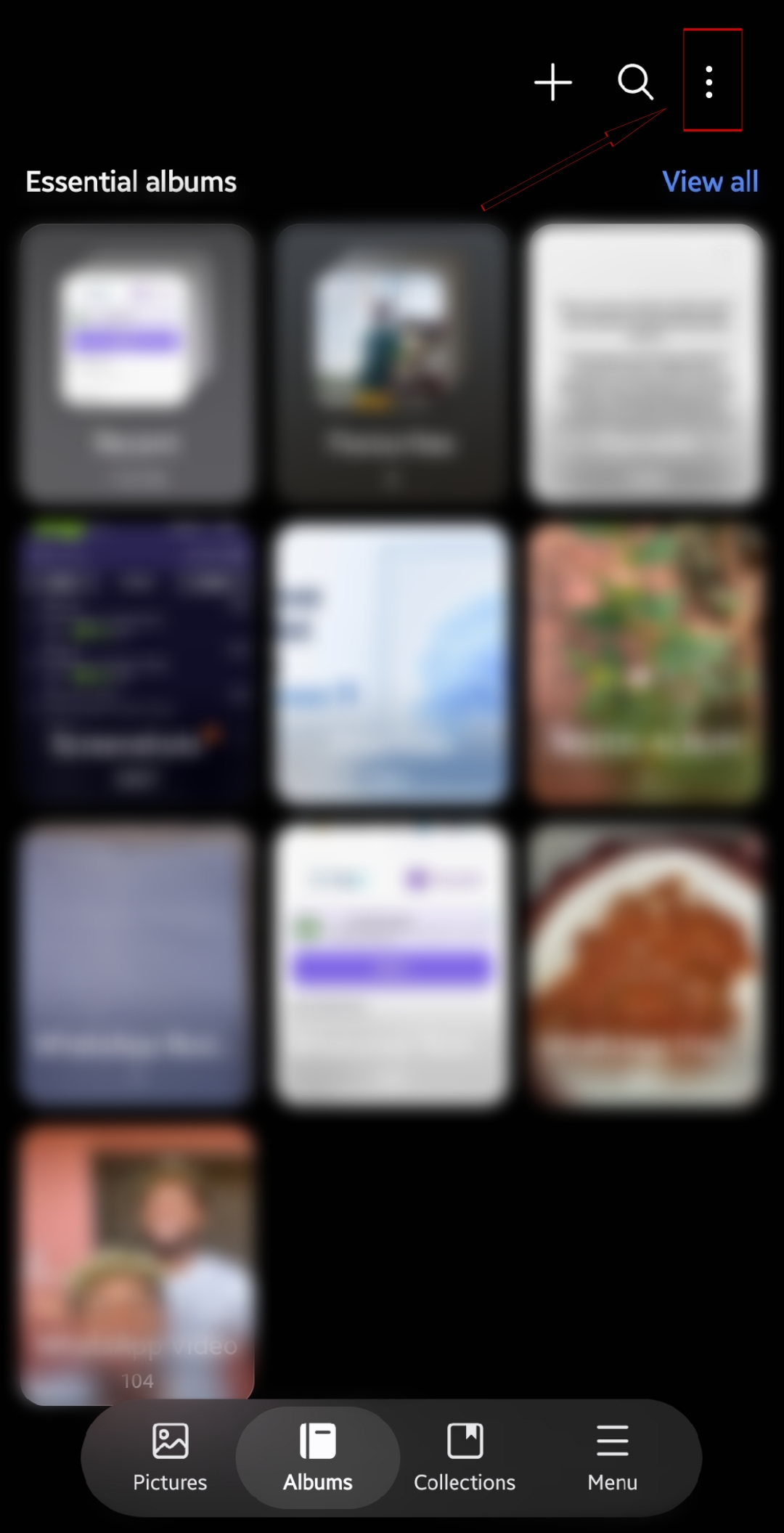
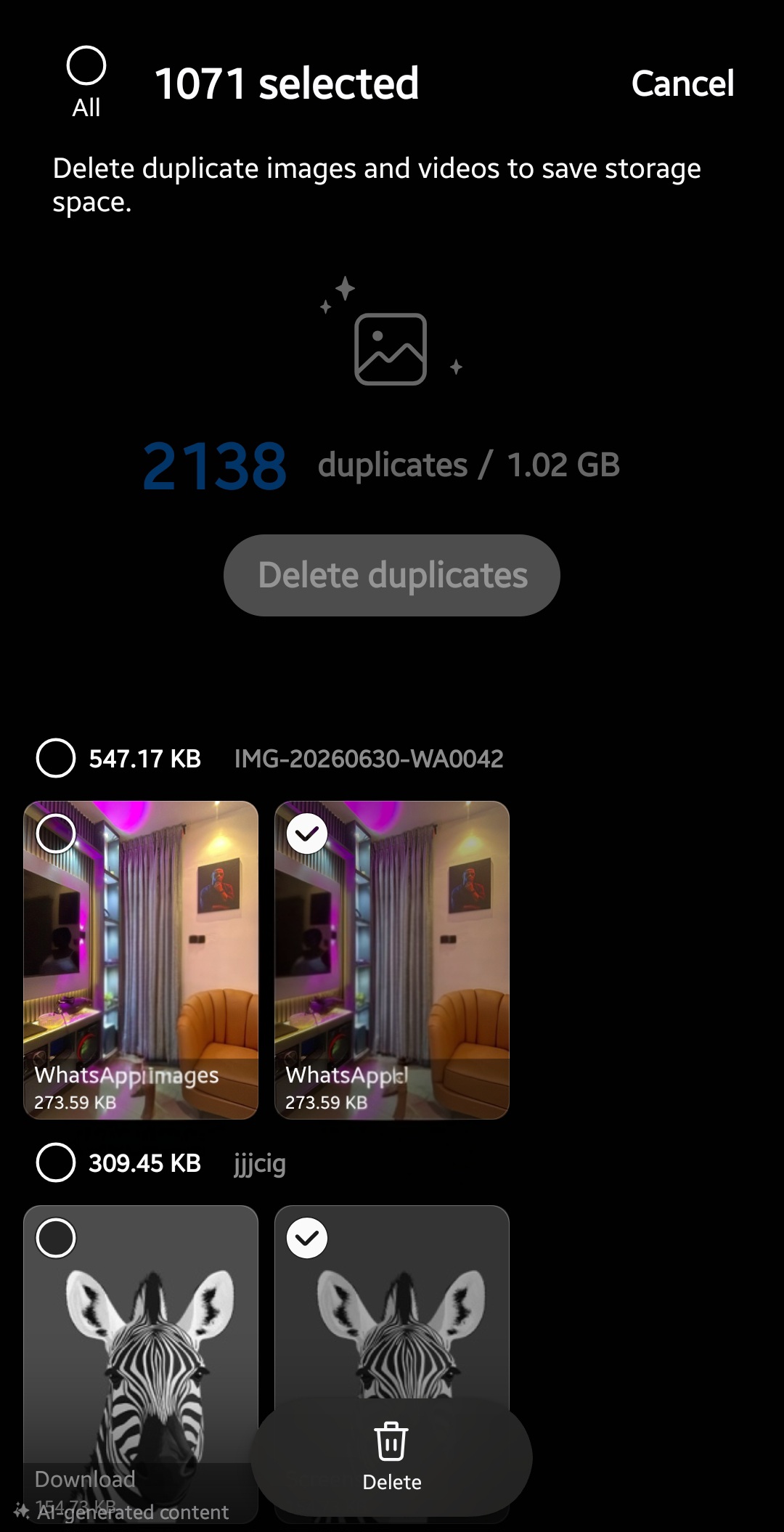
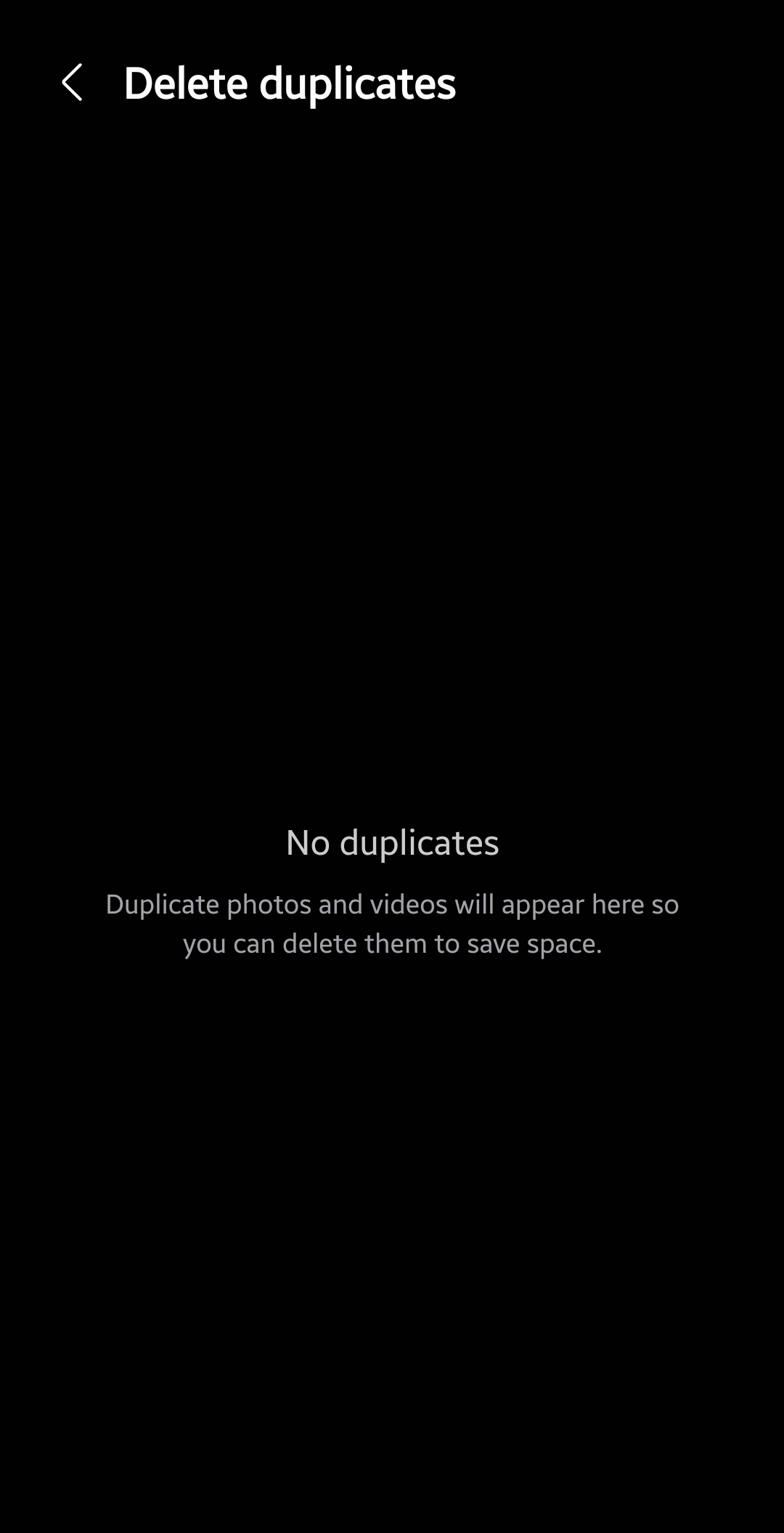
Step 1. Open the Gallery app on your Galaxy device.
Tap the Gallery icon from your home screen or app drawer to launch it.
Step 2. Tap the Menu icon in the bottom navigation bar.
Look for three horizontal lines. Newer One UI versions place this icon on the left side, older versions on the right.
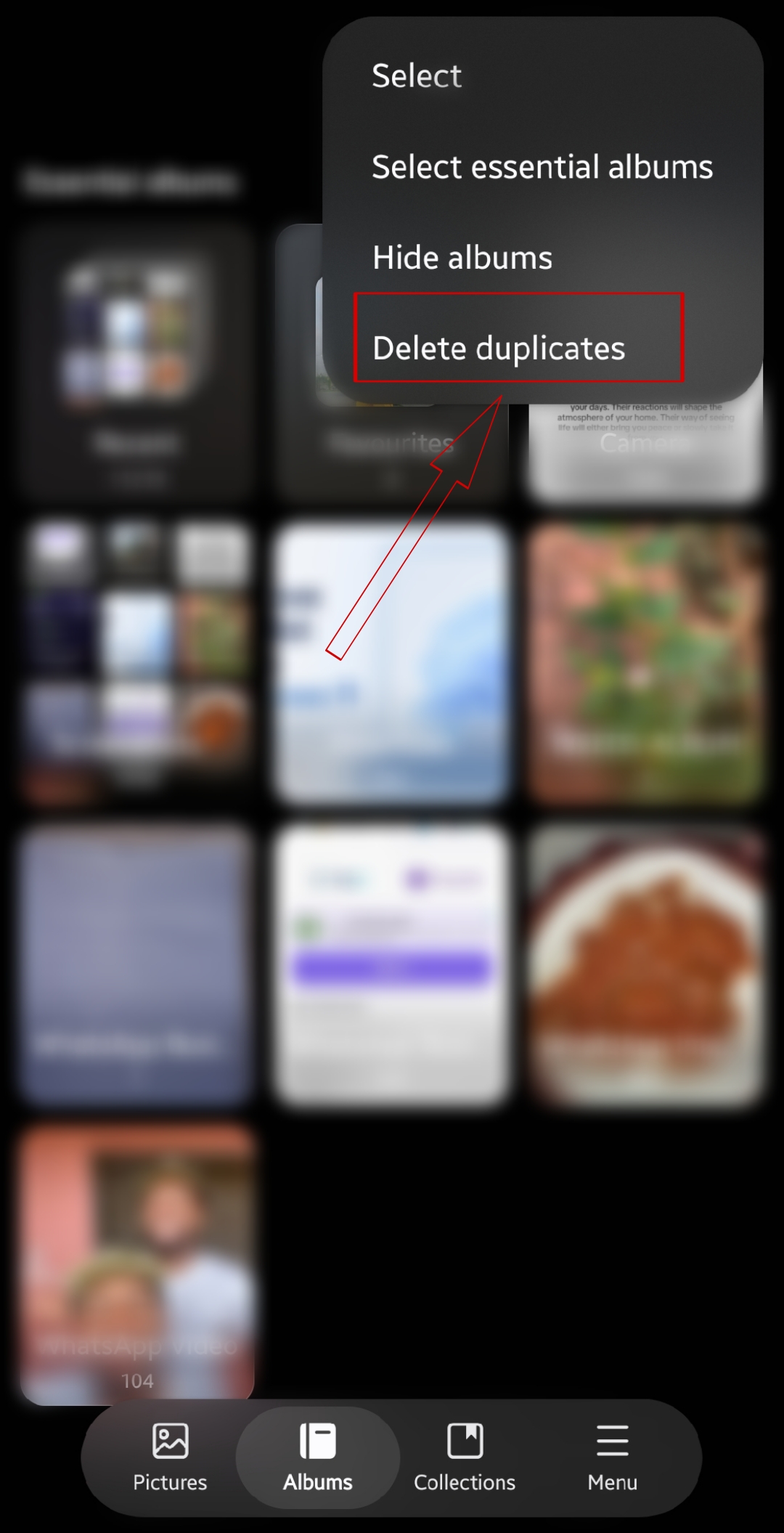
Step 3. Tap Clean Out from the menu list.
Some older One UI versions label this same option Suggestions instead of Clean Out.
Step 4. Tap Delete Duplicate Pictures under Clean Out.
This option only appears once Samsung Gallery has already detected duplicate files sitting on your device.
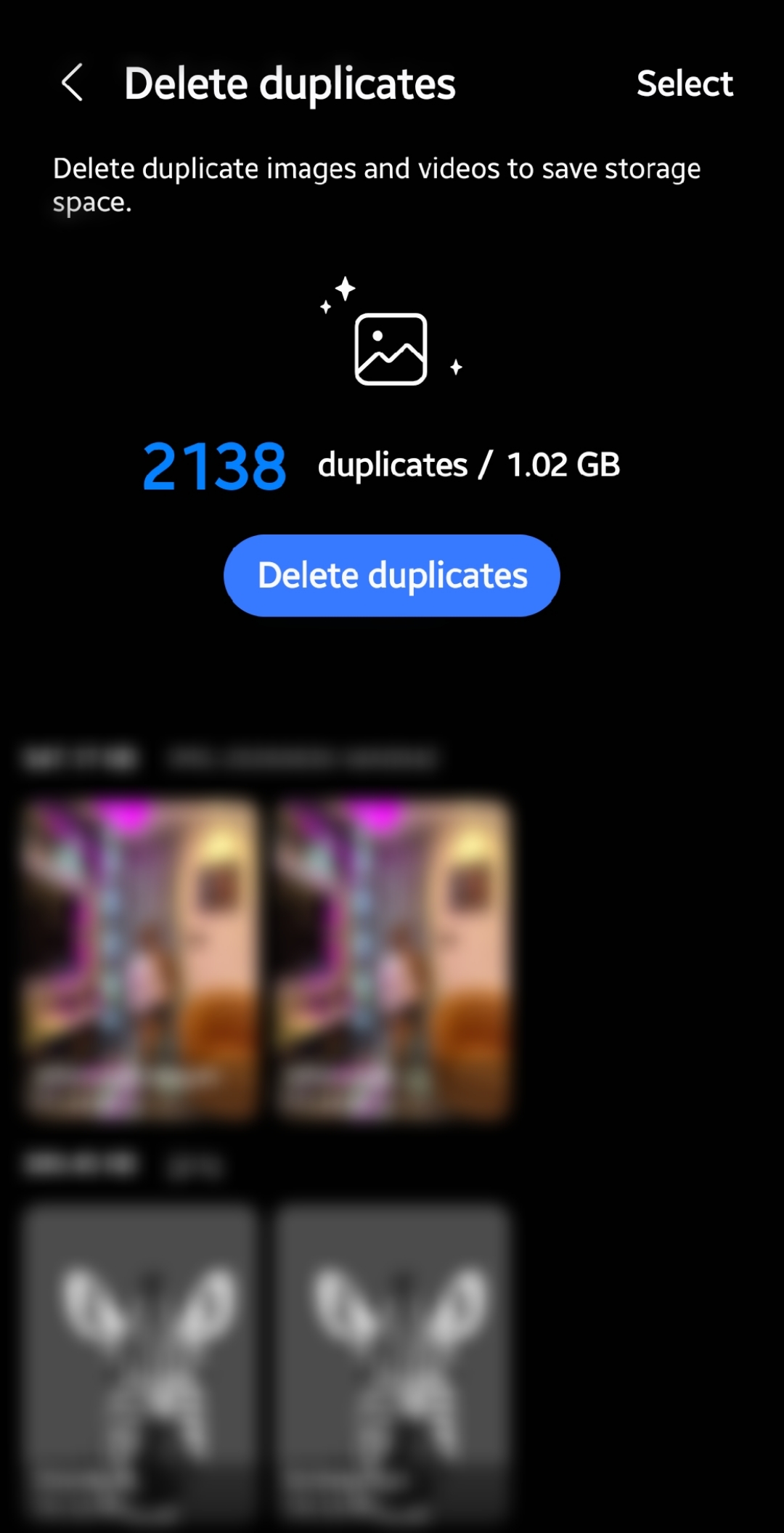
Step 5. Review the side-by-side list of duplicate pairs.
Each pair shows the folder location and file size, so confirm they are true duplicates before deleting anything.
Step 6. Tap Delete Duplicates at the top of the screen.
Samsung Gallery automatically keeps one copy of each photo and marks the rest for removal.
Step 7. Tap Delete, then confirm with Move to Trash.
This sends the duplicate files to Trash rather than erasing them from your device right away.
Step 8. Open Trash from the Gallery menu and empty it for instant space.
According to Samsung’s Canada support page, files sit in Trash for 30 days by default before they disappear for good.
PRO TIP: You do not have to review every pair by hand. The Delete Duplicates button at the top clears the whole batch in one tap.
Samsung Gallery vs Google Photos vs My Files: Which One Finds Real Duplicates
Samsung Gallery, My Files, and Google Photos all claim to clean up duplicate photos. They do not all do the same job. The table below breaks down what each tool actually catches.
| Tool | Finds exact duplicates | Needs internet | Where files go |
|---|---|---|---|
| Samsung Gallery (Delete Duplicates) | Yes | No | Trash, 30 days |
| My Files (Analyze Storage) | Yes | No | Trash, 30 days |
| Google Photos (Free Up Space) | Only similar-looking shots | Yes | Google Photos Trash, 60 days |
Ever wonder why Google Photos misses two identical screenshots sitting side by side? Google’s own Photos Help page explains that its cleanup tool groups visually similar images, not byte-for-byte matches. That design catches near-duplicates but skips true copies with different file names.
Non-Samsung Android phones can use Files by Google’s Clean tool for the same kind of exact-match scan. Clearing duplicates works well alongside clearing your Android phone’s cache, since both free space without deleting your photos.
Common Delete Duplicates Problems and How to Fix Them
Delete Duplicates is simple, but it does not always behave perfectly. Here are the most common problems Galaxy owners run into.
Problem: Delete Duplicate Pictures option does not appear in Clean Out.
Cause: Samsung Gallery has not finished scanning your device, or there are genuinely no duplicate files yet.
Fix:
- Wait a few hours, then reopen Gallery to let the scan finish.
- Restart your phone to force Gallery to refresh its media index.
- Check My Files under Analyze Storage as a backup method.
Problem: Delete Duplicates removed both the original and the extra copy.
Cause: A small number of users on older One UI versions report Gallery mismatching which file counts as the original, especially right after a Smart Switch transfer.
Fix:
- Open Trash immediately and look for the missing photo before the 30-day window closes.
- Tap the photo, then tap Restore to bring it back.
- Back up important photos to Google Photos or Samsung Cloud before running Delete Duplicates again.
WARNING: A small number of Galaxy users have reported Delete Duplicates removing every copy of a photo instead of just the extra ones. Check Trash right after running the tool, just to be safe.
Problem: Storage space did not increase after deleting duplicates.
Cause: Deleted files move to Trash instead of leaving your device right away, so the space stays reserved for 30 days.
Fix:
- Open Gallery, tap Menu, then tap Trash.
- Tap the three-dot menu and select Empty.
- Confirm Delete to permanently clear the reserved space.
Problem: New duplicate photos keep appearing days after cleanup.
Cause: Apps like WhatsApp or OneDrive are re-saving the same images on their own schedule.
Fix:
- Open WhatsApp Settings, then Chats, and turn off Save to Gallery.
- Check Settings, then Accounts and Backup, and review your OneDrive or Samsung Cloud sync folders.
- Run Delete Duplicates again after a week to catch anything new.
Tips and Pro Moves to Stop Duplicates From Coming Back
Deleting duplicates once solves today’s storage problem. These habits keep it from becoming a monthly chore.
- Turn off auto-save for WhatsApp, Snapchat, and Messenger images inside each app’s own settings menu, not just Gallery.
- Pick one backup service, either Samsung Cloud or Google Photos, instead of running both at the same time.
- Run Delete Duplicates once a month instead of waiting until your storage warning pops up on screen.
- Empty Trash right after confirming you do not need the deleted files, since the 30-day buffer still uses space.
Pairing this habit with freeing up storage on Android without deleting photos keeps your Galaxy running smoothly between cleanups. It also helps to review Samsung phone features worth disabling on day one, since some quietly save extra media copies.
Frequently Asked Questions About Deleting Duplicate Photos on Samsung Gallery
Q: Does Delete Duplicates work on every Samsung phone?
A: It works on any Galaxy phone or tablet running One UI with an updated Gallery app. Very old Galaxy models on outdated software may not show the option yet.
Q: Will deleting duplicate photos affect my Google Photos backup?
A: No. Delete Duplicates only removes files stored locally in your device’s Gallery. Copies already backed up to Google Photos stay untouched unless you delete them there too.
Q: How long do deleted duplicate photos stay recoverable?
A: Samsung Gallery keeps deleted files in Trash for 30 days before removing them permanently. You can restore any file from Trash during that window.
Q: Can I delete duplicate videos the same way?
A: Yes. The Delete Duplicates tool scans both photos and videos kept in Gallery. Large video duplicates simply take a little longer to scan.
Q: What if my phone is not a Samsung device?
A: Non-Samsung Android phones can use the Files by Google app’s Clean feature instead. It finds and removes exact duplicate files in a similar way.
Q: Why does Google Photos not have a similar Delete Duplicates button?
A: Google Photos groups visually similar photos instead of scanning for exact duplicate files. Google designed it for a different kind of cleanup, not byte-for-byte matching.
Keep Your Galaxy Gallery Clean Going Forward
Running Delete Duplicates takes under a minute, so there is no reason to let copies pile up for months. Pair it with a broader cleanup by clearing out unnecessary storage-hogging apps on the same day. That combination usually frees up more space than either method alone.
Drop a comment below once you run Delete Duplicates on your own Galaxy phone. Tell us which app turned out to be the biggest culprit for duplicate photos on your device.
Discover more from Cloudorian — Android, Samsung & Windows How-To Guides
Subscribe to get the latest posts sent to your email.
