

Files by Google handles basic storage tasks, but Material Files gives Android users far more control. This open-source file manager loads folders quickly, works with network storage, opens archives without extraction, and offers features Google’s app leaves out. The real surprise appears when you use it for more than moving downloads.
What Material Files Is and Why It Matters
Material Files is a free, open-source Android file manager created by Hai Zhang. The app follows Material Design principles, avoids advertising, and gives you direct access to local files, archives, root directories, and network storage.
The official Google Play listing shows more than one million downloads and a 4.4-star rating. The app also appears on F-Droid, which gives privacy-focused users another installation route.
Material Files feels different because it treats your phone like a real file system. You can browse folders from the root directory, follow breadcrumbs, sort files by several properties, and change the layout for individual folders.
The app also uses Java NIO2 and Linux system calls instead of relying on a basic command output parser. That design helps it understand symbolic links, file permissions, and SELinux contexts.

MakeUseOf’s hands-on test found that Material Files opened folders and populated thumbnails faster than Files by Google on the writer’s phone. Your results will vary with storage speed, file count, device age, and Android version.
The biggest difference comes from control. Files by Google focuses on categories, cleanup suggestions, and cloud-connected services. Material Files focuses on direct file access.
The features Google’s app leaves out
Material Files includes:
- FTP, SFTP, SMB, and WebDAV connections for remote storage.
- ZIP, RAR, 7z, and tar.xz archive handling.
- Root access for compatible devices.
- Custom colors, Material You themes, night mode, and true-black mode.
- Hidden-file visibility.
- Local FTP server access.
- APK options for opening or installing packages.
- Terminal app shortcuts.
- Folder-specific layouts and sorting rules.
The app does not include Google Drive browsing, automatic cleanup suggestions, or Google’s private folder feature. That trade-off suits people who want a focused file browser instead of a storage assistant.
Requirements Before You Start
Material Files supports Android 5.0 and newer, according to the project’s GitHub README. You do not need a Google account after installation, and the app does not require root access for normal file operations.
You need four things before switching:
- An Android phone or tablet running Android 5.0 or newer.
- Enough free storage to install the app and handle archive operations.
- Network credentials if you plan to access an FTP, SFTP, SMB, or WebDAV server.
- A backup before changing files inside protected system locations.
The current Google Play listing reports an update date of June 30, 2024. The project repository shows version 1.7.4 as the latest release listed there, with later commits and open issues continuing on GitHub.

Android’s storage rules can limit access to protected directories. Android 11 and newer restrict several paths, including parts of Android/data and Android/obb. Material Files cannot bypass those system rules without special access or root privileges.
Do you need root access? Most people do not. Root access helps advanced users manage protected locations, change permissions, or inspect system files. A mistake inside those folders can break apps or cause boot problems.
WARNING: Never delete or change files inside system directories unless you understand the file’s purpose and have a recovery plan.
How to Install and Set Up Material Files
Install Material Files through Google Play if you want automatic updates from Google’s store. F-Droid offers a separate route for users who prefer open-source app distribution.
Install the app from Google Play
Step 1. Open the Material Files page in Google Play.
Search for “Material Files” and confirm that Hai Zhang appears as the developer. Avoid similarly named file managers with aggressive advertising.
Step 2. Tap Install and wait for the download to finish.
The app uses little storage compared with many file managers. Your download size may vary by device and store version.
Step 3. Launch Material Files and review storage access.
Android may display a permission request for photos, videos, music, or other files. Grant only the access needed for your workflow.
Step 4. Open the sidebar and inspect the storage locations.
You should see internal storage, removable storage, categories, and network options. Tap a folder to confirm that your files appear correctly.
Choose a layout and theme
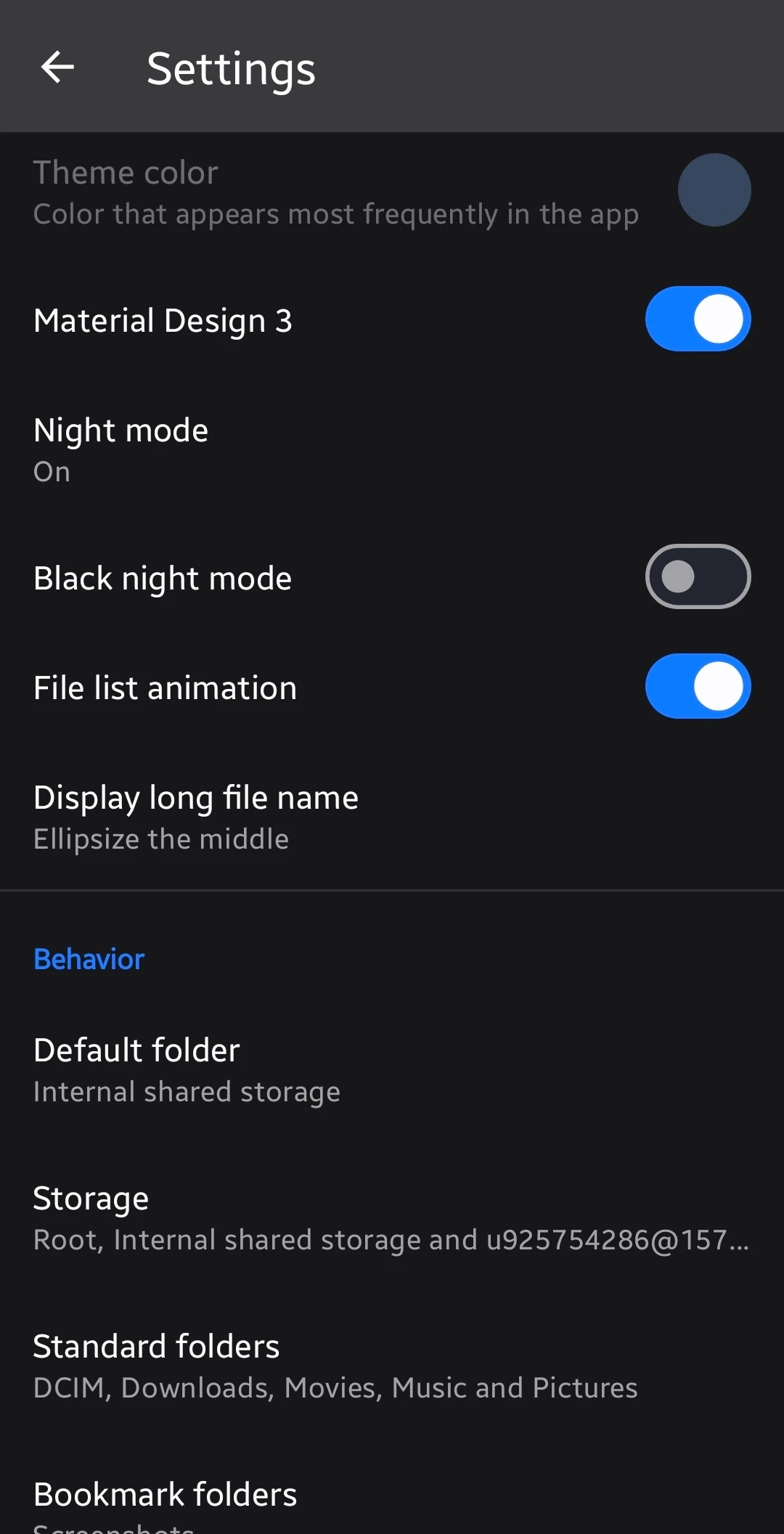
Step 1. Open the sidebar and tap Settings.
The exact wording can vary between releases and Android skins. Samsung One UI and Xiaomi HyperOS may display permission prompts differently.
Step 2. Open the appearance settings.
Choose a Material You color, a custom interface color, Material Design 3 styling, night mode, or true-black mode.
Step 3. Set your preferred file display.
Choose list or grid view, then adjust filename display and folder sorting. Material Files can save view preferences for a specific folder.
Step 4. Test a photo-heavy folder.
Grid view works well for pictures and screenshots. List view usually works better for documents, downloads, and folders with long names.
Open and manage an archive
Step 1. Browse to a ZIP, RAR, 7z, or tar.xz file.
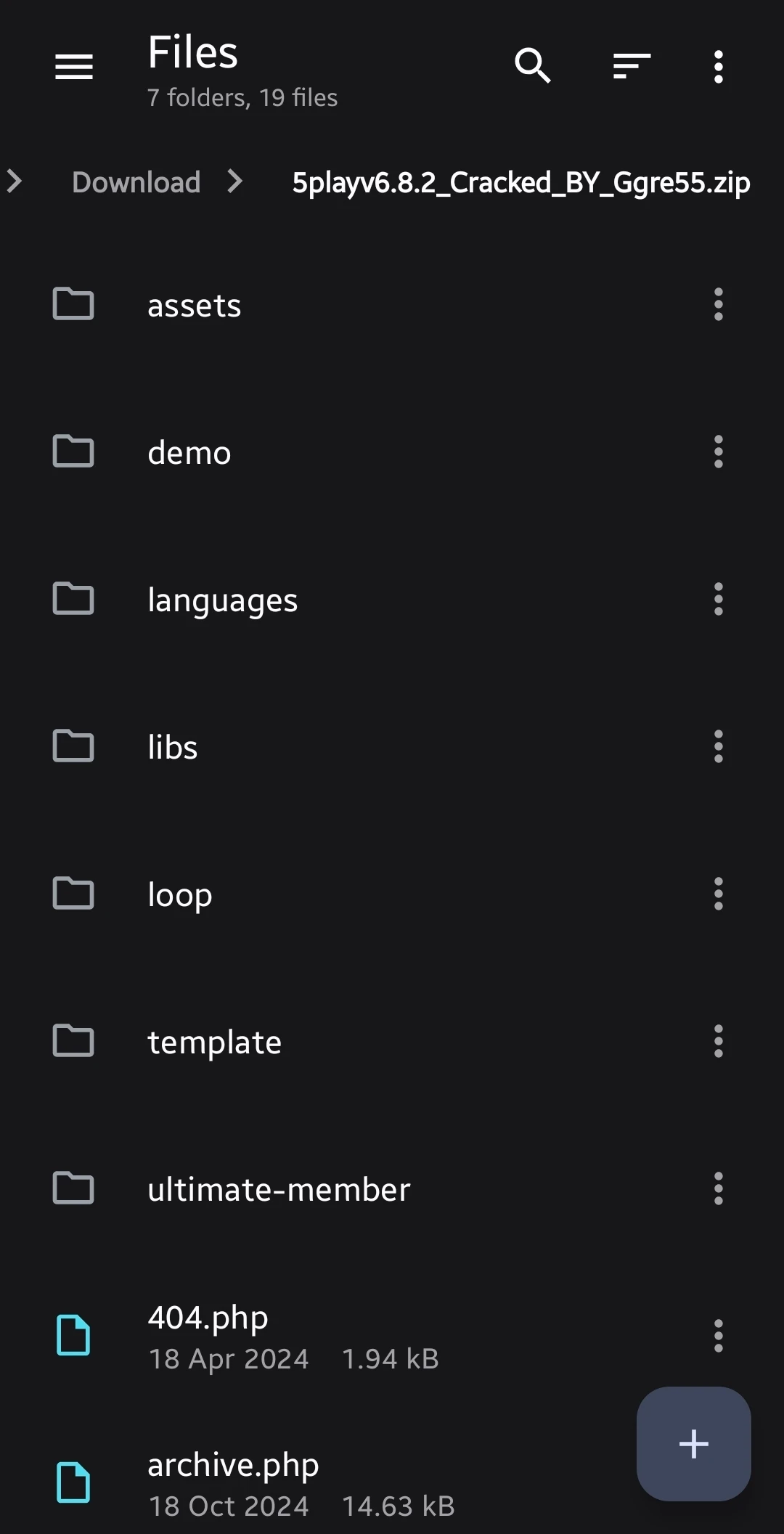
Tap the archive once to view its contents without extracting every file. This saves time when you only need one document.
Step 2. Select a file inside the archive.
Use the archive menu to extract individual files or copy them to another folder.
Step 3. Create a compressed archive from selected files.
Select the files, tap the action menu, and choose the archive option. Pick ZIP, 7z, or tar.xz when the available format suits your destination.
Step 4. Add a password when the archive contains private material.
A password protects the archive during storage or transfer. It does not protect an unencrypted copy left in your Downloads folder.
PRO TIP: Use ZIP for broad compatibility. Use 7z when you want stronger compression and the recipient can open that format.
Connect Material Files to Network Storage
Material Files can connect to FTP, SFTP, SMB, and WebDAV servers. This makes it useful for home media servers, NAS devices, Linux computers, and shared folders.
Add an SMB connection
Step 1. Open the sidebar and choose the network storage option.
Look for an add button or a connection entry. The label can change between releases.
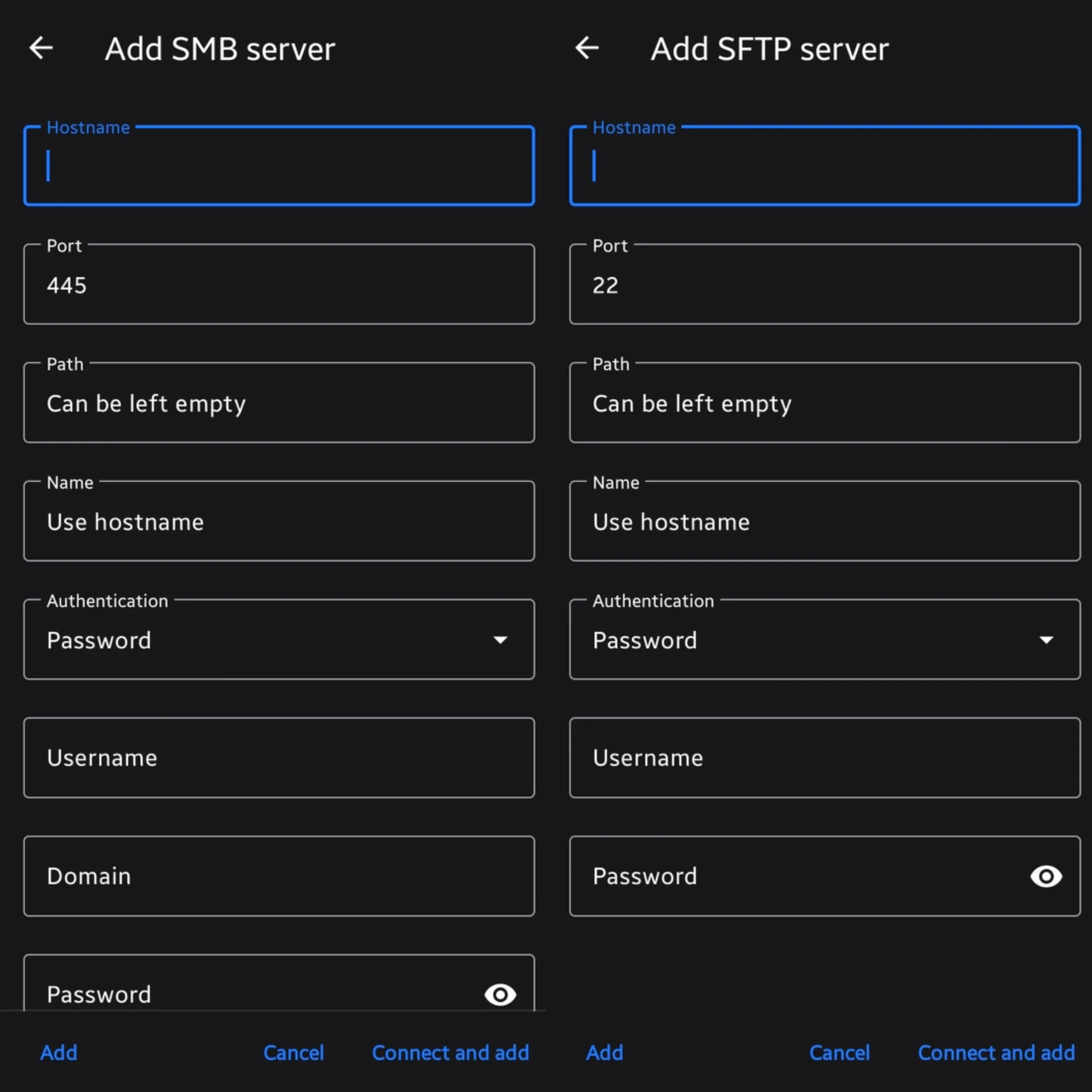
Step 2. Choose SMB and enter the server address.
Use the server’s local IP address or hostname. A typical address looks like 192.168.1.20.
Step 3. Enter the share name and account details.
Use a dedicated account instead of an administrator account when your NAS supports separate users.
Step 4. Save the connection and open a test folder.
Try copying a small file first. Test read and write access before moving large videos or backups.
Add an SFTP connection
Step 1. Select SFTP from the network connection menu.
Enter the server address, port, username, and password. Most SFTP servers use port 22 unless you changed it.
Step 2. Confirm the server identity.
Your first connection may display a host-key prompt. Confirm it only when the fingerprint matches your server.
Step 3. Open a small directory.
Check file names, timestamps, and permissions before starting a large transfer.
Network access gives Material Files a strong edge over Files by Google for local storage setups. You can manage files without uploading them to a cloud account.
Material Files Compared With Other Android File Managers
Material Files works best for users who want direct control. Files by Google suits people who want automatic suggestions and easy cleanup. Solid Explorer offers polished dual-pane browsing, though its full feature set requires a paid license.
| Feature | Material Files | Files by Google | Solid Explorer |
| Open source | Yes | No | No |
| Ads | No | No | No |
| Root access | Yes | No | Yes |
| SMB, FTP, SFTP, WebDAV | Yes | Limited | Yes |
| Archive creation | Yes | Limited | Yes |
| Google Drive access | No | Yes | Via add-on or service |
| Storage cleanup tools | No | Yes | Limited |
| Folder-specific layouts | Yes | Limited | Yes |
| Free core version | Yes | Yes | Trial or limited version |
The comparison shows why Material Files attracts power users. It focuses on file operations instead of recommendations, cloud services, or storage alerts.
Do you want your file manager to suggest what to delete, or do you want it to show the file tree and get out of the way? Your answer probably decides which app fits better.
Tips and Pro Moves for Material Files
Material Files becomes more useful when you stop treating it like a basic Downloads shortcut.
Save different views for different folders
Use grid view for camera photos, screenshots, and artwork. Use list view for documents and folders with long names.
Material Files lets you save some display choices for individual folders. That means your Pictures folder can look visual while your work archive stays compact.
Open the display or folder menu and enable hidden files when you need access to dotfiles or application configuration folders. Turn the setting off afterward to reduce clutter.
Hidden files often contain configuration data. Deleting one can reset an app or remove custom settings.
Inspect archives before extracting them
Open an archive and inspect its contents before extraction. This helps you avoid duplicate folders, unwanted installers, and suspicious files.
Treat APK files with care. Material Files can open or install an APK, but the app cannot guarantee that the package comes from a safe source.
Run a local FTP server
Material Files can start an FTP server for transfers across your local network. Use it for quick movement between your phone and computer when cable access feels inconvenient.
Connect only on a trusted network. Stop the server after the transfer, and avoid running it on public Wi-Fi.
Use checksums for large downloads
Recent project releases include a checksum properties tab. Use it to compare a downloaded file against a trusted checksum from the publisher.
A matching checksum does not prove that a website deserves trust. It confirms that your copy matches the published file.
Common Material Files Problems and How to Fix Them
Problem: Android cannot open Android/data or Android/obb
Cause: Android 11 and newer restrict access to protected app directories through system storage rules.
Fix:
- Update Material Files through your chosen app store.
- Open the Android system file picker when Material Files requests access.
- Select the allowed directory if Android offers it.
- Use the app’s supported access path instead of trying to bypass the restriction.
- Consider root access only if you understand the security risks.
Problem: SMB connection fails with a timeout
Cause: The phone and server may use different networks, the server may block SMB traffic, or the address may point to the wrong device.
Fix:
- Confirm that both devices use the same local network.
- Test the server’s IP address from another device.
- Check the share name and account password.
- Confirm that the server allows SMB connections.
- Try the server hostname or local IP address again.
Problem: FTP server works on the phone but not on the computer
Cause: The computer may use the wrong address, the server may have stopped, or the network may isolate wireless devices.
Fix:
- Keep Material Files open while the FTP server runs.
- Copy the address shown inside the app exactly.
- Confirm that the computer and phone use the same Wi-Fi network.
- Disable VPN software temporarily on both devices.
- Stop and restart the FTP server after changing networks.
Problem: An archive crashes or refuses to open
Cause: The archive may use unsupported compression, contain damaged data, or trigger a bug in the installed release.
Fix:
- Update Material Files to the newest available release.
- Download the archive again from its original source.
- Try opening a smaller archive to test the app.
- Extract the file on a computer if the archive remains damaged.
- Report the issue through the project’s GitHub issue tracker with the file format and Android version.
Problem: Files appear missing after granting permission
Cause: Android may have granted access to one folder instead of the full storage location.
Fix:
- Open Android Settings.
- Select Apps, then Material Files.
- Open Permissions and review file access.
- Return to Material Files and browse the correct storage root.
- Avoid granting broad access unless your workflow needs it.
Frequently Asked Questions About Material Files
Is Material Files safe to use?
Material Files comes from Hai Zhang and publishes its source code on GitHub. Google Play reports no data shared with third parties, though the listing says the app may collect app information, performance data, and device IDs.
Review the source, release notes, and store listing before installing any app. Open-source code improves visibility, but it does not remove every security risk.
Is Material Files better than Files by Google?
Material Files offers deeper file control, network storage access, archive tools, root support, and folder-level display settings. Files by Google offers cloud access, cleanup suggestions, private storage features, and tighter Google service connections.
Choose Material Files if you want a direct file browser. Choose Files by Google if automatic storage help matters more than advanced controls.
Does Material Files require root access?
No. Material Files handles ordinary file browsing, copying, moving, deletion, archives, and network storage without root access.
Root access expands what you can manage inside protected directories. It also increases the damage a mistaken action can cause.
Can Material Files access Google Drive?
Material Files does not provide the same built-in Google Drive access as Files by Google. You can use Android’s share and document picker features to move files between apps.
Use a dedicated cloud storage app when you need regular Drive browsing or account-level file management.
Can Material Files open ZIP and RAR files?
Yes. Material Files can inspect supported archives, extract files, and create common archive formats. The app can also handle formats such as 7z and tar.xz in supported releases.
A damaged archive may fail to open. Try a fresh download or another extraction tool when the file remains unreadable.
Does Material Files work on Samsung phones?
Yes. Material Files runs on compatible Android versions, including Samsung devices. One UI may display permissions and storage prompts differently from Google’s Android interface.
Test access to your main storage folders after installation. Samsung’s security settings can affect background network activity and file access.
The Best Next Step for Material Files
Install Material Files on your Android device and test three tasks: open a large photo folder, inspect a ZIP archive, and connect to one trusted network share. Those tests reveal its speed, file access, and network features faster than a long settings tour.
For cross-device transfers, pair it with Cloudorian’s guide to using Android with Windows File Explorer. You can also learn how to compress files into ZIP format on Android or compare it with the best Android AirDrop alternative for file sharing.
Material Files will not replace every feature in Files by Google. It earns its place when you want faster browsing, local control, archive access, and network storage without ads or unnecessary recommendations. Which feature matters most to you, root access, archive browsing, or SMB support?
Discover more from Cloudorian — Android, Samsung & Windows How-To Guides
Subscribe to get the latest posts sent to your email.



