

Last Updated on 13 Aug, 2026 by Montel Anthony
Cross-platform file transfers ruin original photo quality and waste your time. You need a reliable Android AirDrop alternative that works offline across all operating systems. This guide breaks down how LocalSend solves your cross-platform sharing problems without cloud storage limits.
Why LocalSend Beats Native Android AirDrop Alternative Options
Learning how to use Quick Share on Android helps with basic transfers. It still restricts your sharing capabilities across different operating systems. You need a true Android AirDrop alternative for direct cross-platform communication.
LocalSend operates entirely over your local Wi-Fi network without internet access. You can transfer uncompressed video files directly to a Windows PC. The protocol works flawlessly with iPhones and Linux machines as well.
Have you ever lost video quality sending files through messaging apps? This open-source tool preserves your original file metadata and exact resolution. The platform requires no account creation or background tracking services.
Apple users enjoy native ecosystem features that Android users often envy. This application bridges that gap by creating a universal sharing standard. You maintain full ownership of your data during every single transfer.
Many users resort to emailing files to themselves to bypass restrictions. This outdated method clutters your inbox and limits your attachment sizes. A dedicated local transfer tool solves this problem permanently and securely.
You can send entire photo albums to your computer in seconds. The receiving device organizes these incoming files neatly into one folder. This workflow keeps your digital workspace clean and highly organized daily.
Download: LocalSend for Android | iOS | Mac | Linux | or Windows (free)
Setting Up Your Local Network Transfer Environment
You must install the application on both sending and receiving devices. Download the official client directly from the LocalSend website at https://localsend.org/. This ensures you get the secure version for your specific hardware.
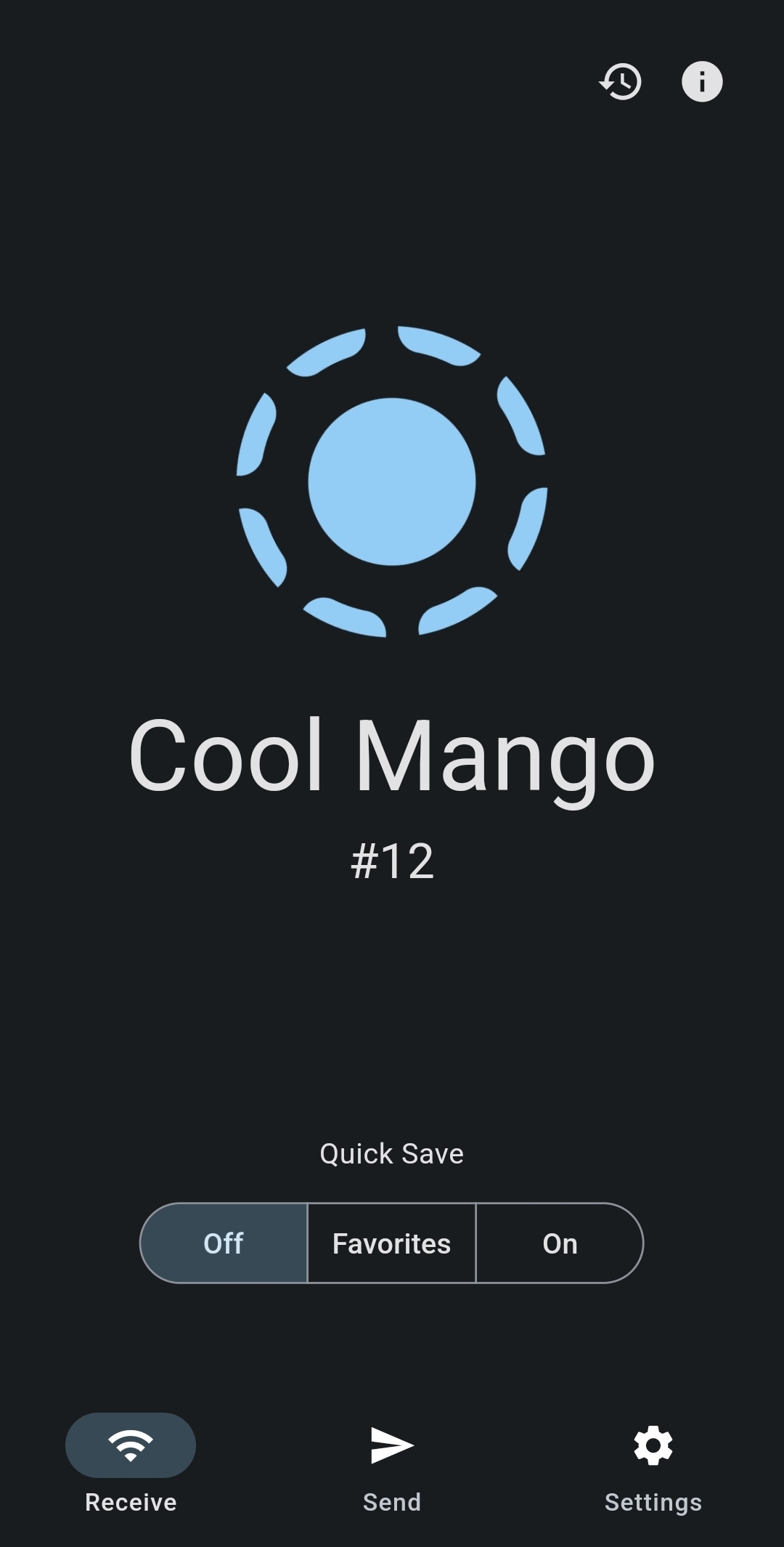
The software supports Windows, macOS, Linux, Android, and iOS operating systems. Open the application and navigate to the receive tab immediately. The system automatically generates a unique alias for your target device.
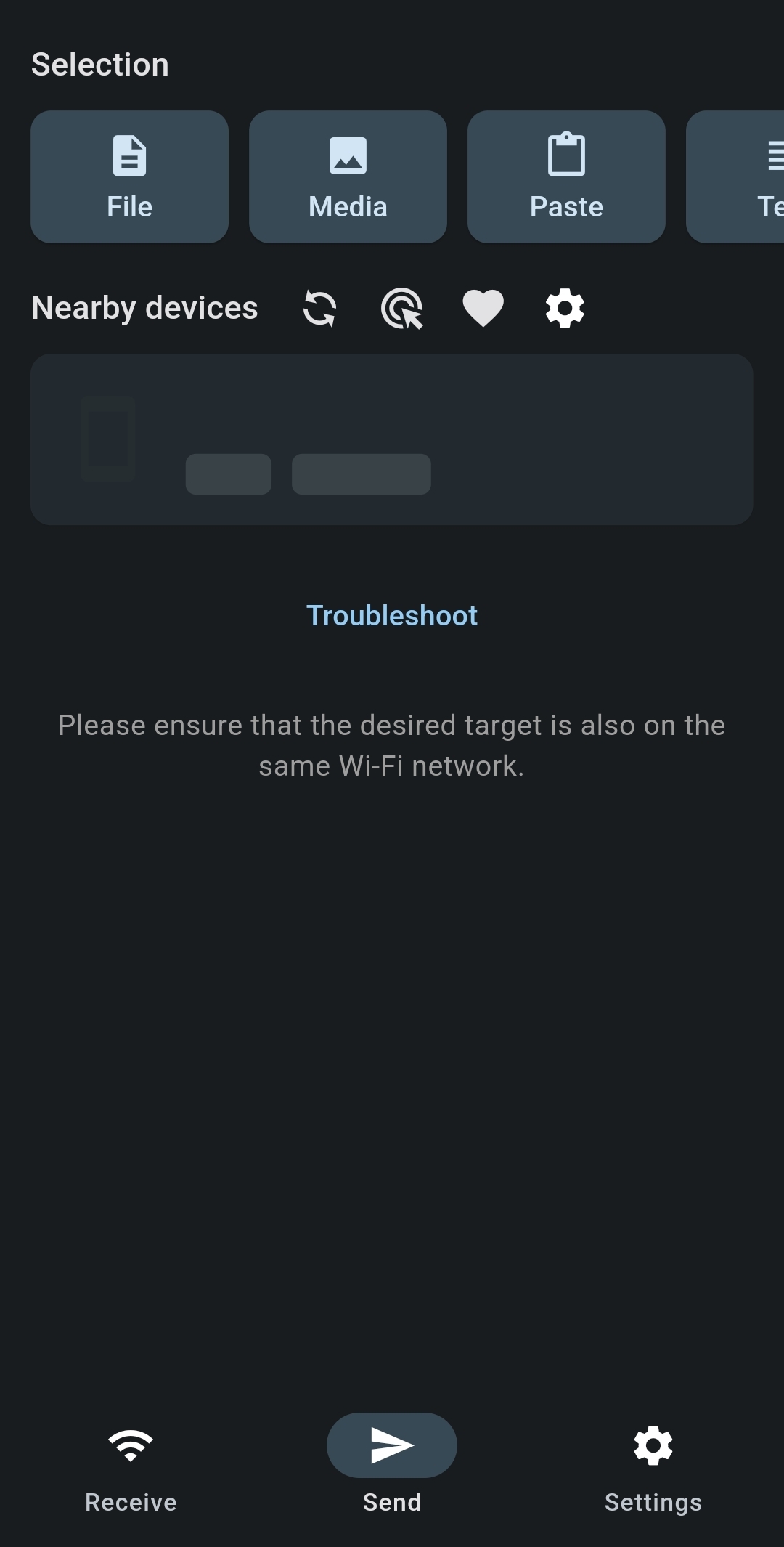
You will see this alias appear on your sending device quickly. Select the files you want to transfer from your local gallery. Tap the destination alias to initiate the local network transfer process.
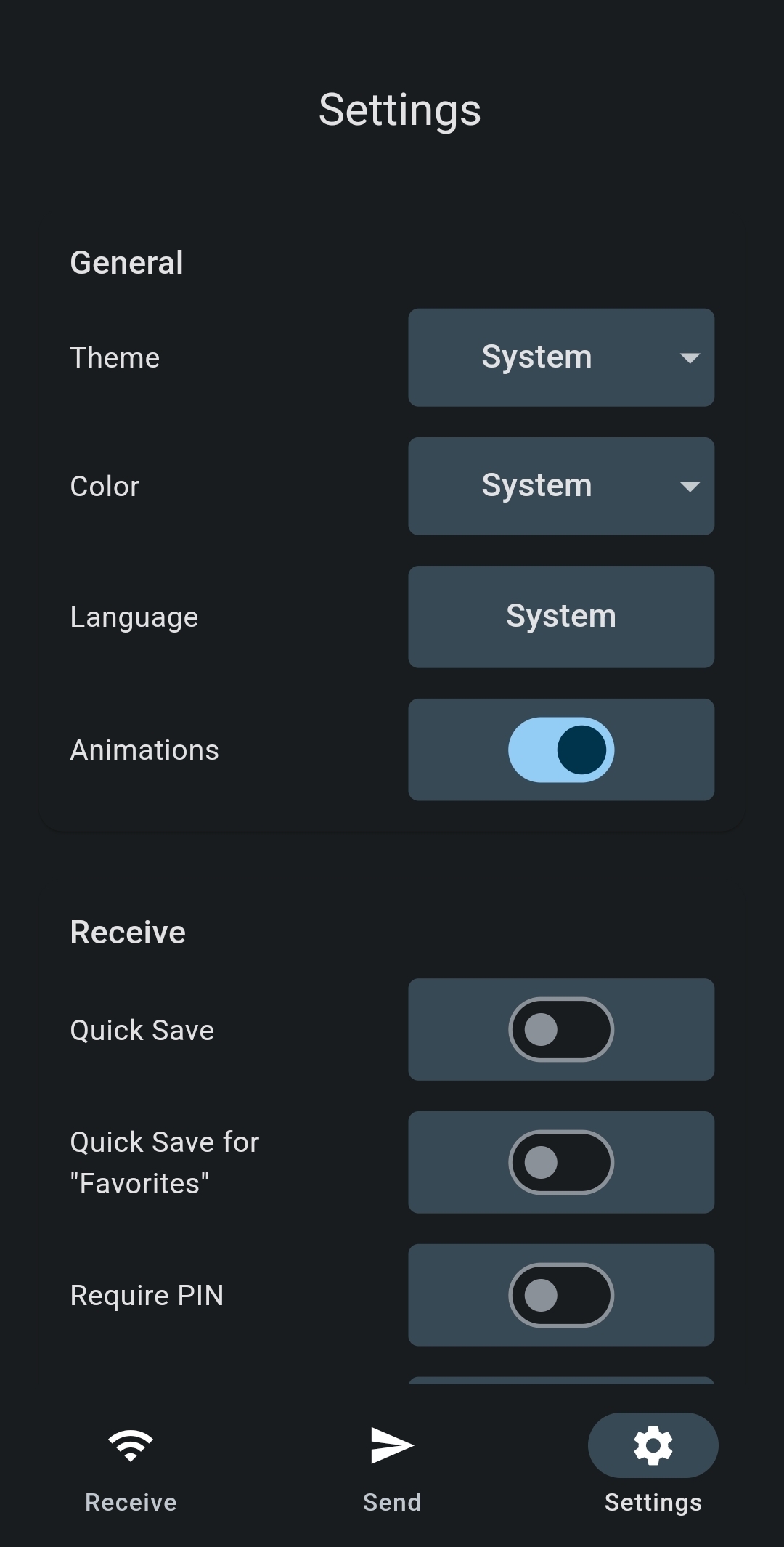
The recipient must approve the incoming request to complete the handshake. This manual approval step prevents malicious actors from sending unwanted files. You can disable this prompt for trusted devices in the settings.
Follow these exact steps to configure your first local file transfer.
- Download the application on all your daily driver devices.
- Connect every device to the exact same local Wi-Fi network.
The application interface features a clean design with zero distracting advertisements. You will find the core functions clearly labeled on the dashboard. This simplicity makes the tool accessible for users of all skill levels.
You can select multiple files and folders simultaneously for bulk transfers. The application bundles these items together into a single transfer queue. This batch processing feature saves you from repeating the selection process.
Handling Large File Transfers Without Cloud Limits
Cloud storage services impose strict upload limits on free user accounts. They also require paid subscriptions for handling massive video project files. This Android AirDrop alternative bypasses those restrictions by routing data locally.
You can move gigabytes of data at your maximum router speed. I recently transferred a 4GB video project between my two devices. The transfer finished in under two minutes without consuming internet bandwidth.
Are you tired of waiting for cloud uploads to finish syncing? Local network transfers eliminate the upload and download waiting game entirely. Your files travel directly from point A to point B instantly.
Many professionals rely on open-source tools to avoid recurring subscription fees. You can find free open-source tools for maximum productivity to expand your workflow. LocalSend fits perfectly into a privacy-focused software stack for creative professionals.
Large file transfers often fail on traditional Bluetooth sharing protocols. Wi-Fi direct connections provide the stability needed for massive data payloads. You never have to compress your high-resolution assets before sharing them.
Video editors frequently need to move raw footage between different workstations. Cloud syncing takes hours and delays the entire post-production editing timeline. Local network transfers keep your creative projects moving forward without interruption.
You can also share large software installation packages across your network. This capability proves useful when setting up multiple computers simultaneously. You avoid downloading the same massive file multiple times from the internet.
Fixing Common Cross-Platform Connection Failures
Sometimes devices fail to discover each other on complex home networks. You must ensure both devices connect to the exact same band. Routers often isolate 2.4GHz and 5GHz bands into separate network segments.
Check your router settings and disable client isolation features if needed. This setting prevents connected devices from communicating directly with one another. Corporate and public networks frequently enable this security feature by default.
You can bypass network restrictions by creating a mobile hotspot locally. Connect your receiving device directly to this hotspot to establish communication. This method guarantees a direct connection for your file transfers anywhere.
Firewall settings on Windows machines can also block incoming transfer requests. You must grant the application permission to communicate on private networks. Navigate to your Windows security settings to adjust these firewall rules.
VPN applications on your smartphone might route traffic away from local networks. Pause your VPN service temporarily if the receiving device remains hidden. Resume your secure connection after the file transfer completes successfully.
Some modern routers feature smart connect technology that blends network bands. This feature sometimes confuses local discovery protocols and hides your devices. You can separate your network bands in your router administration panel.
Restarting the application often resolves temporary discovery glitches on your network. Force close the app on both devices and launch it again. This simple troubleshooting step forces the devices to broadcast their presence.
Securing Your Offline File Sharing Workflow
Security remains a top priority when moving sensitive documents between devices. LocalSend encrypts all local transfers using HTTPS protocols to protect data. Nobody on your local network can intercept or read your files.
You can enable PIN verification in the application settings for protection. This feature requires the sender to input a specific numerical code. It prevents unauthorized users from spamming your device with transfer requests.
The open-source nature of the project allows researchers to audit code. You can verify the encryption standards yourself on the project repository. Tech publications like How-To Geek highlight this transparency.
Proprietary sharing applications hide their data collection practices from end users. This Android AirDrop alternative collects zero telemetry data during your transfers. Your personal information stays on your hardware where it belongs permanently.
Always verify the recipient alias before sending highly confidential work documents. The application generates random names like Clever Apple for easy identification. You can rename your devices in the settings for better clarity.
You can review your complete transfer history within the application settings. This log displays every file sent and received on your device. You can clear this history at any time to maintain privacy.
The developers release frequent updates to patch potential security vulnerabilities quickly. You should enable automatic updates in your respective device app stores. Running the latest version guarantees you have the strongest encryption protocols.
Next Steps for Your File Management Routine
You should audit your current file transfer methods across all devices. Remove redundant cloud storage applications that drain your daily battery life. Replace them with this local transfer protocol to regain data control.
Configure your default download directory within the application settings immediately today. This organization step prevents incoming files from cluttering your main storage. You will save hours of file sorting by establishing this habit.
Test the transfer speeds between your phone and your primary computer. Measure how long a gigabyte takes to move across your network. This baseline helps you identify network bottlenecks in your home office.
Share this application with your frequent collaborators and family members now. Standardizing your team on one open-source platform eliminates future compatibility headaches. You will never struggle with cross-platform video compression issues ever again.
Create a dedicated folder for incoming transfers on your desktop computer. Route all your mobile uploads directly into this specific staging area. Process these files weekly to maintain a clean digital workspace environment.
You can integrate this tool into your daily backup routine easily. Send your most important mobile documents to your desktop every evening. This habit creates a reliable local backup without paying for cloud storage.
Teach your family members how to use this application for photo sharing. You will stop receiving heavily compressed images through standard text messages. Everyone benefits from preserving their digital memories in full original quality.
Discover more from Cloudorian — Android, Samsung & Windows How-To Guides
Subscribe to get the latest posts sent to your email.



