

The Add location box in Google Calendar does far more than label where you are going. Skip it and you lose automatic departure alerts, one-tap car navigation, and a searchable record of everywhere you have been. This guide shows you how to add location to Google Calendar events and use each feature that one field powers.
Key Takeaways
- The location field links Google Calendar to Google Maps and turns a plain event into a navigable destination.
- Time to leave notifications watch live traffic and tell you the exact minute to head out the door.
- Android Auto reads your daily calendar locations and starts driving directions with a single tap.
- Google Calendar search indexes saved locations, so you can find when and where a past event happened.
- Samsung and iPhone users face setup quirks that this guide covers before you run into them.
What Happens When You Add a Location to a Google Calendar Event
Adding a location writes an address into the event and hands that address to Google Maps. Google confirms that a filled location field powers features like time to leave and a map with directions. You can read this in the Google Calendar API documentation. One small field feeds several apps at once.
Time to leave notifications keep you punctual
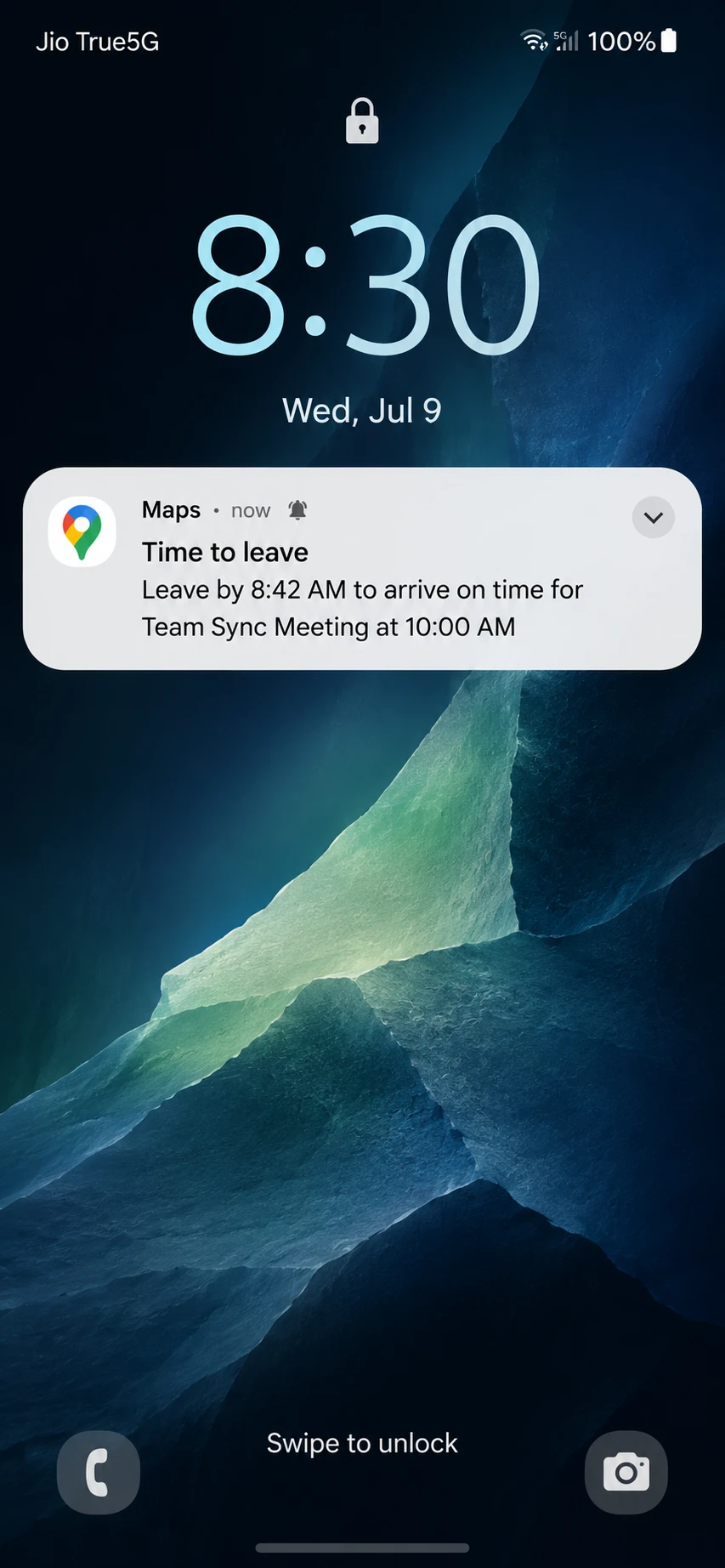
On Android, Google Maps sends a reminder the moment you should leave for a calendar event. The alert reads live traffic and your travel mode, then counts backward from your event time. When was the last time you were late because you guessed the drive wrong?
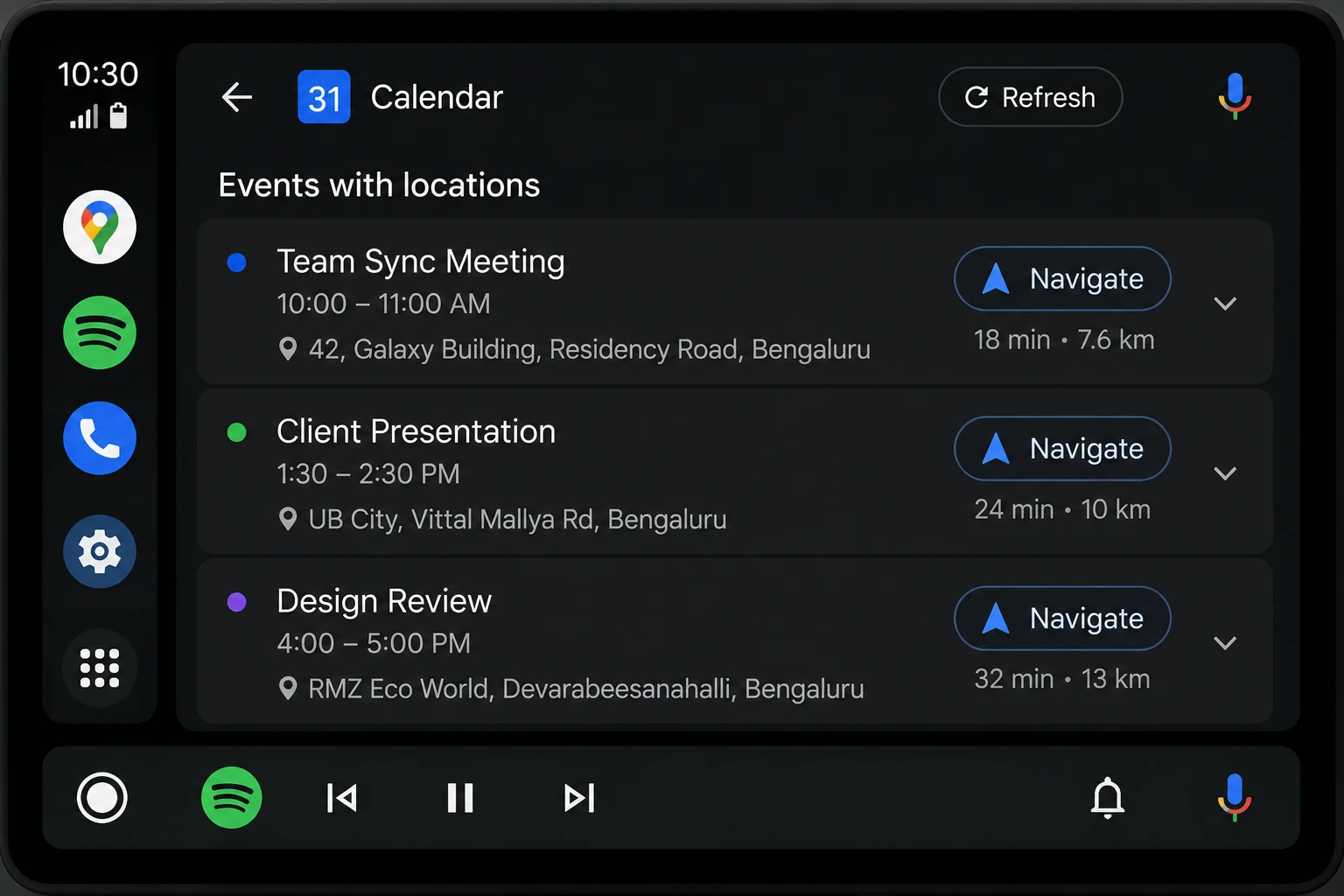
Google Calendar appears inside Android Auto and lists the locations from your day. Tap one and Google Maps starts turn-by-turn directions right away. Samsung drivers need their Google account added to the stock Calendar app first.
Searchable location history
Google Calendar search indexes every location you save to an event. Search a place name to find the exact date you were there. Search an event name to recall where it happened last year.
Requirements Before You Add a Location
You need a few things in place before locations work end to end. Miss one and the map features stay silent even after you type an address.
- You need the Google Calendar app installed and signed in to your Google account on Android.
- You need Google Maps installed on the same phone under the same account for directions to trigger.
- You need location services turned on in system settings so Maps can track your position.
- Samsung owners must add their Google account to the pre-installed Calendar app for Android Auto to read events.
Here is what each platform can do with a saved event location.
| Platform | Time to leave alert | Android Auto navigation | Location search |
|---|---|---|---|
| Android (Calendar + Maps) | Automatic | Yes | Yes |
| iPhone (Google Calendar app) | Manual Arrive by or Depart at | No | Yes |
| Desktop web browser | No | No | Yes |
WARNING: If Google Maps and Google Calendar sit under different Google accounts, time to leave alerts will not fire.
How to Add a Location to a Google Calendar Event Step by Step
The location field sits in the event editor on every platform. The steps below cover the Android app first and the desktop web after.
On the Android Calendar app
Step 1. Open the Google Calendar app and tap the Create button.
Tap the plus icon at the bottom right, then choose Event from the menu.
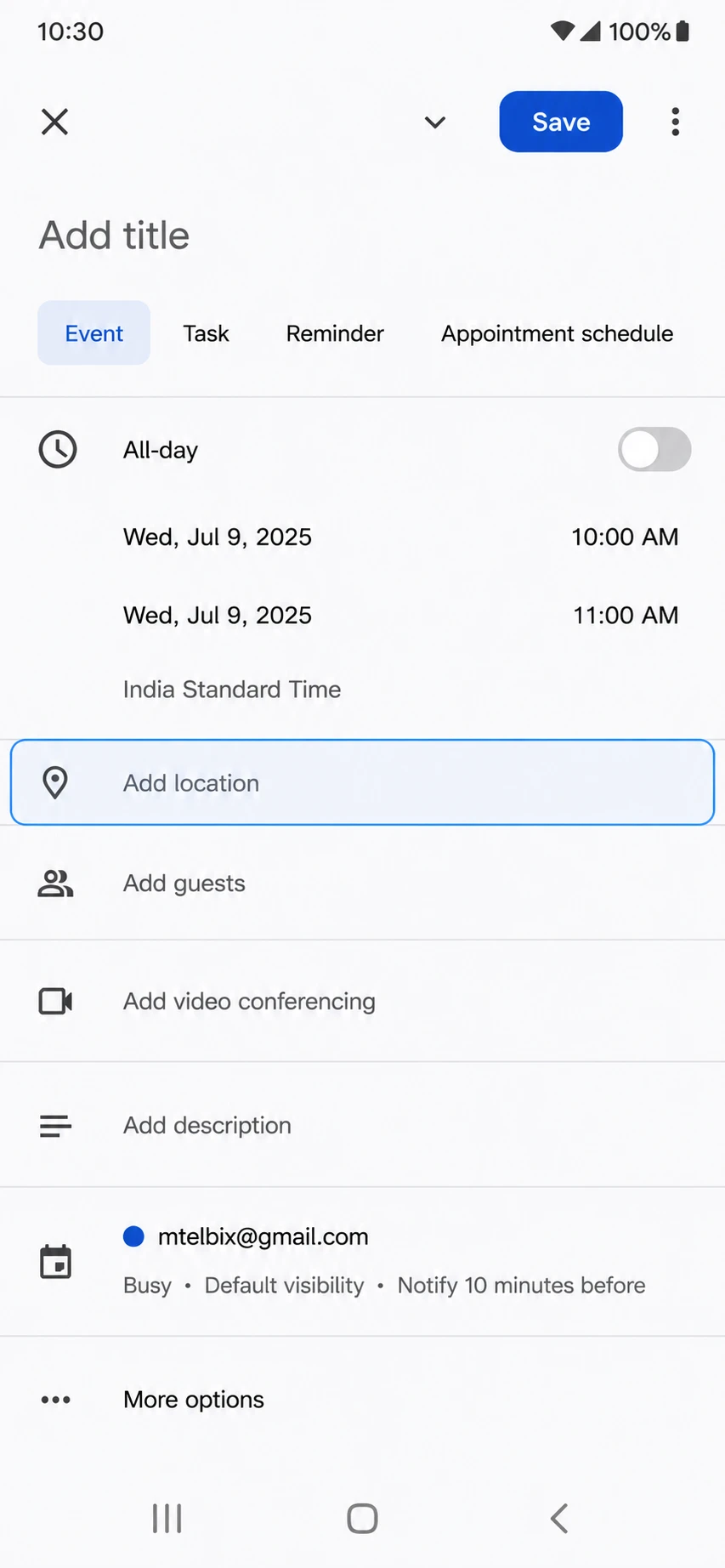
Step 2. Add a title, then tap the Add location field.
The field sits below the date and time rows in the event editor.
Step 3. Type the place name or address and pick a suggestion.
Google Maps feeds live suggestions, so tap the correct match to lock in the exact address.
Step 4. Tap Save at the top right.
Your event now carries a mapped location that Maps and Android Auto can read.
On the desktop web
Step 1. Open calendar.google.com and click an empty time slot.
A quick event box appears where you can add core details.
Step 2. Click More options to open the full editor.
The full editor gives you the Add location field and guest controls.
Step 3. Type the address in the Add location field.
Google matches your text to a real place, as described in the Google Calendar Help center.
Step 4. Click Save at the top of the page.
The saved location now syncs to your phone and every signed-in device.
PRO TIP: Pick a Maps suggestion instead of free-typing an address. A matched place gives cleaner directions and a proper map preview.
Two settings turn a static address into active help. Set them once and every future event benefits.
Enable time to leave alerts
Step 1. Open Google Maps and tap your profile picture, then Settings.
The Settings menu holds all notification controls for the app.
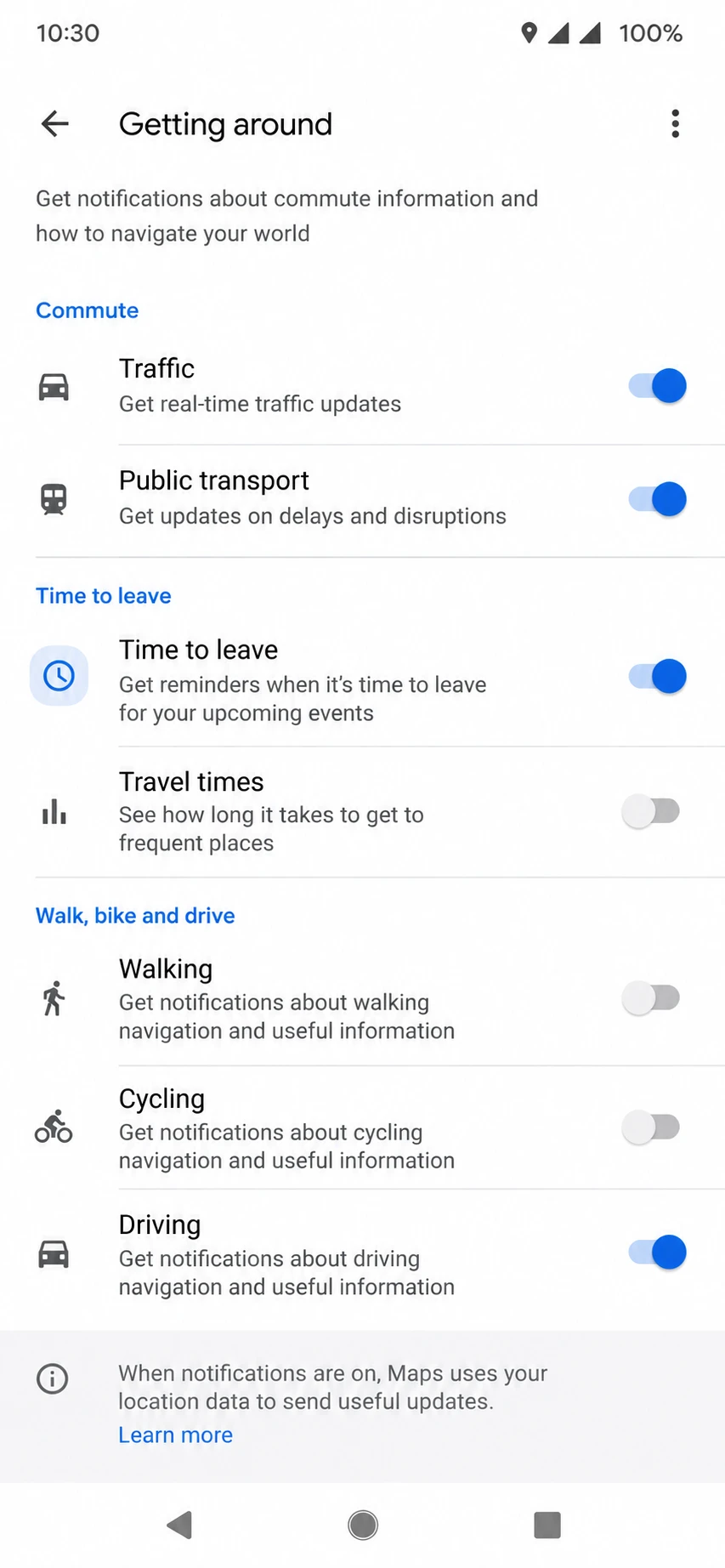
Step 2. Go to Notifications, then Getting around.
This section groups commute and travel alerts in one place.
Step 3. Turn on Time to leave.
Maps now watches traffic and pings you when it is time to head out.
Set up Android Auto to read your calendar
Step 1. Connect your phone to your car and open Android Auto.
Use a USB cable or wireless Android Auto if your car supports it.
Step 2. Open the Calendar app from the Android Auto launcher.
It shows the locations tied to your events for the day.
Step 3. Tap a location to launch directions.
Google Maps takes over and starts turn-by-turn navigation to that address. The official Android Auto Help center lists compatible cars and phones.
Common Google Calendar Location Problems and How to Fix Them
Location features break in a handful of predictable ways. Here are the three you will hit most and how to clear each one.
Problem: Time to leave notifications never appear.
Cause: Maps notifications are off, or Calendar and Maps use different Google accounts.
Fix:
- Open Google Maps, tap your profile, then Settings.
- Go to Notifications, then Getting around, and turn on Time to leave.
- Confirm Maps and Calendar share the same Google account.
Problem: The location shows no map preview or directions button.
Cause: You typed free text that Maps could not match to a real address.
Fix:
- Open the event and tap the location field to edit it.
- Delete the free text and start typing again.
- Pick a suggestion from the Google Maps dropdown to lock the address.
Problem: Calendar locations do not appear in Android Auto.
Cause: On Samsung phones, the Google account is missing from the stock Calendar app.
Fix:
- Open the Samsung Calendar app and go to its account settings.
- Add your Google account and enable calendar sync.
- Reconnect Android Auto and reopen the Calendar app.
If Maps itself keeps crashing or freezing, our guide on how to fix Google Maps not working on Android clears the deeper causes.
Pro Moves for Google Calendar Locations
Small habits make the location field pay off every single day. How many times have you circled a parking lot unsure which entrance to use? These moves fix that.
- Save frequent spots like Home, Office, or a gym as labeled places in Google Maps for one-tap entry later.
- Add a room name or floor after the street address so guests find the exact door, not just the building.
- Search a location name in Google Calendar to pull up every past visit and reuse the details.
- Pair calendar locations with Google Messages live location sharing when you want people to track your arrival in real time.
Frequently Asked Questions About Google Calendar Locations
Q: How do I add a location to a Google Calendar event on my phone?
A: Open the Google Calendar app, create or edit an event, and tap the Add location field. Type the address, pick the Google Maps suggestion, and tap Save. The location then syncs across every device on your account.
Q: Why is my Google Calendar time to leave notification not working?
A: The alert needs Maps notifications turned on under Settings, Notifications, Getting around. It also needs Calendar and Maps on the same Google account. Check both and the alert should fire before your next event.
Q: Can I add a location to a Google Calendar event on a computer?
A: Yes. Open calendar.google.com, click an event, choose More options, and type into the Add location field. Location search works on desktop. Time to leave alerts only fire on your phone.
Q: Does adding a location share it with my guests?
A: Yes. Everyone invited sees the location on the event, plus a map preview and a directions button. This works whether they open the event on Android, iPhone, or the web.
Q: How do I add a Google Maps saved place to a calendar event?
A: Start typing the label, such as Home or Office, in the Add location field. Google matches it to your saved place and fills the full address. This keeps the address accurate and enables the map preview.
Put Your Calendar Locations to Work This Week
Add a location to your Google Calendar events for the next three days, using a Maps-matched address each time. Turn on time to leave in Google Maps so the alerts start guarding your schedule today.
Want to get more from Google’s mapping tools? See our breakdown of what it means to be a Local Guide in Google Maps and start contributing to the places you visit.
Which calendar event trips you up most, the daily commute or the one-off appointment across town? Drop it in the comments and I will help you set it up.
Discover more from Cloudorian — Android, Samsung & Windows How-To Guides
Subscribe to get the latest posts sent to your email.



