

Samsung quietly stripped WiFi Preferred out of the WiFi Calling menu on millions of Galaxy phones. You can bring it back in under five minutes without any root access. This guide shows how to enable WiFi Preferred in WiFi Calling on any Galaxy device.
What WiFi Preferred in WiFi Calling Actually Does
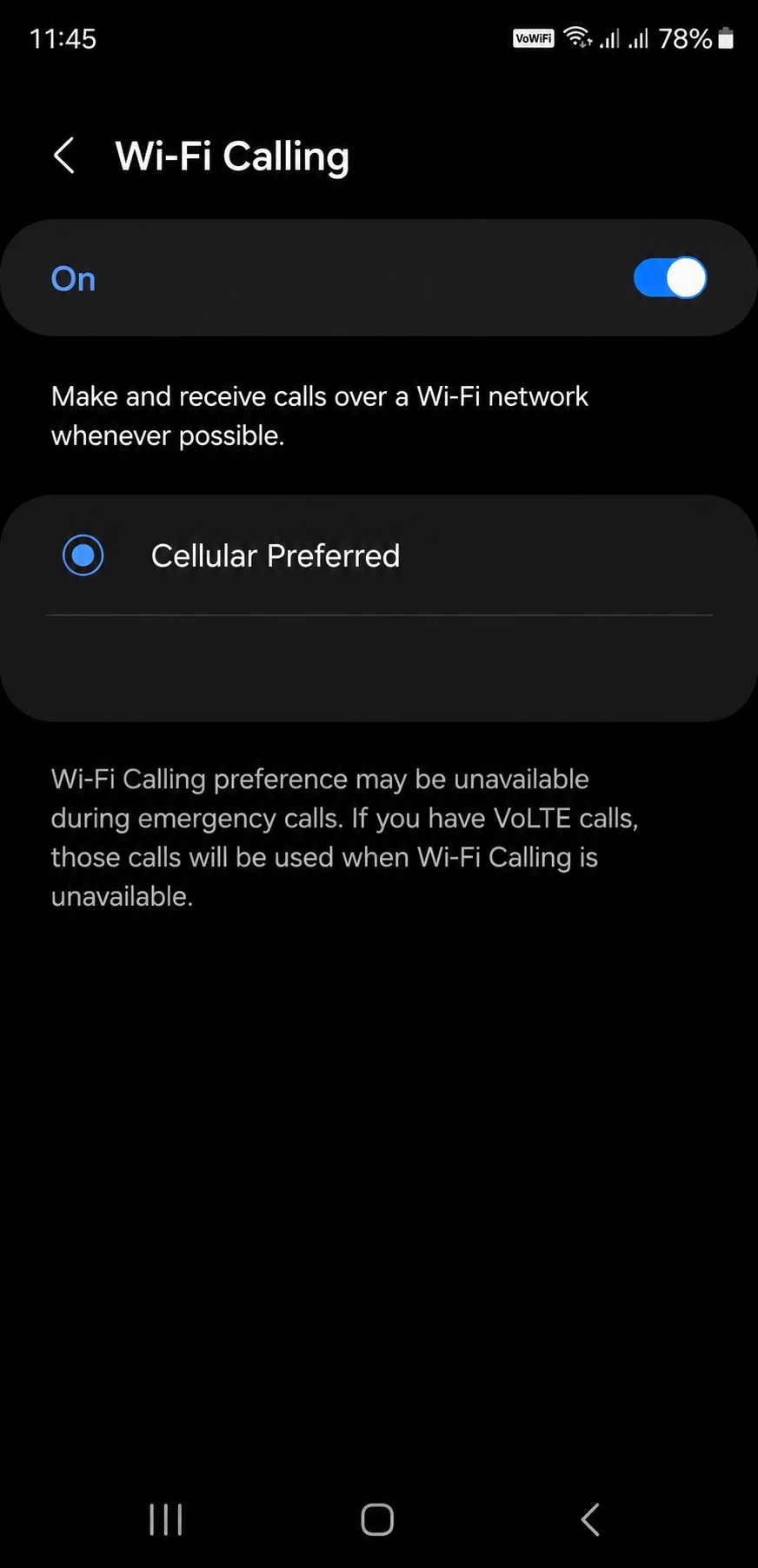
WiFi Preferred tells your Galaxy to route calls over WiFi first and fall back to cellular only when WiFi drops. Cellular Preferred does the reverse, treating your mobile network as the primary path. That single setting decides your call quality in weak-signal homes and basements.
Samsung ships most recent Galaxy phones with Cellular Preferred locked as the only choice. The WiFi Preferred toggle lives in the software, and the carrier or the regional build hides it. You end up with WiFi Calling that barely touches WiFi.
Picture a back bedroom with one bar of signal and strong home broadband. With Cellular Preferred, your phone clings to that weak bar and drops calls. WiFi Preferred flips the priority and sends the call through your router.
Requirements Before You Start
You need four things in place before the fix works. Miss one and the WiFi Preferred option stays hidden.
- Your Galaxy must already show WiFi Calling under Settings and Connections, which confirms your carrier supports the feature at all.
- Your carrier must permit WiFi Preferred on your line, since some networks disable it server-side regardless of your phone.
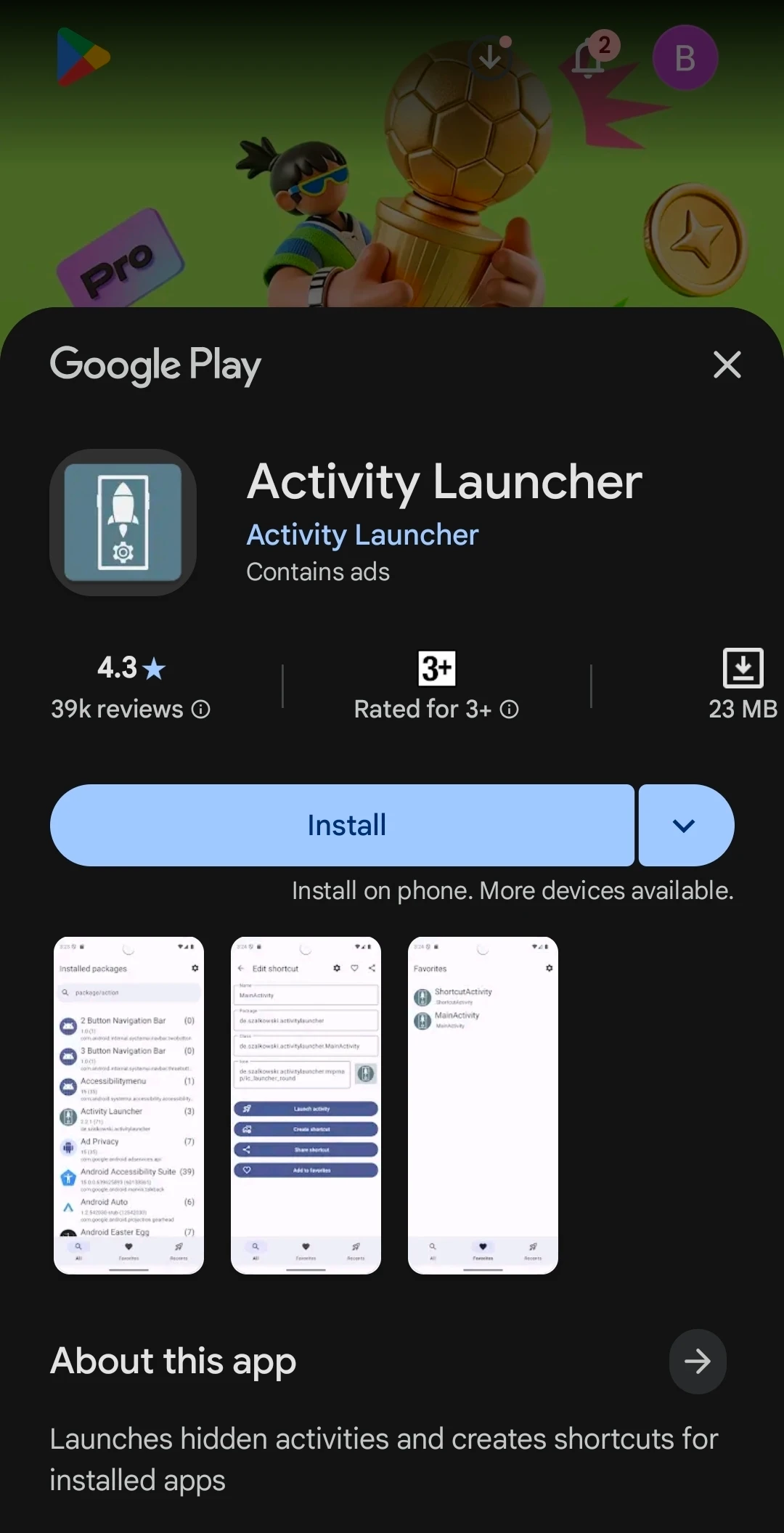
- You need the free Activity Launcher app on Google Play, which exposes hidden Samsung system screens.
- Your phone should run One UI 5.0 or later, covering the Galaxy S23 through the S26 Ultra range.
Confirm WiFi Calling first. Open Settings, tap Connections, and check that WiFi Calling shows as a toggle. Samsung’s own Wi-Fi Calling support page lists carrier requirements if you feel unsure.
Have you confirmed your carrier allows the feature? Skip that check and you may follow every step below for nothing.
How to Enable WiFi Preferred in WiFi Calling Step by Step
This method uses Activity Launcher to open a hidden Samsung settings screen. No root, no computer, no ADB commands. The whole process takes about three minutes.
Step 1. Install Activity Launcher from Google Play.
Search “Activity Launcher” and tap Install. The app reads your installed packages and lists their internal screens.
Step 2. Open Activity Launcher and switch to Installed packages.
Tap the dropdown at the top and choose Installed packages instead of Recent activities.
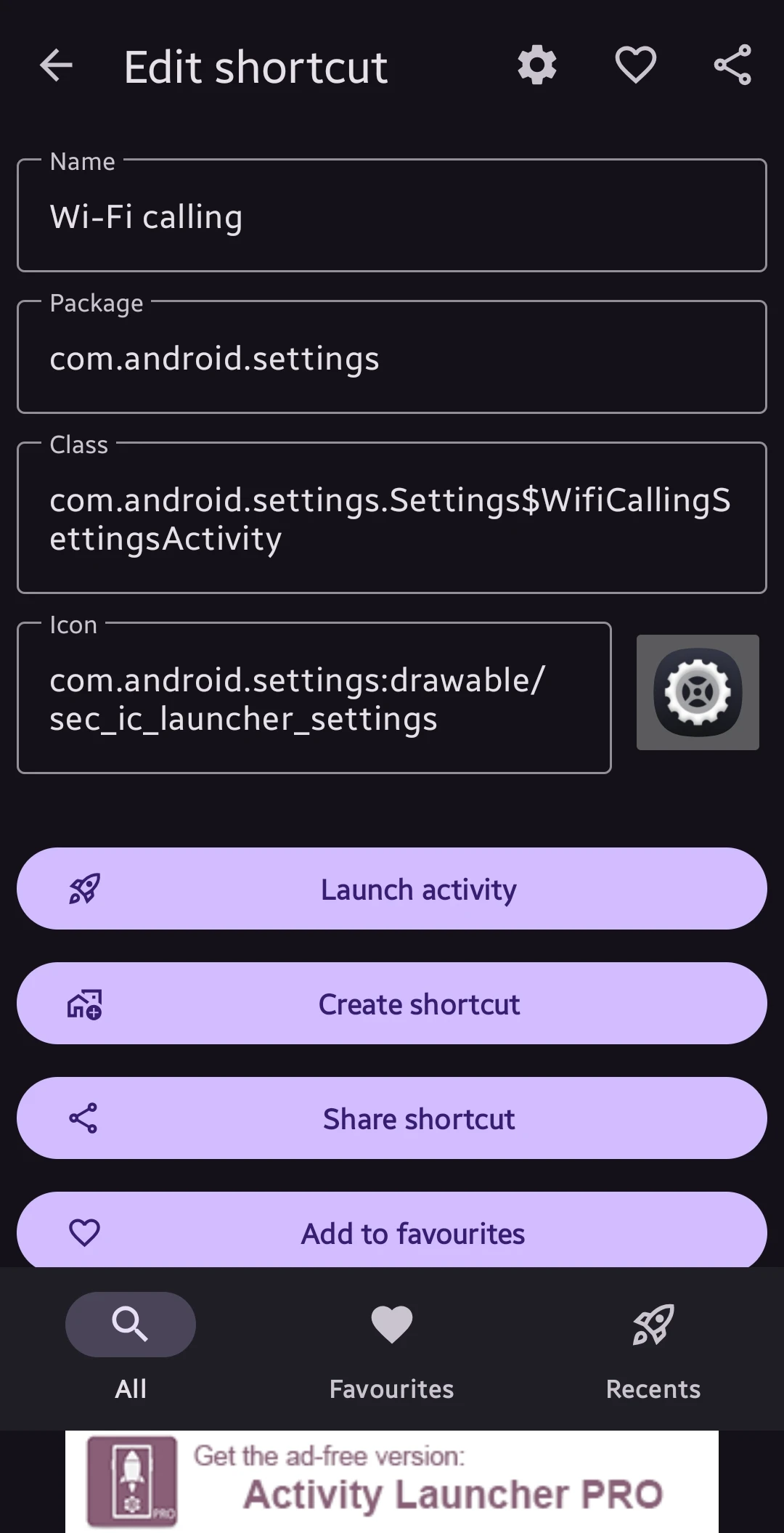
Step 3. Search settings and select com.android.settings.
Type “settings” in the search bar and tap the com.android.settings entry to expand its hidden screens.
Step 4. Find and open the WiFi Calling activity.
Search “Wi-Fi calling” and locate .settings$WifiCallingSettingsActivity in the list.
Step 5. Tap Launch Activity and choose Call over Wi-Fi.
Set the calling preference to Call over Wi-Fi on the hidden screen that opens.
Step 6. Reopen WiFi Calling from your normal Settings menu.
Go to Settings, Connections, then WiFi Calling. The WiFi Preferred option now appears in the dropdown.
That is the full sequence. Android Authority’s guide to Samsung WiFi Calling confirms the standard menu path if you want a baseline reference.
WiFi Preferred vs Cellular Preferred: Which One Fits Your Situation
The right mode depends on where you make most of your calls. Read the table, then match it to your daily reality.
| Factor | WiFi Preferred | Cellular Preferred |
|---|---|---|
| Best for | Weak indoor cell signal, strong broadband | Strong cell signal, unreliable WiFi |
| Call routing | WiFi first, cellular backup | Cellular first, WiFi backup |
| Handoff risk | Drops possible when leaving WiFi range | Smoother when moving outdoors |
| Battery impact | Lower when cell signal is poor | Higher in weak-signal areas |
| Typical user | Home office, basement, rural broadband | Commuters, strong-coverage cities |
WiFi Preferred wins for anyone stuck with one bar at home. Cellular Preferred suits people who move around cities with solid coverage. Which one matches how you actually use your phone?
Common WiFi Preferred Calling Problems and How to Fix Them
The fix holds on most devices. A few predictable failures show up, and each has a clear cause.
Problem: The WiFi Preferred option still fails to appear after every step.
Cause: Your carrier disabled WiFi Preferred at the network level, which overrides any local setting.
Fix:
- Restart your phone and recheck the WiFi Calling dropdown.
- Call your carrier and ask if WiFi Preferred sits provisioned on your line.
- Request they enable it, since some agents can flip it server-side.
Problem: WiFi Preferred resets to Cellular Preferred after a reboot.
Cause: A carrier config update or One UI patch reapplied the default profile.
Fix:
- Repeat the Activity Launcher steps once more.
- Avoid clearing settings storage, which wipes the change.
- Recheck after any major One UI update lands.
Problem: Calls drop the moment you walk out the front door.
Cause: WiFi Preferred hands off from WiFi to cellular less cleanly mid-call.
Fix:
- Switch to Cellular Preferred before leaving home if you take calls on the move.
- Keep WiFi Preferred for stationary indoor calls.
- Test the handoff on a short call before relying on it.
Pro Moves Most Galaxy Users Miss
A few habits make WiFi Preferred far more reliable. Most guides skip them entirely.
- Set your 5GHz band as the primary home connection, since it carries voice packets with less interference than crowded 2.4GHz.
- Add your router to your phone’s known networks with auto-reconnect on. Calls then latch onto WiFi the moment you walk in.
- Keep One UI current, because Samsung sometimes restores the native toggle in point updates and you can skip the workaround.
Router placement matters more than people expect. Move your router off the floor and away from metal appliances for a stronger voice path. A weak 2.4GHz signal produces choppy WiFi calls even with full bars showing.
One more angle worth testing. Turn on WiFi Calling and mobile data together, then watch which network your phone picks during a call. That quick experiment tells you whether your carrier honors the WiFi Preferred flag in practice.
To trim background interference on the same device, our walkthrough on stopping Android apps from running in the background pairs well with this fix. For signal trouble specifically, the breakdown of why a Galaxy S23 shows only one bar explains the root cause behind weak indoor coverage.
Frequently Asked Questions About WiFi Preferred Calling
Q: Why is WiFi Preferred missing from my Samsung Galaxy?
A: Samsung and many carriers hide the WiFi Preferred option and lock the phone to Cellular Preferred. The setting still exists inside the system software. Activity Launcher opens the hidden WiFi Calling screen so you can switch it on. Some carriers block it at the network level.
Q: Does enabling WiFi Preferred in WiFi Calling require root?
A: No. The Activity Launcher method needs zero root access and no computer. You install one free app and open a hidden settings screen. The change sticks on most Galaxy models running One UI 5.0 or later.
Q: Will WiFi Preferred drop my call when I leave the house?
A: It can. WiFi Preferred hands off from WiFi to cellular less cleanly than Cellular Preferred. Switch modes before heading out if you take calls while moving. Keep WiFi Preferred for stationary indoor calls.
Q: Is WiFi Calling free on Samsung Galaxy phones?
A: Most carriers include WiFi Calling at no extra charge on domestic plans. International calls over WiFi may still carry fees. Check your plan terms with your carrier. Our guide to enabling WiFi Calling on Android covers carrier specifics.
Q: Which Galaxy models support this WiFi Preferred fix?
A: The method works across the Galaxy S23, S24, S25, and S26 Ultra lines. It also runs on recent Z Fold, Z Flip, and A-series phones. Any Galaxy with WiFi Calling and One UI 5.0 or newer qualifies. Carrier support remains the deciding factor.
Where to Take This Next
Open your WiFi Calling settings right now and confirm WiFi Preferred sits active in the dropdown. Make one test call from your weakest-signal room and listen for clean audio. That single check tells you the fix took hold.
If you are tidying your Galaxy from the same settings menu, our rundown of Samsung features worth disabling on day one makes a natural next stop. Keep an eye on One UI updates too, since Samsung occasionally restores the native toggle.
Which Galaxy model are you running this on, and did the WiFi Preferred option show up on the first try? Drop your device and carrier in the comments and I will help you troubleshoot.
Discover more from Cloudorian — Android, Samsung & Windows How-To Guides
Subscribe to get the latest posts sent to your email.



