

Industry estimates put Windows 11 on more than 400 million PCs worldwide. Hidden Windows 11 features rarely surface during setup, and most owners never open the settings menus where they live. This guide breaks down 22 of them by category, with exact steps to turn each one on today.
Quick List Overview
- Snap Layouts and Snap Groups: Arrange multiple windows into grids without dragging.
- Virtual Desktops: Separate work, personal, and creative tasks across workspaces.
- Clipboard History: Store up to 25 copied items instead of just one.
- PowerToys: Add FancyZones, quick search, and text extraction from images.
- God Mode Folder: Open every Control Panel setting from one folder.
- Focus Sessions: Pair a timer with music and muted notifications.
- Typo-Tolerant Search: Find apps even after a mistyped search.
- Keyboard Shutdown Shortcuts: Power down your PC without touching the mouse.
- Live Captions: Caption any audio on your screen in real time.
- Voice Access with Voice Isolation: Control your PC by voice in noisy rooms.
- Voice Typing: Dictate text into any field with Win+H.
- Screen Tint: Soften bright displays with a system-wide color overlay.
- Braille Display Support: Connect a Braille display the moment you set up your PC.
- Windows Studio Effects: Get camera and voice enhancements on Copilot+ hardware.
- Cocreator in Paint: Generate images from text prompts inside Paint.
- Live Translation Captions: Translate spoken audio into captions on Copilot+ PCs.
- Dynamic Lighting: Sync RGB devices from different brands in one panel.
- Text Actions in Snipping Tool: Pull text straight out of a screenshot.
- Storage Sense: Clean up temporary files and free space automatically.
- Phone Link Dynamic Lock: Lock your PC automatically when your phone leaves range.
- Feature Flags Page: Test experimental builds without third-party tools.
- Shared Audio: Play sound through two Bluetooth devices at once.
How We Picked These Windows 11 Features
Three factors decided what made this list. Each feature had to cut real friction from a daily task.
It also had to ship free with Windows 11, or as an official Microsoft download. Any hardware requirement needed to be clear and stated upfront.
These filters matter. Plenty of “hidden feature” lists sneak in settings that need a registry edit or a paid app. We wanted Windows 11 tips and tricks anyone can act on within minutes.
The list below groups features by what they do. Categories include window management, productivity and search, accessibility, Copilot+ exclusive tools, and personalization or system utilities.
Quick Comparison Table
| Feature | Category | How to Access | Hardware Needed |
|---|---|---|---|
| Snap Layouts and Snap Groups | Window Management | Hover maximize button or Win+Z | None |
| Virtual Desktops | Window Management | Win+Tab, Win+Ctrl+D | None |
| Clipboard History | Productivity | Win+V | None |
| PowerToys | Productivity | Free download from Microsoft | None |
| God Mode Folder | Productivity | Create named folder on desktop | None |
| Focus Sessions | Productivity | Clock app | None |
| Typo-Tolerant Search | Productivity | Start menu search | None |
| Keyboard Shutdown Shortcuts | Productivity | Alt+F4, Win+X | None |
| Live Captions | Accessibility | Win+Ctrl+L | NPU for translation only |
| Voice Access with Voice Isolation | Accessibility | Settings, Accessibility, Speech | None |
| Voice Typing | Accessibility | Win+H | None |
| Screen Tint | Accessibility | Settings, Accessibility, Vision | None |
| Braille Display Support | Accessibility | Settings, Bluetooth and devices | Compatible HID Braille display |
| Windows Studio Effects | Copilot+ AI | Windows Studio Effects settings | Copilot+ NPU |
| Cocreator in Paint | Copilot+ AI | Paint app | Copilot+ NPU |
| Live Translation Captions | Copilot+ AI | Win+Ctrl+L, enable translation | Copilot+ NPU |
| Dynamic Lighting | Personalization | Settings, Personalization, Dynamic Lighting | LampArray-compatible RGB device |
| Text Actions in Snipping Tool | Personalization | Snipping Tool capture bar | None |
| Storage Sense | System | Settings, System, Storage | None |
| Phone Link Dynamic Lock | System | Phone Link app | Paired phone via Bluetooth |
| Feature Flags Page | System | Windows Insider Program settings | Insider Program enrollment |
| Shared Audio | System | Settings, Bluetooth and devices | Two Bluetooth audio devices |
1. Snap Layouts and Snap Groups: Arrange Windows Without Dragging
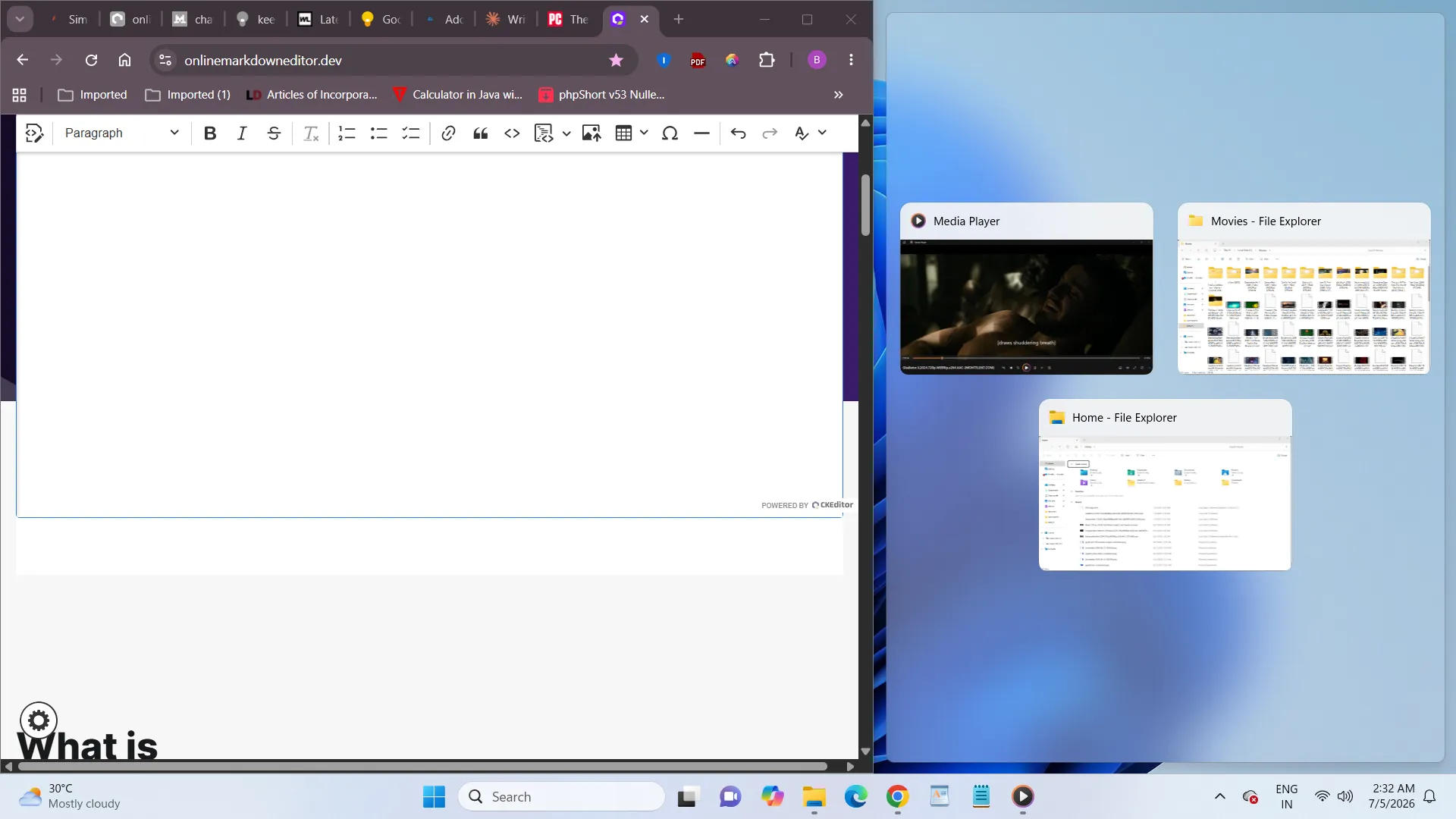
Snap Layouts work best for anyone juggling three or more windows on a single screen. Hover over any window’s maximize button, or press Win+Z, to see grid options for halves, thirds, or quarters.
Windows remembers apps snapped together as a Snap Group. Click one taskbar icon and the whole set returns.
This feature is not a great fit for 13-inch laptop screens, where a four-pane grid turns cramped fast.
Key Features:
- Hold Win plus an arrow key to snap a window to an edge without touching the mouse at all.
- Snap Groups reappear together when you click any single app from that group in the taskbar.
Pricing: Free, built into Windows 11.
2. Virtual Desktops: Separate Every Part of Your Day
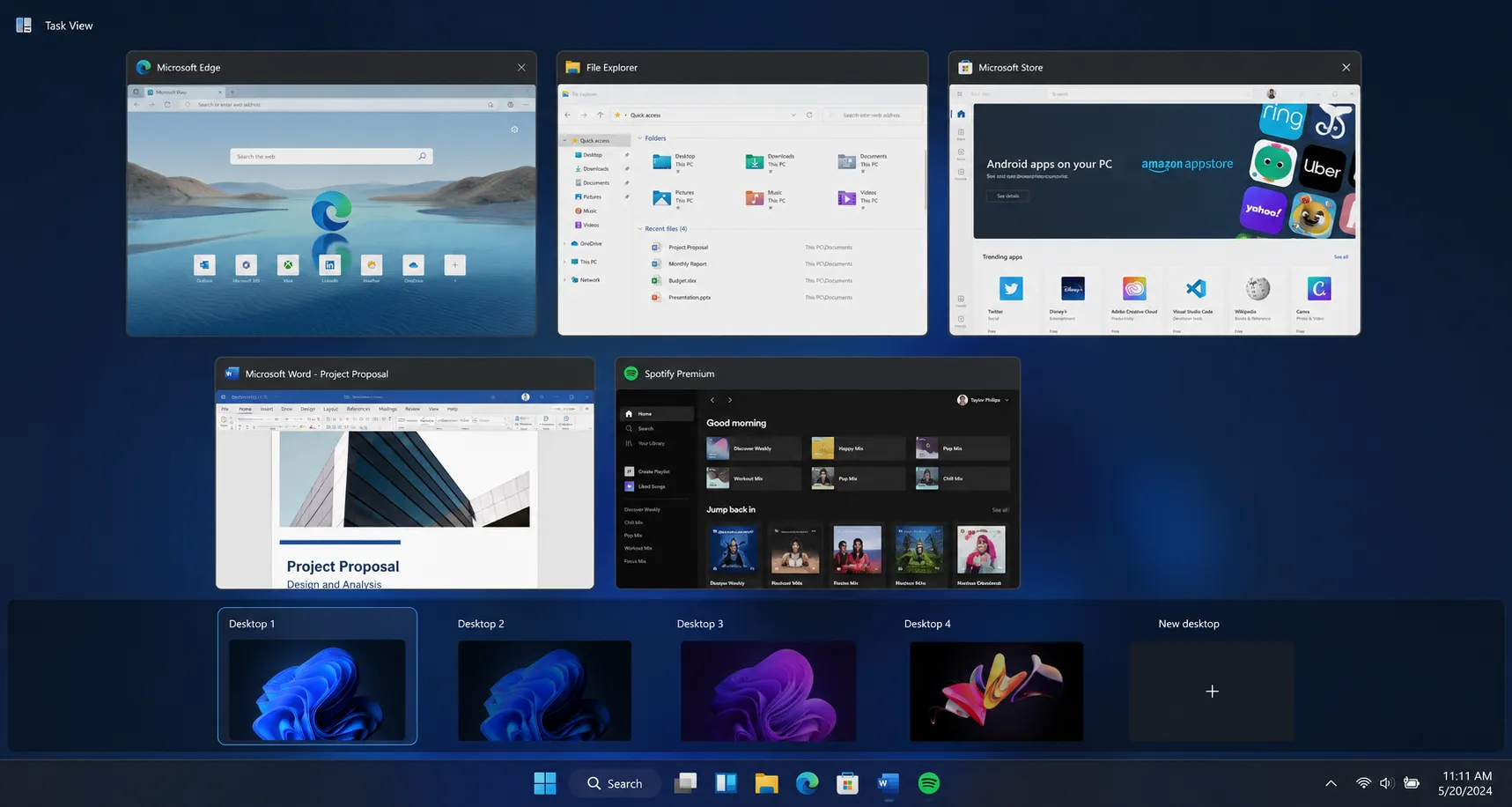
Virtual Desktops solve a real problem for anyone mixing work, personal browsing, and side projects on one PC. Press Win+Tab to open Task View, then select “New desktop” to add a workspace. Win+Ctrl+D creates one instantly, and Win+Ctrl+Left or Right Arrow switches between them.
PRO TIP: Rename each desktop from Task View so you always know which one holds your open tabs.
This setup works less well for people who forget which desktop holds which window. Windows does not search across desktops by default.
Key Features:
- Each virtual desktop can run its own wallpaper, separate from the others.
- Task View shows a live thumbnail preview of every open desktop at once.
Pricing: Free, built into Windows 11.
3. Clipboard History: Copy More Than One Thing at a Time
Clipboard History fixes an old annoyance in Windows. Copying something new used to wipe out whatever you copied before.
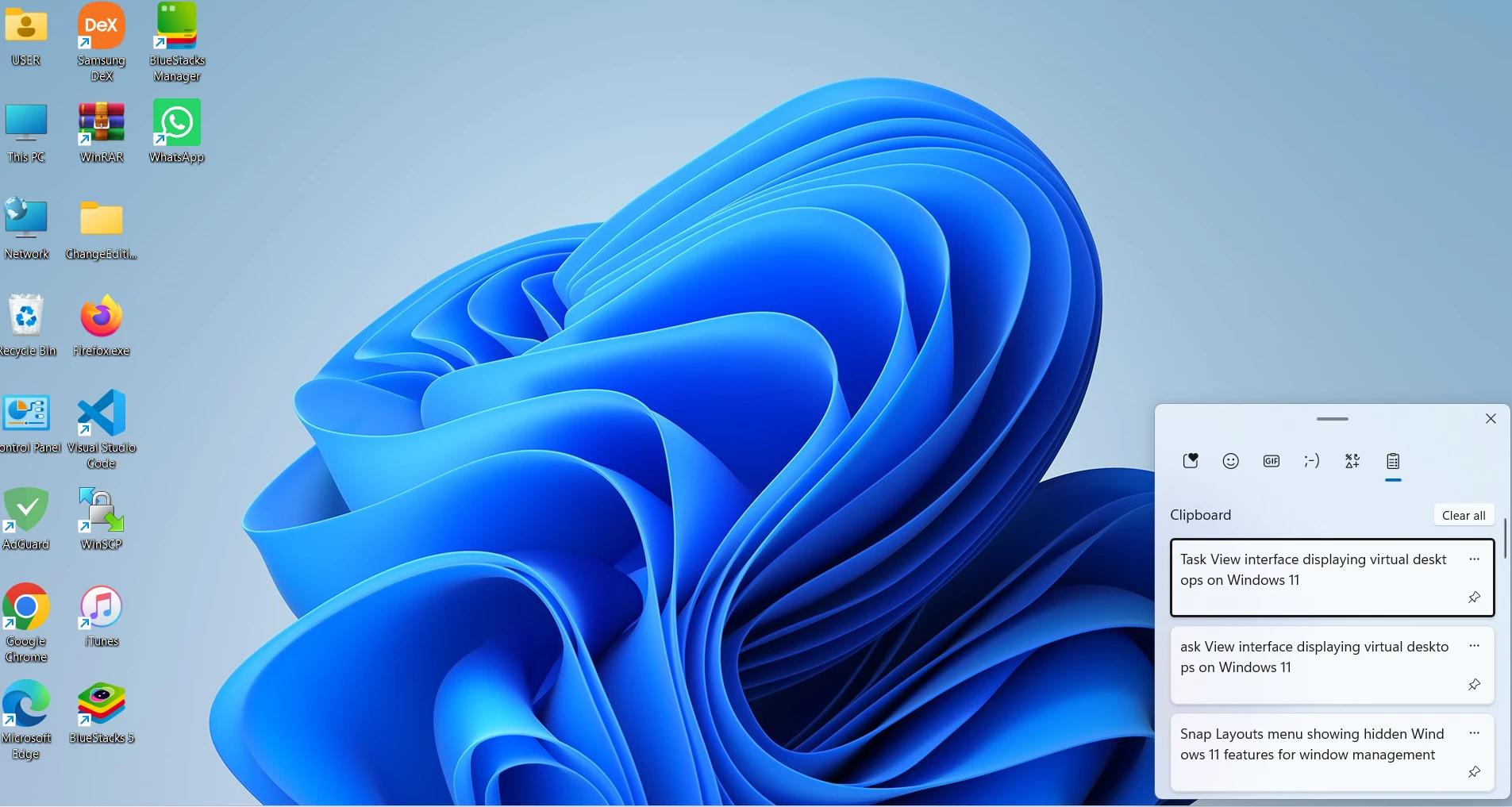
Press Win+V and select Turn On to start storing up to 25 items. This includes text, images, and links, according to Microsoft’s official clipboard support page.
Pinned items survive a restart. Unpinned ones clear automatically instead.
This is not a good habit on shared or public computers. Leftover copied text can expose personal details to the next person who logs in.
Key Features:
- Sync your clipboard across devices by turning on the toggle under Settings, System, Clipboard.
- Pin frequently used snippets, like an email signature or a shipping address, so they never get overwritten.
Pricing: Free, built into Windows 11.
4. PowerToys: Fill the Gaps Windows Leaves Open
PowerToys is Microsoft’s own free utility suite. It works best for anyone who outgrew the built-in window and search tools.
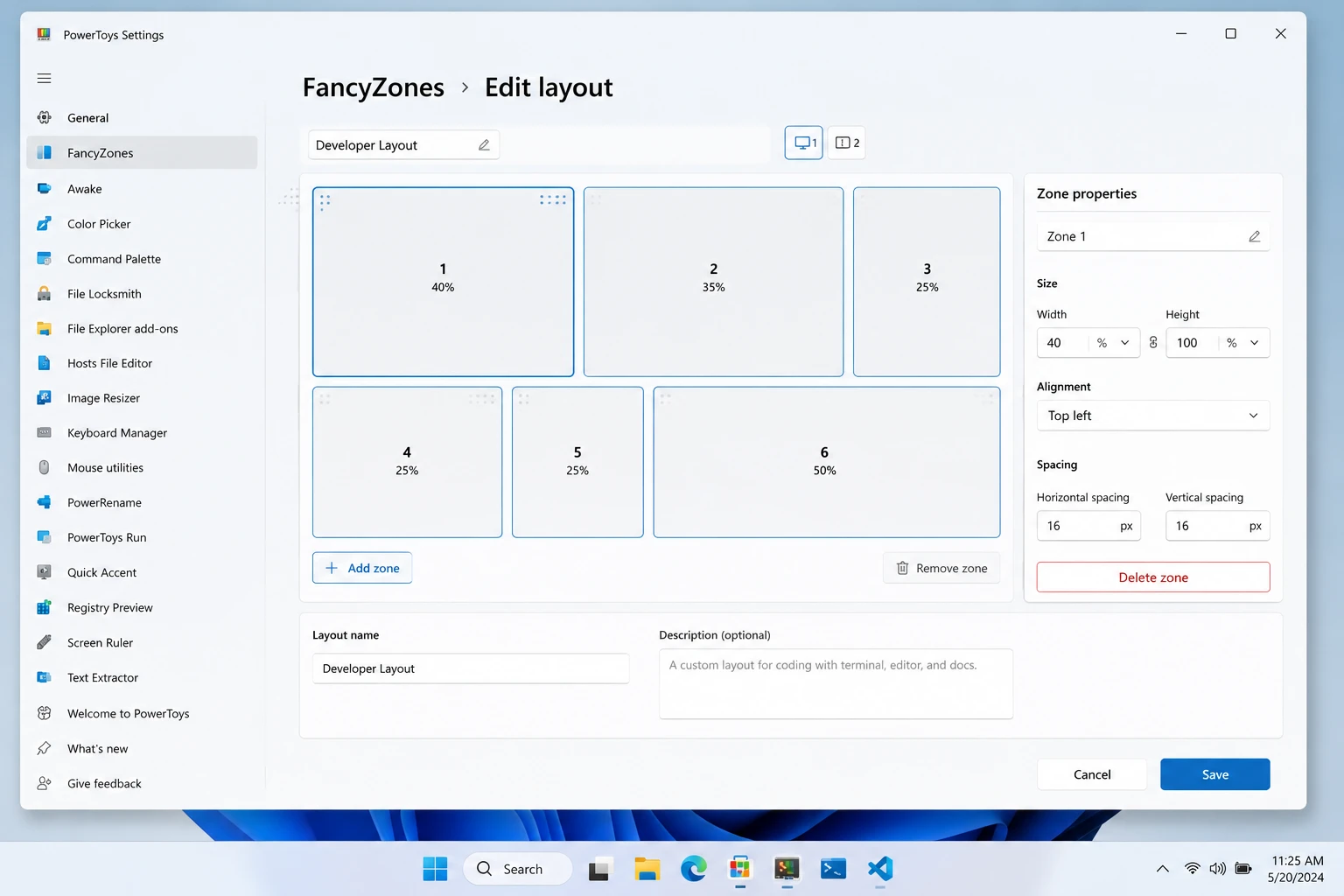
FancyZones builds custom window zones that go beyond Snap Layouts. PowerToys Run, opened with Alt+Space, launches apps and runs quick math. Text Extractor pulls readable text out of any image or paused video frame.
Grab the suite from the official PowerToys GitHub repository. PowerToys is not the right pick for anyone who wants a completely stock system with nothing extra to update.
Key Features:
- FancyZones lets you draw custom window layouts down to the pixel, saved as presets you can reuse.
- Text Extractor turns any on-screen text, even inside a paused video, into text you can copy.
Pricing: Free, official Microsoft download.
5. God Mode Folder: Every Control Panel Setting in One List
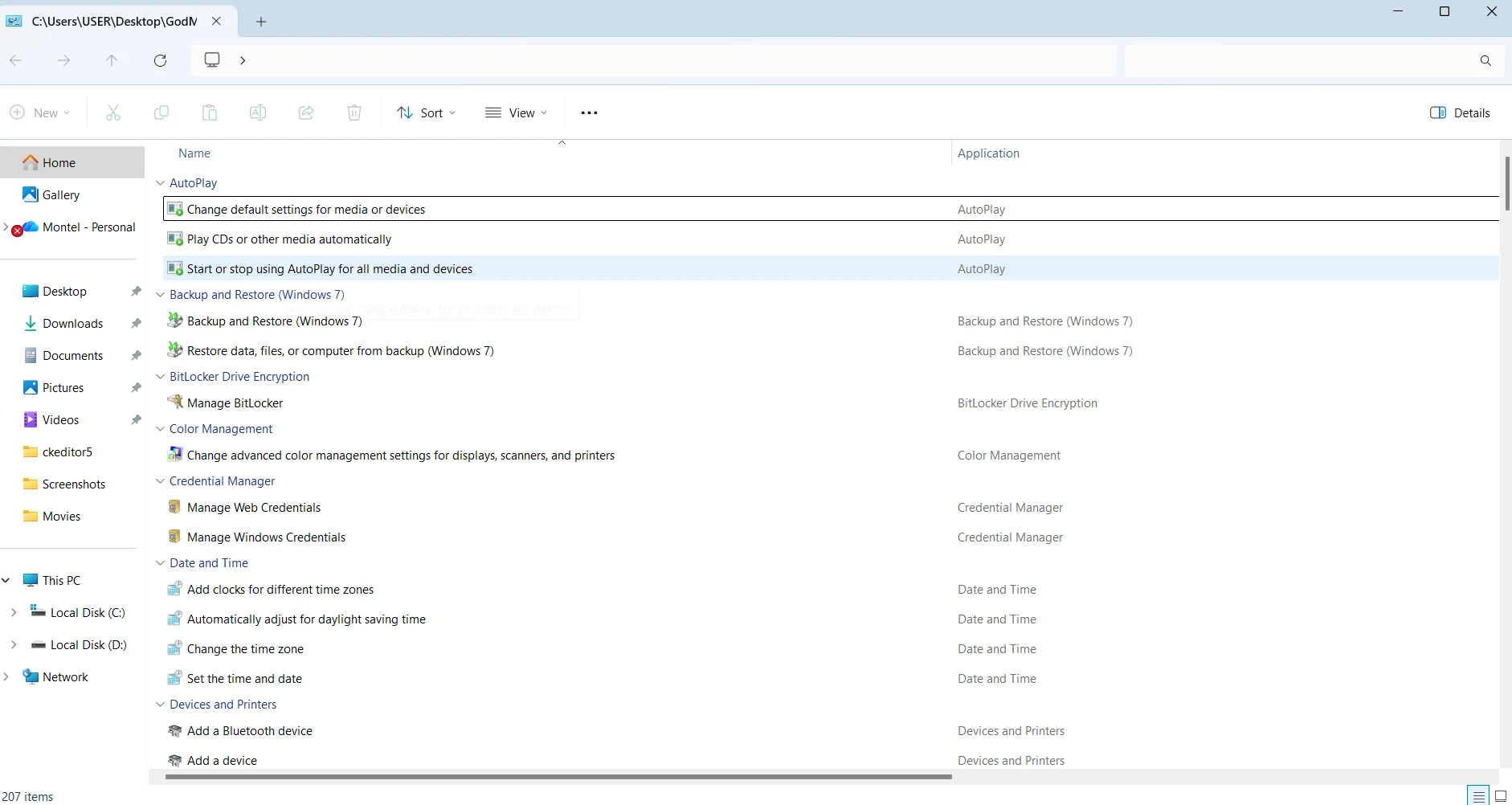
The God Mode folder gives administrators and power users a single scrollable list of more than 200 system settings. Create a new folder anywhere and rename it exactly to GodMode.{ED7BA470-8E54-465E-825C-99712043E01C}. Windows converts it into a master settings index instead of a regular folder.
WARNING: Typing the folder name incorrectly, even by one character, gives you an empty folder instead of the settings list.
This trick offers little value to casual users who only need the standard Settings app for everyday adjustments.
Key Features:
- The folder groups settings by category, including Administrative Tools, Devices and Printers, and Network Connections.
- Nothing installs when you create the folder, so removing it later is as simple as deleting it.
Pricing: Free, built into Windows 11.
6. Focus Sessions: Timed Work Blocks Built Into the Clock App
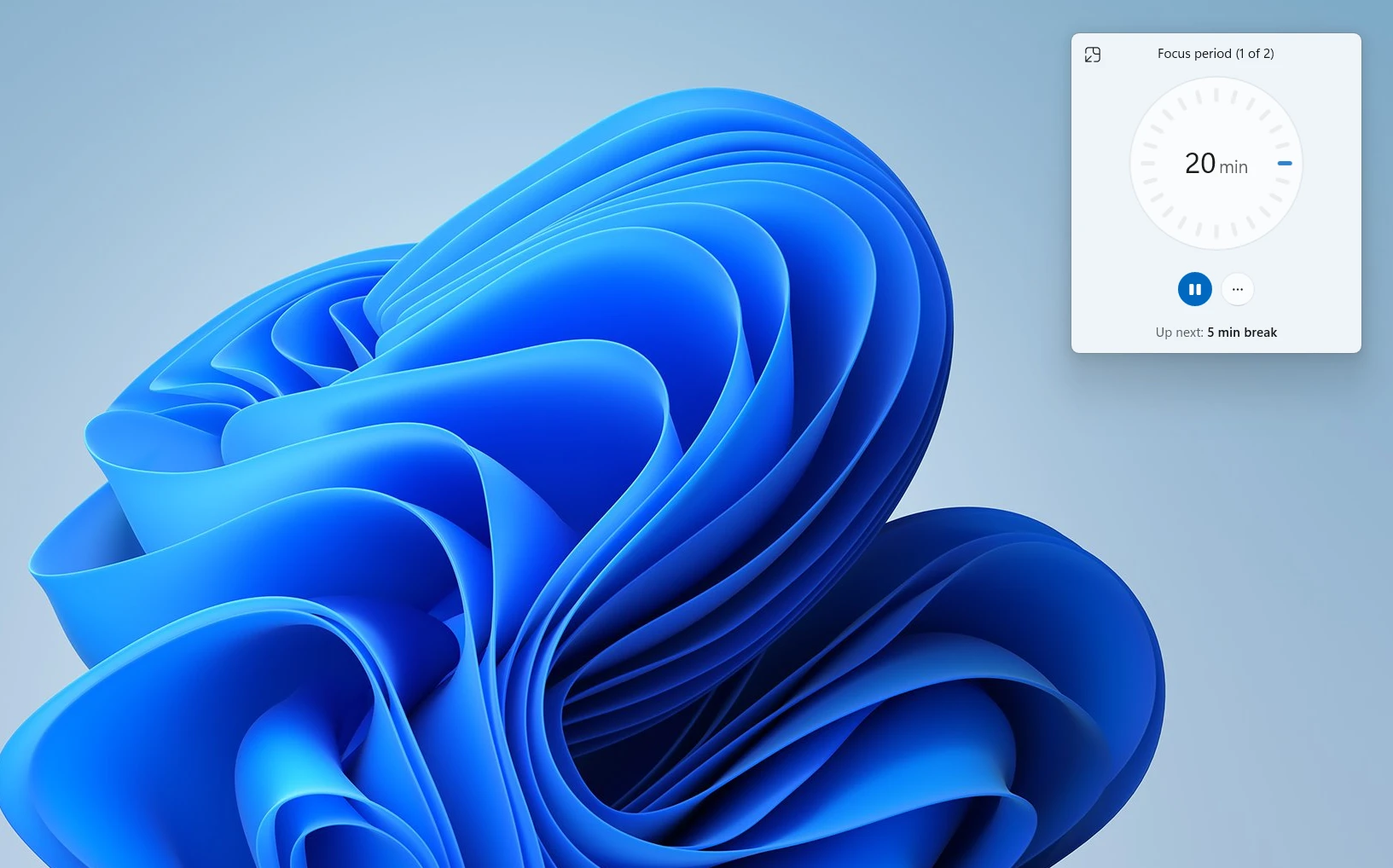
Focus Sessions lives inside the Clock app and suits anyone who loses track of time during deep work. Set a countdown timer and connect Spotify for background music.
Link a task from Microsoft To Do to track what you finished. Windows mutes notifications for the length of the session automatically.
Do you know how much time you actually lose switching between notifications and focused work each day?
This feature works against you if you rely on real-time alerts. A delivery notification during that block is a good example.
Key Features:
- Focus Sessions logs completed sessions so you can track total focused hours over a week.
- Break reminders can be scheduled between sessions to prevent burnout during long work blocks.
Pricing: Free, built into Windows 11.
7. Typo-Tolerant Search: Windows Finally Forgives Typos
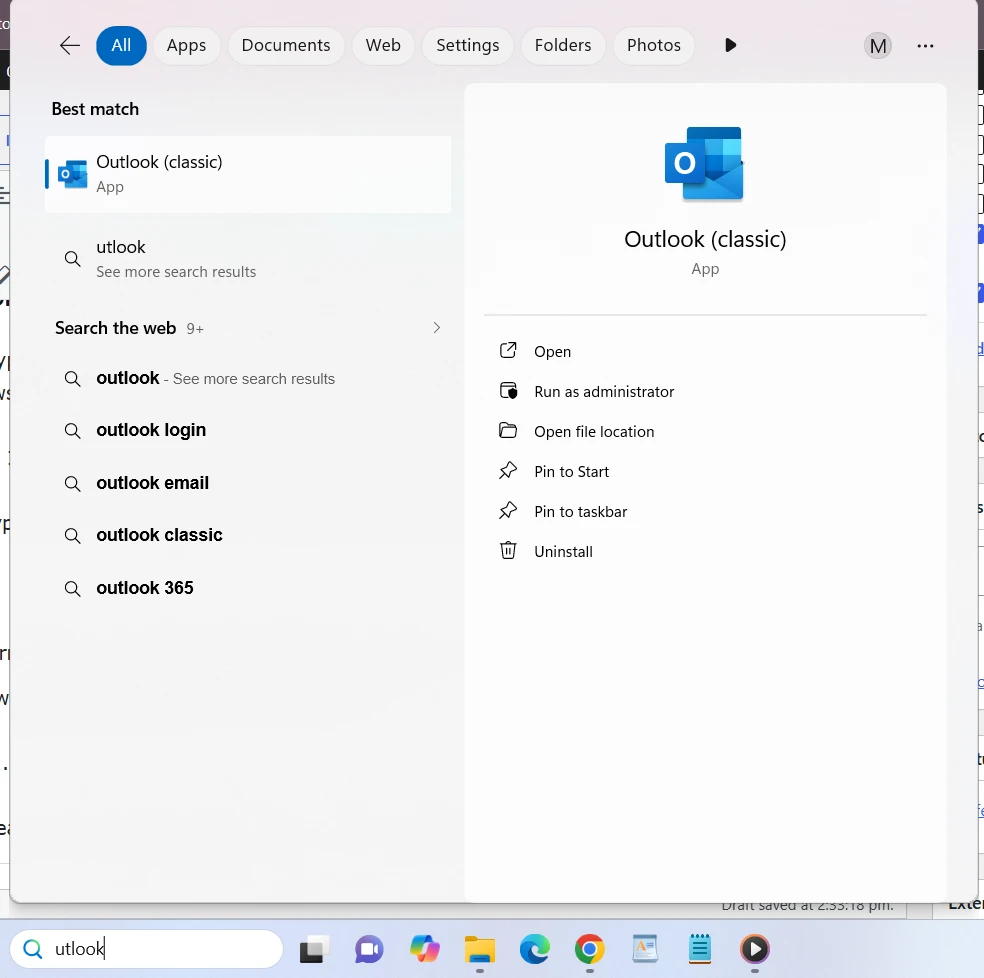
Recent Windows 11 builds handle typos, missing letters, extra characters, and partial app names inside Start menu search. Type “utlook” and Outlook still shows up as the top result. Local results now take priority over web results.
This update helps almost everyone. It depends on running a build that has received the 2026 search improvements.
So how many times have you mistyped an app name and given up on searching for it entirely?
Key Features:
- Partial app names now match correctly, so you no longer need to spell an app’s full name.
- Local apps and files rank above web search suggestions in the results list.
Pricing: Free, built into Windows 11.
8. Keyboard Shutdown Shortcuts: Power Down Without a Mouse
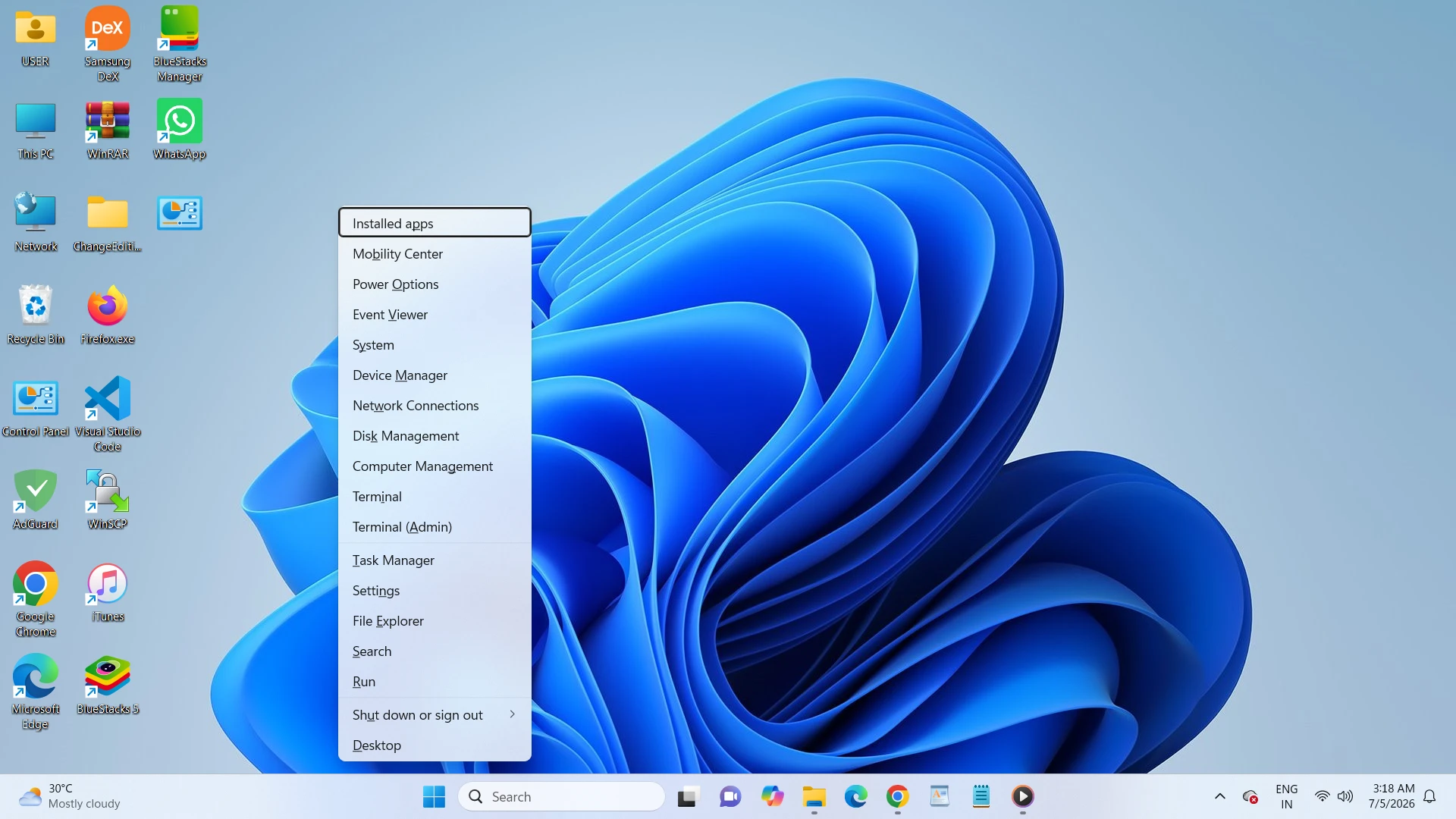
Alt+F4 on the desktop opens the shutdown dialog directly. Use the arrow keys to choose shut down, restart, or sign out.
Win+X opens the Power User menu, where a shut down or sign out option expands into the same choices. Read our full keyboard shortcut guide for shutting down Windows for every variation.
This shortcut matters less for laptop users who already rely on closing the lid to sleep instead of shutting down.
Key Features:
- Alt+F4 works from the desktop only, so minimize open windows first or it closes the active app instead.
- Win+X also opens Device Manager, Disk Management, and Task Manager from the same menu.
Pricing: Free, built into Windows 11.
9. Live Captions: Real-Time Subtitles for Any Audio
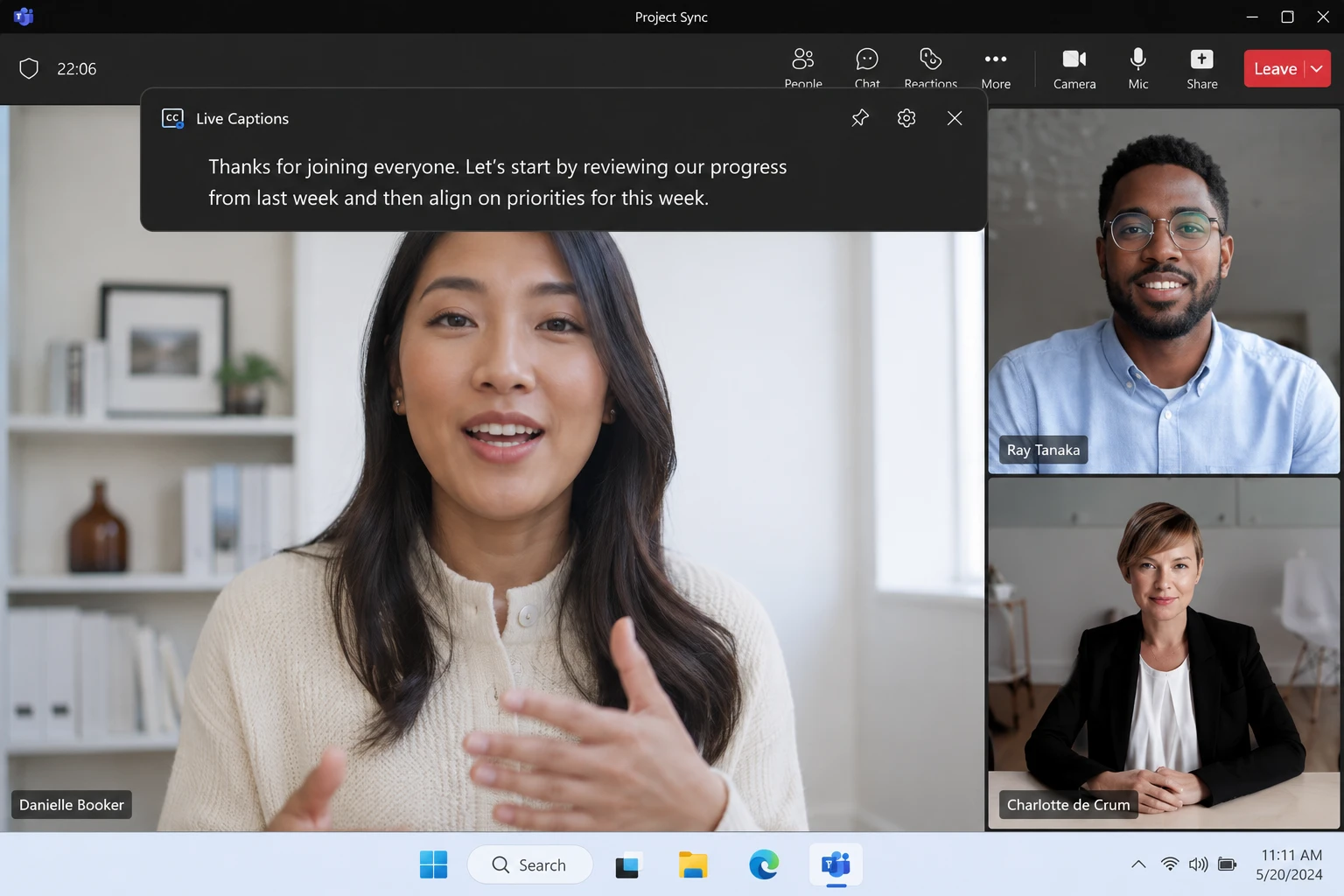
Live Captions generates real-time text for any sound playing through your speakers, processed locally on your device. Press Win+Ctrl+L to turn it on, or enable it under Settings, Accessibility, Captions. Basic same-language captioning works on any Windows 11 PC running 22H2 or later.
This feature offers translated captions only on Copilot+ hardware with an NPU and Windows 11 24H2 or newer.
Key Features:
- Captions appear in a floating bar you can drag anywhere on screen and resize.
- Nothing you caption leaves your device, since the processing happens entirely offline.
Pricing: Free, built into Windows 11.
10. Voice Access with Voice Isolation: Hands-Free Control That Filters Noise
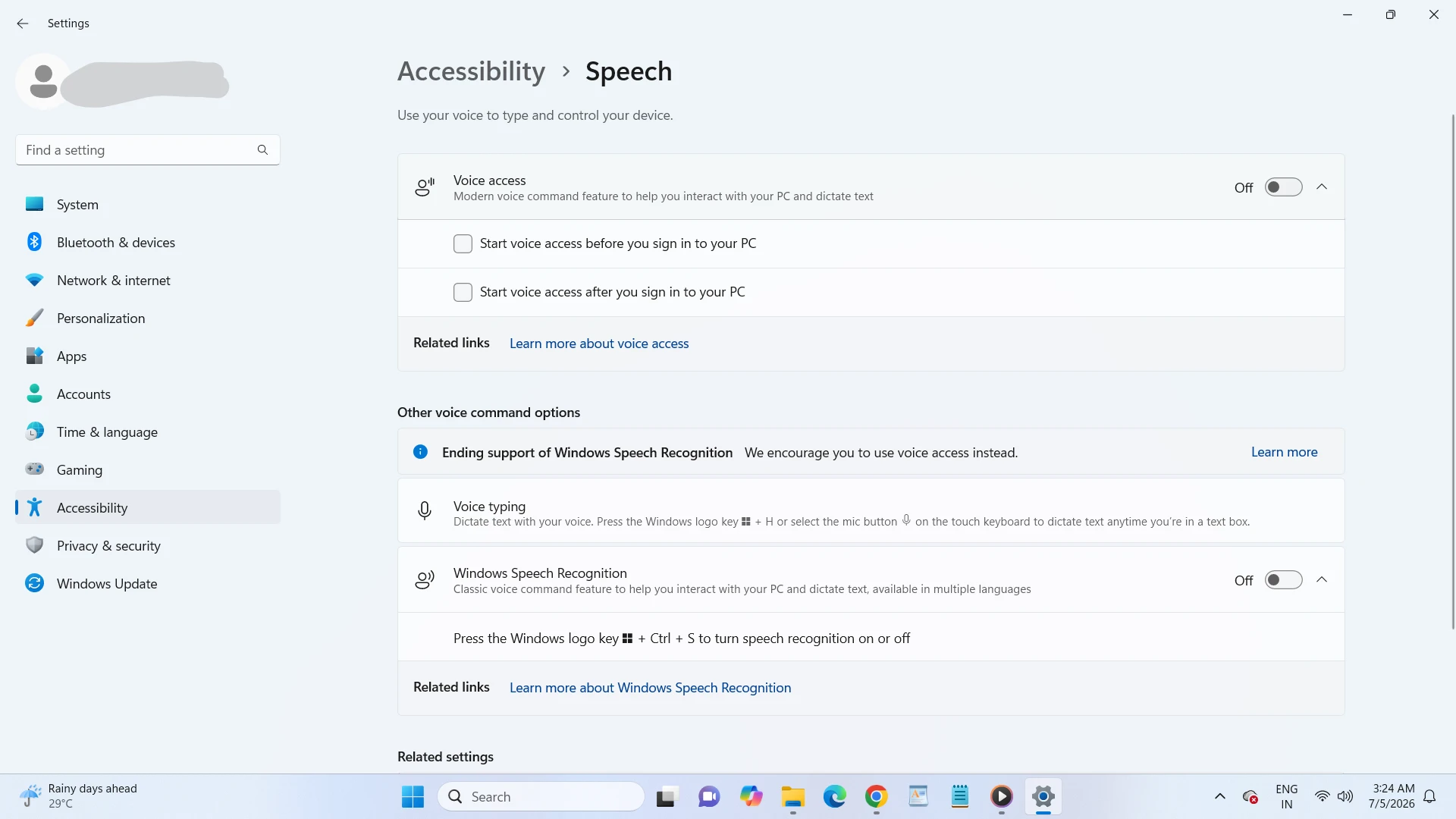
Voice Access lets you control your PC and dictate text using spoken commands alone. The 2026 update adds Voice Isolation, which filters background conversations and noise after a one-time voice setup.
It sits alongside a noise-only mode and a raw, no-filtering mode. All processing stays on-device.
This upgrade adds little value in a consistently quiet room, where the standard mode already performs well.
Key Features:
- Voice Isolation needs a short one-time voice profile setup before it starts filtering background speech.
- Switch between the three modes anytime under Voice Access settings, Improve speech recognition.
Pricing: Free, built into Windows 11.
11. Voice Typing: Dictate Text Anywhere You Can Type
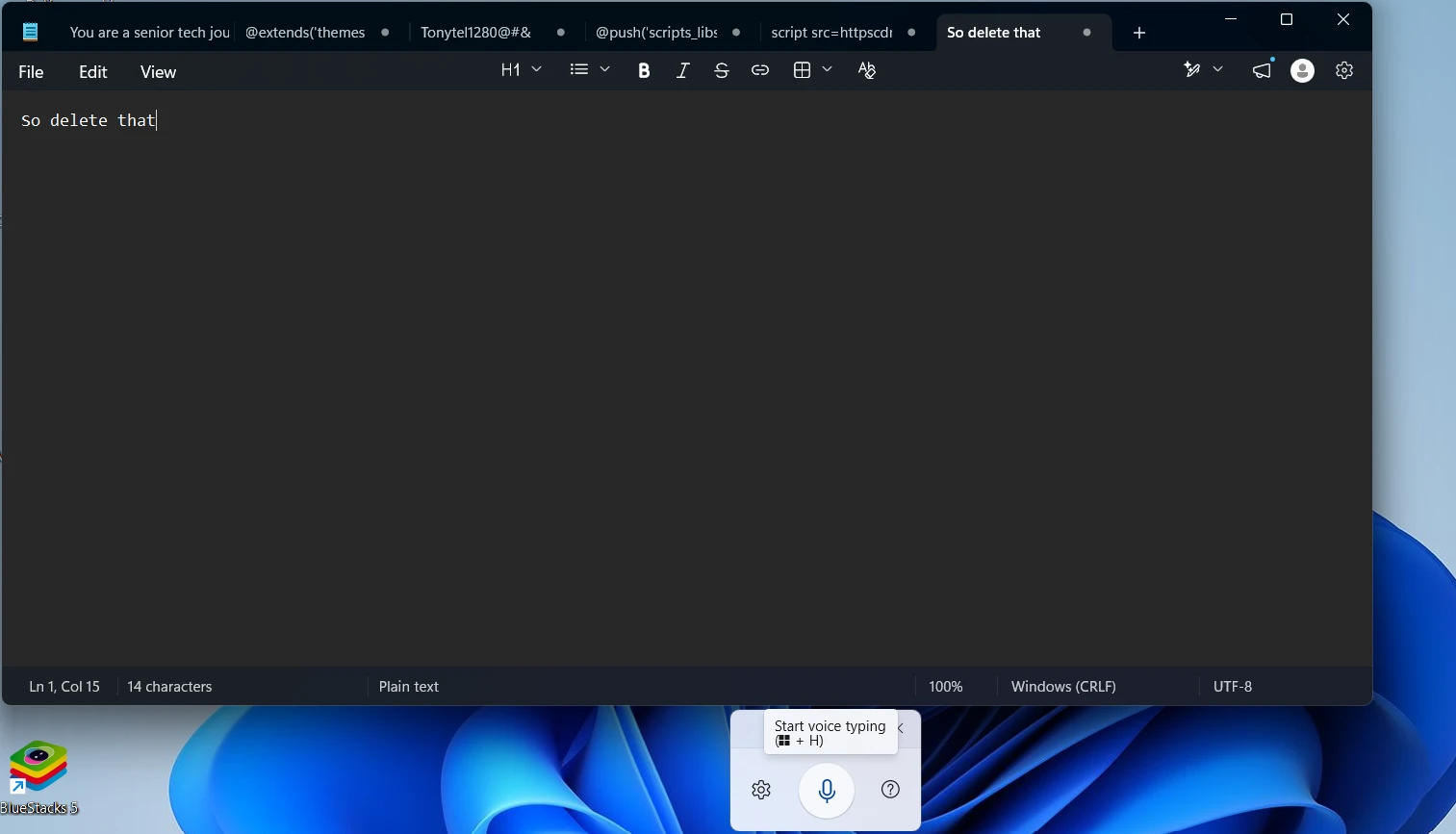
Voice Typing turns any text field into a dictation box the moment you press Win+H. Speak naturally, and Windows adds punctuation automatically.
It also recognizes voice commands for basic editing. Accuracy for technical vocabulary and accents has improved noticeably in 2026 builds.
Shared workspaces make this feature awkward. Dictating text out loud is not always practical around other people.
Key Features:
- Say commands like “delete that” or “new line” to edit text without touching the keyboard.
- Voice Typing works inside browsers, word processors, and most third-party apps with a text field.
Pricing: Free, built into Windows 11.
12. Screen Tint: A System-Wide Filter for Tired Eyes
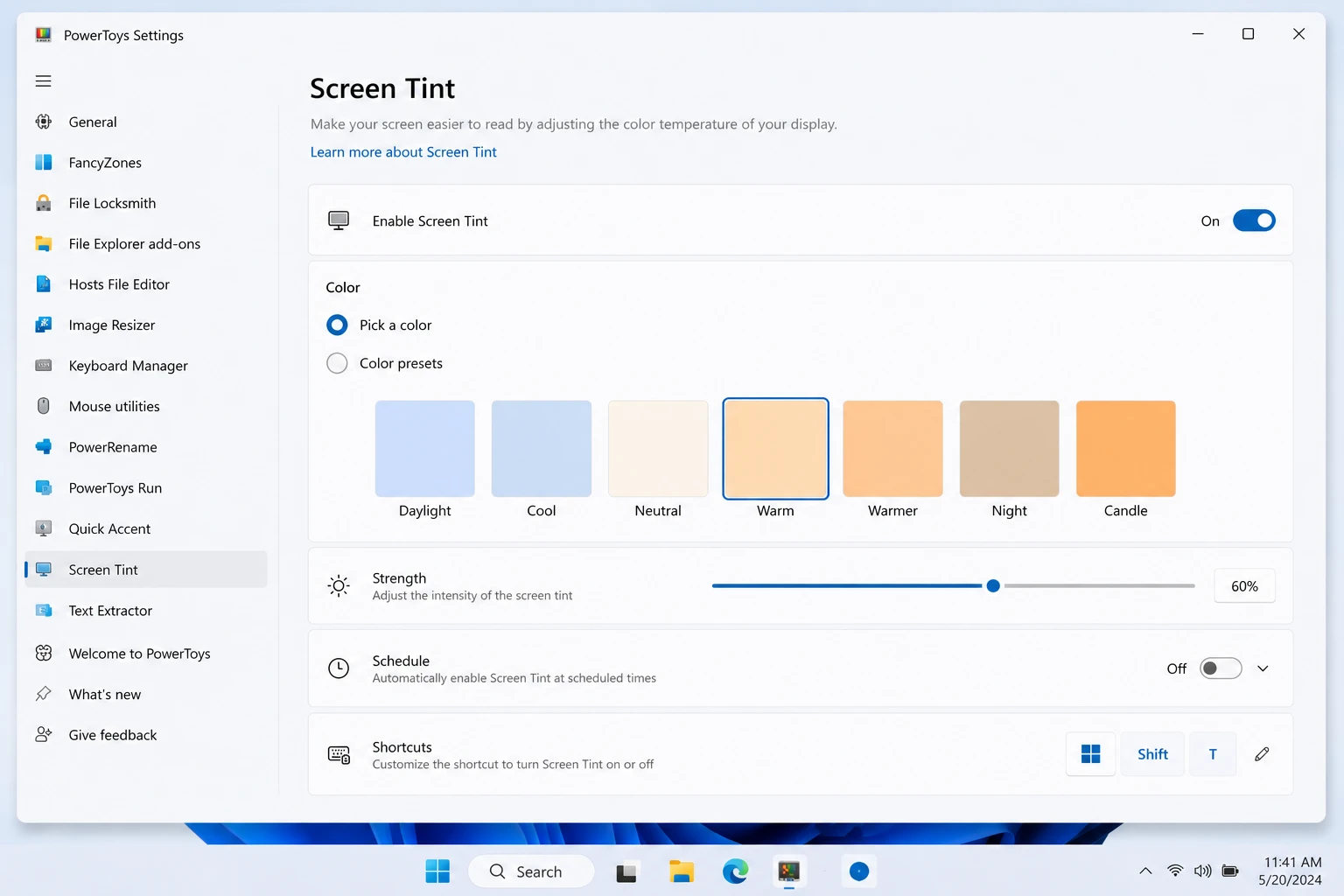
Screen Tint softens overly bright or saturated displays with a system-wide color overlay, found under Settings, Accessibility, Vision, Screen tint. Choose from six preset tint colors, build a custom one, and adjust intensity with a slider. It solves a different problem than Night Light, which only reduces blue light at night.
Turning on Screen Tint disables Color Filters automatically. The two features cannot run together.
This tool works against colorists and photo editors, since any tint changes what colors actually look like on screen.
Key Features:
- Screen Tint applies during the day just as easily as at night, unlike Night Light.
- The intensity slider lets you dial in a subtle effect instead of an obvious color cast.
Pricing: Free, built into Windows 11.
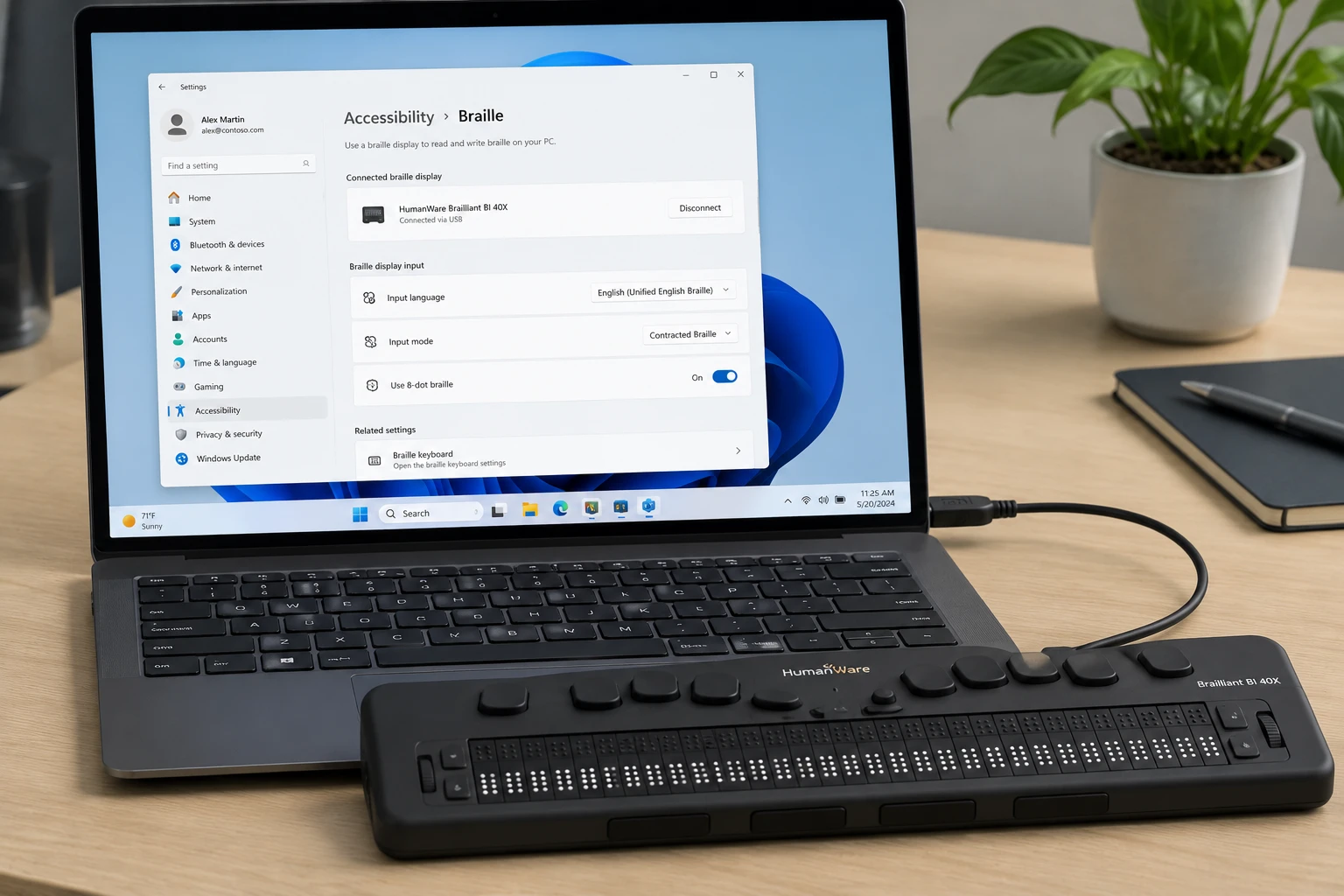
13. Braille Display Plug-and-Play Support: Setup From the First Screen
Windows 11 now recognizes HID-compliant Braille displays automatically over USB or Bluetooth, the same way it recognizes a keyboard. Compatible models include the Orbit Reader 20, Orbit Slate 340, Freedom Scientific Focus 40, and APH Mantis Q40. Support now extends into the Out-of-Box Experience, letting deaf-blind users complete initial PC setup independently.
This feature depends entirely on owning one of the supported HID Braille display models.
Key Features:
- Pair a supported display wirelessly from Settings, Bluetooth and devices, with no separate Narrator setup step.
- Narrator’s Braille support now works from the very first setup screen after unboxing a new PC.
Pricing: Free, built into Windows 11.
14. Windows Studio Effects: Camera Upgrades Powered by Your NPU
Windows Studio Effects applies background blur, eye contact correction, auto-framing, and voice focus to any camera app system-wide. All processing runs on your PC’s neural processing unit instead of the cloud. It works the same in Zoom, Teams, or any other call app.
This feature will not appear in Settings at all on a PC without a Copilot+ NPU.
Key Features:
- Eye contact correction adjusts your gaze to look at the camera even when reading notes off-screen.
- Voice focus reduces keyboard clicks and background noise from your microphone during calls.
Pricing: Free, built into Copilot+ PCs.
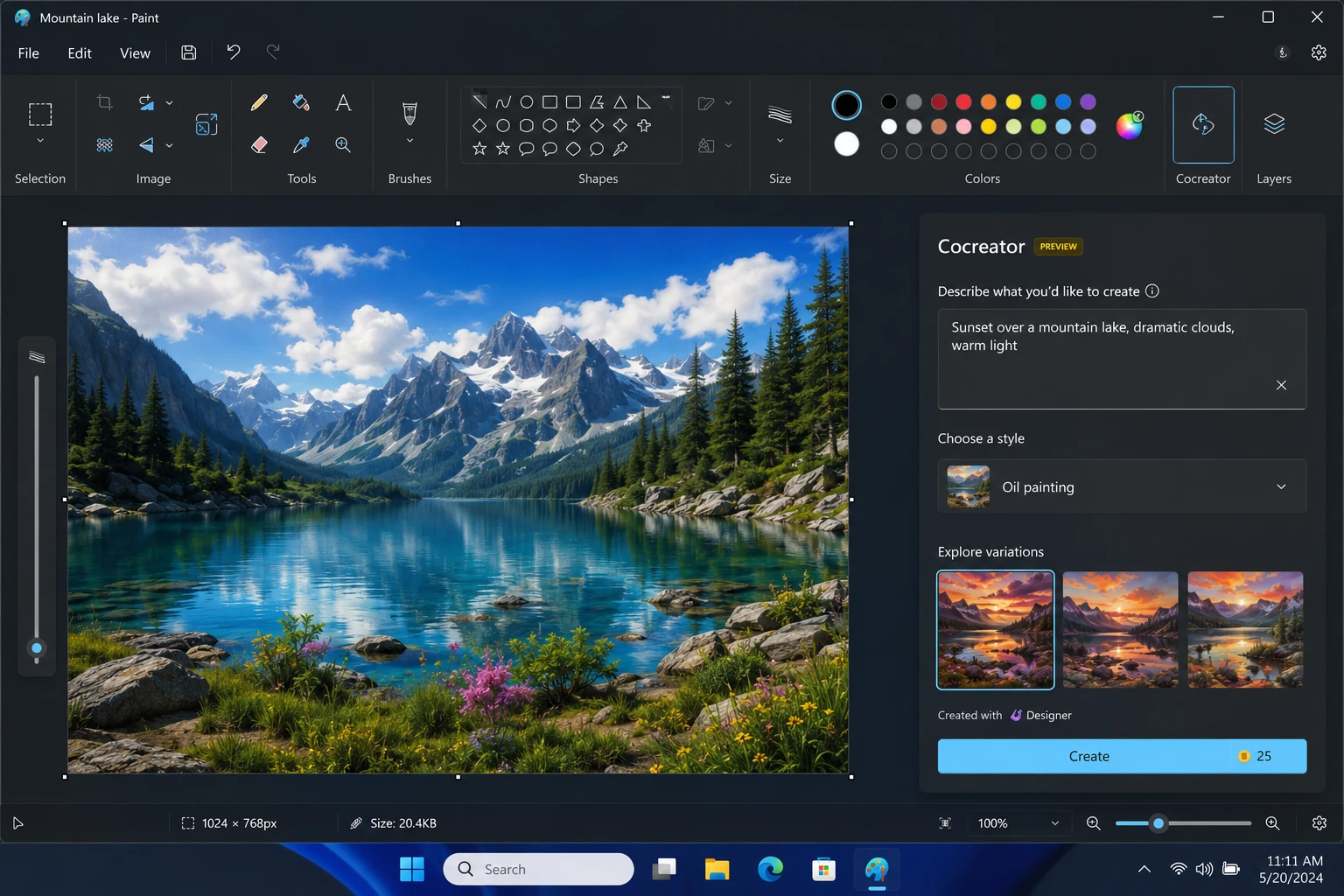
15. Cocreator in Paint: Generate Images From a Text Prompt
Cocreator adds AI image generation directly inside the classic Paint app on Copilot+ hardware. Type a prompt, and Cocreator produces a set of image options you can refine by sketching or typing follow-up prompts. Generation runs locally on the NPU, which keeps the process fast even offline.
Professional illustration work is not a fit here. Cocreator produces simple concept sketches rather than polished final art.
Key Features:
- Adjust the “creativity” slider to control how closely the output follows your original sketch.
- Regenerate results instantly by tweaking your prompt without starting the drawing over.
Pricing: Free, built into Copilot+ PCs.
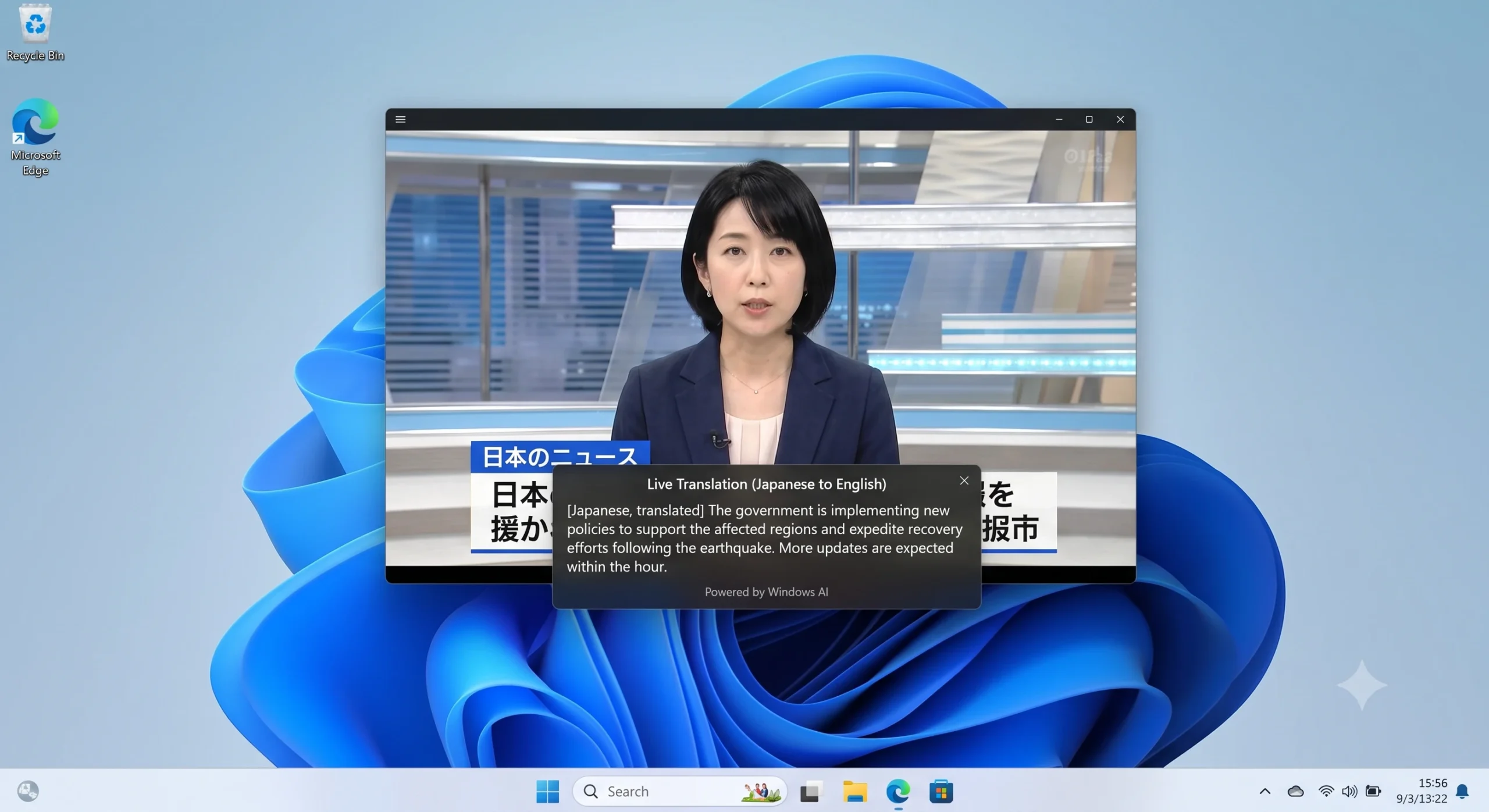
16. Live Translation Captions: Understand Audio in Other Languages
Live Translation builds on the same local Live Captions engine to translate spoken audio into on-screen captions in real time. It runs only on Copilot+ hardware. Translation processing stays on the device rather than uploading audio anywhere.
Standard PCs without an NPU only get same-language captions, not translated ones.
Key Features:
- Translated captions appear in the same floating, resizable bar as standard Live Captions.
- Switching source languages takes one menu selection, without restarting the app you’re watching.
Pricing: Free, built into Copilot+ PCs.
17. Dynamic Lighting: One Panel for Every RGB Device You Own
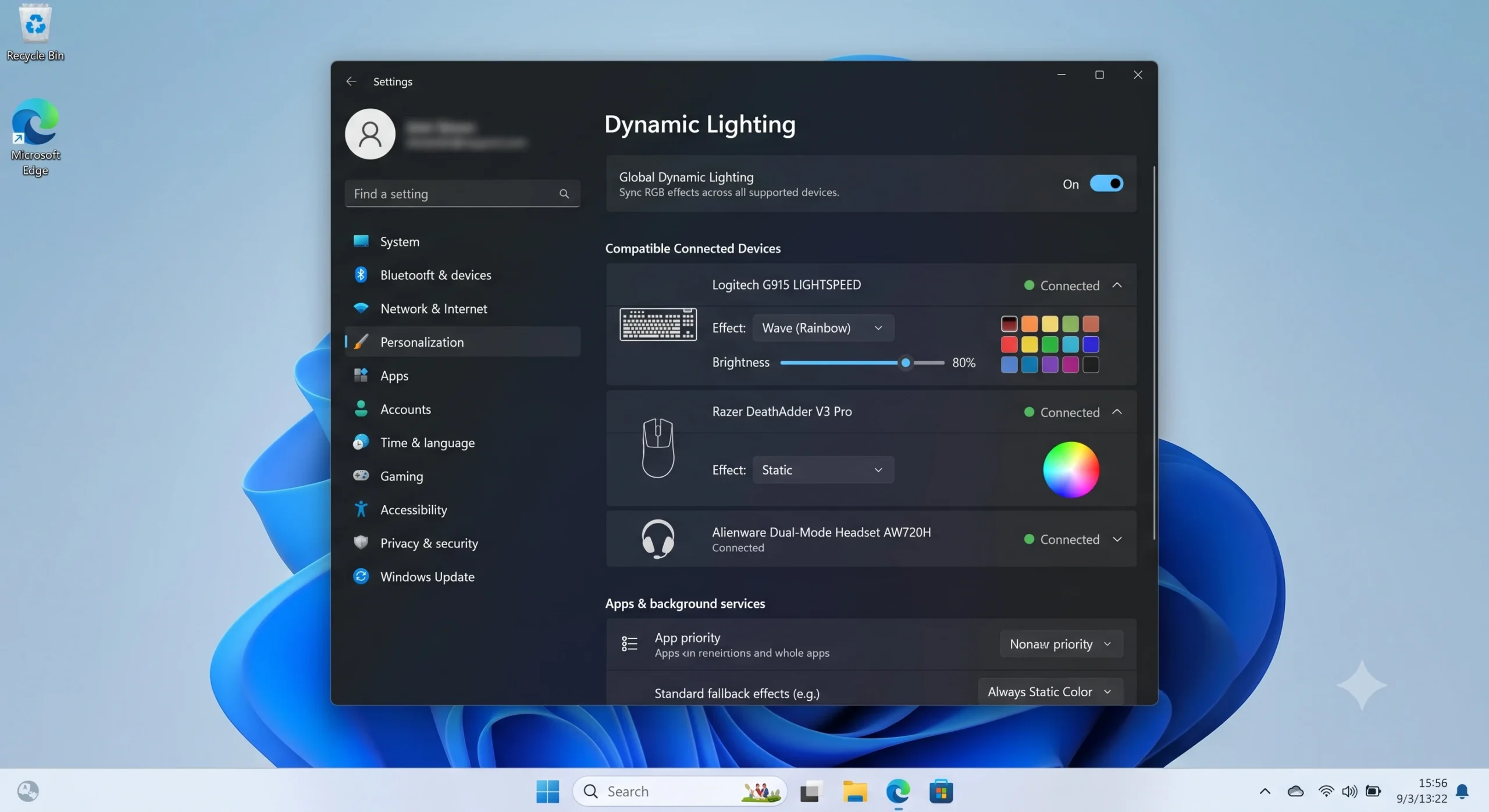
Dynamic Lighting unifies RGB keyboards, mice, and case fans from different brands under one native settings panel. Find it at Settings, Personalization, Dynamic Lighting.
Sync colors to your Windows accent color, or run a custom effect there. Microsoft’s Dynamic Lighting support page lists supported partner brands, including Razer, Logitech, HP, and Acer.
Older RGB devices that skip the open HID LampArray standard still need their original manufacturer app.
Key Features:
- Prioritize which app controls your lighting when two background apps compete for control.
- Global settings adjust brightness and effects across every connected device at once.
Pricing: Free, built into Windows 11.
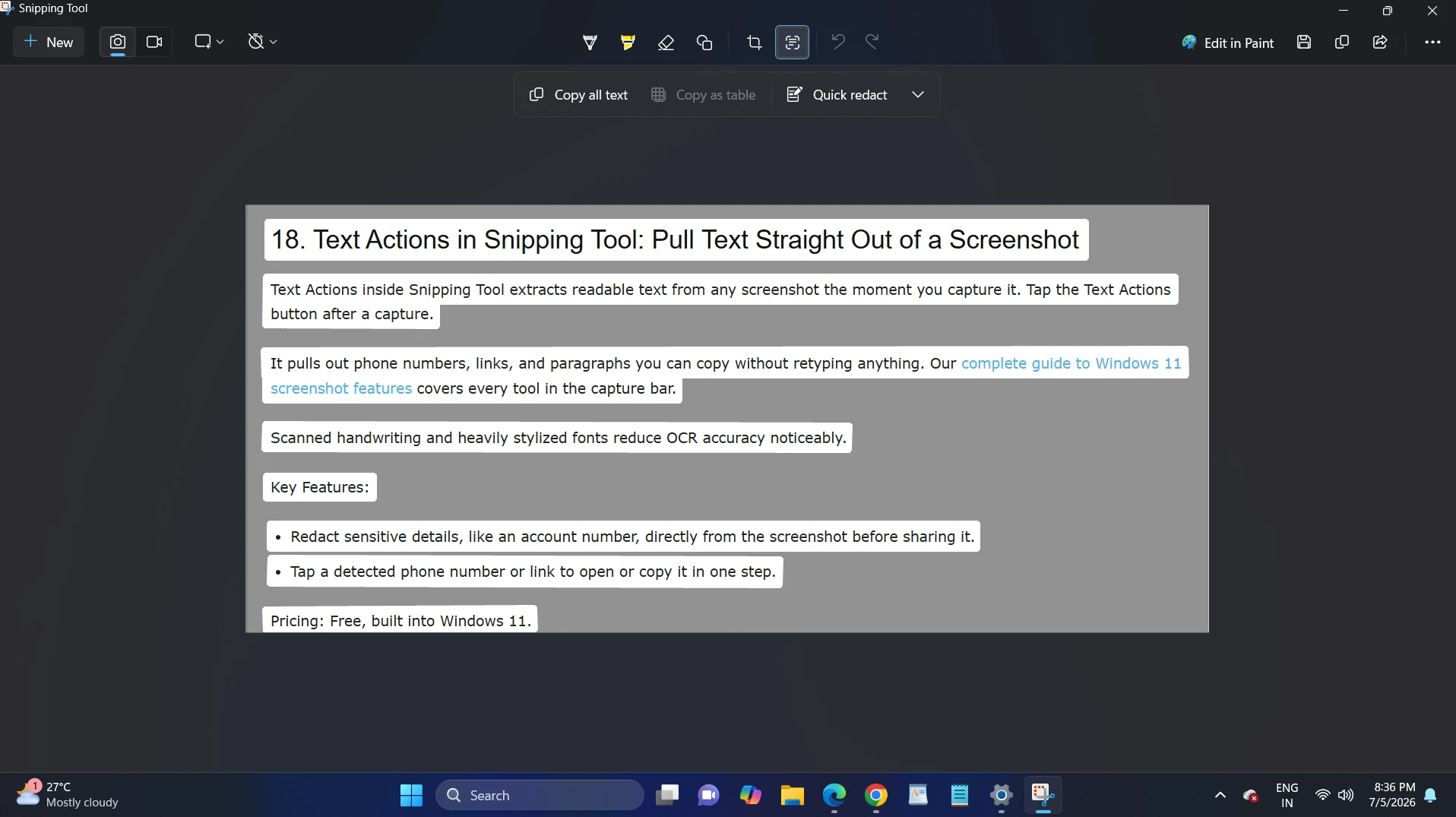
18. Text Actions in Snipping Tool: Pull Text Straight Out of a Screenshot
Text Actions inside Snipping Tool extracts readable text from any screenshot the moment you capture it. Tap the Text Actions button after a capture.
It pulls out phone numbers, links, and paragraphs you can copy without retyping anything. Our complete guide to Windows 11 screenshot features covers every tool in the capture bar.
Scanned handwriting and heavily stylized fonts reduce OCR accuracy noticeably.
Key Features:
- Redact sensitive details, like an account number, directly from the screenshot before sharing it.
- Tap a detected phone number or link to open or copy it in one step.
Pricing: Free, built into Windows 11.
19. Storage Sense: Automatic Cleanup You Never Have to Remember
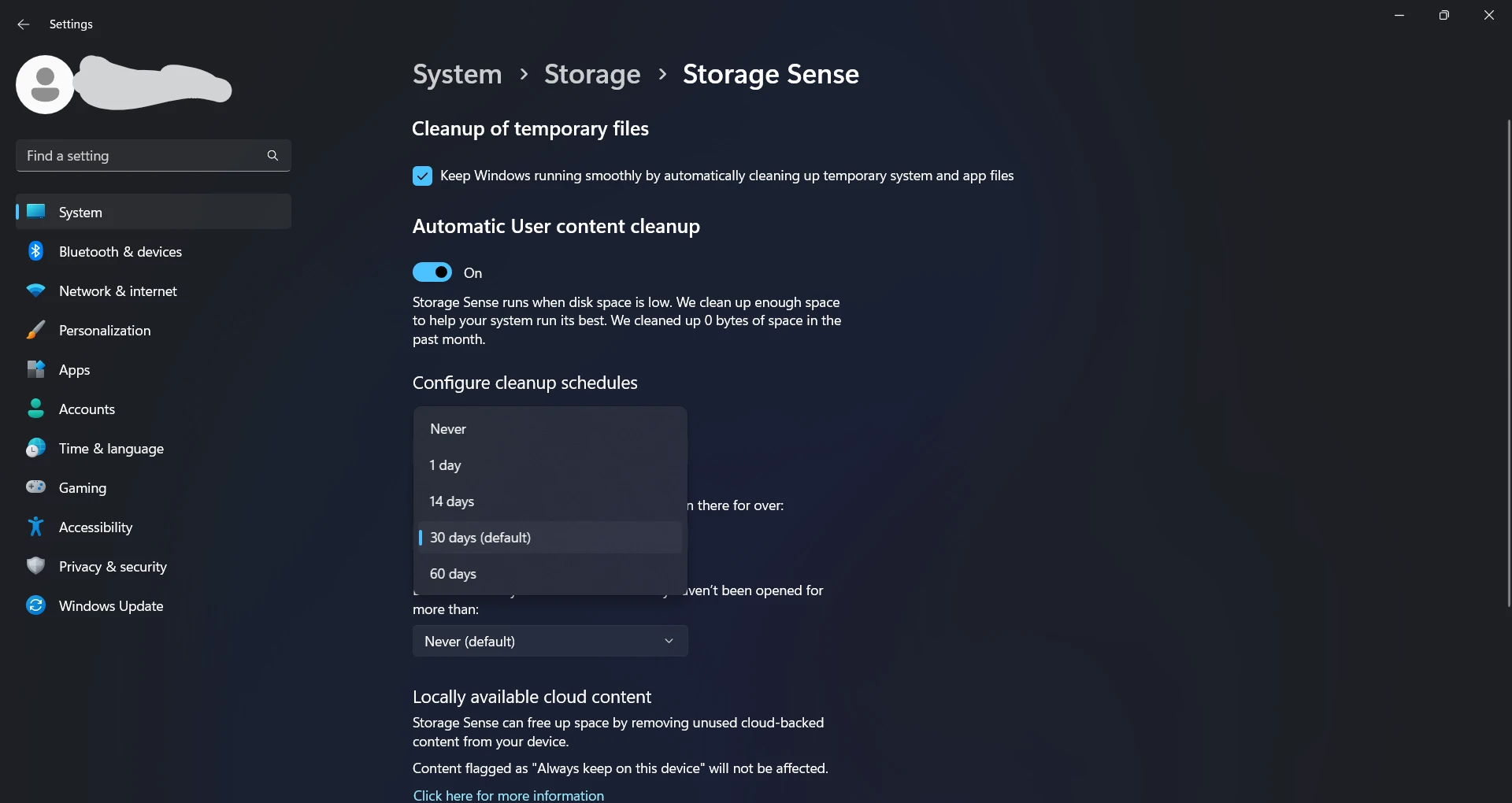
Storage Sense clears temporary files and empties old Recycle Bin items. It also offloads unused files to the cloud on a schedule you set.
Find it under Settings, System, Storage, then customize how many days files sit before Storage Sense removes them. Pair it with our proven fixes to speed up Windows 11 for a noticeably faster PC.
This automatic cleanup offers less control to anyone who prefers reviewing files manually before deletion.
Key Features:
- Set separate cleanup schedules for temporary files and the Recycle Bin independently.
- Offload rarely used files to OneDrive automatically once your local drive runs low on space.
Pricing: Free, built into Windows 11.
20. Phone Link Dynamic Lock: Your PC Locks When You Walk Away
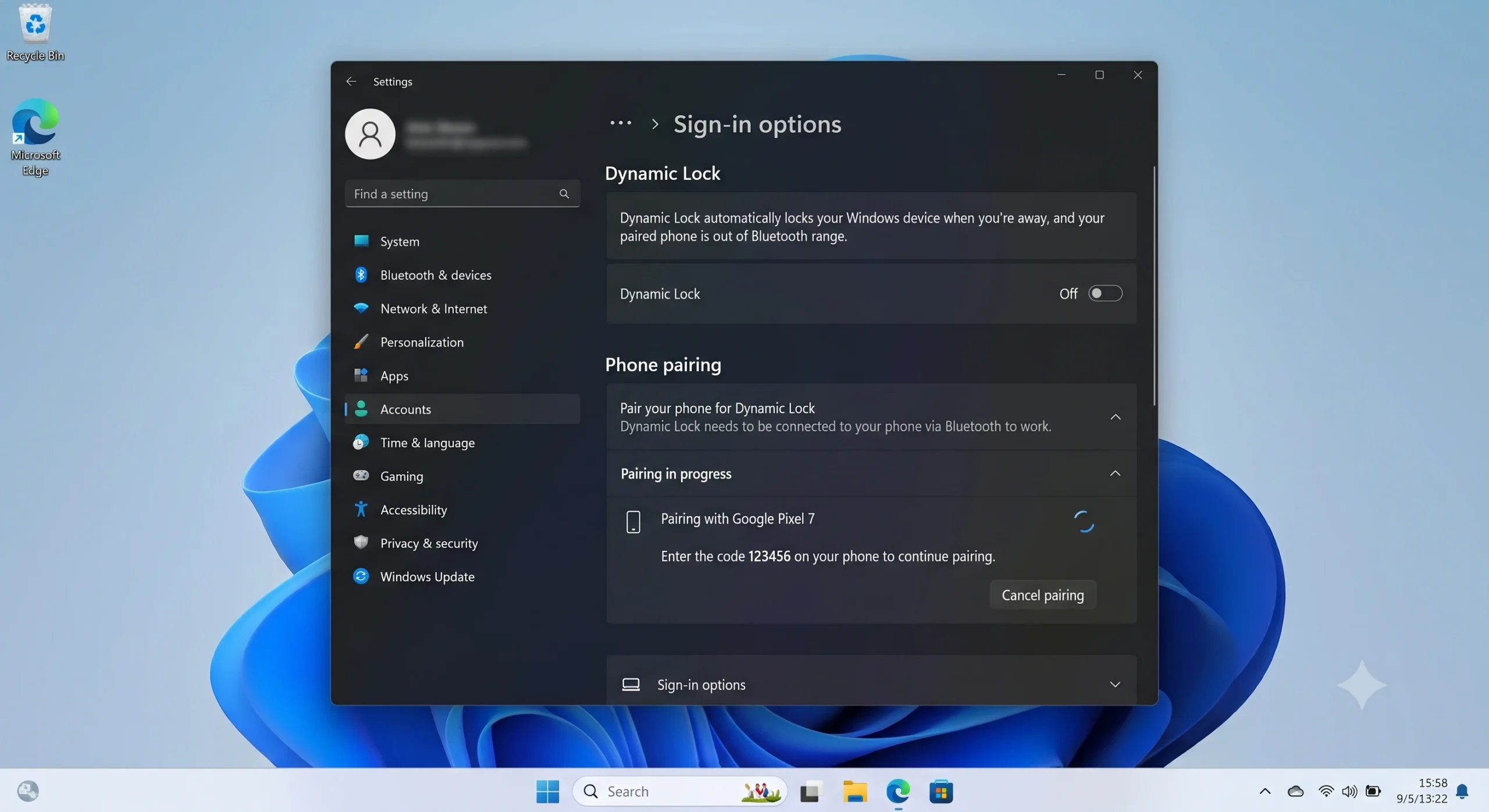
Phone Link Dynamic Lock pairs your phone with your PC over Bluetooth. It then locks the PC automatically once your phone moves roughly 20 feet out of range.
No separate app install is needed on the phone itself. The lock triggers about 30 seconds after your phone leaves range.
This feature offers no guarantee against unauthorized access in high-risk settings. Wall materials and interference change the effective Bluetooth range.
Key Features:
- The 30-second delay balances convenience against the risk of leaving your PC unlocked too long.
- Dynamic Lock uses your existing Bluetooth pairing, with no extra hardware to buy.
Pricing: Free, built into Windows 11.
21. Feature Flags Page: Test Experimental Features the Official Way
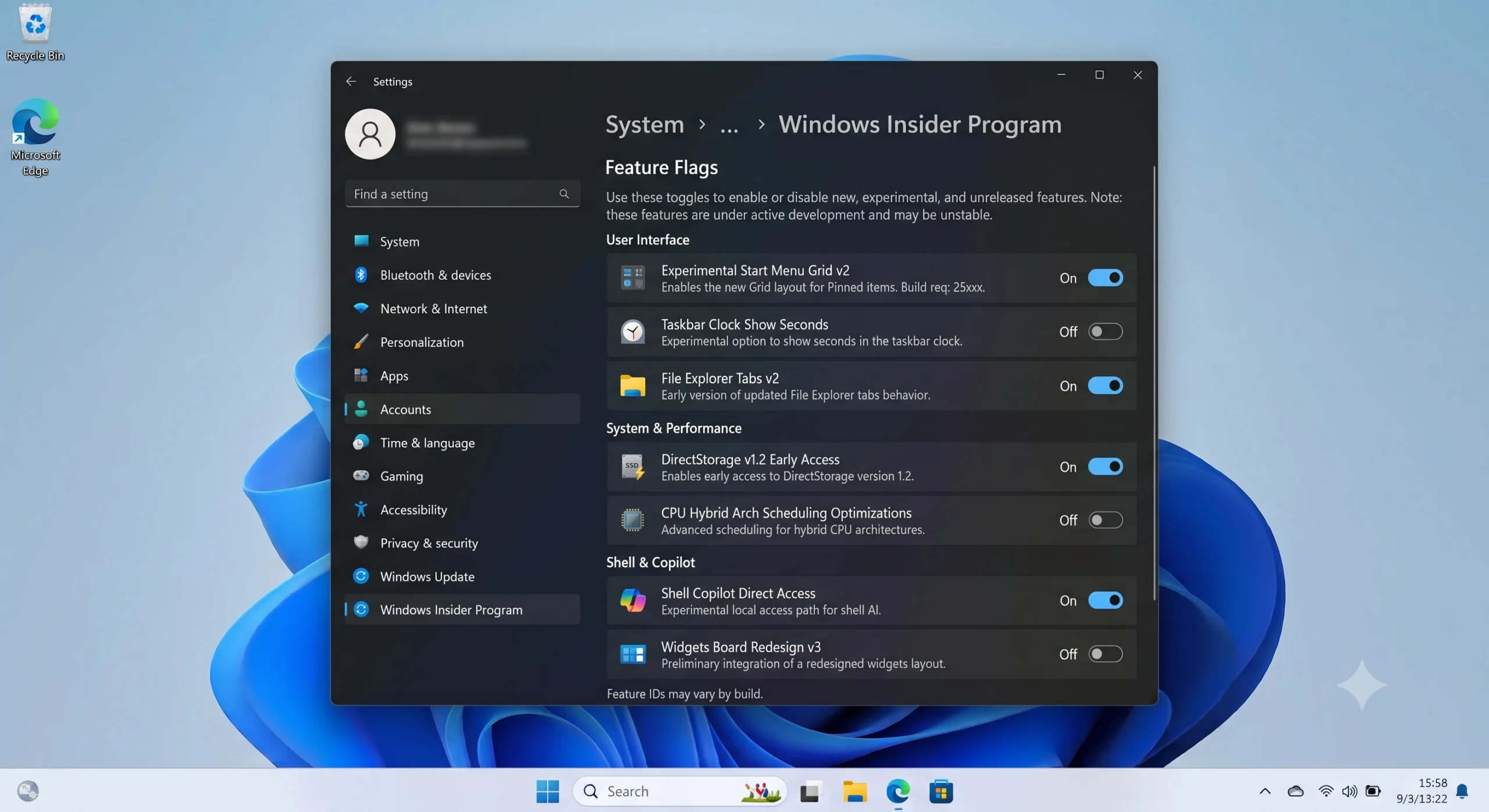
Microsoft added a Feature Flags page under Windows Insider Program settings. Testers can now toggle experimental features directly, instead of relying on third-party tools. Windows Central’s coverage of recent Insider builds tracks which flags appear each month.
Everyday users on the stable release channel will not see this page at all, since it requires Insider Program enrollment.
Key Features:
- Each flag carries a warning label, since experimental features can be unstable or incomplete.
- Flags roll out gradually, so not every experimental feature appears for every Insider at once.
Pricing: Free, requires Windows Insider Program enrollment.
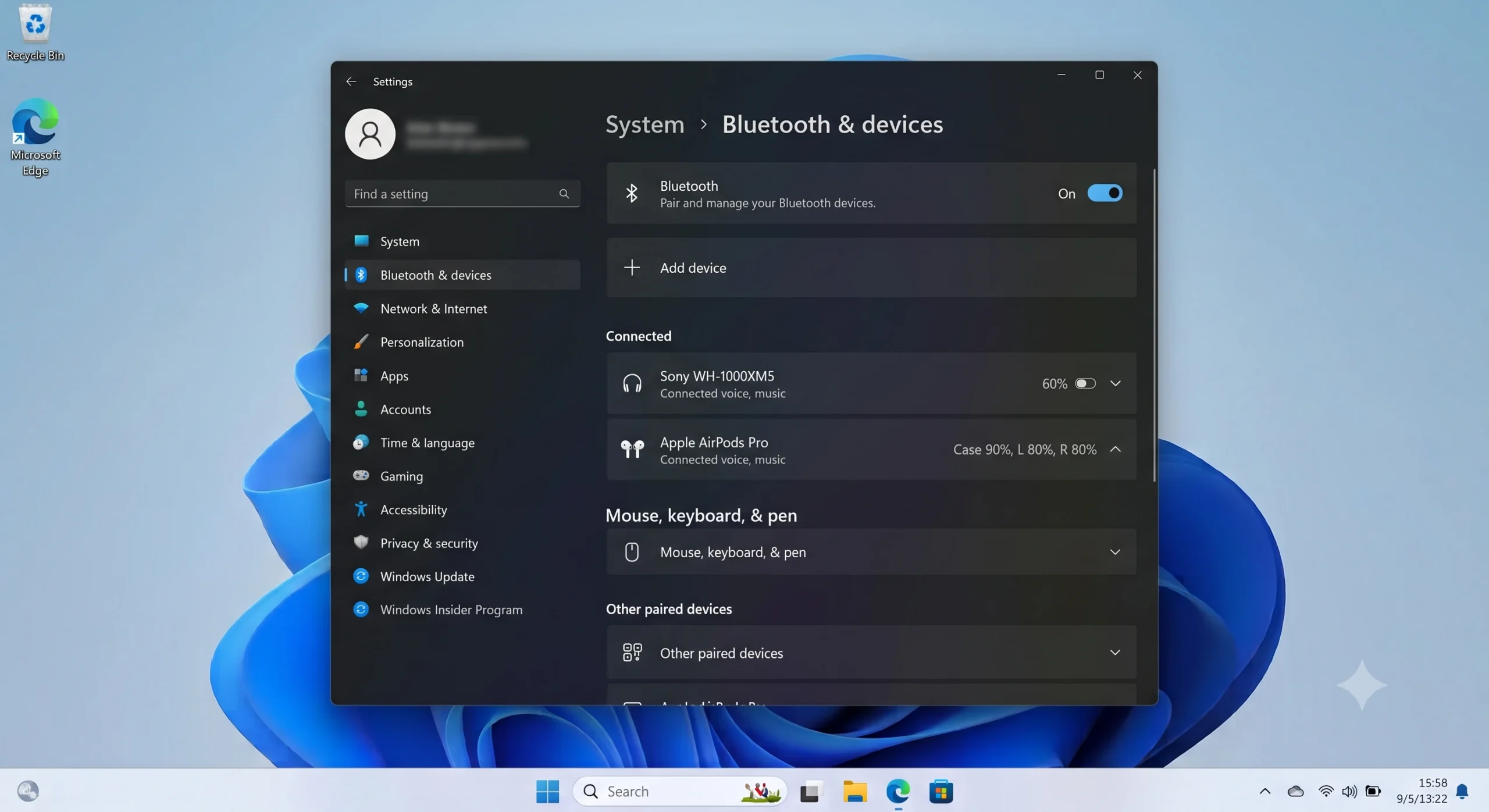
Shared Audio lets Windows 11 mirror sound output through two Bluetooth devices simultaneously, without any third-party mixer software. Connect two headphones or two speakers, and both play the same audio at the same moment. Microsoft paired this update with broader Bluetooth pairing and device-switching reliability fixes.
Professional audio monitoring is not the right use case here. Consumer Bluetooth mirroring can introduce small timing differences between devices.
Key Features:
- Both connected devices play synced audio without needing a physical splitter cable.
- Switching one device out for another keeps the second device connected without restarting playback.
Pricing: Free, built into Windows 11.
Common Mistakes to Avoid When Choosing Hidden Windows 11 Features
Mistake: Assuming a feature needs a registry hack or a third-party app before checking Settings first.
Why It Happens: Older guides written for Windows 10 often required workarounds that Windows 11 has since built in natively.
Fix: Search the Settings app by keyword first, since Microsoft moved most legacy Control Panel tweaks into a searchable menu.
Mistake: Installing PowerToys or other utilities without checking which native features already cover the same job.
Why It Happens: Generic “must-have tools” lists get copied without checking what ships with the OS by default.
Fix: Test Snap Layouts and Clipboard History first. Add PowerToys only for real gaps like FancyZones or Text Extractor.
Mistake: Enabling a Copilot+ exclusive feature on a PC without an NPU and assuming the setting is broken.
Why It Happens: Many articles skip hardware requirements entirely when describing new Windows features.
Fix: Confirm your processor supports Windows 11’s newer features first. Use a guide like our Windows 11 CPU compatibility walkthrough before troubleshooting further.
Mistake: Turning on every accessibility and personalization feature at once, then blaming Windows for a sluggish interface.
Why It Happens: Screen Tint, Live Captions, and Dynamic Lighting all run background processes at the same moment.
Fix: Turn on one feature at a time. Check the performance impact before adding the next one.
Frequently Asked Questions About Hidden Windows 11 Features
Q: What is the easiest hidden Windows 11 feature to turn on first?
A: Clipboard History takes one keystroke, Win+V, to enable and delivers an immediate, obvious benefit. Most people notice the difference within their first day of use.
Q: Do hidden Windows 11 features slow down my PC?
A: Individually, no. Microsoft designs most of these Windows 11 productivity features to run with minimal background resource use. Turning on many at once, especially several accessibility overlays together, can add up on older hardware.
Q: Which hidden Windows 11 features need a Copilot+ PC?
A: Windows Studio Effects, Cocreator in Paint, and Live Translation captions all require a Copilot+ PC. Each needs a dedicated neural processing unit. Standard Windows 11 PCs without an NPU will not show these options in Settings at all.
Q: Can I use these Windows 11 tips and tricks on Windows 10?
A: Some features, like clipboard basics and keyboard shortcuts, exist in a limited form on Windows 10. Most features on this list, including Snap Layouts, Focus Sessions, and Screen Tint, are Windows 11 exclusives.
Q: How do I find more hidden settings on my own?
A: Open Settings and search by keyword instead of browsing categories, since Windows 11 search now tolerates typos. The God Mode folder also surfaces legacy Control Panel settings that the modern Settings app sometimes buries.
Q: Is the God Mode folder safe to use?
A: Yes, creating the God Mode folder only changes how a folder displays contents, and it installs nothing. Deleting the folder later removes the shortcut without affecting any actual system settings.
Start Using These Windows 11 Features Today
Clipboard History and Snap Layouts deliver the fastest visible payoff, and both take less than a minute to turn on. Start there, then work through the accessibility and Copilot+ sections based on what your hardware actually supports.
Pair these settings with our guide to cutting your Windows 11 boot time. You’ll notice a PC that feels faster from the moment you sign in.
Which hidden Windows 11 feature are you turning on first? Drop your pick, or one we missed, in the comments below.
Discover more from Cloudorian — Android, Samsung & Windows How-To Guides
Subscribe to get the latest posts sent to your email.



