

Most Android users keep tolerating ads because they assume a real fix requires root access or a battery-draining VPN. NextDNS runs as a private DNS resolver and blocks ads across every app before they load. This article covers the setup, the features that outperform AdGuard, and the exact configuration for maximum coverage.
Setting Up NextDNS on Android Takes Under Two Minutes
Android 9 introduced a system-wide Private DNS setting. Every phone running Android 9 or later supports it natively. You do not need a third-party app to get NextDNS running.
Create a free account at nextdns.io. After signing in, the dashboard shows your personal DNS hostname. It looks like a short alphanumeric string followed by .dns.nextdns.io. Copy it.
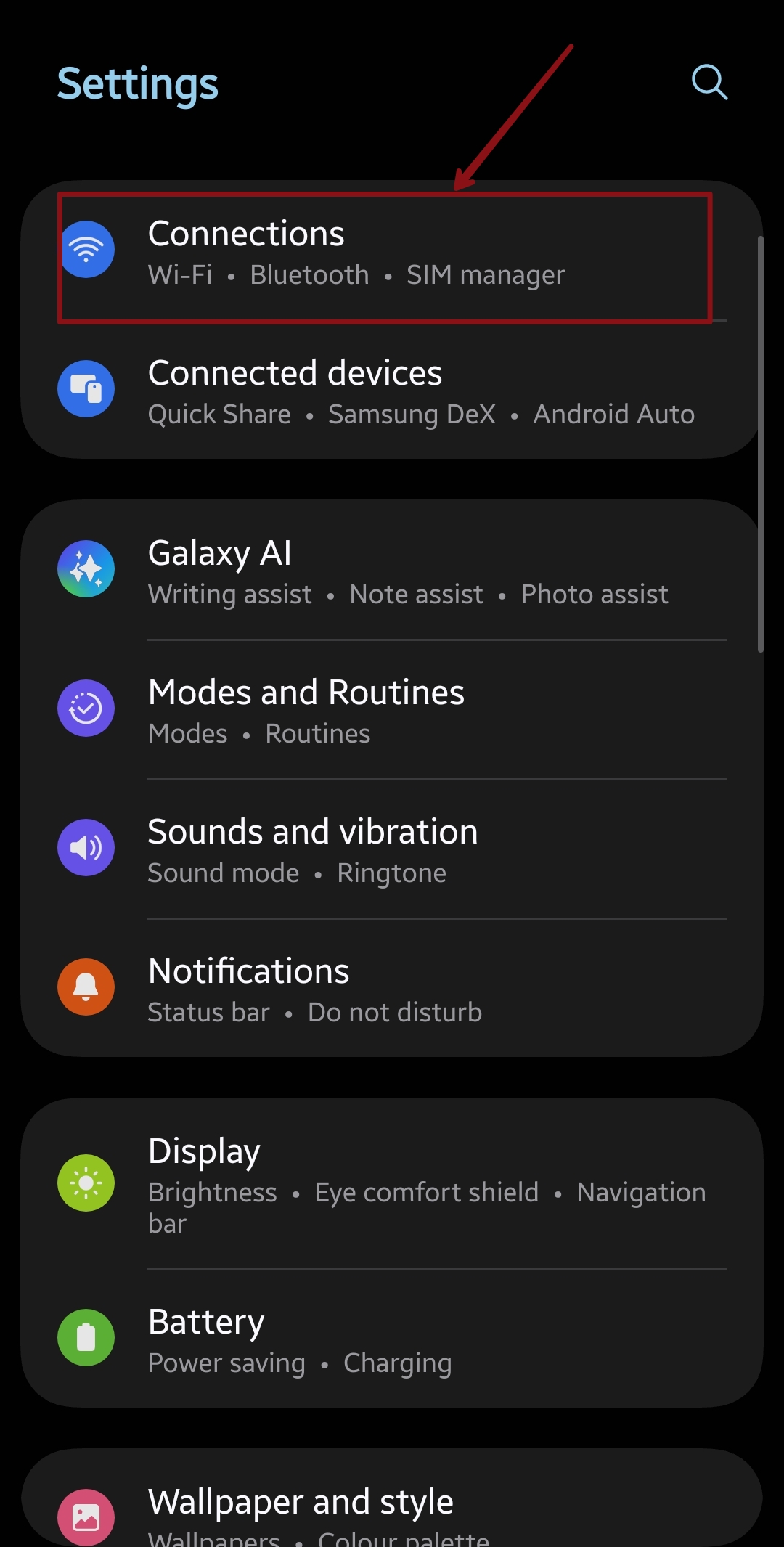
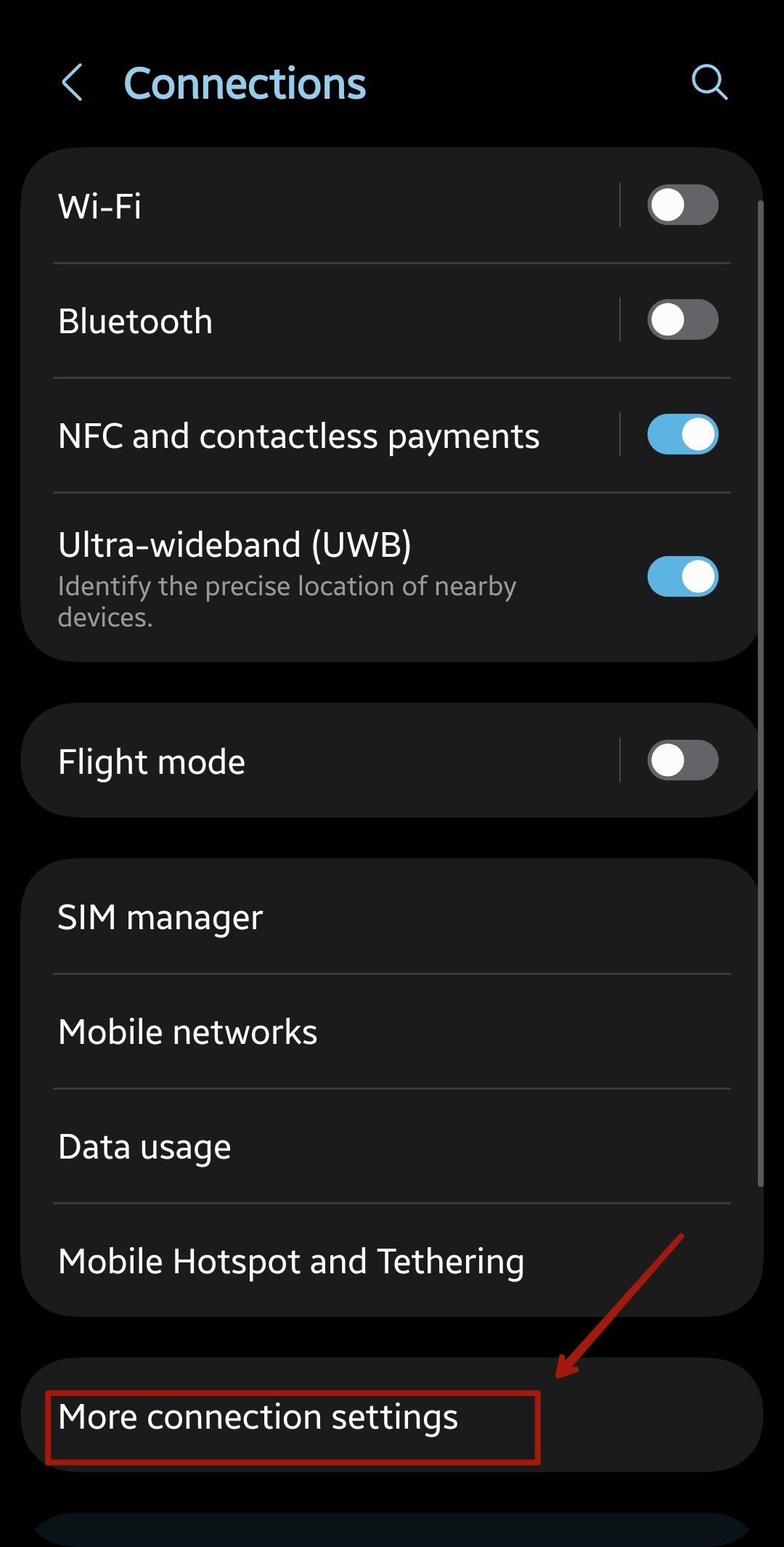
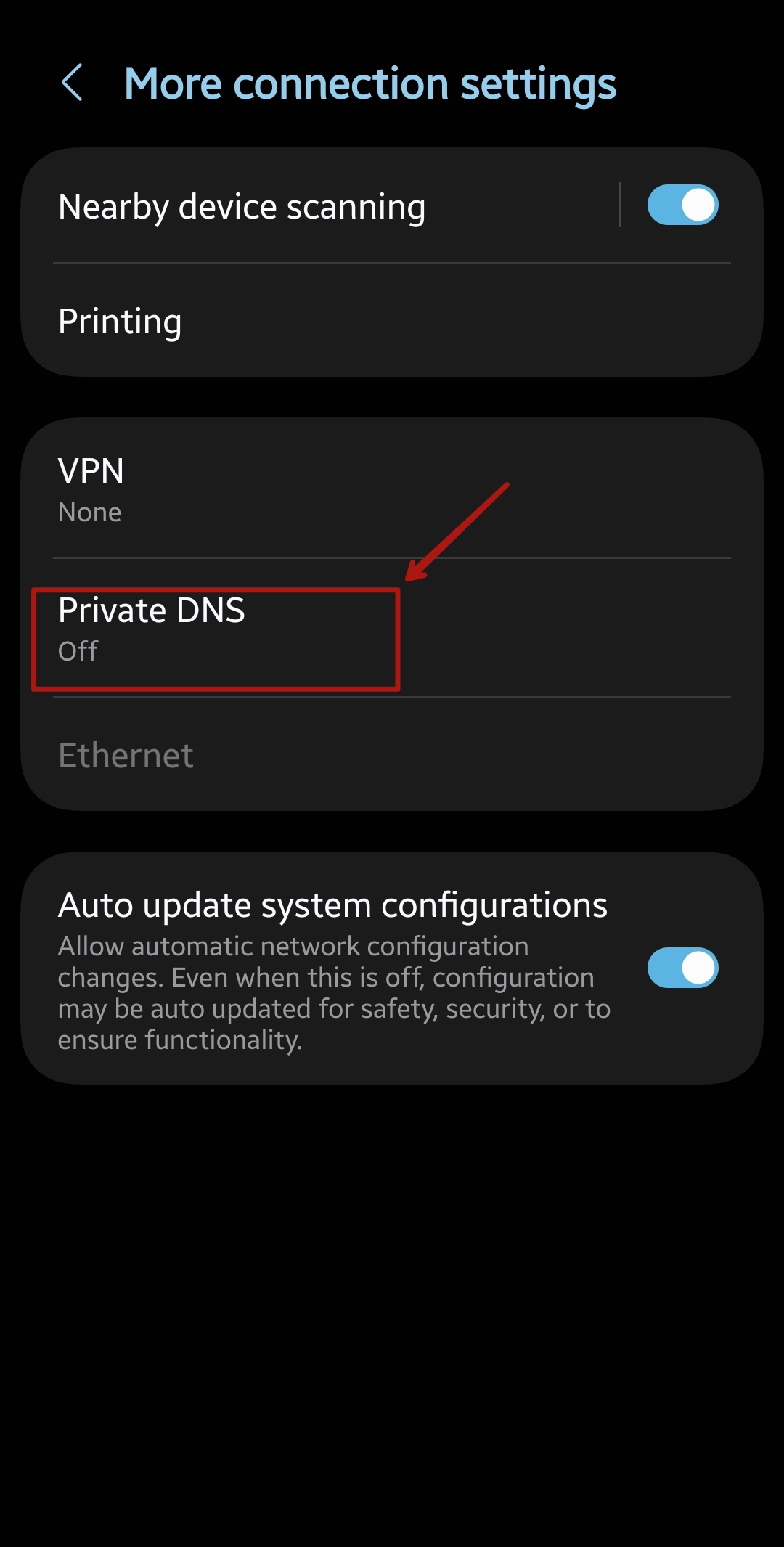
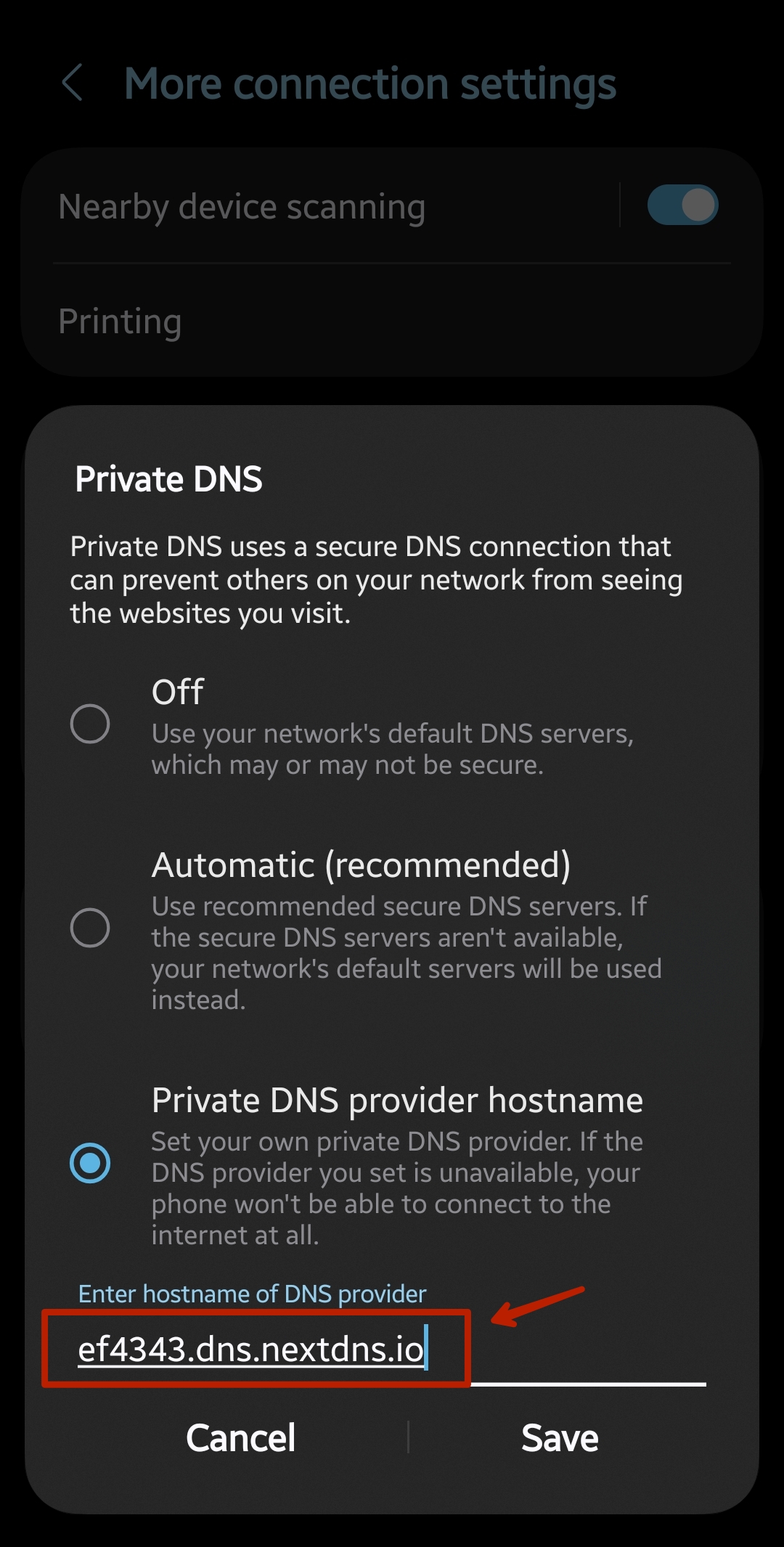
Open your phone’s Settings app and search for Private DNS. Tap Private DNS provider hostname and paste your NextDNS address. Tap Save.
Return to the NextDNS dashboard in your browser. The status line reads “All good” when your phone routes DNS queries correctly. Every app on the device now runs through that filter.
The NextDNS Manager app (available on the Google Play Store) offers a faster path for tweaking settings on mobile. It is an unofficial third-party app, but it mirrors your full NextDNS profile and syncs changes in real time.
The setup survives reboots automatically. You do not reconnect after a restart and do not manage a kill switch. Battery drain is negligible because Private DNS adds no persistent background process to your phone.
Why NextDNS Blocklists Leave AdGuard’s Fixed Filter Behind
AdGuard DNS assigns you one default blocklist. That list is curated and reasonably effective. You cannot swap it out, add to it, or refine what it targets. When a site breaks or your blocking coverage feels weak, your options run out.
NextDNS lets you choose from dozens of community-maintained and security-research blocklists inside your profile. You can stack multiple lists. The OISD list targets general ads and trackers. The AdGuard DNS Filter goes harder on ad servers. HaGeZi Pro++ adds malware domains and phishing infrastructure on top of standard ad blocking. Steven Black’s combined list covers adult content and gambling domains in one entry.
Stacking three to four lists creates some redundancy, but it also catches domains that no single list covers alone. A domain that slips past one filter almost always appears in another. The result is a layered block that performs closer to a network-wide Pi-hole than a standard DNS resolver. You get this customisation at no cost on the free tier, which no equivalent AdGuard DNS plan provides.
Do you know which app on your phone is pinging advertising servers in the background right now? The NextDNS dashboard can show you, and the answer is often surprising.
NextDNS Blocks Tracking at the OS Level, Not Just in Apps
Standard DNS-based ad blockers intercept requests from browsers and most apps. A significant category of tracking traffic comes from the phone manufacturer’s own system software. NextDNS addresses this directly.
Open your NextDNS profile and go to Privacy > Native Tracking Protection. A list of manufacturers appears: Samsung, Xiaomi, Huawei, Apple, Roku, and others. Add the one that matches your device.
Once added, NextDNS filters telemetry requests that your phone’s operating system sends to the manufacturer’s servers. Samsung phones, for example, regularly contact analytics endpoints that are invisible to the user and unaffected by browser-level blockers. Native Tracking Protection catches these at the DNS layer. No app install, no VPN toggle, and no additional permission is required to activate it.
The feature carries a beta label, but it performs reliably across current Samsung Galaxy and Pixel hardware. There are no known cases where enabling it breaks core system functions on those devices.
NextDNS also lets you block entire top-level domains. Domains ending in .xyz, .top, .click, and .ru account for a disproportionate share of malware and scam infrastructure. You can block every domain under those extensions in one toggle. No other DNS-based ad blocker for Android offers this at the network layer without a paid subscription.
The Analytics Dashboard No Standard Ad Blocker Gives You
When a DNS blocker breaks a website, most users disable the entire filter and never re-enable it. NextDNS gives you a better diagnostic path.
Your NextDNS dashboard logs every DNS query your device sends. Each entry shows the domain, the time of the request, whether it was blocked, and which blocklist triggered the block. If an app stops loading correctly, open the logs and find the blocked domain. Add it to your allowlist in under a minute.
The logs also reveal how your apps behave. A game you downloaded may send DNS queries to ad networks every few minutes. A news app might contact a dozen tracker domains every time you open it. That level of detail is not visible in AdGuard Free or Google’s default DNS settings. No other DNS tool on Android surfaces per-app query logs without a paid plan.
Log data syncs with your account and is reviewable from a desktop browser. Each profile has its own log stream. You can switch between them from one screen. This makes NextDNS a practical monitoring tool for households running multiple devices on different profiles simultaneously.
Profiles and Parental Controls That Scale With Your Needs
A NextDNS profile stores your blocklist stack, parental controls, custom allow and deny rules, and security settings. You create as many profiles as you want. Each one gets its own DNS hostname.
This structure makes NextDNS practical across a household. Set up one profile with aggressive blocking for your personal phone. Create a lighter profile for a work device where certain analytics domains need to remain accessible. Build a third profile for a child’s tablet with adult content, social media, and gaming sites filtered out.
Parental controls offer category-level toggles for adult content, dating apps, and social media platforms. Specific services like TikTok, Discord, and Snapchat appear as individual toggles. Each toggle applies at the DNS level. The filtering works in every app and browser on that device, not just inside a controlled browser.
Changing a device’s profile requires updating one DNS hostname in the Private DNS setting. The switch takes thirty seconds and takes effect immediately.
The Free Tier Limit and When the Paid Plan Makes Sense
NextDNS gives you 300,000 queries per month for free. According to NextDNS’s pricing page, this limit applies across all connected devices under a single account. After 300,000 queries, NextDNS stops filtering and acts as a standard DNS resolver until the next calendar month begins. Your internet connection stays active.
For a single Android phone on normal usage, 300,000 queries comfortably covers a full month. The limit becomes a real constraint when you connect NextDNS at the router level. Running five or more devices through it simultaneously can exhaust 300,000 queries in two to three weeks.
The paid plan costs $1.99 a month. That removes the query limit for unlimited devices and unlimited profiles under one account. For a household running four or five devices, that price undercuts most single-device subscription ad blockers.
One known limitation applies regardless of plan. DNS-level filtering cannot block ads that stream from the same domain as the content itself. YouTube’s in-stream ads share infrastructure with YouTube’s video delivery, making them invisible to a DNS filter. For YouTube-specific ad blocking, a browser-level solution is still necessary. Combining NextDNS with a browser that supports extension-based ad blocking covers both layers. If you want to add that layer, read how Android browsers with Chrome extension support perform in 2026.
How to Configure NextDNS for Maximum Coverage on Android
Sign up for a free account at nextdns.io. Copy the DNS hostname from your dashboard, then follow these steps on your Android device:
- Open Settings and search for Private DNS.
- Tap Private DNS provider hostname.
- Paste your NextDNS hostname and tap Save.
- Return to the NextDNS dashboard and confirm the “All good” status.

Inside your NextDNS profile, add these blocklists under the Security and Privacy tabs:
- OISD for general ad and tracker blocking
- HaGeZi Pro++ for comprehensive malware and tracker coverage
- AdGuard DNS Filter for broader ad server blocking

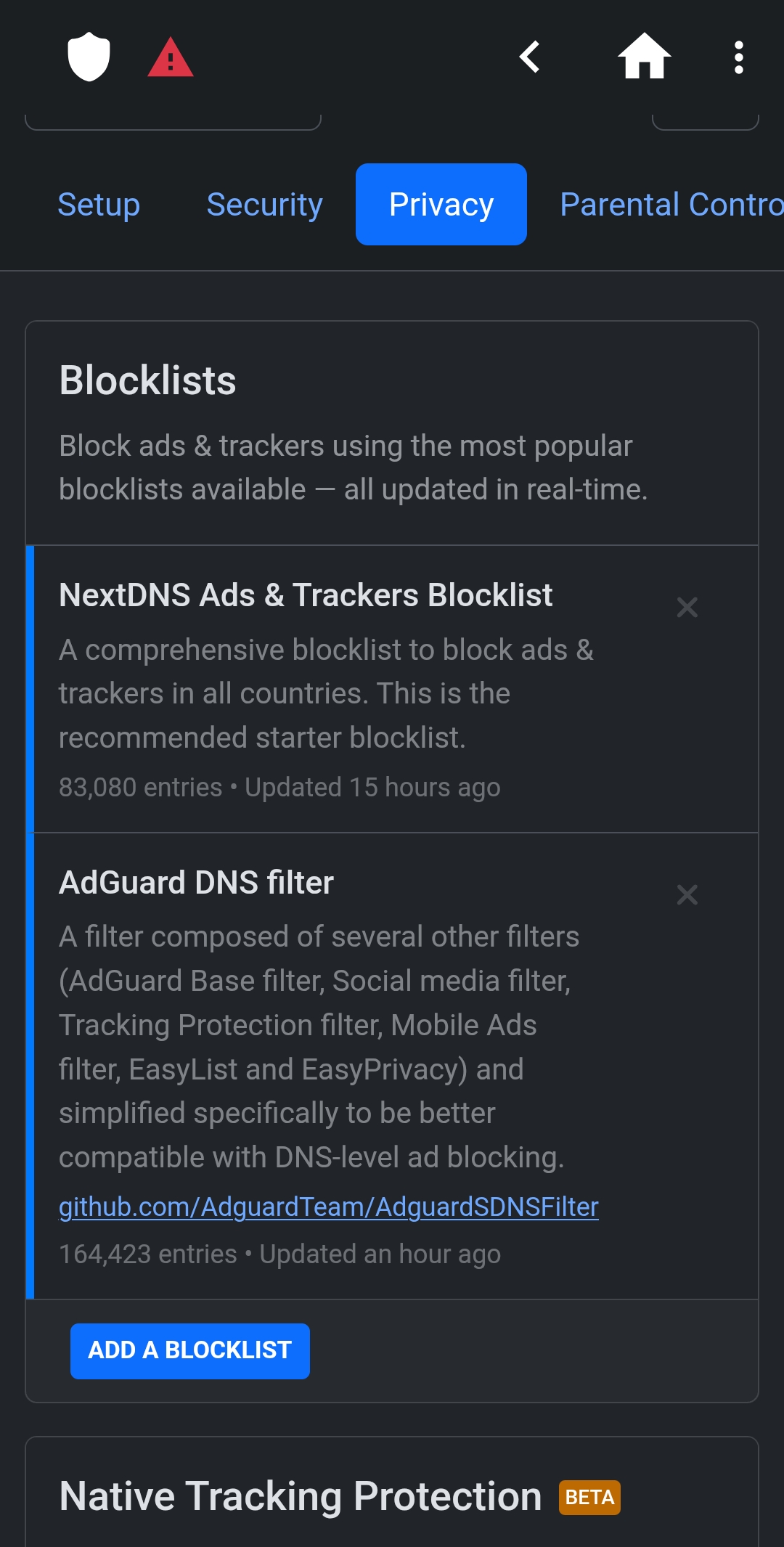
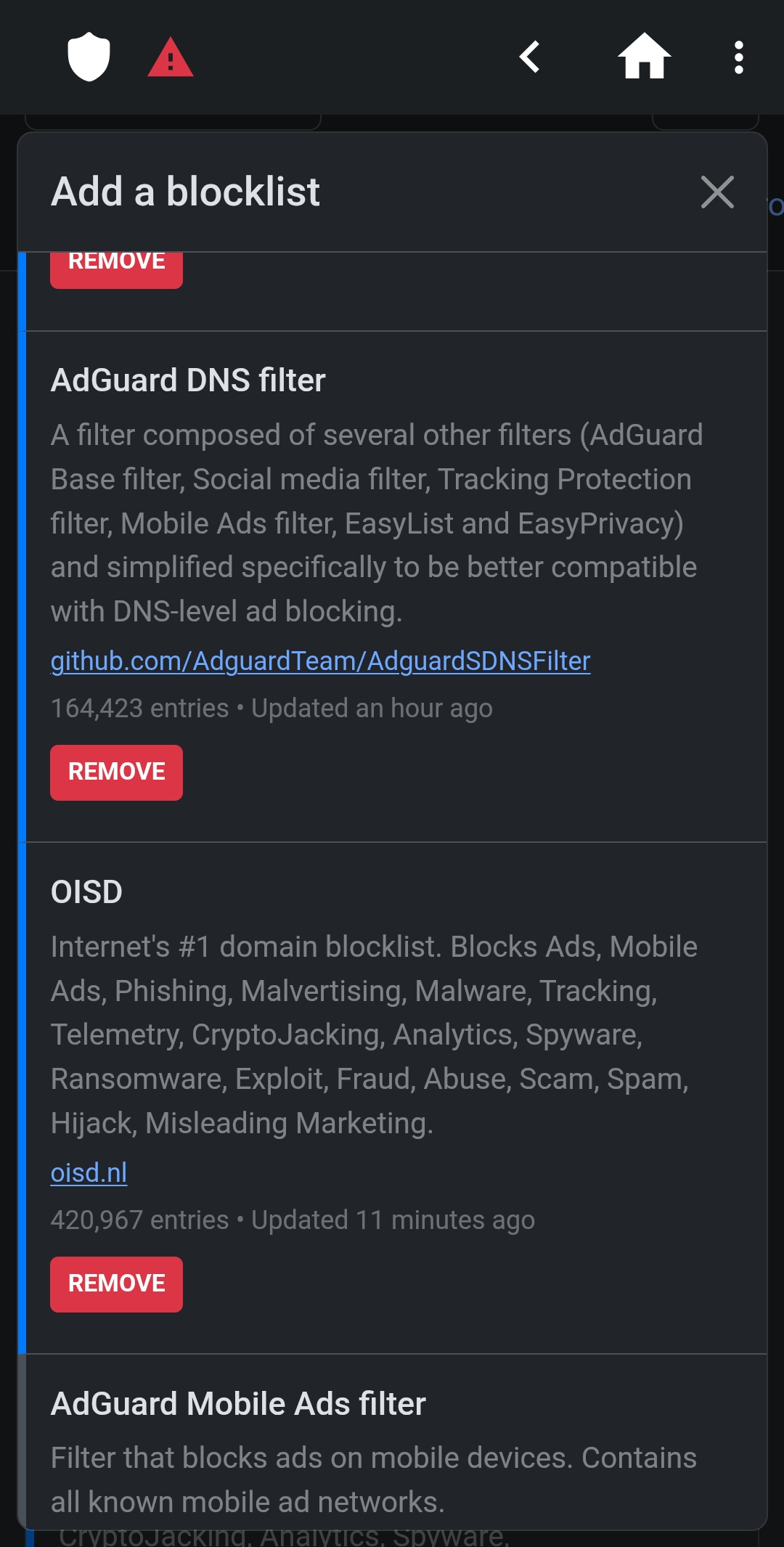
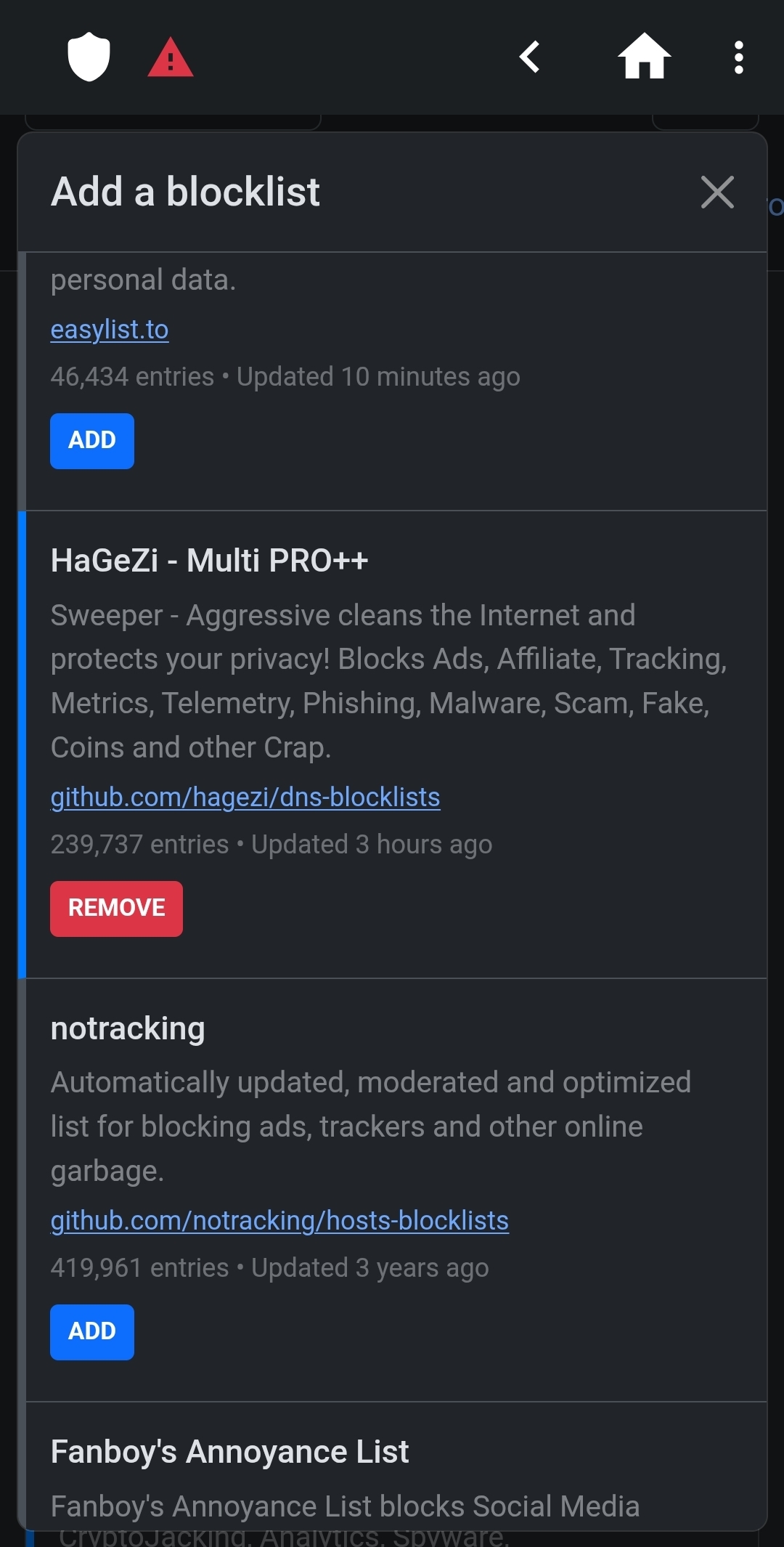
Under Privacy > Native Tracking Protection, add your phone manufacturer. Under Security, enable Threat Intelligence Feeds and Block Newly Registered Domains. These cover freshly deployed malicious domains before mainstream blocklists pick them up.
Is the dashboard flagging domains you use every day? Add them to your allowlist one at a time rather than disabling entire blocklists. Most allowlist fixes take under thirty seconds.
For deeper Android system-level control alongside DNS filtering, visit the Android Developer Options guide on Cloudorian. Those settings run independently of your DNS setup. They help you understand background app behaviour and network activity at a lower level than any DNS dashboard can show.
Discover more from Cloudorian — Android, Samsung & Windows How-To Guides
Subscribe to get the latest posts sent to your email.



