

Task Manager misses most of what actually happens on your PC every day. Microsoft built System Monitor, known as Sysmon, directly into Windows 11 to close that gap for free. This guide shows you how to enable Sysmon on Windows 11, configure it, and read your first logs.
What Sysmon Is and Why Task Manager Falls Short
Task Manager only shows processes running right now. A program that starts and stops within seconds disappears from the list before you get a chance to react.
Sysmon works differently. It installs as a driver during your boot sequence. From there, it logs process creation, network connections, driver loads, and file timestamp changes as they happen.
[IMAGE: Split screen comparing a basic Task Manager process list with a detailed Sysmon event log entry – Alt text: “Task Manager versus Sysmon on Windows 11 side by side”]Have you ever closed Task Manager only to wonder what that strange process actually did? Sysmon answers that question because every event stays in the log long after the process itself ends.
Microsoft has owned Sysmon since it acquired the Sysinternals suite back in 2006. According to Microsoft’s Sysmon overview documentation, the tool now ships as a native optional feature on Windows 11. A separate download is no longer required to use it.
Requirements Before You Enable Sysmon on Windows 11
Built-in Sysmon needs a recent Windows 11 build. Confirm your version before you start anything else.
- Windows 11 version 25H2, or a supported Insider Preview build (26300.7733 on the Dev Channel or 26220.7752 on the Beta Channel and later), is required for the built-in feature.
- Administrator rights on the device are required to enable the feature and install the driver afterward.
- Any standalone Sysmon installation must come off first. Built-in Sysmon and standalone Sysmon cannot both run on one device.
Check your build number by pressing Win + R, typing winver, and pressing Enter.
PRO TIP: If your build number falls short, run Windows Update first. Microsoft delivers built-in Sysmon through the standard quality update process rather than a separate installer.
Confirm your hardware qualifies for current Windows 11 features in the first place. Our guide on checking CPU compatibility for Windows 11 covers this before you troubleshoot anything further.
How to Enable Built-In Sysmon on Windows 11
Three methods turn the feature on. Pick whichever fits your comfort level with the command line.
Method 1: Turn Windows Features On or Off (GUI)
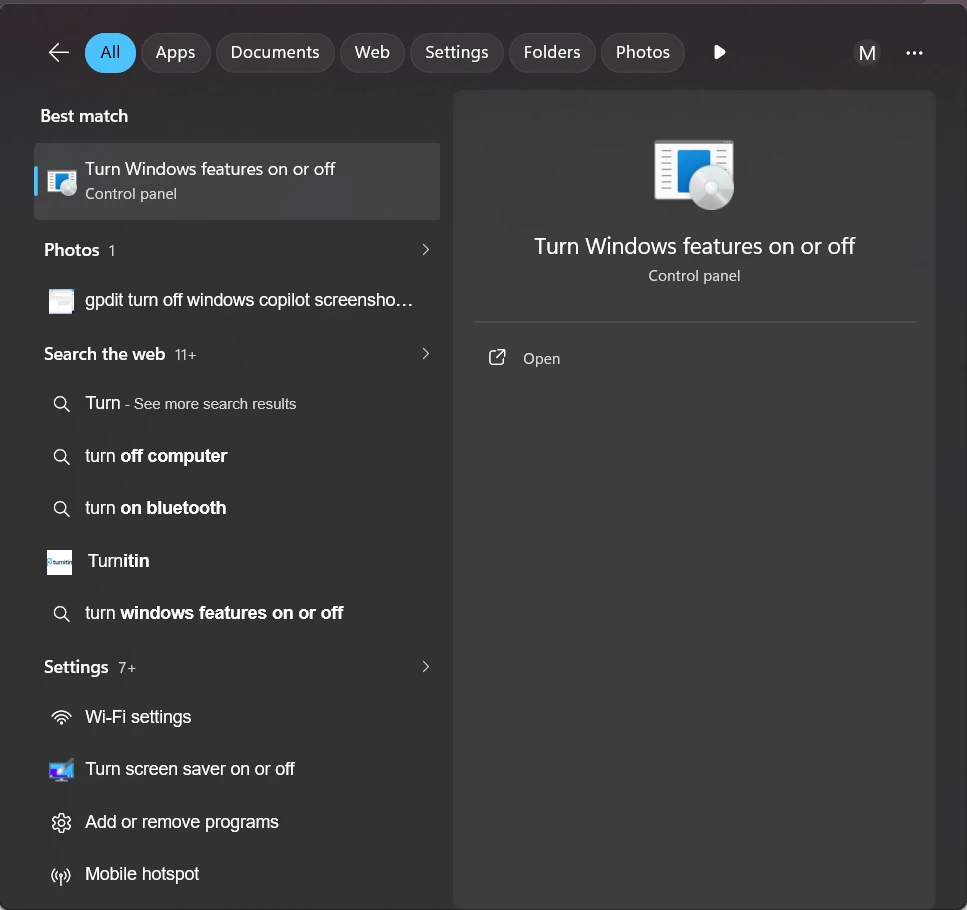
Step 1. Open the Start menu and search for Turn Windows features on or off
Press Enter to open the Windows Features dialog box.
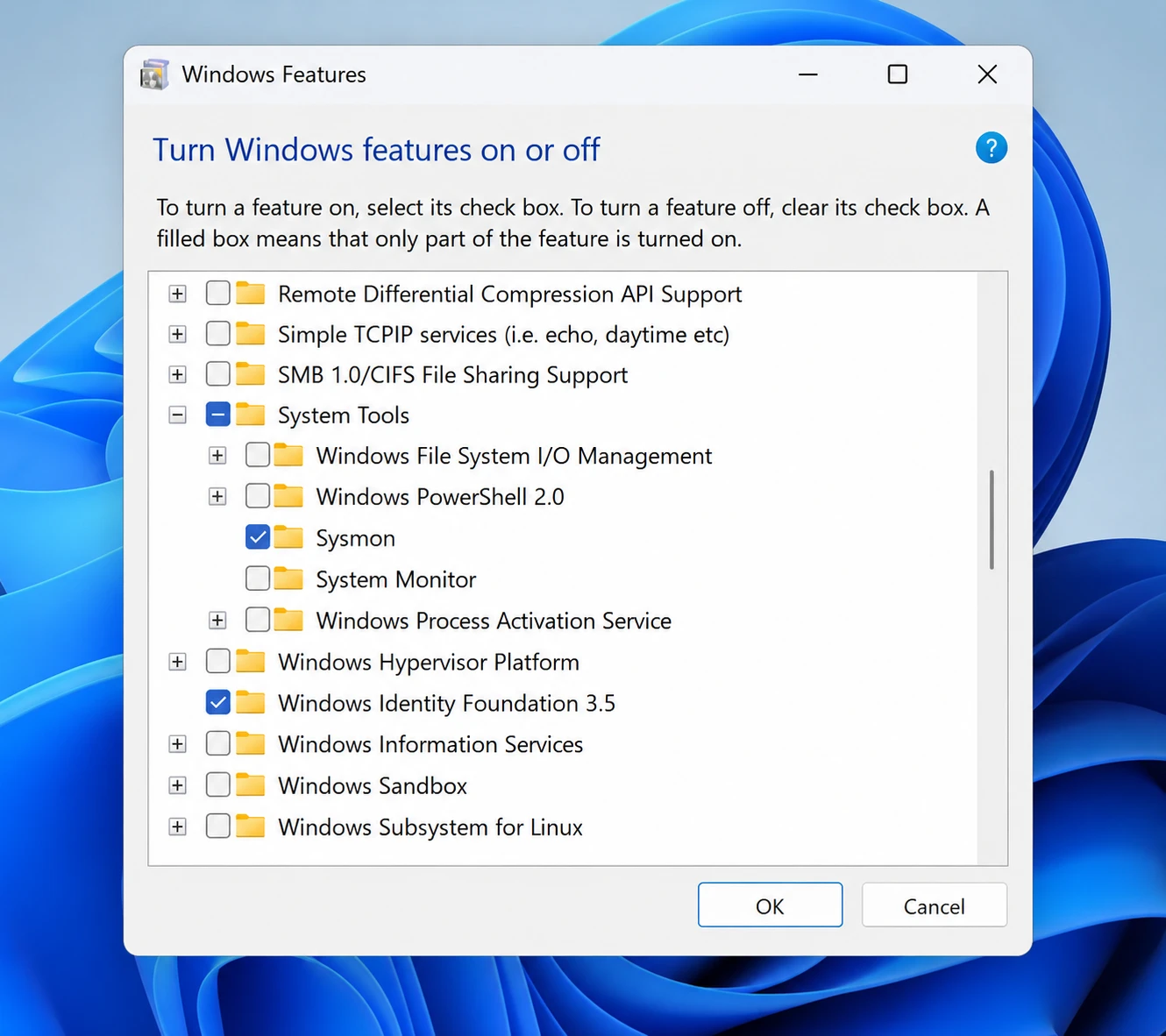
Step 2. Scroll down and check the box next to Sysmon
Click OK and wait while Windows applies the change.
Step 3. Close the dialog once the process finishes
A restart is not required to complete this particular step.
Method 2: Command Prompt (DISM)
Step 1. Right-click the Start button and select Terminal (Admin)
Switch to the Command Prompt tab if PowerShell opens by default instead.
Step 2. Run the DISM enable command
Type DISM /Online /Enable-Feature /FeatureName:Sysmon and press Enter.
Step 3. Wait for the confirmation message
Windows reports that the operation completed successfully once it finishes.
Method 3: PowerShell
Step 1. Open Windows Terminal as an administrator
Select Windows PowerShell from the tab menu at the top.
Step 2. Run the PowerShell enable command
Type Enable-WindowsOptionalFeature -Online -FeatureName Sysmon and press Enter.
Step 3. Confirm the feature shows as enabled
PowerShell prints the updated feature state once the command finishes running.
WARNING: Enabling the feature only stages the Sysmon files on your system. Sysmon does not log a single event until you install the driver in the next step.
Installing the Sysmon Driver
Step 1. Open Command Prompt or PowerShell as an administrator
Administrator rights are required for this specific command.
Step 2. Run the install command
Type sysmon -i and press Enter to start the installation.
Step 3. Accept the license prompt on first run
This prompt appears only the first time Sysmon installs on a given device.
Once installed, the SysmonDrv driver starts right away and begins writing events into the log.
Configuring Sysmon With a Custom Rules File
Default Sysmon logging captures a large volume of events. Most of that volume adds noise rather than insight.
A configuration file written in XML tells Sysmon exactly which events to log and which to skip. Microsoft’s guide on how to enable and configure Sysmon points to community-maintained files as a starting point. Olaf Hartong’s Sysmon-modular project offers one tested option instead of building rules from scratch.
Apply a configuration file with this command, replacing the path with your own file location:
sysmon -c C:\Sysmon\sysmonconfig.xmlConfiguration changes take effect immediately. No restart interrupts your monitoring while the new rules load.
Do you already run other Sysinternals utilities like Process Explorer? A tuned Sysmon configuration pairs well with the live process trees those tools display in real time.
| Feature | Standalone Sysmon | Built-In Sysmon (Windows 11) |
|---|---|---|
| Download required | Yes, from Sysinternals directly | No, ships inside Windows 11 |
| Update mechanism | Manual download of each new version | Delivered through Windows quality updates |
| Configuration persistence | Stored locally, manual reapply after reinstall | Preserved automatically across binary updates |
| Coexistence | Cannot run alongside the built-in version | Cannot run alongside the standalone version |
| Event log localization | English display text only | Rendered text localized, XML data stays consistent |
How to View Sysmon Logs in Event Viewer
Step 1. Press Win + R, type eventvwr.msc, and press Enter
This command opens Event Viewer directly.
Step 2. Navigate to the Sysmon log folder
Go to Applications and Services Logs > Microsoft > Windows > Sysmon > Operational.
Step 3. Review the events listed in the pane
Each entry shows a timestamp, an event ID, and full process detail.
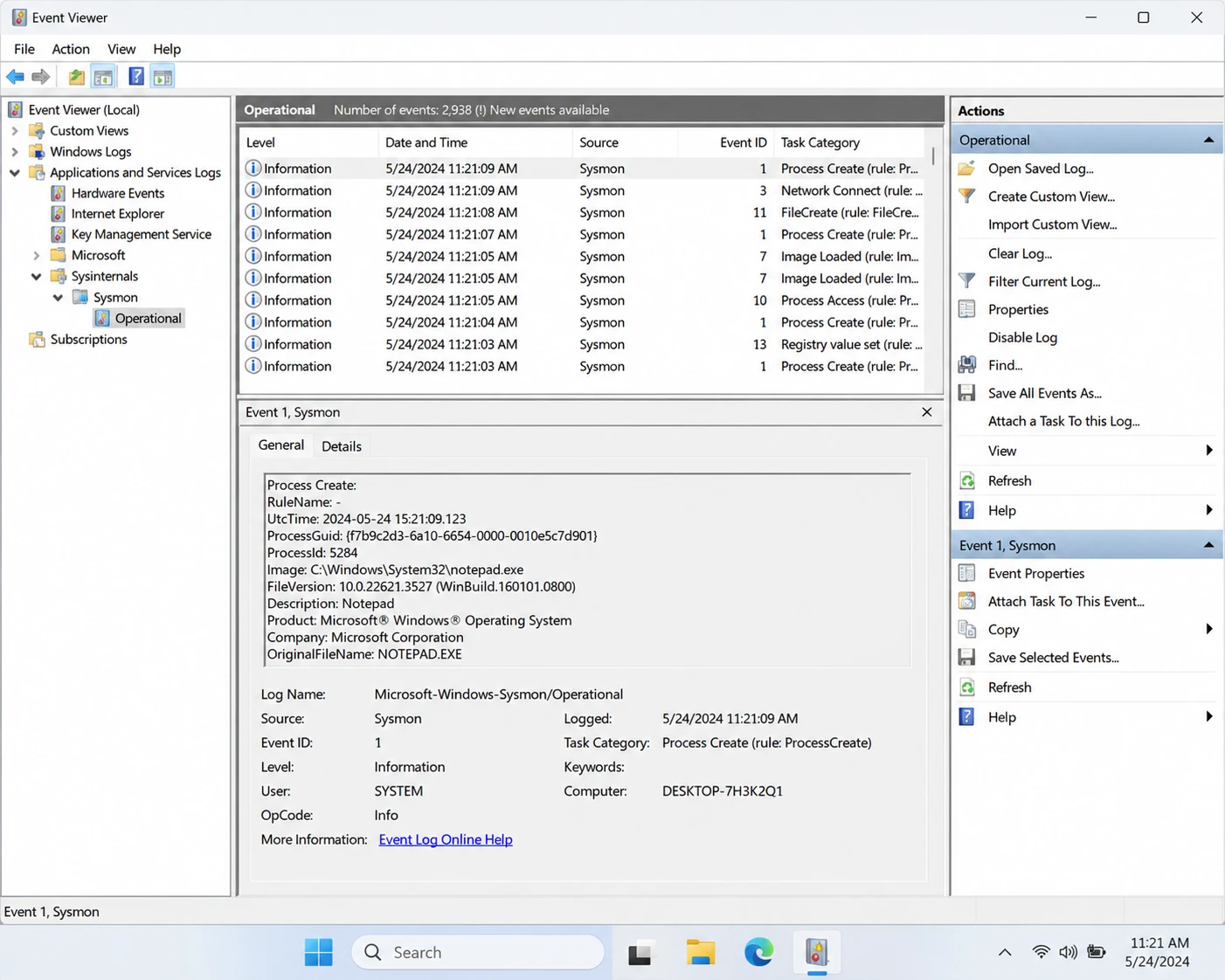
Event Viewer only refreshes when you tell it to. Press F5, or click the refresh icon in the Actions pane, to pull in anything new.
A handful of event IDs matter more than the rest during your first pass through the log. Event ID 1 covers process creation. Event ID 3 covers network connections, and Event ID 11 covers file creation.
What to Look For in Your First Logs
A wall of Event Viewer entries overwhelms most first-time users within minutes. Focus on three patterns instead of scrolling through everything on screen.
Check the parent-child process relationship first. A word processor spawning a command line process rarely happens through ordinary use.
Check the file hash next. Sysmon hashes every process image using SHA1. The same hash appearing under different file names points to a renamed or disguised file.
Check outbound network connections last, assuming you enabled that logging option. A background process reaching an unfamiliar IP address on an unusual port deserves a closer look.
None of these checks require formal security training. They require attention, plus a habit of checking the log whenever something feels off.
Common Sysmon Problems and How to Fix Them
Problem: The Sysmon checkbox does not appear in Windows Features at all.
Cause: Your current Windows 11 build predates the built-in feature rollout.
Fix: Run Windows Update repeatedly until you reach version 25H2 or later. Restart your PC and check Windows Features again.
Problem: The sysmon -i command returns an error about an existing installation.
Cause: A standalone copy of Sysmon already runs on the device.
Fix: Uninstall the standalone version first with sysmon -u. Enable the built-in feature afterward, then run sysmon -i again.
Problem: The Sysmon Operational log stays completely empty after installation.
Cause: The driver installed, but the service has not started, or a restrictive configuration filters out every event.
Fix: Confirm the SysmonDrv service shows as running inside Services.msc. Reapply a default configuration to clear custom filtering and test again.
Problem: Event Viewer shows thousands of new entries within a single hour.
Cause: The default configuration logs nearly everything with no meaningful filtering applied.
Fix: Apply a community configuration file built for reduced noise. Adjust specific rules afterward based on whatever floods your log most.
Tips and Pro Moves for Getting More From Sysmon
Pair Sysmon with Windows Event Forwarding once you manage more than one PC. Centralizing logs from several machines into one collector saves you from checking Event Viewer on each device separately.
Organize your configuration file changes by event type instead of editing one giant file at once. Smaller, focused rule groups make troubleshooting a bad filter far faster.
Cross-reference a suspicious Sysmon entry with Process Explorer’s live view whenever that process is still running. Static logs paired with a live process tree confirm the full picture faster than either tool alone.
Export the Sysmon log on a regular schedule if you want history beyond the default size cap. Event Viewer lets you save the Operational log as an EVTX file for long-term storage.
Malware detection and system security might interest you further. Our roundup of free antivirus software for Windows covers real-time protection tools that complement the log-based visibility Sysmon adds.
Frequently Asked Questions About Sysmon on Windows 11
Q: What is Sysmon used for on Windows 11?
A: Sysmon logs detailed system activity, including process creation, network connections, and file changes, to help identify malware and unusual behavior. It writes every event straight to the Windows Event Log for later review.
Q: Is Sysmon free on Windows 11?
A: Yes. Sysmon ships as a built-in optional feature on supported Windows 11 builds, and the standalone version remains free from Microsoft Sysinternals as well.
Q: Does enabling Sysmon slow down my PC?
A: Sysmon runs as a lightweight background service with minimal resource use under a default configuration. A verbose custom configuration logging every event type can increase disk writes and log size over time.
Q: Can I run standalone Sysmon and built-in Sysmon together?
A: No. Built-in Sysmon and standalone Sysmon cannot coexist on the same device. Uninstall one version before you enable the other.
Q: Where do I find Sysmon logs after enabling it?
A: Open Event Viewer and navigate to Applications and Services Logs, then Microsoft, Windows, Sysmon, and Operational. Every logged event appears inside that folder.
Q: Do I need a configuration file to use Sysmon?
A: A configuration file is not required to start logging events right away. A tested community configuration reduces noise and highlights the events that matter most for security monitoring.
Q: Does Sysmon replace antivirus software on Windows 11?
A: No. Sysmon only logs activity and does not block or remove threats on its own. Pair it with dedicated antivirus software for active protection alongside the visibility Sysmon provides.
Start Reading Your Sysmon Logs Today
Enable the feature, install the driver, and open Event Viewer before your next PC problem hits. Do this before you have to guess what happened. A tuned configuration file turns raw event data into something you can actually scan within minutes.
Copilot’s background activity might also be on your list of things to clean up. Our guide on removing Copilot from Windows 11 permanently walks through that entire process step by step.
What would you want Sysmon to catch first on your own PC? Drop your use case in the comments below.
Discover more from Cloudorian — Android, Samsung & Windows How-To Guides
Subscribe to get the latest posts sent to your email.



