

Last Updated on 27 Sep, 2026 by Montel Anthony
Google just put its full search engine directly on your Windows taskbar. The Google app for desktop is now available worldwide for Windows users in English, no Google Labs sign-up required. With AI Mode built right in, you can ask whatever is on your mind and get AI-powered responses with links to the web, all without opening a browser. That changes how search works on a PC in ways most users have not considered yet. See Google AI Studio Launches Full-Stack Vibe Coding With Antigravity.
Key Takeaways
- Press Alt + Space from anywhere on your desktop to launch the app instantly.
- Search covers your PC files, installed apps, Google Drive, and the web in one box.
- Google Lens lets you search anything visible on your screen.
- AI Mode supports follow-up questions with a conversational, floating interface.
- Requires Windows 10 or later; available to users aged 13 and up.
What the Google App for Desktop Actually Is
The Google app for desktop brings the best of Google Search right to your desktop, including AI Mode, with the ability to invoke Google Lens for specific searches, translate text and images, get homework help, and more.
This is not a browser shortcut. It is a standalone Windows application that runs in the background and surfaces a floating search bar on demand. The app allows people to use an Alt + Space shortcut to instantly search for information from their computer files, installed apps, Google Drive files, and the web.
Think about it: there has still been no native Google Docs, Gmail, or YouTube desktop app for Windows, which makes this decision to launch a Windows desktop app genuinely surprising.
How to Download and Set Up the Google App for Desktop
Getting started takes less than two minutes. Follow these steps:
- Visit search.google/google-app/desktop and click the download button.
- Run the installer on a Windows 10 or higher device.
- Sign in with your Google account to unlock Google Drive results and search history.
- Grant screen capture permission when prompted so Google Lens can work.
- Press Alt + Space from anywhere on your desktop to open the search bar.
You can also double-click the app on your desktop, click the Search box at the bottom of your screen, search for “Google,” and launch the Google app that way. To access it at any time, click the Google icon in the notification tray.
The app runs quietly in your notification tray. It does not consume significant resources when idle.
Changing the Default Keyboard Shortcut
The default shortcut is Alt + Space. That conflicts with PowerToys Run, which many Windows power users already have bound to the same keys. You can customize the key combination and adjust behavioral details from the user profile.
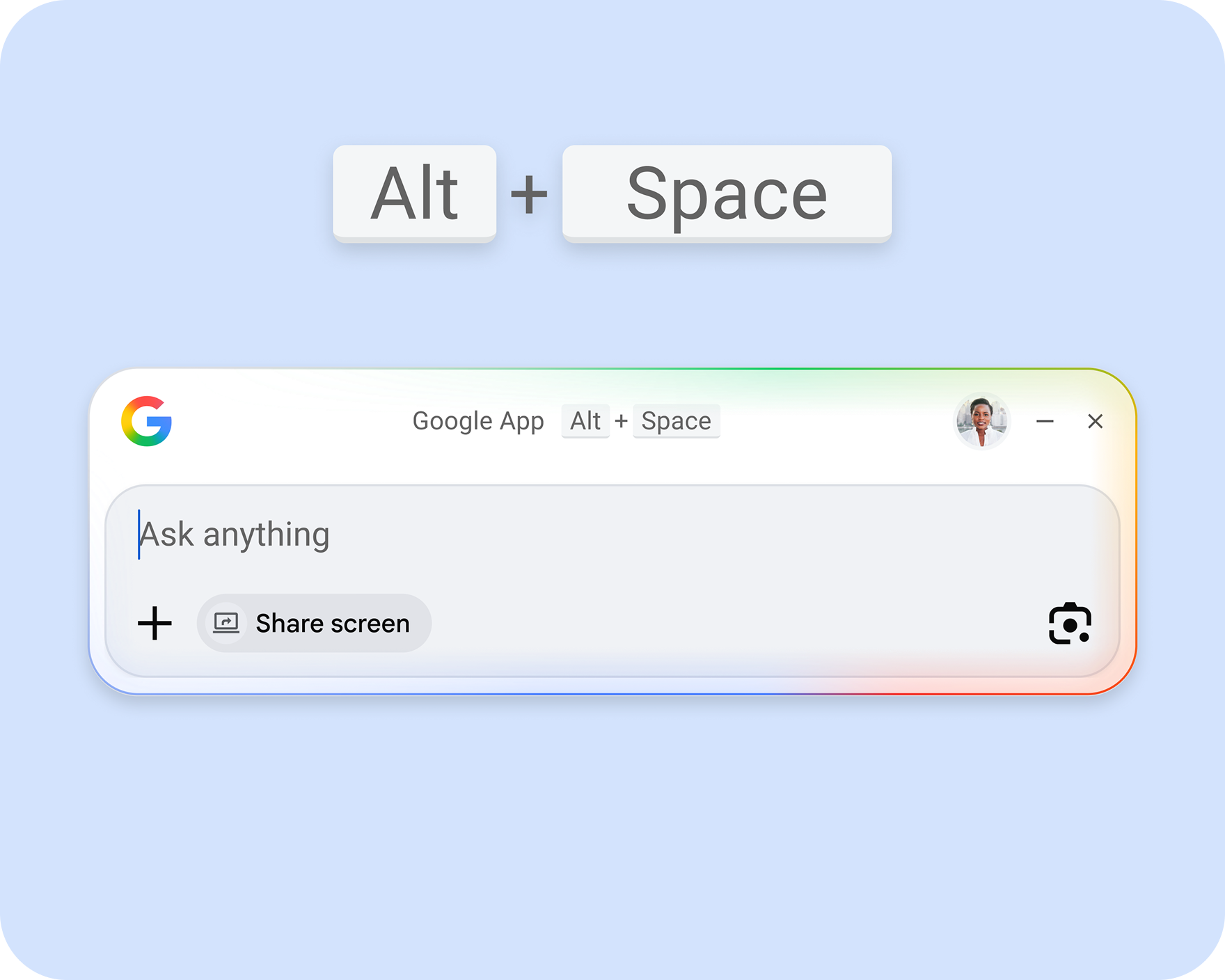
Go into the app settings after install and remap the shortcut to avoid conflicts. Win + G or Ctrl + Alt + G are clean alternatives that avoid collisions with existing Windows shortcuts.
The Four Core Features You Need to Know
1. AI Mode With Follow-Up Questions
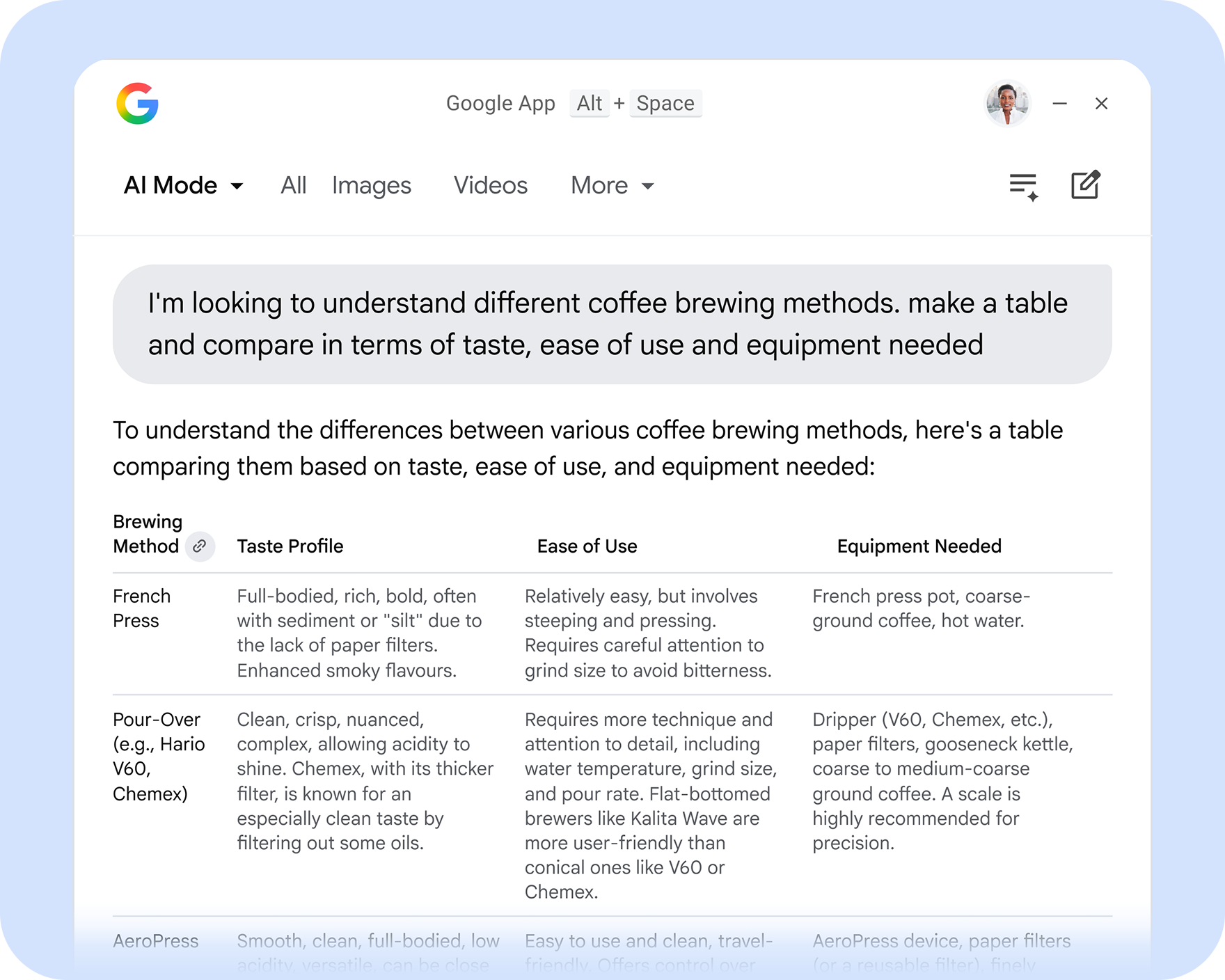
With AI Mode built right in, you can ask whatever is on your mind and get AI-powered responses with links to the web, keeping exploring with follow-up questions.
Results open in a floating window with the ability to ask follow-up prompts, and the UI aligns closely with the mobile Search experience.
This is the same AI Mode Google has been rolling out across Search and its mobile apps. You get Gemini-powered answers alongside web links, not just a wall of text with no sources.
2. Google Lens Built Into Your Screen
With Lens, you can select and search anything on your screen, making it easy to translate images or text, get help with homework problems, and more.
You can select anything on your screen, including an image, a diagram, or a math equation, and run a Lens query directly from the overlay to translate text, identify objects, or extract information.
This is something no other Windows search tool does natively. You do not need to take a screenshot, open a browser, and drag an image into Google. You just select the area on your screen and get an answer on the spot.
3. Screen Sharing for Contextual Questions
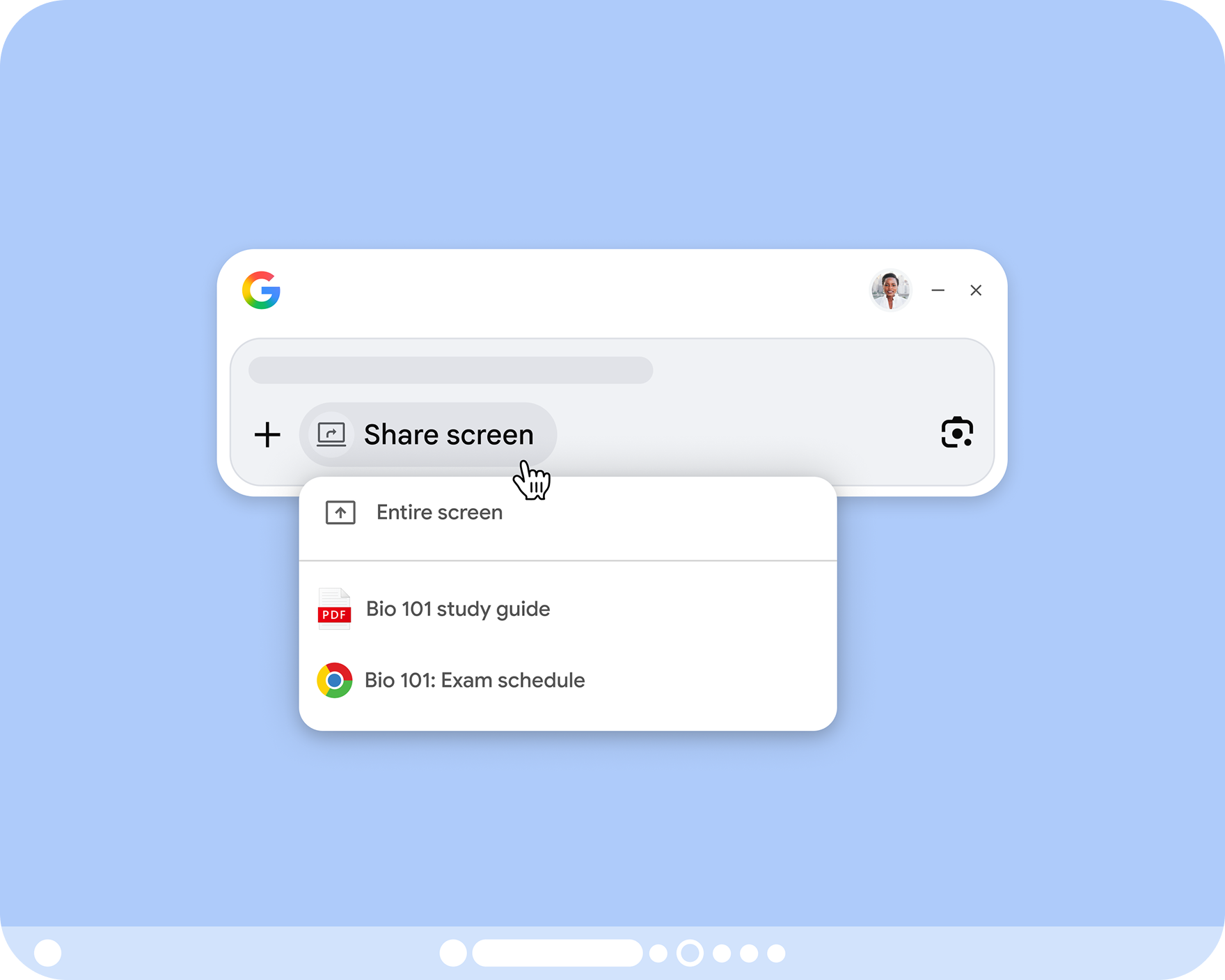
With Lens and screen sharing built into the app, you can ask about any part of your screen, whether a specific window or your entire screen.
Say you are reading a PDF contract. You share that window with the app and ask a question about specific language in the document. The app reads what is on screen and answers in context.
In practice, if you are in a document, video, or game, you can activate the bar, capture the relevant area, and ask Lens to identify an object, translate, or look up instructions related to it, without interrupting the main task.
4. Unified Search Across Local Files, Apps, and Google Drive
You can easily find apps and files across your computer and Google Drive, all from the Search box.
One search box returns results from four places at once: your PC’s local files, installed Windows apps, your Google Drive documents, and the open web. The results label where each item came from so you know whether you are looking at a local document or a cloud file.
Have you ever spent three minutes hunting through File Explorer for a document you know you saved somewhere? This replaces that entirely.
How It Compares to Mac Spotlight and Windows PowerToys
The comparison to Apple’s Spotlight is accurate and worth unpacking. If you have used macOS, you are likely familiar with Spotlight, which is a system-wide search tool that lets you quickly find and open files and apps. It is accessed by pressing Command and Space bar. Google’s new Windows app works in a very similar way.
Apple’s Spotlight is a local-first launcher and quick search that surfaces files, apps and light web suggestions. Google’s overlay copies Spotlight’s summonable, keyboard-first approach but layers in web-scale search, Google Drive integration, and Lens as first-class features, making the Google app more multimodal and web-aware than Spotlight by default.
Against PowerToys Run, the Google app is less of an open-source power user tool and more of a cloud-connected search layer. PowerToys Run uses Alt + Space as its activation shortcut and is a long-standing, open-source launcher for Windows that indexes apps, files, and supports plugins. Google’s app prioritizes AI-driven answers and Drive integration over plugin flexibility.
For users already deep in the Google ecosystem with Gmail, Drive, and Docs, the Google app for desktop will feel like a natural extension. For users who prefer local-only tools, PowerToys Run remains the cleaner option.
Who Should Download It and Who Should Wait
This app is worth installing right now if you:
- Work across Google Drive and local files daily and switch between the two constantly.
- Use Google Lens on your phone and want the same capability on your PC monitor.
- Research topics from within other applications and break flow to search.
- Want AI-powered follow-up answers without opening a Chrome tab.
You may want to hold off if you:
- Manage sensitive or confidential data on your Windows device. Lens requires screen capture permissions, and it is essential to know whether screen snippets are processed locally or sent to Google servers, as the precise routing for desktop Lens captures is not exhaustively documented in the app announcement.
- Work on a corporate or managed device. For corporate devices, you should avoid installing the experimental client until Google publishes enterprise admin controls and an architecture and privacy FAQ.
The app is genuinely useful for personal productivity. The enterprise readiness question is real and worth monitoring.
What Google Has Shipped to Windows So Far
The Google app for desktop does not arrive in a vacuum. This Google app joins Google Drive for desktop, Quick Share, Google Play Games, and Chrome as Google’s consumer-facing Windows applications.
Each of those tools fills a different niche. Drive for Desktop syncs your files. Quick Share handles wireless file transfers between Android and Windows. Google Play Games brings Android titles to PC. The new desktop app ties web search, AI Mode, and Lens together in a way none of those tools attempt.
Are you already using more than one of those Google tools on Windows? If so, the desktop search app fits naturally into an existing Google-centric workflow. The Alt + Space shortcut becomes the center of gravity for getting anything done quickly.
The Angle Competing Coverage Misses
Most coverage focuses on the Spotlight comparison. The detail worth paying closer attention to is what this app signals about Google’s broader desktop strategy.
Google has long favored a web-first approach to search and productivity tools, but the company’s latest test shows a renewed focus on placing its capabilities directly into the Windows shell itself.
Google has no native Gmail app for Windows. It has no Google Docs app for Windows. It has never shipped a first-party launcher for any desktop operating system. Shipping one now, and graduating it from Labs to a global release in under seven months, suggests this is not an experiment Google plans to quietly drop.
If you follow Google Search updates regularly, the Cloudorian.net coverage of Google’s recent AI Search features gives useful context on where AI Mode fits in the broader trajectory of Google Search.
How to Get the Most Out of the App on Day One
- Download the app from search.google/google-app/desktop.
- Sign in with the Google account tied to your Drive so file search works immediately.
- Press Alt + Space and run a test search for a file you already know exists on your PC to confirm local indexing is working.
- Open a web article or document, then press Alt + Space and use the Lens selector to highlight a paragraph. Ask the app to summarize or explain it.
- Switch to AI Mode and ask a multi-step research question. Use the follow-up prompt field to go deeper without starting a new search.
- Remap the shortcut if you use PowerToys Run, so both tools coexist without conflict.
The app works best when it stays running in the background. Keep it in the notification tray and build the Alt + Space habit. Within a day, reaching for a browser tab to search will start to feel like the slower option.
Discover more from Cloudorian — Android, Samsung & Windows How-To Guides
Subscribe to get the latest posts sent to your email.



