

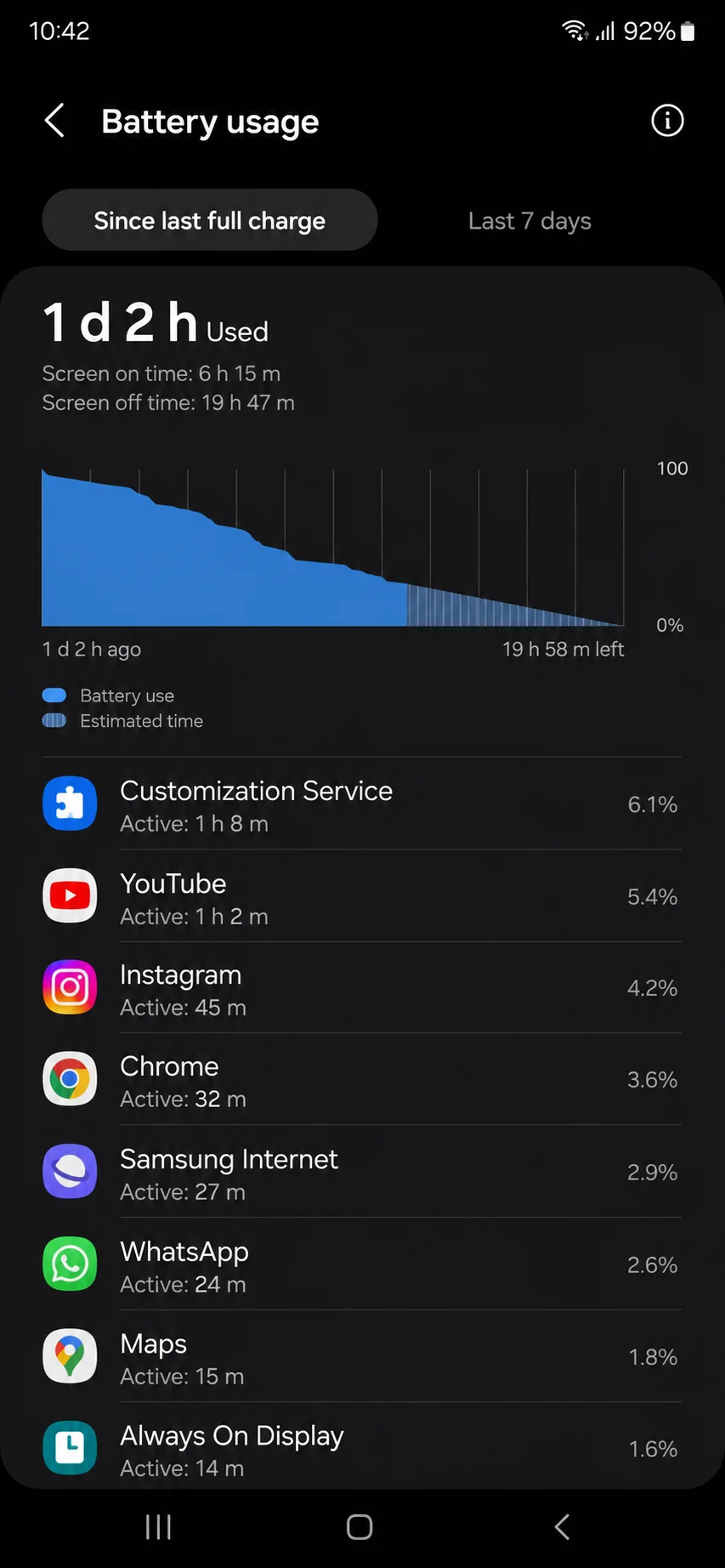
Samsung Customization Service runs on most Galaxy phones by default, and it often tops battery usage reports. It collects your app activity, browsing history, and location to build an advertising profile in the background. This guide shows you how to disable it, erase the collected data, and stop the battery drain.
Key Takeaways
- Samsung Customization Service turns on automatically when you create a Samsung account. It often shows up near the top of Galaxy battery usage reports.
- Turning off the toggle only stops future data collection. A separate deletion request erases what Samsung already gathered.
- Blocking Usage data access at the Android permission level protects you further. This works even if a software update resets the main toggle later.
What Is Samsung Customization Service and Why It Matters
Samsung Customization Service activates automatically the moment you create a Samsung account. Samsung describes it as a way to personalize your apps and improve search results. In practice, it functions as a built-in data profiling tool for advertising.
The service reads your browsing history, calendar events, contacts, and app usage patterns. Samsung’s own Customization Service notice confirms that this profile can extend to third-party vendors for advertising. That level of access explains why many owners disable it first.
Battery drain happens because the service keeps running in the background. It wakes your phone’s Wi-Fi and mobile radios to send data to Samsung’s servers. Have you checked where it ranks in your own battery report?
Requirements Before You Start
Disabling Samsung Customization Service works on any Galaxy phone or tablet signed into a Samsung account. The steps apply to One UI 6 through One UI 8.5, and menu wording shifts slightly between versions. Some builds label the section Security and Privacy, other builds show Privacy and Security.
New to Samsung’s ecosystem? Review our guide on setting up your Samsung account before you start.
You need an active internet connection to sync the toggle change with Samsung’s servers. Keep your Samsung account password ready if you plan to erase collected data. The whole process takes under five minutes.
WARNING: Turning off Customization Service does not delete data already collected. A separate deletion request is required through your Samsung account.
How to Disable Samsung Customization Service Step by Step
Follow these steps in order for the cleanest result. Each one works whether the goal is privacy, battery life, or both.
Turn Off the Toggle on Your Phone
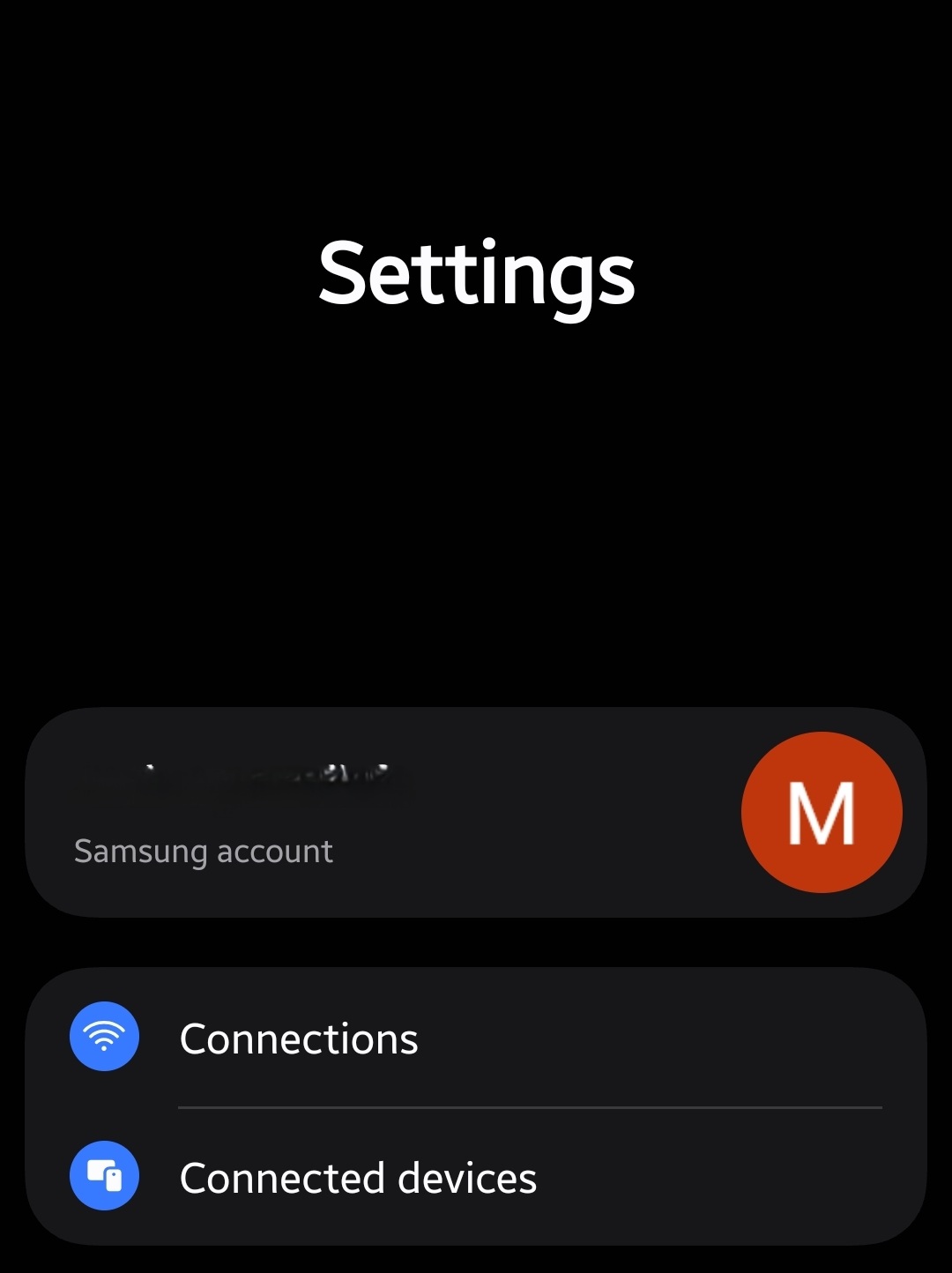
Step 1. Open Settings and tap your Samsung account at the top.
Your name and profile photo appear at the top of the main Settings screen. Tap that entry to open account controls.
Step 2. Tap Security and Privacy, then select Customization Service.
Search “Customization Service” in the Settings search bar if the menu is hard to find. This shortcut works on every One UI version.
Step 3. Flip the toggle at the top of the screen.
A confirmation pop-up asks you to stop the service. Tap Stop to confirm.
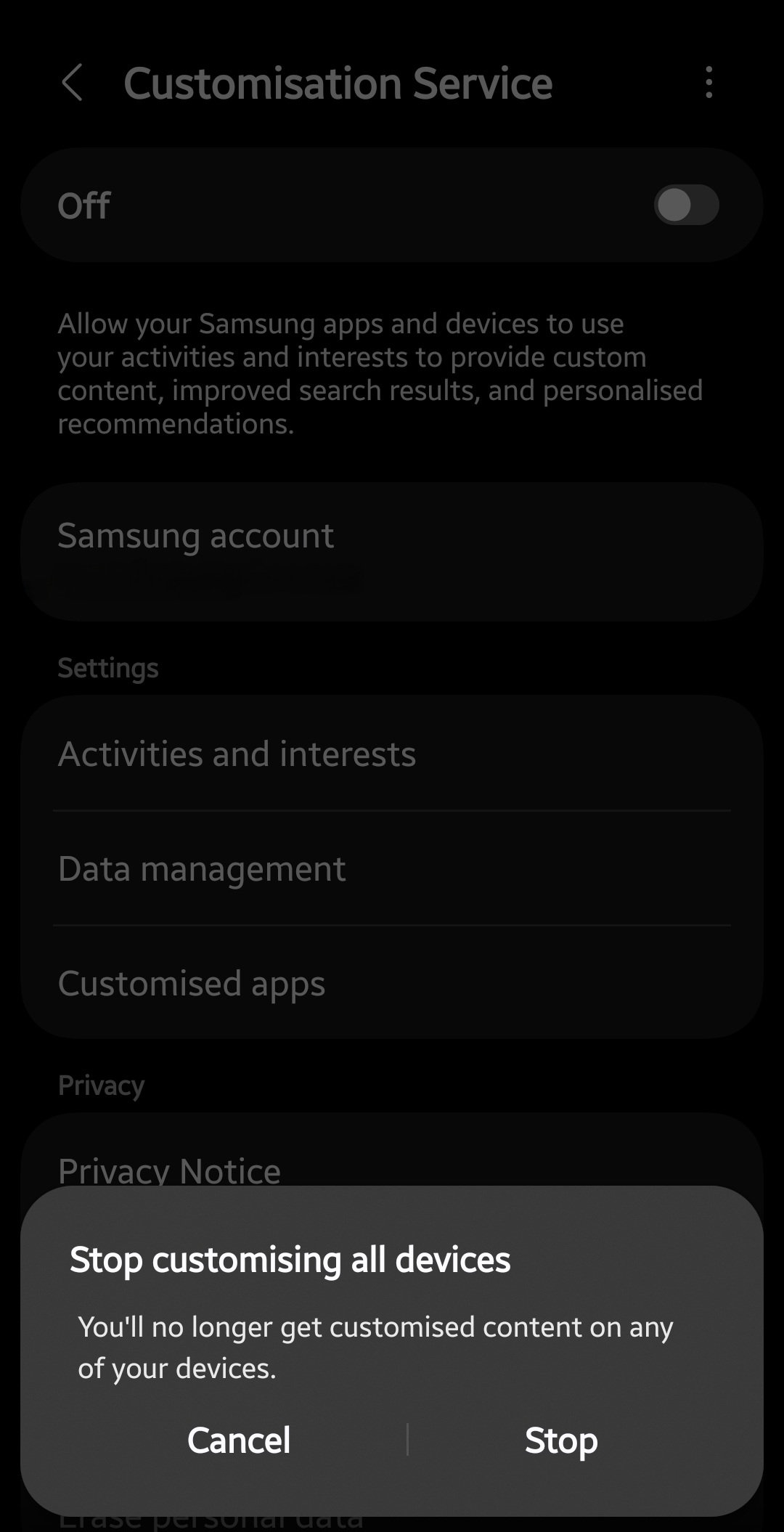
PRO TIP: Search “Customization Service” directly in the Settings app search bar. It jumps straight to the right screen regardless of your One UI version.
Erase the Data Samsung Already Collected
Step 4. Tap Erase personal data inside the same menu.
This opens Samsung’s privacy website in your browser. Sign in with your Samsung account when prompted.
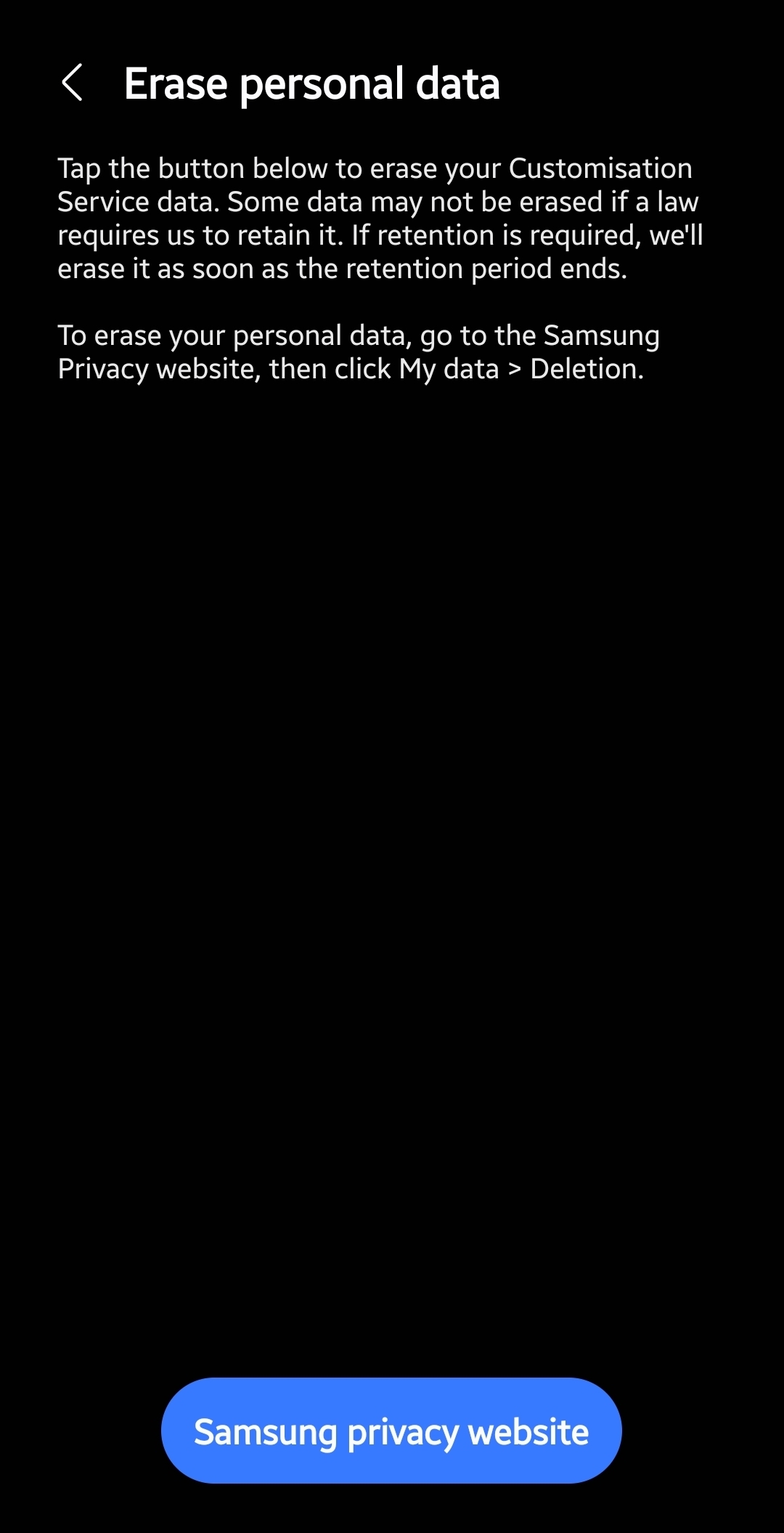
Step 5. Go to My data, then Deletion, then Customization Service.
Select Request Deletion to confirm the removal. This routes through Samsung’s account privacy policy portal, where deletion requests get processed.
Block Data Access at the Android Permission Level
Step 6. Open Settings, tap Apps, then the three-dot menu in the top corner.
Select Special access, then Usage data access. This list shows every app with permission to read your usage patterns.
Step 7. Find Customization Service and toggle off its access.
This step blocks data collection even if the main toggle resets later. It adds a second layer of protection.
Keep It On or Turn It Off Completely
The choice is not all or nothing. Samsung lets you limit which apps use Customization Service instead of disabling it fully. This table breaks down what each choice actually changes.
| Choice | Battery Impact | Data Collected | Ad Personalization | Best For |
|---|---|---|---|---|
| Keep On, Limit Apps | Moderate | Only from chosen apps | Partial | Users who still want some personalized suggestions |
| Turn Off Completely | Lowest | None going forward | None | Users who prioritize battery and privacy |
| Leave Default On | Highest | Full profile across apps | Full | Users who never checked the setting |
Common Samsung Customization Service Battery Drain Problems and How to Fix Them
Problem: The toggle turns off, but Customization Service still appears in your battery usage list.
Cause: The background process has not fully stopped, especially right after a partial toggle.
Fix:
- Go to Settings > Apps and enable Show system apps.
- Find Customization Service, then tap Force stop.
- Restart your phone to confirm the change stuck.
Problem: A “Customisation Services keeps stopping” error returns you to the home screen.
Cause: Corrupted cache data or a buggy app update usually triggers this crash loop.
Fix:
- Open Settings > Apps > Show system apps > Customization Service.
- Tap Storage, then Clear cache and Clear data.
- Reset app preferences under the Apps menu if the error continues.
Problem: Tapping Customization Service returns a “Server didn’t respond, try again” message.
Cause: A temporary sync issue between your device and Samsung’s servers usually causes this, sometimes tied to a recent update.
Fix:
- Confirm your Wi-Fi or mobile data connection works properly.
- Restart your phone and try again after a few minutes.
- Check the same setting at account.samsung.com if the error persists.
Problem: Customization Service turns back on after a system update.
Cause: One UI updates sometimes reset privacy toggles to their default state.
Fix:
- Recheck this setting after every major software update.
- Repeat the disable steps if the toggle switched back on.
- Set a reminder to check it again next update cycle.
Tips to Stop Samsung Data Collection and Save Battery
Turning off Customization Service solves one part of the battery puzzle. A few related settings compound the savings.
- Switch your Performance Profile to Light under Battery and device care. This lowers background CPU activity without changing how apps feel during daily use.
- Review Sleeping Apps in the same Battery and device care menu. Add any app you rarely open so Android stops it running unnoticed in the background.
- Turn off Nearby device scanning under Connections if you rarely pair new accessories. This feature scans continuously even when nothing new needs pairing.
Samsung’s own battery optimization guide covers additional device care settings worth reviewing. For a broader cleanup, see our guide to Samsung phone features to disable on day one.
PRO TIP: Recheck Customization Service and Usage data access together after any major One UI update. Updates occasionally reset both settings at once.
Which of these battery settings have you already turned off on your own Galaxy phone?
Frequently Asked Questions About Samsung Customization Service
Q: Does disabling Samsung Customization Service delete my Samsung account?
A: No. Turning off Customization Service only stops the data collection tied to that specific feature. Your Samsung account, Galaxy Store access, and cloud backups stay active.
Q: Will my Samsung apps stop working if I turn it off?
A: No. Default features keep working normally after you disable it. Ad content within Samsung’s own apps becomes less personalized.
Q: How much battery does Customization Service actually use?
A: The impact varies by device and how many Samsung apps you use daily. Some users see it rank above Instagram or YouTube in their battery usage report.
Q: Does turning off the toggle delete data Samsung already collected?
A: No. A separate deletion request through the Erase personal data option or directly at account.samsung.com handles that.
Q: Can I keep some Customization Service features without full data collection?
A: Yes. The Customized Apps menu lets you uncheck specific apps while leaving others connected.
Q: Does this setting affect Samsung Health or Galaxy Watch features?
A: On some devices, a few features like Good Night mode on the Galaxy Fit series require Customization Service enabled. Most core health tracking works fine without it.
Check This Setting on Every New Galaxy Phone
Samsung Customization Service resets to active by default on every new device and after some updates. Building a quick check into your setup routine keeps your data and battery under your control. Bookmark this page and revisit it after your next One UI update.
Did disabling Customization Service change your battery numbers? Drop your before and after readings in the comments below.
Discover more from Cloudorian — Android, Samsung & Windows How-To Guides
Subscribe to get the latest posts sent to your email.



