

Last Updated on 21 Dec, 2025 by Montel Anthony
Sleep is one of the helpful power-saving modes in Windows 10 for so many laptops. However, it can also lead to problems such as slow wake time or have issues with drivers at wake up. You may want to turn off hibernation if you are experiencing such kind of issues or perhaps in an attempt to free up disk space.
On the bright side, there are two ways of disabling the hibernate mode in Windows 10: through the graphical user interface, or through the command prompt.
Please Read our article on How To Center Your Taskbar Icons In Windows 10
Key Takeaways:
- Hibernation issues: slow resume, some problems with drivers, occupying disk space, which is not necessary
- Two methods to disable hibernation: The two interfaces that are mainly used are the graphical user interface (GUI) and the Command Prompt.
- Request administrator privileges on the computer; do not forget to save work in the program before testing the resume without hibernation.
- Suitable for desktops; caution if used as a laptop battery consumer
What is Hibernation on Windows?
Hibernation in the context of Windows 10 means the saving of data and information found in RAM to the hard disk drive, and then the shutdown of the computer. This makes it to continue before where you left – it keeps all the documents and programs opened even when you turn it off then on again, unlike turning it on and off.
Sleep is on by default most laptops to allow for fast resume that conserves battery power when it is briefly shut. It employs a file equal to RAM regarding the size for the saved data.
Why Disable Hibernation on Windows 10?
There are several reasons you may want to turn off hibernation:
Speed Up Resume Time
Storing and reading data to and from hibernation takes time which can be added to the time it would have taken to boot – turning off the hibernation on Windows 10 will make the operating system to boot from scratch most of the time.
Fix Issues from Hibernation
Some PCs wake up from hibernation with graphical interface or mouse problems, issues with peripheral devices such as printers or ability of the operating system to detect hardware due to the suspending of drivers.
Recover Disk Space
The hibernation file of the system is the same as the disk space you have and RAM which is 16 GB here and is used for a feature that may not be used often. Disabling frees space.
How to Turn Off Hibernation on Windows 10
There are two methods to disable hibernation in Windows 10: By simply trying to manipulate the graphical Settings interface, or by inputting commands in the DOS-like Command Prompt window.
Using Settings GUI
The easiest way for most users is through the Windows Settings menu:
- Swipe down from the main menu to open the notification tray, then tap the gear icon, Settings, System, Power & sleep.

- On the Battery Use tab, click the Additional Power Settings link to open the Power Options.

- Choose the option Choose what the power buttons do

- Click on Change settings that are currently unavailable
- Scroll down to the bottom of the screen and unclick the checkbox that says Hibernate.
- Click Save changes
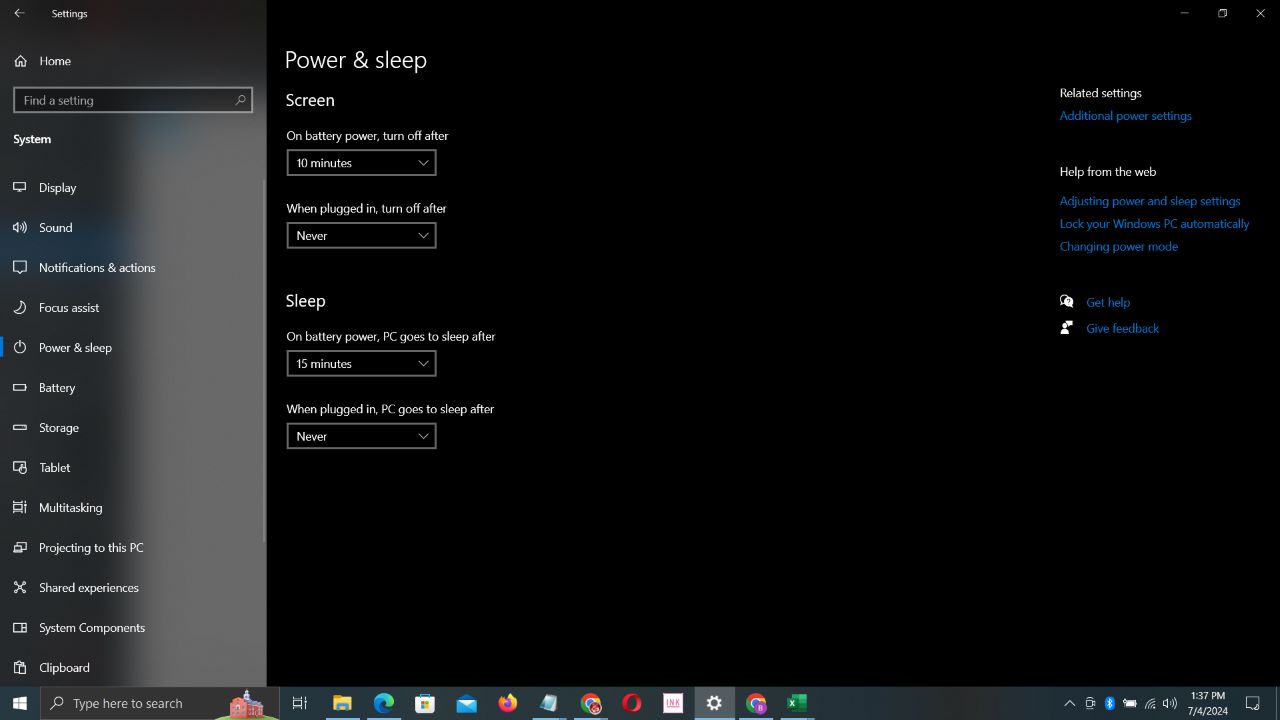

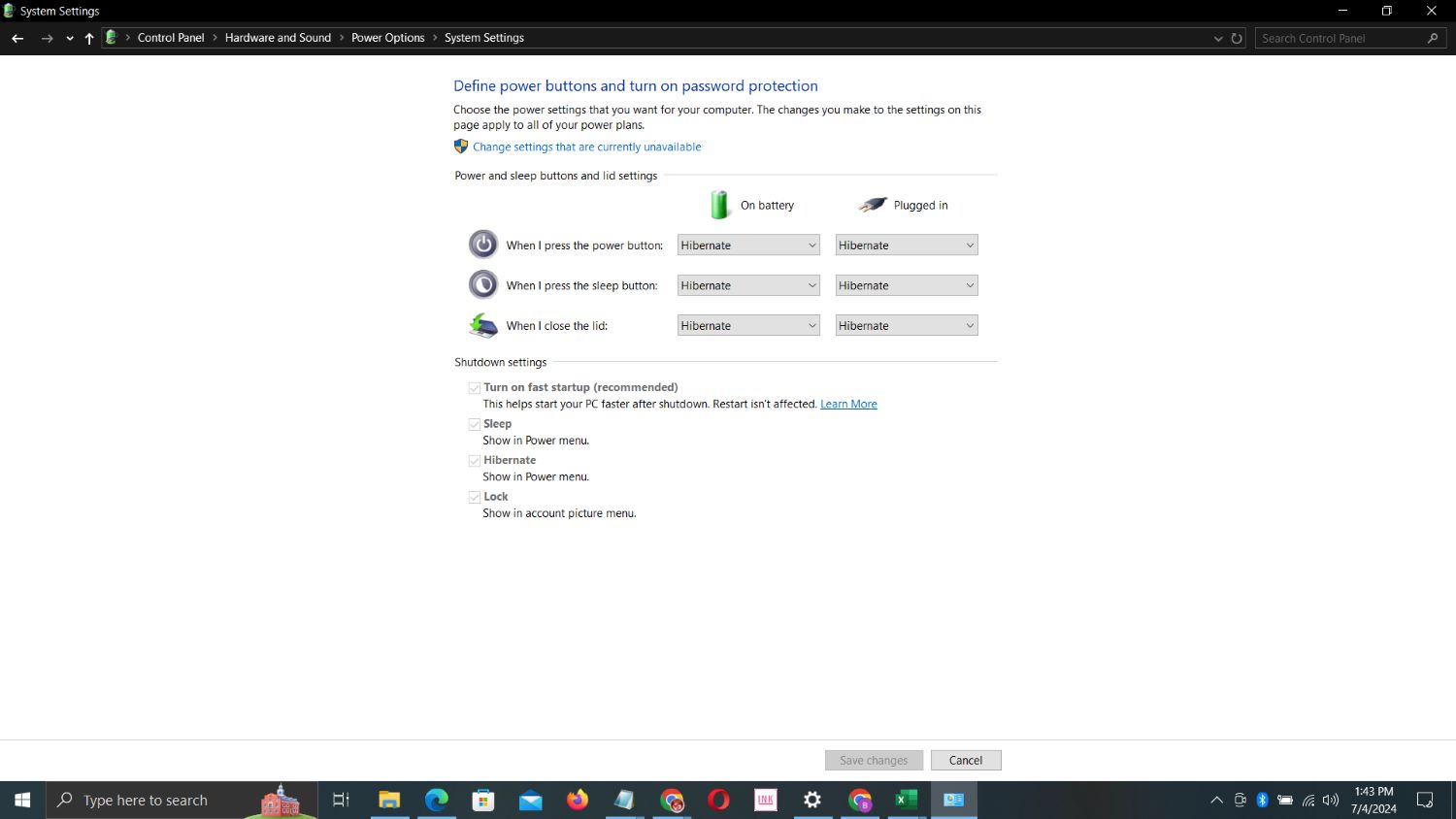
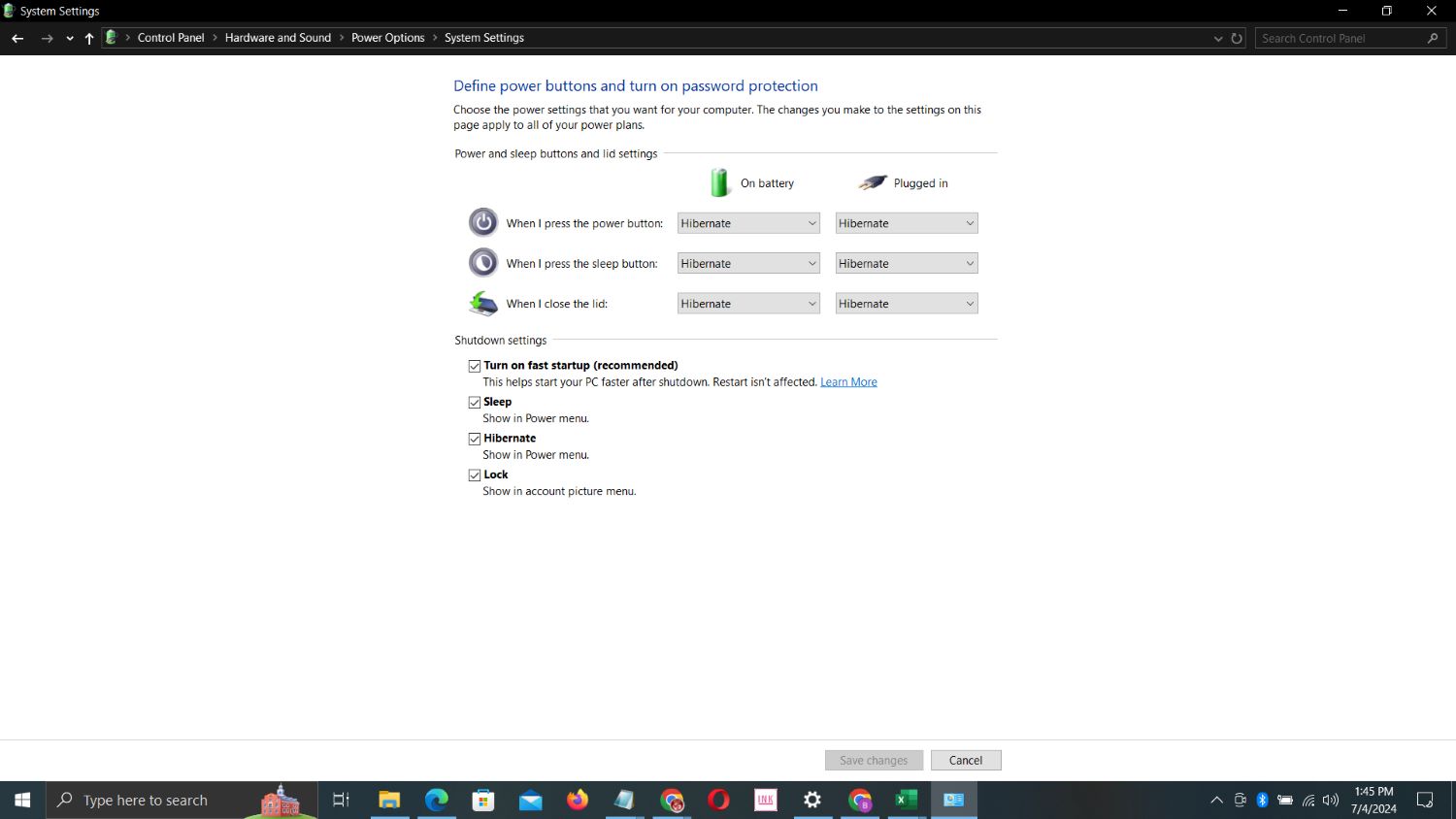
Now, hibernation will be disabled. Refresh your PC now to let modifications to be implemented.
Using Command Prompt
To disable hibernation via Command Prompt instead:
- Search cmd. exe in the Windows search panel and then click the Run as administrator option for the application.
- Type the below command and press enter:
powercfg -h offThis will immediately turn off hibernation, as shown next:. You can restart to enable the system file to be completely deleted for full hibernation in order to clear disk space.
Checking Hibernation Status
To check whether disabling hibernation was successful in Command Prompt, use:
powercfg -aHibernate should now be disabled and should appear as Disabled.
Will Disabling Hibernation Affect Sleep/Standby?
No, It simply disables hibernation. If you disable hibernation in Windows 10, then it simply turns off hibernation. Fixed Sleep/Standby situations where the RAM still consumes a limited amount of power will continue to be unproblematic.
However, you can still turn off displaying on your computer screen by closing the lid of the laptop, or you can close the Start menu. Only Hybrid Sleep linked to the hibernation mode will be replaced with Sleep.
Standby consumes a small amount of power hence is useful in situations where mobility is important, for example, laptops where one wants to sleep rather than shutdown. Modern standby is quite sufficient for the majority of the applications, especially those less demanding in terms of CPU usage. However, if, battery saving is important, you might want to keep the option of hibernation active on a laptop.
Other Considerations Before Disabling Hibernation
A few other things to note with disabling hibernation:
- Requires administrator access: To disable hibernation one has to make changes to the power settings therefore the operation can only be done under the admin account on the PC.
- Test resume and compatibility: Verify that peripheral devices and applications start right after a shutdown or an update process without going through hibernation first.
- Losing unsaved work: No hibernation file on next boot – it means that any opened not saved files/tasks will not be restored. So, it is necessary to accept that some things can be written on disk only by hand before turning the computer off.
Common Queries Around Disabling Hibernation
Here are answers to some frequently asked questions about turning off hibernation in Windows:
Does hibernation have any problematic effects when it is disabled?
No, but for retesting, it allows to preserve the state before the system switches to hibernation and rely on the possibility of smooth reboot after the update. The other potential use of storage in case is backing up of other important files.
Can i enable if I experience some problems?
Can i enable if I experience some problems?
Yes, you can do this by returning to the steps outlined above and turning on hibernate in Windows Settings or through the Command Prompt.
What is the action plan if the power shuts down?
It will make no hibernation file at all. The computer will just force restart instead, which does not restore current open applications and documents as well.
How much disk space is freed up with a new hard drive?
The space is actually restored to your full RAM meaning that you are free to delete it depending on the RAM on your PC. The results show that for 16 GB of RAM, the system returns around 16 GB of disk space which can be considered significant.
Conclusion
You now understand how to turn off hibernation in Windows 10 and how to accomplish this through the methods described above and illustrated with screenshots. It is easy to see that both options are straightforward for halting hibernation behavior.
However, if you decide to shut it down without hibernation, then you should remember that it is wise to save your work on your own. Additionally, you should also test and ensure system stability without the hybrid sleep or hibernation feature. However, done smoothly, disabling it can offer a far quicker and smooth experience when turning the system on, in addition to freeing up space on one’s disk drive.
Although safe for most desktop users, those with a dependancy on lappies might still want to retain hibernation and hybrid sleep as the ultimate battery savers. But concerns such as resume duration taking too long, system bugs, and disk space issues that need a debug might make the Windows 10 laptop users disable hibernation – with save/restore measures in place.
Therefore, before you disable hibernation in your PC, think twice about whether this power mode hampers or helps you solve more issues. However, with the steps provided above, you can turn the setting on and off depending on what suits your Windows resume needs.
Discover more from Cloudorian — Android, Samsung & Windows How-To Guides
Subscribe to get the latest posts sent to your email.



