
More
    How To'sHow to Connect Bluetooth Headphones/Speaker to your Nintendo Switch/Switch...

    How to Connect Bluetooth Headphones/Speaker to your Nintendo Switch/Switch Lite

    -

    Nintendo released an upgrade of the Switch handheld consoles with Bluetooth audio capability — a highly sought-after feature. The Switch consoles include Bluetooth, however user can only connect suitable controls to the consoles before this update is released but never an audio device. This latest update now allows users to connect their Bluetooth wireless headphones and speakers to their consolas four years after the Switch was debuted.

    This article will make it easy for you when you ask how to connect your favourite Bluetooth earphones (and or speaker). The following procedures are used to connect your Bluetooth devices to your Nintendo Switch or Nintendo Switch Lite:
    How to Connect Bluetooth Headphones/Speaker to your Nintendo Switch/Switch Lite
    Image Credit: Gizmochina
    1. Check that your Switch is running the latest software version

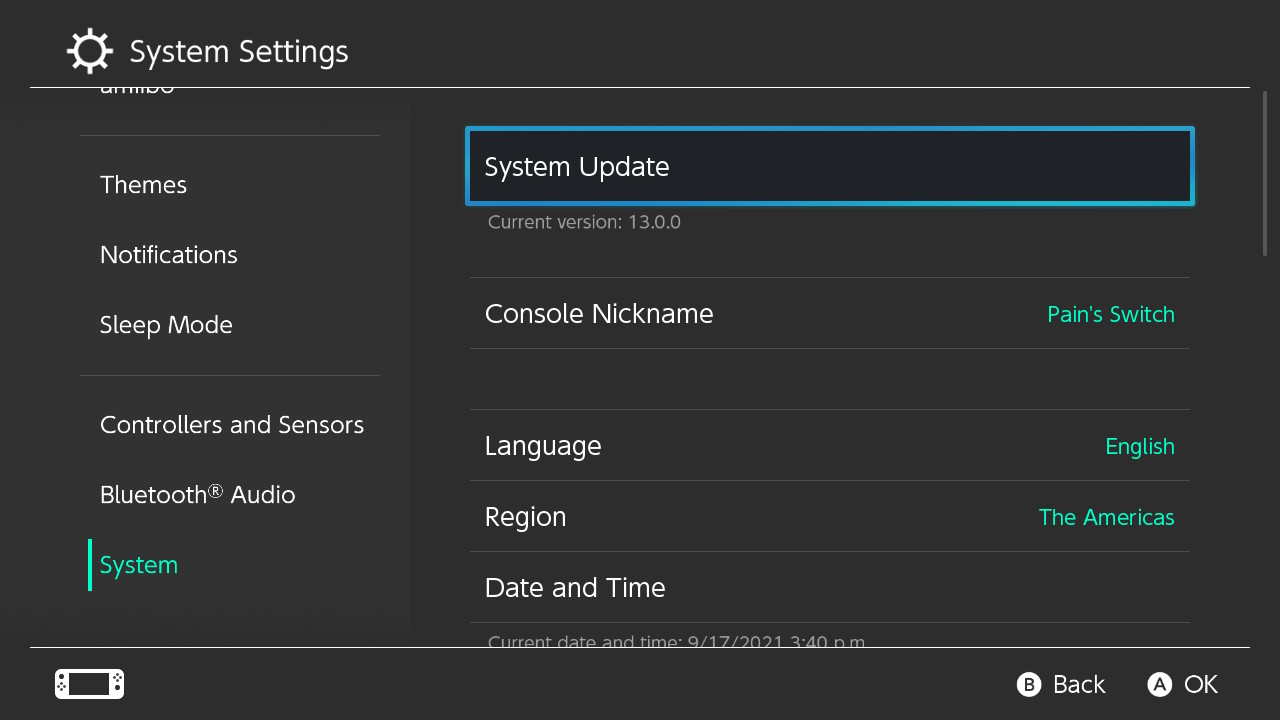
    You must validate that your device is updated to the latest software version in order to match your audio device with Bluetooth. Below are the procedures to check your console’s version of the software:

    1. Go to your Nintendo Switch console for System Settings. Select the Gear icon below the screen to do this.
    2. Scroll to System and view the current console version on the right side of the screen.

    Your console has to run version 13.0.0 and higher to connect a Bluetooth audio device. So you have to upgrade your device if your gadget runs a lesser version. You can move to step 3 if your device is running version 13.0.0 and later.

    2. Update your Nintendo Switch

    Tap ‘System Update’ to update your Nintendo Switch console. Your system should check for an update and download it if it is available. Once the update is downloaded and installed, your device has to restart.
    How to Connect Bluetooth Headphones/Speaker to your Nintendo Switch/Switch Lite
    Image Credit: Gizmochina
    3. Connect your Bluetooth Audio Device

    Follow the below procedures to connect your Bluetooth audio device when you run the required version to support the Bluetooth audio device.

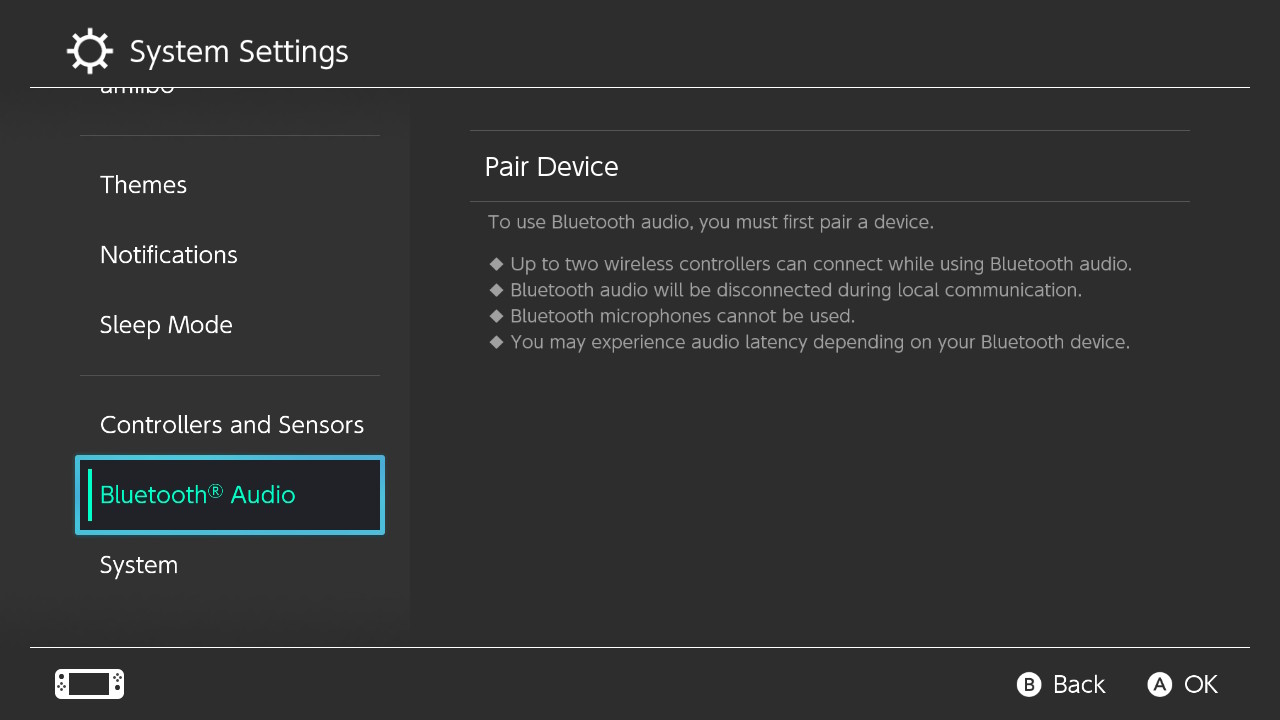
    1. Go to System Settings in step 1.
    2. Scroll down to the bottom of the screen on the left pane. You should notice a new Bluetooth Audio menu.
    3. On the right pane, select Pair Device. If AirPlane Mode is activated, you will be asked to switch it off.
    4. Put your audio device on Bluetooth and make sure it is paired.
      Your Nintendo Switch will look for Bluetooth devices that are available.
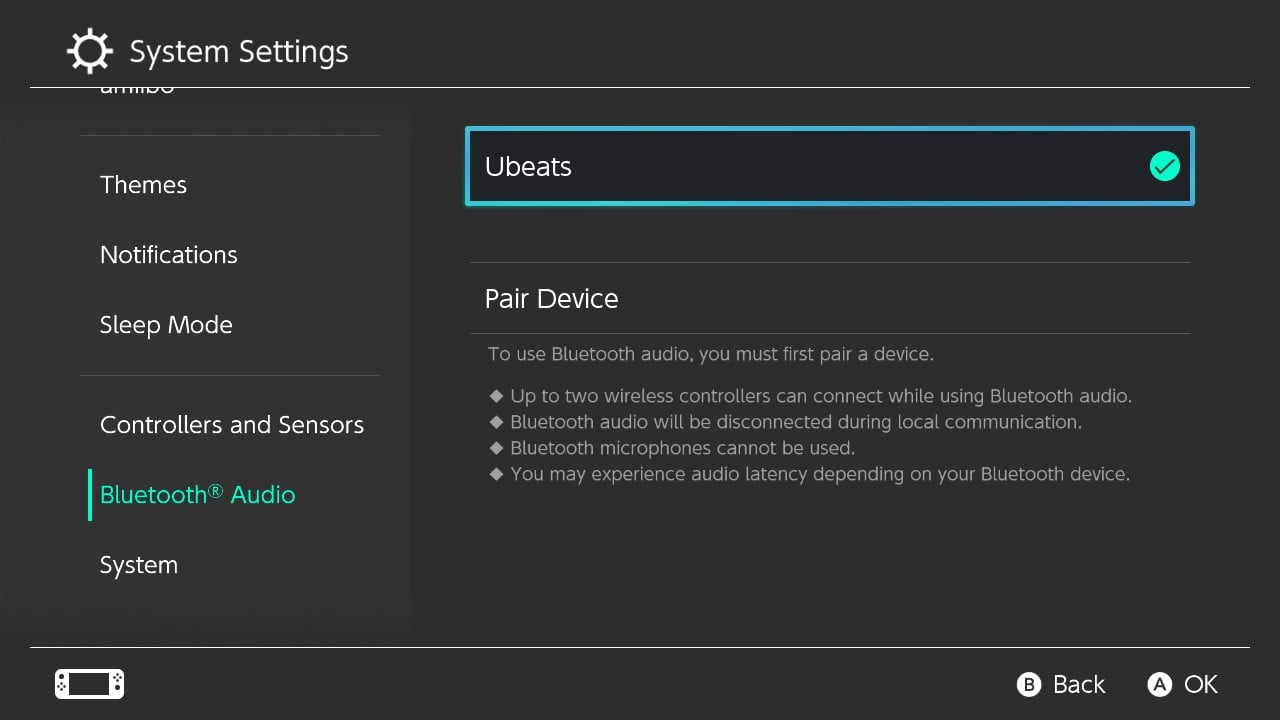
    5. Select your Bluetooth device and the console will be associated with it once you see the device.

    https://www.gizmochina.com/wp-content/uploads/2021/09/Bluetooth-audio-device-connected.jpg
    How to Connect Bluetooth Headphones/Speaker to your Nintendo Switch/Switch Lite


    You now connect your favourite audio device to your Nintendo Switch or Nintendo Switch Lite.

    Note: You can have Bluetooth enabled, but the Airplane mode can be activated by heading to System Settings in Airplane mode. Turn on and turn Bluetooth to Airplane Mode.


    Discover more from Cloudorian - Tech News, Reviews, Deals, and How-To's

    Subscribe to get the latest posts sent to your email.

    Montel Anthony
    Montel Anthonyhttps://www.cloudorian.net/
    Montel Anthony is a passionate/enthusiastic Blogger who loves creating helpful guide contents for its users. I'm also a web developer, Graphics designer and Writer.

    Leave a Reply

    This site uses Akismet to reduce spam. Learn how your comment data is processed.

    Latest news

    Google Surprises Pixel Users with New July 2025 Update: Gemini AI Comes to Wear OS

    Google has dropped an exciting update for its Pixel devices in July 2025, called a Pixel Drop. This update...

    Gmail’s New Tool Makes It Easy to Clear Out Unwanted Emails

    Google has launched a new feature called Manage Subscriptions for Gmail, designed to help you take control of your...

    Google’s Circle to Search Gets Smarter with AI and Gaming Features

    Google has just made its Circle to Search tool on Android phones even better with new updates. These updates...

    TECNO Set to Unveil Its Exciting Phantom Ultimate G Fold Concept Phone

    TECNO, a popular smartphone brand, is getting ready to show off a new and innovative phone called the Phantom...

    GUIDES

    How to Get Google AI Pro Subscription Free for 15 Months

    Are you eager to access cutting-edge AI tools without breaking the bank? The Google AI Pro Subscription, which includes...

    How To Recover Deleted Files in Google Drive

    Cloud storage services like Google Drive have become indispensable tools for both personal and professional use. They offer convenience,...

    How to Remove Shortcuts from Facebook in Simple Steps

    Shortcut is a feature of Facebook which can be helpful, but sometimes people may need to get rid of...

    8 Ways to Recover Missing Emails in Gmail

    Losing important emails in Gmail can be frustrating, but recovery is often possible. Whether emails were accidentally deleted, marked...

    How to Pair Android with Windows File Explorer using this Feature

    To improve the productivity and to synchronize the working system in an efficient way, it is possible to connect...

    Must read

    127.0.0.1 Localhost: What It Is and How to Use It?

    Computer networking's 127.0.0.1 represents your digital home base--commonly known...

    7 Ways Businesses Can Drive Online Product Sales

    In today's digital age, online product sales are more...

    You might also likeRELATED
    Recommended to you
