How-ToHow to Take a Full page Screenshot in Google...

How to Take a Full page Screenshot in Google Chrome on Android

-

Last Updated on 29 Jul, 2026 by Montel Anthony

Google has launched version 94 of the Chrome Android browser that offers several new capabilities. The ability to snap full- page screenshots is one of the most exciting capabilities currently concealed behind a function flag. You may now use this version of Chrome if you’re on a webpage that scrolls down and want to capture the complete content. Many smartphone makers can snap scrolling screenshots in their own user interfaces and Android 12 has the feature integrated. But if you’re not using it on your phone by default, in Chrome you can now utilise it.

As part of the Chrome 94 release, the new full page screenshot feature requires a couple more steps to allow. Here’s the way to achieve that.

How to take Full Page Screenshots in Google Chrome on Android

  1. Update Google Chrome app to the newest version, i.e. Google Chrome 94, from the Play Store.
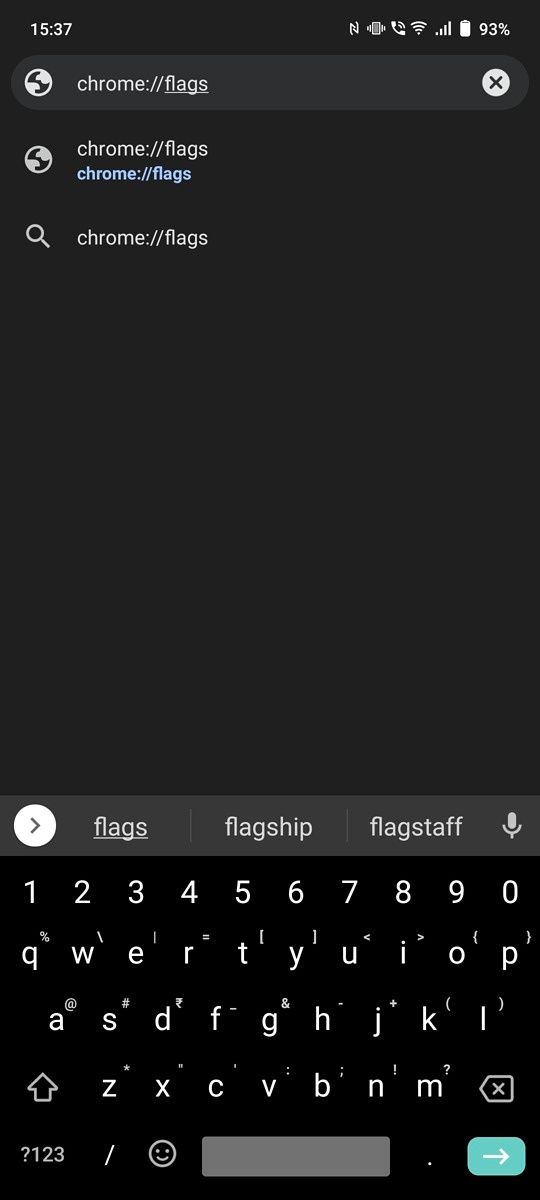
  2. Open Chrome and type chrome://flags in the address bar and hit enter.How to Take a Full page Screenshot in Google Chrome on Android
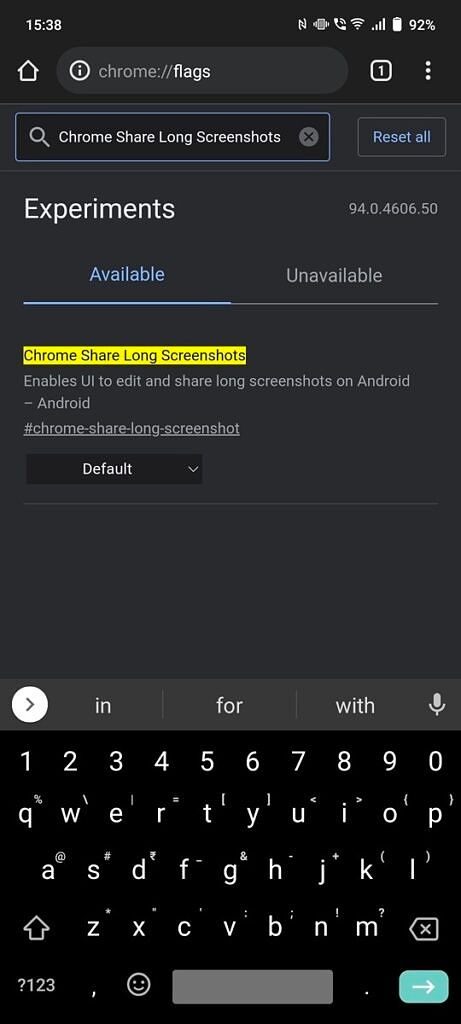
  3. Now, tap on the search bar at the top of the screen and search for Chrome Share Long Screenshots.How to Take a Full page Screenshot in Google Chrome on Android
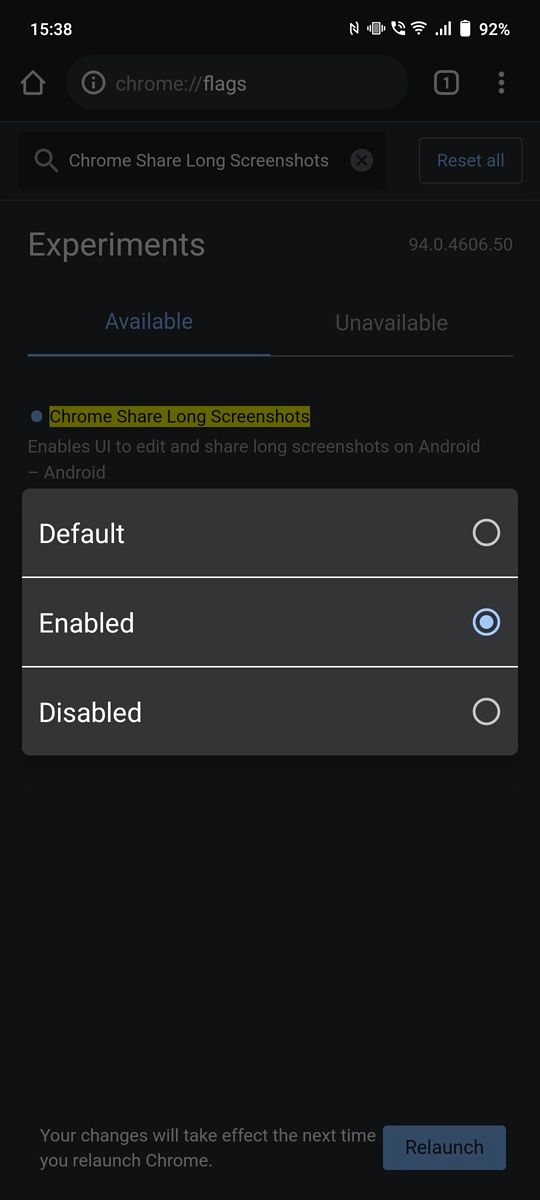
  4. Select the drop-down box below that and Enable it.How to Take a Full page Screenshot in Google Chrome on Android
  5. Once you do, you’ll see an option for restarting Chrome. If you do not see it, close the programme manually and open it again.
  6. Now, when you want to take a screenshot of a webpage, tap on the three-dot menu and select Share.
  7. Tap on Long Screenshot now. You can now see a white box with an extensible top and bottom.
  8. Drag the top and bottom bar until the required section of the website has been selected to capture and hit the checkmark icon.
  9. You may now edit the screenshot further by adding text or remarks.
  10. Tap Next once and you can either save the snapshot or share it with someone else.
You can now scroll full-page screenshots on Chrome on Android. Note that just the flag must be enabled when the feature is kept in the Share option for the first time. While Android 12 is able to take native scrolling screenshots, it’s helpful for individuals who don’t use the latest version of Android or if you just want to manually capture part of the web page.

DOWNLOAD CHROME


Discover more from Cloudorian — Android, Samsung & Windows How-To Guides

Subscribe to get the latest posts sent to your email.

Montel Anthony
Montel Anthonyhttps://www.cloudorian.net/
Anthony Montel is a full-stack web developer, SEO specialist, and the founder of MONTELENT Services. With deep hands-on experience in WordPress development, server infrastructure, and digital publishing, Anthony writes technically backed, actionable guides for Cloudorian. When he isn't optimizing cloud environments or building Laravel applications, he’s sharing insights to help others master the web.

Leave a Reply

This site uses Akismet to reduce spam. Learn how your comment data is processed.

Latest news

Samsung One UI 8.5 Rollout Starts May 6 — Eligible Devices and Key Features

Samsung's One UI 8.5 rollout officially began in South Korea on May 6, 2026, targeting flagship phones, foldables, and...

Samsung Software Roadmap May 2026: One UI 8.5, 39 Security Fixes, and Three Devices Dropped

Samsung shipped 39 security fixes to Galaxy devices on May 6, 2026, while simultaneously launching the stable One UI...

UK Mandates iPhone Age Checks For Adult Content Access

Millions of UK users face immediate device lockouts following the recent iOS 26.4 update. You must verify your adult...

iOS 26.5 RCS End-to-End Encryption Is Official: What Changes for Your Texts

Your iPhone-to-Android texts have never been private in transit. Apple confirmed today that iOS 26.5 ships RCS end-to-end encryption...

GUIDES

Windows 11 26H2 ISO Download: Safe Guide

Windows 11 26H2 remains a preview, not a finished public release. You can download the Windows 11 26H2 ISO...

How to Opt Out of T-Mobile Targeted Ads (2026 Guide)

T-Mobile turns its privacy toggles on by default, and most customers never touch them. Learning how to opt out...

How to Install Android Apps on Windows 11

Windows 11 no longer includes an official way to install every Android app. Microsoft retired its Android subsystem on...

How to Add a WhatsApp Username Key

WhatsApp username keys add another gate before strangers can message you. This guide explains how to add a WhatsApp...

How to Tag Files in Windows 11: Complete Guide

Folders force every file into one location, even when that file belongs to several projects. Learning how to tag...

Must read

How To Recover Deleted Files in Google Drive

Cloud storage services like Google Drive have become indispensable...

How to Install a WordPress

Installing WordPress is easy. The first step on how...

You might also likeRELATED
Recommended to you