

Adobe’s Photography Plan costs $19.99 per month in 2026, according to pricing data verified in April 2026. That totals $240 per year for access to two apps. You do not need that subscription to produce professional-grade work. Six free tools now cover photo editing, document management, productivity, note-taking, and private AI inference across every major operating system. Each one ships with features that compete directly with the paid alternatives most photographers depend on today. Here is an honest breakdown of what each tool delivers and when to reach for it. See Shoot Once, Post Everywhere: How This iPhone App Records Portrait and Landscape Video Simultaneously.
Key Takeaways
These six tools form a complete zero-cost creative setup:
- Photopea handles browser-based photo editing with full support for PSD files and Smart Objects
- Krita covers desktop image editing and digital painting with a complete non-destructive workflow
- Bento PDF manages merging, splitting, and annotating documents entirely on your local device
- Microsoft PowerToys adds custom window layouts, instant file previews, and batch image resizing to Windows 11
- Obsidian organizes notes, briefs, and research in plain Markdown files stored on your own drive
- LM Studio downloads and runs AI language models completely offline with zero API costs
The Real Cost of Creative Software Subscriptions in 2026
Adobe’s Photography Plan runs $19.99 per month for Photoshop and Lightroom as of April 2026. A photographer who adds a separate PDF editor, a task management app, and a notes tool reaches $60 per month in software fees without much effort.
Subscription costs grow fast across an entire creative stack. A freelance photographer on Adobe’s All Apps plan spends up to $840 per year on that subscription alone, based on pricing data from DigitaLicence. Multiply that across every recurring tool in your workflow and the monthly total starts to look like a real business expense.
The six tools in this article cost nothing to access their core features. Each one targets a specific gap in a photographer’s or tech enthusiast’s daily work. You can replace the most expensive parts of your software stack without spending weeks on a steep learning curve.
Photopea Gives You Photoshop-Grade Editing Inside a Browser Tab
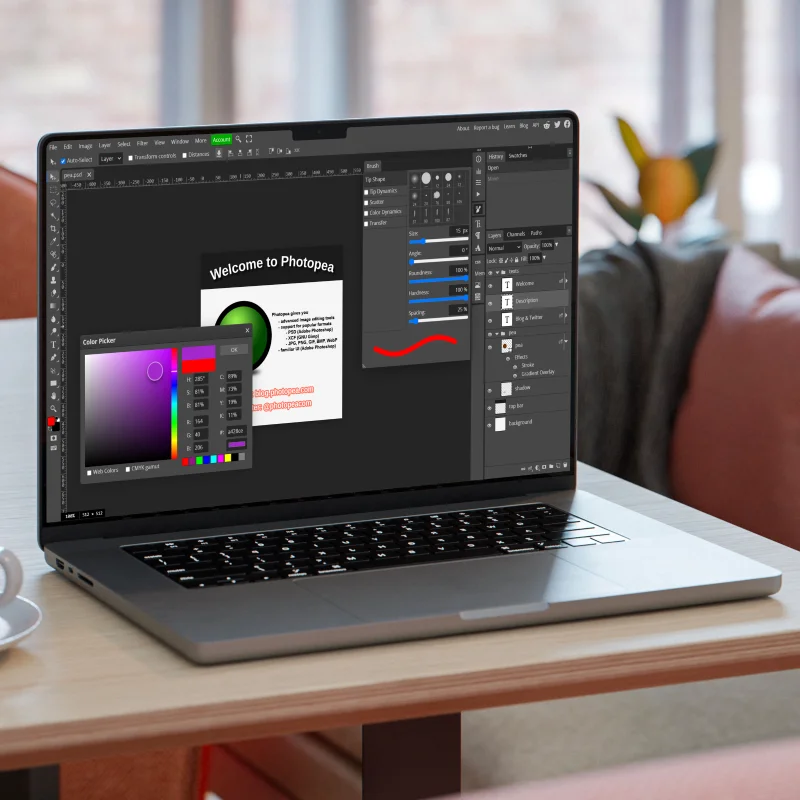
Photopea runs entirely in your browser at photopea.com. The tool requires no download and no account to get started with a file.
The interface matches Photoshop closely in layout, tool placement, and core keyboard shortcuts. A photographer already familiar with Photoshop can start editing in Photopea during the first session without relearning the tool’s structure.
You can open actual .psd files directly in Photopea, edit every layer, apply adjustments, and export the file back in Photoshop format. That full round-trip capability makes Photopea practical for any photographer sharing files with clients or collaborators who use the Adobe ecosystem.
Photopea also runs on any device with a modern browser. You can work on your main desktop, pick up the same file on a client’s laptop, or make a quick correction on a library computer. The tool travels with you without requiring installation on every machine.
How Non-Destructive Editing Works in Photopea
Free online photo editors commonly flatten your image the moment you apply a filter or adjustment. Photopea supports adjustment layers and Smart Objects throughout the full editing session.
You can resize a Smart Object element at any point in your project without quality loss. The layer retains the original pixel data regardless of how many times you scale, rotate, or transform the element. CyberLink’s editorial team documented in their 2026 free editor roundup that Photopea opens complex PSD files without errors and delivers results close to Photoshop at no cost, as published in their 2026 free photo editor guide.
If you need to collaborate with a team that produces .psd files daily, Photopea removes the barrier of needing an Adobe subscription just to open and review those files.
Krita Handles the Desktop Work That Browsers Cannot Deliver
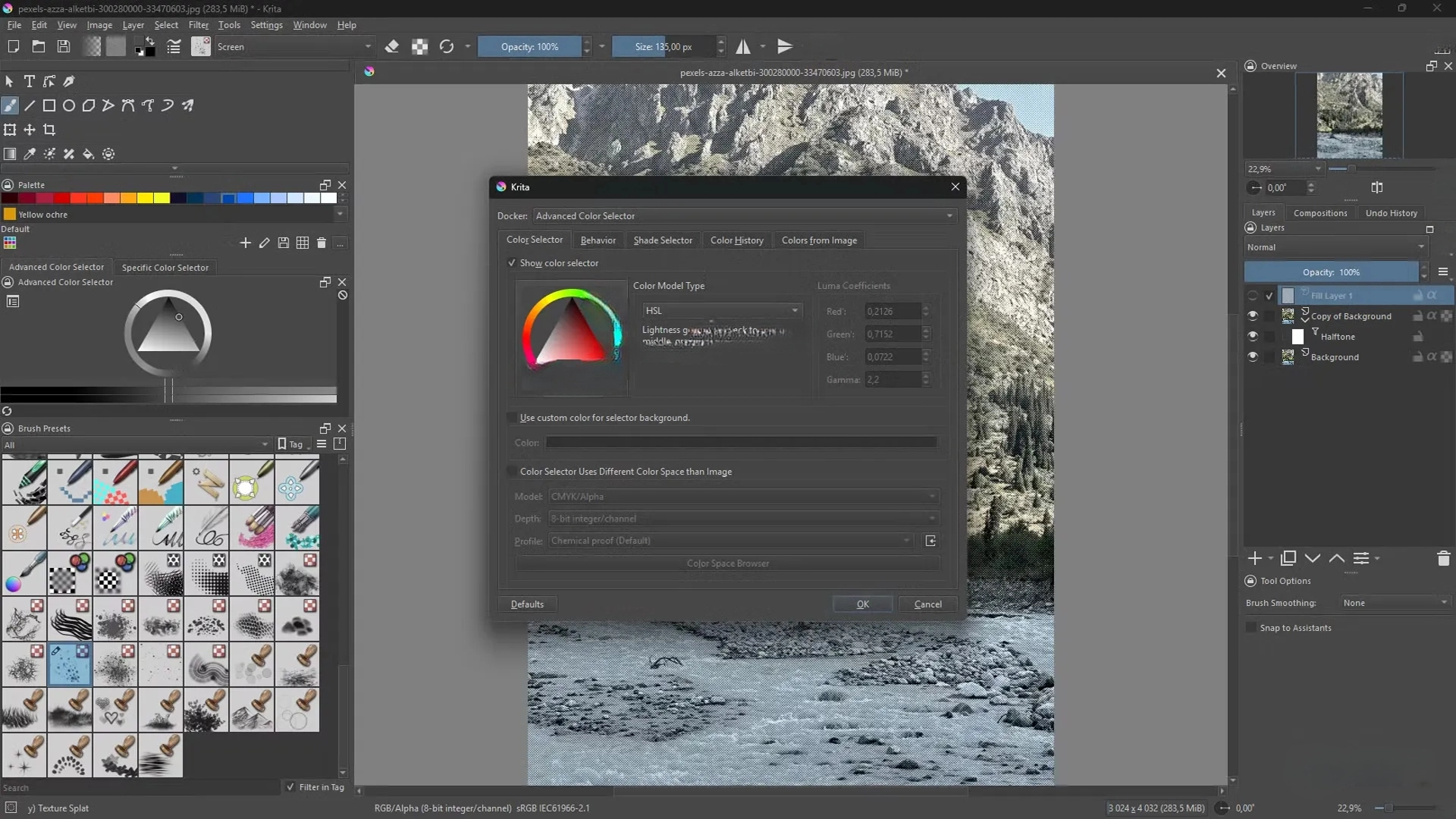
Krita is a free, open-source painting and image editing application for Windows, macOS, and Linux. It installs as a full desktop app and supports pressure-sensitive stylus input from the first launch.
The app targets professional-grade creative work. Stylus support on devices like a Surface Pro or HP Spectre x360 registers accurate pressure sensitivity for detailed retouching and painting. Both photographers and digital illustrators use Krita as their primary desktop tool.
The non-destructive workflow in Krita operates through filter layers. You apply a blur, a color balance pass, or a saturation adjustment as a separate layer above your image. If you change direction on a project hours later, you toggle the filter layer off rather than undoing every previous step.
What Makes Krita More Than a Painting App
Krita ships with a large library of professional brush presets and a fully customizable brush engine. Photographers who do detailed retouching, compositing work, or texture painting find that depth genuinely useful.
The app also supports a wide range of color space options and can handle HDR content. Each edit session preserves all filter layers across saves, so you open your project file days later and every adjustment remains fully editable. You can find additional coverage of free tools for creative workflows on Cloudorian, where we track practical alternatives for Android, Windows, and Mac users. Krita earns a permanent place in any serious free toolkit.
Bento PDF Keeps Your Private Documents Off Outside Servers
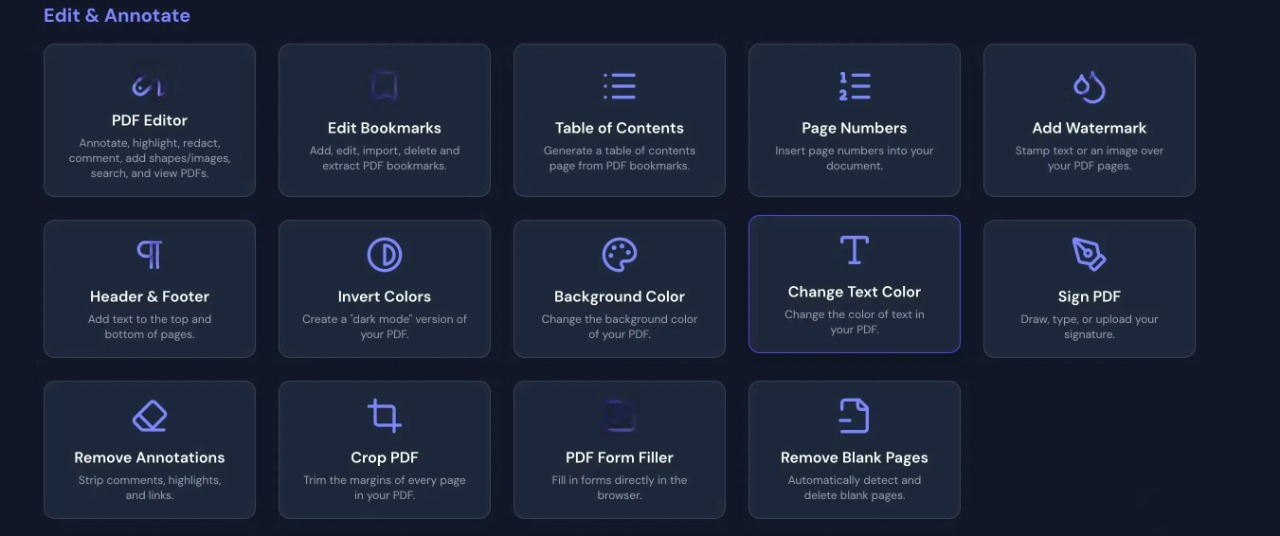
Bento PDF is a browser-based PDF toolkit that processes every file locally on your device. Your documents never travel to a third-party server during any operation.
The tool handles merging, splitting, reordering, rotating, and annotating PDF pages through a single drag-and-drop interface. You can redact content, compress files for email delivery, and manage page structure all in one session.
Photographers who handle client contracts, model release forms, and invoice packages frequently send sensitive documents through free online PDF tools. Bento PDF eliminates that exposure by keeping all processing on your local machine.
What the Multi-Tool Feature Delivers in One Session
The Multi-tool in Bento PDF lets you stack multiple document operations without launching a new session or switching tabs. You merge two contracts, reorder the pages, rotate a scanned signature sheet, and compress the final file for email delivery, all in a single workflow pass.
That consolidation saves real time for photographers managing client paperwork across multiple shoots. Bento PDF is available at bentopdf.com and also on GitHub for anyone who wants to self-host the full toolkit on their own infrastructure. The self-hosted version gives you complete visibility into every step of document processing.
Do you currently upload client contracts or model releases to a random free website without checking their privacy policy? Bento PDF removes that concern entirely.
Microsoft PowerToys Adds the Features Windows 11 Left Out
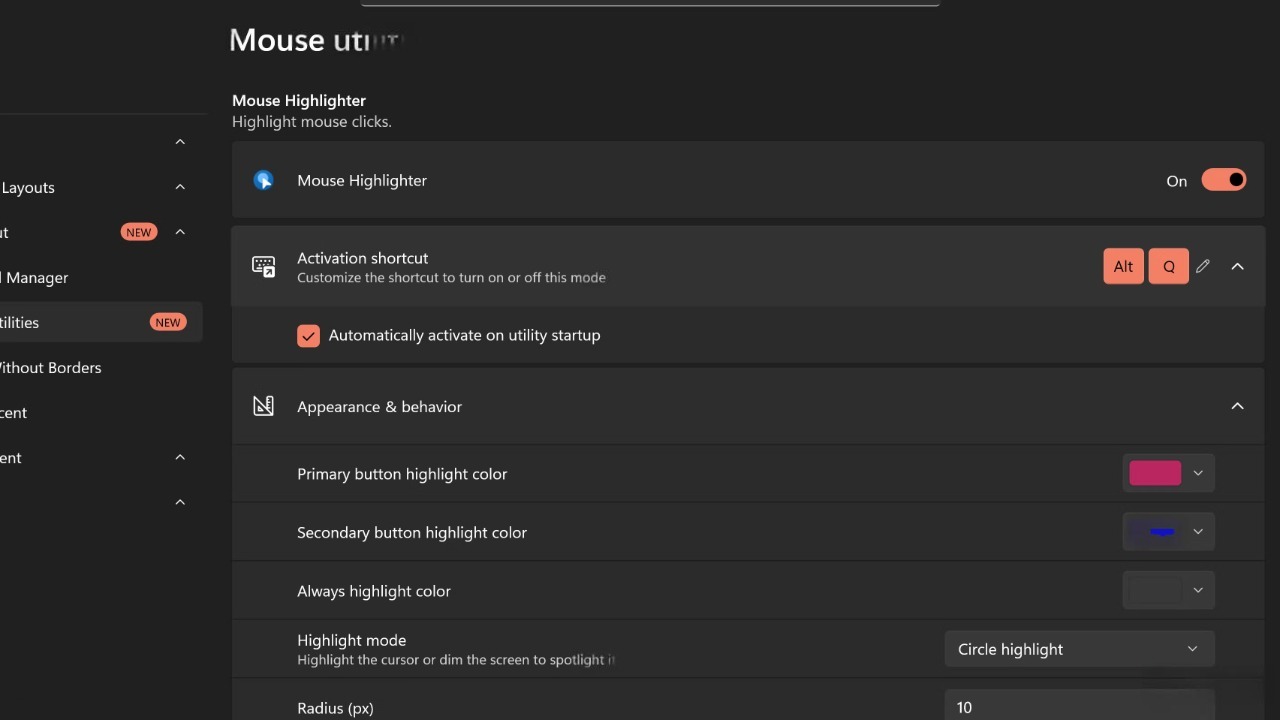
PowerToys is a free, open-source utility suite that Microsoft maintains on GitHub and distributes through the Microsoft Store. It ships with more than a dozen separate tools that extend Windows 11 in practical ways the operating system does not cover natively.
FancyZones lets you design fully custom window layouts for your monitor. You draw your own grid with any number of zones, set dimensions for each one, and apps snap into those exact positions when you drag them. On a wide monitor, you assign a large zone to your photo editor, a narrow strip to a reference tool, and a corner zone to a terminal window.
Three PowerToys Features That Save Real Time for Photographers
Peek brings instant file previewing to Windows. You select any file in File Explorer and press the spacebar for a full-resolution preview. No external application opens. No load time passes before you can see the file.
Image Resizer adds a right-click batch resizing option directly to File Explorer. You select any group of images, right-click the selection, choose Image Resize, pick a preset dimension or enter a custom size, and the tool processes the entire batch in seconds. For photographers who deliver web-ready or social-media-ready images on a regular schedule, this feature alone justifies the installation.
PowerToys Run opens a compact keyboard-launched search bar for finding and opening any app, file, or system setting instantly. The launcher appears with a single hotkey, accepts a search term, and closes after you select your target. You reach any installed application without touching your taskbar or navigating a start menu.
Obsidian Stores Your Knowledge in Files You Actually Own
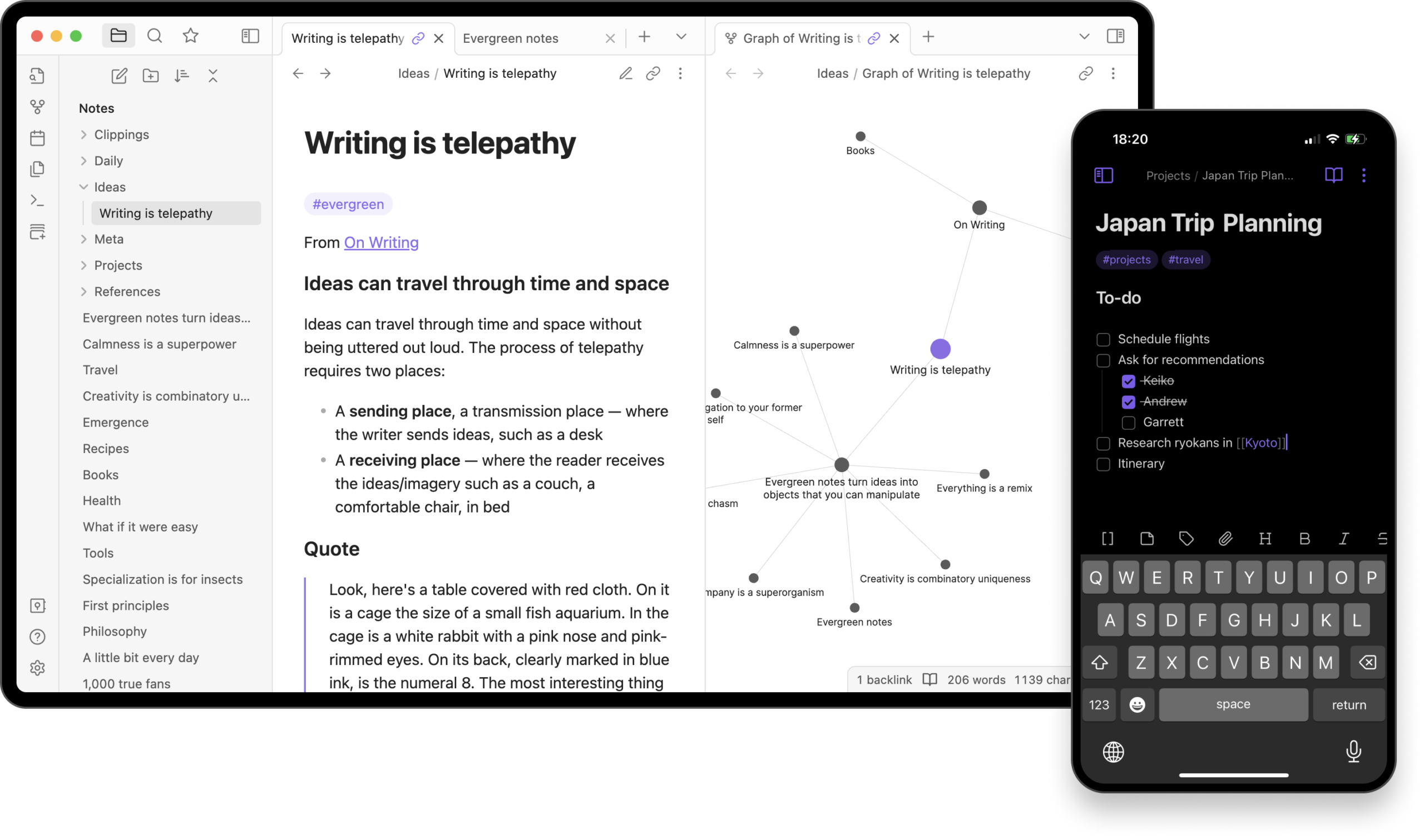
Obsidian is a free note-taking and knowledge management app built entirely on plain Markdown files. Every note you create saves as a .md text file in a folder on your own hard drive.
Cloud-based tools like Notion and Evernote store your data in proprietary formats on their own servers. Those formats require a formal export process if you ever leave the platform. Obsidian stores everything in plain text files that open in any text editor on any device without requiring the Obsidian app.
The app runs on Windows, macOS, Linux, iOS, iPadOS, and Android. The core application stays free permanently. The optional Obsidian Sync add-on costs $4 per month for cross-device syncing through Obsidian’s own servers, but you can sync your vault folder through any cloud drive folder at no cost.
The Features That Go Beyond Standard Note-Taking
Graph View renders a visual network map of how your notes connect through links. Canvas lets you arrange notes, images, and web content on an infinite whiteboard for shoot planning, content research, or editorial calendaring.
The community plugin library extends Obsidian past standard note-taking into task tracking, spaced repetition learning, daily journal templates, and publishing workflows that push your notes directly to a website. Photographers who track client briefs, shoot reference images, gear documentation, and editing technique notes find that Obsidian handles all of it inside a single organized vault.
What would it mean for your creative process if you could search every brief, location note, and gear specification you have accumulated over the past three years in under five seconds?
LM Studio Runs Powerful AI Models Directly on Your Own Hardware
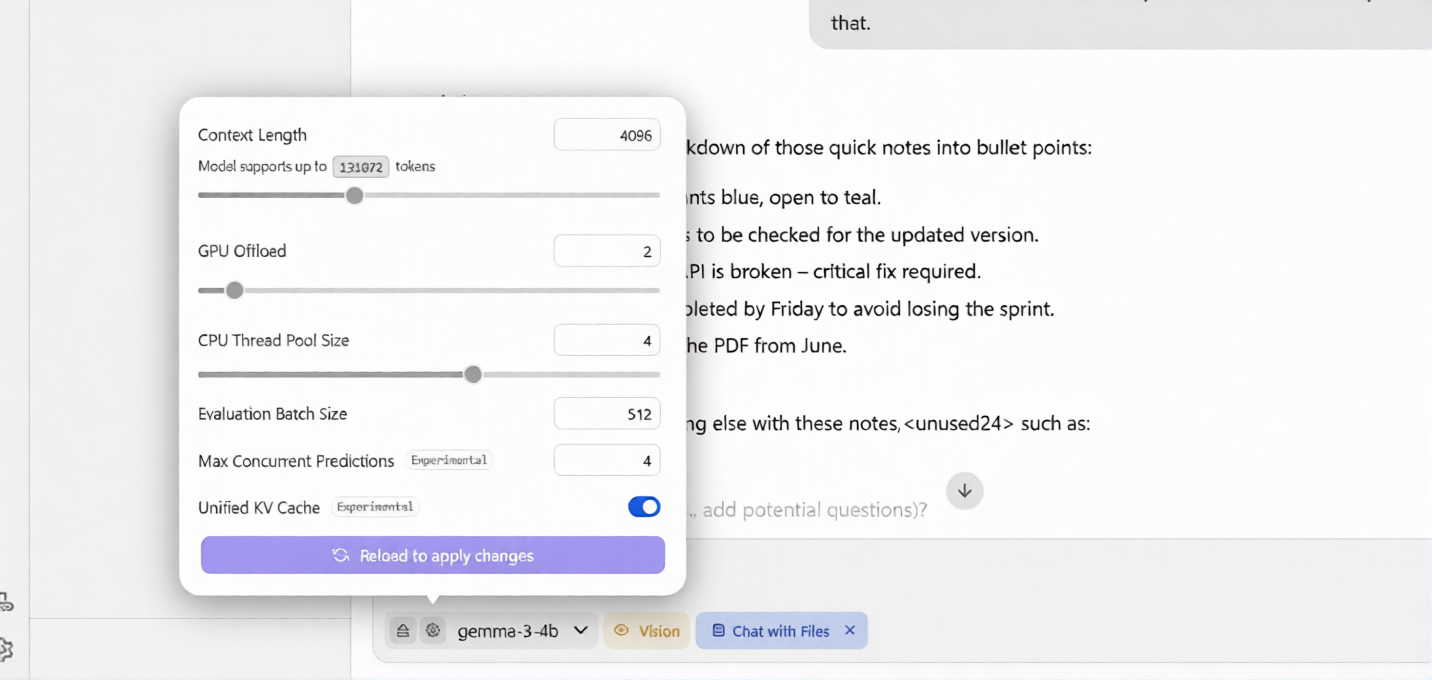
LM Studio is a free desktop application for downloading and running large language models locally on your computer. You work completely offline after downloading a model. No subscription exists. No API key is required.
Running a local AI model previously required navigating terminal commands and resolving broken software dependencies. LM Studio wraps all of that into a graphical model-browser interface. You open the Discover tab, browse available models by size and capability, click Download, and start a conversation once the file finishes loading onto your drive.
For photographers who draft client-facing content, creative briefs, or caption sets for deliveries, a locally running AI model processes every request without sending data to any external service.
What Hardware You Need and Which Models to Start With
A machine with 16GB of system RAM and a GPU carrying 8GB of video RAM runs 7B to 8B parameter models at practical speeds. Testing confirmed that an NVIDIA RTX 4060 with 8GB of VRAM processes Qwen 3 8B at over 42 tokens per second using Q4 quantization, as published in LocalLLM.in’s hardware requirements guide. That speed supports real drafting and research tasks without frustrating delays between responses.
Models including Mistral 7B, Llama 3.2, and Qwen 3 8B all run on mid-range consumer hardware with those specifications. LM Studio supports Windows, macOS including Apple Silicon, and Linux. Apple Silicon machines use their unified memory as video RAM, which gives M-series MacBooks a strong local AI advantage on compact hardware at low power consumption.
Start Building Your Zero-Cost Setup Right Now
Start with Photopea since it requires no installation. Open photopea.com in any browser and load a real project file from your current workflow to confirm it handles your editing needs before going further.
Follow these steps to complete the full setup:
- Go to photopea.com and load a PSD or JPEG file to test the editor against your actual work.
- Download Krita from krita.org for desktop editing sessions that require more processing than a browser can handle.
- Download PowerToys from the Microsoft Store or GitHub and turn on FancyZones, Peek, and Image Resizer during initial setup.
- Download Obsidian from obsidian.md and create a new vault folder on your desktop to start capturing notes, briefs, and research immediately.
- Bookmark bentopdf.com as your default PDF tool for all client document work so it stays within reach when you need it.
- Download LM Studio from lmstudio.ai, open the Discover tab, and pull a 7B model such as Mistral 7B or Llama 3.2 to test offline AI drafting on your own hardware.
Each of these tools installs in under ten minutes. None of them ask you to create an account to access core features. Your complete creative and productivity setup runs at zero recurring cost from the moment you finish step six.
Discover more from Cloudorian — Android, Samsung & Windows How-To Guides
Subscribe to get the latest posts sent to your email.



