

You might be able to significantly enhance your internet speed by simply switching from 2.4GHz to 5GHz. If your PC supports 5GHz, you may use Device Manager to rapidly do it in Windows 10.
So, how do you determine if your computer is capable of supporting 5GHz, and how do you enable it if it is? Let’s tackle these queries.
How to Check if Your Computer Supports 5GHz on Windows 10
Your PC needs to be compatible with 5GHz initially. A few simple steps in the Command Prompt will do the trick:
- In the Start menu search bar, search for command prompt and select Run as administrator.
- In the Command Prompt window, type netsh wlan show drivers.
- Press Enter.
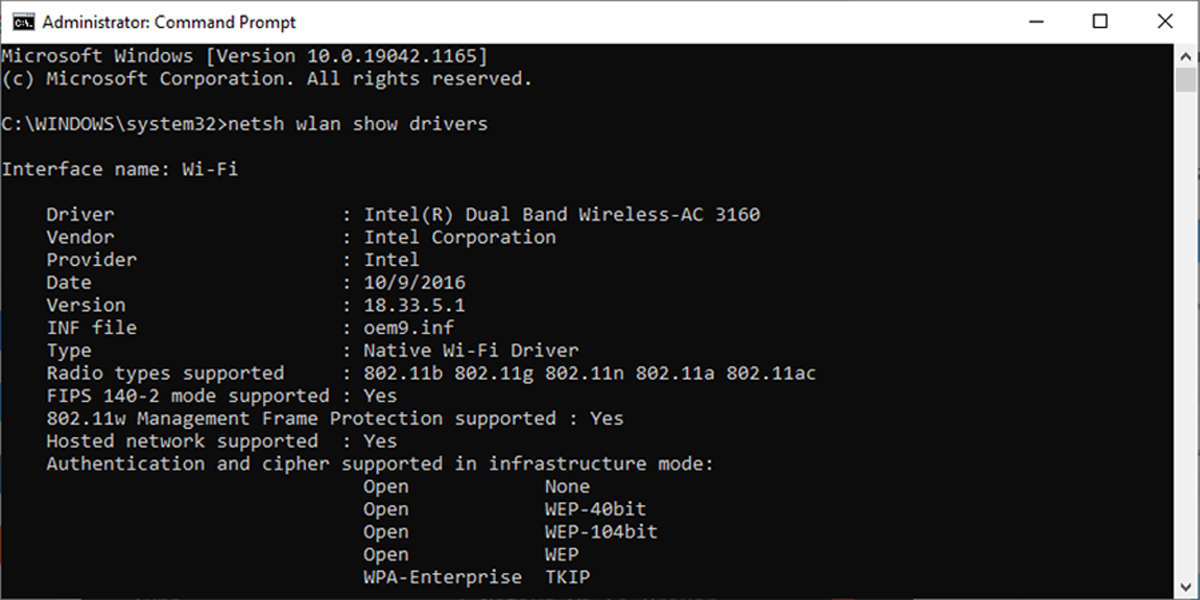
Compare the values next to Radio types supported to the following remarks.
- 802.11g and 802.11n. Your computer supports only 2.4GHz.
- 802.11n, 802.11g, and 802.11b. Your computer supports only 2.4GHz.
- 802.11a or 802.11ac. To test whether your device is 5GHz capable, search the lists for values similar to these.
How to Switch to 5GHz on Windows 10
If you’re about to modify any network adapter properties, be sure to take note of the previous settings just in case things go awry.
To change your Wi-Fi frequency band to 5GHz, do the following:
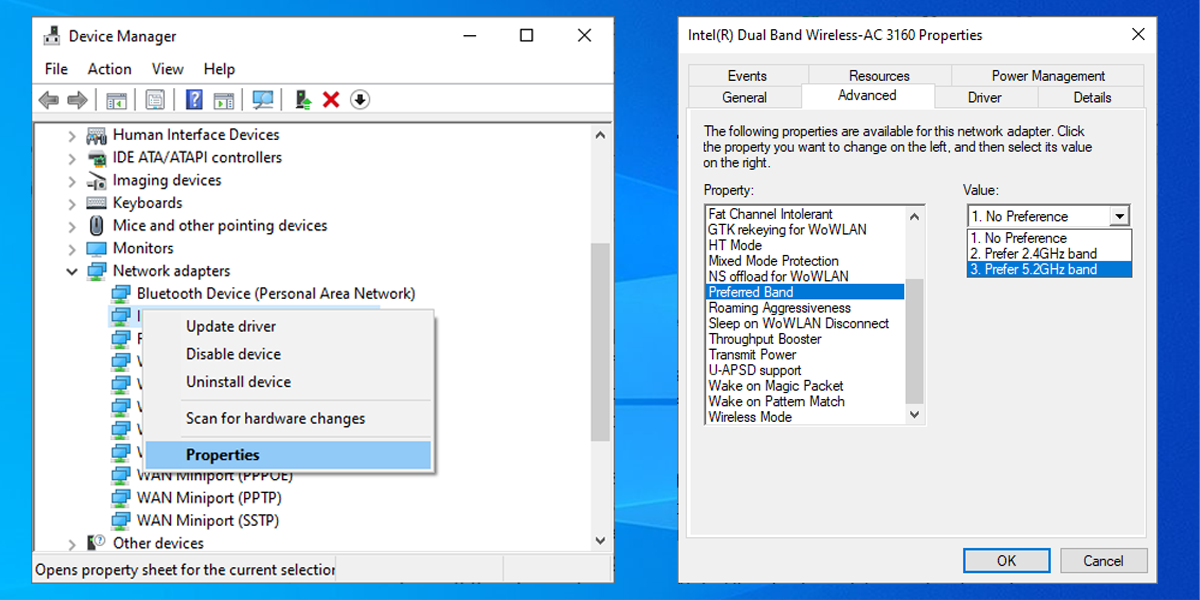
- Click Start > Device Manager. Or use the Win + X keyboard shortcut and select Device Manager.
- Select View > Show hidden devices to make sure Windows 10 displays all drivers.
- Expand the Network adapters list.
- Right-click the Wi-Fi adapter > Properties.
- Open the Advanced tab.
- Set Property to Band or Preferred band. This option can have a different name depending on the adapter producer.
- Use the drop-down menu below Value and select 5GHz.
- Click OK to save the new changes.
How to Force Windows 10 to Use 5GHz
If the wireless adapter properties do not have a Band or Preferred Band option, you will have to alter it forcibly. Look for a Property titled VHT 2.4G. Set Value to Disable to shut off the 2.4GHz option and force your wireless adapter to switch to 5GHz. This will only be necessary if VHT 2.4G is available.
If you can’t see any of the options available, that means your adapter only supports 2.4GHz band frequencies. The only two things you can do to work around this problem are to connect to a 5GHz wireless network manually or to change the frequency of your Wi-Fi router. These will impact all the devices that are connected to it.
How 5GHz Performance Measures Up for You
There is no straightforward, definitive way to know which frequency to use, and no single frequency is better than the other. Higher 5GHz speeds are good for wireless internet but may be hindered by objects. On the other hand, 2.4GHz does better in these situations. You may also follow our instructions to test if switching to 5GHz will give you better results.
Discover more from Cloudorian — Android, Samsung & Windows How-To Guides
Subscribe to get the latest posts sent to your email.



