

Have you recently upgraded to a 5G network and noticed that your iPhone keeps switching between 4G and 5G? This can be frustrating as it can result in interrupted internet access, slow loading times, and poor video quality. Fortunately, there are a few steps you can take to stop your iPhone from switching between 4G and 5G. In this article, we will guide you through the process of resolving this issue.
Why Does Your iPhone Keep Switching Between 4G and 5G?
Before we dive into the solution, let’s first understand why your iPhone is constantly switching between 4G and 5G. The reason behind this is that 5G is still a relatively new technology and it’s not as widely available as 4G. As a result, when you move in and out of 5G coverage areas, your iPhone automatically switches between 4G and 5G to ensure uninterrupted internet access.
While this may seem like a good thing, it can actually be counterproductive as the constant switching can result in a loss of signal and slower internet speeds. Additionally, it can also cause your iPhone’s battery to drain faster.
How to Stop Your iPhone from Switching Between 4G and 5G
Now that you understand why your iPhone keeps switching between 4G and 5G, let’s explore some solutions to stop this from happening.
1. Disable 5G on Your iPhone
The simplest solution to stop your iPhone from switching between 4G and 5G is to disable 5G altogether. This will ensure that your iPhone only uses 4G and will not switch to 5G even if it’s available. Here’s how you can disable 5G on your iPhone:
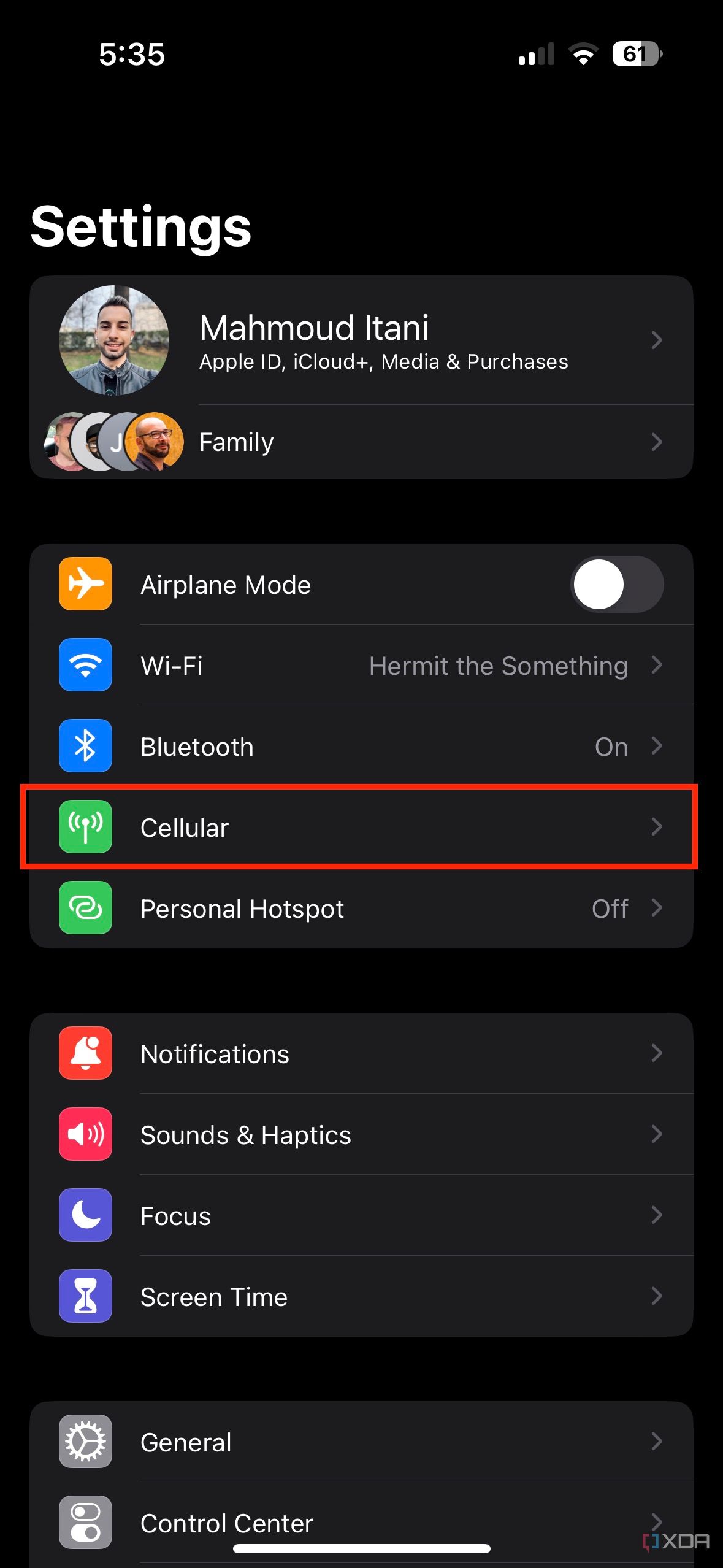
- Go to Settings on your iPhone.
- Select Cellular.
- Tap on Cellular Data Options.
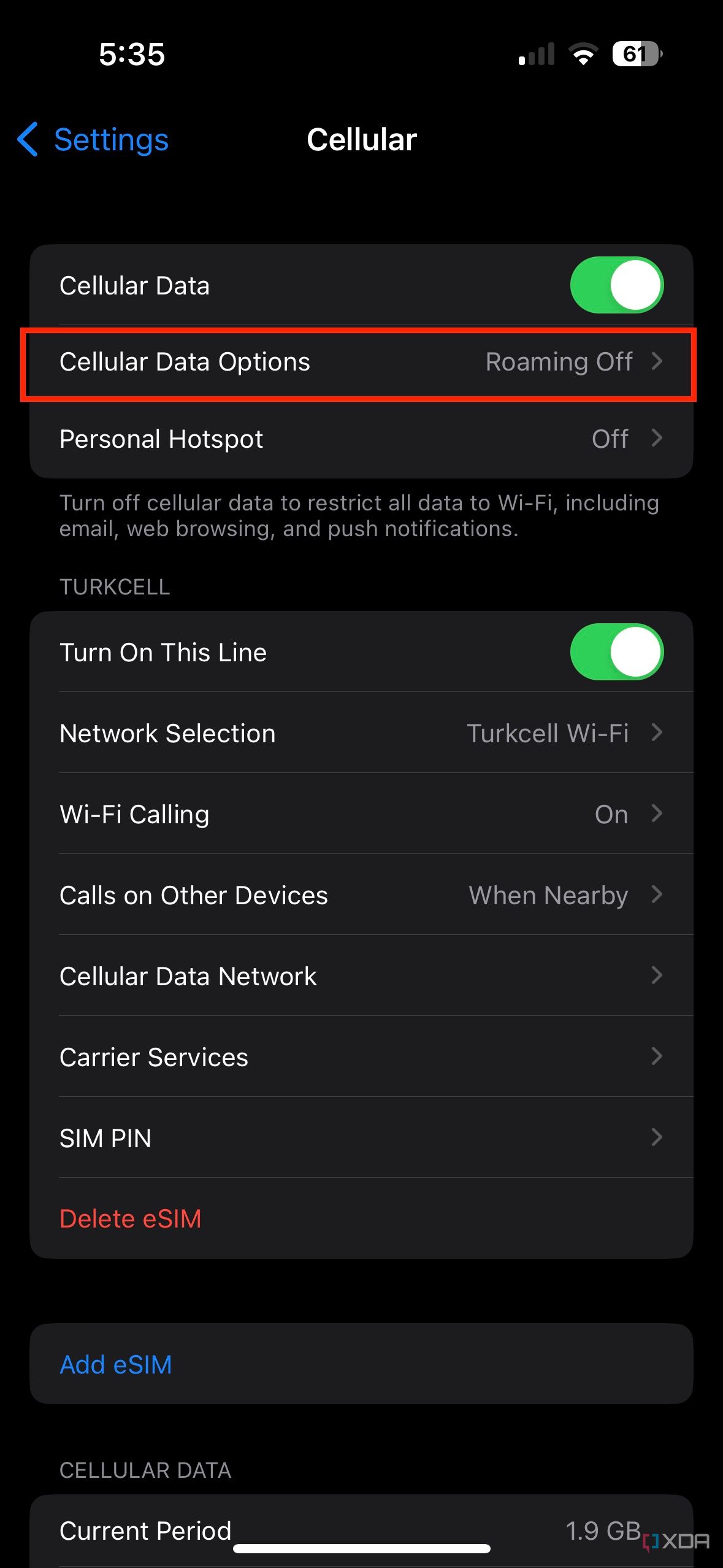
- Select Voice & Data.
- Select LTE instead of 5G Auto.
- Select 5G On if you’d like to turn on permanent 5G access (in areas where it’s available).
2. Enable Airplane Mode
Another solution to stop your iPhone from switching between 4G and 5G is to enable Airplane Mode. This will turn off all wireless connections on your iPhone, including 5G, Wi-Fi, and Bluetooth. Here’s how you can enable Airplane Mode:
- Swipe up from the bottom of your iPhone’s screen to access Control Center.
- Tap on the Airplane Mode icon to turn it on.
- Wait for a few seconds and then turn off Airplane Mode by tapping on the icon again.
3. Turn off 5G Auto in Dual SIM Mode
If you’re using a Dual SIM iPhone and have activated 5G on both SIMs, your iPhone may switch between 4G and 5G to maintain internet connectivity. In this case, you can turn off 5G Auto on one of the SIMs to prevent your iPhone from switching between 4G and 5G. Here’s how you can turn off 5G Auto in Dual SIM mode:
- Go to Settings on your iPhone.
- Select Cellular.
- Select Cellular Plans.
- Select the SIM that you want to turn off 5G Auto for.
- Tap on Voice & Data.
- Select LTE instead of 5G Auto.
4. Update Your iPhone’s Carrier Settings
Sometimes, carrier settings can cause your iPhone to switch between 4G and 5G. In this case, updating your iPhone’s carrier settings can help fix the issue. Here’s how you can update your iPhone’s carrier settings:
- Go to Settings on your iPhone.
- Select General.
- Select About.
- Wait for a few seconds and if a carrier update is available, a pop-up will appear. Tap on Update if it’s available.
FAQs
Q1. Will disabling 5G affect my internet speed?
A1. Yes, disabling 5G can affect your internet speed as it’s a faster and more efficient network than 4G. However, if you’re in an area with poor 5G coverage, disabling 5G and using only 4G can improve your internet speed.
Q2. How can I check if my iPhone is using 5G or 4G?
A2. You can check if your iPhone is using 5G or 4G by looking at the status bar on the top of your screen. If it says 5G, your iPhone is using 5G. If it says LTE, your iPhone is using 4G.
Q3. What if none of these solutions work?
A3. If none of these solutions work, you can try resetting your iPhone’s network settings. Go to Settings > General > Reset > Reset Network Settings. Note that this will erase all saved Wi-Fi passwords and Bluetooth connections on your iPhone.
Conclusion
In conclusion, constantly switching between 4G and 5G can be frustrating and can result in slow internet speeds and a drained battery on your iPhone. However, by disabling 5G, enabling Airplane Mode, turning off 5G Auto in Dual SIM mode, or updating your iPhone’s carrier settings, you can stop your iPhone from switching between 4G and 5G and enjoy uninterrupted internet access.
Discover more from Cloudorian — Android, Samsung & Windows How-To Guides
Subscribe to get the latest posts sent to your email.



