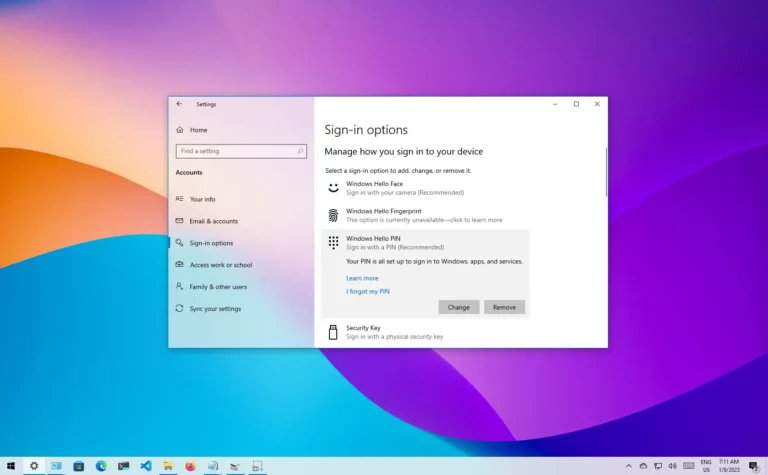
Windows Hello is a biometric authentication system that allows users to sign into their Windows 10 device with their fingerprint, facial recognition, or iris scan. It is the latest in secure authentication technology, offering a more secure alternative to passwords. Windows Hello PIN is a personal identification number (PIN) that allows users to access their Windows 10 device even when their biometric authentication fails. In this article, we will give an overview of Windows Hello PIN, how to remove windows Hello PIN and its benefits.
What is Windows Hello PIN?
Windows Hello PIN is a personal identification number (PIN) that is used to access your Windows 10 device. It is a four-digit code that is used to back up the biometric authentication feature and can also be used as a primary login method. Microsoft encourages users to use the PIN because it is backed by a Trusted Platform Module (TPM) chip, which is a secure crypto-processor. Not every laptop has this chip, but if it does, it is a more secure option than a local password.
Benefits of Windows Hello PIN
The Windows Hello PIN provides a number of benefits for users. Firstly, it is tied to the device, meaning it cannot be used on any other device. This makes it more secure than a local password because it cannot be accessed remotely. It is also backed by the TPM chip, providing additional security.
Moreover, the Windows Hello PIN is subject to the same set of IT management policies as passwords, such as complexity, length, expiration, and history. Administrators can set policies for managed devices to require a PIN complexity similar to a password. They can also require or block special characters, uppercase characters, lowercase characters, and digits.
Finally, the Windows Hello PIN provides additional protection for laptops that don’t have TPM by enabling BitLocker and setting a policy to limit failed sign-ins. This ensures that if the laptop is stolen, the PIN cannot be used to access the device.
Reasons why you would want to remove a Windows Hello PIN
There are a few reasons why you may want to remove your Windows Hello PIN. Firstly, if you have a new computer or have recently installed Windows 10, you may not want to use the PIN anymore. Secondly, if you have recently changed your Microsoft account password, you may want to change your Windows Hello PIN to match. Thirdly, if you are no longer using the Windows 10 device, you may want to remove the PIN to ensure that it cannot be used to access your account. Finally, you may want to remove the PIN if you have decided to use a different authentication method, such as a fingerprint or facial recognition.
Steps to Remove Windows Hello PIN
Removing a Windows Hello PIN is a simple process that can be done in a few steps.
- Open Settings by clicking the Windows button in the start menu.
- Choose the sign-in options tab.
- Under the “Ways to sign in” section, click the PIN (Windows Hello) setting.
- Click the Remove button in the “Remove this sign-in option” setting.
- If the remove button is greyed out, disable the “Only allow Windows Hello sign-in for Microsoft account on this device” toggle switch.
- Restart your computer.
Once you have completed these steps, the PIN will be removed from the account, but you will still have access to the account with your password.
Troubleshooting Windows Hello PIN Removal
Sometimes users may experience issues when attempting to remove their Windows Hello PIN. Here are a few troubleshooting tips to help you resolve the issue:
- Make sure you are signed in to your account and have administrative privileges.
- Check that the “Only allow Windows Hello sign-in for Microsoft accounts on this device” toggle switch is disabled.
- Ensure that you have a valid Microsoft account password.
- Try restarting your computer and attempting to remove the PIN again.
- If all else fails, reset your Microsoft account password and try to remove the PIN again.
If you are still having issues removing your Windows Hello PIN, you can contact technical support for additional help.
Alternatives to Windows Hello PIN
Alternatives to Windows Hello PIN include using a security key, biometric authentication, or a password. Security keys are physical devices that are inserted into the computer in order to authenticate the user. Biometric authentication uses facial recognition or fingerprint matching to authenticate users. Passwords are the most common method of authentication, but they can be vulnerable to attacks.
Conclusion
The Windows Hello PIN is a secure personal identification number (PIN) that can be used to access a Windows 10 device. It is tied to the device, backed by the TPM chip, and is subject to the same set of IT management policies as passwords. It is more secure than a local password and provides additional protection for laptops that don’t have TPM.
Discover more from Cloudorian — Android, Samsung & Windows How-To Guides
Subscribe to get the latest posts sent to your email.
