

Browser hijackers like Chromstera browser act unfavorably by modifying configurations without consent, getting users redirected to undesired websites, and displaying plenty of pop-ups. However, if certain necessary measures have been followed, these hijackers can be easily uninstalled from your system. This guide explains how to remove Chromstera or any browser malware that’s similar to it. Check article on Step-by-Step Guide: How to Clear Browser History in Chrome, Firefox, and Brave.
Preliminary Step: Identify Symptoms of Infection from Chromstera browser
Before removing the chromstera browser/hijacker, confirm infection by looking for:
- Unwanted changes to your homepage or search engine.
- Frequent redirects to unfamiliar websites.
- An influx of pop-up ads.
- New toolbars or extensions you did not install.
Step 1: Uninstall Suspicious Programs
Begin by removing any unfamiliar or suspicious programs that could be causing the hijacking.
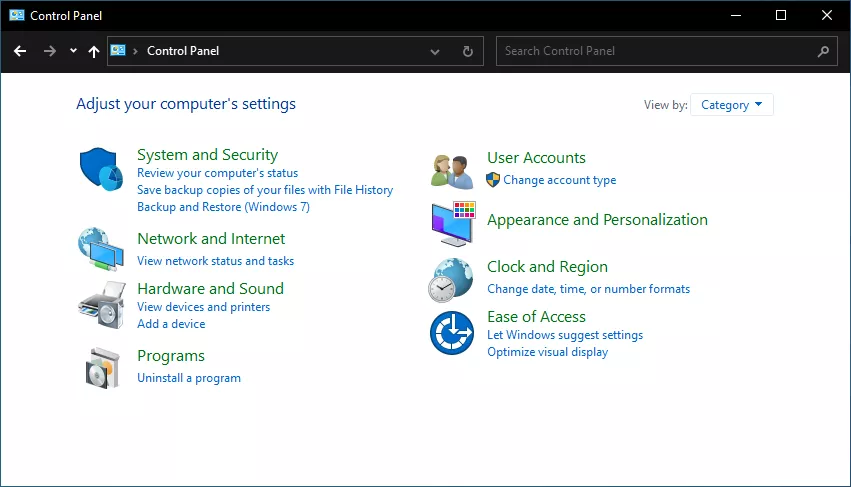
- Open Control Panel:
- Navigate to
Control Panel > Programs > Programs and Features.
- Navigate to
- Identify and Uninstall Suspicious Programs:
- Scan the list for programs you don’t recognize or didn’t intentionally install.
- Select and uninstall these programs.
Step 2: Reset Browser Settings
Resetting your browser settings can revert any changes made by the hijacker.
For Google Chrome:
- Open Chrome.
- Access Settings:
- Click the three vertical dots in the upper-right corner and select
Settings.
- Click the three vertical dots in the upper-right corner and select
- Reset Settings:
- Scroll down and click
Advanced. - Under
Reset and clean up, clickRestore settings to their original defaults. - Confirm by clicking
Reset settings.
- Scroll down and click
For Mozilla Firefox:
- Open Firefox.
- Open Troubleshooting Information:
- Click the three horizontal lines in the upper-right corner, go to
Help, and selectTroubleshooting Information.
- Click the three horizontal lines in the upper-right corner, go to
- Refresh Firefox:
- Click
Refresh Firefoxand confirm the action.
- Click
For Microsoft Edge:
- Open Edge.
- Access Settings:
- Click the three horizontal dots in the upper-right corner and select
Settings.
- Click the three horizontal dots in the upper-right corner and select
- Reset Settings:
- Go to
Reset settings. - Select
Restore settings to their default valuesand confirm by clickingReset.
- Go to
Step 3: Remove Unwanted Extensions
Suspicious extensions can significantly alter your browser’s performance.
- Open Your Browser’s Extensions/Add-ons Page:
- In Chrome, go to
chrome://extensions/. - In Firefox, go to
about:addons. - In Edge, go to
edge://extensions/.
- In Chrome, go to
- Remove Suspicious Extensions:
- Identify and remove any unfamiliar or unwanted extensions.
Step 4: Run Anti-Malware Software
A thorough system scan with reputable anti-malware software can detect and eliminate lingering threats.
- Download a Reputable Anti-Malware Tool:
- Trusted tools include Malwarebytes and AdwCleaner.
- Perform a Full System Scan:
- Install the software and run a comprehensive scan.
- Follow the instructions to remove detected malware.
Step 5: Check and Clean Your Hosts File
Malware often alters the hosts file to redirect your browser. Cleaning this file can help restore normal functionality.
- Open Notepad as Administrator:
- Right-click on Notepad and select
Run as administrator.
- Right-click on Notepad and select
- Open the Hosts File:
- Go to
File > Openand navigate toC:\Windows\System32\drivers\etc. - Select
All Filesfrom the file type dropdown and open thehostsfile.
- Go to
- Remove Suspicious Entries:
- Delete any unfamiliar entries and save the file.
Step 6: Clear Cache and Cookies
Clearing cache and cookies can remove residual effects of the hijacker.
- Open Browser Settings:
- In Chrome, go to
chrome://settings/clearBrowserData. - In Firefox, go to
about:preferences#privacyand clickClear Data. - In Edge, go to
edge://settings/clearBrowserData.
- In Chrome, go to
- Clear Browsing Data:
- Select options to clear cache and cookies.
- Click
Clear data.
Step 7: Restart Your Computer
Restarting ensures all changes take effect and terminates any lingering malware processes.
- Restart Your System:
- Go to
Start > Power > Restart.
- Go to
Step 8: Additional Removal Steps with Revo Uninstaller
To thoroughly remove Chromstera and other hidden malware, use Revo Uninstaller.
- Download Revo Uninstaller:
- Install Revo Uninstaller from its official website.
- Locate and Delete Chromstera:
- In Revo, find Chromstera and attempt to delete it (you may encounter an error, which is expected).
- Delete Registry Entries:
- Accept to delete all registry entries associated with “Chromstera” to ensure complete removal.
Step 9: Remove Hidden Malware
Chromstera may have downloaded additional malware, such as Universal Browser and Artificious Browser.
- Open File Explorer and Navigate to the C Drive:
- Go to
C:\Program Files (x86).
- Go to
- Delete Malware Files:
- Remove the folders named “Artificious Browser Solutions”, “Universal Browser Solutions”, and “Chromstera Solutions”.
Step 10: Clean Local App Data
Removing residual files from the local app data folder helps in complete malware removal.
- Open Run Command:
- Press
Windows Key + R.
- Press
- Type
%localappdata%and Press Enter:- Delete folders related to “Artificious Browser” and “Universal Browser”.
Step 11: Clean Task Scheduler
Remove any scheduled tasks set by the malware.
- Open Task Scheduler:
- Press
Windows Key + S, type “Task Scheduler”, and open it.
- Press
- Delete Harmful Tasks:
- In the Task Scheduler Library, delete tasks named “Chromstera”, “Universal Browser”, and similar entries.
Step 12: Remove Browser Extensions via Registry Editor
To remove persistent extensions and settings, use the Registry Editor.
- Open Notepad:
- Press
Windows Key + S, type “Notepad”, and open it.
- Press
- Create a Registry File:
- Paste the following code into Notepad:
Windows Registry Editor Version 5.00 [-HKEY_LOCAL_MACHINE\SOFTWARE\Policies\Microsoft\Edge] [-HKEY_CURRENT_USER\SOFTWARE\Policies\Microsoft\Edge]
- Paste the following code into Notepad:
- Save the File with a
.regExtension:- Save it as “remove_edge_policies.reg”.
- Run the Registry File:
- Double-click the file to apply the registry changes.
Conclusion
Therefore, Chromstera browser or any other browser hijacker can be eliminated when these procedures are followed. If things persist, especially problems that may point to a mental health disorder, it is advisable to consult a professional.
Discover more from Cloudorian — Android, Samsung & Windows How-To Guides
Subscribe to get the latest posts sent to your email.



