

The sound of locking on an iPhone as well as an iPad is a short hum that is played when you unlock or lock your device. Some users like the sound as a sign they are safe with their devices however, others find it irritating and ineffective. If you’re part of those who prefer the latter You may want to disable the lock sound on your iPhone or iPad. In this post, we’ll explain how to do this with just a few steps.
Key Takeaways
- The lock sound on an iPhone or iPad can be turned off permanently or temporarily.
- To permanently disable the lock sound, go to Settings > Sounds & Haptics > Lock Sound and toggle it off.
- To temporarily silence the lock sound, go to Settings > Sounds & Haptics > Lock Sound and toggle it off. This will only mute the sound until you turn it back on.
- By following these steps, you can easily control and customize the audio experience of your iOS device.
How to Disable the Lock Sound on an iPhone or iPad
To disable the lock sound on an iPhone or iPad, you can either permanently turn it off or temporarily silence it.
Permanently disable the lock sound
You can turn off the lock sound on your iPhone or iPad for good. Here are simple steps to do it:
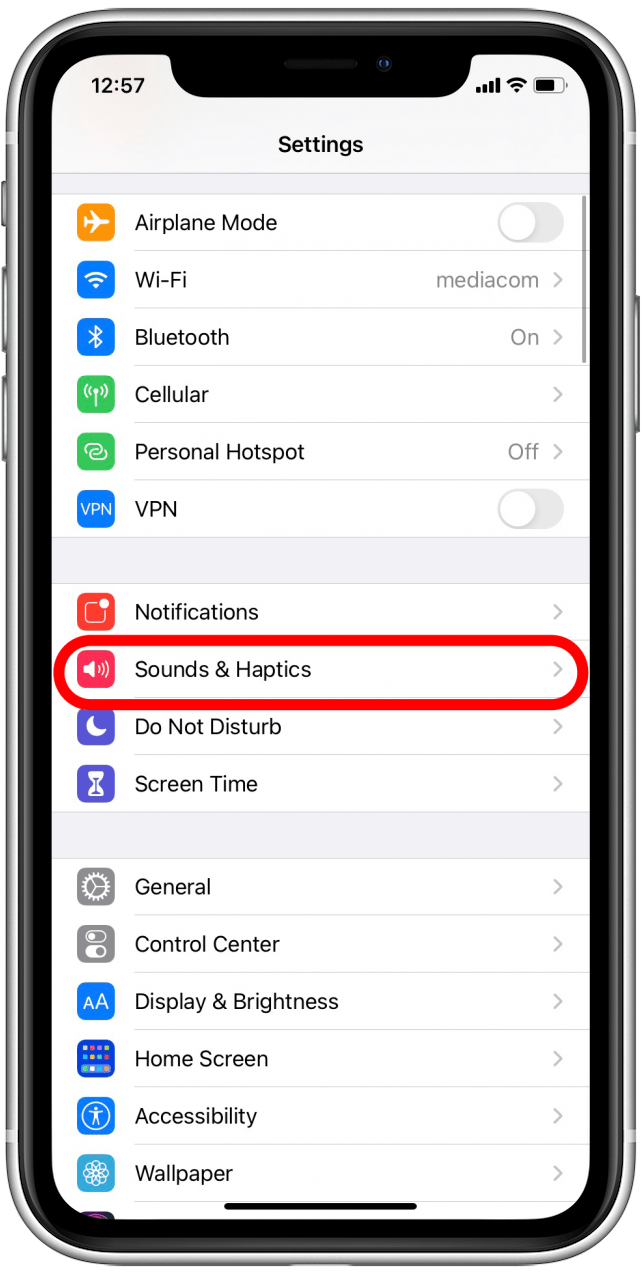
- First, tap on the Settings app on your device.
- Look for ‘Sounds & Haptics’ and tap on it.

- Scroll down until you find ‘Lock Sound’.
- You will see a toggle next to ‘Lock Sound’. Tap this toggle to turn off the lock sound.
- If the toggle is not green and positioned to the right, that means the lock sound is now off.
Temporarily silence the lock sound
To temporarily silence the lock sound on your iPhone or iPad, follow these steps:
- Open the Settings app on your device.
- Scroll down and tap on “Sounds & Haptics”.
- Find the “Lock Sound” option in the menu.
- Tap on the toggle switch next to “Lock Sound” to turn it off.
- The lock sound will now be silenced temporarily until you turn it back on.
Conclusion
In conclusion, disabling the lock sound on your iPhone or iPad is a simple process. Just navigate to the settings menu and toggle off the “Lock Sound” option in Sounds & Haptics. You can also adjust other system sounds like keyboard clicks and system haptics to customize your device’s audio experience.
With these steps, you can silence the lock sound and enjoy a quieter user experience on your iOS device.
FAQs
1. What is the meaning of “Disable lock sound on iPhone or iPad”?
“Disable lock sound on iPhone or iPad” means to turn off the noise your device makes when you lock it.
2. How do I turn off the lock sound on my iPhone?
You can mute the lock sound on your iPhone through device settings, specifically under Sound settings.
3. Can I adjust my iPad’s volume to silence the lock sound?
Yes, by using volume control in the ringer options you can mute or decrease your iPad’s lock sound volume.
4. Is there a silent mode for disabling the iOS device’s lock sounds?
Yes, by switching to silent mode via audio preferences or notification sounds, you can stop any noise when locking your iOS devices such as iPhones and iPads.
5. Can I also disable other sounds like keyboard clicks along with Lock Sound On My Device?
Indeed! You have access in your device settings where you can turn off keyboard clicks and other sound effects too besides muting the Lock Sound Volume.
6. How do I remove all noises made during the locking of my iOS gadgets?
By turning off all audio options including the mute button and other related choices, one could achieve complete tranquillity while interacting with their gadget interfaces thereby disabling all possible distractions due to unnecessary audible reactions.
Discover more from Cloudorian — Android, Samsung & Windows How-To Guides
Subscribe to get the latest posts sent to your email.



