
Last Updated on 3 Jul, 2026 by Montel Anthony
Have you ever wondered why some random, irrelevant posts show up on your Instagram Explore page? Or perhaps you want to refine your Explore page to better match your interests?
You’re not alone. With over 1 billion monthly active users, Instagram’s algorithm decides what you see on your Explore page based on your interactions within the app. This means your likes, comments, stories views, searches, and more all play a role in curating your unique Instagram experience.
While you can’t completely control the algorithm, you’re not at its mercy either. With a few simple tweaks and habit changes, you can update your Explore page to serve content you actually care about. Let’s dive in!
Key Takeaways:
- Instagram’s algorithm recommends posts based on your interactions like likes, follows, searches, etc.
- Marking content as “Not Interested” helps remove unwanted recommendations.
- Following accounts related to your interests improves suggested posts.
- Clearing your search history resets Instagram’s suggestions.
- Being selective with likes shows Instagram your true preferences.
How Does Instagram’s Algorithm Work?
Instagram’s algorithm looks at the following signals to determine what shows up on your Explore page and feed:
- Your likes – Posts similar to what you’ve liked before get recommended more. Double tap thoughtfully!
- Your follows – Instagram shows content from accounts you follow. Trim who you follow to improve suggestions.
- Your searches – Looking up relevant hashtags and keywords influences recommendations.
- Watch time – Videos you fully watch get prioritized by the algorithm.
- Your activity – Interacting with posts (comments, saves, etc.) trains the algorithm.
- Location – Instagram serves local content based on your device’s location settings.
How to Change Instagram Explore Page
With over 500 million Stories shared daily, Instagram simply can’t show you everything. Understanding how the algorithm works gives you power over your feed. Now let’s talk about how to put that power into action!
#1. Clear Your Search History
Every hashtag you search, account you explore, and keyword you look up trains Instagram’s algorithm. For a quick reset, clear your Instagram search history:
- Tap your profile picture in the bottom right.
- Select the hamburger menu icon (3 horizontal lines) in the top right corner.

- Choose ‘Your activity’.

- Tap ‘Recent searches’.

- Select ‘Clear all’ to wipe your search history clean.

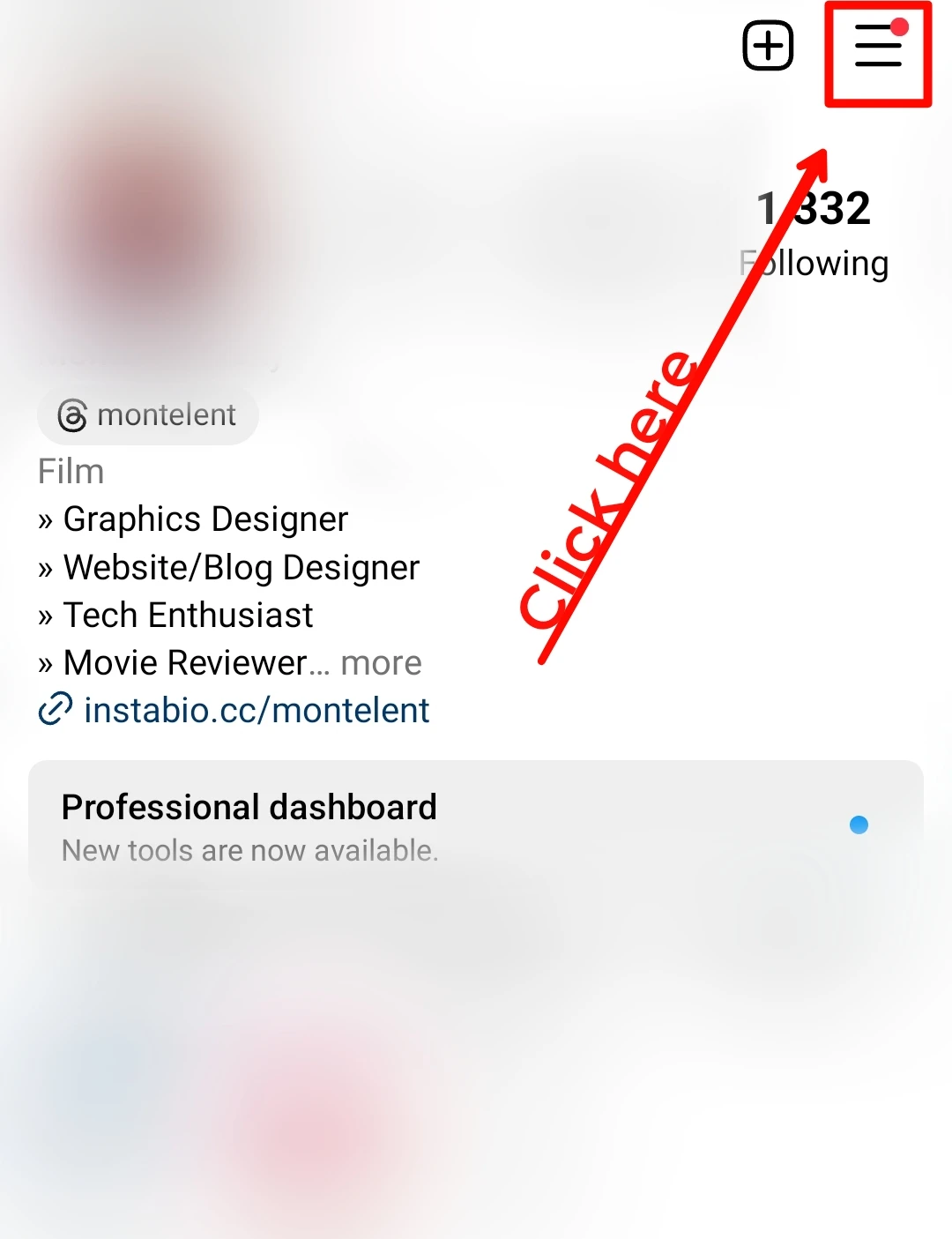
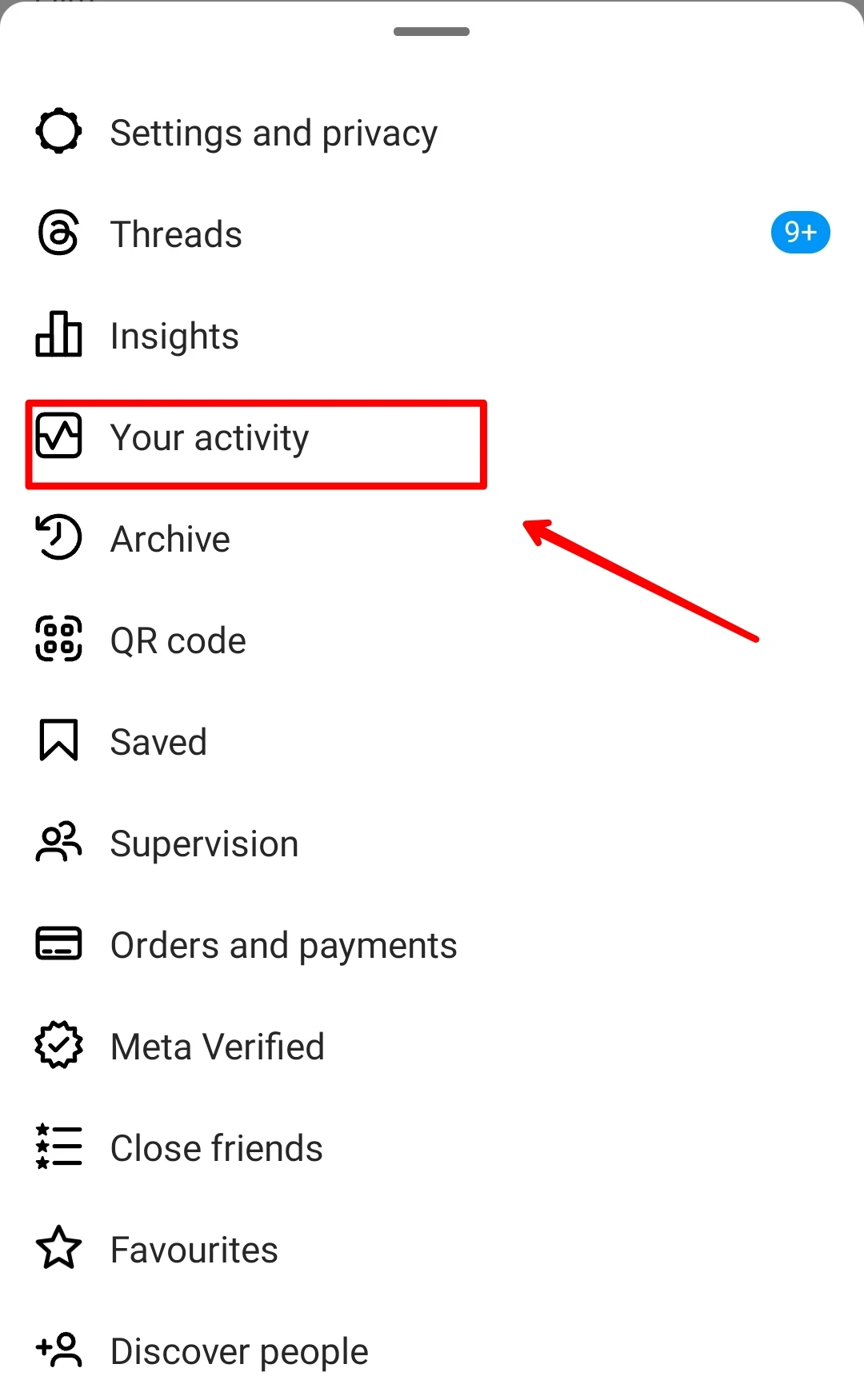
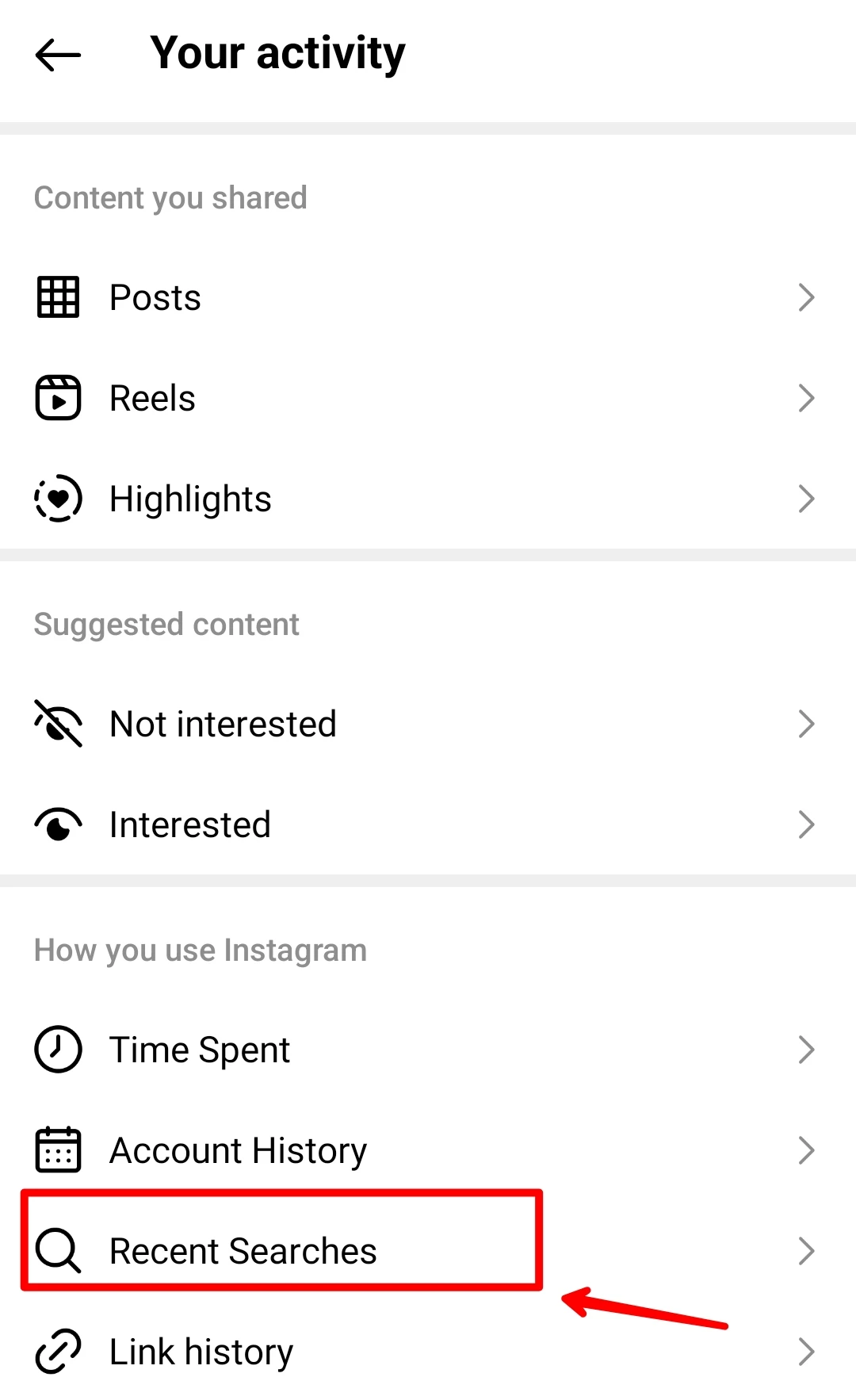
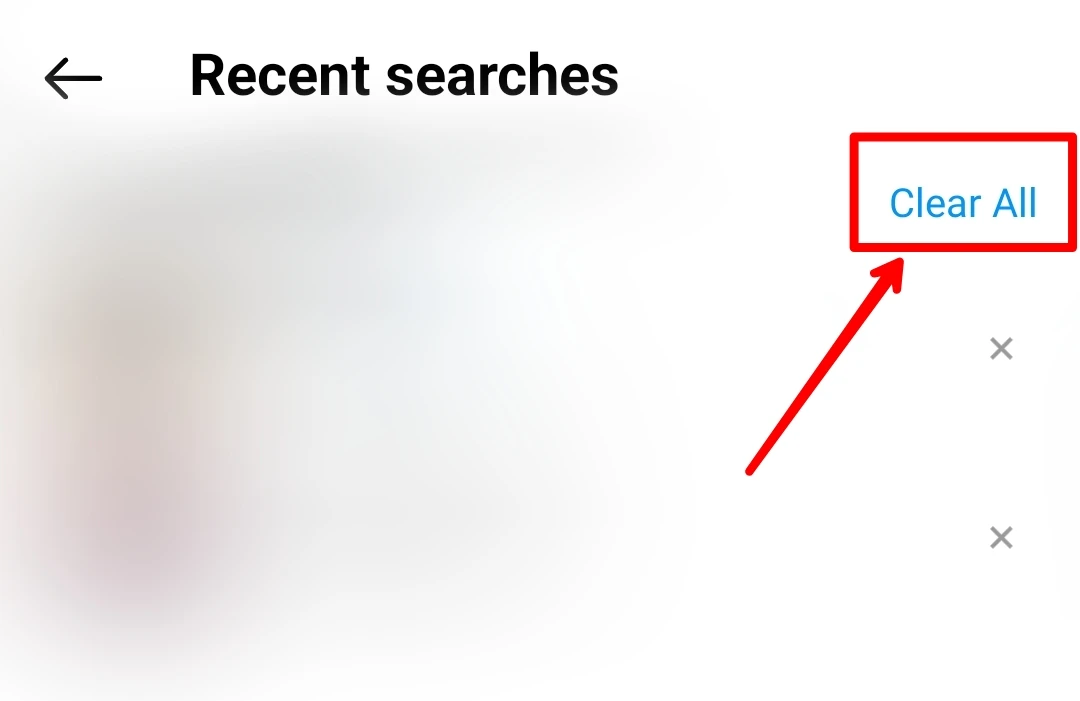
This removes the ‘signal’ from your previous searches, allowing new content to enter your Explore page.
#2. Mark Content as “Not Interested”
See something you don’t like in your Explore page or feed? Simply tell Instagram you aren’t interested:
- Tap the three-dot icon above the post.
- Choose ‘Not interested’ to remove it from your suggestions.
Doing this regularly cleans up your Explore feed since it removes your implicit ‘like’ for that type of content.
#3. Follow Relevant Accounts
Who you follow directly influences what Instagram shows you. Seek out and follow creators that post content related to your interests. This signals Instagram to recommend more of that type of content.
Here’s how to find new accounts to follow:
- Check out relevant hashtags and tap ‘Recent’ to see the latest posts. Follow creators who create content you like.
- Dive into your favorite brand or creator’s tagged photos. Follow people who post similar types of content.
- Explore the accounts similar accounts follow for even more tailored recommendations.
#4. Hide Ads You Don’t Like
Tired of irrelevant ads clogging up your feed? You can hide ads on Instagram to improve your experience:
- Tap the three-dot icon above the ad.
- Choose ‘Hide ad’.
- Select a reason for hiding, like ‘Irrelevant’ if it doesn’t interest you.
This provides feedback to Instagram not to show you similar ads in the future. You can also adjust your Instagram ad interests in your account settings for more control.
#5. Be Selective With Your Likes
Mindlessly double-tapping every post you see makes it harder for Instagram to learn your true interests. Be choosy about what you like:
- Engage thoughtfully with content that aligns with your interests.
- Don’t feel pressured to like posts just because they’re from friends or popular accounts.
- Unlike posts that don’t represent the content you want to see.
Liking selectively trains Instagram’s algorithm even faster.
#6. Clean Up Accounts You Follow
Followed someone years ago but don’t care about their content now? Time for a followers cleanse! Prune accounts that no longer interest you:
- Sort your ‘Following’ list and unfollow accounts one-by-one.
- Try apps like ‘Cleaner for IG’ to analyze accounts that don’t engage with you.
- Toggle notifications off for low-value accounts rather than unfollowing.
Following only accounts you genuinely care about improves your Explore page and feed.
#7. Change Your Location Settings
If you’ve moved or travel frequently, updating your device’s location settings helps Instagram serve relevant local content:
- On iPhone, go to Settings > Privacy > Location Services.
- On Android, go to Settings > Location.
- Make sure Location is enabled and set to your current city.
Instagram uses your device’s location to show events, restaurants, and accounts near you. Keep it updated for better recommendations.
#8. Reset Your Homepage Feed
Want a completely fresh start? Completely resetting your Instagram feed removes all signals from your previous engagement:
- Note accounts you want to keep following.
- Unfollow every account.
- Clear your search history.
- Delete old posts and stories.
- Once your account is empty, refollow the accounts you noted earlier.
This clears the slate for Instagram to solely base recommendations off your new engagement. Use this nuclear option sparingly though, as it’s time consuming.
#9. Be Patient With Instagram’s Algorithm
Changing up the content you see in Explore and your homepage feed takes time. Instagram’s algorithm needs to collect enough signals about your new interests before your recommendations improve.
Stick with consistently interacting with relevant content for a few weeks. This trains Instagram’s algorithm to suggest posts tailored to the new you.
Over time, you’ll notice posts that genuinely interest you instead of random content. But don’t stop there! Employing these tips regularly keeps your Explore page fresh long-term.
Frequently Asked Questions
How long does it take for Instagram’s algorithm to change?
It can take 1-2 weeks for Instagram to learn your new preferences and update recommended posts accordingly. Be patient and stick with consistently engaging thoughtfully during this time.
Does deleting Instagram reset the algorithm?
No, simply deleting the Instagram app does not reset the algorithm. You need to fully delete your account for a true reset.
Should I unfollow all accounts to reset my feed?
Unfollowing everyone guarantees a fresh start, but it’s often too extreme for most users. Try less drastic measures like being selective with likes or clearing your search history first.
What if I don’t see the “Not Interested” option on a post?
The option only appears on suggested posts on your Explore page or feed. You can’t mark regular posts from accounts you follow as “Not Interested”.
Will my Instagram algorithm stay the same if I don’t change my activity?
Yes, if you continue engaging with Instagram the exact same way, your Explore page and feed will likely show similar content over time. Switch things up to keep it fresh.
Put These Tips Into Action
Now you have the inside scoop on how to take control of your Instagram experience!
Apply these tips over time to refine your Explore page and homepage feed to feature content tailored just for you. Changing how you interact trains Instagram’s algorithm to better match your current interests and preferences.
What tips are you most excited to try out? Let me know in the comments! And if you found this post helpful, give it a like and share it with an Instagram-loving friend. Happy scrolling!
Discover more from Cloudorian — Android, Samsung & Windows How-To Guides
Subscribe to get the latest posts sent to your email.
