

Last Updated on 18 Aug, 2026 by Montel Anthony
Virtual Private Network (VPN) service gives users an uncompromised connection to the internet in privacy. VPNs encrypt your traffic and conceal your IP address, making browsing anonymous. Howdy Trojan VPN is one such popular VPN provider available for Android phones – in this guide, we’ll discuss how to set up and use Howdy Trojan VPN on your Android smartphone or tablet device.
Why Use a VPN Like Howdy Trojan?
There are several benefits of using a VPN like Howdy Trojan on your Android device:
- Bypass internet censorship and access blocked websites and apps.
- Enhanced online privacy and anonymity by hiding your real IP address.
- Secure your internet connection on public Wi-Fi hotspots.
- Unblock geo-restricted content like Netflix, Hulu, etc.
- Improved internet speed when connected to distant VPN servers.
Steps to Use Howdy Trojan VPN on Android
Follow these simple steps to start using Howdy Trojan VPN on your Android device:
1. Create a Howdy Trojan VPN Account
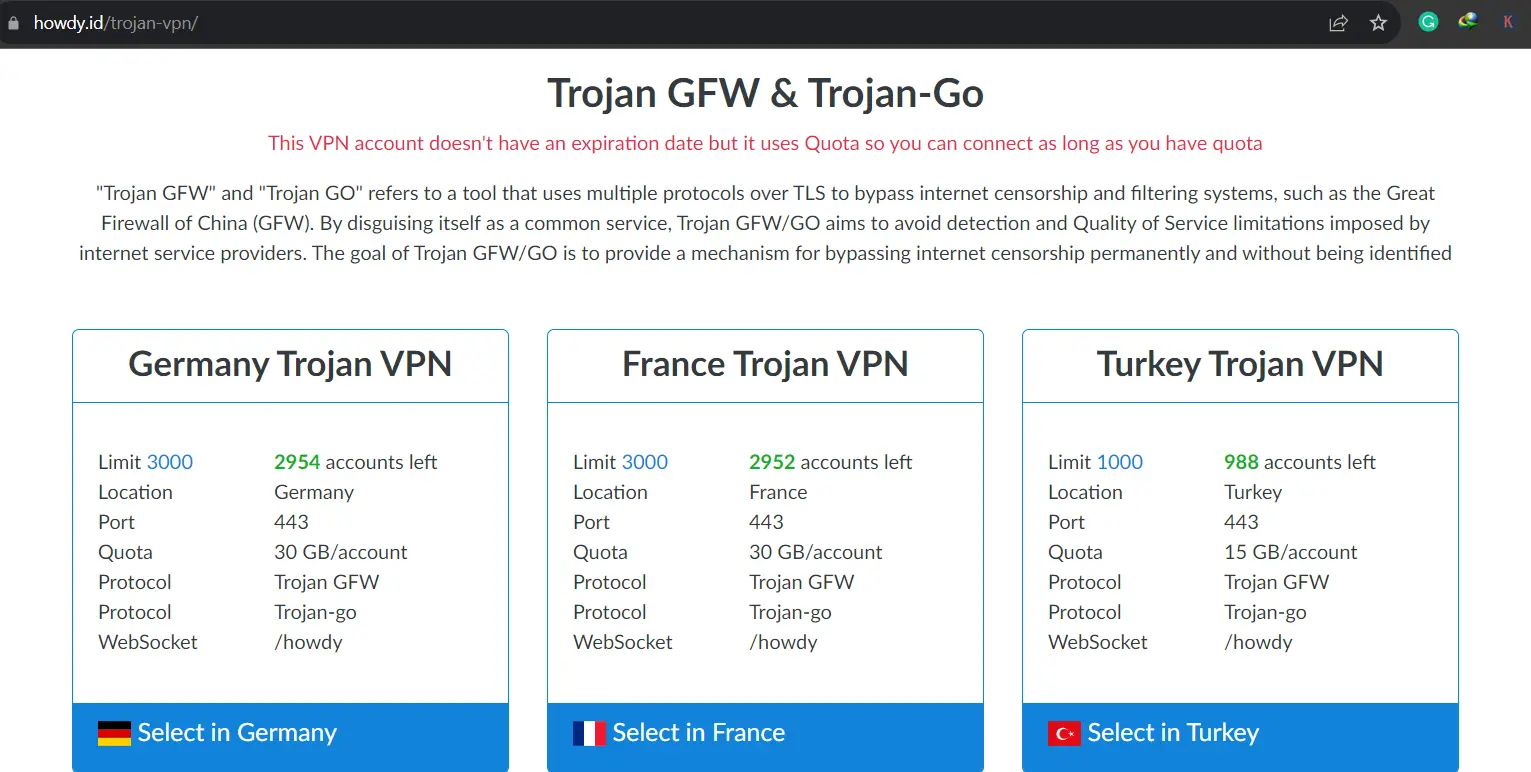
Step one is creating a free Howdy Trojan VPN account on their website www.howdy.id by selecting “Trojan VPN” under their menu selection “VPN Server Locations.”
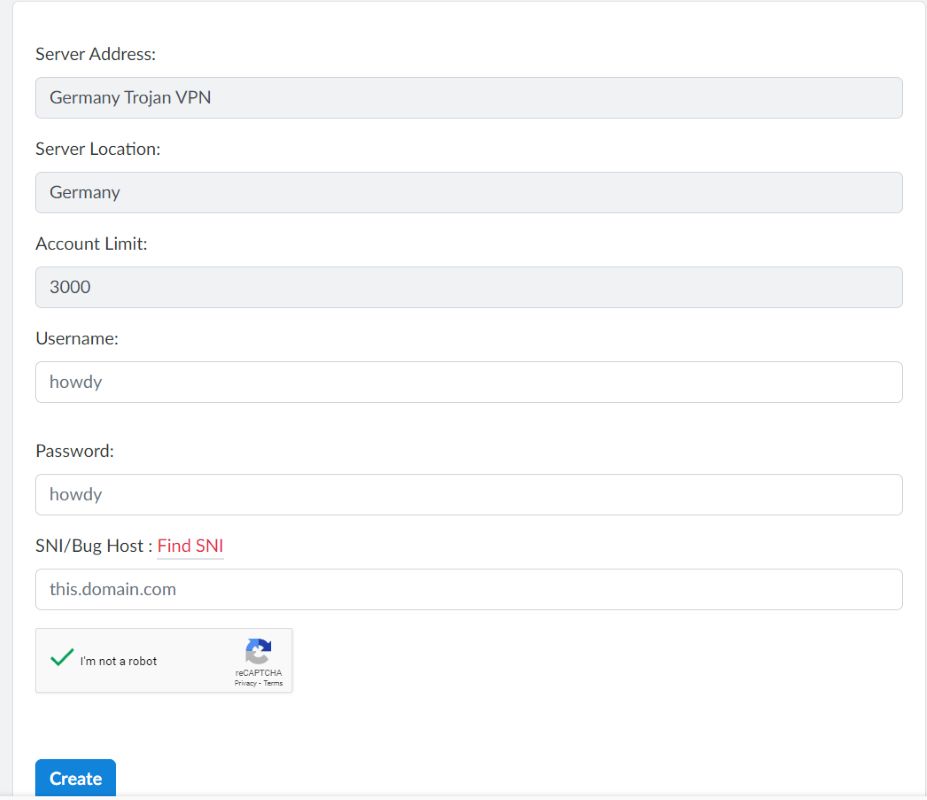
After entering a username and password, click “Create”. This will generate your Howdy Trojan VPN configuration files.
2. Download the Howdy VPN App
Go to the Google Play Store and download the official Howdy VPN app. Alternatively, get the app from Howdy’s website after creating your account.
3. Import the Config Profile
Open the Howdy VPN app on your Android device. Tap on “Import Config from Clipboard” and confirm to import your newly created Howdy Trojan VPN profile.
You can also name and save the profile for future use.
4. Connect to Howdy Trojan VPN
- Simply tap on “Connect” within the Howdy VPN app to establish a secure VPN connection.
- Confirm the connection request and wait a few seconds for the VPN to connect successfully.
- Check your new IP address within the app to confirm you are now browsing via Howdy’s VPN server.
Make use of Howdy Trojan VPN on your Android device and enjoy secure web surfing and access to restricted sites and applications via Howdy Trojan VPN!
Troubleshooting Howdy VPN Issues
Sometimes the Howdy VPN app may face connectivity issues or stop working in the background. Here are some troubleshooting tips:
- Go to Android Settings > Battery > Battery Saver and allow “No restrictions” for the Howdy VPN app. This prevents battery optimization from interrupting the VPN connection.
- Try reimporting the Howdy Trojan config profile by going to the app’s settings. This refreshes the VPN authentication.
- Check your internet connection and reconnect the VPN. Slow internet speeds can prevent Howdy VPN from working properly.
- Contact Howdy VPN’s customer support if issues persist for help troubleshooting the problems.
FAQs About Howdy Trojan VPN for Android
How much data does Howdy Trojan VPN use?
Howdy provides 10GB of free data per VPN account. Once this quota is exceeded, you need to create a new account.
Does Howdy Trojan VPN really keep my browsing private?
Yes, Howdy utilizes industry-standard AES-256 encryption to secure your internet traffic and hide your IP address.
Can I choose my preferred VPN server location?
Yes, when creating a Howdy account you can select your optimal VPN server location like US, Singapore, etc.
Will Howdy Trojan VPN reduce my internet speeds?
Does Howdy work in China and other restricted regions?
Yes, Howdy’s VPN servers help bypass internet censorship and restrictions for accessing blocked websites and social media.
Can I use Howdy on multiple Android devices simultaneously?
Yes, you can import the same Howdy Trojan VPN profile onto several Android smartphones or tablets for concurrent connections.
What is the difference between Howdy Trojan and Howdy Turbo?
Howdy Turbo is focused on delivering ultra-fast VPN speeds, while Howdy Trojan provides more overall server locations and robust privacy/encryption.
Conclusion
Howdy Trojan VPN offers an intuitive yet robust VPN service to secure and anonymize Android device internet usage. Simply follow these steps to easily set up Howdy’s app and connect to its global server network; with strong encryption and speeds, this free option makes using a VPN an accessible proposition on mobile phones or tablets alike.
Discover more from Cloudorian — Android, Samsung & Windows How-To Guides
Subscribe to get the latest posts sent to your email.



