

Last Updated on 20 Jul, 2026 by Montel Anthony
Installing WordPress is easy. The first step on how to install a WordPress is to download and install the WordPress software on your web server. You can do this by visiting (https://wordpress.org/download/) and clicking on the button that matches your operating system, then following the instructions on the page.
how to install a wordpress blog on bluehost
You can see 8 Alternatives to the Yoast SEO Plugin for WordPress.
- Choose a hosting plan: There are many different types of hosting plans, which range from shared to VPS, but the most basic one that you should get is Bluehost’s shared hosting plan. It’s cheap (at $2.95 per month. CLICK HERE), comes with everything you need for WordPress and is generally reliable for beginners.
- Choose a domain name: Once you have chosen the right hosting plan, it’s time to buy your domain name (the address where people will go to visit your site). For example, if I wanted to buy “how-to-install-wordpress” as my domain name then I would go here and select the first option (“buy now”). Then type in how-to-install-wordpress on their search bar and see if it was available—if not then try another variation until one finally becomes available for purchase!
- Sign up for hosting: After purchasing your .com or .net extension (which is Free on First Year), login into Bluehost, once there scroll down until you find “Softaculous Installer” under “Advanced” section on left side column; click on WordPress.
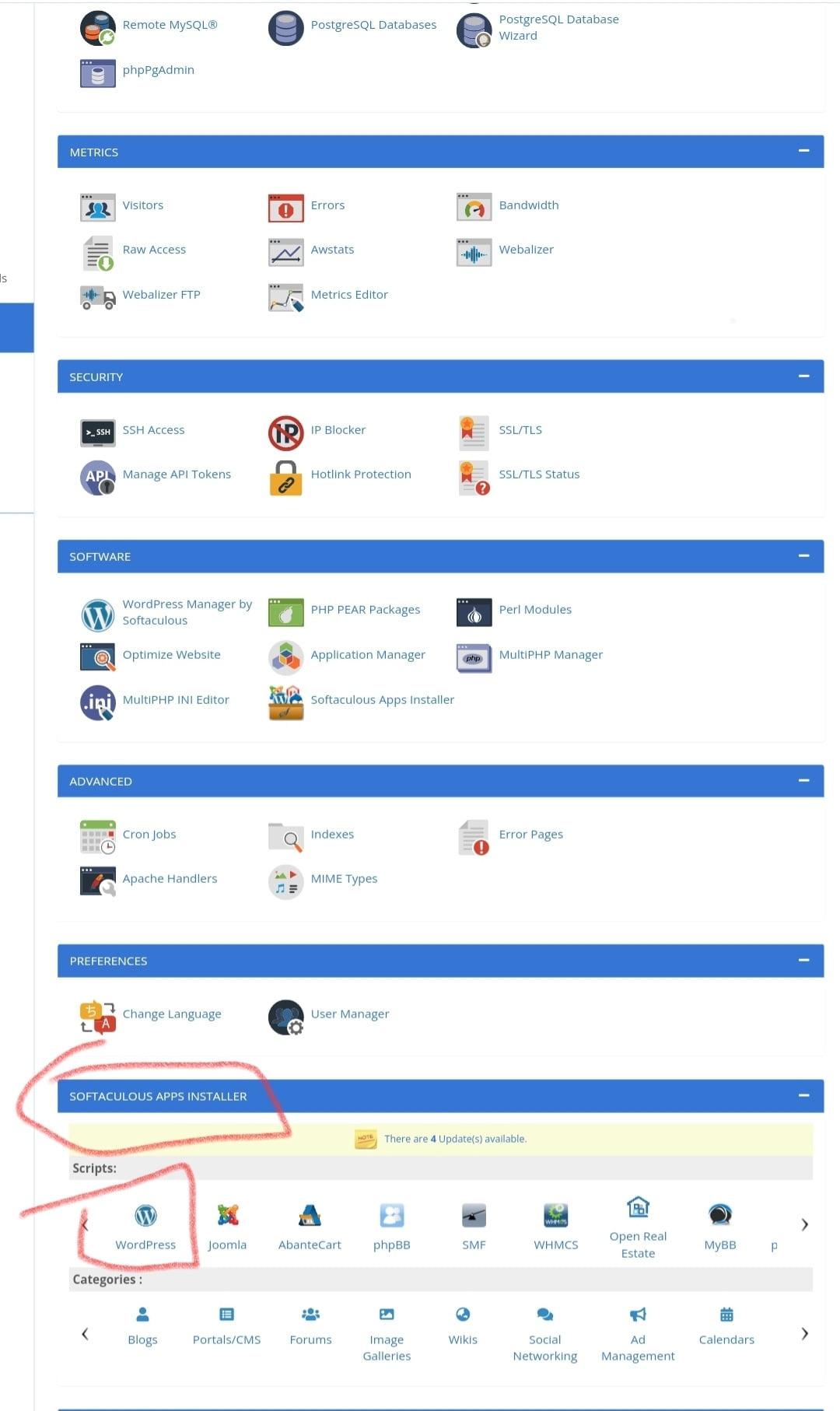
- In the Softaculus Dashboard, Click on Install WordPress, the Fill in the Setup. After, then click Install and wait for it to finish. Now you can login to your WordPress site through /wp-admin.
how to install a wordpress plugins
- Go to the WordPress dashboard and click on Plugins.
- Click Add New in the menu bar that pops up, then type in the name of your plugin (e.g., “Amazon S3”).
- Find the plugin you want by searching for it or scrolling through a list of results until you find one that looks promising (one with a blue Install Now button). Click Install Now when you’re ready to proceed with installation, which will take just a few seconds if all goes well!
- After installing your new plugin, go back to your Dashboard by clicking Dashboard at top left corner of screen or by clicking Home from any page on wordpress website
how to install a wordpress theme
- Upload your theme to the /wp-content/themes directory and then activate it.
- Customize your new theme: change colors, fonts and add new galleries, menus etc. After that you should check if the theme is mobile friendly, seo friendly and lightweight. This will help you get a better understanding of how this new system works and what are its strengths and weaknesses so that you can decide whether it fits your needs or not before making a final decision on using it as an official website design tool
how to install wordpress locally
If you’re working on a local development environment, you’ll need to use XAMPP, WAMP or MAMP.
XAMPP is the oldest and most popular of these three options. However, it can be difficult to configure and use depending on your operating system and how complex your WordPress site is.
WAMP is more user-friendly than XAMPP but still not as easy as MAMP.
MAMP is generally considered the easiest way to install WordPress locally as it works right out of the box with no complicated configuration required.
installing wordpress on mac
- Install MAMP
- Install WordPress
- Install Theme (optional)
- Install Plugins (optional)
- If a theme wasn’t installed in step 3, open the Appearance > Themes menu in your WordPress admin area and select “Add New” from the left sidebar to install one now; if a plugin was not installed in step 4, visit https://wordpress.org/plugins/search?s=installation&q=&orderby=popularity%20desc&sort_column=name%20asc&refined_query[]=yes&refined_query[]=no#results-1 to install one now or later; if demo content wasn’t installed before installing Woocommerce then do so now by visiting Settings > Products > Import / Export > Export Product Data with Demo Content (note: this option only appears if you’ve enabled it).
installing wordpress manually
- Step 1: Download WordPress
To begin the installation process, download WordPress from https://wordpress.org/download/. You can choose to download either the latest stable version (4.9) or a more recent beta release. Once you have your .zip file for the latest version of WordPress on your hard drive, unzip it and place all of its contents into a folder called something like wordpress-installation-manual on your computer’s desktop or in C:\Users\YOURUSERNAME\Documents. If you have multiple versions of WordPress available in this directory structure, then make sure that each one is stored in its own unique folder with no other files inside it aside from those required by that specific version—in this case only one file: wp-config-sample.php
installing wordpress themeforest
Let’s get started!
- Go to the WordPress website and sign up for an account if you don’t already have one. This is a free service that creates a platform on which your blog will be hosted, which makes it easy to update and customize without paying expensive monthly fees.
- Download WordPress from their website (make sure you download the latest version). If you’re using Mac OS X or Windows 7/8, this should be as simple as double clicking on the installer file that downloads automatically after signing up for an account. If not, see this guide on how to install WordPress manually into your computer by downloading files from their servers or hosting provider such as Bluehost or HostGator
installing wordpress plugin
To install WordPress plugins, you’ll need to first download the plugin file. After you’ve done that, we recommend uploading it to your web host using FTP.
Once the plugin is uploaded to your website’s root directory (where wp-content lives), navigate over to Plugins > Add New and activate the new plugin. You’ll also have the option of activating it right away or scheduling its activation for a later date. If you’re having trouble installing plugins manually or if they aren’t showing up on your site after installation, check out these troubleshooting tips.
installing WordPress on mac MAMP
- To install MAMP, go to http://www.mamp.info/en/downloads/.
- Download the most recent stable version. For example: MAMP 3.2.* (The asterisk indicates a minor update).
- Install MAMP on your computer by downloading it and following the instructions given in their Read Me file (you may have to close all other applications).
- Once installed, open MAMP and start up the server by clicking “Start Servers” in the top-left corner of your screen or pressing Command + R keys simultaneously; this will open a tab within Terminal with a black background saying “Terminal” followed by several numbers that display your IP address (don’t worry about these). In another tab open up your web browser and navigate to http://localhost:8888 where you will see WordPress running! You can now log into WordPress as usual and start building awesome websites!
That’s all on how to Install a WordPress. If there is any question, kindly drop it below.
Discover more from Cloudorian — Android, Samsung & Windows How-To Guides
Subscribe to get the latest posts sent to your email.



