

Have you ever needed to create multiple copies of a page within a Word document? Or wanted to duplicate the contents of one Word doc into a brand new file? If so, you’re not alone. While Word doesn’t have a built-in “duplicate page” feature like Google Docs does, there are a few straightforward workarounds that get the job done.
In this comprehensive guide, we’ll walk through the quick and easy steps on How to Duplicate a Page in Word Like a Pro. Read on to become a master page cloner in Word.
Key Takeaways:
- Microsoft Word lacks a dedicated duplication tool, so you’ll need to manually copy and paste content.
- To duplicate a single-page Word doc, select all, copy, and paste into a new document.
- For multi-page duplication, select the specific page(s) before copying.
- Paste the copied content into a new document or a new page within the existing doc.
- You can duplicate Word docs in their entirety or partially copy select pages.
Duplicating Single Page Word Documents
When you need a replica of a one-page Word document, you can get the job done in a few simple clicks. Here’s a step-by-step walkthrough:
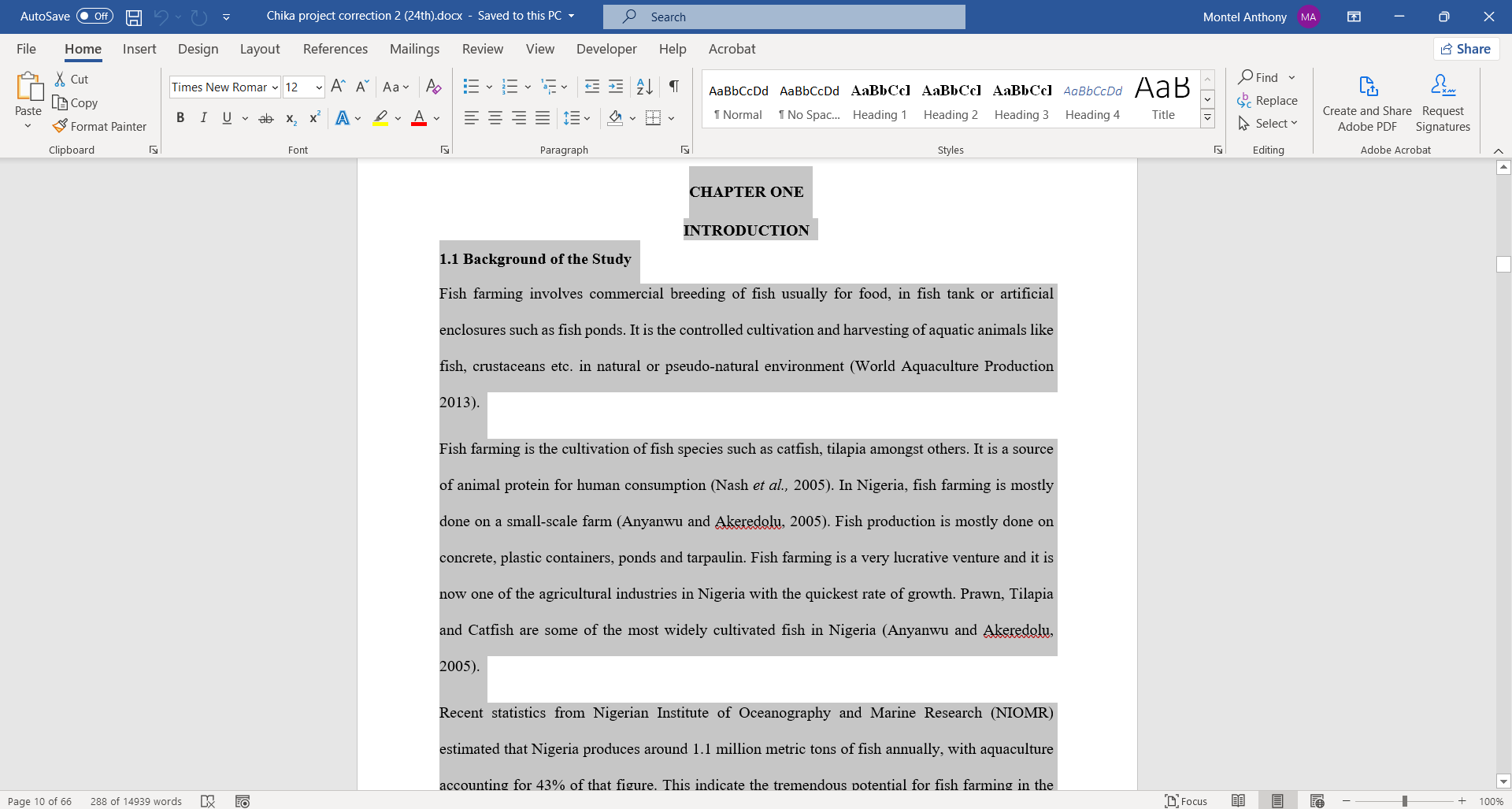
Select and Copy All Content
- Open the single page Word document you want to duplicate.
- Click at the very beginning of the document and drag your cursor down to the end to select everything.

- Alternatively, use the handy keyboard shortcut
Ctrl + A(Windows) orCommand + A(Mac) to select all content. - With all the text and images highlighted, copy it by pressing
Ctrl + CorCommand + Con your keyboard.
Paste into New Document
- To paste the contents into a brand new Word document, click the File tab and select New Blank Document.

- Position your cursor at the top of the new blank page.
- Press Ctrl + V (Windows) or Command + V (Mac) to paste the copied contents onto this fresh document.
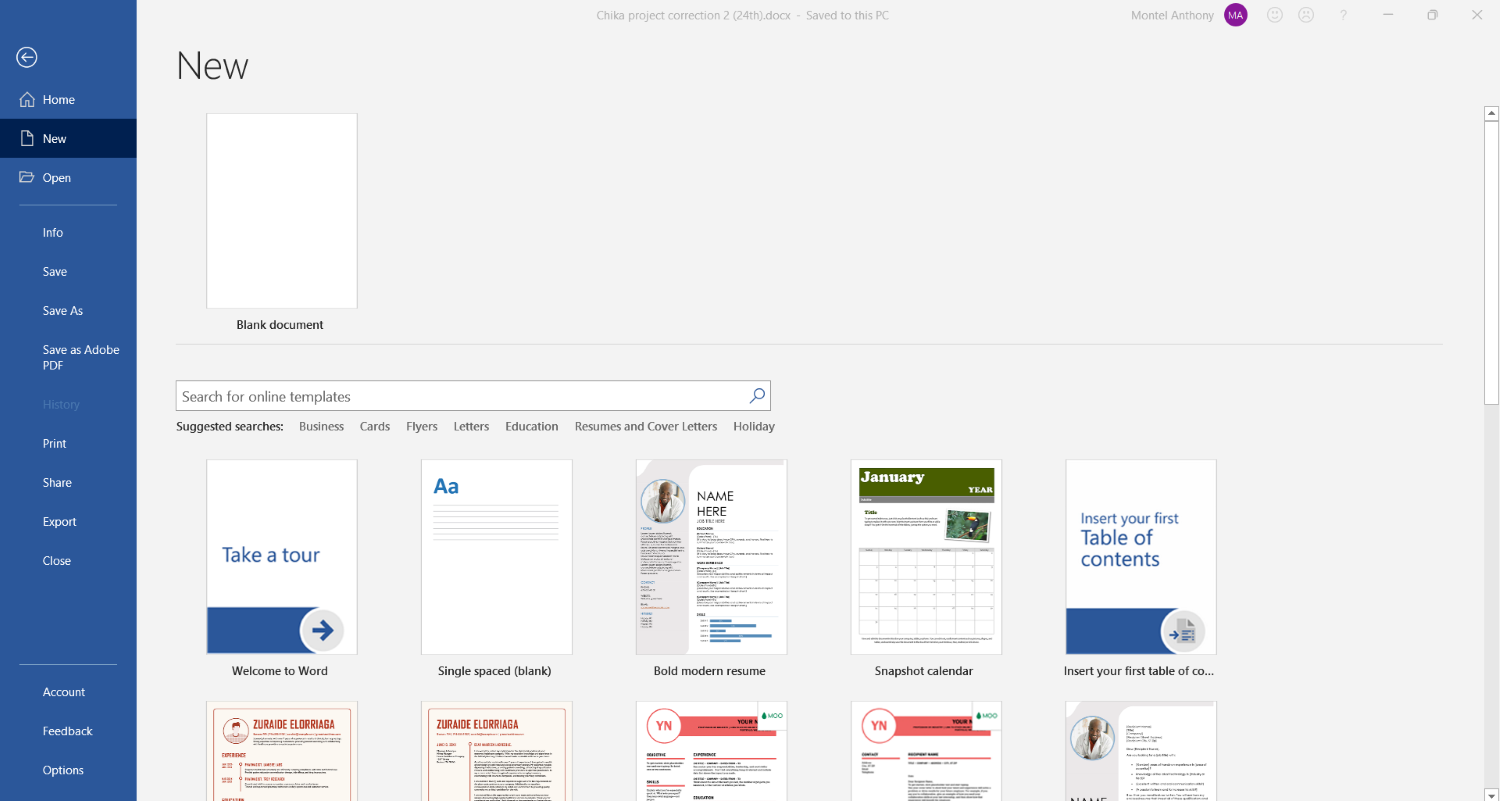
That’s it! The original one-page Word document is now neatly duplicated in full in a separate file.
Duplicating Multi-Page Word Documents
When working with a Word document containing numerous pages, you may only want to duplicate certain sections rather than the entire thing. Here are the steps for partial or full duplication of multi-page Word docs:
Select Specific Pages
- Open the multi-page Word document and navigate to the page(s) you want to copy.
- Position your cursor at the start of the chosen page, then click and drag to select the content on that page.
- To select multiple full pages, repeat this click and drag process on additional pages.
Copy Selected Page(s)
- With the desired page(s) highlighted, press Ctrl + C (Windows) or Command + C (Mac) to copy the selection.
- You can also right click the highlighted text and click Copy from the menu.
Paste into New or Existing Document
- To paste the copied page(s) into a new document, click File > New to open a blank Word doc.
- To paste into the existing document, insert a new blank page by pressing Ctrl + Enter (Windows) or Command + Return (Mac).
- Position your cursor at the beginning of the new blank page or document.
- Press Ctrl + V or Command + V to paste the selection.
By following these steps, you can easily duplicate sections or the entirety of a multi-page Word document in a few quick clicks.
FAQs About Duplicating Word Pages
Here are answers to some common questions about copying and pasting content to duplicate pages in Word:
How do I duplicate a page in Word with one click?
Unlike Google Docs, Microsoft Word does not have a dedicated “Duplicate page” feature. There is no single-click way to make an exact copy of a page in Word. You’ll need to manually select, copy, and paste the content.
Can you duplicate a page in Word without copy and paste?
No, there is no way to duplicate a page in Word without utilizing the copy and paste functions. Microsoft has not built this capability into Word.
Is there a shortcut to duplicate a page in Word?
No official keyboard shortcut exists, but utilizing Ctrl + A (Select All), Ctrl + C (Copy), and Ctrl +V (Paste) will allow you to quickly duplicate pages in Word with keyboard commands rather than your mouse.
How do you copy a page to another Word document?
To copy a page from one Word document to another, open both documents, select/copy the page content you want to duplicate from the first document, switch to the second document, insert a new blank page if needed, place your cursor on the new page, and paste.
Can you duplicate a page in Word online?
Yes, the online web version of Word allows you to duplicate pages using the same copy/paste method as the desktop application. Open the Word online document, select the page, copy it, paste into a new document or page, and duplicate away.
Enhance Word Documents with Seamless Page Duplication
While Microsoft Word lacks the handy built-in duplicate option found in Google’s word processor, you can still effortlessly clone any single page or multi-page Word document with a few easy copy and paste clicks.
Next time you need to reproduce sections or full Word docs precisely, use this quick guide to duplicate pages like a pro. With the powerful yet simple copy and paste technique, you can rapidly generate Word document drafts, templates, and other materials with the pages you need in duplicate.
Discover more from Cloudorian — Android, Samsung & Windows How-To Guides
Subscribe to get the latest posts sent to your email.



