

Last Updated on 6 Aug, 2026 by Montel Anthony
Telegram is one of the most popular and secure messaging apps in the world. It offers a lot of features and functionalities that make it stand out from other apps. One of these features is the ability to use multiple accounts on Telegram.
Checkout: TeleDrive: To make Telegram become a free, limitless cloud storage service, use this simple approach
Using multiple accounts on Telegram can be very useful for different purposes. For example, you can use one account for your personal contacts and another one for your work or business contacts. You can also use different accounts for different groups or channels that you are interested in. This way, you can keep your messages and notifications organized and separate.
Telegram allows you to add up to three accounts on your device. You can easily switch between them without logging out and logging in again. You can also receive notifications from all your accounts at the same time.
In this article, we will show you how to add multiple accounts on Telegram for Android, iPhone, and Desktop. We will also show you how to switch between them and how to remove them if you want.
How to Use Multiple Accounts on Telegram for Android?
If you are using an Android smartphone, here are the steps to add multiple accounts on Telegram:
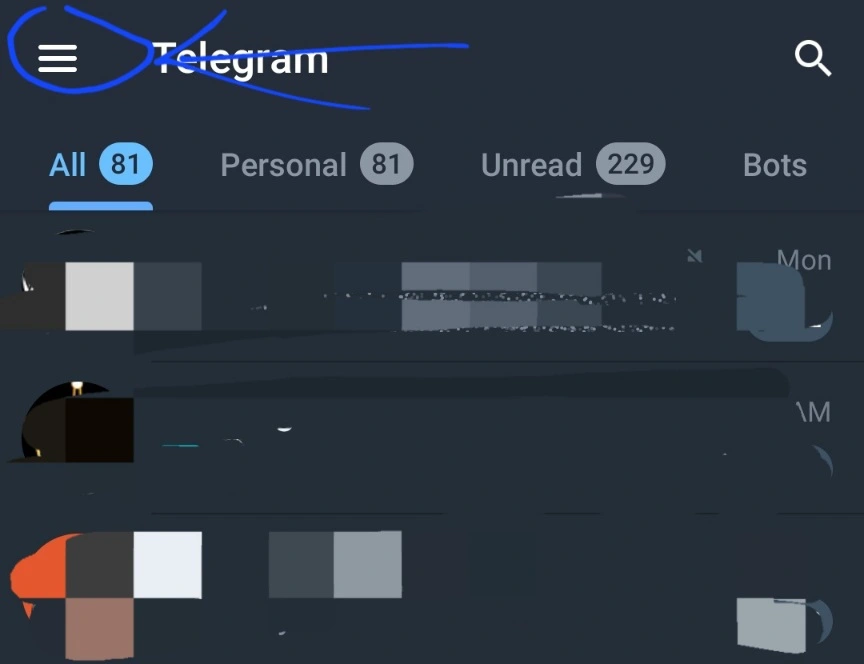
- Open the Telegram app on your Android smartphone.
- Tap on the hamburger menu at the top left corner.

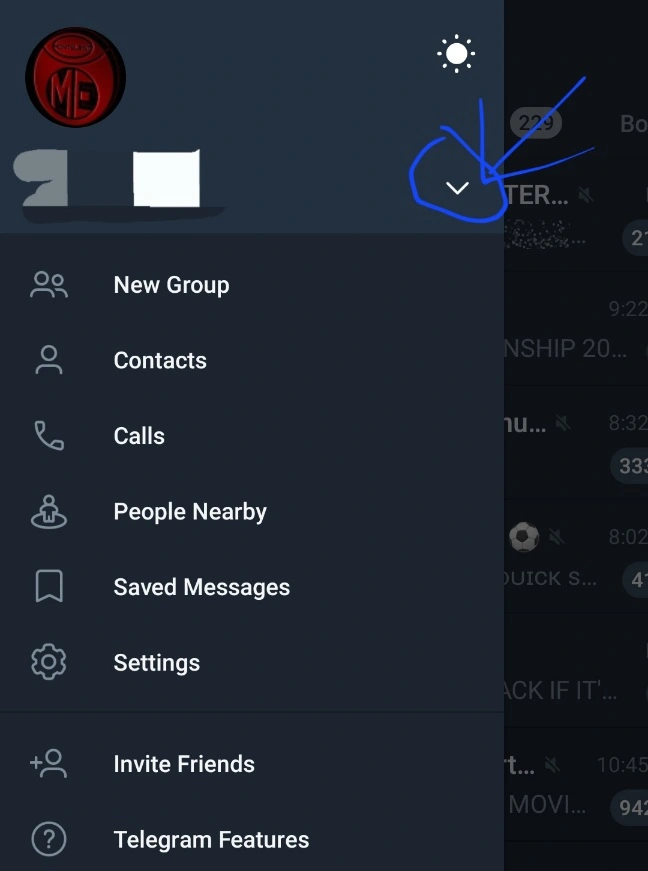
- You need to tap on the drop-down beside your phone number.

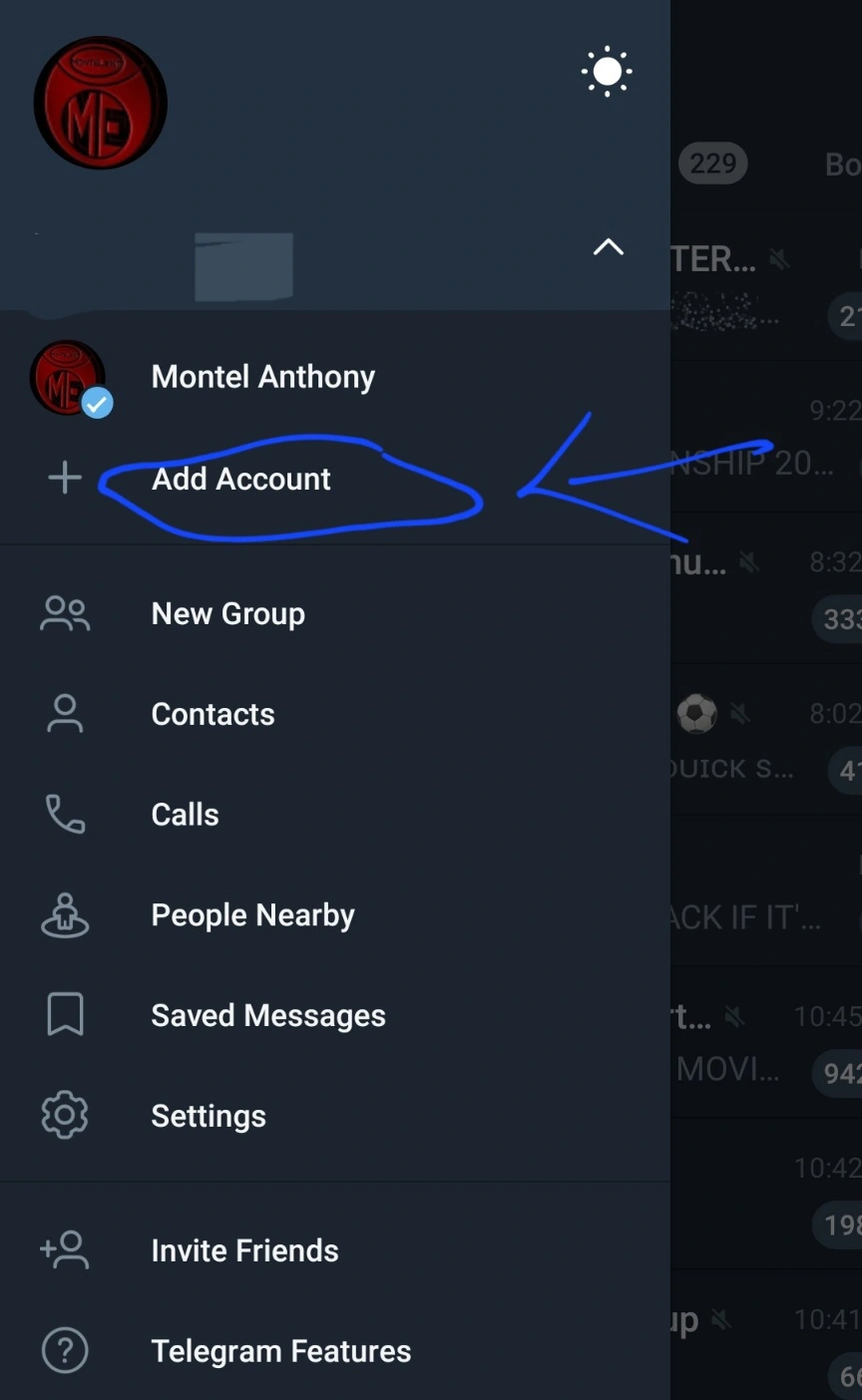
- On the expanded menu, select Add Account.

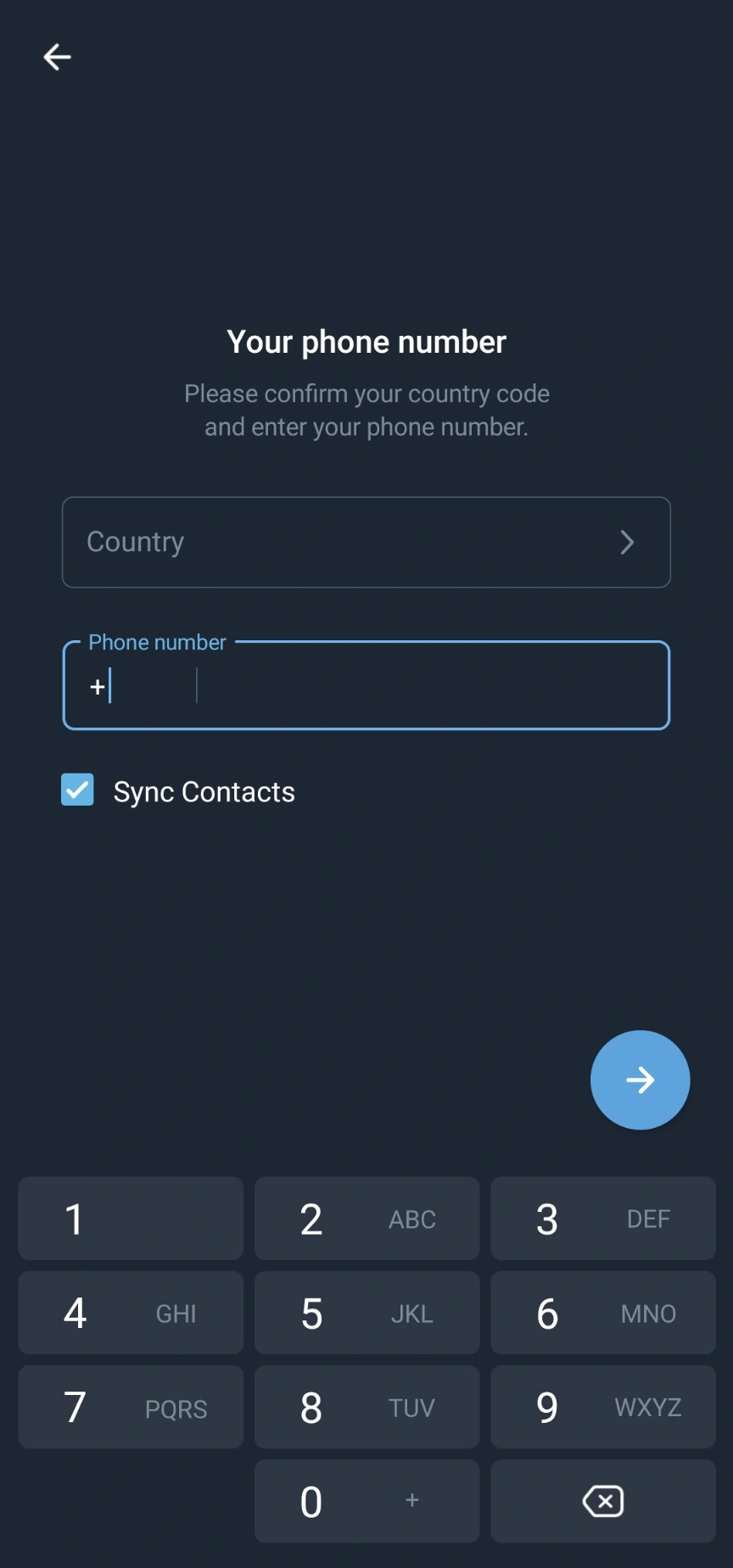
- Now, you will be asked to enter your phone number. Enter your phone number and tap on the Next arrow icon.

- You will receive a verification code via SMS or a phone call. Enter the code and tap on Next.
- You will be asked to enter your name and profile picture. You can also skip this step and do it later.
- Congratulations! You have added a new account on Telegram for Android.
To switch between your accounts, you can follow the same steps as above and select the account you want from the drop-down menu.
To remove an account from your device, you can follow these steps:
- Open the Telegram app and go to the account you want to remove.
- Tap on the hamburger menu at the top left corner.
- Tap on Settings.
- Tap on Privacy and Security.
- Scroll down and tap on Delete Account.
- You will be asked to confirm your action. Tap on Delete My Account.
- Your account will be removed from your device and all your messages and data will be deleted.
How to Use Multiple Telegram Accounts on iPhone?
If you are using an iPhone, here are the steps to add multiple accounts on Telegram:
- Open the Telegram app on your iPhone.
- When the app opens, tap the Settings gear icon at the bottom right corner.
- Next, tap on your Telegram name & number at the top.
- On the Edit profile screen, tap on Add Account.
- Now enter the phone number you want to add and tap on Next.
- You will receive a verification code via SMS or a phone call. Enter the code and tap on Next.
- You will be asked to enter your name and profile picture. You can also skip this step and do it later.
- Congratulations! You have added a new account on Telegram for iPhone.
To switch between your accounts, you can follow these steps:
- Open the Telegram app and tap on the Settings gear icon at the bottom right corner.
- Tap on your Telegram name & number at the top.
- You will see a list of your accounts. Tap on the account you want to switch to.
- You will be taken to the chat screen of that account.
To remove an account from your device, you can follow these steps:
- Open the Telegram app and go to the account you want to remove.
- Tap on the Settings gear icon at the bottom right corner.
- Tap on Edit Profile.
- Tap on Delete Account at the bottom.
- You will be asked to confirm your action. Tap on Delete My Account.
- Your account will be removed from your device and all your messages and data will be deleted.
How to Use Multiple Telegram Accounts on Desktop?
If you are using a desktop computer, here are the steps to add multiple accounts on Telegram:
- Open the Telegram desktop app.
- When the desktop app opens, tap on the hamburger menu at the top left corner.
- You need to tap on the drop-down beside your Account name.
- You will see a list of your accounts. To add a new account, tap on Add Account at the bottom.
- You will be asked to scan the QR code from the mobile app.
- You need to open the Telegram account you want to link to your desktop and then scan the QR code from Settings > Privacy and Security > Devices > Link Desktop Device.
- You will see a confirmation message on your desktop app. Tap on OK.
- Congratulations! You have added a new account on Telegram for Desktop.
To switch between your accounts, you can follow these steps:
- Open the Telegram desktop app and tap on the hamburger menu at the top left corner.
- Tap on the drop-down beside your Account name.
- You will see a list of your accounts. Tap on the account you want to switch to.
- You will be taken to the chat screen of that account.
To remove an account from your device, you can follow these steps:
- Open the Telegram desktop app and go to the account you want to remove.
- Tap on the hamburger menu at the top left corner.
- Tap on Settings.
- Tap on Privacy and Security.
- Scroll down and tap on Delete Account.
- You will be asked to confirm your action. Tap on Delete My Account.
- Your account will be removed from your device and all your messages and data will be deleted.
Conclusion
Using multiple accounts on Telegram can be very handy for different purposes. You can easily add up to three accounts on your device and switch between them without any hassle. You can also remove them if you don’t need them anymore.
Here are some tips and best practices for using multiple accounts on Telegram:
- Use different profile pictures and names for each account to avoid confusion.
- Enable notifications for all your accounts so you don’t miss any important messages or updates.
- Use different themes or colors for each account to customize your experience.
- Use different passwords or passcodes for each account to enhance your security.
We hope this article helped you learn how to add multiple accounts on Telegram for Android, iPhone, and Desktop. If you have any questions or feedback, feel free to leave a comment below.
If you liked this article, please share it with your friends and family who use Telegram. Also, don’t forget to subscribe to our blog for more tips and tricks on how to use Telegram like a pro.
Thank you for reading!
Discover more from Cloudorian — Android, Samsung & Windows How-To Guides
Subscribe to get the latest posts sent to your email.



