Last Updated on 13 Jul, 2026 by Montel Anthony
Let me ask you something: How many browser windows do you have open right now? Three? Five? A dozen? If you’re like most professionals, your screen is a chaotic mosaic of overlapping tabs, each one representing a task you promised yourself you’d get to.
What if I told you that Google has been quietly testing a solution that could eliminate up to 80% of your window-switching? And no, it’s not another extension you’ll forget to install.
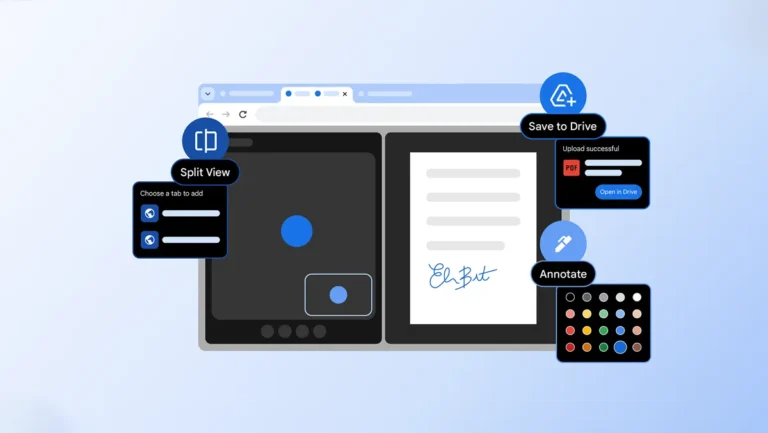
Last week, Google rolled out three new Chrome features that fundamentally change how we work in the browser. Early testers are calling it “the productivity upgrade we didn’t know we were waiting for.” Here’s what you’re missing:
1. Split View: The End of Tab Juggling
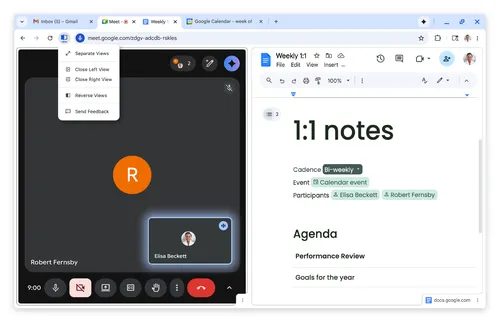
Remember the last time you tried to reference a document while writing an email? Or watch a tutorial while taking notes? You probably did what everyone does: opened two windows, resized them manually, and hoped they stayed put.
Chrome’s new Split View changes everything. With a single click, you can view two tabs side-by-side in the same window. No more manual resizing. No more losing your layout when you accidentally close a window.
Real-world use cases from early testers:
- Teachers grading papers while referencing rubrics
- Developers coding while reading documentation
- Students taking notes on video lectures
- Professionals comparing data across two dashboards
The feature is built directly into Chrome — no extensions, no downloads, no configuration. It’s just there when you need it.
2. PDF Annotations: No More Download Dance
Here’s a scenario that plays out millions of times every day: You receive a PDF that needs a quick signature or a highlighted section. So you download it, hunt for it in your Downloads folder, open it in a separate application, make your changes, save it, and re-upload it.
Chrome’s new PDF annotation feature eliminates this entire workflow. Now you can highlight text and add notes directly in the browser. No downloads. No separate apps. No file hunting.
What you can do right in Chrome now:
- Highlight key sections with customizable colors
- Add text notes and comments anywhere on the document
- Apply quick digital signatures
- Review and mark up work reports, contracts, and syllabi
It’s the kind of feature that makes you wonder why it wasn’t there all along.
3. Save to Google Drive: Never Lose a File Again
We’ve all been there. You download an important PDF, tell yourself you’ll organize it later, and then spend 20 minutes searching for it three days later. Was it in Downloads? Documents? The desktop?
Chrome’s new “Save to Google Drive” feature solves this problem elegantly. When you choose to save a PDF to Drive, it automatically lands in a dedicated “Saved from Chrome” folder. Your files are instantly backed up, organized, and searchable from any device.
The benefits are immediate:
- No more download-and-re-upload steps
- Automatic organization in a dedicated folder
- Access from any device with your Google account
- Built-in searchability across all saved files
The Bottom Line
These three features — Split View, PDF Annotations, and Save to Google Drive, represent more than just incremental updates. They signal a fundamental shift in how Chrome thinks about productivity.
Google isn’t just building a browser anymore. They’re building a workspace that happens to live in a browser. And with these new tools, that workspace just got significantly more powerful.
The best part? All three features are rolling out now to Chrome users worldwide. No waiting. No special access. Just open Chrome and start working smarter.
Have you tried any of these new features? Share your experience in the comments below.
Source: Google Keyword Blog – Chrome Productivity Improvements
Discover more from Cloudorian — Android, Samsung & Windows How-To Guides
Subscribe to get the latest posts sent to your email.
